
arduino-pico v6.1.0
Raspberry Pi Pico Arduino核心,适用于所有RP2040和RP2350开发板
Arduino-Pico


适用于所有 RP2040 和 RP2350 开发板的 Raspberry Pi Pico Arduino 核心
这是将 Arduino 移植到 RP2040(Raspberry Pi Pico 处理器)和 RP2350(Raspberry Pi Pico 2 处理器)的项目。它使用裸 Raspberry Pi Pico SDK 和自定义的 GCC 16.1/Newlib 4.6 工具链,并支持 ARM 和 RISC-V 内核。
文档
请参阅 https://arduino-pico.readthedocs.io/en/latest/ 以及示例以获取更详细的使用信息。
贡献
阅读贡献指南以获取有关提交拉取请求以及将库或草图移植到此核心的更多信息。
支持的开发板
- Raspberry Pi Pico
- Raspberry Pi Pico W
- Raspberry Pi Pico 2
- Raspberry Pi Pico 2W
- 0xCB Helios
- Adafruit Feather RP2040
- Adafruit Feather RP2040 SCORPIO
- Adafruit Feather RP2040 DVI
- Adafruit Feather RP2040 Adalogger
- Adafruit Feather RP2040 RFM
- Adafruit Feather RP2040 ThinkINK
- Adafruit Feather RP2040 USB Host
- Adafruit Feather RP2040 CAN
- Adafruit Feather RP2040 Prop-Maker
- Adafruit ItsyBitsy RP2040
- Adafruit Metro RP2040
- Adafruit QT Py RP2040
- Adafruit STEMMA Friend RP2040
- Adafruit Trinkey RP2040 QT
- Adafruit MacroPad RP2040
- Adafruit KB2040
- Adafruit Feather RP2350 Adalogger
- Adafruit Feather RP2350 HSTX
- Adafruit Floppsy
- Adafruit Metro RP2350
- Adafruit Fruit Jam RP2350
- Amken BunnyBoard
- Amken Revelop
- Amken Revelop Plus
- Amken Revelop eS
- Architeuthis Flux Jumperless
- Architeuthis Flux Jumperless V5
- Arduino Nano RP2040 Connect
- ArtronShop RP2 Nano
- BIGTREETECH SKR-Pico
- Breadstick Raspberry
- BridgeTek IDM2040-7A
- BridgeTek IDM2040-43A
- Cytron IRIV IO Controller
- Cytron Maker Nano RP2040
- Cytron Maker Pi RP2040
- Cytron Maker Uno RP2040
- Cytron Motion 2350 Pro
- Cytron Maker Sumo RP2350
- DatanoiseTV PicoADK
- DatanoiseTV PicoADK v2
- Degz Robotics Suibo RP2040
- DeRuiLab FlyBoard2040Core
- DFRobot Beetle RP2040
- L'atelier d'Arnoz DudesCab
- ElectronicCats HunterCat NFC RP2040
- EVN Alpha
- ExtremeElectronics RC2040
- GeeekPi RP2040 Plus
- GroundStudio Marble Pico
- iLabs Challenger 2040 LTE
- iLabs Challenger 2040 LoRa
- iLabs Challenger 2040 SubGHz
- iLabs Challenger 2040 WiFi
- iLabs Challenger 2040 WiFi/BLE
- iLabs Challenger 2040 WiFi6/BLE
- iLabs Challenger NB 2040 WiFi
- iLabs Challenger 2040 SD/RTC
- iLabs Challenger 2040 NFC
- iLabs Challenger 2040 UWB
- iLabs Connectivity 2040 LTE/WiFi/BLE
- iLabs RPICO32
- iLabs Challenger 2350 WiFi/BLE
- iLabs Challenger 2350 BConnect
- iLabs Challenger 2350 NB-IoT
- iLabs Challenger ZP 2350 LoRa
- iLabs CPico 2350
- Makerbase MKS THR36
- Makerbase MKS THR42
- Melopero Cookie RP2040
- Melopero Shake RP2040
- METE HOCA Akana R1
- MyMakers RP2040
- MyMakers RP2350B
- Neko Systems BL2040 Mini
- Newsan Archi
- nullbits Bit-C PRO
- Olimex Pico2BB48
- Olimex Pico2XL
- Olimex Pico2XXL
- Olimex RP2040-Pico30
- Pcbcupid GLYPH 2040
- Pcbcupid GLYPH MINI 2040
- PicoLume Transceiver
- Pimoroni PGA2040
- Pimoroni PGA2350
- Pimoroni PicoPlus2
- Pimoroni PicoPlus2W
- Pimoroni Plasma2040
- Pimoroni Plasma2350
- Pimoroni Plasma2350W
- Pimoroni Servo2040
- Pimoroni Tiny2040
- Pimoroni Tiny2350
- Pimoroni Explorer
- Pintronix PinMax
- RAKwireless RAK11300
- redscorp RP2040-Eins
- redscorp RP2040-ProMini
- Generic Sea-Picro
- Silicognition RP2040-Shim
- Solder Party RP2040 Stamp
- Solder Party RP2350 Stamp
- Solder Party RP2350 Stamp XL
- Soldered Electronics NULA RP2350
- Soldered Electronics NULA Ethernet W55RP20
- Soldered Electronics NULA Node
- SparkFun IoT RedBoard RP2350
- SparkFun MicroMod RP2040
- SparkFun ProMicro RP2040
- SparkFun ProMicro RP2350
- SparkFun Thing Plus RP2040
- SparkFun Thing Plus RP2350
- SparkFun IoT Node LoRaWAN
- SparkFun XRP Controller (Beta)
- SparkFun XRP Controller
- Seeed INDICATOR RP2040
- Seeed XIAO RP2040
- Seeed XIAO RP2040 Plus
- Seeed XIAO RP2350
- uPesy RP2040 DevKit
- VCC-GND YD RP2040
- Vicharak Shrike-Lite
- Viyalab Mizu RP2040
- Waveshare RP2040 Zero
- Waveshare RP2040 One
- Waveshare RP2040 LoRa
- Waveshare RP2040 Matrix
- Waveshare RP2040 PiZero
- Waveshare RP2040 Plus
- Waveshare RP2040 LCD 0.96
- Waveshare RP2040 LCD 1.28
- Waveshare RP2350 Core
- Waveshare RP2350 Zero
- Waveshare RP2350 PiZero
- Waveshare RP2350 Plus
- Waveshare RP2350B Plus W
- Waveshare RP2350 LCD 0.96
- Waveshare RP2350-POE-ETH
- WeAct Studio RP2350B Core Board
- WIZnet W5100S-EVB-Pico
- WIZnet W5100S-EVB-Pico2
- WIZnet W5500-EVB-Pico
- WIZnet W5500-EVB-Pico2
- WIZnet W55RP20-EVB-Pico
- WIZnet W6300-EVB-Pico
- WIZnet W6300-EVB-Pico2
- WIZnet WizFi360-EVB-Pico
- Generic RP2040
- Generic RP2350
特性
- Adafruit TinyUSB Arduino(USB 鼠标、键盘、闪存驱动器、通用 HID、CDC 串口、MIDI、WebUSB 等)
- PicoW 上的蓝牙(经典和 BLE),支持键盘、鼠标、操纵杆和虚拟串口
- 蓝牙经典和 BLE HID 主机模式(连接到 BT 键盘、鼠标或操纵杆)
- 通用 Arduino USB 串口、键盘、操纵杆和鼠标仿真
- WiFi(Pico W、基于 ESP32 的 ESPHost、Atmel WINC1500)
- 以太网(有线 WizNet W6300、WizNet W6100、WizNet W5500、WizNet W5100、ENC28J60)
- HTTP 客户端和服务器(WebServer)
- SSL/TLS/HTTPS
- 空中(OTA)升级
- 文件系统(LittleFS 和 SD/SDFS)
- 多核支持(setup1() 和 loop1())
- FreeRTOS SMP 支持
- 通过菜单进行超频和降频
- digitalWrite/Read、shiftIn/Out、tone、analogWrite(PWM)/Read、温度
- 使用 DMA 和内置 ADC 的模拟立体声音频输入
- 使用 PWM 硬件的模拟立体声音频输出
- PicoW 上的蓝牙 A2DP 音频源(输出)和接收器(输入)
- 用于数据记录器的 USB 驱动器模式(SingleFileDrive、FatFSUSB)
- 外设:SPI 主/从、Wire(I2C) 主/从、双 UART、仿真 EEPROM、I2S 音频输入/输出、Servo
- 通过 USB 串口的 printf(即调试)输出
- 透明使用 PSRAM 全局变量和堆(仅限 RP2350)
- RP2350 支持 ARM 或 RISC-V(Hazard3)
- 半主机串口和文件系统访问
- GPROF 性能分析支持
RP2040 PIO 状态机(SM)用于生成无抖动的:
- 舵机
- 音调
- I2S 输入
- I2S 输出
- 软件 UART(串口)
- 软件 SPI
通过 Arduino 开发板管理器安装
Windows 特定说明
请不要使用 Windows 商店版本的 Arduino 应用程序,因为它在检测连接的 Pico 开发板时存在问题。请直接从 https://arduino.cc 下载“Windows ZIP”或普通的“Windows”可执行文件(EXE),并允许它安装其建议的任何设备驱动程序。否则 Pico 开发板可能无法被检测到。另外,如果尝试 2.0 beta 版 Arduino,请事先安装 1.8 发行版以确保所需的设备驱动程序存在。(有关更多详细信息,请参阅 #20。)
Linux 特定说明
使用 flatpak 安装 Arduino(各种 Linux 发行版的“应用商店”经常使用)意味着它对主机的访问受到限制。这可能导致上传失败,并出现如下错误消息:
Scanning for RP2040 devices
...
No drive to deploy.
如果遇到这种情况,您需要以其他方式安装 Arduino,或者使用以下命令覆盖 flatpak 沙箱功能,然后重新启动 Arduino。
flatpak override --user --filesystem=host:ro cc.arduino.IDE2
安装
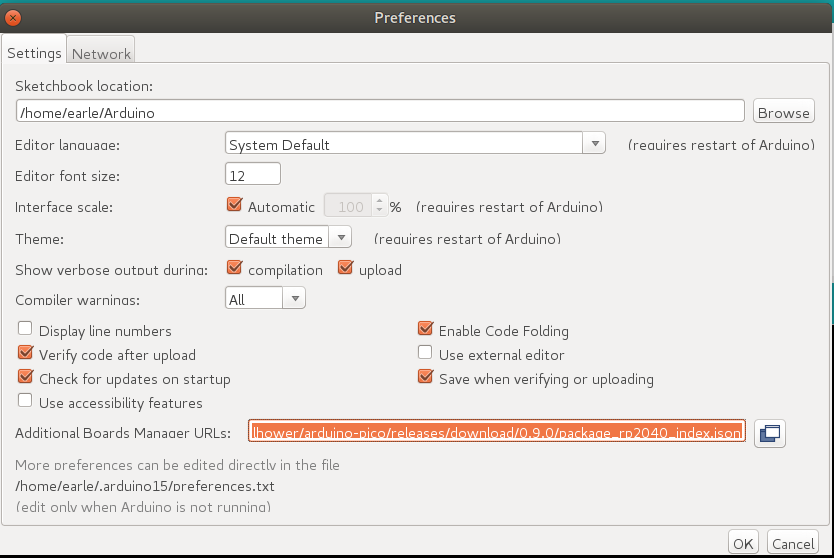
打开 Arduino IDE 并转到 File->Preferences。
在弹出的对话框中,在“Additional Boards Manager URLs”字段中输入以下 URL:
https://github.com/earlephilhower/arduino-pico/releases/download/global/package_rp2040_index.json
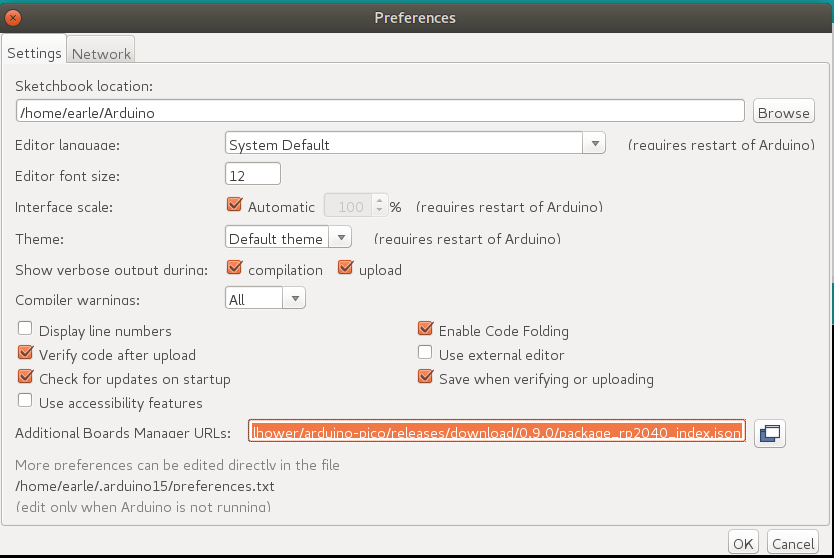
点击 OK 关闭对话框。
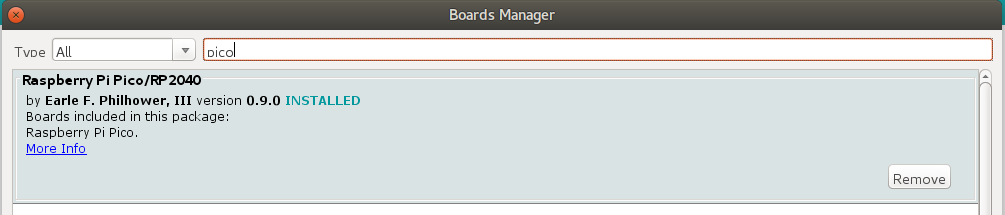
在 IDE 中转到 Tools->Boards->Board Manager
在搜索框中输入“pico”并选择“Add”:
通过 GIT 安装
Windows 用户: 在 Windows 上通过 git 安装之前,请阅读并遵循
此链接中的说明。
如果未启用 Win32 长路径,并且 git 未配置为使用它们,则在尝试克隆子模块时可能会出现错误。
要在 Linux 或 Mac 下通过 GIT 安装(获取最新最好的版本):
mkdir -p ~/Arduino/hardware/pico
git clone https://github.com/earlephilhower/arduino-pico.git ~/Arduino/hardware/pico/rp2040
cd ~/Arduino/hardware/pico/rp2040
git submodule update --init --recursive
cd tools
python3 ./get.py
对于 Windows,您需要已安装 Python,并在不同的路径中进行 git clone:
mkdir %USERPROFILE%\Documents\Arduino\hardware\pico
git clone https://github.com/earlephilhower/arduino-pico.git %USERPROFILE%\Documents\Arduino\hardware\pico\rp2040
cd %USERPROFILE%\Documents\Arduino\hardware\pico\rp2040
git submodule update --init --recursive
cd tools
python .\get.py
上传草图
要上传您的第一个草图,您需要在将 Pico 插入计算机时按住 BOOTSEL 按钮。 然后点击上传按钮,草图应该会被传输并开始运行。
首次上传后,这应该不再必要,因为 arduino-pico 核心具有自动重置支持。
在 Arduino Tools->Port->Serial Port 菜单中选择显示的相应串口一次(此设置将保持不变,多次上传无需再次调整)。此选择允许自动重置工具识别要重置的正确设备。
然后点击上传按钮,您的草图应该会上传并运行。
在某些情况下,Pico 会遇到硬挂起,其 USB 端口将不响应自动重置请求。如果发生这种情况,只需按照初始步骤,在将 Pico 插入时按住 BOOTSEL 按钮以进入 ROM 引导加载程序。