# Arduino-Pico
[](https://github.com/earlephilhower/arduino-pico/releases)
[](https://gitter.im/arduino-pico/community)
适用于所有 RP2040 和 RP2350 开发板的 Raspberry Pi Pico Arduino 核心
这是将 Arduino 移植到 RP2040(Raspberry Pi Pico 处理器)和 RP2350(Raspberry Pi Pico 2 处理器)的项目。它使用裸 Raspberry Pi Pico SDK 和自定义的 GCC 16.1/Newlib 4.6 工具链,并支持 ARM 和 RISC-V 内核。
# 文档
请参阅 https://arduino-pico.readthedocs.io/en/latest/ 以及示例以获取更详细的使用信息。
# 贡献
阅读[贡献指南](https://github.com/earlephilhower/arduino-pico/blob/master/docs/contrib.rst)以获取有关提交拉取请求以及将库或草图移植到此核心的更多信息。
# 支持的开发板
* Raspberry Pi Pico
* Raspberry Pi Pico W
* Raspberry Pi Pico 2
* Raspberry Pi Pico 2W
* 0xCB Helios
* Adafruit Feather RP2040
* Adafruit Feather RP2040 SCORPIO
* Adafruit Feather RP2040 DVI
* Adafruit Feather RP2040 Adalogger
* Adafruit Feather RP2040 RFM
* Adafruit Feather RP2040 ThinkINK
* Adafruit Feather RP2040 USB Host
* Adafruit Feather RP2040 CAN
* Adafruit Feather RP2040 Prop-Maker
* Adafruit ItsyBitsy RP2040
* Adafruit Metro RP2040
* Adafruit QT Py RP2040
* Adafruit STEMMA Friend RP2040
* Adafruit Trinkey RP2040 QT
* Adafruit MacroPad RP2040
* Adafruit KB2040
* Adafruit Feather RP2350 Adalogger
* Adafruit Feather RP2350 HSTX
* Adafruit Floppsy
* Adafruit Metro RP2350
* Adafruit Fruit Jam RP2350
* Amken BunnyBoard
* Amken Revelop
* Amken Revelop Plus
* Amken Revelop eS
* Architeuthis Flux Jumperless
* Architeuthis Flux Jumperless V5
* Arduino Nano RP2040 Connect
* ArtronShop RP2 Nano
* BIGTREETECH SKR-Pico
* Breadstick Raspberry
* BridgeTek IDM2040-7A
* BridgeTek IDM2040-43A
* Cytron IRIV IO Controller
* Cytron Maker Nano RP2040
* Cytron Maker Pi RP2040
* Cytron Maker Uno RP2040
* Cytron Motion 2350 Pro
* Cytron Maker Sumo RP2350
* DatanoiseTV PicoADK
* DatanoiseTV PicoADK v2
* Degz Robotics Suibo RP2040
* DeRuiLab FlyBoard2040Core
* DFRobot Beetle RP2040
* L'atelier d'Arnoz DudesCab
* ElectronicCats HunterCat NFC RP2040
* EVN Alpha
* ExtremeElectronics RC2040
* GeeekPi RP2040 Plus
* GroundStudio Marble Pico
* iLabs Challenger 2040 LTE
* iLabs Challenger 2040 LoRa
* iLabs Challenger 2040 SubGHz
* iLabs Challenger 2040 WiFi
* iLabs Challenger 2040 WiFi/BLE
* iLabs Challenger 2040 WiFi6/BLE
* iLabs Challenger NB 2040 WiFi
* iLabs Challenger 2040 SD/RTC
* iLabs Challenger 2040 NFC
* iLabs Challenger 2040 UWB
* iLabs Connectivity 2040 LTE/WiFi/BLE
* iLabs RPICO32
* iLabs Challenger 2350 WiFi/BLE
* iLabs Challenger 2350 BConnect
* iLabs Challenger 2350 NB-IoT
* iLabs Challenger ZP 2350 LoRa
* iLabs CPico 2350
* Makerbase MKS THR36
* Makerbase MKS THR42
* Melopero Cookie RP2040
* Melopero Shake RP2040
* METE HOCA Akana R1
* MyMakers RP2040
* MyMakers RP2350B
* Neko Systems BL2040 Mini
* Newsan Archi
* nullbits Bit-C PRO
* Olimex Pico2BB48
* Olimex Pico2XL
* Olimex Pico2XXL
* Olimex RP2040-Pico30
* Pcbcupid GLYPH 2040
* Pcbcupid GLYPH MINI 2040
* PicoLume Transceiver
* Pimoroni PGA2040
* Pimoroni PGA2350
* Pimoroni PicoPlus2
* Pimoroni PicoPlus2W
* Pimoroni Plasma2040
* Pimoroni Plasma2350
* Pimoroni Plasma2350W
* Pimoroni Servo2040
* Pimoroni Tiny2040
* Pimoroni Tiny2350
* Pimoroni Explorer
* Pintronix PinMax
* RAKwireless RAK11300
* redscorp RP2040-Eins
* redscorp RP2040-ProMini
* Generic Sea-Picro
* Silicognition RP2040-Shim
* Solder Party RP2040 Stamp
* Solder Party RP2350 Stamp
* Solder Party RP2350 Stamp XL
* Soldered Electronics NULA RP2350
* Soldered Electronics NULA Ethernet W55RP20
* Soldered Electronics NULA Node
* SparkFun IoT RedBoard RP2350
* SparkFun MicroMod RP2040
* SparkFun ProMicro RP2040
* SparkFun ProMicro RP2350
* SparkFun Thing Plus RP2040
* SparkFun Thing Plus RP2350
* SparkFun IoT Node LoRaWAN
* SparkFun XRP Controller (Beta)
* SparkFun XRP Controller
* Seeed INDICATOR RP2040
* Seeed XIAO RP2040
* Seeed XIAO RP2040 Plus
* Seeed XIAO RP2350
* uPesy RP2040 DevKit
* VCC-GND YD RP2040
* Vicharak Shrike-Lite
* Viyalab Mizu RP2040
* Waveshare RP2040 Zero
* Waveshare RP2040 One
* Waveshare RP2040 LoRa
* Waveshare RP2040 Matrix
* Waveshare RP2040 PiZero
* Waveshare RP2040 Plus
* Waveshare RP2040 LCD 0.96
* Waveshare RP2040 LCD 1.28
* Waveshare RP2350 Core
* Waveshare RP2350 Zero
* Waveshare RP2350 PiZero
* Waveshare RP2350 Plus
* Waveshare RP2350B Plus W
* Waveshare RP2350 LCD 0.96
* Waveshare RP2350-POE-ETH
* WeAct Studio RP2350B Core Board
* WIZnet W5100S-EVB-Pico
* WIZnet W5100S-EVB-Pico2
* WIZnet W5500-EVB-Pico
* WIZnet W5500-EVB-Pico2
* WIZnet W55RP20-EVB-Pico
* WIZnet W6300-EVB-Pico
* WIZnet W6300-EVB-Pico2
* WIZnet WizFi360-EVB-Pico
* Generic RP2040
* Generic RP2350
# 特性
* Adafruit TinyUSB Arduino(USB 鼠标、键盘、闪存驱动器、通用 HID、CDC 串口、MIDI、WebUSB 等)
* PicoW 上的蓝牙(经典和 BLE),支持键盘、鼠标、操纵杆和虚拟串口
* 蓝牙经典和 BLE HID 主机模式(连接到 BT 键盘、鼠标或操纵杆)
* 通用 Arduino USB 串口、键盘、操纵杆和鼠标仿真
* WiFi(Pico W、基于 ESP32 的 ESPHost、Atmel WINC1500)
* 以太网(有线 WizNet W6300、WizNet W6100、WizNet W5500、WizNet W5100、ENC28J60)
* HTTP 客户端和服务器(WebServer)
* SSL/TLS/HTTPS
* 空中(OTA)升级
* 文件系统(LittleFS 和 SD/SDFS)
* 多核支持(setup1() 和 loop1())
* FreeRTOS SMP 支持
* 通过菜单进行超频和降频
* digitalWrite/Read、shiftIn/Out、tone、analogWrite(PWM)/Read、温度
* 使用 DMA 和内置 ADC 的模拟立体声音频输入
* 使用 PWM 硬件的模拟立体声音频输出
* PicoW 上的蓝牙 A2DP 音频源(输出)和接收器(输入)
* 用于数据记录器的 USB 驱动器模式(SingleFileDrive、FatFSUSB)
* 外设:SPI 主/从、Wire(I2C) 主/从、双 UART、仿真 EEPROM、I2S 音频输入/输出、Servo
* 通过 USB 串口的 printf(即调试)输出
* 透明使用 PSRAM 全局变量和堆(仅限 RP2350)
* RP2350 支持 ARM 或 RISC-V(Hazard3)
* 半主机串口和文件系统访问
* GPROF 性能分析支持
RP2040 PIO 状态机(SM)用于生成无抖动的:
* 舵机
* 音调
* I2S 输入
* I2S 输出
* 软件 UART(串口)
* 软件 SPI
# 通过 Arduino 开发板管理器安装
## Windows 特定说明
请不要使用 Windows 商店版本的 Arduino 应用程序,因为它在检测连接的 Pico 开发板时存在问题。请直接从 https://arduino.cc 下载“Windows ZIP”或普通的“Windows”可执行文件(EXE),并允许它安装其建议的任何设备驱动程序。否则 Pico 开发板可能无法被检测到。另外,如果尝试 2.0 beta 版 Arduino,请事先安装 1.8 发行版以确保所需的设备驱动程序存在。(有关更多详细信息,请参阅 #20。)
## Linux 特定说明
使用 flatpak 安装 Arduino(各种 Linux 发行版的“应用商店”经常使用)意味着它对主机的访问受到限制。这可能导致上传失败,并出现如下错误消息:
```
Scanning for RP2040 devices
...
No drive to deploy.
```
如果遇到这种情况,您需要以其他方式安装 Arduino,或者使用以下命令覆盖 flatpak 沙箱功能,然后重新启动 Arduino。
```
flatpak override --user --filesystem=host:ro cc.arduino.IDE2
```
## 安装
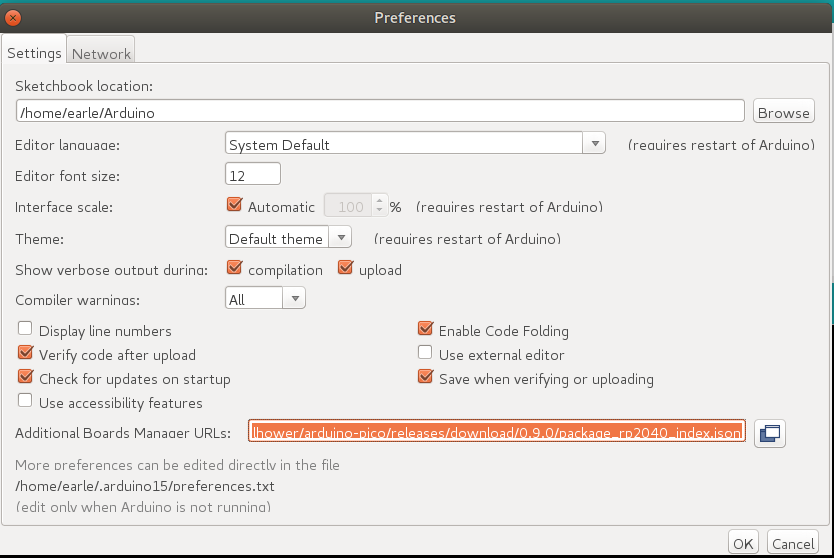
打开 Arduino IDE 并转到 File->Preferences。
在弹出的对话框中,在“Additional Boards Manager URLs”字段中输入以下 URL:
https://github.com/earlephilhower/arduino-pico/releases/download/global/package_rp2040_index.json
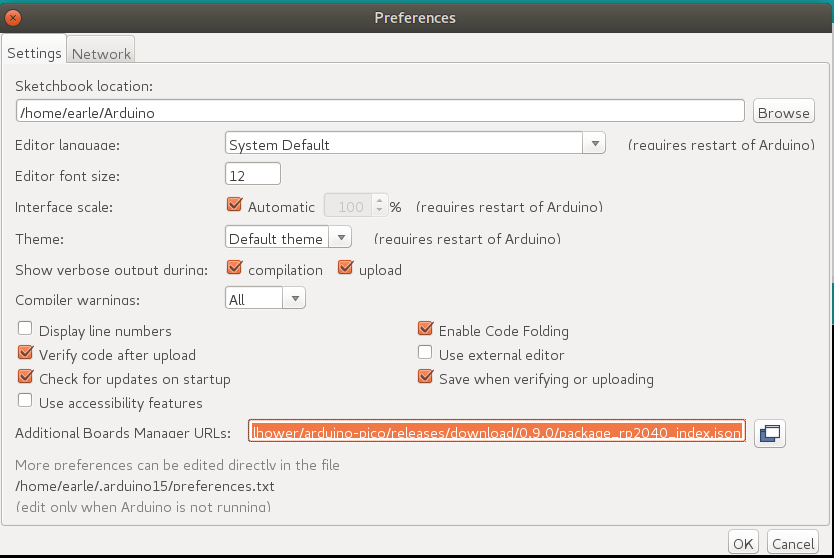
点击 OK 关闭对话框。
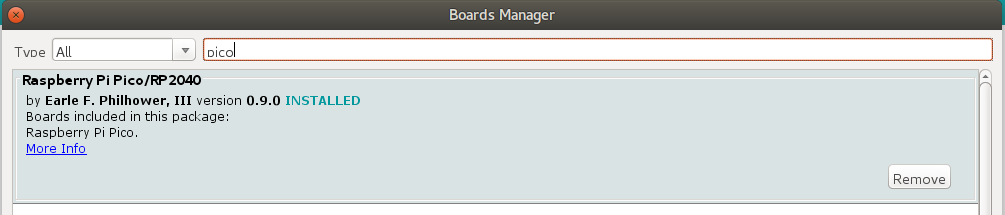
在 IDE 中转到 Tools->Boards->Board Manager
在搜索框中输入“pico”并选择“Add”:
# 通过 GIT 安装
**Windows 用户:** 在 Windows 上通过 `git` 安装之前,请阅读并遵循
[此链接](https://arduino-pico.readthedocs.io/en/latest/platformio.html#important-steps-for-windows-users-before-installing)中的说明。
如果未启用 Win32 长路径,并且 `git` 未配置为使用它们,则在尝试克隆子模块时可能会出现错误。
要在 Linux 或 Mac 下通过 GIT 安装(获取最新最好的版本):
````
mkdir -p ~/Arduino/hardware/pico
git clone https://github.com/earlephilhower/arduino-pico.git ~/Arduino/hardware/pico/rp2040
cd ~/Arduino/hardware/pico/rp2040
git submodule update --init --recursive
cd tools
python3 ./get.py
`````
对于 Windows,您需要已安装 Python,并在不同的路径中进行 git clone:
````
mkdir %USERPROFILE%\Documents\Arduino\hardware\pico
git clone https://github.com/earlephilhower/arduino-pico.git %USERPROFILE%\Documents\Arduino\hardware\pico\rp2040
cd %USERPROFILE%\Documents\Arduino\hardware\pico\rp2040
git submodule update --init --recursive
cd tools
python .\get.py
````
# 上传草图
要上传您的第一个草图,您需要在将 Pico 插入计算机时按住 BOOTSEL 按钮。
然后点击上传按钮,草图应该会被传输并开始运行。
首次上传后,这应该不再必要,因为 `arduino-pico` 核心具有自动重置支持。
在 Arduino Tools->Port->Serial Port 菜单中选择显示的相应串口一次(此设置将保持不变,多次上传无需再次调整)。此选择允许自动重置工具识别要重置的正确设备。
然后点击上传按钮,您的草图应该会上传并运行。
在某些情况下,Pico 会遇到硬挂起,其 USB 端口将不响应自动重置请求。如果发生这种情况,只需按照初始步骤,在将 Pico 插入时按住 BOOTSEL 按钮以进入 ROM 引导加载程序。
# 上传文件系统映像
Pico 的板载闪存文件系统 LittleFS 允许您从草图的目录中上传文件系统映像供草图使用。从以下地址下载所需的插件
* https://github.com/earlephilhower/arduino-pico-littlefs-plugin/releases
要安装,请遵循以下地址中的说明
* https://github.com/earlephilhower/arduino-pico-littlefs-plugin/blob/master/README.md
有关详细的使用信息,请查看 ESP8266 仓库文档(忽略与 SPIFFS 相关的说明),地址为
* https://arduino-pico.readthedocs.io/en/latest/fs.html
# 使用 Picoprobe/Debugprobe 上传草图
如果您已经构建了 Raspberry Pi Picoprobe,您可以使用 OpenOCD 来处理草图上传以及使用 GDB 进行调试。
在 Windows 下,本地管理员用户应该能够自动访问 Picoprobe 端口,但在 Linux 下必须告知 `udev` 有关该设备的信息并允许普通用户访问。
要在 Ubuntu(以及其他使用 `udev` 的操作系统)上设置 Picoprobe 的用户级访问:
````
echo 'SUBSYSTEM=="usb", ATTRS{idVendor}=="2e8a", ATTRS{idProduct}=="0004", MODE="660", GROUP-"plugdev"' | sudo tee -a /etc/udev/rules.d/98-PicoProbe.rules
echo 'SUBSYSTEM=="usb", ATTRS{idVendor}=="2e8a", ATTRS{idProduct}=="000a", MODE="660", GROUP="plugdev"' | sudo tee -a /etc/udev/rules.d/98-PicoProbe.rules
echo 'SUBSYSTEM=="usb", ATTRS{idVendor}=="2e8a", ATTRS{idProduct}=="000f", MODE="660", GROUP="plugdev"' | sudo tee -a /etc/udev/rules.d/98-PicoProbe.rules
sudo udevadm control --reload
sudo udevadm trigger -w -s usb
````
第一行在 `/dev` 中创建一个与 Picoprobe 的 USB 供应商和产品 ID 匹配的设备文件,并启用全局读写权限。第二行使 `udev` 加载此新规则。第三行请求内核生成“设备更改”事件,这将导致我们的新 `udev` 规则运行。
如果由于某种原因设备文件没有出现,请手动拔下并重新插入 USB 连接并再次检查。如果设备文件仍然不存在,`dmesg` 的输出可以揭示有用的诊断信息。
一旦 Picoprobe 权限正确设置,然后在 Tools 菜单中选择开发板“Raspberry Pi Pico (Picoprobe)”并照常上传。
# 使用 Picoprobe、OpenOCD 和 GDB 调试
安装的工具包括一个 OpenOCD 版本(在 pqt-openocd 目录中)和 GDB(在 pqt-gcc 目录中)。这些可用于在交互式窗口中运行 GDB,如 Raspberry Pi 基金会的 Pico 入门手册中所述。从 `git` 安装目录使用命令行 `./system/openocd/bin/openocd -f ./lib/rp2040/picoprobe_cmsis_dap.tcl` 或 `./system/openocd/bin/openocd -f ./lib/rp2350/picoprobe_cmsis_dap.tcl`。
# 许可和致谢
* [Arduino IDE 和 ArduinoCore-API](https://arduino.cc) 由 Arduino 团队开发和维护。IDE 在 GPL 下许可。
* [基于 RP2040 GCC 的工具链](https://github.com/earlephilhower/pico-quick-toolchain) 在 GPL 下许可。
* [Pico-SDK](https://github.com/raspberrypi/pico-sdk) 由 Raspberry Pi (Trading) Ltd 开发,在 BSD 3-Clause 许可下许可。
* [Arduino-Pico](https://github.com/earlephilhower/arduino-pico) 核心文件在 LGPL 下许可。
* [LittleFS](https://github.com/ARMmbed/littlefs) 库由 ARM Limited 编写,在 [BSD 3-clause 许可](https://github.com/ARMmbed/littlefs/blob/master/LICENSE.md)下发布。
* [UF2CONV.PY](https://github.com/microsoft/uf2) 由 Microsoft Corporation 开发,在 MIT 许可下许可。
* 网络和文件系统代码取自 [ESP8266 Arduino Core](https://github.com/esp8266/Arduino),在 LGPL 下许可。
* AP 主机模式的 DHCP 服务器来自 [Micropython 项目](https://micropython.org),在 MIT 许可下分发。
* [FreeRTOS](https://freertos.org) 版权归 Amazon.com, Inc. 或其附属公司所有,在 MIT 许可下分发。
* [lwIP](https://savannah.nongnu.org/projects/lwip/) 是 (c) 瑞典计算机科学研究所,在 BSD 许可下许可。
* [BearSSL](https://bearssl.org) 库由 Thomas Pornin 编写,在 [MIT 许可](https://bearssl.org/#legal-details)下分发。
* [UZLib](https://github.com/pfalcon/uzlib) 版权 (c) 2003 Joergen Ibsen,在 zlib 许可下分发。
* [LEAmDNS](https://github.com/LaborEtArs/ESP8266mDNS) 版权归多位作者所有,在 MIT 许可下分发。
* [http-parser](https://github.com/nodejs/http-parser) 版权归 Joyent, Inc. 和其他 Node 贡献者所有。
* WebServer 代码修改自 [ESP32 WebServer](https://github.com/espressif/arduino-esp32/tree/master/libraries/WebServer),版权 (c) 2015 Ivan Grokhotkov 等人所有。
* [Xoshiro-cpp](https://github.com/Reputeless/Xoshiro-cpp) 版权 (c) 2020 Ryo Suzuki,在 MIT 许可下分发。
* [FatFS 低级文件系统](http://elm-chan.org/fsw/ff/) 代码版权 (C) 2024, ChaN,保留所有权利。
* [用于 PSRAM 的 TLSF 内存管理器,来自 Espressif fork](https://github.com/espressif/tlsf),源自 Matthew Conte 的[原始版本](https://github.com/mattconte/tlsf),版权归 Matthew Conte 所有,在 MIT 许可下许可。
* [ESPHost 库](https://github.com/Networking-for-Arduino/ESPHost) 由其维护者在 LGPL 下许可。
* [iLabs_ESP-NOW 库](https://github.com/PontusO/iLabs_ESP-NOW) 由 iLabs Electronics 在 MIT 许可下许可。
* [iLabs_Hearth 库](https://github.com/PontusO/iLabs_Hearth) 由 iLabs Electronics 在 MIT 许可下许可。
* [PicoCamera](https://github.com/umeiko/PicoCamera) 相机库由 umeko 在 MIT 许可下许可。
-Earle F. Philhower, III
[email protected]