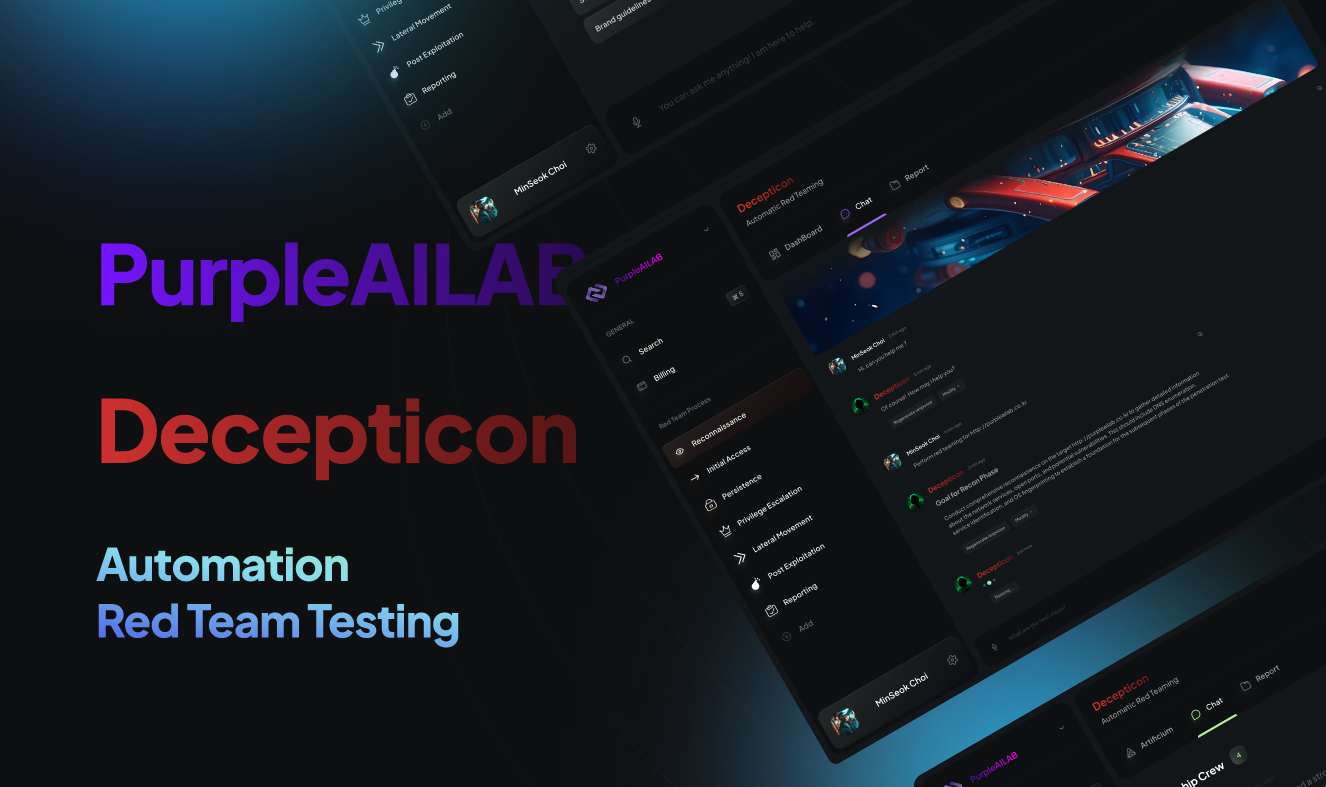
 purpleailab/decepticon
Autonomous Hacking Agent for Red Team



"Another AI hacker? Let us guess — it runs nmap and writes a report."






Commercial product demo
Skip the Docker setup — run autonomous red-team engagements right from your browser.

Open-source CLI demo
Prerequisites: Docker and Docker Compose v2. Supported on macOS (Apple Silicon + Intel), Linux (amd64 + arm64), and Windows (amd64 + arm64) — native via PowerShell or via WSL2 (Ubuntu / Kali).
macOS / Linux / WSL2
curl -fsSL https://decepticon.red/install | bash
decepticon onboard   # Interactive setup wizard (provider, API key, model profile)
decepticon           # Start the core stack and drop into the terminal CLI
The default start brings up the core management plane (LiteLLM, PostgreSQL, Neo4j, Skillogy, LangGraph, sandbox) and launches the terminal CLI. Specialist workloads (BloodHound CE, Sliver C2, REA/Ghidra, …) and the web dashboard come up on demand — the orchestrator spawns specialists via ops_start("ad") etc., and you bring up the dashboard from inside the CLI with /web (see Web Dashboard).
Windows (PowerShell, native)
irm https://decepticon.red/install.ps1 | iex
decepticon onboard
decepticon
→ Quick start · Full setup walkthrough
Type / to browse commands, select with Up/Down, then press Enter. Tab completes
the selected command; aliases also appear in help and autocomplete.
| Command | Use |
|---|---|
/help, /shortcuts | Discover commands or keyboard shortcuts |
/model, /status | Choose a configured model or inspect session connections |
/plan | Enter optional Plan mode, then send your planning message |
/mode red, /mode blue | Return to Red or select Blue investigation |
/new | Start a fresh conversation in the same engagement and mode when idle |
/sessions, /resume | Browse saved conversations or continue paused work |
/version (/about), /pwd (/cwd) | Check the running version and workspace paths |
/quit, /exit | Leave the chat; services and server work keep running |
Enter sends; Shift+Enter, Alt+Enter or Ctrl+J adds a line. Up/Down recalls input
history at the first/last input row; Ctrl+R searches it. Esc closes focused UI
first, then pauses active work; /resume continues it. Ctrl+A moves to the start
of the current line. Use /queue to review waiting messages before /new.
/new preserves saved conversations and terminal scrollback; it does not create
another engagement or change target authorization. /plan and /new take no
arguments. In the web terminal, use the dashboard's mode controls.
The new shortcuts and slash conveniences above describe current main, including
unreleased changes. A source merge does not update installed images. See
version history, the complete CLI reference
and upgrade behavior.
After starting Decepticon, register its MCP server in your coding agent:
claude mcp add --scope user decepticon -- decepticon mcp serve
codex mcp add decepticon -- decepticon mcp serve
Use the command for the coding agent you have installed, then run
decepticon skill install to add the operator guide to both agents. See the
external agent guide for the Agent Skill,
tool workflow, and source installation path.
Building on top of the agents — a product, a research integration, or a custom orchestrator? Install the SDK from PyPI:
pip install decepticon              # core SDK
pip install "decepticon[neo4j]"     # + the knowledge-graph attack-chain tools

