 reprise99/sentinel-queries
Collection of KQL queries

Some tips, tricks and examples for using KQL for Microsoft Sentinel.
Kusto Query Language is the language used across Azure Monitor, Azure Data Explorer and Azure Log Analytics (what Microsoft Sentinel uses under the hood). I have always found this visualization regarding KQL useful -
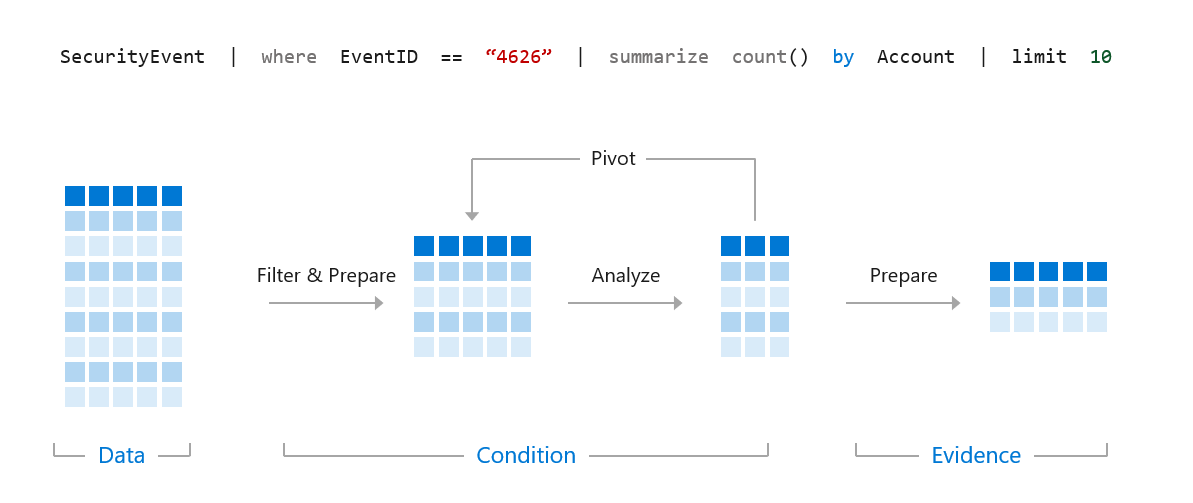
We want to use KQL to create accurate and efficient queries to find threats, detections, patterns and anomalies from within our larger data set.
Take the below query as an example
SigninLogs
| where TimeGenerated > ago(14d)
| where UserPrincipalName == "[email protected]"
| where ResultType == "0"
| where AppDisplayName == "Microsoft Teams"
| project TimeGenerated, Location, IPAddress, UserAgent
When we run a query like this the first line tells Microsoft Sentinel which table to look for data in, so in this case we want to search the SigninLogs table, which is where Azure AD sign in data is sent to. You can see a list of tables here.
Microsoft Sentinel will then run through your query sequentially, so it will run each line one by one until it hits the end, or you have an error. So to breakdown our query line by line.
SigninLogs
So first we have chosen our SigninLogs table.
SigninLogs
| where TimeGenerated > ago(14d)
Next we tell Sentinel to look back at the last 14 days worth of data in this table.
SigninLogs
| where TimeGenerated > ago(14d)
| where UserPrincipalName == "[email protected]"
Next we ask Sentinel to only find logs where UserPrincipalName is equal to "[email protected]"
SigninLogs
| where TimeGenerated > ago(14d)
| where UserPrincipalName == "[email protected]"
| where ResultType == "0"
Then we look for only logs where the ResultType == 0, which is a successful logon to Azure AD.
SigninLogs
| where TimeGenerated > ago(14d)
| where UserPrincipalName == "[email protected]"
| where ResultType == "0"
| where AppDisplayName == "Microsoft Teams"
Next we look for only signins to Microsoft Teams.
SigninLogs
| where TimeGenerated > ago(14d)
| where UserPrincipalName == "[email protected]"
| where ResultType == "0"
| where AppDisplayName == "Microsoft Teams"
| project TimeGenerated, Location, IPAddress, UserAgent
Our last line uses the project operator, to return only 4 fields from our logs, so we will only see the TimeGenerated, Location, IPAddress and UserAgent returned from our SigninLogs data.
That is how you build queries, now the basics.
Microsoft Sentinel and KQL are highly optimized for time filters, so if you know the time period of data you want to search, you should filter the time range straight away. Retrieving the last 14 days of logs, then searching for a username like the below query -
SigninLogs
| where TimeGenerated > ago(14d)
| where UserPrincipalName == "[email protected]"
Is much more efficient than searching first for a username and then searching for the time period like this -
SigninLogs
| where UserPrincipalName == "[email protected]"
| where TimeGenerated > ago(14d)
KQL has many options for querying particular time periods.
SigninLogs
| where TimeGenerated > ago(14d)
As per the first example, this will search for the last 14 days.
SigninLogs
| where TimeGenerated > ago(14h)
You can also do hours.
SigninLogs
| where TimeGenerated > ago(14m)
And minutes.
KQL also supports querying between time ranges -
SigninLogs
| where TimeGenerated between (ago(14d) .. ago(7d))
This will find SigninLogs data between 14 days and 7 days ago.
SigninLogs
| where TimeGenerated between (ago(14h) .. ago(7h))
Between 14 hours and 7 hours ago.
SigninLogs
| where TimeGenerated between (ago(14m) .. ago(7m))
And between 14 minutes and 7 minutes ago.
Where is an operator you will use in basically every query you write. This is how you tell Microsoft Sentinel to hunt for specific data. Syntax is very important with the where operator. If we use our same example.
SigninLogs
| where TimeGenerated > ago(14d)
| where UserPrincipalName == "[email protected]"
This will search our SigninLogs table, over the last 14 days, for exact matches where our UserPrincipalName equals [email protected]. In KQL == is case sensitive, so if you search for [email protected] and the username is actually [email protected], you won't get any results. The non case sensitive equivalent is =~
SigninLogs
| where TimeGenerated > ago(14d)
| where UserPrincipalName =~ "[email protected]"
This will find any matches for [email protected] regardless of case sensitivity.
Instead of equals, we can also use contains.
SigninLogs
| where TimeGenerated > ago(14d)
| where UserPrincipalName contains "reprise_99"
This will find any log entries where the UserPrincipalName contains reprise_99, if you had [email protected] and [email protected] data, it would find both. The contains operator is not case sensitive, but you can use contains_cs to make it case sensitive.
You can use either startswith or endswith if you are searching for particular patterns.
SigninLogs
| where TimeGenerated > ago(14d)
| where UserPrincipalName startswith "reprise_99"

SigninLogs
| where TimeGenerated > ago(14d)
| where UserPrincipalName endswith "testdomain.com"
Both startswith and endswith are not case sensitive, but you can use the startswith_cs or endswith_cs to make them case sensitive.
If you are searching for full words (greater than four characters), in KQL you can use the has operator. Using 'has' is more efficient than 'contains' as the data is indexed for you.
SigninLogs
| where TimeGenerated > ago(14d)
| where AppDisplayName has "Teams"
This will find any SigninLogs where the application display name has the word Teams in it, that could include "Microsoft Teams" and "Microsoft Teams Web Client", both satisfy the query.
If you are searching for multiple words you can use has_any or has_all.
SigninLogs
| where TimeGenerated > ago(14d)
| where AppDisplayName has_any ("Teams","Outlook")
This will return results where the application display name contains either "Teams" or "Outlook"
SigninLogs
| where TimeGenerated > ago(14d)
| where AppDisplayName has_all ("Teams","Outlook")
This will return results where the application display name has "Teams" and "Outlook".
If you don't know which fields to search in, you can also use wildcards, it is inefficient but may get you on the right track to find what you want.
SigninLogs
| where TimeGenerated > ago(14d)
| where * contains "reprise_99"
This will search the SigninLogs table for any field that contains reprise_99.
A number of these options also support using ! to reverse the query and find results where it is not true.
SigninLogs
| where TimeGenerated > ago(14d)
| where UserPrincipalName != "[email protected]"
This query would find all SigninLogs where the UserPrincipalName does not equal [email protected]
SigninLogs
| where TimeGenerated > ago(14d)
| where UserPrincipalName !contains "reprise_99"
