 gamehunterkaan/autopwn-suite
AutoPWN Suite is a project for scanning vulnerabilities and exploiting systems automatically.

AutoPWN Suite is a project for scanning vulnerabilities and exploiting systems automatically.


 release


|
|
Security Badges OpenSSF Best Practices Passing OpenSSF Best Practices Silver OpenSSF Best Practices Gold OpenSSF Baseline 1 OpenSSF Baseline 2 OpenSSF Baseline 3 OpenSSF Scorecard |

Install Nmap (needed for network scans, not for website-only dashboard scans) and AutoPWN Suite with pipx or uv. It needs Python 3.10 or newer. See Installation for standalone binaries, Docker and other options:
pipx install autopwn-suite
Scan a host or network that you are authorized to test:
autopwn-suite -t <target ip address>
Or start the web dashboard, then sign in with the admin account whose
random password is printed once in the terminal on first launch:
autopwn-suite --web
Use -h for all options. Report problems through support and
vulnerabilities privately through the security policy.
AutoPWN Suite is an operator-controlled scanner that runs with your privileges and stores integration credentials in plaintext JSON. Scan only systems you are authorized to test, do not expose the dashboard to the public internet, keep it behind HTTPS and trusted network controls, and verify releases before use. See the security policy for reporting, response times and deployment guidance.
The badges at the top show the status that OpenSSF Best Practices project 15518 reports for the Best Practices levels and the OpenSSF Baseline levels. They are updated by OpenSSF, not by this repository. The roadmap lists planned work and non-goals, and the continuity plan describes maintainer succession.
Project documentation: build from source, dependency management, architecture, interfaces, governance, changelog, release verification, and security policy, support lifecycle, threat model, secret management, and security checks, roadmap, access continuity, accessibility and internationalization.
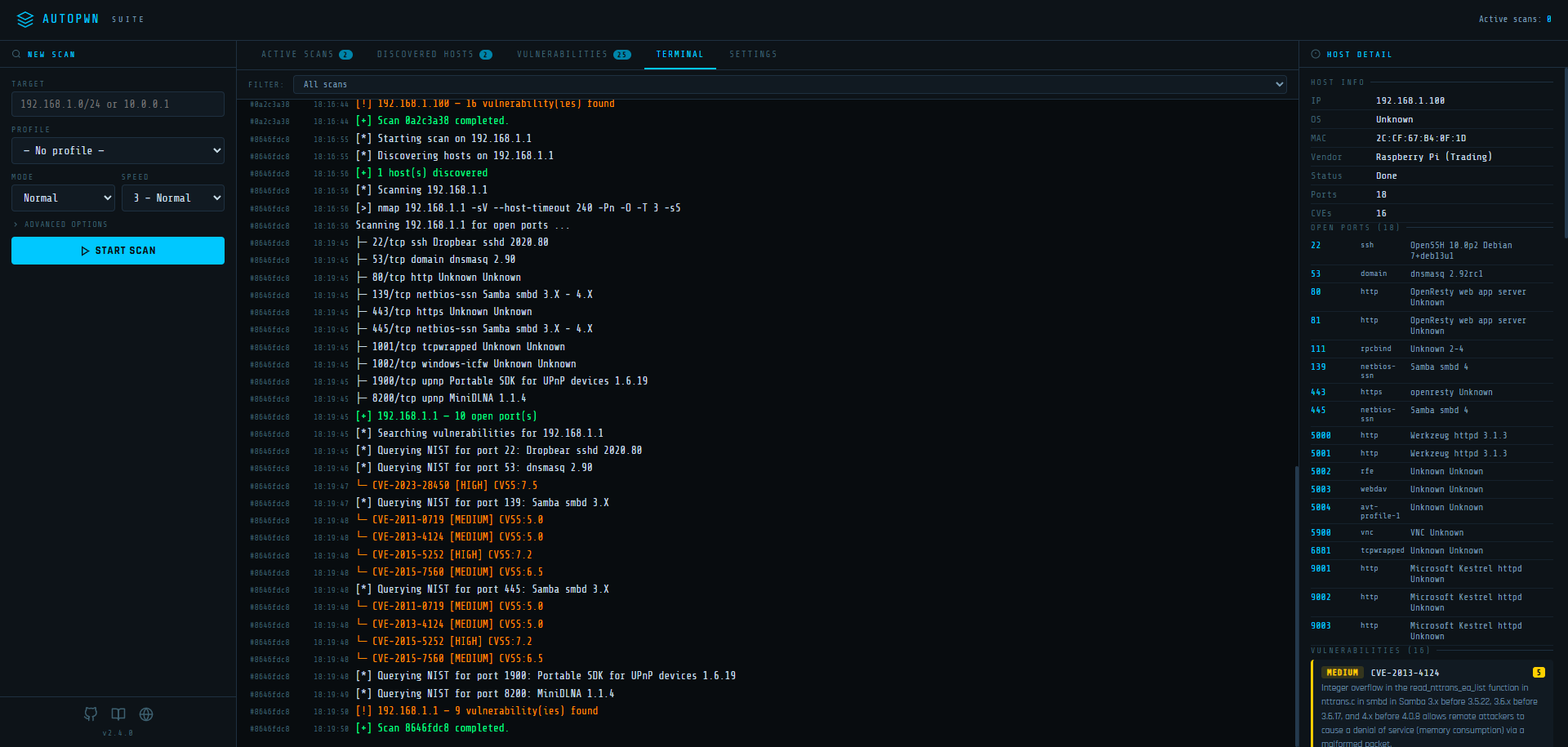
AutoPWN Suite includes a built-in web dashboard for managing scans from your browser.
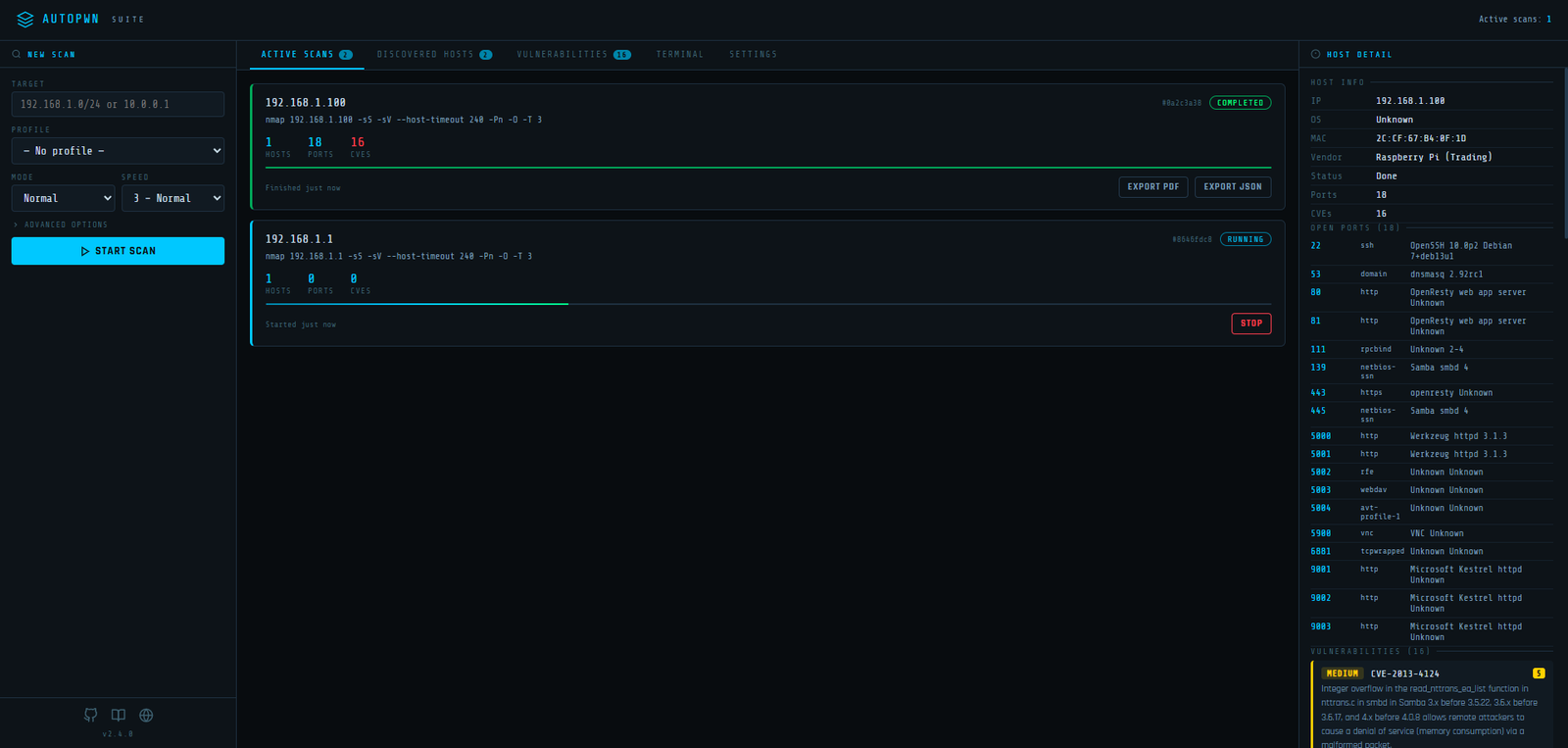
Signing in. The dashboard requires a login. On first launch the server creates an admin
account with a random password and prints both once in the terminal; only a scrypt hash of the
password is stored in web_ui_auth.json (inside AUTOPWN_DATA_DIR, or the per-user data directory by
default). Change the username and password after signing in under Settings → Account. If you
forget the password, run autopwn-suite --web-reset-account on the server to restore admin
with a new random password and sign out all sessions. Remote access requires HTTPS (or set
AUTOPWN_WEB_SECURE_COOKIE=1 behind a TLS-terminating proxy that passes the browser's Host header
through, or sign-in is refused as cross-origin); localhost works over plain HTTP.
