 enkomio/shed
.NET runtime inspector



Shed is an application that allow to inspect the .NET runtime of a program in order to extract useful information. It can be used to inspect malicious applications in order to have a first general overview of which information are stored once that the malware is executed.
Shed is able to:
Shed is a command line tool. To display all available options run:
shed.exe --help
In order to inspect an already running process you have to pass the pid to Shed. Example:
Shed.exe --pid 2356
In order to inspect a binary, Shed needs to execute it and to attach to it in order to inspect the runtime. Example:
Shed.exe --exe malware.exe
You can also specify the amount of time (in milliseconds) to wait before to suspend the process. This will allow the program to have the time to initialize its properties. Example:
Shed.exe --timeout 2000 --exe malware.exe
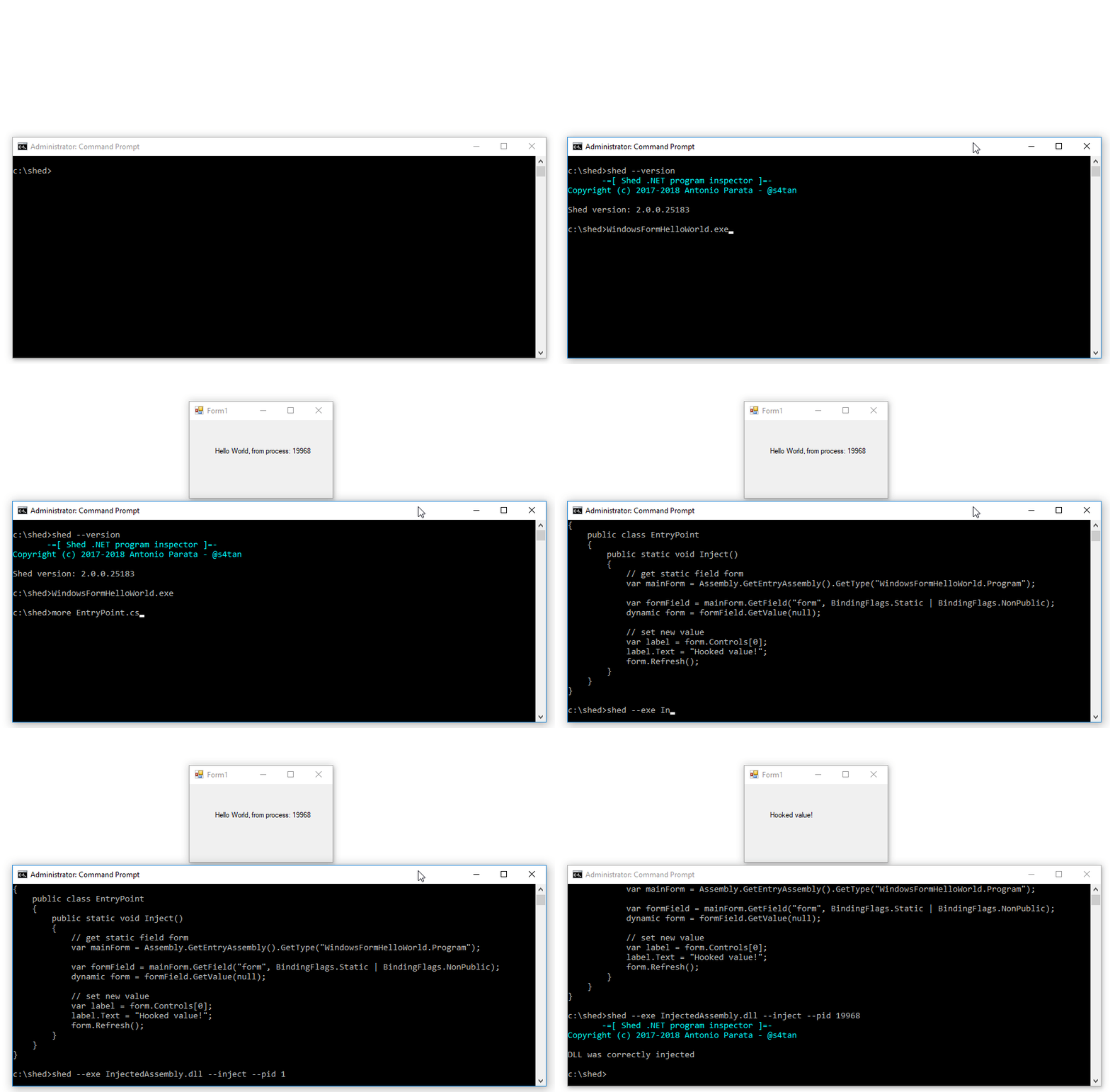
With Shed is possible to inject a .NET Assembly in a remote process thanks to the ManagedInjector Library. In order to do so, it is necessary to specify the pid of the process and the exe to inject. Once that the Assembly is injected is possible to activate it by invoking a specific method. The rules to identify the method are inherithed by the ManagedInjector project and are the following:
For example, to inject the Assembly InjectedAssembly into the process with pid 1234, you have the run Shed with the following command:
shed.exe --pid 1234 --exe InjectedAssembly.dll --inject
With the --method option you can specify a method, from InjectedAssembly.exe to invoke.
Find below an example of execution:
By default Shed dump both the heap and the modules. If you want only one of that specify the --dump-heap option to dump only the objects in the heap or the --dump-modules to dump only the modules.
Dumping the heap can produce a lot of information which are not strictly useful for the analysis. You can filter it by using two files:
blacklist.txt this file contains the type names prefix that must not be logged
whitelist.txt this file contains the type names prefix that must be logged even if blacklisted
For example, if you want to filter all the System.IO namespace but you are interested in logging System.IO.MemoryStream, you can add the first value to blacklist.txt and the second one to whitelist.txt.
In the Examples folder you will find three different projects that you can use in order to test Shed. Example:
Shed.exe --exe ..\Examples\ConfigurationSample\ConfigurationSample.exe
When the analysis is completed, Shed will print where you can find the result, as shown below:
[+] Result saved to C:\Shed\Result\7800
If you have installed Visual Studio, just run the build.bat batch file, it will create a zip file inside the build folder.
Copyright (C) 2017 Antonio Parata - @s4tan
License: GNU General Public License, version 2 or later; see LICENSE included in this archive for details.
