 advens-gmbh/scan-insights-for-nessus
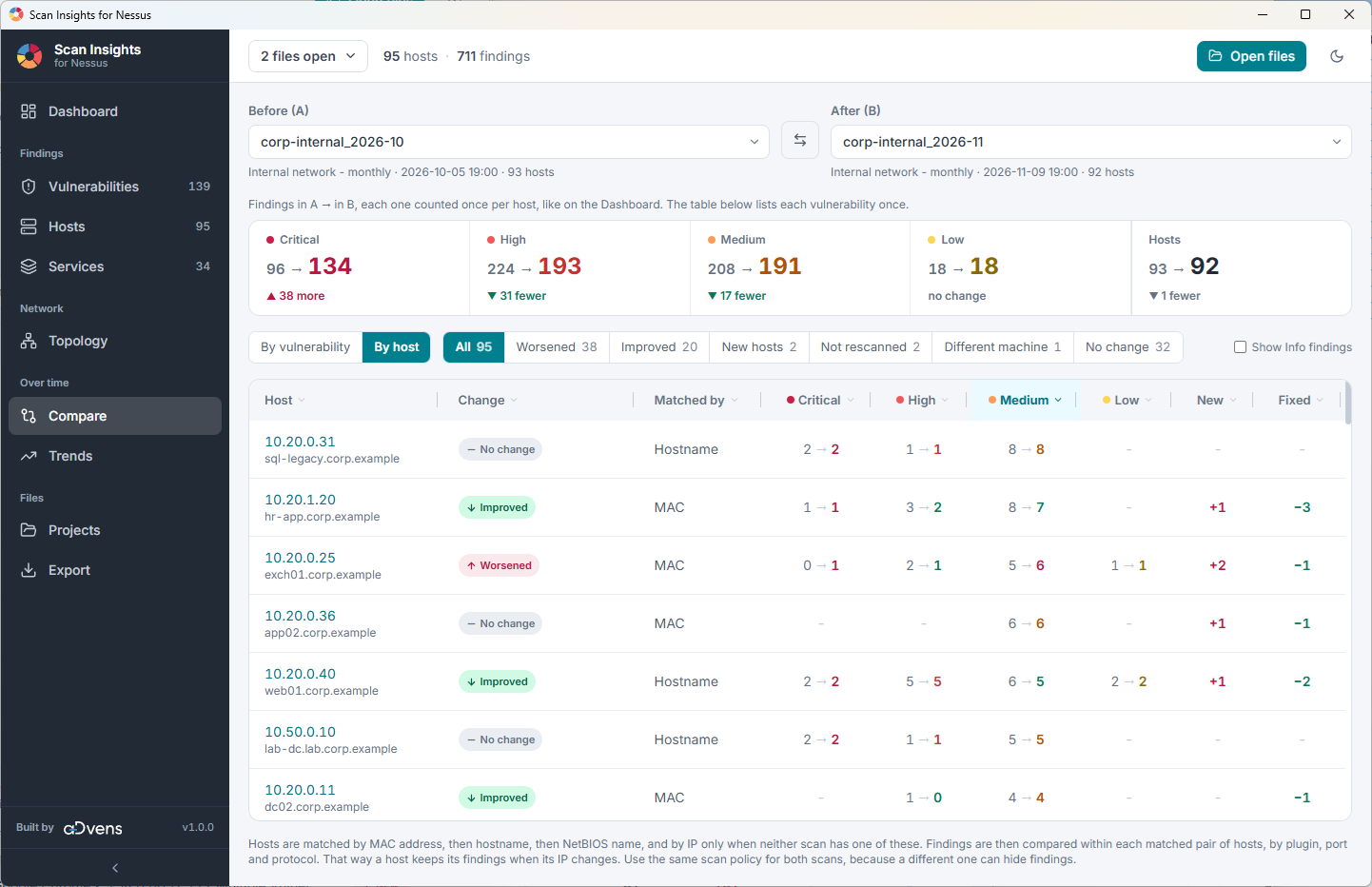
Desktop app for Windows and Linux to view and analyse Nessus scan files. Filter findings, look at hosts and services, compare scans and see how results change over time. The app works offline.

Scan Insights for Nessus is a simple tool for displaying data from a Nessus scan file (.nessus). It is ideal after an internal (or external) Nessus scan was conducted to display the found vulnerabilities. It offers many filtering and search options, and makes copying the data easier than Nessus does.
The application also focuses on privacy. Scan contents stay in memory and are never written to disk, unless you export them. The app only stores its settings, your projects, and your list of recently opened files in the app data folder (%AppData%\com.scaninsights.nessus on Windows, ~/.local/share/com.scaninsights.nessus on Linux). Projects and recent files contain the full paths and names of your scan files. On Linux, new files the app creates (including exports) can only be read by your user. The app makes no network connections of its own (it only opens your browser when you click a reference or CVE link).
The app is built with Tauri (Rust), React, TypeScript and Tailwind CSS.
For a detailed list of changes, see the Changelog.
Download the file for your system from the Releases page.
| System | File | Notes |
|---|---|---|
| Windows | -setup.exe or .msi | NSIS or MSI installer |
| Windows | _portable.exe | Runs without installing |
| Ubuntu, Debian | .deb | Installs its dependencies automatically |
| Fedora | .rpm | Installs its dependencies automatically |
| Other Linux | .AppImage | Runs without installing, after chmod +x |
Windows: the app needs the WebView2 Runtime, which is pre-installed on Windows 10 21H2+ and Windows 11.
[!Note] SmartScreen may warn when you first start the app, because the files aren't code-signed (click More info, then Run anyway).
Linux: the packages need Ubuntu 24.04, Debian 13, Fedora 40 or newer. If the window stays blank, which is a known WebKitGTK problem on some graphics setups, start the app with WEBKIT_DISABLE_DMABUF_RENDERER=1 scan-insights-for-nessus.
The app has the below main features:
.xlsx, .csv formats, or merge multiple files into a single .nessus file[!NOTE] Info findings: Info findings start hidden on every page because they are mostly noise. You can use the
Show Info findingsoption to display them. Hosts and services with nothing but Info findings stay listed, because they are still machines and open ports in the scan.Exportis the exception: it has its own severity selection, which includes Info findings unless you turn it off.
The app gives the ability to open one or multiple files at once. After opening a file the Dashboard menu gives an overview of the vulnerabilities. A file with no scanned hosts, such as one holding only a scan policy, isn't loaded.
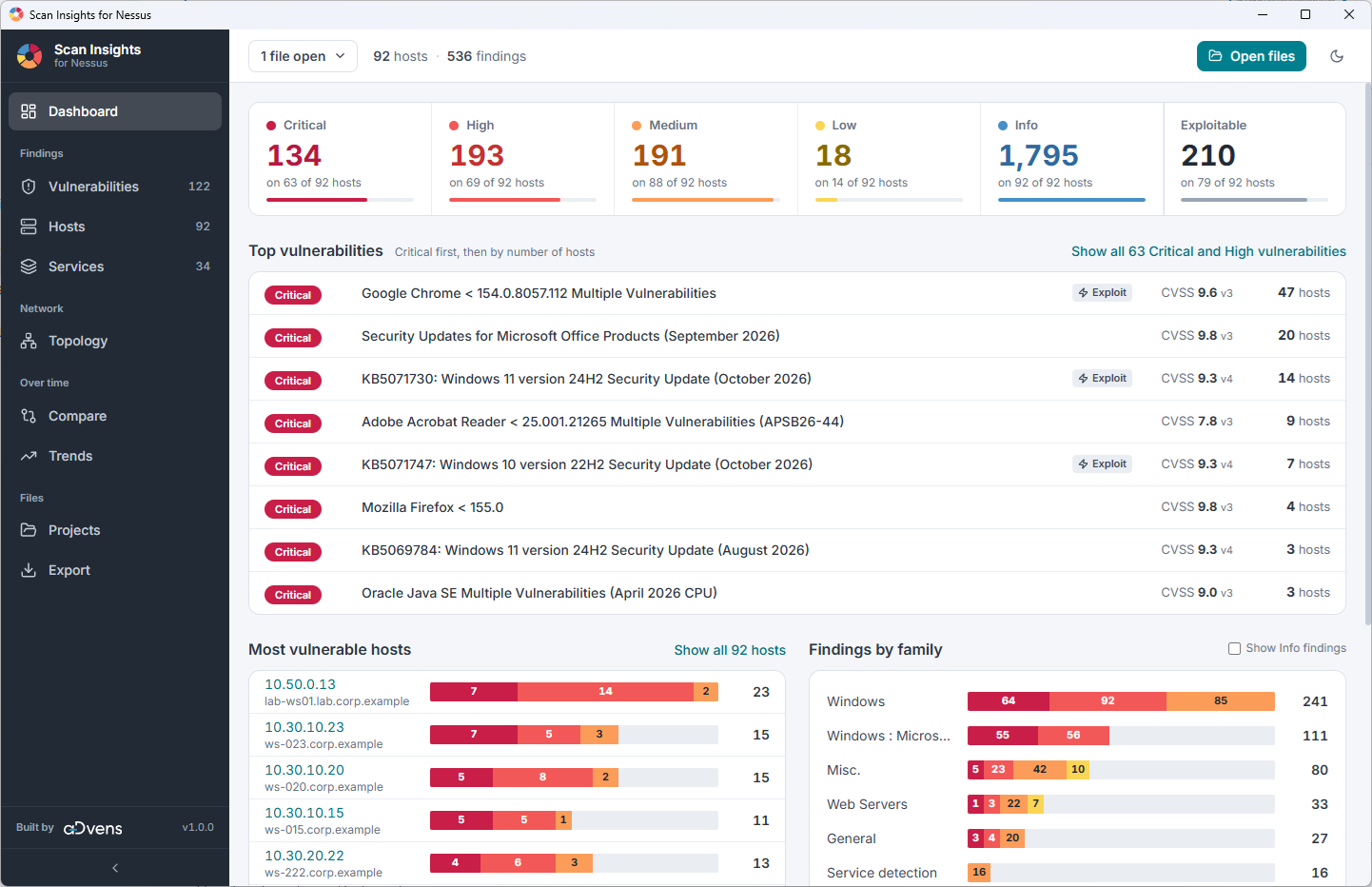
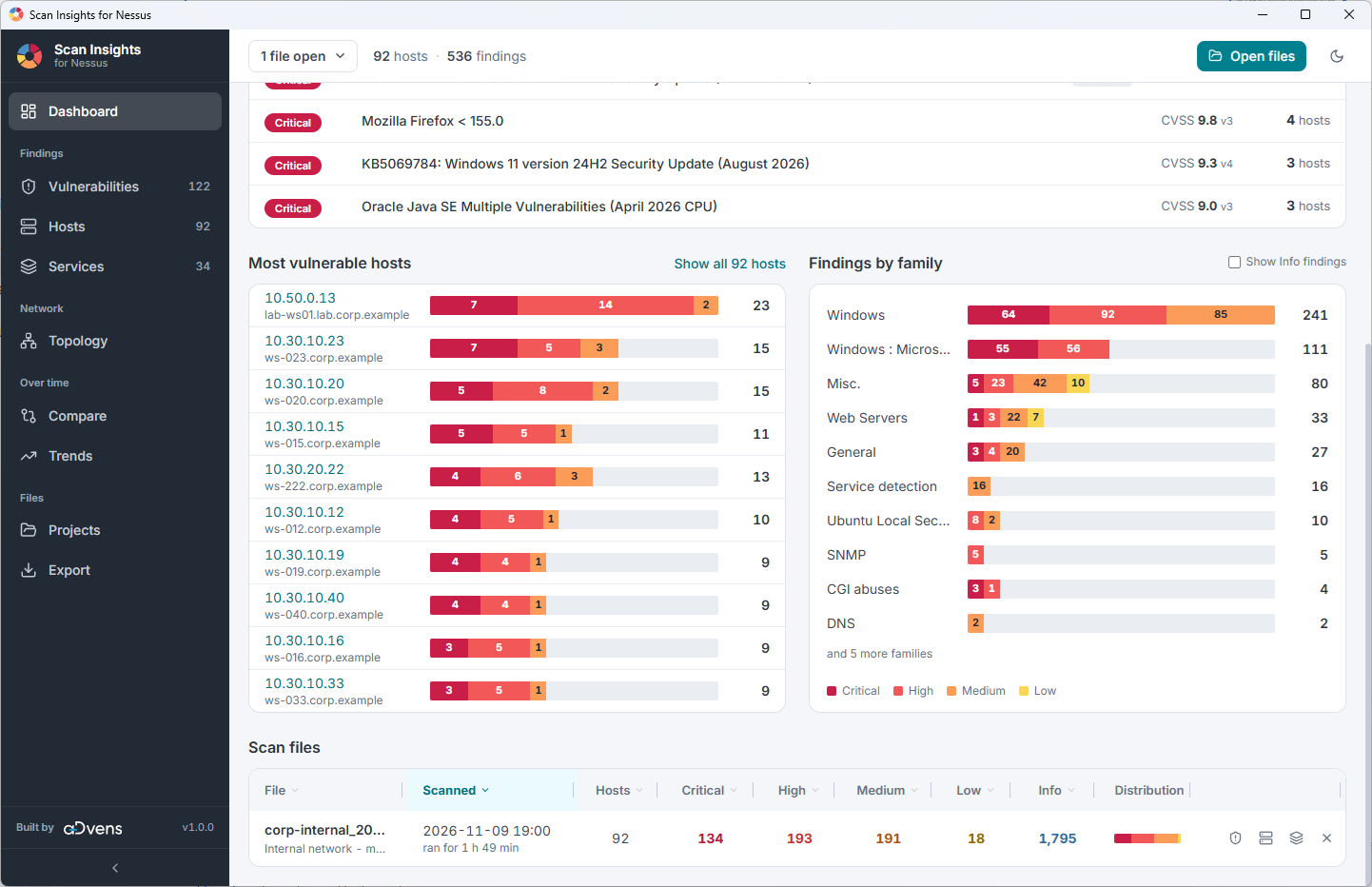
The top of the view displays a severity strip, where the count of the vulnerabilities of all loaded files is displayed. Below it are the "Top vulnerabilities", which are sorted by criticality and the number of hosts they affect. It also shows if a vulnerability has a known exploit, its CVSS score and how many hosts it was found on. In the middle part the "Top vulnerable hosts" and "Findings by family" are shown. The bottom part displays all currently loaded scan files.
Top and middle part of the Dashboard:
Bottom part of the Dashboard:
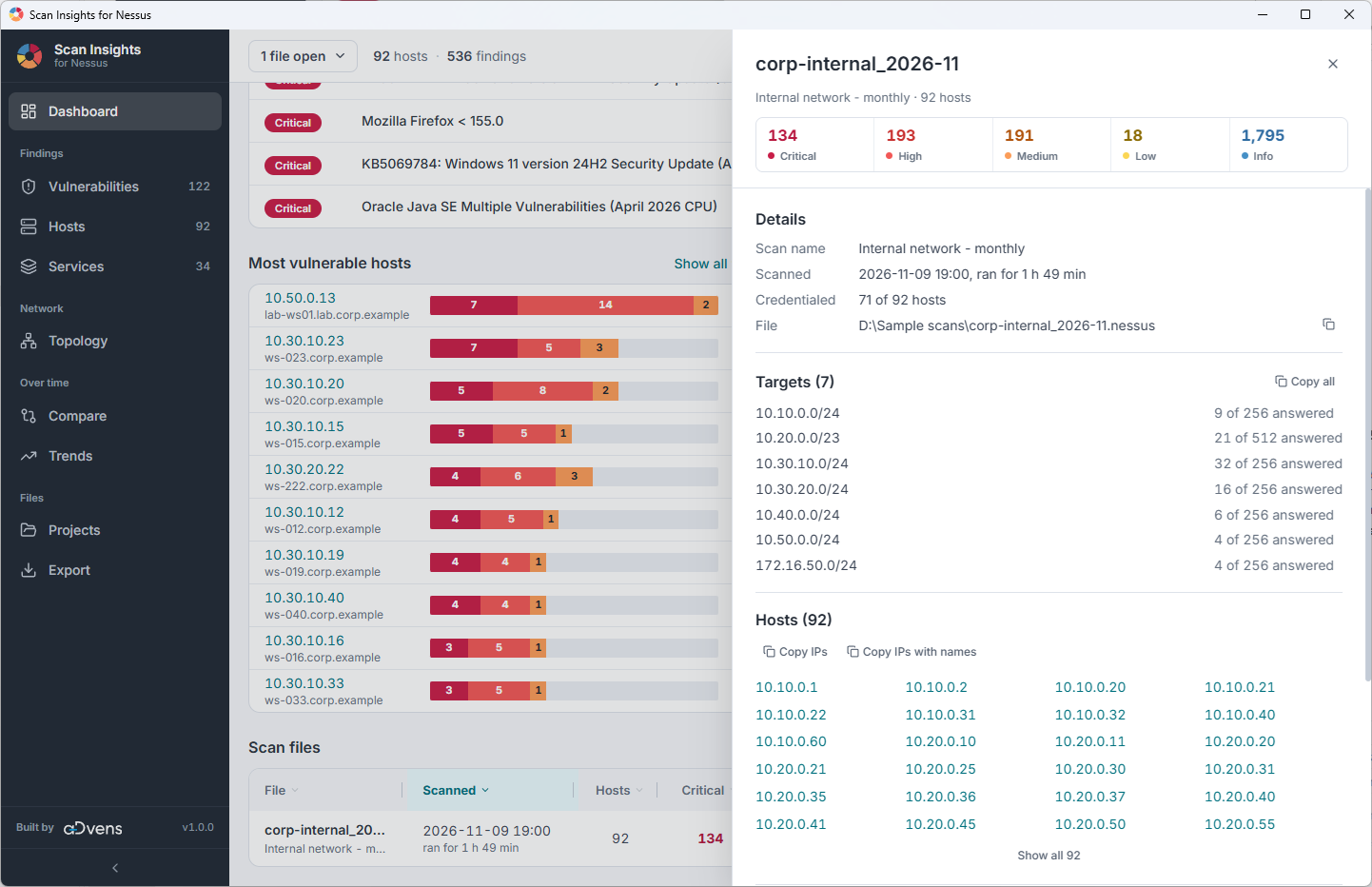
Clicking on the name of a scan file reveals information about the scan configuration (name, date, duration, configured targets, scanned hosts, etc.).
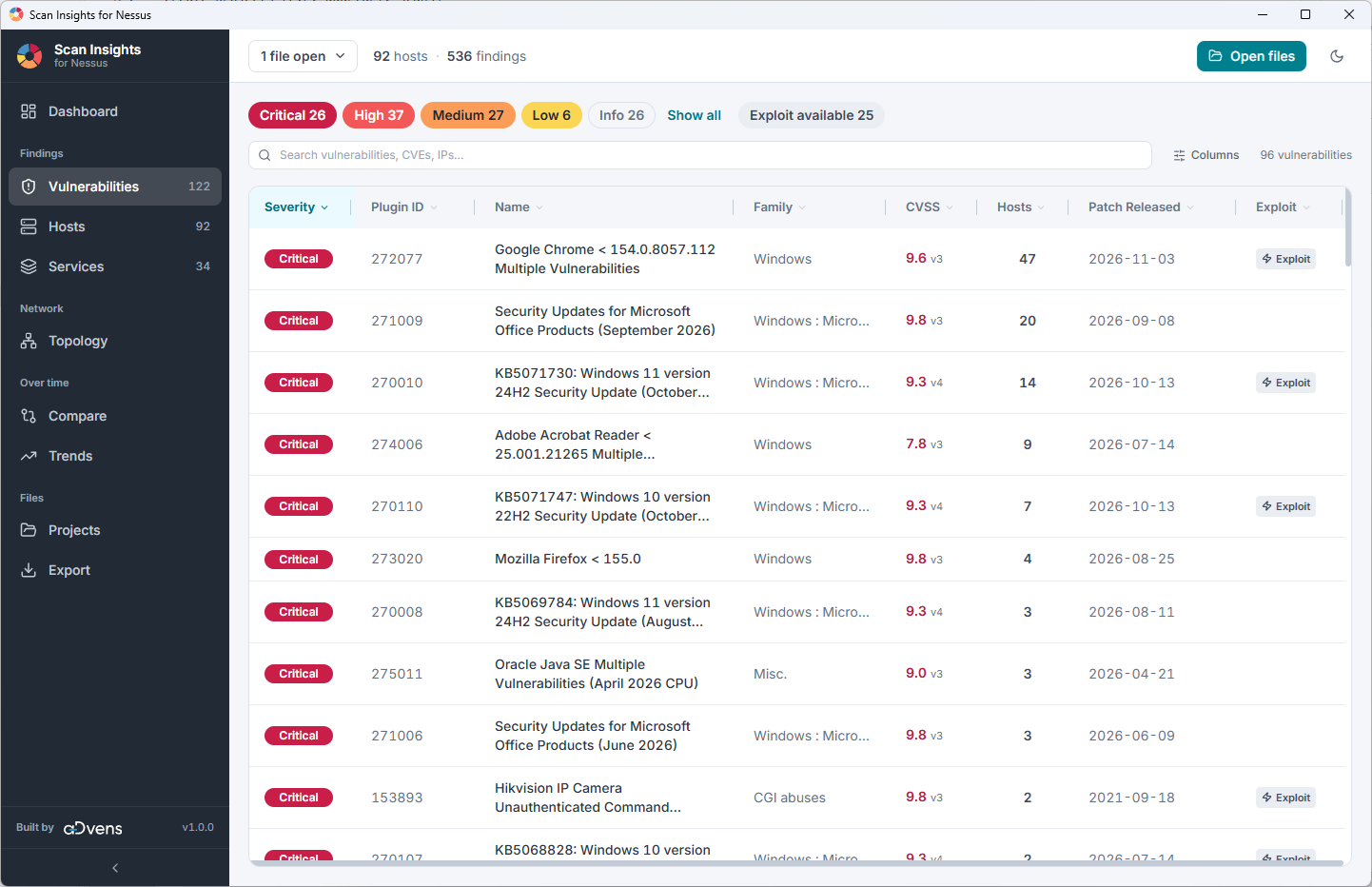
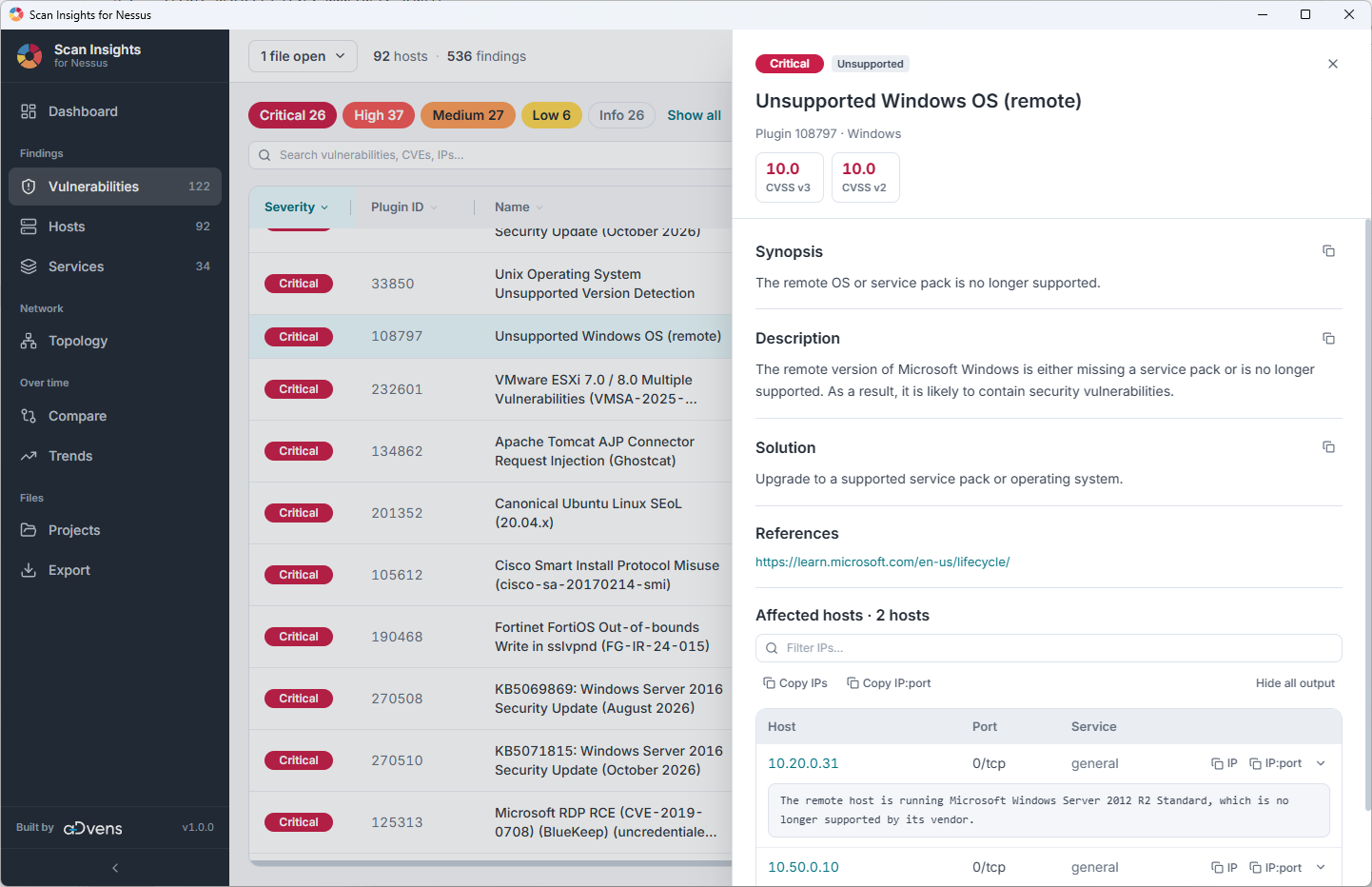
The Vulnerabilities view offers a more detailed overview of the vulnerabilities. Multiple filtering options are available (by severity, if an exploit is available, plugin family). You can sort them by clicking on the appropriate column (Severity, Name, Family, CVSS etc.). Additional columns can be displayed using the column picker.
The severity comes from the scan file, and the table shows the CVSS version score (e.g. 9.3 v2). Clicking a vulnerability shows all its scores.
With several files loaded, a finding rated differently between them shows its worst rating and that rating's scores, and its details say which file rated it how. Filtering to one file shows that file's own rating.
Clicking on a vulnerability gives an overview on which hosts the vulnerability is present, and a short description of it.
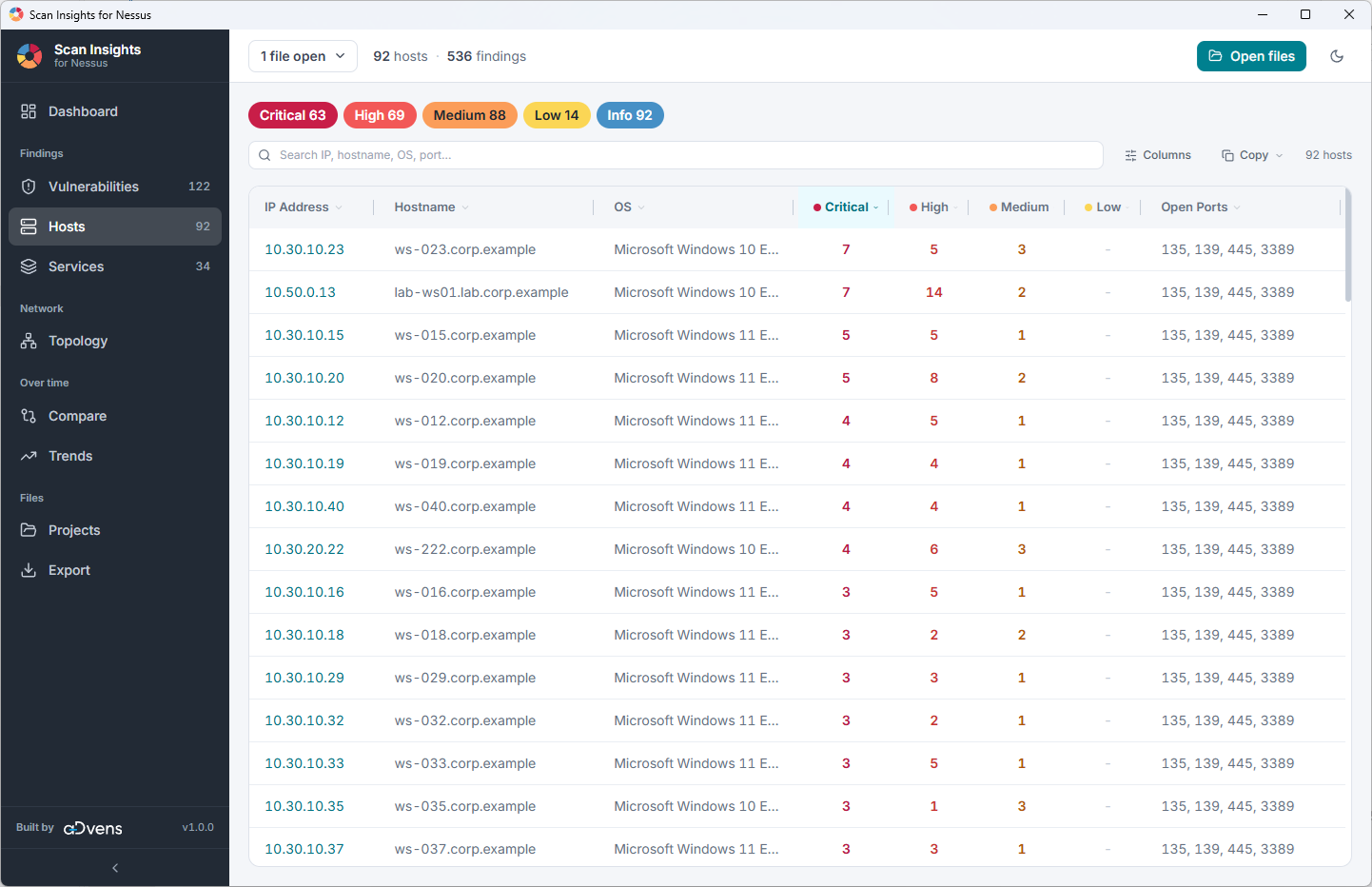
The Hosts menu shows how many vulnerabilities each host has. Filtering options by severity are present here as well. Additional columns can be displayed using the column picker. A copy button is also present, which copies the hostnames, IP addresses or the displayed table which can be directly pasted into Excel.
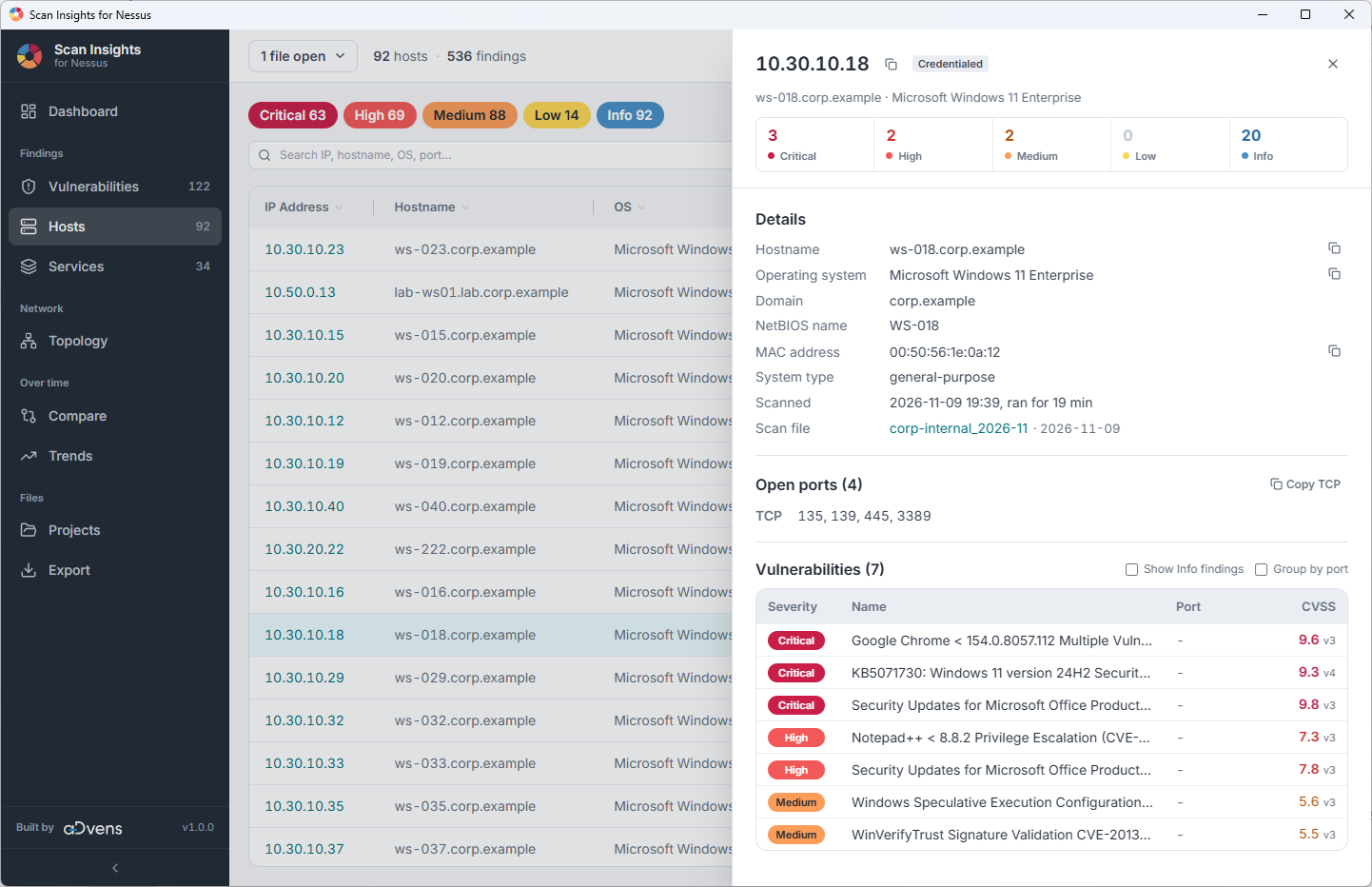
Clicking a host shows information about that system (OS, Domain, MAC Address, open TCP/UDP ports, etc.) and what other vulnerabilities are present on that system.
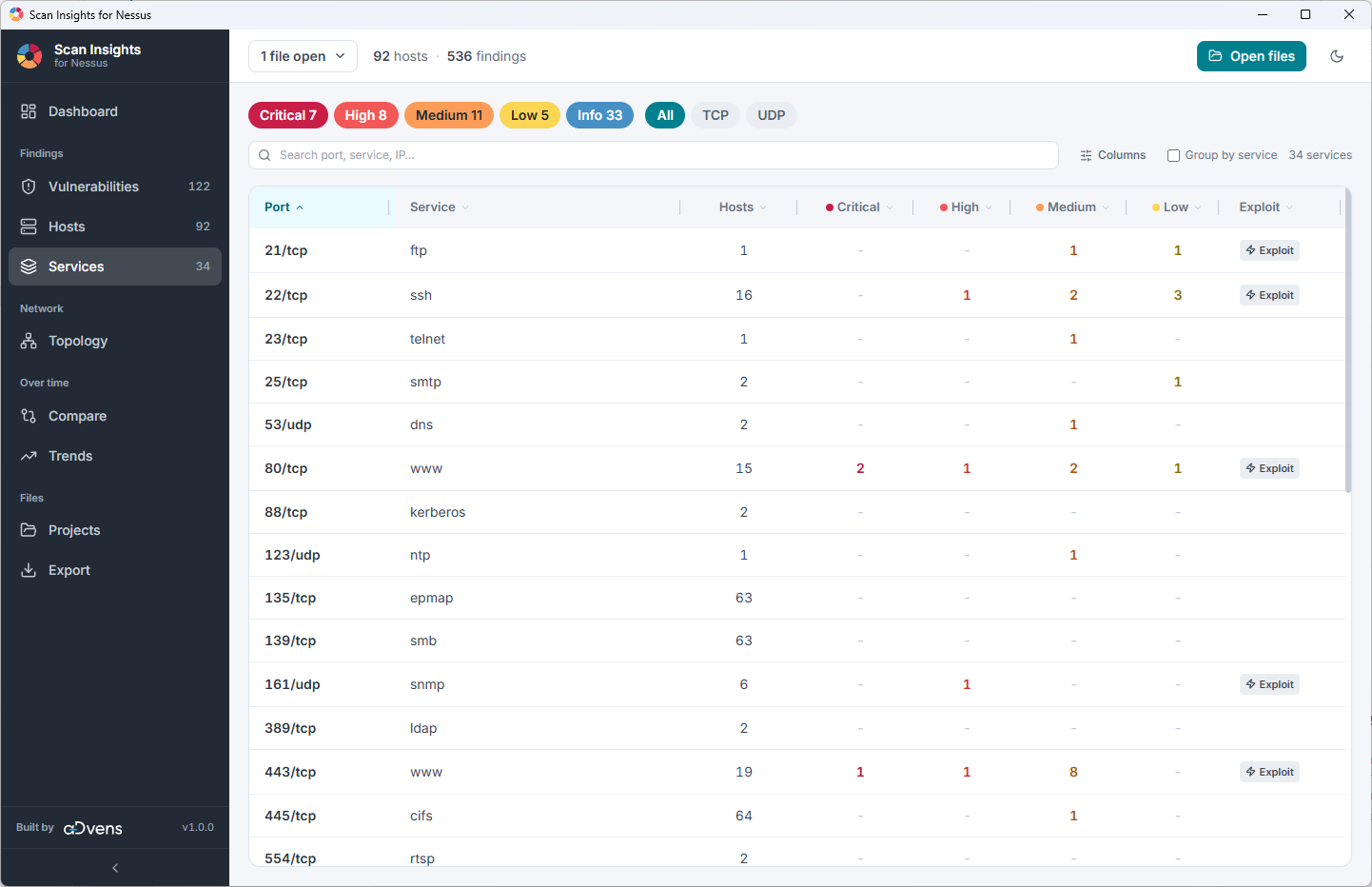
The Services menu lists every port and protocol that has at least one finding, with how many hosts have it and how severe its findings are. A port counts as a service only because Nessus reported something on it. A port with no findings doesn't appear. This view also offers filtering by severity, and additionally by TCP/UDP ports. Additional columns can be displayed using the column picker.