 bruneaug/dshield-siem
DShield Sensor Log Collection with ELK

This is fork and a significant update from the initial publication on the ISC Storm Center website by Scott Jensen as a BACS paper and the scripts published in Github.
https://github.com/fkadriver/Dshield-ELK
https://isc.sans.edu/diary/DShield+Sensor+Monitoring+with+a+Docker+ELK+Stack+Guest+Diary/30118
This is a good reference on howto use DShield-SIEM for analysis: https://isc.sans.edu/diary/30962/
This provides an overview how the log collection with the DShield sensor is done.
https://github.com/bruneaug/DShield-SIEM/blob/main/Troubleshooting/DShield-SIEM-Flow.png
This docker is custom built to be used with the DShield Honeypot to collect and parse the logs and collect the data to make it easy to search for research purposes. The suggested installation is to install the DShield sensor in a Rasperry using PI Raspbian OS or a system running Ubuntu 24.04 LTS either in your network or in the cloud of your choice.
Note: This must be installed on a separate server as per the instruction below.
Note: To update ELK server components, follow these steps:
https://github.com/bruneaug/DShield-SIEM/blob/main/README.md#download-github-update
Install docker as user ($) account:
sudo apt-get install ca-certificates curl gnupg network-manager txt2html
sudo install -m 0755 -d /etc/apt/keyrings
curl -fsSL https://download.docker.com/linux/ubuntu/gpg | sudo gpg --dearmor -o /etc/apt/keyrings/docker.gpg
sudo chmod a+r /etc/apt/keyrings/docker.gpg
Note: You may need to take the next line, remove the backlash () and put everythin in a single line in Notepad to run this echo.
echo "deb [arch="$(dpkg --print-architecture)" signed-by=/etc/apt/keyrings/docker.gpg] https://download.docker.com/linux/ubuntu \
"$(. /etc/os-release && echo "$VERSION_CODENAME")" stable" | sudo tee /etc/apt/sources.list.d/docker.list > /dev/null
sudo apt update && sudo apt upgrade
sudo reboot (if update were applied)
sudo apt-get install -y jq docker-ce docker-ce-cli containerd.io docker-buildx-plugin docker-compose-plugin pip
sudo systemctl enable docker
sudo systemctl start docker.service
Confirm the docker service is running
sudo systemctl status docker.service
Add the following ELK servername es01 kibana fleet-server heartbeat logstash filebeat filebeat01
to /etc/hosts after the IP address and the server name:
sudo vi /etc/hosts
Add this to /etc/hosts after the ELK server IP addresses
127.0.0.1 sensor es01 ...
192.168.25.80 sensor es01 ...
es01 kibana fleet-server heartbeat logstash filebeat filebeat01
Edit the sysctl.conf file:
sudo vi /etc/sysctl.conf
Add the following at the bottom of the file:
vm.max_map_count=262144
Add save it. This is for Elasticsearch when using Docker.
sudo iptables -nL
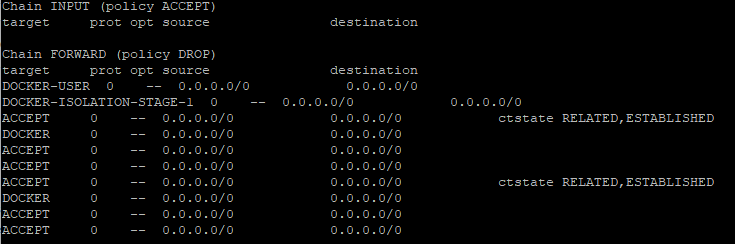
Using user ($) account, run the following commands:
git clone https://github.com/bruneaug/DShield-SIEM.git
mkdir scripts
mv DShield-SIEM/AddOnScripts/*.sh scripts
chmod 754 scripts/*.sh
cd ~/DShield-SIEM
Note: Before installation, you can edit the .env (ls -la to see it) file to make any derided changes.
- Current default password for elastic is student
Memory Limits in .env are the most memory that docker will allocate for each of the ELK containers.
Default to 3GB for Elasticsearch but can be expanded if you have the resources
Edit .env file and configure for your own ELK Stack
vi .env
cd logstash/pipeline
Edit heartbeat.yml to change the sensor IP (named PI) with your own sensor IP. Kibana heartbeat check the status of your services and determine whether they are available.
Update this IP and hostname to reflect your sensor.
Note: You can copy and add same 5 lines if you have more than one sensor you would like to monitor
This can be viewed Observability -> Uptime Monitors
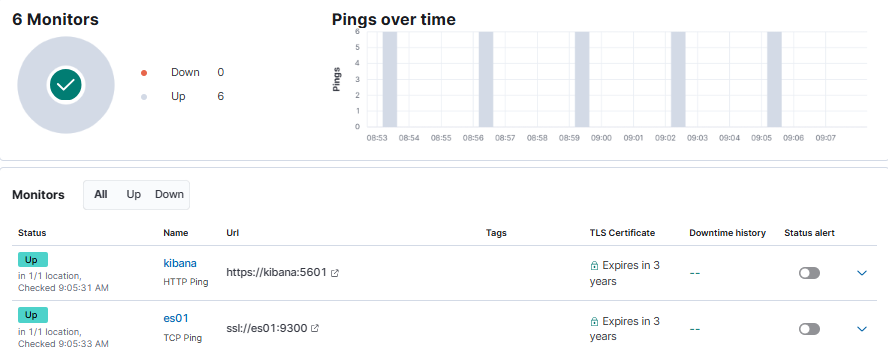
This line is the sensor IP address. If it doesn't received a respose while connecting to TCP 12222, it will mark it as down in the interface.
This is initiated by the ELK server to check the response from the sensor.
Update this line: hosts: ["192.168.25.165"]
vi ~/DShield-SIEM/heartbeat/heartbeat.yml
The script change_perms.sh will configure some of the files before starting the installation of the docker components.
The script will also update the IP address used in the dashboard query to the IP of your ELK stack.
~/scripts/change_perms.sh
~/scripts/get_researchers.sh
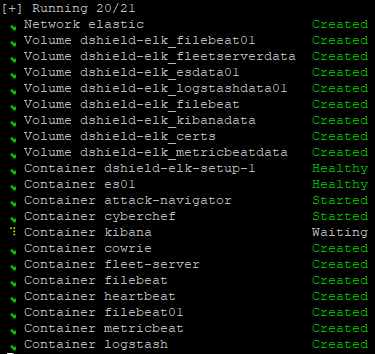
Now execute docker compose to build the ELK server applications.
This will build: Kibana, Elasticsearch, elastic-agent, Logstash and load the Cowrie parsers, configuration files and dashboard.
sudo docker compose up -d
Installation Completed