 aquasecurity/trivy-action
Ejecuta Trivy como acción de GitHub para escanear tu imagen de contenedor Docker en busca de vulnerabilidades

GitHub Action for Trivy
[![GitHub Release][release-img]][release] [![GitHub Marketplace][marketplace-img]][marketplace] [![License][license-img]][license]
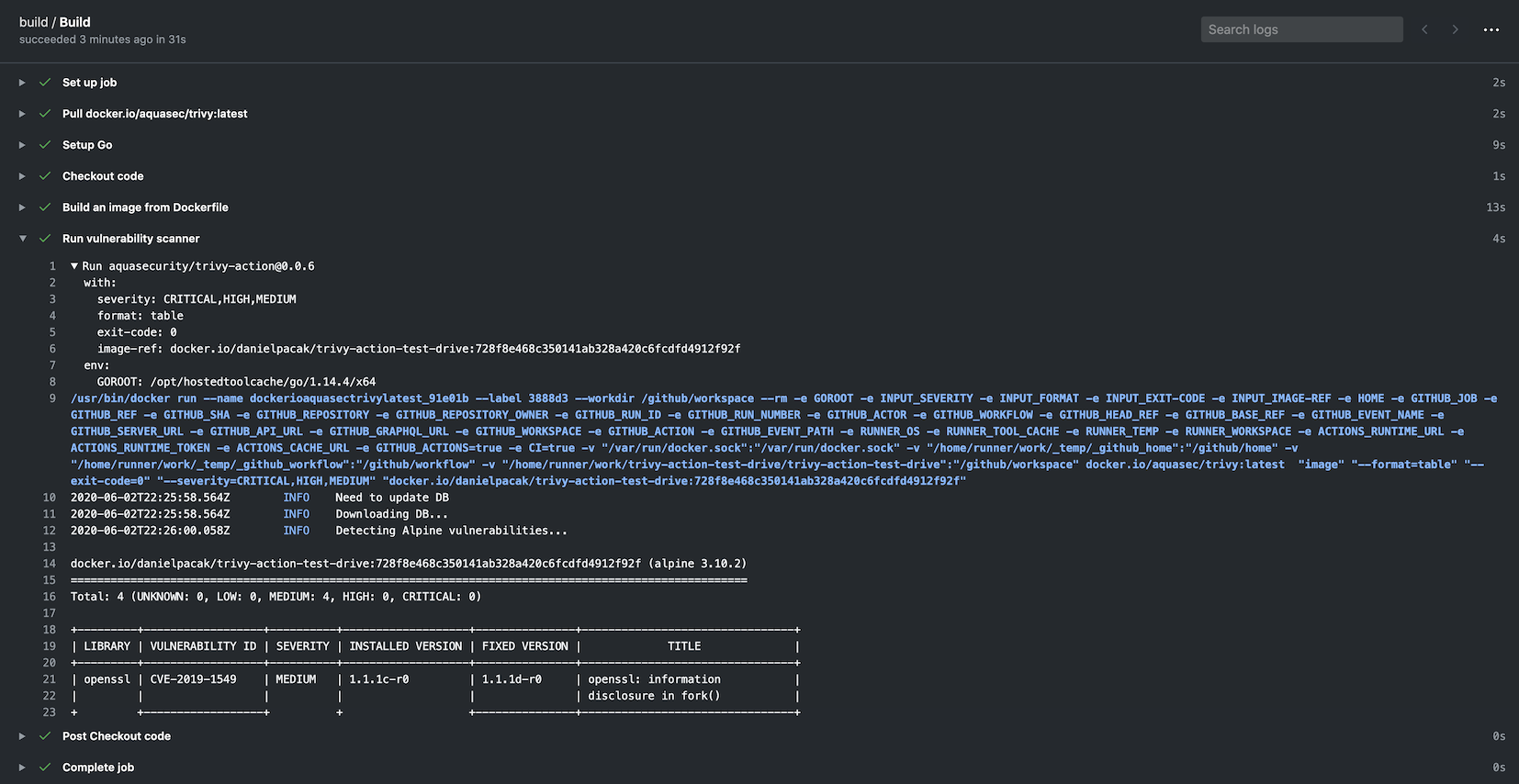
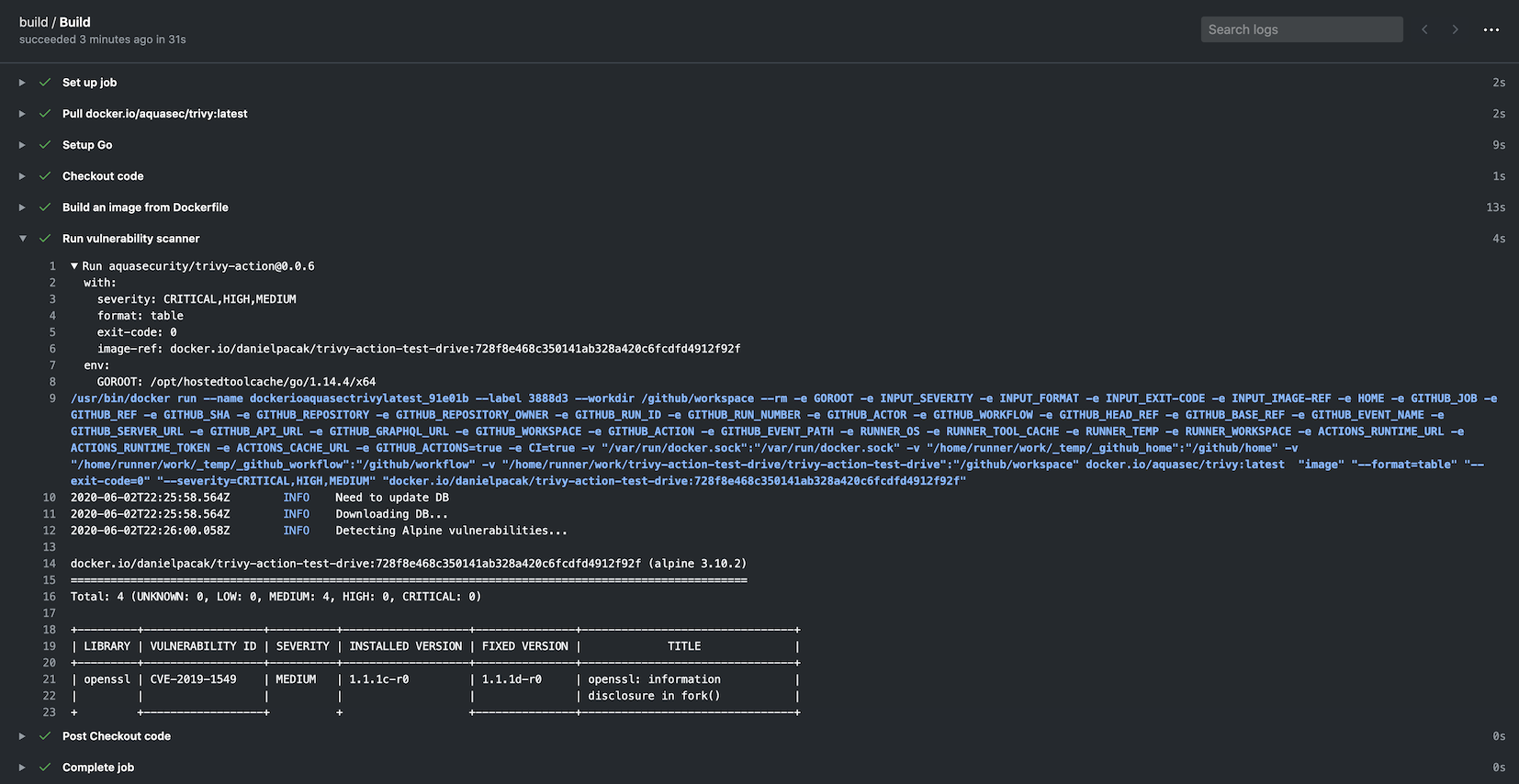
name: build
on:
  push:
    branches:
      - main
  pull_request:
jobs:
  build:
    name: Build
    runs-on: ubuntu-24.04
    steps:
      - name: Checkout code
        uses: actions/checkout@v4
      - name: Build an image from Dockerfile
        run: docker build -t docker.io/my-organization/my-app:${{ github.sha }} .
      - name: Run Trivy vulnerability scanner
        uses: aquasecurity/[email protected]
        with:
          image-ref: 'docker.io/my-organization/my-app:${{ github.sha }}'
          format: 'table'
          exit-code: '1'
          ignore-unfixed: true
          vuln-type: 'os,library'
          severity: 'CRITICAL,HIGH'
name: build
on:
  push:
    branches:
    - main
  pull_request:
jobs:
  build:
    name: Build
    runs-on: ubuntu-24.04
    steps:
    - name: Checkout code
      uses: actions/checkout@v4

    - name: Run Trivy vulnerability scanner in fs mode
      uses: aquasecurity/[email protected]
      with:
        scan-type: 'fs'
        scan-ref: '.'
        trivy-config: trivy.yaml
In this case trivy.yaml is a YAML configuration that is checked in as part of the repo. Detailed information is available on the Trivy website but an example is as follows:
format: json
exit-code: 1
severity: CRITICAL
secret:
  config: config/trivy/secret.yaml
It is possible to define all options in the trivy.yaml file. Specifying individual options via the action are left for backward compatibility purposes. Defining the following is required as they cannot be defined with the config file:
scan-ref: If using fs, repo scans.image-ref: If using image scan.scan-type: To define the scan type, e.g. image, fs, repo, etc.Trivy uses Viper which has a defined precedence order for options. The order is as follows:
The action has a built-in functionality for caching and restoring the vulnerability DB, the Java DB and the checks bundle if they are downloaded during the scan.
The cache is stored in the $GITHUB_WORKSPACE/.cache/trivy directory by default.
The cache is restored before the scan starts and saved after the scan finishes.
It uses actions/cache under the hood but requires less configuration settings. The cache input is optional, and caching is turned on by default.
If you want to disable caching, set the cache input to false, but we recommend keeping it enabled to avoid rate limiting issues.
    - name: Run Trivy scanner without cache
      uses: aquasecurity/[email protected]
      with:
        scan-type: 'fs'
        scan-ref: '.'
        cache: 'false'
Please note that there are restrictions on cache access between branches in GitHub Actions.
By default, a workflow can access and restore a cache created in either the current branch or the default branch (usually main or master).
If you need to share caches across branches, you may need to create a cache in the default branch and restore it in the current branch.
To optimize your workflow, you can set up a cron job to regularly update the cache in the default branch. This allows subsequent scans to use the cached DB without downloading it again.
# Note: This workflow only updates the cache. You should create a separate workflow for your actual Trivy scans.
# In your scan workflow, set TRIVY_SKIP_DB_UPDATE=true and TRIVY_SKIP_JAVA_DB_UPDATE=true.
name: Update Trivy Cache

on:
  schedule:
    - cron: '0 0 * * *'  # Run daily at midnight UTC
  workflow_dispatch:  # Allow manual triggering

jobs:
  update-trivy-db:
    runs-on: ubuntu-latest
    steps:
      - name: Setup oras
        uses: oras-project/setup-oras@v1

      - name: Get current date
        id: date
        run: echo "date=$(date +'%Y-%m-%d')" >> $GITHUB_OUTPUT

      - name: Download and extract the vulnerability DB
        run: |
          mkdir -p $GITHUB_WORKSPACE/.cache/trivy/db
          oras pull ghcr.io/aquasecurity/trivy-db:2
          tar -xzf db.tar.gz -C $GITHUB_WORKSPACE/.cache/trivy/db
          rm db.tar.gz

      - name: Download and extract the Java DB
        run: |
          mkdir -p $GITHUB_WORKSPACE/.cache/trivy/java-db
          oras pull ghcr.io/aquasecurity/trivy-java-db:1
          tar -xzf javadb.tar.gz -C $GITHUB_WORKSPACE/.cache/trivy/java-db
          rm javadb.tar.gz

      - name: Cache DBs
        uses: actions/cache/save@v4
        with:
          path: ${{ github.workspace }}/.cache/trivy
          key: cache-trivy-${{ steps.date.outputs.date }}
When running a scan, set the environment variables TRIVY_SKIP_DB_UPDATE and TRIVY_SKIP_JAVA_DB_UPDATE to skip the download process.
    - name: Run Trivy scanner without downloading DBs
      uses: aquasecurity/[email protected]
      with:
        scan-type: 'image'
        scan-ref: 'myimage'
      env:
        TRIVY_SKIP_DB_UPDATE: true
        TRIVY_SKIP_JAVA_DB_UPDATE: true
By default the action calls aquasecurity/setup-trivy as the first step
which installs the trivy version specified by the version input. If you have already installed trivy by other
means, e.g. calling aquasecurity/setup-trivy directly, or are invoking this action multiple times then you can use the
skip-setup-trivy input to disable this step.
name: build
on:
  push:
    branches:
    - main
  pull_request:
jobs:
  build:
    name: Build
    runs-on: ubuntu-24.04
    steps:
    - name: Checkout code
      uses: actions/checkout@v4

    - name: Manual Trivy Setup
      uses: aquasecurity/[email protected]
      with:
        cache: true
        version: v0.76.0
