
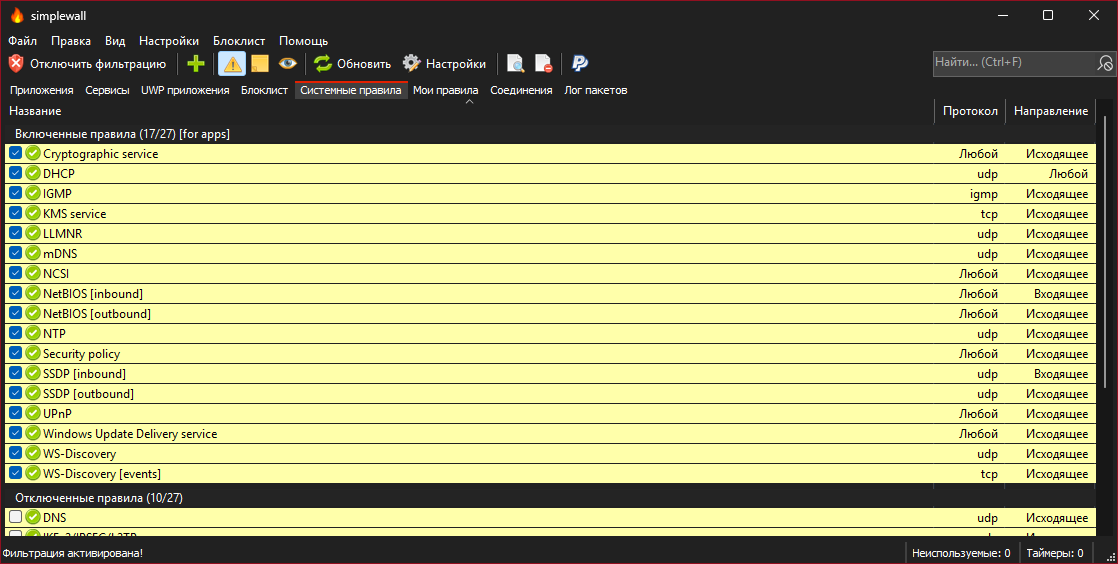
simplewall v.3.9
Simple tool to configure Windows Filtering Platform (WFP) which can configure network activity on your computer.
simplewall





Definitely for advanced users.
Description:
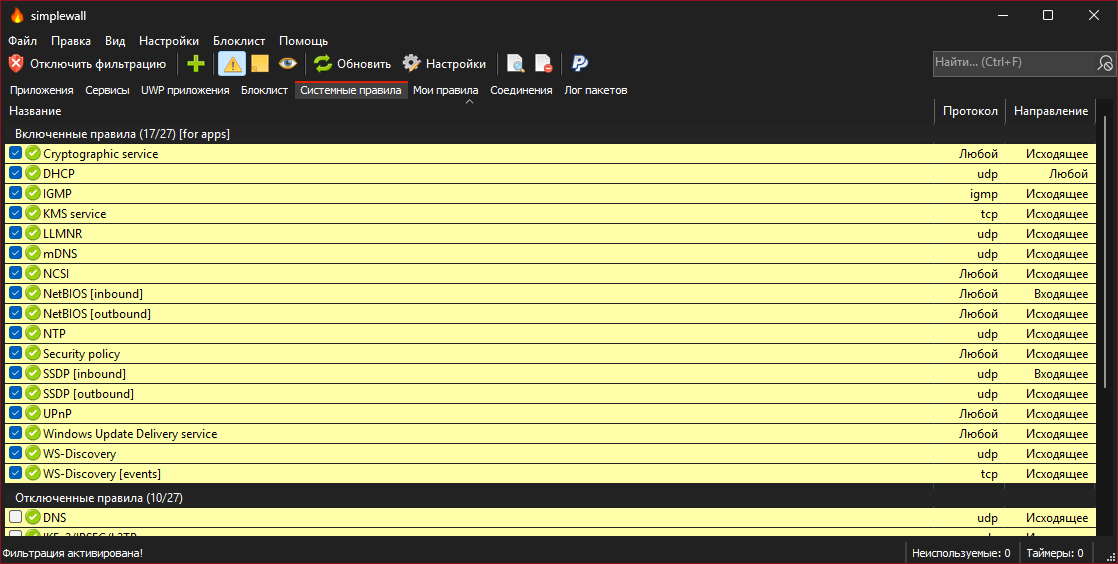
Simple tool to configure Windows Filtering Platform (WFP) which can configure network activity on your computer.
The lightweight application is less than a megabyte, and it is compatible with Windows 7 SP1 and higher operating systems. You can download either the installer or portable version. For correct working you are require administrator rights.
Nota bene:
Keep in mind, simplewall is not a control UI over Windows Firewall, and does not interact in any level with Windows Firewall. It works over Windows Filtering Platform (WFP) which is a set of internal API and system services that provide a platform for creating network filtering applications. Windows Filtering Platform is a development technology and not a firewall itself, but simplewall is the tool that uses this technology.
Features:
- Simple interface without annoying pop ups
- Rules editor (create your own rules)
- Internal blocklist (block Windows spy / telemetry)
- Dropped packets information with notification and logging to a file feature (win7+)
- Allowed packets information with logging to a file feature (win8+)
- Windows Subsystem for Linux (WSL) support
- Windows Store support (win8+)
- Windows services support
- Free and open source
- Localization support
- IPv6 support
To activate portable mode, create "simplewall.ini" in application folder, or move it from "%APPDATA%\Henry++\simplewall".
System requirements:
- Windows 7, 8, 8.1, 10, 11 64-bit/ARM64
- An SSE2-capable CPU
KB2533623KB3063858 update for Windows 7 was required
Donate:
- Bitcoin (BTC)
- Ethereum (ETH)
- Yandex Money (RUB)
- Paypal (USD)
GPG Signature:
Binaries have GPG signature simplewall.exe.sig in application folder.
- Public key: pubkey.asc (pgpkeys.eu)
- Key ID: 0x5635B5FD
- Fingerprint: D985 2361 1524 AB29 BE73 30AC 2881 20A7 5635 B5FD
Reviews of idiots:
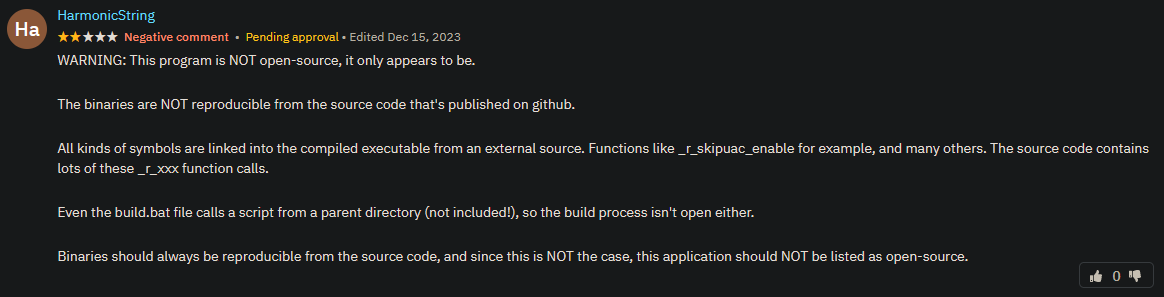
Look at them, he does not know about .gitmodules and how to use, lol.
PS: Without idiots we are not to be fun, yeah!
Installation:
When install rules, you can choose two modes:
- Permanent rules - rules are working until you disable it manually.
- Temporary rules - rules are reset after the next reboot.
Uninstall:
When you uninstall simplewall, all previously configured filters stay alive in system. To remove all filters created by simplewall, start simplewall and press "Disable filters" button.
Command line:
-install - enable filtering.
-install -temp - enable filtering until next reboot.
-install -silent - enable filtering without prompt.
-uninstall - remove all installed filters.
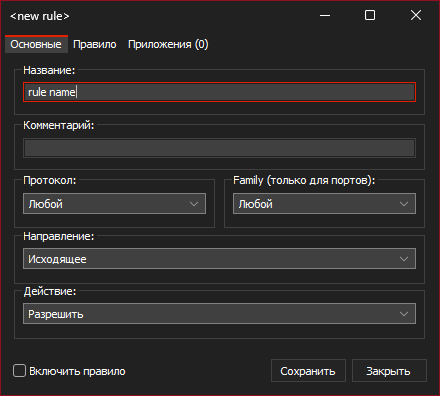
Rules editor:
simplewall have two types of custom user rules rules:
- Global rules: rule applied for all applications.
- Special rules: rule applied only for specified applications.
Rule syntax format:
To set rule applications, open rule and then navigate to "Apps" tab.
Rule syntax format:
- IP addresses
192.168.0.1; 192.168.0.1; [fc00::] - IP addresses with port
192.168.0.1:80; 192.168.0.1:443; [fc00::]:443; - IP ranges
192.168.0.1-192.168.0.255; 192.168.0.1-192.168.0.255; - IP ranges (with port)
192.168.0.1-192.168.0.255:80; 192.168.0.1-192.168.0.255:443;(v2.0.20+) - IP with prefix lengths (CIDR)
192.168.0.0/16; 192.168.0.0/24; fe80::/10 - Ports
21; 80; 443; - Ports ranges
20-21; 49152-65534;
To specify more than one ip, port and/or host, use semicolon.
IPv4 CIDR blocks:
| Address format | Mask |
|---|---|
| a.b.c.d/32 | 255.255.255.255 |
| a.b.c.d/31 | 255.255.255.254 |
| a.b.c.d/30 | 255.255.255.252 |
| a.b.c.d/29 | 255.255.255.248 |
| a.b.c.d/28 | 255.255.255.240 |
| a.b.c.d/27 | 255.255.255.224 |
| a.b.c.d/26 | 255.255.255.192 |
| a.b.c.d/25 | 255.255.255.128 |
| a.b.c.0/24 | 255.255.255.0 |
| a.b.c.0/23 | 255.255.254.0 |
| a.b.c.0/22 | 255.255.252.0 |
| a.b.c.0/21 | 255.255.248.0 |
| a.b.c.0/20 | 255.255.240.0 |
| a.b.c.0/19 | 255.255.224.0 |
| a.b.c.0/18 | 255.255.192.0 |
| a.b.c.0/17 | 255.255.128.0 |
| a.b.0.0/16 | 255.255.0.0 |
| a.b.0.0/15 | 255.254.0.0 |
| a.b.0.0/14 | 255.252.0.0 |
| a.b.0.0/13 | 255.248.0.0 |
| a.b.0.0/12 | 255.240.0.0 |
| a.b.0.0/11 | 255.224.0.0 |
| a.b.0.0/10 | 255.192.0.0 |
| a.b.0.0/9 | 255.128.0.0 |
| a.0.0.0/8 | 255.0.0.0 |
| a.0.0.0/7 | 254.0.0.0 |
| a.0.0.0/6 | 252.0.0.0 |
| a.0.0.0/5 | 248.0.0.0 |
| a.0.0.0/4 | 240.0.0.0 |
| a.0.0.0/3 | 224.0.0.0 |
| a.0.0.0/2 | 192.0.0.0 |
| a.0.0.0/1 | 128.0.0.0 |
| 0.0.0.0/0 | 0.0.0.0 |
FAQ:
Q: Are internet connections blocked when simplewall is not running?
A: Yes. Installed filters are working even if simplewall is terminated.
Q: What apps are blocked in default configuration?
A: By default, simplewall blocks all applications. You do not need to create custom rules to block specific applications.
Q: Is it safe to use simplewall with Windows Firewall?
A: Yes. You do not need to disable Windows Firewall. These two firewalls work independently.
Q: How can i disable blocklist entirely?
A: Open Settings -> Blocklist and then click the radio buttons labeled Disable.
Q: Where is blacklist mode?
A: Blacklist was removed many days ago for uselessness. But if you need it, you can still configure it.