 henrypp/simplewall
Simple tool to configure Windows Filtering Platform (WFP) which can configure network activity on your computer.

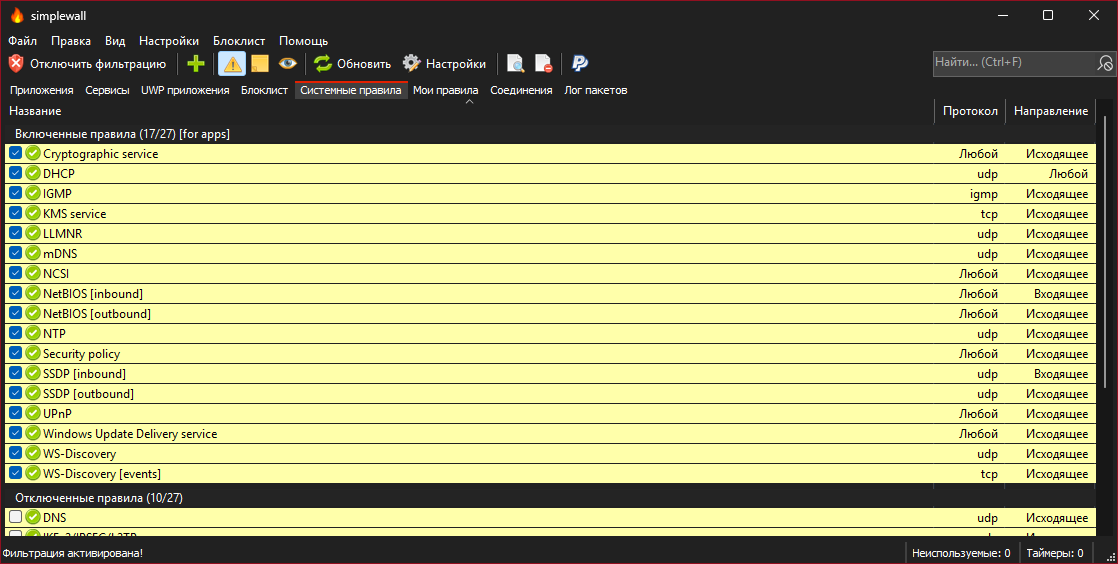
<h1 align="center">simplewall</h1> <p align="center"> <a href="https://github.com/henrypp/simplewall/releases"><img src="https://img.shields.io/github/v/release/henrypp/simplewall?style=flat-square&include_prereleases&label=version" /></a> <a href="https://github.com/henrypp/simplewall/releases"><img src="https://img.shields.io/github/downloads/henrypp/simplewall/total.svg?style=flat-square" /></a> <a href="https://github.com/henrypp/simplewall/issues"><img src="https://img.shields.io/github/issues-raw/henrypp/simplewall.svg?style=flat-square&label=issues" /></a> <a href="https://github.com/henrypp/simplewall/graphs/contributors"><img src="https://img.shields.io/github/contributors/henrypp/simplewall?style=flat-square" /></a> <a href="https://github.com/henrypp/simplewall/blob/master/LICENSE"><img src="https://img.shields.io/github/license/henrypp/simplewall?style=flat-square" /></a> </p> <p align="center"> <i>Definitely for advanced users.</i> </p> ------- <p align="center"> <img src="https://assets.kitploit.com/production/public/readmes/1534/2f4341076ad8084f826a83d6237d6df3d5c91d94bf00f2aa26ea9334c6c16892.png" /> </p> ### Description: Simple tool to configure [Windows Filtering Platform (WFP)](https://docs.microsoft.com/en-us/windows/win32/fwp/windows-filtering-platform-start-page) which can configure network activity on your computer. The lightweight application is less than a megabyte, and it is compatible with Windows 7 SP1 and higher operating systems. You can download either the installer or portable version. For correct working you are require administrator rights. ### Nota bene: Keep in mind, simplewall is not a control UI over Windows Firewall, and does not interact in any level with Windows Firewall. It works over Windows Filtering Platform (WFP) which is a set of internal API and system services that provide a platform for creating network filtering applications. Windows Filtering Platform is a development technology and not a firewall itself, but simplewall is the tool that uses this technology. ### Features: - Simple interface without annoying pop ups - [Rules editor](https://github.com/henrypp/simplewall#rules-editor) (create your own rules) - [Internal blocklist](https://crazymax.dev/WindowsSpyBlocker/blocking-rules/simplewall/) (block Windows spy / telemetry) - Dropped packets information with notification and logging to a file feature (win7+) - Allowed packets information with logging to a file feature (win8+) - Windows Subsystem for Linux (WSL) support - Windows Store support (win8+) - Windows services support - Free and open source - Localization support - IPv6 support ``` To activate portable mode, create "simplewall.ini" in application folder, or move it from "%APPDATA%\Henry++\simplewall". ``` ### System requirements: - Windows 7, 8, 8.1, 10, 11 64-bit/ARM64 - An SSE2-capable CPU - <s>KB2533623</s> [KB3063858](https://www.microsoft.com/en-us/download/details.aspx?id=47442) update for Windows 7 was required ### Donate: - [Bitcoin](https://www.blockchain.com/btc/address/1LrRTXPsvHcQWCNZotA9RcwjsGcRghG96c) (BTC) - [Ethereum](https://www.blockchain.com/explorer/addresses/eth/0xe2C84A62eb2a4EF154b19bec0c1c106734B95960) (ETH) - [Yandex Money](https://yoomoney.ru/to/4100115776040583) (RUB) - [Paypal](https://paypal.me/henrypp) (USD) ### GPG Signature: Binaries have GPG signature `simplewall.exe.sig` in application folder. - Public key: [pubkey.asc](https://raw.githubusercontent.com/henrypp/builder/master/pubkey.asc) ([pgpkeys.eu](https://pgpkeys.eu/pks/lookup?op=index&fingerprint=on&search=0x5635B5FD)) - Key ID: 0x5635B5FD - Fingerprint: D985 2361 1524 AB29 BE73 30AC 2881 20A7 5635 B5FD ### Reviews of idiots: [<img src="https://assets.kitploit.com/production/public/readmes/1534/13d308a2e930f71ee6dd9c8424c9af55e141b7c85a23b4f9955c4271c547554d.png" />](https://alternativeto.net/software/simplewall-firewall/about/) Look at them, he does not know about [.gitmodules](https://github.com/henrypp/simplewall/blob/master/.gitmodules) and how to use, lol. PS: Without idiots we are not to be fun, yeah! ### Installation: When install rules, you can choose two modes: - Permanent rules - rules are working until you <a href="#uninstall">disable it manually</a>. - Temporary rules - rules are reset after the next reboot. ### Uninstall: When you uninstall simplewall, all previously configured filters stay alive in system. To remove all filters created by simplewall, start simplewall and press "Disable filters" button. ### Command line: ~~~ -install - enable filtering. -install -temp - enable filtering until next reboot. -install -silent - enable filtering without prompt. -uninstall - remove all installed filters. ~~~ ### Rules editor: simplewall have two types of custom user rules rules: - **Global rules:** rule applied for all applications. - **Special rules:** rule applied only for specified applications. <img src="https://assets.kitploit.com/production/public/readmes/1534/64f8e5c2a0c2fa204efd03b60e0436ec939e712c9a314dd710b70ada19fff512.png" /> ### Rule syntax format: To set rule applications, open rule and then navigate to "Apps" tab. <details> <summary>Rule syntax format:</summary> --- - IP addresses `192.168.0.1; 192.168.0.1; [fc00::]` - IP addresses with port `192.168.0.1:80; 192.168.0.1:443; [fc00::]:443;` - IP ranges `192.168.0.1-192.168.0.255; 192.168.0.1-192.168.0.255;` - IP ranges (with port) `192.168.0.1-192.168.0.255:80; 192.168.0.1-192.168.0.255:443;` (v2.0.20+) - IP with prefix lengths (CIDR) `192.168.0.0/16; 192.168.0.0/24; fe80::/10` - Ports `21; 80; 443;` - Ports ranges `20-21; 49152-65534;` _To specify more than one ip, port and/or host, use semicolon._ --- </details> <details> <summary>IPv4 CIDR blocks:</summary> --- | Address format | Mask | | -------- | ------- | | a.b.c.d/32 | 255.255.255.255 | | a.b.c.d/31 | 255.255.255.254 | | a.b.c.d/30 | 255.255.255.252 | | a.b.c.d/29 | 255.255.255.248 | | a.b.c.d/28 | 255.255.255.240 | | a.b.c.d/27 | 255.255.255.224 | | a.b.c.d/26 | 255.255.255.192 | | a.b.c.d/25 | 255.255.255.128 | | a.b.c.0/24 | 255.255.255.0| | a.b.c.0/23 | 255.255.254.0| | a.b.c.0/22 | 255.255.252.0| | a.b.c.0/21 | 255.255.248.0| | a.b.c.0/20 | 255.255.240.0| | a.b.c.0/19 | 255.255.224.0| | a.b.c.0/18 | 255.255.192.0| | a.b.c.0/17 | 255.255.128.0| | a.b.0.0/16 | 255.255.0.0| | a.b.0.0/15 | 255.254.0.0| | a.b.0.0/14 | 255.252.0.0| | a.b.0.0/13 | 255.248.0.0| | a.b.0.0/12 | 255.240.0.0| | a.b.0.0/11 | 255.224.0.0| | a.b.0.0/10 | 255.192.0.0| | a.b.0.0/9 | 255.128.0.0| | a.0.0.0/8 | 255.0.0.0| | a.0.0.0/7 | 254.0.0.0| | a.0.0.0/6 | 252.0.0.0| | a.0.0.0/5 | 248.0.0.0| | a.0.0.0/4 | 240.0.0.0| | a.0.0.0/3 | 224.0.0.0| | a.0.0.0/2 | 192.0.0.0| | a.0.0.0/1 | 128.0.0.0| | 0.0.0.0/0 | 0.0.0.0| --- </details> <details> <summary>IPv6 CIDR blocks:</summary> --- [IPv6 CIDR blocks](https://www.mediawiki.org/wiki/Help:Range_blocks/IPv6) --- </details> ### FAQ: #### Q: Are internet connections blocked when simplewall is not running? A: Yes. Installed filters are working even if simplewall is terminated. #### Q: What apps are blocked in default configuration? A: By default, simplewall blocks **all** applications. You do not need to create custom rules to block specific applications. #### Q: Is it safe to use simplewall with Windows Firewall? A: Yes. You do not need to disable Windows Firewall. These two firewalls work independently. #### Q: How can i disable blocklist entirely? A: Open `Settings` -> `Blocklist` and then click the radio buttons labeled `Disable`. #### Q: Where is blacklist mode? A: Blacklist was removed many days ago for uselessness. But if you need it, you can still configure it. <details> <summary>Solution: Configure blacklist mode in simplewall:</summary> --- 1) Open `Settings` -> `Rules` 2) Uncheck `Block outbound for all` and `Block inbound for all` options. 3) Create user rule (green cross on toolbar) with block action, any direction, `Block connection` name and empty remote and local rule. 4) You can assign this rule for apps whatever you want to block network access. --- </details> #### Q: Why does my network icon have an exclamation mark? A: When you are connected to a network, Windows checks for internet connectivity using Active Probing. This feature is named as NCSI (Network Connectivity Status Indicator). You can resolve this problem in one of the following ways: <details> <summary>Solution 1: Enable NCSI through internal system rule:</summary> --- 1) Open `System rules` tab. 2) Allow `NCSI` rule (enabled by default). --- </details> <details> <summary>Solution 2: Disable NCSI through system registry:</summary> --- Create `Disable NCSI.reg` and import it into registry. ```reg Windows Registry Editor Version 5.00 [HKEY_LOCAL_MACHINE\SOFTWARE\Policies\Microsoft\Windows\NetworkConnectivityStatusIndicator] "NoActiveProbe"=dword:00000001 "DisablePassivePolling"=dword:00000001 ``` --- </details> <details> <summary>Solution 3: Disable NCSI through group policy:</summary> --- 1) Launch the group policy editor (`gpedit.msc` ). 2) Go to `Computer Configuration -> Administrative Templates -> System -> Internet Communication Management -> Internet Communication Settings`. 3) Double-click `Turn off Windows Network Connectivity Status Indicator active tests` and then select Enabled. Click Ok. 4) Open the Command Prompt (Admin) and enter `gpupdate /force` to enforce the changes made to the Group Policies. --- </details> #### Q: How can I disable Windows Firewall? Start the command line _as an administrator_, and enter the commands below. <details> <summary>Disable Windows Firewall profiles:</summary> --- ~~~bat netsh advfirewall set allprofiles state off ~~~ --- </details> <details> <summary>Enable Windows Firewall profiles:</summary> --- ~~~bat netsh advfirewall set allprofiles state on ~~~ --- </details> #### Q: How can I view all filters information? Start the command line _as an administrator_, and enter the commands below. <details> <summary>Dump filters information saved into a `filters.xml` file:</summary> --- ~~~bat cd /d %USERPROFILE%\Desktop netsh wfp show filters ~~~ --- </details> <details> <summary>Dump providers, callouts and layers information into a `wfpstate.xml` file:</summary> --- ~~~bat cd /d %USERPROFILE%\Desktop netsh wfp show state ~~~ --- </details> Open it in any text editor and study. #### Q: How to fix Windows Update internet access? <details> <summary>Windows 10 and above:</summary> --- Open main window menu `Settings` -> `Rules` -> `Allow Windows Update`. <br /> This is working by method described [here](https://github.com/henrypp/simplewall/issues/677). --- </details> <details> <summary>Windows 8.1:</summary> --- Open main window, Navigate into `System rules` tab and then enable `Windows Update service` rule. --- </details> #### Q: Other questions: - [Windows Security center integration (impossible)](https://stackoverflow.com/questions/3698285/how-can-i-tell-the-windows-security-center-that-im-an-antivirus/3698375#3698375) <details> <summary>Undocumented options:</summary> --- ~~~ini IsSaveAppsWithEnvironment=TRUE # 4.0+ IsNetworkMonitorEnabled=TRUE IsInternalRulesDisabled=FALSE IsBackupProfile=TRUE BackupPeriod=BACKUP_HOURS_PERIOD BackupTimestamp=0 IsOCSPEnabled=FALSE UseStealthMode=TRUE ~~~ </details> --- - Website: [github.com/henrypp](https://github.com/henrypp) - Support: [email protected] --- (c) 2016-2026 Henry++
