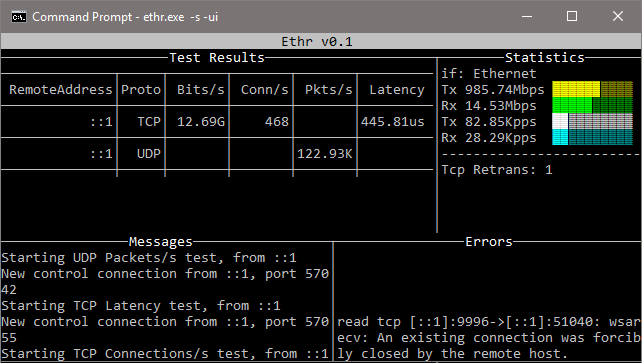

 microsoft/ethr
크로스 플랫폼 CLI로 TCP, UDP, HTTP, HTTPS 및 ICMP를 통한 네트워크 성능 테스트: 대역폭, connections/s, packets/s, 지연 시간, 손실, 지터, 핑, 트레이스루트.

Ethr는 golang으로 작성된 크로스 플랫폼 네트워크 성능 측정 도구입니다. 이 프로젝트의 목표는 TCP, UDP, HTTP, HTTPS와 같은 여러 프로토콜과 Windows, Linux 및 기타 Unix 시스템과 같은 여러 플랫폼에서 대역폭, connections/s, packets/s, 지연시간, 손실 및 지터에 대한 포괄적인 네트워크 성능 측정을 제공하는 네이티브 도구를 제공하는 것입니다.
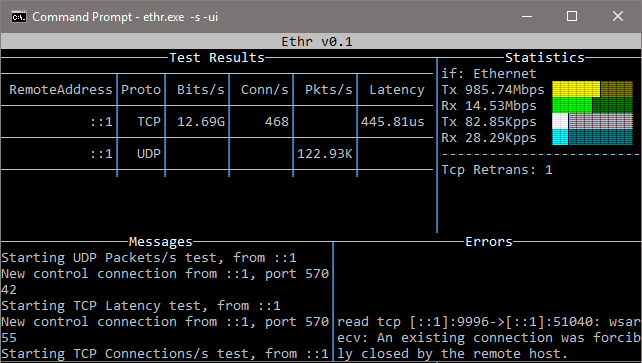
Ethr는 기존 오픈 소스 네트워크 성능 도구에서 영감을 얻어 그 아이디어를 바탕으로 구축되었습니다. 대역폭 측정의 경우 TCP 및 UDP 트래픽에 대해 iPerf3와 유사합니다. iPerf3에는 조절된 테스트, 더 풍부한 기능 세트와 같은 많은 옵션이 있는 반면, Ethr은 다중 스레드를 지원하므로 1024개 또는 그 이상의 연결 수, 단일 서버에 대한 다중 클라이언트 통신 등으로 확장할 수 있습니다. 지연시간 측정의 경우 Windows의 latte 또는 Linux의 sockperf와 유사합니다.
Ethr는 다른 도구에 비해 더 많은 테스트 측정을 제공합니다. 예를 들어 대역폭, connections/s, packets/s, 지연시간, TCP 연결 설정 지연시간 측정을 단일 도구로 제공합니다. 향후에는 네트워크 성능 측정을 위한 포괄적인 도구로 만들기 위해 더 많은 기능(다른 사람들의 기여를 기대하며)과 더 많은 프로토콜 지원을 추가할 계획입니다.
Ethr는 기능을 제한할 수 있는 cygwin과 같은 추상화 계층을 통한 컴파일과 달리 golang 덕분에 기본적으로 크로스 플랫폼입니다. iPerf3, ntttcp, psping, sockperf, latte와 같은 도구의 기능을 결합하고 여러 플랫폼과 여러 프로토콜에서 단일 도구를 제공하여 성능 측정을 통합하는 것을 목표로 합니다.
https://github.com/Microsoft/ethr/releases/latest
Linux
wget https://github.com/microsoft/ethr/releases/latest/download/ethr_linux.zip
unzip ethr_linux.zip
Windows Powershell
wget https://github.com/microsoft/ethr/releases/latest/download/ethr_windows.zip -OutFile ethr_windows.zip
Expand-Archive .\ethr_windows.zip -DestinationPath .
OSX
wget https://github.com/microsoft/ethr/releases/latest/download/ethr_osx.zip
unzip ethr_osx.zip
참고: 소스에서 빌드하려면 go 버전 1.11 이상이 필요합니다.
Ethr의 의존성을 관리하기 위해 go-module을 사용합니다. 자세한 내용은 go-modules 사용 방법!을 확인하세요.
git clone https://github.com/Microsoft/ethr.git
cd ethr
go build
ethr가 $GOPATH/src 트리 안에 클론된 경우, GO111MODULE=on과 함께 go 명령을 실행해야 합니다!
다음 명령으로 이미지를 빌드합니다:
docker build -t microsoft/ethr .
바이너리 생성:
Linux
docker run -e GOOS=linux -v $(pwd):/out microsoft/ethr make build-docker
Windows
docker run -e BINARY_NAME=ethr.exe -e GOOS=windows -v $(pwd):/out microsoft/ethr make build-docker
OS X
docker run -e BINARY_NAME=ethr -e GOOS=darwin -v $(pwd):/out microsoft/ethr make build-docker
go get github.com/microsoft/ethr
다음은 yay (https://github.com/Jguer/yay)를 사용한다고 가정합니다:
yay -S ethr
ethr.exe를 빌드하려면 소스에서 빌드 항목을 따르세요.
ethr.nuspec을 수정하여 새 릴리스 버전을 추가하세요.
vim ethr.nuspec
nuget 패키지를 만듭니다(예: Ethr.0.2.1.nupkg).
nuget.exe pack ethr.nuspec
패키지를 nuget.org에 업로드하세요.
도움말:
ethr -h
서버:
ethr -s
텍스트 UI를 사용하는 서버:
ethr -s -ui
클라이언트:
ethr -c <server ip>
예제:
// Start server
ethr -s

// Start client for default (bandwidth) test measurement using 1 thread
ethr -c localhost

// Start bandwidth test using 8 threads
ethr -c localhost -n 8

// Start connections/s test using 64 threads to server 10.1.0.11
ethr -c 10.1.0.11 -t c -n 64

// Run Ethr server on port 9999
./ethr -s -port 9999

// Measure TCP connection setup latency to ethr server on port 9999
// Assuming Ethr server is running on server with IP address: 10.1.1.100
./ethr -c 10.1.1.100 -p tcp -t pi -d 0 -4 -port 9999

// Measure TCP connection setup latency to www.github.com at port 443
./ethr -x www.github.com:443 -p tcp -t pi -d 0 -4

// Measure TCP connection setup latency to www.github.com at port 443
// Note: Here port 443 is driven automatically from https
./ethr -x https://www.github.com -p tcp -t pi -d 0 -4

// Measure ICMP ping latency to www.github.com
sudo ./ethr -x www.github.com -p icmp -t pi -d 0 -4

// Run measurement similar to mtr on Linux
sudo ./ethr -x www.github.com -p icmp -t mtr -d 0 -4

// Measure packets/s over UDP by sending small 1-byte packets
./ethr -c 172.28.192.1 -p udp -t p -d 0
ICMP 관련 테스트(Ping, TraceRoute, MyTraceRoute)의 경우 Windows에서는 방화벽에서 ICMP를 허용해야 합니다. 이는 다음 명령을 사용하여 PowerShell에서 수행할 수 있습니다. 단, 설정의 보안 정책이 허용하는 경우에만 사용하세요.
// Allow ICMP packets via Firewall for IPv4
New-NetFirewallRule -DisplayName "ICMP_Allow_Any" -Direction Inbound -Protocol ICMPv4 -IcmpType Any -Action Allow  -Profile Any -RemotePort Any

// Allow ICMP packets via Firewall for IPv6
New-NetFirewallRule -DisplayName "ICMPV6_Allow_Any" -Direction Inbound -Protocol ICMPv6 -IcmpType Any -Action Allow  -Profile Any -RemotePort Any
또한 TCP 기반 TraceRoute 및 MyTraceRoute의 경우 관리자 모드가 필요합니다. 그렇지 않으면 Ethr이 ICMP TTL 초과 메시지를 받을 수 없습니다.
ICMP Ping, ICMP/TCP TraceRoute 및 MyTraceRoute의 경우 sudo를 통한 권한 모드가 필요합니다.
	-h
		Help
	-no
		Disable logging to file. Logging to file is enabled by default.
	-o <filename>
		Name of log file. By default, following file names are used:
		Server mode: 'ethrs.log'
		Client mode: 'ethrc.log'
	-debug
		Enable debug information in logging output.
	-4
		Use only IP v4 version
	-6
		Use only IP v6 version
In this mode, Ethr runs as a server, allowing multiple clients to run
performance tests against it.
	-s
		Run in server mode.
	-ip <string>
		Bind to specified local IP address for TCP & UDP tests.
		This must be a valid IPv4 or IPv6 address.
		Default: <empty> - Any IP
	-port <number>
		Use specified port number for TCP & UDP tests.
		Default: 8888
	-ui
		Show output in text UI.
In this mode, Ethr client can only talk to an Ethr server.
	-c <server>
		Run in client mode and connect to <server>.
		Server is specified using name, FQDN or IP address.
	-b <rate>
		Transmit only Bits per second (format: <num>[K | M | G])
		Only valid for Bandwidth tests. Default: 0 - Unlimited
		Examples: 100 (100bits/s), 1M (1Mbits/s).
	-cport <number>
		Use specified local port number in client for TCP & UDP tests.
		Default: 0 - Ephemeral Port
	-d <duration>
		Duration for the test (format: <num>[ms | s | m | h]
		0: Run forever
		Default: 10s
	-g <gap>
		Time interval between successive measurements (format: <num>[ms | s | m | h]
		Only valid for latency, ping and traceRoute tests.
		0: No gap
		Default: 1s
	-i <iterations>
		Number of round trip iterations for each latency measurement.
		Only valid for latency testing.
		Default: 1000
	-ip <string>
		Bind to specified local IP address for TCP & UDP tests.
		This must be a valid IPv4 or IPv6 address.
		Default: <empty> - Any IP
	-l <length>
		Length of buffer to use (format: <num>[KB | MB | GB])
		Only valid for Bandwidth tests. Max 1GB.
		Default: 16KB
	-n <number>
		Number of Parallel Sessions (and Threads).
		0: Equal to number of CPUs
		Default: 1
	-p <protocol>
		Protocol ("tcp", "udp", "http", "https", or "icmp")
		Default: tcp
	-port <number>
		Use specified port number for TCP & UDP tests.
		Default: 8888
	-r
		For Bandwidth tests, send data from server to client.
	-t <test>
		Test to run ("b", "c", "p", "l", "cl" or "tr")
		b: Bandwidth
		c: Connections/s
		p: Packets/s
		l: Latency, Loss & Jitter
		pi: Ping Loss & Latency
		tr: TraceRoute
		mtr: MyTraceRoute with Loss & Latency
		Default: b - Bandwidth measurement.
	-tos
		Specifies 8-bit value to use in IPv4 TOS field or IPv6 Traffic Class field.
	-w <number>
		Use specified number of iterations for warmup.
		Default: 1
	-T <string>
		Use the given title in log files for logging results.
		Default: <empty>
