
BlockGuard는 프로세스 수준에서 파일 액세스를 가로채고 제어하는 Windows 데이터 손실 방지(DLP) 에이전트입니다. 실행 파일 경로, 암호화 해시, Authenticode 서명 및 무결성 수준으로 식별된 승인된 프로세스만 보호된 파일을 읽을 수 있도록 보장합니다.
BlockGuard는 Windows 데이터 손실 방지(DLP) 에이전트로, 프로세스 수준에서 파일 접근을 가로채고 제어합니다. 실행 파일 경로, 암호화 해시, Authenticode 서명, 무결성 수준(integrity level) 으로 식별되는 인가된 프로세스만이 보호된 파일을 읽을 수 있도록 보장합니다. 다른 모든 프로세스는 NTFS ACL을 통해 OS 커널 수준에서 기본적으로 거부됩니다.
┌─────────────────────────────────────────────────────────────────┐ │ BlockGuard.Agent (Windows Service) │ │ Orchestrates all layers │ ├───────────────────┬─────────────────────┬───────────────────────┤ │ Layer 1 │ Layer 2 │ Layer 3 │ │ MONITORING │ POLICY & IDENTITY │ PROTECTION │ │ │ │ │ │ • ETW Kernel │ • Process Identity │ • DPAPI Encryption │ │ File Trace │ Validator (6 │ • Structured Audit │ │ • ACL Enforcer │ checks) │ Logger (JSON) │ │ (deny-by- │ • Policy Evaluator │ │ │ default) │ (AND-logic │ │ │ │ rules) │ │ │ │ • Identity Cache │ │ │ │ (LRU + TTL) │ │ └───────────────────┴─────────────────────┴───────────────────────┘
---
## 🖥️ UI 관리 인터페이스
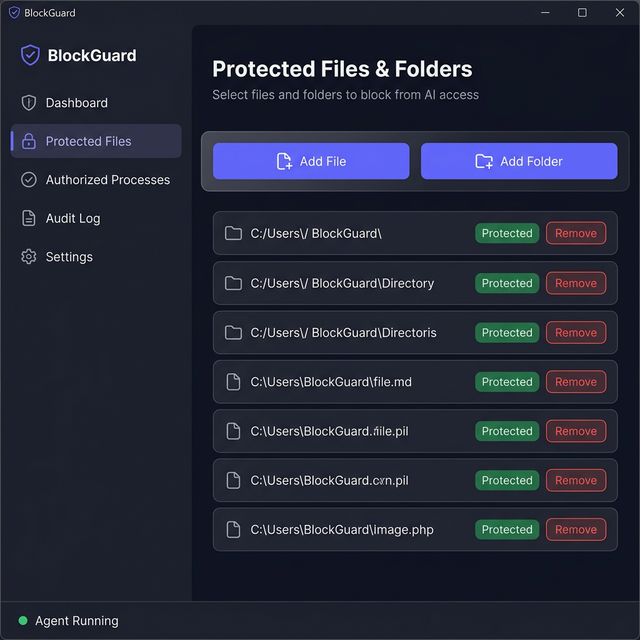
BlockGuard는 **WPF 데스크톱 애플리케이션**을 포함하여 보호된 파일과 폴더를 시각적 인터페이스로 관리할 수 있도록 합니다. `appsettings.json`을 수동으로 편집할 필요가 없습니다.
<p align="center">
<img src="https://assets.kitploit.com/production/public/readmes/12349/51a9b7894117382666d869cee59860a33698f666133bd23c6b6cd48b225d942c.png" alt="BlockGuard UI" width="640" />
</p>
### 기능
- **대시보드** — 보호 상태 개요 (총 파일, 폴더, 암호화 상태)
- **보호된 파일** — 파일 브라우저 대화상자를 통해 AI 접근을 차단할 파일 및 폴더 추가/제거
- **활동 로그** — 모든 구성 변경 사항의 실시간 로그
- **설정** — 구성 파일 경로 및 에이전트 정보 보기
- **에이전트 상태** — BlockGuard 에이전트 서비스 실행 여부를 보여주는 실시간 표시기
### UI 실행 방법```powershell
# From the project root
dotnet run --project src/BlockGuard.UI
참고: UI는 Agent 프로젝트의
appsettings.json파일을 읽고 씁니다. 변경 사항을 저장한 후 BlockGuard Agent 서비스를 다시 시작해야 적용됩니다.
BlockGuard를 실행하기 전에 Windows 머신에 다음이 설치되어 있는지 확인하세요:
| 요구 사항 | 최소 버전 | 확인 명령어 |
|---|---|---|
winget install Microsoft.DotNet.SDK.9
---
## 🚀 빠른 시작
### 1. 리포지토리 클론```powershell
git clone [email protected]:m2l33k/BlockGuard.git
cd BlockGuard
dotnet restore BlockGuard.sln
### 3. 솔루션 빌드```powershell
dotnet build BlockGuard.sln --configuration Release
다음과 같이 표시됩니다:``` Build succeeded. 0 Warning(s) 0 Error(s)
### 4. 보호된 경로 및 규칙 구성
`src/BlockGuard.Agent/appsettings.json`을 편집하여 **보호할 파일** 및 **권한 있는 프로세스**를 정의하세요:```json
{
"BlockGuard": {
"ProtectedPaths": [
"C:\\Secrets\\ai-model-keys",
"C:\\Secrets\\api-credentials.json"
],
"AuthorizedProcesses": [
{
"RuleName": "AI-Model-Inference-Engine",
"ExecutablePath": "C:\\Program Files\\MyAI\\inference.exe",
"MinimumIntegrityLevel": "Medium",
"RequireSignature": false
}
]
}
}
dotnet run --project src/BlockGuard.Agent
---
## ⚙️ 구성
모든 구성은 `src/BlockGuard.Agent/appsettings.json` 파일의 `"BlockGuard"` 섹션에 위치합니다.
### 보호 대상 경로
보호할 파일 또는 디렉터리의 배열입니다. 디렉터리는 모든 파일을 재귀적으로 보호합니다.```json
"ProtectedPaths": [
"C:\\Secrets\\ai-model-keys",
"C:\\Secrets\\api-credentials.json",
"D:\\Confidential\\reports"
]
각 규칙은 프로세스가 액세스 권한을 부여받기 위해 일치해야 하는 기준을 정의합니다. 모든 null이 아닌 필드가 일치해야 합니다 (AND 논리):
예제: AI 모델 프로세스를 위한 경로 기반 규칙```json { "RuleName": "AI-Model-Inference-Engine", "ExecutablePath": "C:\Program Files\MyAI\inference.exe", "ExpectedFileHash": null, "ExpectedSignerSubject": null, "MinimumIntegrityLevel": "Medium", "RequireSignature": false }
**예: 서명 기반 규칙 (모든 서명된 관리 도구용)**```json
{
"RuleName": "Signed-Management-Tool",
"ExecutablePath": null,
"ExpectedFileHash": null,
"ExpectedSignerSubject": "CN=Contoso Security",
"MinimumIntegrityLevel": "High",
"RequireSignature": true
}
예시: 해시 고정 규칙 (최대 변조 방지를 위한)```json { "RuleName": "Pinned-Data-Processor", "ExecutablePath": "C:\Tools\processor.exe", "ExpectedFileHash": "a1b2c3d4e5f67890abcdef1234567890abcdef1234567890abcdef1234567890", "ExpectedSignerSubject": null, "MinimumIntegrityLevel": "Medium", "RequireSignature": false }
### 기타 옵션
| Option | Default | Description |
|---|---|---|
| `IdentityCacheTtlSeconds` | `30` | 검증된 프로세스 ID가 캐시에 유지되는 시간(초) |
| `HandleTimeoutSeconds` | `60` | 임시 ACL 허용의 최대 지속 시간(초) |
| `AuditLogPath` | `C:\ProgramData\BlockGuard\Logs\audit.json` | JSON 감사 로그 파일의 경로 |
| `EnableDpapiEncryption` | `true` | DPAPI를 사용하여 저장된 보호 파일 암호화 |
| `DpapiScope` | `LocalMachine` | DPAPI 범위: `LocalMachine` 또는 `CurrentUser` |
---
## 🏃 에이전트 실행
### 옵션 A: 개발 모드 (콘솔)
테스트 및 디버깅에 가장 적합합니다. **관리자 권한 (Administrator) PowerShell**에서 실행하세요:```powershell
dotnet run --project src/BlockGuard.Agent --configuration Release
[03:15:22 INF] [BlockGuard.Monitoring.AclEnforcer] Locked down file 'C:\Secrets\api-credentials.json' [03:15:22 INF] [BlockGuard.Protection.DpapiWrapper] Encrypted file 'C:\Secrets\api-credentials.json' [03:15:22 INF] [BlockGuard.Monitoring.EtwFileTraceSession] ETW file trace session started successfully. [03:15:22 INF] [BlockGuard.Agent.BlockGuardService] BlockGuard is now actively protecting 2 path(s).
중지하려면 `Ctrl+C`를 누르세요.
### 옵션 B: Windows 서비스로 설치 (프로덕션)```powershell
# 1. Publish a self-contained build
dotnet publish src/BlockGuard.Agent -c Release -r win-x64 --self-contained -o C:\BlockGuard
# 2. Create the Windows Service
sc.exe create BlockGuard binPath= "C:\BlockGuard\BlockGuard.Agent.exe" start= auto obj= "NT AUTHORITY\SYSTEM" DisplayName= "BlockGuard Security Agent"
# 3. Set the service description
sc.exe description BlockGuard "Process-based file access security agent (DLP)"
# 4. Start the service
sc.exe start BlockGuard
서비스 관리:```powershell
sc.exe query BlockGuard
sc.exe stop BlockGuard
sc.exe delete BlockGuard
---
## ✅ 작동 확인
다음 단계를 따라 BlockGuard가 파일을 올바르게 보호하고 있는지 확인하세요.
### 테스트 1: 빌드 확인```powershell
# From the project root directory
dotnet build BlockGuard.sln
# Expected: Build succeeded with 0 Error(s)
dotnet run --project src/BlockGuard.Agent
**✅ 예상 출력값:**
- `BlockGuard Security Agent Starting` 메시지
- `CRITICAL` 또는 `FATAL` 오류 없음
- `ETW file trace session started successfully`
- `BlockGuard이(가) 현재 X개 경로를 적극적으로 보호 중입니다.`
**❌ `ETW session — insufficient privileges`가 표시되는 경우:**
- 관리자로 실행 중이 아닙니다. PowerShell을 마우스 오른쪽 버튼으로 클릭 → "관리자 권한으로 실행"
### 테스트 3: ACL 잠금 확인
에이전트가 시작된 후, 보호된 파일이 잠겨 있는지 확인합니다:```powershell
# Create a test protected file
New-Item -Path "C:\Secrets" -ItemType Directory -Force
Set-Content -Path "C:\Secrets\api-credentials.json" -Value '{"api_key": "secret123"}'
# Start the agent (it will lock down the file)
dotnet run --project src/BlockGuard.Agent
# In ANOTHER non-admin terminal, try to read the file:
Get-Content "C:\Secrets\api-credentials.json"
# Expected: Access Denied error
icacls "C:\Secrets\api-credentials.json"
### 테스트 5: 감사 로그 검사
에이전트가 잠시 실행된 후, 감사 로그를 확인하십시오:```powershell
# View the last 10 audit entries
Get-Content "C:\ProgramData\BlockGuard\Logs\audit.json" | Select-Object -Last 10
예상 출력 (JSON lines):```json {"type":"operational","timestamp":"2026-03-05T02:30:00Z","eventType":"AgentStart","message":"BlockGuard security agent starting."} {"type":"access_decision","timestamp":"2026-03-05T02:30:05Z","verdict":"deny","reason":"No authorization rule matched this process identity.","file":"C:\Secrets\api-credentials.json","processId":5678}
### 테스트 6: ETW 이벤트 캡처 확인
두 번째 터미널을 열고 에이전트가 실행 중인 동안 보호된 파일에 접근을 시도합니다:```powershell
# Terminal 1: Agent is running with console output
dotnet run --project src/BlockGuard.Agent
# Terminal 2: Try reading a protected file with notepad
notepad.exe "C:\Secrets\api-credentials.json"
터미널 1에서 다음과 같은 로그 항목이 표시됩니다:``` [03:20:15 WRN] [AUDIT] DENIED access to 'C:\Secrets\api-credentials.json' by PID 9876 (C:\Windows\System32\notepad.exe). Reason: No authorization rule matched
### Test 7: Verify Unauthorized Access Blocked (AI Model)
When a process (like an unauthorized AI model) attempts to read a protected folder or file, the agent immediately denies the access. The AI will receive a strict **Access Denied** error, and the attempt is logged:
<p align="center">
<img src="https://assets.kitploit.com/production/public/readmes/12349/d2a2e20c0fc60e8b3a5f614b0a53c6c7275b634e93b1ce0b9fe4440c38215fac.png" alt="Unauthorized Access Denied" width="600" />
</p>
### Test 8: Verify DPAPI Encryption```powershell
# Check that the .enc file was created
Test-Path "C:\Secrets\api-credentials.json.enc"
# Expected: True
# Check that the original plaintext file was securely deleted
Test-Path "C:\Secrets\api-credentials.json"
# Expected: False (if EnableDpapiEncryption is true)
에이전트가 실행되는 동안, 승인되지 않은 ACL entry를 수동으로 추가하십시오:```powershell
icacls "C:\Secrets\api-credentials.json.enc" /grant Users:R
### Test 10: Verify Logs Directory```powershell
# Check both log locations
Get-ChildItem "C:\ProgramData\BlockGuard\Logs\"
# Expected files:
# audit.json (structured JSON audit log)
# blockguard-20260305.log (daily rolling application log)
BlockGuard/ ├── BlockGuard.sln # Solution file ├── README.md # This file ├── architecture_overview.md # Detailed architecture documentation ├── assets/ │ ├── Untitled.jpg # Project logo (Trusty mascot) │ └── blockguard_ui_mockup_*.png # UI mockup screenshot │ ├── src/ │ ├── BlockGuard.Core/ # Shared models, interfaces, configuration │ │ ├── Configuration/ │ │ │ └── BlockGuardOptions.cs # Strongly-typed config (paths, rules, timeouts) │ │ ├── Interfaces/ │ │ │ ├── IAclEnforcer.cs # ACL management contract │ │ │ ├── IAuditLogger.cs # Audit logging contract │ │ │ ├── IDpapiWrapper.cs # DPAPI encryption contract │ │ │ ├── IFileAccessMonitor.cs # ETW monitoring contract │ │ │ ├── IPolicyEvaluator.cs # Policy evaluation contract │ │ │ └── IProcessIdentityValidator.cs # Process identity contract │ │ └── Models/ │ │ ├── AccessDecision.cs # Verdict + reason + matched rule │ │ ├── FileAccessEvent.cs # ETW event: file, PID, operation │ │ └── ProcessIdentity.cs # Hash, signature, SID, integrity │ │ │ ├── BlockGuard.Monitoring/ # Layer 1: Monitoring & Interception │ │ ├── EtwFileTraceSession.cs # Real-time kernel file ETW consumer │ │ └── AclEnforcer.cs # NTFS ACL lockdown + temp grants │ │ │ ├── BlockGuard.Policy/ # Layer 2: Policy & Identity Engine │ │ ├── ProcessIdentityValidator.cs # 6-layer P/Invoke validation │ │ ├── PolicyEvaluator.cs # AND-logic rule matching │ │ └── IdentityCache.cs # Thread-safe LRU cache (TTL) │ │ │ ├── BlockGuard.Protection/ # Layer 3: Decryption & Handle Manager │ │ ├── DpapiWrapper.cs # DPAPI encrypt/decrypt + secure delete │ │ └── AuditLogger.cs # Structured JSON audit logging │ │ │ ├── BlockGuard.Agent/ # Windows Service entry point │ │ ├── Program.cs # DI container, Serilog, hosting │ │ ├── BlockGuardService.cs # Main orchestrator (5-phase startup) │ │ └── appsettings.json # Configuration file │ │ │ └── BlockGuard.UI/ # WPF Desktop Management Interface │ ├── App.xaml / App.xaml.cs # Application resources & dark theme │ ├── MainWindow.xaml / .cs # Main window with sidebar navigation │ ├── ViewModels/ │ │ └── MainViewModel.cs # MVVM ViewModel (commands, config I/O) │ └── Services/ │ └── ConfigurationService.cs # Reads/writes appsettings.json
## 🔬 작동 방식
### 시작 순서 (5단계)```
Phase 1: ACL Lockdown
└─ Strip all permissions from protected files
└─ Grant access only to SYSTEM + Administrators
└─ Disable ACL inheritance
Phase 2: DPAPI Encryption (optional)
└─ Encrypt each protected file at rest
└─ Securely delete plaintext (overwrite with random data)
└─ Store ciphertext as .enc files
Phase 3: Event Subscription
└─ Register handler for file access events
Phase 4: ETW Monitoring
└─ Start kernel-level file trace session
└─ Filter events by protected paths
└─ Emit FileAccessEvent for each match
Phase 5: Integrity Check Loop
└─ Every 60 seconds, verify ACLs are intact
└─ Auto-remediate if tampering detected
┌─────────────┐ ┌───────────────┐ ┌──────────────────┐ │ Process │ │ ETW Kernel │ │ Policy │ │ reads file │────▶│ File Provider │────▶│ Evaluator │ └─────────────┘ └───────────────┘ └──────────────────┘ │ ┌────────┴────────┐ ▼ ▼ ┌──────────┐ ┌──────────┐ │ ALLOW │ │ DENY │ │ │ │ │ │ Grant │ │ ACL is │ │ temp ACL │ │ already │ │ (60s) │ │ blocking │ └──────────┘ └──────────┘ │ │ ▼ ▼ ┌────────────────────────────┐ │ Audit Logger (JSON) │ └────────────────────────────┘
### 프로세스 검증 (6가지 검사)
프로세스가 보호된 파일에 접근할 때 BlockGuard는 다음을 통해 검증합니다:
1. **실행 파일 경로** — 전체 경로를 확인 및 정규화 (경로 탐색 방지)
2. **SHA-256 해시** — 디스크 상 바이너리의 해시 계산 (파일 교체 감지)
3. **Authenticode 서명** — 디지털 서명 체인 검증 (서명되지 않거나 변조된 바이너리 감지)
4. **프로세스 소유자 SID** — 토큰을 조회하여 실행 계정 식별
5. **무결성 수준** — 필수 레이블 읽기 (Untrusted/Low/Medium/High/System)
6. **부모 프로세스 ID** — 프로세스 생성 체인 추적 (인젝션 감지)
모든 검사는 **실패 시 차단(fail-closed)**됩니다: 검증 단계 중 하나라도 실패하면 접근이 **거부**됩니다.
---
## 🛠️ 문제 해결
### "ETW 세션 — 권한 부족"
**원인:** 에이전트가 Administrator/SYSTEM 권한으로 실행되고 있지 않습니다.
**해결 방법:**```powershell
# Right-click PowerShell → "Run as Administrator"
dotnet run --project src/BlockGuard.Agent
원인: 에이전트가 상승된 권한 없이 파일 권한을 변경할 수 없습니다.
해결 방법: 위와 동일 — 관리자 권한으로 실행합니다.
원인: appsettings.json의 경로가 컴퓨터에 존재하지 않습니다.
해결 방법: 먼저 디렉터리와 파일을 만듭니다:```powershell New-Item -Path "C:\Secrets\ai-model-keys" -ItemType Directory -Force Set-Content -Path "C:\Secrets\api-credentials.json" -Value '{"key":"value"}'
### 클론 후 빌드 오류
**수정:** NuGet 패키지 복원:```powershell
dotnet restore BlockGuard.sln
dotnet build BlockGuard.sln
원인: 이전 에이전트 인스턴스가 충돌하여 좀비 ETW 세션을 남겼습니다. 이는 자동으로 정리됩니다 — 경고(WARNING)일 뿐, 오류가 아닙니다.
원인: 구성 오류일 가능성이 높습니다. 로그 파일을 확인하십시오:```powershell Get-Content "C:\ProgramData\BlockGuard\Logs\blockguard-*.log" | Select-Object -Last 50
---
## 🔒 보안 고려 사항
### 이 에이전트가 수행할 수 있는 작업
- ✅ ACL 적용을 통해 권한 없는 프로세스가 보호된 파일을 **읽는** 것을 방지합니다
- ✅ ETW를 통해 모든 파일 접근 시도를 실시간으로 감지하고 **감사**합니다
- ✅ DPAPI를 사용하여 **저장 상태의** 파일을 암호화합니다
- ✅ ACL 변조를 감지하고 **자동 복구**합니다
### 이 에이전트가 수행할 수 없는 작업
- ❌ **실행 중인 파일 읽기를 차단**할 수 없습니다 — 사용자 모드 에이전트이므로, 실제 실행 중 차단은 커널 미니필터 드라이버가 필요합니다
- ❌ **커널 수준 공격을 막을 수 없습니다** — 악성 커널 드라이버가 NTFS ACL을 우회할 수 있습니다
- ❌ **관리자가 재정의하는 것을 방지할 수 없습니다** — 관리자 계정이 ACL을 제거할 수 있습니다 (변조 감지로 완화됨)
### 프로덕션 권장 사항
1. **`NT AUTHORITY\SYSTEM`으로 실행** — 콘솔 앱이 아닌 Windows 서비스를 사용하세요
2. **에이전트 바이너리에 서명**하세요 — Authenticode 인증서로 자체 변조를 방지합니다
3. 볼륨에서 **BitLocker를 활성화**하여 전체 디스크 암호화 (DPAPI 보완)
4. 중앙 모니터링을 위해 **감사 로그를 SIEM으로 전달**하세요
5. 커널 수준 우회를 방지하려면 **Secure Boot + 드라이버 서명 적용**을 활성화하세요
---
## 🤝 기여하기
1. 저장소를 포크하세요
2. 기능 브랜치 생성: `git checkout -b feature/my-feature`
3. 변경 사항 커밋: `git commit -m "Add my feature"`
4. 브랜치에 푸시: `git push origin feature/my-feature`
5. Pull Request를 엽니다
### 코드 스타일
- C# 명명 규칙 따르기 (public 멤버는 PascalCase)
- 모든 public API에 XML 문서 주석 추가
- 모든 검증은 **fail-closed**여야 합니다 (오류 시 거부)
- 모든 네이티브 핸들을 `finally` 블록에서 명시적으로 해제
- 사용 후 민감한 메모리 버퍼를 0으로 초기화
---
## 📄 라이선스
이 프로젝트는 MIT 라이선스에 따라 라이선스가 부여됩니다. 자세한 내용은 [LICENSE](https://github.com/m2l33k/blockguard/blob/HEAD/LICENSE)를 참조하세요.
---
<p align="center">
<b>Windows 파일 보호를 위한 보안 우선 원칙으로 구축되었습니다.</b>
<br/>
<sub>BlockGuard — 당신의 데이터는 단순한 잠금이 아닌 보호자가 필요하기 때문입니다.</sub>
</p>
| 기능 | 설명 |
|---|
| 기본 거부 ACL | 보호된 파일은 에이전트 시작 시 잠깁니다 — SYSTEM 및 관리자만 접근 권한을 유지합니다 |
| 실시간 ETW 모니터링 | Windows용 이벤트 추적(ETW)을 통해 커널 수준 파일 I/O 이벤트 캡처 |
| 6계층 프로세스 검증 | 실행 파일 경로, SHA-256 해시, Authenticode 서명, 소유자 SID, 무결성 수준, 부모 프로세스 체인 |
| DPAPI 파일 암호화 | Windows 데이터 보호 API(DPAPI)를 사용하여 저장 시 보호된 파일 암호화 |
| 임시 접근 자동 해지 | 인가된 프로세스는 자동 만료되는 시간 제한 ACL 권한을 받습니다 |
| 변조 탐지 | 주기적인 무결성 검사로 ACL 변경을 감지하고 자동 복구 |
| 구조화된 감사 로깅 | 모든 접근 시도의 JSON 감사 기록 (SIEM 준비 완료) |
| Windows 서비스 | NT AUTHORITY\SYSTEM 계정으로 백그라운드 Windows 서비스로 실행 |
| Windows OS |
| Windows 10 / Server 2019 |
winver |
| .NET SDK | 9.0 | dotnet --version |
| 관리자 권한 | 필수 | 터미널을 관리자 권한으로 실행 |
| Field | Type | Description |
|---|
RuleName | string | 이 규칙의 사람이 읽을 수 있는 이름 (감사 로그에 사용됨) |
ExecutablePath | string? | 승인된 실행 파일의 전체 경로 (대소문자 구분 안 함) |
ExpectedFileHash | string? | 실행 파일의 SHA-256 해시 (변조 탐지) |
ExpectedSignerSubject | string? | Authenticode 인증서 주체 (예: "CN=Contoso") |
MinimumIntegrityLevel | string | 최소 Windows 무결성 수준: Untrusted, Low, Medium, High, System |
RequireSignature | bool | true인 경우, 실행 파일에 유효한 Authenticode 서명이 있어야 함 |
| # | 테스트 | 확인 방법 | 예상 결과 |
|---|
| 1 | 빌드 | dotnet build BlockGuard.sln | 0 에러 |
| 2 | 에이전트 시작 | dotnet run --project src/BlockGuard.Agent (관리자 권한) | 시작 배너, CRITICAL 에러 없음 |
| 3 | ACL 잠금 | icacls <protected-file> | SYSTEM 및 Administrators만 |
| 4 | 허가되지 않은 접근 차단 | 일반 사용자 터미널에서 보호 파일 읽기 | Access Denied |
| 5 | ETW 캡처 | 에이전트 실행 중에 보호 파일 읽기 | 콘솔에 DENIED 로그 항목 |
| 6 | 감사 로그 | Get-Content C:\ProgramData\BlockGuard\Logs\audit.json | 평결이 포함된 JSON 항목 |
| 7 | DPAPI 암호화 | Test-Path <file>.enc | .enc 파일 존재 |
| 8 | 변조 탐지 | icacls <file> /grant Users:R 후 60초 대기 | 자동 복구 기록됨 |