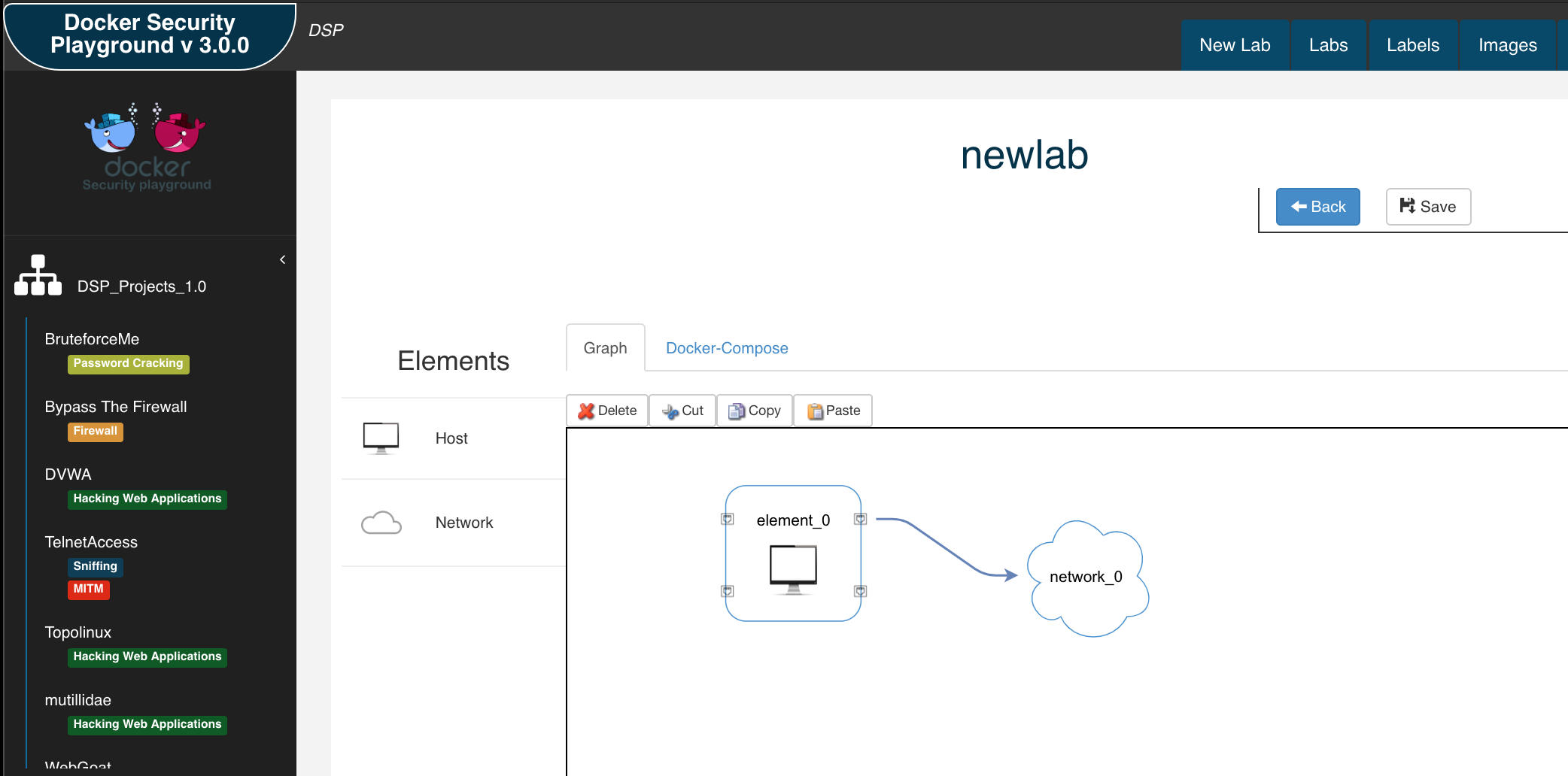
 dockersecurityplayground/dsp
네트워크 보안 및 침투 테스트 기술 연구를 위한 마이크로서비스 기반 프레임워크


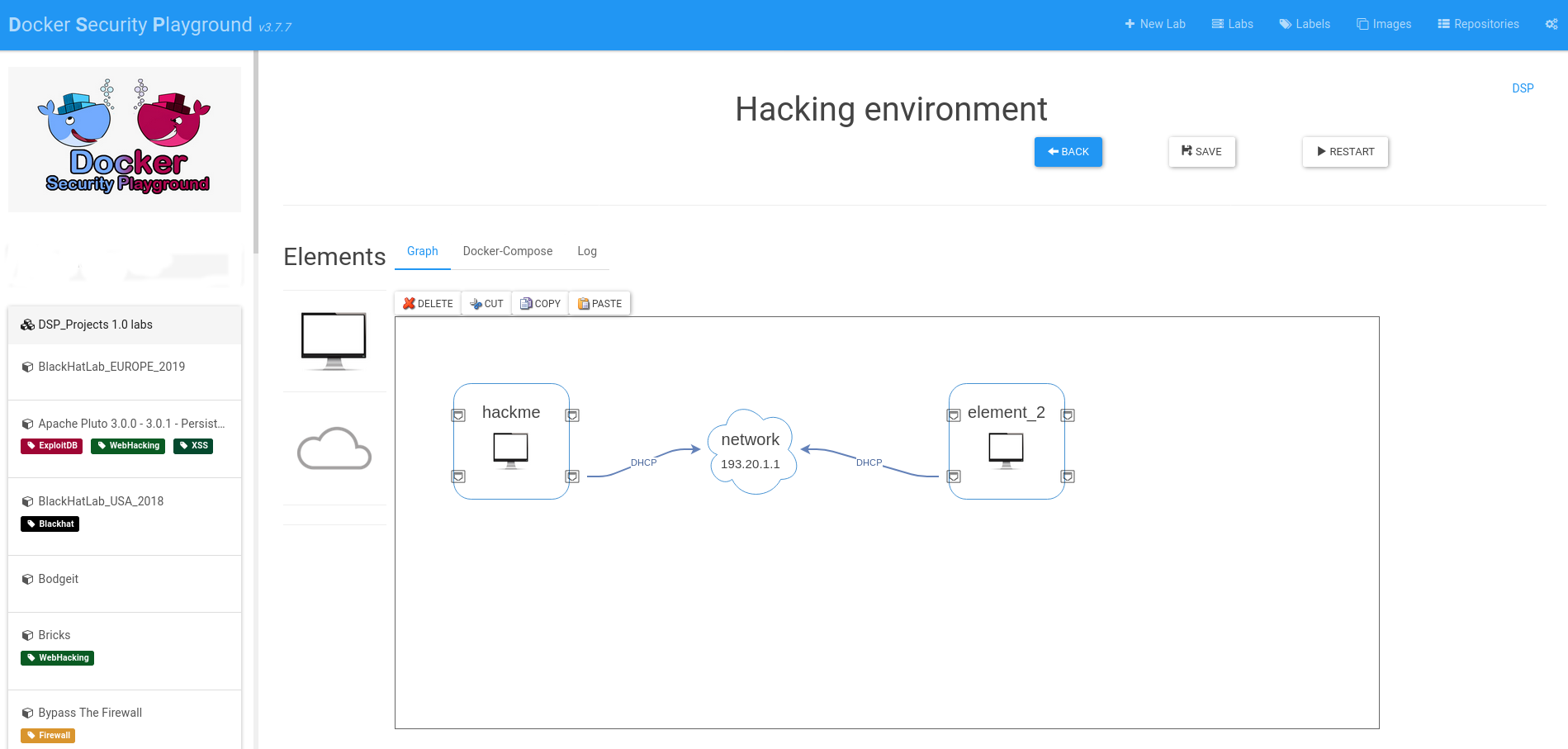
Docker Security Playground는 다음을 할 수 있는 애플리케이션입니다:
DSP의 권장 설치 방법은 Kali VM을 사용하는 것입니다:
다음은 Kali VM에 DSP를 설치하는 단계입니다. 다른 Linux 배포판의 경우 유사한 단계를 따르되 모든 요구 사항을 설치했는지 확인하세요.
sudo apt update && sudo apt install -y docker.io docker-compose nodejs npm git
참고 (2025 Kali 키링 문제).
설치 중 다음 문제가 발생하는 경우:
Fetched 34.0 kB in 1s (58.4 kB/s)
Warning: Failed to fetch http://http.kali.org/kali/dists/kali-rolling/InRelease  The following signatures couldn't be verified because the public key is not available: NO_PUBKEY ED65462EC8D5E4C5
Warning: Some index files failed to download. They have been ignored, or old ones used instead.
누락된 키를 추가해야 합니다:
wget https://http.kali.org/kali/pool/main/k/kali-archive-keyring/kali-archive-keyring_2025.1_all.deb
sudo dpkg -i kali-archive-keyring_2025.1_all.deb
rm kali-archive-keyring_2025.1_all.deb
sudo systemctl enable docker
sudo groupadd docker
sudo usermod -aG docker $USER
docker ps
또한 docker compose가 작동하는지 확인:
docker compose --version # 또는 구형 버전에서는 docker-compose --version
npm 및 nodejs 설치도 확인:
node -v
npm -v
Rosetta를 활성화하여 호스트 M1에서 DSP를 실행할 수 있지만, UTM 또는 Vmware Fusion으로 Kali VM을 만들고 이전 설치 단계를 따른 후, ARM 아키텍처에서 x86 이미지를 실행하기 위해 binfmt-misc 패키지를 설치하는 것을 강력히 권장합니다.
sudo apt install binfmt-support qemu-user-static
기기를 재시작합니다.
그런 다음, Tonisiigi 컨테이너를 사용하여 다양한 아키텍처에 대한 모든 인터프리터를 등록합니다:
docker run --privileged --rm tonistiigi/binfmt --install amd64
docker 이미지가 기기에서 실행될 수 있는지 확인:
docker run --rm -it --platform linux/amd64 ubuntu uname -m
git clone https://github.com/DockerSecurityPlayground/DSP.git
cd DSP
npm install
설치가 완료되면 DSP를 시작합니다:
npm start
DSP는 "http://localhost:18181"에서 실행됩니다.
Kali에서 Wireshark 사용 시 참고: Chromium 브라우저를 사용하는 것이 좋습니다. Wireshark 컨테이너가 Kali의 Firefox에서 지원되지 않는 코덱을 사용하기 때문입니다. 터미널에 "chromium"을 입력하면 Chromium을 시작할 수 있습니다.
첫 번째 단계는 현재 시스템에 필요한 모든 폴더를 설치하는 것입니다.
환경 변수를 사용하여 이 설치 단계를 자동화할 수도 있습니다:
export DSP_AUTOINSTALL=1 && npm start
호스트 브라우저를 사용하려면 0.0.0.0 인터페이스에 노출할 수 있습니다. 다른 인터페이스에 노출하려면 DSP_IFACE 환경 변수를 변경하세요:
export DSP_IFACE="0.0.0.0"
이제 원격 인터페이스에서 dsp를 사용할 수 있습니다.
문제가 발생하면 다음 명령으로 DSP를 공장 초기화할 수 있습니다:
npm run uninstall
이렇게 하면 모든 것이 삭제되며, 설치 단계부터 DSP를 다시 시작할 수 있습니다.
DSP_Repo에는 공식 DSP 실습이 포함되어 있습니다. 새로운 DSP 실습을 만들어 DSP에 기여하세요.
설치 중에 git과 연결되지 않은 로컬 환경을 만들거나 개인 저장소를 애플리케이션에 연결할 수 있습니다. 이는 작업을 다른 사람과 공유하려는 경우 매우 유용합니다. DSP 저장소는 여러 요구 사항을 충족해야 하므로, 개인 저장소를 만드는 데 사용할 수 있는 기본 DSP Repo 템플릿을 만들었습니다. 따라서 실습을 공유하는 가장 쉬운 방법은 다음과 같습니다:
사용하는 모든 이미지는 다른 사용자가 사용할 수 있어야 하므로:
"비공개 방식"으로 실습을 공유해야 하는 경우 다른 방법으로 저장소를 공유해야 합니다. 현재 비공개 저장소 공유는 지원되지 않습니다.
DSP에서 여러 사용자 저장소를 관리할 수 있습니다 (저장소 탭).
문제가 있는 경우 Issue 섹션을 사용하세요.
테스트 실행:
mocha test/<test-nodejs-file.js>
테스트는 helper.start() 메서드를 사용하여 테스트 환경을 초기화합니다:
설치 중 다음 오류가 발생하는 경우:
[2020-12-14T10:18:21.854Z]  INFO: DockerSecurityPlayground/1536 on vagrant: [DOCKER ACTIONS - DOWNLOAD IMAGE]
events.js:174
      throw er; // Unhandled 'error' event
      ^

Error: connect EACCES /var/run/docker.sock
    at PipeConnectWrap.afterConnect [as oncomplete] (net.js:1107:14)
Emitted 'error' event at:
    at Socket.socketErrorListener (_http_client.js:401:9)
    at Socket.emit (events.js:198:13)
    at emitErrorNT (internal/streams/destroy.js:91:8)
    at emitErrorAndCloseNT (internal/streams/destroy.js:59:3)
    at process._tickCallback (internal/process/next_tick.js:63:19)
두 가지를 확인하세요:
docker 그룹에 속해 있는지테스트:
docker ps
일반 사용자로 DSP를 실행하는 경우 sudo를 사용하지 마세요. 다음 오류가 발생하는 경우:
vagrant@vagrant:~/git/DockerSecurityPlayground$ docker ps
Got permission denied while trying to connect to the Docker daemon socket at unix:///var/run/docker.sock: Get http://%2Fvar%2Frun%2Fdocker.sock/v1.24/containers/json: dial unix /var/run/docker.sock: connect: permission denied
docker 그룹에 사용자를 추가해야 합니다: https://docs.docker.com/engine/install/linux-postinstall/
$ sudo groupadd docker
$ sudo usermod -aG docker $USER
로그아웃 후 다시 로그인합니다. 이제 DSP를 정리해야 합니다:
npm run uninstall
그러면 모든 것이 정상적으로 작동할 것입니다.
MacOS ECONNRESET 오류:
events.js:183
      throw er; // Unhandled 'error' event
      ^

Error: read ECONNRESET
    at _errnoException (util.js:992:11)
    at TCP.onread (net.js:618:25)
Mac에서는 일부 노드 패키지에 문제가 있는 것으로 보입니다. 이를 해결하려면 다음을 실행하세요:
MacBook-Pro:DockerSecurityPlayground gaetanoperrone$ npm install [email protected] --save-dev --save-exact
기타 정보: http://gitlab.comics.unina.it/NS-Thesis/DockerSecurityPlayground_1/wikis/docker-operation-errors
git checkout -b my-new-featuregit commit -am 'Add some feature'git push origin my-new-featureIssues 를 사용하여 원하는 모든 것을 물어보세요!

