
Laboratorio di rilevamento Blue Team creato con Terraform e Ansible su Azure.
Questo progetto contiene una serie di script Terraform e Ansible per creare un laboratorio BlueTeam orchestrato. L'obiettivo del progetto è fornire ai team red e blue la possibilità di distribuire un laboratorio di rilevamento ad-hoc per testare vari attacchi e artefatti forensi sull'ultimo ambiente Windows e ottenere una visualizzazione 'simile a un SOC' dei dati generati.
NOTA: Questo laboratorio è deliberatamente progettato per essere insicuro. Non collegare questo sistema a nessuna rete a cui tieni.
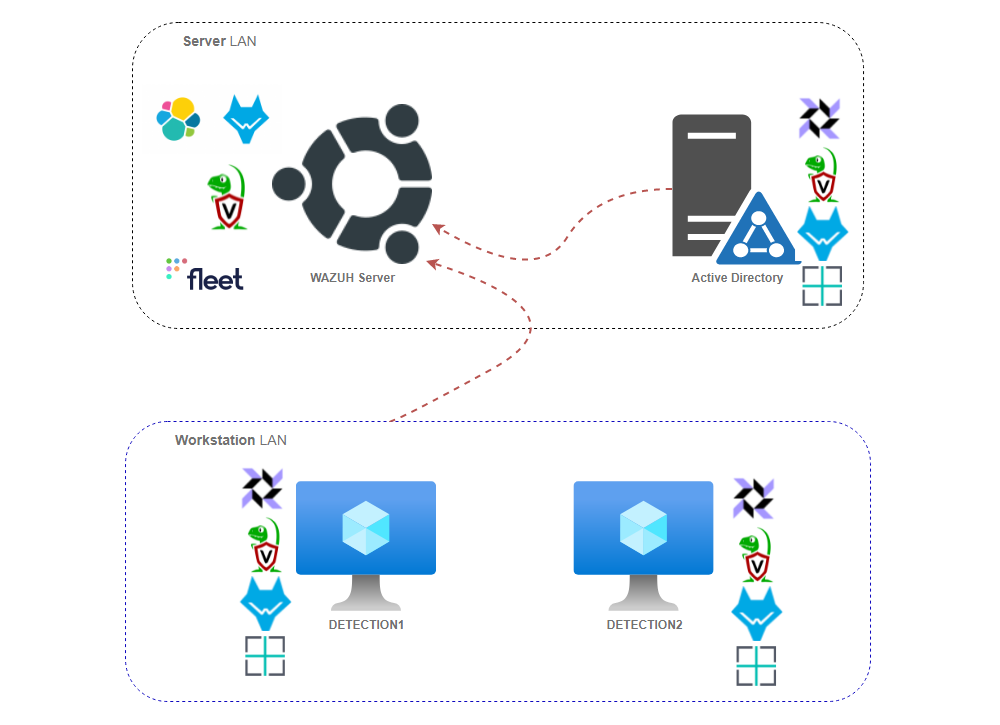
È necessario installare una serie di funzionalità sul sistema per utilizzare questa configurazione.
# Step 1 - Install Azure CLI. More details on https://docs.microsoft.com/en-us/cli/azure/install-azure-cli-linux?pivots=apt
curl -sL https://aka.ms/InstallAzureCLIDeb | sudo bash

# Step 2 - Install Terraform. More details on https://learn.hashicorp.com/tutorials/terraform/install-cli
sudo apt-get update && sudo apt-get install -y gnupg software-properties-common curl
curl -fsSL https://apt.releases.hashicorp.com/gpg | sudo apt-key add -
sudo apt-add-repository "deb [arch=amd64] https://apt.releases.hashicorp.com $(lsb_release -cs) main"
sudo apt-get update && sudo apt-get install terraform

# Step 3 - Install Ansible. More details on https://docs.ansible.com/ansible/latest/installation_guide/intro_installation.html
sudo apt update
sudo apt install software-properties-common
sudo add-apt-repository --yes --update ppa:ansible/ansible
sudo apt update
sudo apt install ansible

# Step 4 - Finally install python and various packages needed for remote connections and other activities
sudo apt install python3 python3-pip
pip3 install pywinrm requests msrest msrestazure azure-cli
pip3 install -r https://raw.githubusercontent.com/ansible-collections/azure/refs/heads/dev/requirements.txt
Una volta installati tutti i prerequisiti, eseguire la seguente serie di passaggi:
# Log in to Azure from command line to ensure that the access token is valid
az login

# Clone Repository and move to BlueTeam.Lab folder
git clone https://github.com/op7ic/BlueTeam.Lab.git && cd BlueTeam.Lab

# Initialize Terraform and begin planning
terraform init && terraform plan

# Create your lab using the following command.
terraform apply -auto-approve

# Verify the layout of your environment using Ansible
cd ansible && ANSIBLE_CONFIG=./ansible.cfg ansible-inventory --graph -i inventory.azure_rm.yml -vvv && cd ../

# To see IPs of individual hosts and other setup details use the following command:
cd ansible && ANSIBLE_CONFIG=./ansible.cfg ansible-inventory -i inventory.azure_rm.yml -vvv --list && cd ../

# Once done, destroy your lab using the following command:
terraform destroy -auto-approve

# If you would like to time the execution us following command:
start_time=`date +%s` && terraform apply -auto-approve && end_time=`date +%s` && echo execution time was `expr $end_time - $start_time` s

#NOTE: It will take about two hours to configure it all, depending on your selected hardware.
Le variabili di Terraform impostano il tipo di sistema operativo utilizzato per questa distribuzione. Una semplice modifica alle variabili di runtime consente di specificare un sistema operativo diverso per eseguire l'intero Active Directory (AD). L'opzione predefinita è utilizzare Windows 10 Enterprise per le Workstation e Windows Server 2019 Datacenter per il Domain Controller. Ecco alcuni esempi di opzioni di configurazione comuni per modificare l'intero ambiente utilizzando versioni diverse del sistema operativo:
# Use Windows 10 Enterprise for Workstations and Server 2019 Datacenter for DC (default option)
terraform apply -auto-approve

# Use Windows 11 Enterprise for Workstations and Server 2019 Datacenter for DC
terraform apply -auto-approve  -var="workstation_os=Windows-11" -var="workstation_SKU=win11-21h2-ent" -var="workstations_vm_size=Standard_DC2s_v2"

# Use Windows 11 Enterprise for Workstations and Server 2012 Datacenter for DC
terraform apply -auto-approve -var="workstation_os=Windows-11" -var="workstation_SKU=win11-21h2-ent" -var="workstations_vm_size=Standard_DC2s_v2" -var="dc_os=WindowsServer" -var="dc_SKU=2012-Datacenter"

# Use Windows 11 Enterprise for Workstations and Server 2016 Datacenter for DC
terraform apply -auto-approve -var="workstation_os=Windows-11" -var="workstation_SKU=win11-21h2-ent" -var="workstations_vm_size=Standard_DC2s_v2" -var="dc_os=WindowsServer" -var="dc_SKU=2016-Datacenter"

# Use Windows 10 Pro N for Workstations and Server 2012 Datacenter for DC
terraform apply -auto-approve -var="workstation_os=Windows-10" -var="workstation_SKU=21h1-pron" -var="dc_os=WindowsServer" -var="dc_SKU=2012-Datacenter"
Il comando az vm image list può essere utilizzato per identificare varie versioni del sistema operativo per la distribuzione.
La seguente sezione descrive vari componenti che compongono questo laboratorio insieme ai dettagli su come modificare i file di configurazione per personalizzare la configurazione:
Una volta costruito il laboratorio, Terraform stamperà l'effettiva posizione dei sistemi e le credenziali associate. Di seguito è riportato un esempio di output.
Network Setup:

Domain Controller = xx.xx.xx.xx
Workstation DETECTION1: xx.xx.xx.xx
Workstation DETECTION2: xx.xx.xx.xx
Wazuh Server IP = xx.xx.xx.xx
Wazuh Web Interface = https://xx.xx.xx.xx:443/
Velociraptor Web Inteface: = https://xx.xx.xx.xx:10000/
FleetDM Web Interface: = https://xx.xx.xx.xx:9999/

Credentials:

Domain Admin:
    blueteam.lab\blueteam BlueTeamDetection0%%%
Local Admin on Workstations:
    blueteam BlueTeamDetection0%%%
Wazuh Server SSH Login:
    blueteam BlueTeamDetection0%%%
Wazuh Logins:
    wazuh  BlueTeamDetection0%%%
    admin  BlueTeamDetection0%%%
    kibanaserver  BlueTeamDetection0%%%
    kibanaro  BlueTeamDetection0%%%
    logstash  BlueTeamDetection0%%%
    readall  BlueTeamDetection0%%%
    snapshotrestore  BlueTeamDetection0%%%
    wazuh_admin  BlueTeamDetection0%%%
    wazuh_user  BlueTeamDetection0%%%
Velociraptor Web Inteface Login:
    blueteam BlueTeamDetection0%%%
FleetDM Web Inteface Login:
    [email protected] BlueTeamDetection0%%%

RDP to Domain Controller:
xfreerdp /v:xx.xx.xx.xx /u:blueteam.lab\\blueteam '/p:BlueTeamDetection0%%%' +clipboard /cert-ignore

RDP to Workstation DETECTION1: xx.xx.xx.xx
xfreerdp /v:xx.xx.xx.xx /u:blueteam '/p:BlueTeamDetection0%%%' +clipboard /cert-ignore

RDP to Workstation DETECTION2: xx.xx.xx.xx
xfreerdp /v:xx.xx.xx.xx /u:blueteam '/p:BlueTeamDetection0%%%' +clipboard /cert-ignore
La tabella seguente riassume le regole del firewall applicate nell'ambiente BlueTeamLab nella configurazione predefinita. Modificare il file main.tf per aggiungere nuove regole firewall secondo necessità nella sezione Firewall Rule Setup.
Internamente vengono utilizzati i seguenti IP statici e hostname nell'intervallo 10.0.0.0/16 per questo ambiente nella configurazione predefinita:
Le seguenti credenziali predefinite vengono create durante l'installazione. La stampa delle credenziali effettivamente configurate verrà visualizzata al termine dell'intero processo di distribuzione.
Per modificare le credenziali predefinite, modificare nomi utente e password nel file domain_setup.yml.
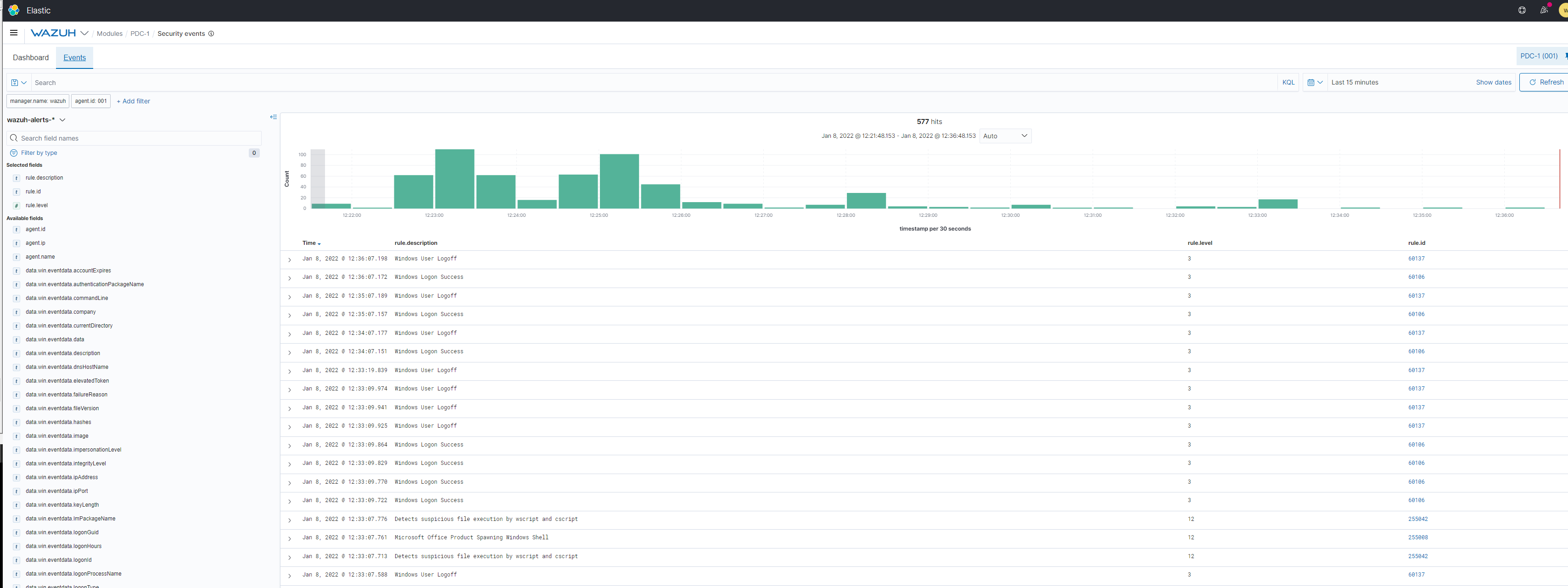
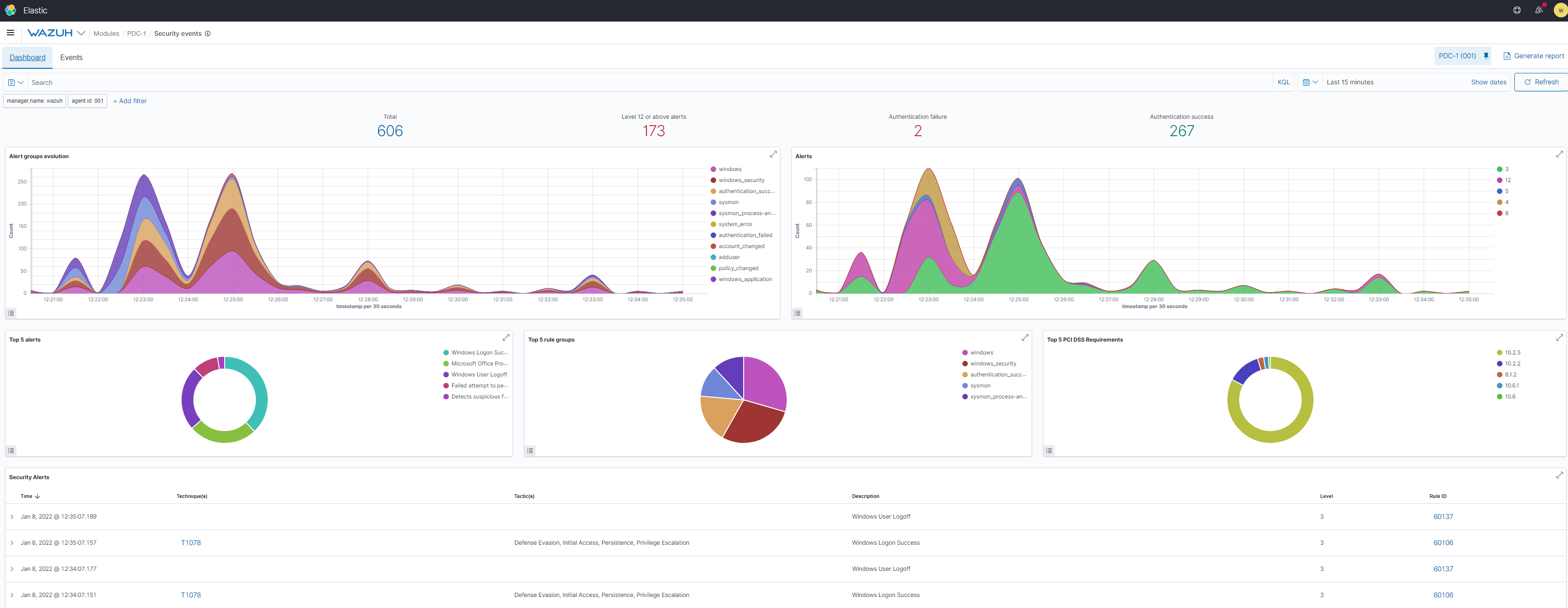
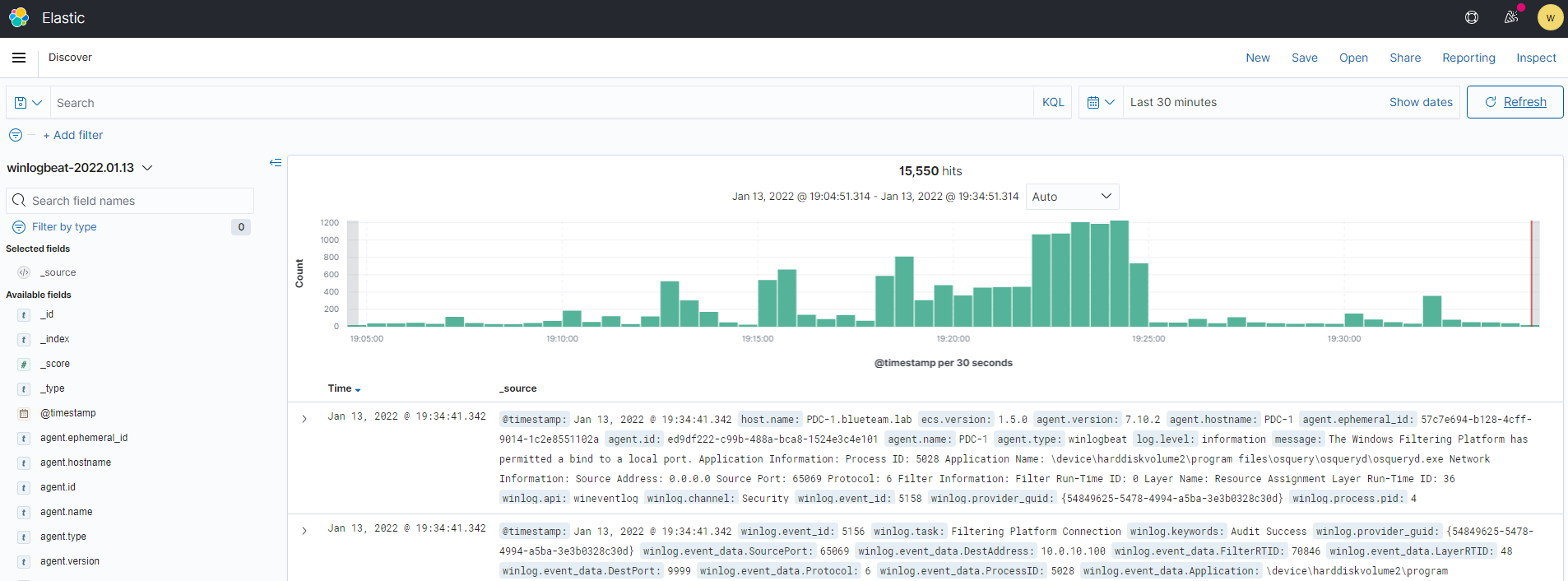
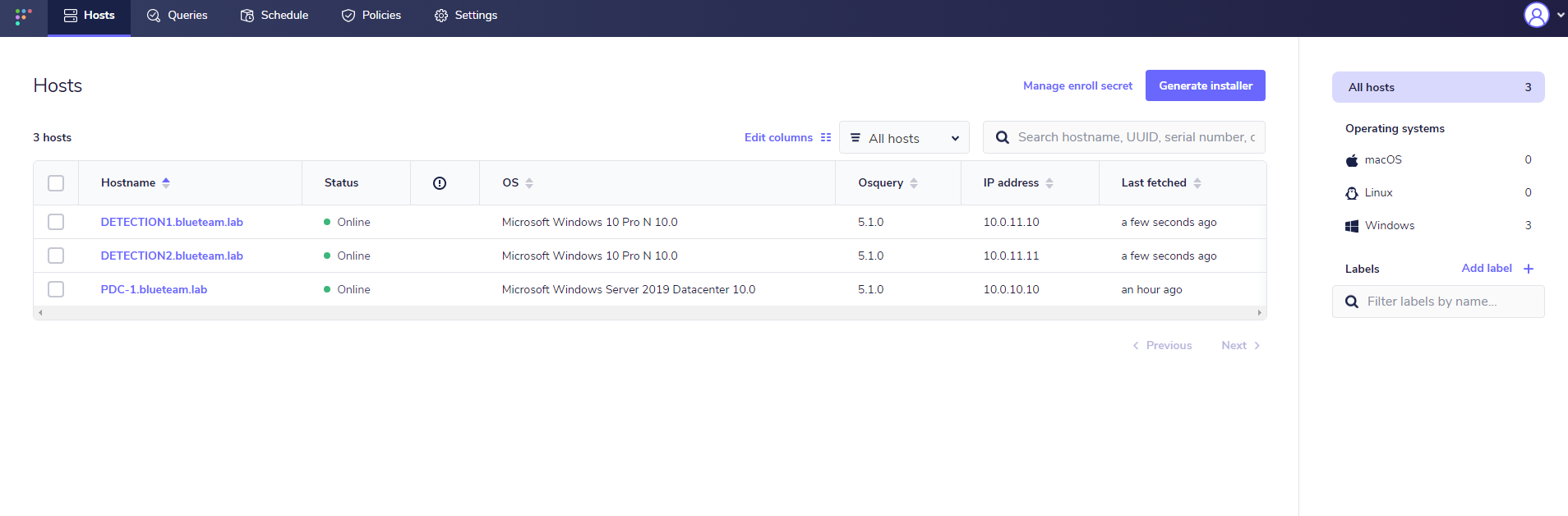
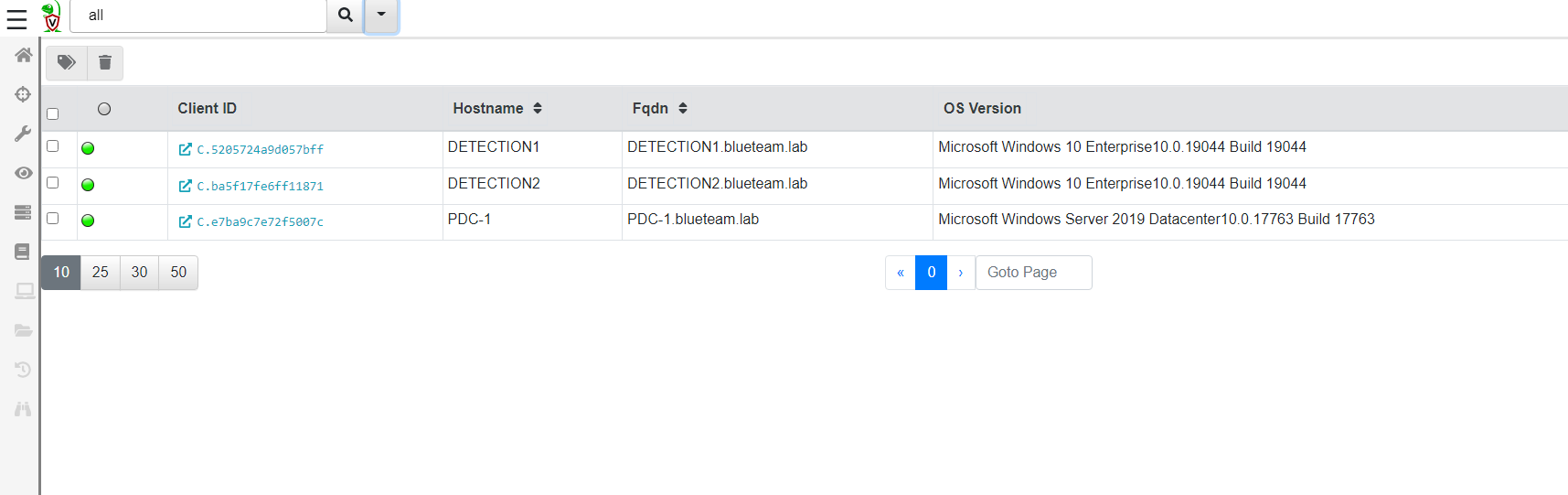
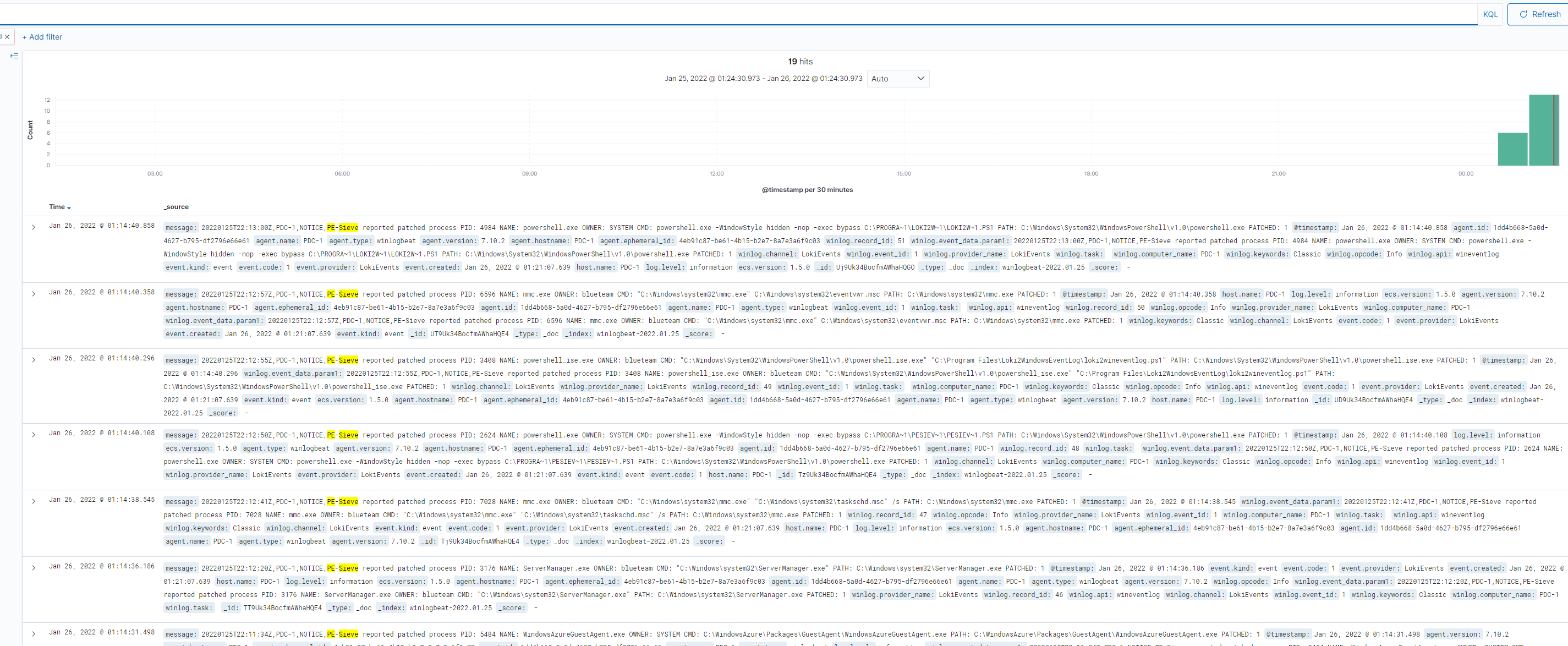
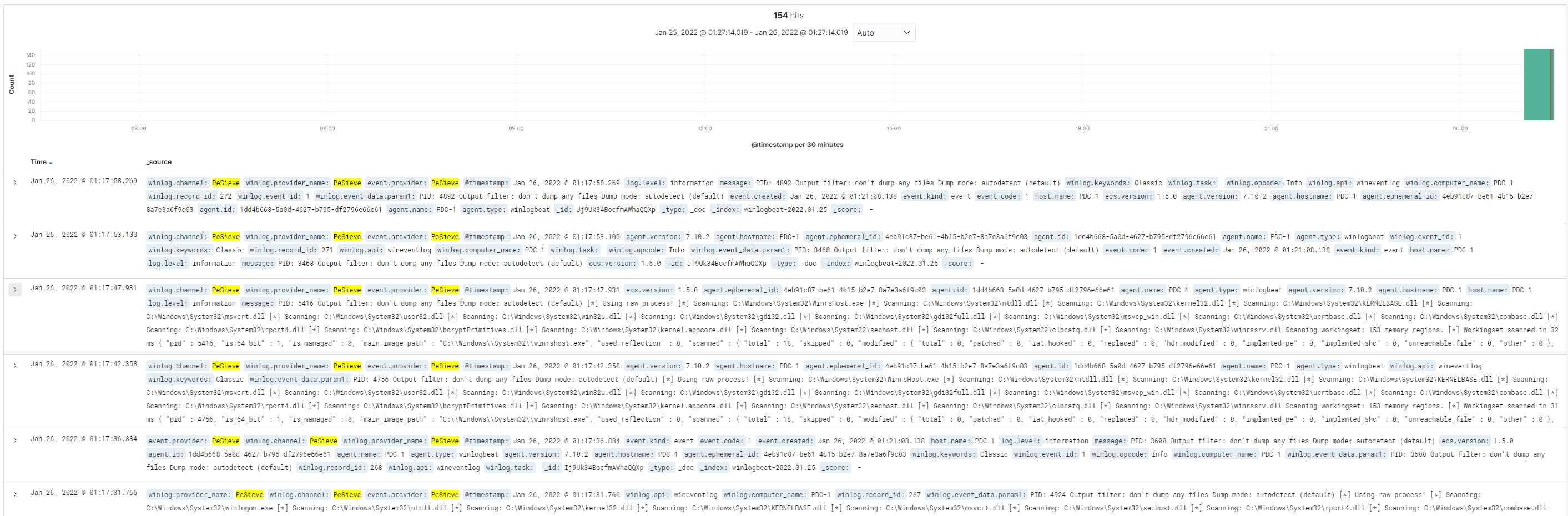
Contributi, correzioni e miglioramenti possono essere inviati direttamente per questo progetto come issue su GitHub o pull request.
| - ansible
|  | - ansible.cfg
|  | - domain-controller.yml
|  | - domain-member.yml
|  | - domain_setup.yml
|  | - group_vars
|  |  | - all
|  |  | - wazuh
|  | - inventory.azure_rm.yml
|  | - roles
|  |  | - domain-controller
|  |  |  | - tasks
|  |  |  |  | - main.yml
|  |  | - domain-member
|  |  |  | - tasks
|  |  |  |  | - main.yml
|  |  | - fleetserver
|  |  |  | - tasks
|  |  |  |  | - main.yml
|  |  |  | - templates
|  |  |  |  | - config.yml.j2
|  |  |  |  | - ssl.crt
|  |  |  |  | - ssl.key
|  |  |  |  | - systemd-fleetm.service.j2
|  |  | - monitor
|  |  |  | - tasks
|  |  |  |  | - main.yml
|  |  | - osqueryagent
|  |  |  | - tasks
|  |  |  |  | - main.yml
|  |  |  | - templates
|  |  |  |  | - osquery.conf
|  |  |  |  | - osquery.flags.j2
|  |  |  |  | - osquery.key.j2
|  |  |  |  | - ssl.crt
|  |  |  |  | - ssl.key
|  |  |  | - vars
|  |  |  |  | - main.yml
|  |  | - sysmon
|  |  |  | - handlers
|  |  |  |  | - main.yml
|  |  |  | - tasks
|  |  |  |  | - main.yml
|  |  |  | - vars
|  |  |  |  | - main.yml
|  |  | - velociraptorclient
|  |  |  | - tasks
|  |  |  |  | - main.yaml
|  |  |  | - templates
|  |  |  |  | - clientconfig.yml.j2
|  |  |  | - vars
|  |  |  |  | - main.yml
|  |  | - velociraptorserver
|  |  |  | - tasks
|  |  |  |  | - main.yaml
|  |  |  | - templates
|  |  |  |  | - serverconfig.yml.j2
|  |  |  |  | - systemd-velociraptor.service.j2
|  |  |  | - vars
|  |  |  |  | - main.yml
|  |  | - wazuhagent
|  |  |  | - tasks
|  |  |  |  | - main.yml
|  |  |  | - templates
|  |  |  |  | - ossec.conf.j2
|  |  |  | - vars
|  |  |  |  | - main.yml
|  |  | - wazuhserver
|  |  |  | - tasks
|  |  |  |  | - main.yaml
|  |  |  | - templates
|  |  |  |  | - sysmon_rules.xml
|  |  |  |  | - unattended-installation.sh
|  |  |  |  | - wazuh-passwords-tool.sh.j2
|  |  | - winlogbeat
|  |  |  | - tasks
|  |  |  |  | - main.yml
|  |  |  | - templates
|  |  |  |  | - config.yml.j2
|  |  |  | - vars
|  |  |  |  | - main.yml
|  | - wazuh-server.yml
| - documentation
|  | - osquery.md
|  | - pic
|  |  | - map.png
|  |  | - wazuh-logs.PNG
|  |  | - wazuh-pdc.PNG
|  |  | - winlogbeat.PNG
|  | - sysmon.md
|  | - velociraptor.md
|  | - wazuh.md
|  | - winlogbeat.md
|  | - winmember.md
| - main.tf
| - README.md
| - terraform.tfstate
| - terraform.tfstate.backup
| - variables.tf
Ricevo Disk wks-1-os-disk already exists in resource group BLUETEAM-LAB. Only CreateOption.Attach is supported. o un errore simile.
terraform destroy -auto-approve && terraform apply -auto-approve per distruggere e ricreare il laboratorio. Questo errore sembra apparire quando Azure non pulisce correttamente tutti i dischi, lasciando risorse con lo stesso nome.Ricevo Operation 'startTenantUpdate' is not allowed on VM 'domain-controller' since the VM is marked for deletion. You can only retry the Delete operation (or wait for an ongoing one to complete). o un errore simile.
terraform destroy -auto-approve && terraform apply -auto-approve per distruggere e ricreare il laboratorio. Questo errore sembra apparire quando Azure non pulisce correttamente tutte le risorse, lasciando residui che devono essere distrutti prima di creare il laboratorio a causa di conflitti di nomi e/o posizioni.Ricevo Network security group windows-nsg cannot be deleted because old references for the following Nics o un errore simile.
terraform destroy -auto-approve && terraform apply -auto-approve per distruggere e ricreare il laboratorio. Questo errore sembra apparire quando Azure non pulisce correttamente tutte le risorse, lasciando residui che devono essere distrutti prima di creare il laboratorio a causa di conflitti di nomi e/o posizioni.Una buona percentuale di questo codice è stato preso in prestito e adattato da Adaz di Christophe Tafani-Dereeper. Un grande ringraziamento per aver costruito la base che mi ha permesso di progettare questo ambiente di laboratorio.
| Nome regola | Gruppo di sicurezza di rete | Host di origine | Porta di origine | Host di destinazione | Porta di destinazione |
|---|
| Allow-RDP | windows-nsg | Il tuo IP pubblico | * | PDC-1, DETECTION1, DETECTION2 | 3389 |
| Allow-WinRM | windows-nsg | Il tuo IP pubblico | * | PDC-1, DETECTION1, DETECTION2 | 5985 |
| Allow-WinRM-secure | windows-nsg | Il tuo IP pubblico | * | PDC-1, DETECTION1, DETECTION2 | 5986 |
| Allow-SMB | windows-nsg | Il tuo IP pubblico | * | PDC-1, DETECTION1, DETECTION2 | 445 |
| Allow-SSH | wazuh-nsg | Il tuo IP pubblico | * | Wazuh | 22 |
| Allow-Wazuh-Manager | wazuh-nsg | Il tuo IP pubblico | * | Wazuh | 1514-1516 |
| Allow-Wazuh-Elasticsearch | wazuh-nsg | Il tuo IP pubblico | * | Wazuh | 9200 |
| Allow-Wazuh-API | wazuh-nsg | Il tuo IP pubblico | * | Wazuh | 55000 |
| Allow-Elasticsearch-Cluster | wazuh-nsg | Il tuo IP pubblico | * | Wazuh | 9300-9400 |
| Allow-Wazuh-GUI | wazuh-nsg | Il tuo IP pubblico | * | Wazuh | 443 |
| Allow-Velociraptor-Client-Connections | wazuh-nsg | Il tuo IP pubblico | * | Wazuh | 8000 |
| Allow-Velociraptor-GUI | wazuh-nsg | Il tuo IP pubblico | * | Wazuh | 10000 |
| Allow-Fleet-GUI | wazuh-nsg | Il tuo IP pubblico | * | Wazuh | 9999 |
| Host | Ruolo | IP interno |
|---|
| PDC-1 | Controller di dominio primario | 10.0.10.10 |
| Wazuh | Server Wazuh, ospita anche l'installazione di Velocidex Velociraptor e FleetDM | 10.0.10.100 |
| DETECTION1 | Workstation Windows 10 1 | 10.0.11.11 |
| DETECTION2 | Workstation Windows 10 2 | 10.0.11.12 |
| Host | Login | Password | Ruolo |
|---|
| PDC-1 | blueteam.lab\blueteam | BlueTeamDetection0%%% | Amministratore di dominio per il dominio blueteam.lab |
| DETECTION1 | localadministrator | BlueTeamDetection0%%% | Amministratore locale della workstation DETECTION1 |
| DETECTION2 | localadministrator | BlueTeamDetection0%%% | Amministratore locale della workstation DETECTION2 |
| Wazuh | blueteam | BlueTeamDetection0%%% | Credenziali SSH per il server Wazuh |
| Wazuh | wazuh | BlueTeamDetection0%%% | Amministratore Wazuh |
| Wazuh | admin | BlueTeamDetection0%%% | Amministratore Wazuh |
| Wazuh | kibanaserver | BlueTeamDetection0%%% | Account di servizio Wazuh |
| Wazuh | kibanaro | BlueTeamDetection0%%% | Account di servizio Wazuh |
| Wazuh | logstash | BlueTeamDetection0%%% | Account di servizio Wazuh |
| Wazuh | readall | BlueTeamDetection0%%% | Account di servizio Wazuh |
| Wazuh | snapshotrestore | BlueTeamDetection0%%% | Account di servizio Wazuh |
| Wazuh | wazuh_admin | BlueTeamDetection0%%% | Account di servizio Wazuh |
| Wazuh | wazuh_user | BlueTeamDetection0%%% | Account di servizio Wazuh |
| Wazuh | blueteam | BlueTeamDetection0%%% | Login al portale Web Velociraptor |
| Wazuh | [email protected] | BlueTeamDetection0%%% | Login al portale Web FleetDM |
Come posso modificare i segmenti di rete, le dimensioni della distribuzione o altre variabili?
-var a terraform apply. Ad esempio, terraform apply --auto-approve -var="region=East US 2" modificherebbe la regione rispetto a quella predefinita nel file variables. L'intera configurazione, inclusi intervalli di rete, sistemi operativi e dimensione delle VM, può essere modificata utilizzando una catena di parametri -var.Come trovare gli SKU per una distribuzione specifica?
az vm list-skus --location westeurope --all --output table per trovare gli SKU disponibili per la distribuzione.Ricevo Max retries exceeded with url: /wsman e poi la connessione viene rifiutata durante la costruzione di un sistema.
terraform apply -auto-approve per riparare l'host danneggiato.
