
You didn't think I'd go and leave the blue team out, right?
A collection of one-liners, small scripts, and some useful tips for blue team work.
I've included screenshots where possible so you know what you're getting.
If you see a mistake, or have an easier way to run a command then you're welcome to hit me up on Twitter or commit an issue here.
If you want to contribute I'd be grateful for the command and a screenshot. I'll of course add you as a contributor
If you want to find me elsehwere, for reasons(?), searching 'Dray Agha' on the internets should find whatever it is you're looking for.
I hope the Blue Team Notes help you catch an adversary, thwart an attack, or even just helps you learn. If you've benefited from the Blue Team Notes, would you kindly consider making a donation to one or two charities.
Donate as much or little money as you like, of course. I have some UK charities you could donate to: Great Ormond Street - Children's hospital, Cancer Research, and Feeding Britain - food charity
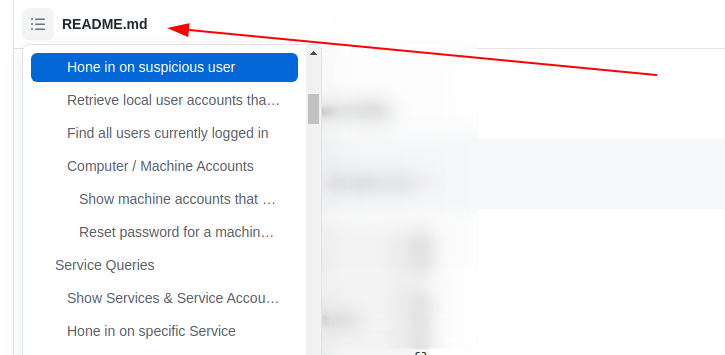
As you scroll along, it's easy to lose orientation. Wherever you are in the Blue Team Notes, if you look to the top-left of the readme you'll see a little icon. This is a small table of contents, and it will help you figure out where you are, where you've been, and where you're going
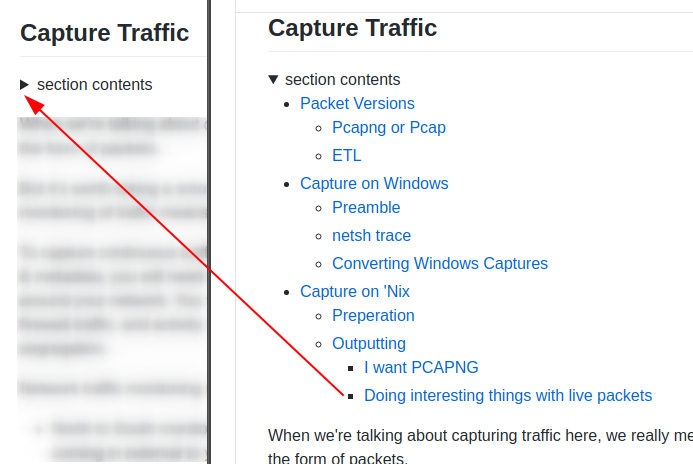
As you go through sections, you may notice the arrowhead that says 'section contents'. I have nestled the sub-headings in these, to make life a bit easier.
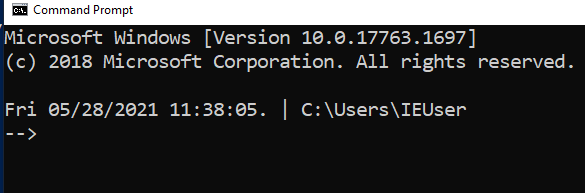
For screenshots during IR, I like to have the date, time, and sometimes the timezone in my shell
setx prompt $D$S$T$H$H$H$S$B$S$P$_--$g
:: all the H's are to backspace the stupid microsecond timestamp
:: $_ and --$g seperate the date/time and path from the actual shell
:: We make the use of the prompt command: https://docs.microsoft.com/en-us/windows-server/administration/windows-commands/prompt
:: setx is in fact the command line command to write variables to the registery
:: We are writing the prompt's new timestamp value in the cmd line into the reg so it stays, otherwise it would not stay in the cmdline when we closed it.
###create a powershell profile, if it doesnt exist already
New-Item $Profile -ItemType file –Force
##open it in notepad to edit
function prompt{ "[$(Get-Date)]" +" | PS "+ "$(Get-Location) > "}
##risky move, need to tighten this up. Change your execution policy or it won't
#run the profile ps1
#run as powershell admin
Set-ExecutionPolicy RemoteSigned

##open .bashrc
sudo nano .bashrc
#https://www.howtogeek.com/307701/how-to-customize-and-colorize-your-bash-prompt/
##date, time, colour, and parent+child directory only, and -> promptt
PS1='\[\033[00;35m\][`date +"%d-%b-%y %T %Z"]` ${PWD#"${PWD%/*/*}/"}\n\[\033[01;36m\]-> \[\033[00;37m\]'
##begin purple #year,month,day,time,timezone #show last 2 dir #next line, cyan,->prompt #back to normal white text
#restart the bash source
source ~/.bashrc

I've generally used these Powershell queries with Velociraptor, which can query thousands of endpoints at once.
([System.Net.Dns]::GetHostByName(($env:computerName))).Hostname
# Get just domain name
(Get-WmiObject -Class win32_computersystem).domain

This will print out the hostname, the OS build info, and the powershell version
$Bit = (get-wmiobject Win32_OperatingSystem).OSArchitecture ;
$V = $host | select-object -property "Version" ;
$Build = (Get-WmiObject -class Win32_OperatingSystem).Caption ;
write-host "$env:computername is a $Bit $Build with Pwsh $V

If you want, you can get Hardware, BIOS, and Disk Space info of a machine
#Get BIOS Info
gcim -ClassName Win32_BIOS | fl Manufacturer, Name, SerialNumber, Version;
#Get processor info
gcim -ClassName Win32_Processor | fl caption, Name, SocketDesignation;
#Computer Model
gcim -ClassName Win32_ComputerSystem | fl Manufacturer, Systemfamily, Model, SystemType
#Disk space in Gigs, as who wants bytes?
gcim -ClassName Win32_LogicalDisk |
Select -Property DeviceID, DriveType, @{L='FreeSpaceGB';E={"{0:N2}" -f ($_.FreeSpace /1GB)}}, @{L="Capacity";E={"{0:N2}" -f ($_.Size/1GB)}} | fl
## Let's calculate an individual directory, C:\Sysmon, and compare with disk memory stats
$size = (gci c:\sysmon | measure Length -s).sum / 1Gb;
write-host " Sysmon Directory in Gigs: $size";
$free = gcim -ClassName Win32_LogicalDisk | select @{L='FreeSpaceGB';E={"{0:N2}" -f ($_.FreeSpace /1GB)}};
echo "$free";
$cap = gcim -ClassName Win32_LogicalDisk | select @{L="Capacity";E={"{0:N2}" -f ($_.Size/1GB)}}
echo "$cap"

Get a time that's human readable
Get-Date -UFormat "%a %Y-%b-%d %T UTC:%Z"

This one is great for doing comparisons between two strings of time
[Xml.XmlConvert]::ToString((Get-Date).ToUniversalTime(), [System.Xml.XmlDateTimeSerializationMode]::Utc)

$Local = get-date;$UTC = (get-date).ToUniversalTime();
write-host "LocalTime is: $Local";write-host "UTC is: $UTC"

Will show all patch IDs and their installation date
get-hotfix|
select-object HotFixID,InstalledOn|
Sort-Object -Descending -property InstalledOn|
format-table -autosize

Find why an update failed
$Failures = gwmi -Class Win32_ReliabilityRecords;
$Failures | ? message -match 'failure' | Select -ExpandProperty message
This happened to me during the March 2021 situation with Microsoft Exchange's ProxyLogon. The sysadmin swore blind they had patched the server, but neither systeminfo of get-hotfix was returning with the correct KB patch.
The manual workaround isn't too much ballache
First identify the ID number of the patch you want. And then find the dedicated Microsoft support page for it.
For demonstration purposes, let's take KB5001078 and it's corresponding support page. You'll be fine just googling the patch ID number.

Then click into the dropdown relevant to your machine.

Here you can see the files that are included in a particular update. The task now is to pick a handful of the patch-files and compare your host machine. See if these files exist too, and if they do do they have similar / same dates on the host as they do in the Microsoft patch list?
Let us now assume you don't know the path to this file on your host machine. You will have to recursively search for the file location. It's a fair bet that the file will be in C:\Windows\ (but not always), so lets' recursively look for EventsInstaller.dll
$file = 'EventsInstaller.dll'; $directory = 'C:\windows' ;
gci -Path $directory -Filter $file -Recurse -force|
sort-object -descending -property LastWriteTimeUtc | fl *
We'll get a lot of information here, but we're really concerned with is the section around the various times. As we sort by the LastWriteTimeUtc, the top result should in theory be the latest file of that name...but this is not always true.

I've noticed that sometimes there is a couple days discrepency between dates.

For example in our screenshot, on the left Microsoft's support page supposes the EventsInstaller.dll was written on the 13th January 2021. And yet our host on the right side of the screenshot comes up as the 14th January 2021. This is fine though, you've got that file don't sweat it.
Run on a Domain Controller.
Change the AddDays field to more or less days if you want. Right now set to seven days.
The 'when Created' field is great for noticing some inconsistencies. For example, how often are users created at 2am?
import-module ActiveDirectory;
$When = ((Get-Date).AddDays(-7)).Date;
Get-ADUser -Filter {whenCreated -ge $When} -Properties whenCreated |
sort whenCreated -descending

You can use the SamAccountName above to filter
import-module ActiveDirectory;
Get-ADUser -Identity HamBurglar -Properties *

Get-LocalUser | ? Enabled -eq "True"

qwinsta
#or
quser
If you want to find every single user logged in on your Active Directory, with the machine they are also signed in to.
I can reccomend YossiSassi's Get-UserSession.ps1 and Get-RemotePSSession.ps1.
This will generate a LOT of data in a real-world AD though.
You may need to evict a user from a session - perhaps you can see an adversary has been able to steal a user's creds and is leveraging their account to traverse your environment
#show the users' session
qwinsta
#target their session id
logoff 2 /v

From the above instance, we may want to force a user to have a new password - one the adversary does not have
$user = "lizzie" ; $newPass = "HoDHSyxkzP-cuzjm6S6VF-7rvqKyR";
#Change password twice.
#First can be junk password, second time can be real new password
Set-ADAccountPassword -Identity $user -Reset -NewPassword (ConvertTo-SecureString -AsPlainText "6;wB3yj9cI8X" -Force) -verbose
Set-ADAccountPassword -Identity $user -Reset -NewPassword (ConvertTo-SecureString -AsPlainText "$newPass" -Force) -verbose

#for local users
net user #username #newpass
net user frank "lFjcVR7fW2-HoDHSyxkzP"

#needs the SAMAccountName
$user = "lizzie";
Disable-ADAccount -Identity "$user" #-whatif can be appended
#check its disabled
(Get-ADUser -Identity $user).enabled
#renable when you're ready
Enable-ADAccount -Identity "$user" -verbose


# list accounts with Get-LocalUser
Disable-LocalUser -name "bad_account$"
Good if you need to quickly eject an account from a specific group, like administrators or remote management.
$user = "erochester"
remove-adgroupmember -identity Administrators -members $User -verbose -confirm:$false

Adversaries like to use Machine accounts (accounts that have a $) as these often are overpowered AND fly under the defenders' radar
There may be misconfigurations that an adversary could take advantadge.
Get-ADComputer -Filter * -Properties MemberOf | ? {$_.MemberOf}

Good for depriving adversary of pass they may have got. Also good for re-establishing trust if machine is kicked out of domain trust for reasons(?)
Reset-ComputerMachinePassword
During an IR, you will want to access other users PowerShell history. However, the get-history command only will retrieve the current shell's history, which isn't very useful.
Instead, PowerShell in Windows 10 saves the last 4096 commands in a particular file. On an endpoint, we can run a quick loop that will print the full path of the history file - showing which users history it is showing - and then show the contents of that users' PwSh commands
$Users = (Gci C:\Users\*\AppData\Roaming\Microsoft\Windows\PowerShell\PSReadline\ConsoleHost_history.txt).FullName
$Pasts = @($Users);
foreach ($Past in $Pasts) {
write-host "`n----User Pwsh History Path $Past---`n" -ForegroundColor Magenta;
get-content $Past
}

And check this one too
c:\windows\system32\config\systemprofile\appdata\roaming\microsoft\windows\powershell\psreadline\consolehost_history.txt
Let's get all the services and sort by what's running
get-service|Select Name,DisplayName,Status|
sort status -descending | ft -Property * -AutoSize|
Out-String -Width 4096

Now show the underlying executable supporting that service
Get-WmiObject win32_service |? State -match "running" |
select Name, DisplayName, PathName, User | sort Name |
ft -wrap -autosize

If a specific service catches your eye, you can get all the info for it. Because the single and double qoutes are important to getting this right, I find it easier to just put the DisplayName of the service I want as a variable, as I tend to fuck up the displayname filter bit
$Name = "eventlog";
gwmi -Class Win32_Service -Filter "Name = '$Name' " | fl *
#or this, but you get less information compared to the one about tbh
get-service -name "eventlog" | fl *

Get-Service -DisplayName "meme_service" | Stop-Service -Force -Confirm:$false -verbose
I saw a red team tweet regarding sneaky service install. To identify this, you can deploy the following:
Get-ItemProperty -Path "HKLM:\System\CurrentControlSet\services\*" |
ft PSChildName, ImagePath -autosize | out-string -width 800
# Grep out results from System32 to reduce noise, though keep in mind adversaries can just put stuff in there too
Get-ItemProperty -Path "HKLM:\System\CurrentControlSet\services\*" |
where ImagePath -notlike "*System32*" |
ft PSChildName, ImagePath -autosize | out-string -width 800
This one is so important, I have it listed twice in the blue team notes
I have a neat one-liner for you. This will show you the local IP and port, the remote IP andport, the process name, and the underlying executable of the process!
You could just use netstat -b, which gives you SOME of this data
But instead, try this bad boy on for size:
Get-NetTCPConnection |
select LocalAddress,localport,remoteaddress,remoteport,state,@{name="process";Expression={(get-process -id $_.OwningProcess).ProcessName}}, @{Name="cmdline";Expression={(Get-WmiObject Win32_Process -filter "ProcessId = $($_.OwningProcess)").commandline}} |
sort Remoteaddress -Descending | ft -wrap -autosize
#### you can search/filter by the commandline process, but it will come out janky.
##### in the final field we're searching by `anydesk`
Get-NetTCPConnection |
select LocalAddress,localport,remoteaddress,remoteport,state,@{name="process";Expression={(get-process -id $_.OwningProcess).ProcessName}}, @{Name="cmdline";Expression={(Get-WmiObject Win32_Process -filter "ProcessId = $($_.OwningProcess)").commandline}}
| Select-String -Pattern 'anydesk'

######## Bound to catch bad guys or your moneyback guaranteed!!!!
You can always sort by whatever value you want really. CreationTime is just an example
Get-NetTCPConnection -AppliedSetting Internet |
select-object -property remoteaddress, remoteport, creationtime |
Sort-Object -Property creationtime |
format-table -autosize

This really makes strange IPs stand out
(Get-NetTCPConnection).remoteaddress | Sort-Object -Unique

If you see suspicious IP address in any of the above, then I would hone in on it
Get-NetTCPConnection |
? {($_.RemoteAddress -eq "1.2.3.4")} |
select-object -property state, creationtime, localport,remoteport | ft -autosize
## can do this as well
Get-NetTCPConnection -remoteaddress 0.0.0.0 |
select state, creationtime, localport,remoteport | ft -autosize

You can generally filter pwsh UDP the way we did the above TCP
Get-NetUDPEndpoint | select local*,creationtime, remote* | ft -autosize

There's probably a better way to do this. But essentially, get the tcp connection that has the specific remote IPv4/6 you want to kill. It will collect the OwningProcess. From here, get-process then filters for those owningprocess ID numbers. And then it will stop said process. Bit clunky
stop-process -verbose -force -Confirm:$false (Get-Process -Id (Get-NetTCPConnection -RemoteAddress "1.2.3.4" ).OwningProcess)
Some malware may attempt DNS hijacking, and alter your Hosts file
gc -tail 4 "C:\Windows\System32\Drivers\etc\hosts"
#the above gets the most important bit of the hosts file. If you want more, try this:
gc "C:\Windows\System32\Drivers\etc\hosts"
Don't trust timestamps....however, may be interesting to see if altered recently
gci "C:\Windows\System32\Drivers\etc\hosts" | fl *Time*

Collect the DNS cache on an endpoint. Good for catching any sneaky communication or sometimes even DNS C2
Get-DnsClientCache | out-string -width 1000

The above command will likely return a lot of results you don't really need about the communication between 'trusted' endpoints and servers. We can filter these 'trusted' hostnames out with regex, until we're left with less common results.
On the second line of the below code, change up and insert the regex that will filter out your machines. For example, if your machines are generally called WrkSt1001.corp.local, or ServStFAX.corp.local, you can regex out that first poriton so it will exclude any and all machines that share this - so workst|servst would do the job. You don't need to wildcard here.
Be careful though. If you are too generic and liberal, you may end up filtering out malicious and important results. It's bettter to be a bit specific, and drill down further to amake sure you aren't filtering out important info. So for example, I wouldn't suggest filtering out short combos of letters or numbers ae|ou|34|
Get-DnsClientCache |
? Entry -NotMatch "workst|servst|memes|kerb|ws|ocsp" |
out-string -width 1000
If there's an IP you're sus of, you can always take it to WHOIS or VirusTotal, as well see for other instances it appears in your network and what's up to whilst it's interacting there.
Since Windows Vitsa, the Windows OS prioritises IPv6 over IPv4. This lends itself to man-in-the-middle attacks, you can find some more info on exploitation here
Get IPv6 addresses and networks
Get-NetIPAddress -AddressFamily IPv6 | ft Interfacealias, IPv6Address

You probably don't want to switch IPv6 straight off. And if you DO want to, then it's probably better at a DHCP level. But what we can do is change how the OS will prioritise the IPv6 over IPv4.
#check if machine prioritises IPv6
ping $env:COMPUTERNAME -n 4 # if this returns an IPv6, the machine prioritises this over IPv4
#Reg changes to de-prioritise IPv6
New-ItemProperty “HKLM:\SYSTEM\CurrentControlSet\Services\Tcpip6\Parameters\” -Name “DisabledComponents” -Value 0x20 -PropertyType “DWord”
#If this reg already exists and has values, change the value
Set-ItemProperty “HKLM:\SYSTEM\CurrentControlSet\Services\Tcpip6\Parameters\” -Name “DisabledComponents” -Value 0x20
#you need to restart the computer for this to take affect
#Restart-Computer

Get-BitsTransfer|
fl DisplayName,JobState,TransferType,FileList, OwnerAccount,BytesTransferred,CreationTime,TransferCompletionTime
## filter out common bits jobs in your enviro, ones below are just an example, you will need to add your own context
Get-BitsTransfer|
| ? displayname -notmatch "WU|Office|Dell_Asimov|configjson" |
fl DisplayName,JobState,TransferType,FileList, OwnerAccount,BytesTransferred,CreationTime,TransferCompletionTime
## Hunt down BITS transfers that are UPLOADING, which may be sign of data exfil
Get-BitsTransfer|
? TransferType -match "Upload" |
fl DisplayName,JobState,TransferType,FileList, OwnerAccount,BytesTransferred,CreationTime,TransferCompletionTime

Get Powershell sessions created
Get-PSSession
You can query the above even deeper.
get-wsmaninstance -resourceuri shell -enumerate |
select Name, State, Owner, ClientIP, ProcessID, MemoryUsed,
@{Name = "ShellRunTime"; Expression = {[System.Xml.XmlConvert]::ToTimeSpan($_.ShellRunTime)}},
@{Name = "ShellInactivity"; Expression = {[System.Xml.XmlConvert]::ToTimeSpan($_.ShellInactivity)}}

The ClientIP field will show the original IP address that WinRM'd to the remote machine. The times under the Shell fields at the bottom have been converted into HH:MM:SS, so in the above example, the remote PowerShell session has been running for 0 hours, 4 minutes, and 26 seconds.
Get-PSSessionConfiguration |
fl Name, PSVersion, Permission

To be honest, constrained language mode in Powershell can be trivally easy to mitigate for an adversary. And it's difficult to implement persistently. But anyway. You can use this quick variable to confirm if a machine has a constrained language mode for pwsh.
$ExecutionContext.SessionState.LanguageMode

You can check if RDP capability is permissioned on an endpoint
if ((Get-ItemProperty "hklm:\System\CurrentControlSet\Control\Terminal Server").fDenyTSConnections -eq 0){write-host "RDP Enabled" } else { echo "RDP Disabled" }
If you want to block RDP
Set-ItemProperty -Path 'HKLM:\System\CurrentControlSet\Control\Terminal Server' -name "fDenyTSConnections" -value 1
#Firewall it out too
Disable-NetFirewallRule -DisplayGroup "Remote Desktop"
Knowing who is RDPing in your enviroment, and from where, is important. Unfortunately, RDP logs are balllache. Threat hunting blogs like this one can help you narrow down what you are looking for when it comes to RDP
Let's call on one of the RDP logs, and filter for event ID 1149, which means a RDP connection has been made. Then let's filter out any IPv4 addresses that begin with 10.200, as this is the internal IP schema. Perhaps I want to hunt down public IP addresses, as this would suggest the RDP is exposed to the internet on the machine and an adversary has connected with correct credentials!!!
# if you acquire a log, change this to get-winevent -path ./RDP_log_you_acquired.evtx
get-winevent -path "./Microsoft-Windows-TerminalServices-RemoteConnectionManager%4Operational.evtx" |
? id -match 1149 |
sort Time* -descending |
fl time*, message
get-winevent -path ./ "Microsoft-Windows-TerminalServices-LocalSessionManager%4Operational.evtx" |
? id -match 21 |
sort Time* -descending |
fl time*, message

You can query the RDP sessions that a system is currently running
qwinsta
:: get some stats
qwinsta /counter

You can read here about how to evict a malicious user from a session and change the creds rapidly to deny them future access
gci "cert:\" -recurse | fl FriendlyName, Subject, Not*

You will be dissapointed how many certificates are expired but still in use. Use the -ExpiringInDays flag
gci "cert:\*" -recurse -ExpiringInDays 0 | fl FriendlyName, Subject, Not*
(Get-NetFirewallProfile).name

Not likely to be too useful getting all of this information raw, so add plenty of filters
Get-NetFirewallProfile -Name Public | Get-NetFirewallRule
##filtering it to only show rules that are actually enabled
Get-NetFirewallProfile -Name Public | Get-NetFirewallRule | ? Enabled -eq "true"

#show firewall rules that are enabled
Get-NetFirewallRule | ? Enabled -eq "true"
#will show rules that are not enabled
Get-NetFirewallRule | ? Enabled -notmatch "true"
##show firewall rules that pertain to inbound
Get-NetFirewallRule | ? direction -eq "inbound"
#or outbound
Get-NetFirewallRule | ? direction -eq "outbound"
##stack these filters
Get-NetFirewallRule | where {($_.Enabled -eq "true" -and $_.Direction -eq "inbound")}
#or just use the built in flags lol
Get-NetFirewallRule -Enabled True -Direction Inbound
Disconnect network adaptor, firewall the fuck out of an endpoint, and display warning box
This is a code-red command. Used to isolate a machine in an emergency.
In the penultimate and final line, you can change the text and title that will pop up for the user
New-NetFirewallRule -DisplayName "Block all outbound traffic" -Direction Outbound -Action Block | out-null;
New-NetFirewallRule -DisplayName "Block all inbound traffic" -Direction Inbound -Action Block | out-null;
$adapter = Get-NetAdapter|foreach { $_.Name } ; Disable-NetAdapter -Name "$adapter" -Confirm:$false;
Add-Type -AssemblyName PresentationCore,PresentationFramework;
[System.Windows.MessageBox]::Show('Your Computer has been Disconnected from the Internet for Security Issues. Please do not try to re-connect to the internet. Contact Security Helpdesk Desk ',' CompanyNameHere Security Alert',[System.Windows.MessageBoxButton]::OK,[System.Windows.MessageBoxImage]::Information)

Get-SMBShare

Dialect just means verison. SMB3, SMB2 etc
Get-SmbConnection
#just show SMB Versions being used. Great for enumeration flaws in enviro - i.e, smb1 being used somewhere
Get-SmbConnection |
select Dialect, Servername, Sharename | sort Dialect


Remove-SmbShare -Name MaliciousShare -Confirm:$false -verbose
I have a neat one-liner for you. This will show you the local IP and port, the remote IP andport, the process name, and the underlying executable of the process!
You could just use netstat -b, which gives you SOME of this data

But instead, try this bad boy on for size:
Get-NetTCPConnection |
select LocalAddress,localport,remoteaddress,remoteport,state,@{name="process";Expression={(get-process -id $_.OwningProcess).ProcessName}}, @{Name="cmdline";Expression={(Get-WmiObject Win32_Process -filter "ProcessId = $($_.OwningProcess)").commandline}} |
sort Remoteaddress -Descending | ft -wrap -autosize

get-process * -Includeusername

Try this one if you're hunting down suspicious processes from users
gwmi win32_process |
Select Name,@{n='Owner';e={$_.GetOwner().User}},CommandLine |
sort Name -unique -descending | Sort Owner | ft -wrap -autosize

gwmi win32_process |
Select Name,ProcessID,@{n='Owner';e={$_.GetOwner().User}},CommandLine |
sort name | ft -wrap -autosize | out-string

get-process -name "nc" | ft Name, Id, Path,StartTime,Includeusername -autosize

$process = "memes";
if (ps | where-object ProcessName -Match "$process") {Write-Host "$process successfully installed on " -NoNewline ; hostname} else {write-host "$process absent from " -NoNewline ; hostname}
Example of process that is absent
Example of process that is present

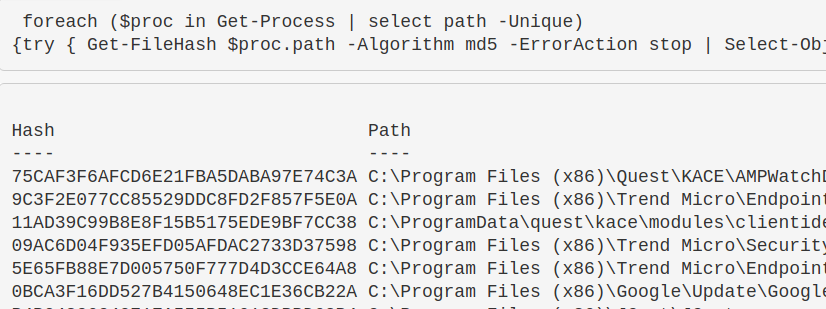
Great to make malicious process stand out. If you want a different Algorithm, just change it after -Algorithm to something like sha256
foreach ($proc in Get-Process | select path -Unique){try
{ Get-FileHash $proc.path -Algorithm sha256 -ErrorAction stop |
ft hash, path -autosize -HideTableHeaders | out-string -width 800 }catch{}}

get-process -name "memestask" -module

Alternatively, pipe |fl and it will give a granularity to the DLLs

(Get-Process -name "googleupdate").CPU | fl

I get mixed results with this command but it's supposed to give the percent of CPU usage. I need to work on this, but I'm putting it in here so the world may bare wittness to my smooth brain.
$ProcessName = "symon" ;
$ProcessName = (Get-Process -Id $ProcessPID).Name;
$CpuCores = (Get-WMIObject Win32_ComputerSystem).NumberOfLogicalProcessors;
$Samples = (Get-Counter "\Process($Processname*)\% Processor Time").CounterSamples;
$Samples | Select `InstanceName,@{Name="CPU %";Expression={[Decimal]::Round(($_.CookedValue / $CpuCores), 2)}}

Right now will show the lower cpu-using proccesses...useful as malicious process probably won't be as big a CPU as Chrome, for example. But change first line to Sort CPU -descending if you want to see the chungus processes first
gps | Sort CPU |
Select -Property ProcessName, CPU, ID, StartTime |
ft -autosize -wrap | out-string -width 800

Get-Process -Name "memeprocess" | Stop-Process -Force -Confirm:$false -verbose
You can download the PsList exe from Sysinternals
Fire it off with the -t flag to create a parent-child tree of the processes

Identify the user behind a command too. Great at catching out malicious schtasks that perhaps are imitating names, or a process name
schtasks /query /FO CSV /v | convertfrom-csv |
where { $_.TaskName -ne "TaskName" } |
select "TaskName","Run As User", Author, "Task to Run"|
fl | out-string

Get-ScheduledTask -Taskname "wifi*" | fl *

Great one liner to find exactly WHAT a regular task is doing
$task = Get-ScheduledTask | where TaskName -EQ "meme task";
$task.Actions

And a command to get granularity behind the schtask requires you to give the taskpath. Tasks with more than one taskpath will throw an error here
$task = "CacheTask";
get-scheduledtask -taskpath (Get-ScheduledTask -Taskname "$task").taskpath | Export-ScheduledTask
#this isn't the way the microsoft docs advise.
##But I prefer this, as it means I don't need to go and get the taskpath when I already know the taskname

Get-ScheduledTask "memetask" | Stop-ScheduledTask -Force -Confirm:$false -verbose
There's some major overlap here, but it pays to be thorough.
HKLM\Software\Microsoft\Windows NT\CurrentVersion\Schedule\Taskcache\Tree
HKLM\Software\Microsoft\Windows NT\CurrentVersion\Schedule\Taskcache\Tasks
C:\Windows\System32\Tasks
C:\Windows\Tasks
C:\windows\SysWOW64\Tasks\
You can compare the above for tasks missing from the C:\Windows directories, but present in the Registry.
# From my man Anthony Smith - https://www.linkedin.com/in/anthony-c-smith/
$Reg=(Get-ItemProperty -path "HKLM:\Software\Microsoft\Windows NT\CurrentVersion\Schedule\Taskcache\tree\*").PsChildName
$XMLs = (ls C:\windows\System32\Tasks\).Name
Compare-Object $Reg $XMLs
Threat actors have been known to manipulate scheduled tasks in such a way that Task Scheduler no longer has visibility of the recuring task.
However, querying the Registry locations HKLM\Software\Microsoft\Windows NT\CurrentVersion\Schedule\Taskcache\Tree and HKLM\Software\Microsoft\Windows NT\CurrentVersion\Schedule\Taskcache\Tasks, can reveal a slice of these sneaky tasks.
Shout out to my man @themalwareguy for the $fixedstring line that regexes in/out good/bad characters.
# the schtask for our example
# schtasks /create /tn "Find_Me" /tr calc.exe /sc minute /mo 100 /k
# Loop and parse \Taskcache\Tasks Registry location for scheduled tasks
## Parses Actions to show the underlying binary / commands for the schtask
## Could replace Actions with Trigggers on line 10, after ExpandedProperty
(Get-ItemProperty "HKLM:\Software\Microsoft\Windows NT\CurrentVersion\Schedule\Taskcache\Tasks\*").PSChildName |
Foreach-Object {
write-host "----Schtask ID is $_---" -ForegroundColor Magenta ;
$hexstring = Get-ItemProperty "HKLM:\Software\Microsoft\Windows NT\CurrentVersion\Schedule\Taskcache\Tasks\$_" | Select -ExpandProperty Actions;
$fixedstring = [System.Text.Encoding]::Unicode.GetString($hexstring) -replace '[^a-zA-Z0-9\\._\-\:\%\/\$ ]', ' '; # Obtaining the Unicode string reduces the chances of getting invalid characters, and the regex will assist in stripping each string of junk
write-host $fixedstring
}
If you don't need to loop to search, because you know what you're gunning for then you can just deploy this
$hexstring = (Get-ItemProperty "HKLM:\Software\Microsoft\Windows NT\CurrentVersion\Schedule\Taskcache\Tasks\{ID}" |
Select -ExpandProperty Actions) -join ',' ; $hexstring.Split(" ")
## can then go to cyberchef, and convert From Decimal with the comma (,) delimineter
Once you've deployed the above loop, and zoned in on a binary / one-liner that seems sus, you can query it in the other Registry location
# Then for the ID of interest under \Taskcache\Tree subkey
# Example: $ID = "{8E350038-3475-413A-A1AE-20711DD11C95}" ;
$ID = "{XYZ}" ;
get-itemproperty -path "HKLM:\Software\Microsoft\Windows NT\CurrentVersion\Schedule\Taskcache\Tree\*" |
? Id -Match "$ID" | fl *Name,Id,PsPath
And then eradicating these Registry schtask entries is straight forward via Regedit's GUI, that way you have no permission problems. Delete both:
Get-CimInstance Win32_StartupCommand | Select-Object Name, command, Location, User | Format-List

Some direct path locations too can be checked
HKLM\software\classes\exefile\shell\open\command
c:\Users\*\appdata\roaming\microsoft\windows\start menu\programs\startup
Querying that last one in more detail, you have some interesting options
#Just list out the files in each user's startup folder
(gci "c:\Users\*\appdata\roaming\microsoft\windows\start menu\programs\startup\*").fullname
#Extract from the path User, Exe, and print machine name
(gci "c:\Users\*\appdata\roaming\microsoft\windows\start menu\programs\startup\*").fullname |
foreach-object {$data = $_.split("\\");write-output "$($data[2]), $($data[10]), $(hostname)"}
#Check the first couple lines of files' contents
(gci "c:\Users\*\appdata\roaming\microsoft\windows\start menu\programs\startup\*").fullname |
foreach-object {write-host `n$_`n; gc $_ -encoding byte| fhx |select -first 5}
Adversaries can link persistence mechanisms to be activated to a users' login via the registry HKEY_CURRENT_USER\Environment -UserInitMprLogonScript
#Create HKU drive
mount -PSProvider Registry -Name HKU -Root HKEY_USERS
#list all user's enviros
(gp "HKU:\*\Environment").UserInitMprLogonScript
#Collect SID of target user with related logon task
gp "HKU:\*\Environment" | FL PSParentPath,UserInitMprLogonScript
# insert SID and convert it into username
gwmi win32_useraccount |
select Name, SID |
? SID -match "" #insert SID between quotes
You can remove this regsistry entry
#confirm via `whatif` flag that this is the right key
remove-itemproperty "HKU:\SID-\Environment\" -name "UserInitMprLogonScript" -whatif
#delete it
remove-itemproperty "HKU:\SID-\Environment\" -name "UserInitMprLogonScript" -verbose
Adversaries can link their persistence mechanisms to a PowerShell profile, executing their malice every time you start PowerShell
#confirm the profile you are querying
echo $Profile
#show PowerShell profile contents
type $Profile

To fix this one, I'd just edit the profile and remove the persistence (so notepad $Profile will be just fine)
You can get a bit more clever with this if you want
(gci C:\Users\*\Documents\WindowsPowerShell\*profile.ps1, C:\Windows\System32\WindowsPowerShell\v1.0\*profile.ps1).FullName|
Foreach-Object {
write-host "----$_---" -ForegroundColor Magenta ;
gc $_ # | select-string -notmatch function ## if you want to grep out stuff you don't wanna see, uncomment
}
Adversaries can insert their malice into shortcuts. They can do it in clever ways, so that the application will still run but at the same time their malice will also execute when you click on the application
For demo purposes, below we have Microsoft Edge that has been hijacked to execute calc on execution.

We can specifically query all Microsoft Edge's shortcuts to find this
Get-CimInstance Win32_ShortcutFile |
? FileName -match 'edge' |
fl FileName,Name,Target, LastModified

This doesn't scale however, as you will not know the specific shortcut that the adversary has manipulated. So instead, sort by the LastModified date
Get-CimInstance Win32_ShortcutFile |
sort LastModified -desc |
fl FileName,Name,Target, LastModified

This above will output a LOT, however. You may want to only show results for anything LastModified after a certain date. Lets ask to only see things modified in the year 2022 onwards
Get-CimInstance Win32_ShortcutFile |
where-object {$_.lastmodified -gt [datetime]::parse("01/01/2022")} |
sort LastModified -desc | fl FileName,Name,Target, LastModified

Surprisingly, not many people know about Scheduled Jobs. They're not anything too strange or different, they're just scheduled tasks that are specificially powershell.
I've written about a real life encounter I had during an incident, where the adversary had leveraged a PowerShell scheduled job to execute their malice at an oppertune time
Get-ScheduledJob
# pipe to | fl * for greater granularity

Get-ScheduledJob | Get-JobTrigger |
Ft -Property @{Label="ScheduledJob";Expression={$_.JobDefinition.Name}},ID,Enabled, At, frequency, DaysOfWeek
#pipe to fl or ft, whatever you like the look of more in the screenshot

The following all work.
Disable-ScheduledJob -Name evil_sched
Unregister-ScheduledJob -Name eviler_sched
Remove-Job -id 3
#then double check it's gone with Get-ScheduledJob
#if persists, tack on to unregister or remove-job
-Force -Confirm:$false -verbose
WMIC can do some pretty evil things 1 & 2. One sneaky, pro-gamer move it can pull is persistence
In the image below I have included a part of setting up WMI persistence

Now, our task is to find this persistent evil.
Get-CimInstance comes out cleaner, but you can always rely on the alternate Get-WMIObject
Get-CimInstance -Namespace root\Subscription -Class __FilterToConsumerBinding
Get-CimInstance -Namespace root\Subscription -Class __EventFilter
Get-CimInstance -Namespace root\Subscription -Class __EventConsumer
## OR
Get-WMIObject -Namespace root\Subscription -Class __EventFilter
Get-WMIObject -Namespace root\Subscription -Class __FilterToConsumerBinding
Get-WMIObject -Namespace root\Subscription -Class __EventConsumer

Now we've identified the evil WMI persistence, let us be rid of it!
We can specify the Name as EVIL as that's what it was called across the three services. Whatever your persistence calls itself, change the name for that
#notice this time, we use the abbrevated version of CIM and WMI
gcim -Namespace root\Subscription -Class __EventFilter |
? Name -eq "EVIL" | Remove-CimInstance -verbose
gcim -Namespace root\Subscription -Class __EventConsumer|
? Name -eq "EVIL" | Remove-CimInstance -verbose
#it's actually easier to use gwmi here instead of gcim
gwmi -Namespace root\Subscription -Class __FilterToConsumerBinding |
? Consumer -match "EVIL" | Remove-WmiObject -verbose

You may see WMI and CIM talked about together, whether on the internet or on in the Blue Team Notes here.
CIM is a standard for language for vendor-side management of a lot of the physical and digital mechanics of what makes a computer tick. WMIC was and is Microsoft's interpretation of CIM.
However, Microsoft is going to decommision WMIC soon. So using Get-Ciminstance versions rather than get-wmiobject is probably better for us to learn in the long term. I dunno man, It's complicated.
I've written in depth about run keys, elsewhere
Run and RunOnce registry entries will run tasks on startup. Specifically:
If you look in the reg, you'll find some normal executables.

A quick pwsh for loop can collect the contents of the four registry locations.
#Create HKU drive
mount -PSProvider Registry -Name HKU -Root HKEY_USERS
(gci HKLM:\Software\Microsoft\Windows\CurrentVersion\Run, HKLM:\Software\Microsoft\Windows\CurrentVersion\RunOnce, HKU:\*\Software\Microsoft\Windows\CurrentVersion\Run, HKU:\*\Software\Microsoft\Windows\CurrentVersion\RunOnce ).Pspath |
Foreach-Object {
write-host "----Reg location is $_---" -ForegroundColor Magenta ;
gp $_ |
select -property * -exclude PS*, One*, vm* | #exclude results here
FL
}
#you can squish that all in one line if you need to
(gci HKLM:\Software\Microsoft\Windows\CurrentVersion\Run, HKLM:\Software\Microsoft\Windows\CurrentVersion\RunOnce, HKU:\*\Software\Microsoft\Windows\CurrentVersion\Run, HKU:\*\Software\Microsoft\Windows\CurrentVersion\RunOnce ).Pspath | Foreach-Object {write-host "----Reg location is $_---" -ForegroundColor Magenta ; gp $_ | select -property * -exclude PS*, One*, vm* |sort| fl}
You can also achieve the same thing with these two alternative commands, but it isn't as cool as the above for loop
get-itemproperty "HKU:\*\Software\Microsoft\Windows\CurrentVersion\Run*" |
select -property * -exclude PSPR*,PSD*,PSC*,PSPAR* | fl
get-itemproperty "HKLM:\Software\Microsoft\Windows\CurrentVersion\Run*" |
select -property * -exclude PSPR*,PSD*,PSC*,PSPAR* | fl
Be surgical here. You don't want to remove Run entries that are legitimate. It's important you remove with -verbose too and double-check it has gone, to make sure you have removed what you think you have.
Specify the SID
#Create HKU drive
mount -PSProvider Registry -Name HKU -Root HKEY_USERS
#List the malicious reg by path
get-itemproperty "HKU:\SID\Software\Microsoft\Windows\CurrentVersion\RunOnce" | select -property * -exclude PS* | fl
#Then pick the EXACT name of the Run entry you want to remove. Copy paste it, include any * or ! too please
Remove-ItemProperty -Path "HKU:\SID-\Software\Microsoft\Windows\CurrentVersion\RunOnce" -Name "*EvilerRunOnce" -verbose
#Then check again to be sure it's gone
get-itemproperty "HKU:\*\Software\Microsoft\Windows\CurrentVersion\RunOnce" | select -property * -exclude PS* | fl

Some folders can be the locations of persistence.
#Create HKU drive
mount -PSProvider Registry -Name HKU -Root HKEY_USERS
$folders = @("HKU:\*\Software\Microsoft\Windows\CurrentVersion\Explorer\User Shell Folders","HKU:\*\Software\Microsoft\Windows\CurrentVersion\Explorer\Shell Folders","HKLM:\SOFTWARE\Microsoft\Windows\CurrentVersion\Explorer\Shell Folders","HKLM:\SOFTWARE\Microsoft\Windows\CurrentVersion\Explorer\User Shell Folders")
foreach ($folder in $folders) {
write-host "----Reg key is $folder--- -ForegroundColor Magenta ";
get-itemproperty -path "$folder" |
select -property * -exclude PS* | fl
}

Svchost startup persistence
get-itemproperty -path "HKLM:\SOFTWARE\Microsoft\Windows NT\CurrentVersion\Svchost"

Winlogon startup persistence
#Create HKU drive
mount -PSProvider Registry -Name HKU -Root HKEY_USERS
(gci "HKU:\*\Software\Microsoft\Windows NT\CurrentVersion\Winlogon").PSPath |
Foreach-Object {
write-host "----Reg location is $_---" -ForegroundColor Magenta ;
gp $_ |
select -property * -exclude PS* |
FL
}
Find more examples of Run key evil from Mitre ATT&CK
You can query the 'Microsoft-Windows-Shell-Core/Operational' log to find evidence if a registry run key was successful in executing.
get-winevent -filterhashtable @{ logname = "Microsoft-Windows-Shell-Core/Operational" ; ID = 9707} |
select TimeCreated, Message,
@{Name="UserName";Expression = {$_.UserId.translate([System.Security.Principal.NTAccount]).value}} |
sort TimeCreated -desc| fl
It can be done, I swear. Mitre ATT&CK has instances of .SCR's being used to maintain regular persistence
#Create HKU drive
mount -PSProvider Registry -Name HKU -Root HKEY_USERS
gp "HKU:\*\Control Panel\Desktop\" | select SCR* | fl
# you can then go and collect the .scr listed in the full path, and reverse engineer the binary
#you can also collect wallpaper info from here
gp "HKU:\*\Control Panel\Desktop\" | select wall* | fl

The group policy in an Windows can be leveraged and weaponised to propogate malware and even ransomware across the entire domain
You can query the changes made in the last X days with this line
#collects the domain name as a variable to use later
$domain = (Get-WmiObject -Class win32_computersystem).domain;
Get-GPO -All -Domain $domain |
?{ ([datetime]::today - ($_.ModificationTime)).Days -le 10 } | sort
# Change the digit after -le to the number of days you want to go back for

We can hunt down the strange thinngs we might see in our above query
We can list all of the policies, and see where a policy contains a script or executable. You can change the include at the end to whatever you want
$domain = (Get-WmiObject -Class win32_computersystem).domain;
gci -recurse \\$domain\\sysvol\$domain\Policies\ -file -include *.exe, *.ps1

We can hunt down where GPO scripts live
$domain = (Get-WmiObject -Class win32_computersystem).domain;
gci -recurse \\$domain\\sysvol\*\scripts

Autoruns is a Sysinternals tool for Windows. It offers analysts a GUI method to examine the recurring tasks that an adversary might use for persistence and other scheduled malice.
Before you go anywhere cowboy, make sure you've filtered out the known-goods under options. It makes analysis a bit easier, as you're filtering out noise. Don't treat this as gospel though, so yes hide the things that VirusTotal and Microsoft SAY are okay.....but go and verify that those auto-running tasks ARE as legitimate as they suppose they are

I personally just stick to the 'Everything' folder, as I like to have full visibility rather than go into the options one by one

Some things in autorun may immediately stick out to you as strange. Take for example the malicious run key I inserted on the VM as an example:

You can right-click and ask Virus Total to see if the hash is a known-bad

And you can right-click and ask autoruns to delete this recurring task from existence

I like autoruns for digital forensics, where you take it one machine at a time. But - in my uneducated opinion - it does not scale well. A tool like Velociraptor that allows orchestration across thousands of machines can be leveraged to query things with greater granularity than Autoruns allows.
This is why I like to use PowerShell for much of my blue team work on a Windows machine, where possible. I can pre-filter my queries so I don't get distraced by noise, but moreover I can run that fine-tuned PowerShell query network-wide across thosuands of machines and recieve the results back rapidly.
Fire off tree to list the directories and files underneath your current working directory, nestled under each other

You can chuck wildcards in directories for gci, as well as wildcard to include file types.
Let's say we want to look in all of the Users \temp\ directories. We don't want to put their names in, so we wildcard it.
We also might only be interested in the pwsh scripts in their \temp, so let's filter for those only
gci "C:\Users\*\AppData\Local\Temp\*" -Recurse -Force -File -Include *.ps1, *.psm1, *.txt |
ft lastwritetime, name -autosize |
out-string -width 800

I've found that this is a great one to quickly check for specific vulnerabilities. Take for example, CVE-2021-21551. The one below this one is an excellent way of utilising the 'true/false' binary results that test-path can give
test-path -path "C:\windows\temp\DBUtil_2_3.Sys"

This is great to just sanity check if things exist. Great when you're trying to check if files or directories have been left behind when you're cleaning stuff up.
$a = Test-Path "C:\windows\sysmon.exe"; $b= Test-Path "C:\Windows\SysmonDrv.sys"; $c = test-path "C:\Program Files (x86)\sysmon"; $d = test-path "C:\Program Files\sysmon";
IF ($a -eq 'True') {Write-Host "C:\windows\sysmon.exe present"} ELSE {Write-Host "C:\windows\sysmon.exe absent"};
IF ($b -eq 'True') {Write-Host "C:\Windows\SysmonDrv.sys present"} ELSE {Write-Host "C:\Windows\SysmonDrv.sys absent"} ;
IF ($c -eq 'True') {Write-Host "C:\Program Files (x86)\sysmon present"} ELSE {Write-Host "C:\Program Files (x86)\sysmon absent"};
IF ($d -eq 'True') {Write-Host "C:\Program Files\sysmon present"} ELSE {Write-Host "C:\Program Files\sysmon absent"}

^ The above is a bit over-engineered. Here's an an abbrevated version
$Paths = "C:\windows" , "C:\temp", "C:\windows\system32", "C:\DinosaurFakeDir" ;
foreach ($Item in $Paths){if
(test-path $Item) {write "$Item present"}else{write "$Item absent"}}

We can also make this conditional. Let's say if Process MemeProcess is NOT running, we can then else it to go and check if files exist
$Paths = "C:\windows" , "C:\temp", "C:\windows\system32", "C:\DinosaurFakeDir" ;
if (Get-Process | where-object Processname -eq "explorer") {write "process working"} else {
foreach ($Item in $Paths){if (test-path $Item) {write "$Item present"}else{write "$Item absent"}}}

You can use test-path to query Registry, but even the 2007 Microsoft docs say that this can give inconsistent results, so I wouldn't bother with test-path for reg stuff when it's during an IR
Seen a file you don't recognise? Find out some more about it! Remember though: don't trust timestamps!
Get-item C:\Temp\Computers.csv |
select-object -property @{N='Owner';E={$_.GetAccessControl().Owner}}, *time, versioninfo | fl

# show streams that aren't the normal $DATA
get-item evil.ps1 -stream "*" | where stream -ne ":$DATA"
# If you see an option that isn't $DATA, hone in on it
get-content evil.ps1 -steam "evil_stream"
gc .\evil.ps1 -encoding byte |
Format-Hex

This one-liner was a godsend during the Microsoft Exchange ballache back in early 2021
Get-ChildItem -path "C:\windows\temp" -Recurse -Force -File -Include *.aspx, *.js, *.zip|
Get-FileHash |
format-table hash, path -autosize | out-string -width 800

get-filehash "C:\windows\sysmondrv.sys" , "C:\Windows\HelpPane.exe"

I personally wouldn't use this for DFIR. It's easy to manipulate timestamps....plus, Windows imports the original compiled date for some files and binaries if I'm not mistaken
Change the variables in the first time to get what you're looking. Remove the third line if you want to include directories
$date = "12/01/2021"; $directory = "C:\temp"
get-childitem "$directory" -recurse|
where-object {$_.mode -notmatch "d"}|
where-object {$_.lastwritetime -gt [datetime]::parse("$date")}|
Sort-Object -property LastWriteTime | format-table lastwritetime, fullname -autosize

And then you can recursively remove the files and directories, in case malicious
$date = "31/01/2022"; $directory = "C:\Users\Frank\AppData\"
get-childitem "$directory" -recurse|
where-object {$_.lastwritetime -gt [datetime]::parse("$date")}|
Sort-Object -property LastWriteTime | remove-item -confirm -whatif

Remove the last -whatif flag to actaully detonate. Will ask you one at a time if you want to delete items. Please A to delete all

copy-item "C:\windows\System32\winevt\Logs\Security.evtx", "C:\windows\System32\winevt\Logs\Windows PowerShell.evtx" -destination C:\temp
Change the string in the second line. You should run these one after another, as it will grep for things in unicode and then ascii.
I like to use these as really lazy low-key yara rules. So grep for the string "educational purposes only" or something like that to catch malicious tooling - you'd be surprised how any vendors take open-source stuff, re-brand and compile it, and then sell it to you.....
ls C:\Windows\System32\* -include '*.exe', '*.dll' |
select-string 'RunHTMLApplication' -Encoding unicode |
select-object -expandproperty path -unique
#and with ascii
ls C:\Windows\System32\* -include '*.exe', '*.dll' |
select-string 'RunHTMLApplication' -Encoding Ascii |
select-object -expandproperty path -unique

Just a note: Anywhere you see a reg key does HKCU - this is Current User. Your results will be limited to the user you are.
To see more results, you should change the above from HKCU, to HKU.
You often need the SID of the users you want to go and look at their information.
So for example, a query like this:
HKCU:\Control Panel\Desktop\
Becomes:
HKU\s-1-12-1-707864876-1224890504-1467553947-2593736053\Control Panel\Desktop
HKU needs to be set up to work
New-PSDrive -PSProvider Registry -Name HKU -Root HKEY_USERS;
(Gci -Path HKU:\).name
Microsoft Docs detail the regs: their full names, abbrevated names, and what their subkeys generally house
##show all reg keys
(Gci -Path Registry::).name
# show HK users
mount -PSProvider Registry -Name HKU -Root HKEY_USERS;(Gci -Path HKU:\).name
##lets take HKEY_CURRENT_USER as a subkey example. Let's see the entries in this subkey
(Gci -Path HKCU:\).name
# If you want to absolutely fuck your life up, you can list the names recursively....will take forever though
(Gci -Path HKCU:\ -recurse).name

Get-ItemProperty -Path "HKLM:\SYSTEM\CurrentControlSet\Services\SysmonDrv"

Query timezone on an endpoint. Look for the TimeZoneKeyName value
HKLM\SYSTEM\CurrentControlSet\Control\TimeZoneInformationQuery the drives on the endpoint
HKLM\SYSTEM\MountedDevicesQuery the services on this machine, and if you want to see more about one of the results just add it to the path
HKLM\SYSTEM\CurrentControlSet\ServicesHKLM\SYSTEM\CurrentControlSet\Services\ACPIQuery software on this machine
HKLM\SoftwareHKLM\Software\PickOneQuery SIDs
HKLM\SOFTWARE\Microsoft\Windows NT\CurrentVersion\ProfileListHKLM\SOFTWARE\Microsoft\Windows NT\CurrentVersion\ProfileList\[Long-SID-Number-HERE]Query user's wallpaper. Once we know a user’s SID, we can go and look at these things:
HKU\S-1-5-18\Control Panel\Desktop\Query if credentials on a machine are being cached maliciously
# can run this network-wide
if ((Get-ItemProperty "HKLM:\SYSTEM\CurrentControlSet\Control\SecurityProviders\WDigest").UseLogonCredential -eq 1){write-host "Plain text credentials forced, likely malicious, on host: " -nonewline ;hostname } else { echo "/" }
#remediate the malice with this
reg add "HKLM\SYSTEM\CurrentControlSet\Control\SecurityProviders\WDigest" /v UseLogonCredential /t REG_DWORD /d 0
If there's a malicious reg entry, you can remove it this way
#Create HKU drive
mount -PSProvider Registry -Name HKU -Root HKEY_USERS
# Read the reg to make sure this is the bad boy you want
get-itemproperty -Path 'HKU:\*\Keyboard Layout\Preload\'
#remove it by piping it to remove-item
get-itemproperty -Path 'HKU:\*\Keyboard Layout\Preload\' | Remove-Item -Force -Confirm:$false -verbose
# double check it's gone by trying to re-read it
get-itemproperty -Path 'HKU:\*\Keyboard Layout\Preload\'

If a Registry is under HKCU, it's not clear exactly WHO it can belong to.

If a Registry is under HKCU, you can figure out WHICH username it belongs to but you can't just go into HKCU in your PwSh to delete it....because YOU are the current user.
Instead, get the SID of the user
And then you can traverse to that as the path as HKU. So for example, under User_Alfonso's reg keys
#this
HKCU:\Software\AppDataLow\Software\Microsoft\FDBC3F8C-385A-37D8-2A81-EC5BFE45E0BF
#must become this. Notice the reg changes in the field field, and the SID gets sandwiched in
HKU:\S-1-5-21-912369493-653634481-1866108234-1004\Software\AppDataLow\Software\Microsoft\FDBC3F8C-385A-37D8-2A81-EC5BFE45E0BF
To just generally convert them
mount -PSProvider Registry -Name HKU -Root HKEY_USERS
Reg permissions, and ACL and SDDL in general really, are a bit long to understand. But worth it, as adversaries like using the reg.
Adversaries will look for registries with loose permissions, so let's show how we first can identify loose permissions
The Access Control List (ACL) considers the permissions associated with an object on a Windows machine. It's how the machine understands privileges, and who is allowed to do what.
Problem is, if you get and get-acl for a particular object, it ain't a pretty thing
Get-Acl -Path hklm:\System\CurrentControlSet\services\ | fl
There's a lot going on here. Moreover, what the fuck is that SDDL string at the bottom?
The Security Descriptor Definition Language (SDDL) is a representation for ACL permissions, essentially

You could figure out what the wacky ASCII chunks mean in SDDL....but I'd much rather convert the permissions to something human readable
Here, an adversary is looking for a user they control to have permissions to maniptulate the service, likely they want Full Control
$acl = Get-Acl -Path hklm:\System\CurrentControlSet\services\;
ConvertFrom-SddlString -Sddl $acl.Sddl | Foreach-Object {$_.DiscretionaryAcl[0]};
ConvertFrom-SddlString -Sddl $acl.Sddl -Type RegistryRights | Foreach-Object {$_.DiscretionaryAcl[0]}
# bottom one specifices the registry access rights when you create RegistrySecurity objects

An adversary in control of a loosely permissioned registry entry for a service, for example, could give themselves a privesc or persistence. For example:
#don't actually run this
Set-ItemProperty -path HKLM:\System\CurrentControlSet\services\example_service -name ImagePath -value "C:\temp\evil.exe"
Now we know how reg entries are compromised, how can we search?
The below takes the services reg as an example, and searches for specifically just the reg-key Name and Image Path.
Get-ItemProperty -Path "HKLM:\System\CurrentControlSet\services\*" |
ft PSChildName, ImagePath -autosize | out-string -width 800
#You can search recursively with this, kind of, if you use wildcards in the path names. Will take longer if you do recursively search though
Get-ItemProperty -Path "HKLM:\System\CurrentControlSet\**\*" |
ft PSChildName, ImagePath -autosize | out-string -width 800
# This one-liner is over-engineered. # But it's a other way to be recursive if you start from a higher directory in reg
# will take a while though
$keys = Get-ChildItem -Path "HKLM:\System\CurrentControlSet\" -recurse -force ;
$Items = $Keys | Foreach-Object {Get-ItemProperty $_.PsPath };
ForEach ($Item in $Items) {"{0,-35} {1,-10} " -f $Item.PSChildName, $Item.ImagePath}

Let's continue to use the \Services\ reg as our example.
Remember in the above example of a malicious reg, we saw the ImagePath had the value of C:\temp\evil.exe. And we're seeing a load of .sys here. So can we specifically just filter for .exes in the ImagePath.
I have to mention, don't write .sys files off as harmless. Rootkits and bootkits weaponise .sys, for example.
If you see a suspicious file in reg, you can go and collect it and investigate it, or collect it's hash. When it comes to the ImagePath, \SystemRoot\ is usually C:\Windows, but you can confirm with $Env:systemroot .
Get-ItemProperty -Path "HKLM:\System\CurrentControlSet\services\*" |
where ImagePath -like "*.exe*" |
ft PSChildName, ImagePath -autosize | out-string -width 800
# if you notice, on line two we wrap .exe in TWO in wildcards. Why?
# The first wildcard is to ensure we're kind of 'grepping' for a file that ends in a .exe.
# Without the first wildcard, we'd be looking for literal .exe
# The second wildcard is to ensure we're looking for the things that come after the .exe
# This is to make sure we aren't losing the flags and args of an executable
# We can filter however we wish, so we can actively NOT look for .exes
Get-ItemProperty -Path "HKLM:\System\CurrentControlSet\services\*" |
where ImagePath -notlike "*.exe*" |
ft PSChildName, ImagePath -autosize | out-string -width 800
#fuck it, double stack your filters to not look for an exe or a sys...not sure why, but go for it!
Get-ItemProperty -Path "HKLM:\System\CurrentControlSet\services\*" |
? {($_.ImagePath -notlike "*.exe*" -and $_.Imagepath -notlike "*.sys*")} |
ft PSChildName, ImagePath -autosize | out-string -width 800
#If you don't care about Reg Entry name, and just want the ImagePath
(Get-ItemProperty -Path "HKLM:\System\CurrentControlSet\services\*").ImagePath

BAM only in certain Windows 10 machines. Provides full path of the executabled last execution time
reg query "HKLM\SYSTEM\CurrentControlSet\Services\bam\state\UserSettings" /s
# or HKLM\SYSTEM\CurrentControlSet\Services\bam\UserSettings\
Drivers are an interesting one. It isn't everyday you'll see malware sliding a malicious driver in ; bootkits and rootkits have been known to weaponise drivers. But it's well worth it, because it's an excellent method for persistence if an adversary can pull it off without blue-screening a machine. You can read more about it here
You can utilise Winbindex to investigate drivers, and compare a local copy you have with the indexed info. Malicious copies may have a hash that doesn't match, or a file size that doesn't quite match.

Get-PrinterDriver | fl Name, *path*, *file*

If drivers are or aren't signed, don't use that as the differentiation for what is legit and not legit. Some legitimate drivers are not signed ; some malicious drivers sneak a signature.
Get unsigned drivers. Likely to not return much
gci C:\Windows\*\DriverStore\FileRepository\ -recurse -include *.inf|
Get-AuthenticodeSignature |
? Status -ne "Valid" | ft -autosize
gci -path C:\Windows\System32\drivers -include *.sys -recurse -ea SilentlyContinue |
Get-AuthenticodeSignature |
? Status -ne "Valid" | ft -autosize
Get the signed ones. Will return a lot.
Get-WmiObject Win32_PnPSignedDriver |
fl DeviceName, FriendlyName, DriverProviderName, Manufacturer, InfName, IsSigned, DriverVersion
# alternatives
gci -path C:\Windows\System32\drivers -include *.sys -recurse -ea SilentlyContinue |
Get-AuthenticodeSignature |
? Status -eq "Valid" | ft -autosize
#or
gci C:\Windows\*\DriverStore\FileRepository\ -recurse -include *.inf|
Get-AuthenticodeSignature |
? Status -eq "Valid" | ft -autosize


Gets all 3rd party drivers
Get-WindowsDriver -Online -All |
fl Driver, ProviderName, ClassName, ClassDescription, Date, OriginalFileName, DriverSignature

You can also leverage the Registry to look at drivers
#if you know the driver, you can just give the full path and wildcard the end if you aren't sure of full spelling
get-itemproperty -path "HKLM:\System\CurrentControlSet\Services\DBUtil*"
#You'll likely not know the path though, so just filter for drivers that have \drivers\ in their ImagePath
get-itemproperty -path "HKLM:\System\CurrentControlSet\Services\*" |
? ImagePath -like "*drivers*" |
fl ImagePath, DisplayName
(
Look for the drivers that exist via directory diving.. We can focus on .INF and .SYS files, and sort by the time last written.
#change to LastWriteTimeUtc if you need to.
# first directory location
gci C:\Windows\*\DriverStore\FileRepository\ -recurse -include *.inf |
sort-object LastWriteTime -Descending |
ft FullName,LastWriteTime | out-string -width 850
# second driver location
gci -path C:\Windows\System32\drivers -include *.sys -recurse -ea SilentlyContinue |
sort-object LastWriteTime -Descending |
ft FullName,LastWriteTime | out-string -width 850

We've already discussed how to show DLLs used in processes
But what about getting granular. Well, let's pick on a specific process we can see running, and let's get the DLLs involved, their file location, their size, and if they have a company name
get-process -name "google*" |
Fl @{l="Modules";e={$_.Modules | fl FileName, Size, Company | out-string}}
#alterntive version, just print filepath of specific process' DLL
(gps -name "google*").Modules.FileName

You can in theory run this without specifying a process, and it will just retrieve all of the DLLs involved in all the processes. But this will be LONG man.
We can zero in on the DLLs that a process may call on
(gps -name "google").Modules.FileName | Get-AuthenticodeSignature

This will return a lot of DLLs and their last write time. I personally would avoid this approach
gci -path C:\Windows\*, C:\Windows\System32\* -file -force -include *.dll | fl Name, Lastwritetime
#to get signature codes for these pipe it
gci -path C:\Windows\*, C:\Windows\System32\* -file -force -include *.dll | Get-AuthenticodeSignature
#to get hashes for these, pipe it too
gci -path C:\Windows\*, C:\Windows\System32\* -file -force -include *.dll | get-filehash

Like drivers, if a DLL is signed or un-signed, it doesn't immediately signal malicious. There are plenty of official files on a Windows machine that are unsigned. Equally, malicious actors can get signatures for their malicious files too.
You'll get a lot of results if you look for VALID, signed DLLs. So maybe filter for INVALID ones first. Both will take some time
#get invalid
gci -path C:\Windows\*, C:\Windows\System32\* -file -force -include *.dll |
Get-AuthenticodeSignature | ? Status -ne "Valid"
#collect valid ones with this command
gci -path C:\Windows\*, C:\Windows\System32\* -file -force -include *.dll |
Get-AuthenticodeSignature | ? Status -eq "Valid"

We can apply all of the above to individual DLLs. If I notice something strange during the process' DLL hunt, or if I had identified a DLL with an invalid signature. I'd then hone in on that specific DLL.
gci -path C:\Windows\twain_32.dll | get-filehash
gci -path C:\Windows\twain_32.dll | Get-AuthenticodeSignature

If you need to verify what a DLL is, you have a myriad of ways. One way is through Winbindex
Here, you can put the name of a DLL (or many of other filetypes), and in return get a whole SLUETH of data. You can compare the file you have locally with the Winbindex info, which may highlight malice - for example, does the hash match ? Or, is your local copy a much larger file size than the suggested size in the index?

If not Windex, you have the usual Google-Fu methods, and having the file hash will aid you here
If you have Defender active on your windows machine, you can leverage PowerShell to query what threats the AV is facing
This simple command will return all of the threats. In the screenshot below, it shows someone attempted to download mimikatz.
Get-MpThreatDetection

However, if you have numerous threat alerts, the above command may be messy to query. Let's demonstrate some augmentations we can add to make our hunt easier
Get-MpThreatDetection | Format-List threatID, *time, ActionSuccess
#Then, take the ThreatID and drill down further into that one
Get-MpThreat -ThreatID

Update-MpSignature; Start-MpScan
#or full scan
Start-MpScan -ScanType FullScan
#Specify path
Start-MpScan -ScanPath "C:\temp"

Adversaries enjoy simply turning off / disabling the AV. You can query the status of Defender's various detections
Get-MpComputerStatus | fl *enable*

Adversaries also enjoy adding exclusions to AVs....however please note that some legitimate tooling and vendors ask that some directories and executables are placed on the exclusion list
Get-MpPreference | fl *Exclu*

If you see some values have been disabled, you can re-enable with the following:
Set-MpPreference -DisableRealtimeMonitoring $false -verbose

And get rid of the exclusions the adversary may have gifted themselves
Remove-MpPreference -ExclusionProcess 'velociraptor' -ExclusionPath 'C:\Users\IEUser\Pictures' -ExclusionExtension '.pif' -force -verbose

From a security perspective, you probably don't want to query logs on the endpoint itself....endpoints after a malicious event can't be trusted. You're better to focus on the logs that have been forwarded from endpoints and centralised in your SIEM.
If you REALLY want to query local logs for security-related instances, I can recommend this awesome repo
I've tended to use these commands to troubleshoot Windows Event Forwarding and other log related stuff.
Show logs that are actually enabled and whose contents isn't empty.
Get-WinEvent -ListLog *|
where-object {$_.IsEnabled -eq "True" -and $_.RecordCount -gt "0"} |
sort-object -property LogName |
format-table LogName -autosize -wrap

Get-WinEvent -ListLog Microsoft-Windows-Sysmon/Operational | Format-List -Property *

(Get-WinEvent -ListLog Microsoft-Windows-Sysmon/Operational).lastwritetime

Checks if the date was written recently, and if so, just print sysmon working if not recent, then print the date last written. I've found sometimes that sometimes sysmon bugs out on a machine, and stops committing to logs. Change the number after -ge to be more flexible than the one day it currently compares to
$b = (Get-WinEvent -ListLog Microsoft-Windows-Sysmon/Operational).lastwritetime;
$a = Get-WinEvent -ListLog Microsoft-Windows-Sysmon/Operational| where-object {(new-timespan $_.LastWriteTime).days -ge 1};
if ($a -eq $null){Write-host "sysmon_working"} else {Write-host "$env:computername $b"}

Again, trusting the logs of an endpoint is a dangerous game. An adversary can evade endpoint logging. It's better to utilise logs that have been taken to a central point, to trust EVENT IDs from Sysmon, or trust network traffic if you have it.
Nonetheless, you can read the EVTX file you are interesting in
Get-WinEvent -path "C:\windows\System32\Winevt\Logs\Microsoft-Windows-PowerShell%4Operational.evtx | ft -wrap"
#Advisable to filter by Id to filter out noise
Get-WinEvent -path "C:\windows\System32\Winevt\Logs\Microsoft-Windows-PowerShell%4Operational.evtx" |
? Id -eq '4104' | ft -wrap
#this is an example ID number.

Test the permissions of winrm - used to see windows event forwarding working, which uses winrm usually on endpoints and wecsvc account on servers
netsh http show urlacl url=http://+:5985/wsman/ && netsh http show urlacl url=https://+:5986/wsman/

These two blogs more or less share how to possibly prove when a C#/.net binary was executed 1, 2
The log's contents itself is useless. But, the file name of the log may be telling as it will be named after the binary executed.
A very basic way to query this is
gci "C:\Users\*\AppData\Local\Microsoft\*\UsageLogs\*", "C:\Windows\System32\config\systemprofile\AppData\Local\Microsoft\*\UsageLogs\*"
If you wanted to query this network wide, you've got some options:
#Show usage log's created after a certain day
#use american date, probably a way to convert it but meh
gci "C:\Users\*\AppData\Local\Microsoft\*\UsageLogs\*",
"C:\Windows\System32\config\systemprofile\AppData\Local\Microsoft\*\UsageLogs\*" |
where-object {$_.LastWriteTime -gt [datetime]::parse("11/22/2022")} |
? Name -notmatch Powershell #can ignore and filter some names
# Show usage log but split to focus on the username, executable, and machine name in case you run this network-wide via something like Velociraptor
(gci "C:\Users\*\AppData\Local\Microsoft\*\UsageLogs\*").fullname |
ForEach-Object{$data = $_.split("\\");write-output "$($data[8]), $($data[2]), $(hostname)"} |
Select-String -notmatch "powershell", "NGenTask","sdiagnhost"
#For SYSTEM, you don't need to overcomplicate this
(gci "C:\Windows\System32\config\systemprofile\AppData\Local\Microsoft\*\UsageLogs\*").name |
ForEach-Object{ write-host "$_, SYSTEM, $(hostname)"}
But keep in mind, an adversary changing the file name is easy and therefore this is a meh telemetry source
PwSh is great at abbreviating the commands. Unfortunately, when you're trying to read someone else's abbreviated PwSh it can be ballache to figure out exactly what each weird abbrevation does.
Equally, if you're trying to write something smol and cute you'll want to use abbrevations!
Whatever you're trying, you can use Get-Alias to figure all of it out
#What does an abbrevation do
get-alias -name gwmi
#What is the abbrevation for this
get-alias -definition write-output
#List all alias' and their full command
get-alias

This is similar to aproposin Bash. Essentially, you can search for commands related to keywords you give.
Try to give singulars, not plural. For example, instead of drivers just do driver
get-command *driver*
## Once you see a particular command or function, to know what THAT does use get-help.
# get-help [thing]
Get-Help Get-SystemDriver


-WhatIf is quite a cool flag, as it will tell you what will happen if you run a command. So before you kill a vital process for example, if you include whatif you'll gain some insight into the irreversible future!
get-process -name "excel" | stop-process -whatif

You can pipe straight to your clipboard. Then all you have to do is paste
# this will write to terminal
hostname
# this will pipe to clipboard and will NOT write to terminal
hostname | clip
# then paste to test
#ctrl+v

You may just want a value without the collumn header that comes. We can do that with -ExpandProperty
# use the -expandproperty before the object you want. IN this case, ID
select -ExpandProperty id
# so for example
get-process -Name "google*" | select -ExpandProperty id
# lets stop the particular google ID that we want
$PID = get-process -Name "google" | ? Path -eq $Null | select -ExpandProperty id;
Stop-Process -ID $PID -Force -Confirm:$false -verbose

If you pipe to | format-table you can simply use the -HideTableHeaders flag

If you had a command that was great, you can re-run it again from your powershell history!
##list out history
get-history
#pick the command you want, and then write down the corresponding number
#now invoke history
Invoke-History -id 38
## You can do the alias / abbrevated method for speed
h
r 43

For reasons(?) powershell truncates stuff, even when it's really unhelpful and pointless for it to do so. Take the below for example: our hash AND path is cut off....WHY?! 😡

To fix this, use out-string
#put this at the very end of whatever you're running and is getting truncated
| outstring -width 250
# or even more
| outstring -width 4096
#use whatever width number appropiate to print your results without truncation
#you can also stack it with ft. For example:
Get-ItemProperty -Path "HKLM:\System\CurrentControlSet\services\*" |
ft PSChildName, ImagePath -autosize | out-string -width 800
Look no elipses!

In some places, it doesn't make sense to use out-string as it prints strangely. In these instances, try the -wrap function of format-table
This, for example is a mess because we used out-string. It's wrapping the final line in an annoying and strange way.
ans

| ft -property * -autosize -wrap
#you don't always need to the -property * bit. But if you find it isn't printing as you want, try again.
| ft -autosize -wrap
Isn't this much better now?

For some investigations, I need to organise my directories or everything will get messed up. I enjoy using Year-Month-Date in my directory names!
mkdir -p "C:\Malware_Analysis\$(Get-Date -UFormat "%Y_%b_%d_%a_UTC%Z")"
# your working directory for today will be
echo "C:\Malware_Analysis\$(Get-Date -UFormat "%Y_%b_%d_%a_UTC%Z")"
##move to the working director
cd "C:\Malware_Analysis\$(Get-Date -UFormat "%Y_%b_%d_%a_UTC%Z")"
##save outputs to
echo 'test' > C:\Malware_Analysis\$(Get-Date -UFormat "%Y_%b_%d_%a_UTC%Z")\test.txt

Trying to report back what you ran, when you ran, and the results of your commands can become a chore. If you forget a pivotal screenshot, you'll kick yourself - I know I have.
Instead, we can ask PowerShell to create a log of everything we run and see on the command line.
# you can pick whatever path you want, this is just what I tend to use it for
Start-Transcript -path "C:\Malware_Analysis\$(Get-Date -UFormat "%Y_%b_%d_%a_UTC%Z")\PwSh_transcript.log" -noclobber -IncludeInvocationHeader
## At the end of the malware analysis, we will then need to stop all transcripts
Stop-transcript
#you can now open up your Powershell transcript with notepad if you want

This section is a bit dry, forgive me. My Bash DFIR tends to be a lot more spontaneous and therefore I don't write them down as much as I do the Pwsh one-liners
Checkout the SANS DFIR talk by Half Pomeraz called You don't know jack about .bash_history. It's a terrifying insight into how weak bash history really is by default
.bash_historyVia .bashrc
nano ~/.bashrc
#at the bottom
export HISTTIMEFORMAT='%d/%m/%y %T '
#expand bash history size too
#save and exit
source ~/.bashrc
Or by /etc/profile
nano /etc/profile
export HISTTIMEFORMAT='%d/%m/%y %T '
#save and exit
source /etc/profile

Then run the history command to see your timestamped bash history

IPv4
grep -E -o "(25[0-5]|2[0-4][0-9]|[01]?[0-9][0-9]?)\.(25[0-5]|2[0-4][0-9]|[01]?[0-9][0-9]?)\.(25[0-5]|2[0-4][0-9]|[01]?[0-9][0-9]?)\.(25[0-5]|2[0-4][0-9]|[01]?[0-9][0-9]?)" file.txt | sort | uniq
IPv6
egrep '(([0-9a-fA-F]{1,4}:){7,7}[0-9a-fA-F]{1,4}|([0-9a-fA-F]{1,4}:){1,7}:|([0-9a-fA-F]{1,4}:){1,6}:[0-9a-fA-F]{1,4}|([0-9a-fA-F]{1,4}:){1,5}(:[0-9a-fA-F]{1,4}){1,2}|([0-9a-fA-F]{1,4}:){1,4}(:[0-9a-fA-F]{1,4}){1,3}|([0-9a-fA-F]{1,4}:){1,3}(:[0-9a-fA-F]{1,4}){1,4}|([0-9a-fA-F]{1,4}:){1,2}(:[0-9a-fA-F]{1,4}){1,5}|[0-9a-fA-F]{1,4}:((:[0-9a-fA-F]{1,4}){1,6})|:((:[0-9a-fA-F]{1,4}){1,7}|:)|fe80:(:[0-9a-fA-F]{0,4}){0,4}%[0-9a-zA-Z]{1,}|::(ffff(:0{1,4}){0,1}:){0,1}((25[0-5]|(2[0-4]|1{0,1}[0-9]){0,1}[0-9]).){3,3}(25[0-5]|(2[0-4]|1{0,1}[0-9]){0,1}[0-9])|([0-9a-fA-F]{1,4}:){1,4}:((25[0-5]|(2[0-4]|1{0,1}[0-9]){0,1}[0-9]).){3,3}(25[0-5]|(2[0-4]|1{0,1}[0-9]){0,1}[0-9])) file.txt'
Great for parsing 4625s and 4624s in Windows world, and seeing the prelevence of the IPs trying to brute force you. Did a thread on this
So for example, this is a txt of all 4654s for an external pereimter server
grep -E -o "(25[0-5]|2[0-4][0-9]|[01]?[0-9][0-9]?)\.(25[0-5]|2[0-4][0-9]|[01]?[0-9][0-9]?)\.(25[0-5]|2[0-4][0-9]|[01]?[0-9][0-9]?)\.(25[0-5]|2[0-4][0-9]|[01]?[0-9][0-9]?)" 4625s.txt | sort | uniq -c | sort -nr
To then prepare this to compare to the 4624s, I find it easiest to use this cyberchef recipe

And now, compare the brute forcing IPs with your 4624 successful logins, to see if any have successfully compromised you
grep -iEo '192.168.1.114|192.168.1.128|192.168.1.130|192.168.1.146|192.168.1.147|192.168.1.164|192.168.1.3|192.168.1.51|51.89.115.202' 4624s.txt | sort | uniq -c | sort -nr
One thing I really like about Ack is that it can highlight words easily, which is great for screenshots and reporting. So take the above example, let's say we're looking for two specific IP, we can have ack filter and highlight those
Ack is like Grep's younger, more refined brother. Has some of greps' flags as default, and just makes life a bit easier.
#install ack if you need to: sudo apt-get install ack
ack -i '127.0.0.1|1.1.1.1' --passthru file.txt

ps -aux --forest

Get an overview of every running process running from a non-standard path
sudo ls -l /proc/[0-9]*/exe 2>/dev/null | awk '/ -> / && !/\/usr\/(lib(exec)?|s?bin)\// {print $9, $10, $11}' | sed 's,/proc/\([0-9]*\)/exe,\1,'

Or list every process full stop
sudo ls -l /proc/[0-9]*/exe 2>/dev/null | awk '/ -> / {print $NF}' | sort | tac

netstat -plunt
#if you don't have netstat, try ss
ss -plunt

This alternative also helps re-visualise the originating command and user that a network connection belongs to
sudo lsof -i

Here's the bash alternative
find . type f -exec sha256sum {} \; 2> /dev/null | grep -Ei '.asp|.js' | sort

Tree is an amazing command. Please bask in its glory. It will recursively list out folders and filders in their parent-child relationship.....or tree-branch relationship I suppose?
#install sudo apt-get install tree
tree

But WAIT! There's more!
tree -u
#stack this with a grep to find a particular user you're looking for
tree -u | grep 'root'

If you find it a bit long and confusing to track which file belongs to what directory, this flag on tree will print the fullpath
tree -F
# pipe with | grep 'reports' to highlight a directory or file you are looking for

stat is a great command to get lots of information about a file
stat file.txt

Be careful with this, as timestamps can be manipulated and can't be trusted during an IR
find . -printf "%T+ %p\n"

I've got to be honest with you, this is one of my favourite commands. The level of granularity you can get is crazy. You can find files that have changed state by the MINUTE if you really wanted.
find -newerct "01 Jun 2021 18:30:00" ! -newerct "03 Jun 2021 19:00:00" -ls | sort

vimdiff is my favourite way to compare two files
vimdiff file1.txt file2.txt
The colours highlight differences between the two. When you're done, use vim's method of exiting on both files: :q!. Do this twice

diff is the lamer, tamer version of vimdiff. However it does have some flags for quick analysis:
#are these files different yes or no?
diff -q net.txt net2.txt
#quickly show minimal differences
diff -d net.txt net2.txt

We all make mistakes, don't worry. Bash forgives you
We've all done it mate. Luckily, !! has your back. The exclamation mark is a history related bash thing.
Using two exclamations, we can return our previous command. By prefixing sudo we are bringing our command back but running it as sudo