 utabk/marrow
Desktop GUI for the REA reverse engineering MCP: code browser with listing, decompiler and function graph, plus 229 analysis tools and an AI agent in the same session.


Open an app. Read it down to the marrow.




Quick start · How Marrow works · What you can open · Showcase · Screenshots · FAQ · Development
[!NOTE] Marrow (formerly REA Studio) is an independent project. REA's authors don't make or endorse it. Marrow runs the REA you install and doesn't ship a copy of its own. Get REA from morluto/rea or the rea-agents npm package.
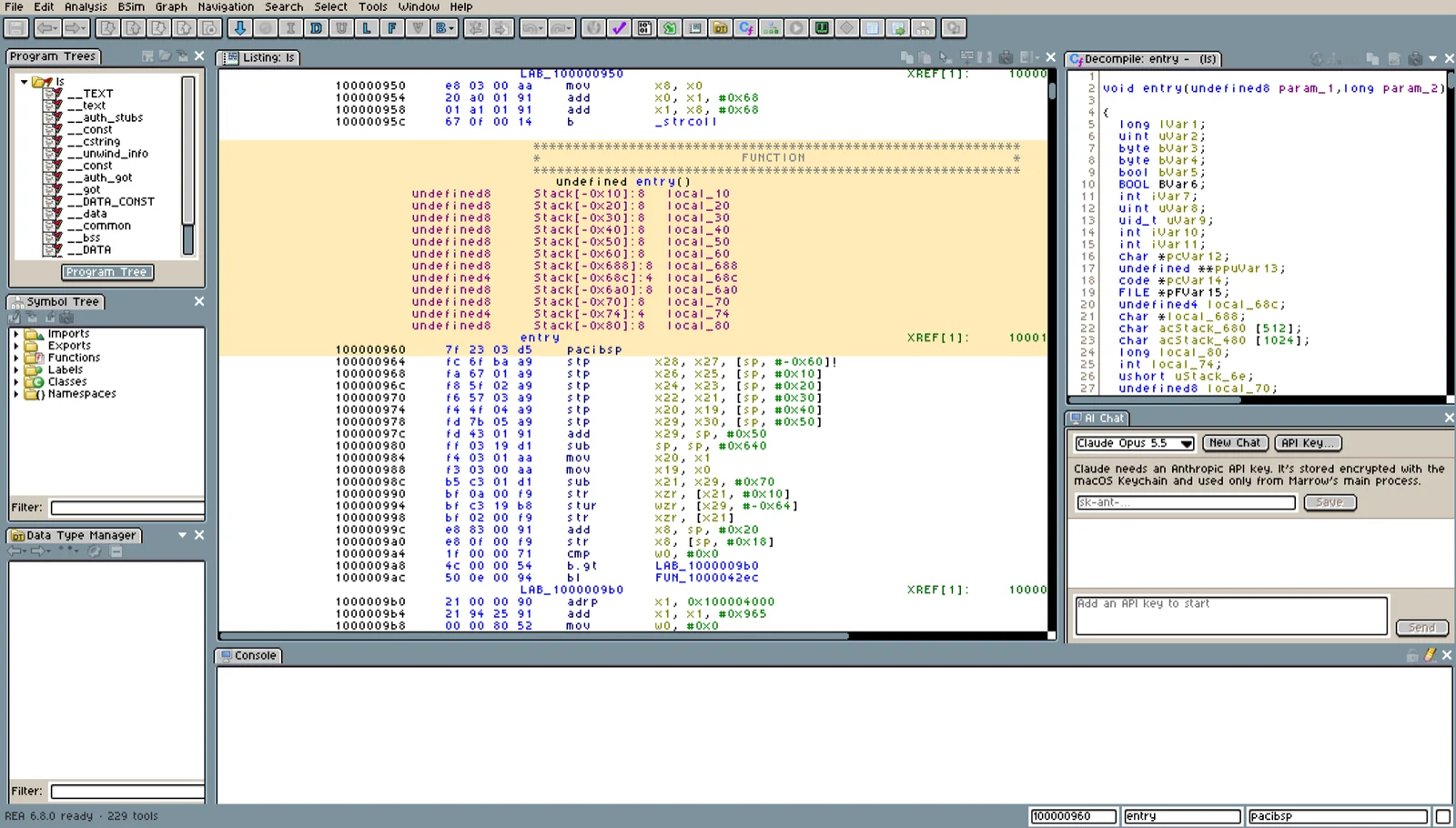
Marrow is a reverse engineering app for macOS, Windows and Linux, built on REA. REA does the analysis through its MCP server. Marrow gives it the windows a reverse engineer expects: a Listing with the disassembly, a Decompiler, a Function Graph, the Symbol Tree, Bytes, strings, references, bookmarks and search, laid out like the classic CodeBrowser many people already know.
Native binaries open in that CodeBrowser. Apple bundles, Electron apps, web pages, Android APKs, .NET assemblies, firmware, packet captures and version comparisons each have a window of their own, and the REA Tools window lists every REA tool with a form for each one.
Everything on screen comes from REA's answers, along with the evidence and limitations REA reported. Marrow doesn't parse files itself, and when a tool fails it shows the error REA returned. Analysis runs on your own computer.
You can bring Claude into the same session in two ways. Paste your own Anthropic API key into AI Chat and talk to Claude inside Marrow, or turn on the AI hub and connect Claude Code, Claude Desktop or any other MCP client. Either way, Claude can run REA's tools, move the views, rename functions, and add comments and bookmarks while you watch, and Marrow asks you before anything reaches outside the analysis.
Get the installer for your system from the latest release:
a DMG for a Mac (Apple Silicon or Intel), an .exe installer for Windows, or an AppImage or
.deb for Linux. They aren't signed yet, so your system warns the first time you open Marrow;
the release notes say how to get past that.
npm install --global rea-agents. It needs Node.js 22.23.4+, 24.22.1+ or 26.12.1+.rea doctor --provider ghidra tells you if REA
can use them. Marrow looks for Ghidra where people usually put it (~/Applications on a Mac,
your home folder or C:\ on Windows, your home folder or /opt on Linux) and for JDK 21 in
Homebrew, Program Files or /usr/lib/jvm. Tool Options > REA Engine lets you point it
somewhere else.When Marrow starts, Getting Started checks for REA, Ghidra and Java and tells you how to get whatever is missing. Help > Contents opens it again any time.
git clone https://github.com/utabk/marrow.git
cd marrow
npm install
npm run dev
/bin/ls on a Mac or Linux, or
C:\Windows\System32\notepad.exe on Windows. For a universal macOS binary, Marrow asks which
architecture to analyze.entry. Double-click a name in the Listing or
Decompiler to follow it, and press ⌥← (Alt+← on Windows and Linux) to go back.To chat inside Marrow, open Window > AI Chat, click API Key, and paste a key from the
Anthropic Console. You can also set ANTHROPIC_API_KEY before
starting Marrow. The key is stored encrypted with your system's key store (the macOS Keychain,
Windows' DPAPI, or GNOME Keyring or KWallet on Linux) and only Marrow's main process reads it.
Pick Claude Opus, Sonnet or Haiku from the menu at the top of the chat.
To use an agent you already have, open Window > AI Hub and turn the server on. The window shows
the command to run for Claude Code (claude mcp add marrow -- …) and the block to paste into
Claude Desktop's config. The hub listens on a local socket (a named pipe on Windows), and before
any MCP message Marrow and the connector each prove they know a secret kept in your Marrow
profile, so no other program can pose as either one. It needs no API key in Marrow.
Every program you open gets its own rea mcp process, because REA keeps one open target per
connection. Marrow's main process talks to those processes over MCP on stdio. The windows get
their data from the main process through a small typed bridge and never touch files or processes
themselves. REA runs Ghidra headless for native code and calls other tools where it needs them
(otool and codesign on a Mac, adb, JADX, a browser), then sends each result back with its
evidence. AI Chat and the AI hub reach REA through the same main process, with the same checks.
flowchart LR
    subgraph marrow["Marrow"]
        windows["Windows<br/>Listing, Decompiler, Function Graph,<br/>Security, REA Tools, AI Chat"]
        main["Main process<br/>one REA session per open program"]
        hub["AI hub"]
        windows <-->|"typed bridge"| main
        hub <--> main
    end

    you(["You"]) --> windows
    agent(["Your AI agent<br/>Claude Code, Claude Desktop<br/>or any MCP client"]) -->|"MCP over a local socket"| hub
    main <-->|"Anthropic API, with your key"| claude(["Claude"])
    main <-->|"MCP over stdio"| rea["rea mcp<br/>229 tools"]
    rea --> ghidra["Ghidra, headless<br/>native analysis"]
    rea --> more["Other programs REA drives<br/>otool, codesign, adb, JADX,<br/>WABT, Chrome"]

