mandiant/flare-vm
A collection of software installations scripts for Windows systems that allows you to easily setup and maintain a reverse engineering environment on a VM.
Welcome to FLARE-VM - a collection of software installations scripts for Windows systems that allows you to easily setup and maintain a reverse engineering environment on a virtual machine (VM). FLARE-VM was designed to solve the problem of reverse engineering tool curation and relies on two main technologies: Chocolatey and Boxstarter. Chocolatey is a Windows-based Nuget package management system, where a "package" is essentially a ZIP file containing PowerShell installation scripts that download and configure a specific tool. Boxstarter leverages Chocolatey packages to automate the installation of software and create repeatable, scripted Windows environments.
FLARE-VM should ONLY be installed on a virtual machine. The VM should satisfy the following requirements:
This section documents the steps to install FLARE-VM. You may also find useful the Building a VM for Reverse Engineering and Malware Analysis! Installing the FLARE-VM video.
idapro.vm, you must place your IDA Pro installer (and optionally, your license file) on the Desktop before running the FLARE-VM installer.PowerShell prompt as administratorinstaller.ps1 to your Desktop:
(New-Object net.webclient).DownloadFile('https://raw.githubusercontent.com/mandiant/flare-vm/main/install.ps1',"$([Environment]::GetFolderPath("Desktop"))\install.ps1")Unblock-File .\install.ps1Set-ExecutionPolicy Unrestricted -Force
Set-ExecutionPolicy Unrestricted -Scope CurrentUser -Force. To view execution policies for all scopes, execute Get-ExecutionPolicy -List.\install.ps1
.\install.ps1 -password <password>.\install.ps1 -password <password> -noWait -noGui.\install.ps1 -customConfig <config.xml> -password <password> -noWait -noGuihost-only networking mode and take a VM snapshotBelow are the CLI parameter descriptions.
PARAMETERS
    -password <String>
        Current user password to allow reboot resiliency via Boxstarter. The script prompts for the password if not provided.

    -noPassword [<SwitchParameter>]
        Switch parameter indicating a password is not needed for reboots.

    -customConfig <String>
        Path to a configuration XML file. May be a file path or URL.

    -customLayout <String>
        Path to a taskbar layout XML file. May be a file path or URL.

    -noWait [<SwitchParameter>]
        Switch parameter to skip installation message before installation begins.

    -noGui [<SwitchParameter>]
        Switch parameter to skip customization GUI.

    -noReboots [<SwitchParameter>]
        Switch parameter to prevent reboots (not recommended).

    -noChecks [<SwitchParameter>]
        Switch parameter to skip validation checks (not recommended).
Get full usage information by running Get-Help .\install.ps1 -Detailed.
The Installer GUI is display after executing the validation checks and installing Boxstarter and Chocolatey (if they are not installed already). Using the installer GUI you may customize:
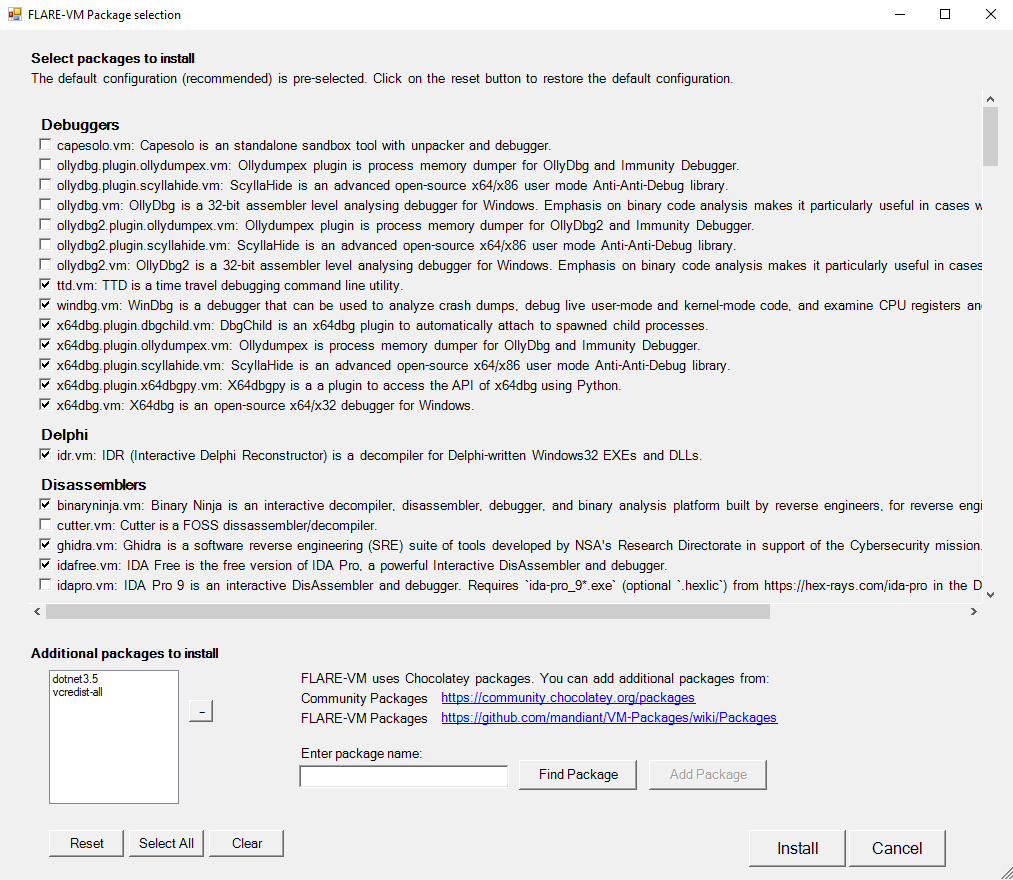
The installer will download config.xml from the FLARE-VM repository. This file contains the default configuration, including the list of packages to install and the environment variable paths. You may use your own configuration by specifying the CLI-argument -customConfig and providing either a local file path or URL to your config.xml file. For example:
.\install.ps1 -customConfig "https://raw.githubusercontent.com/mandiant/flare-vm/main/config.xml"
The installer will use CustomStartLayout.xml from the FLARE-VM repository. This file contains the default taskbar layout. You may use your own configuration by specifying the CLI-argument -customLayout and providing a local file path or URL to your CustomStartLayout.xml file. For example:
.\install.ps1 -customLayout "https://raw.githubusercontent.com/mandiant/flare-vm/main/CustomStartLayout.xml"
.exe files) or shortcuts to applications can be pinned.cmd.exe or powershell with arguments supplied that will perform that actions you would like.VM-Install-Shortcut with the flag -runAsAdmin and pinning the shortcut.You can include any post installation step you like in the configuration inside the tags apps, services, path-items, registry-items, and custom-items.