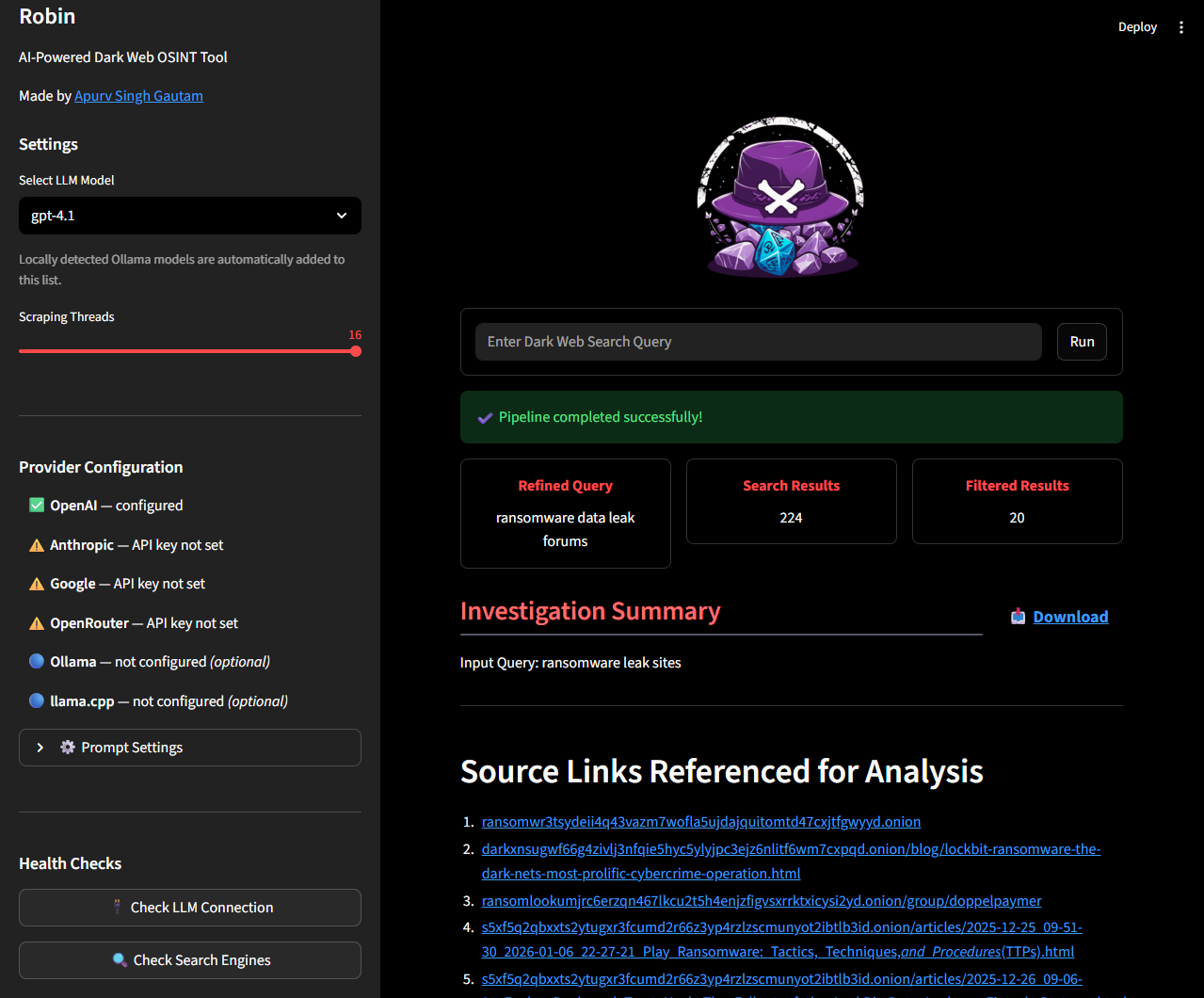



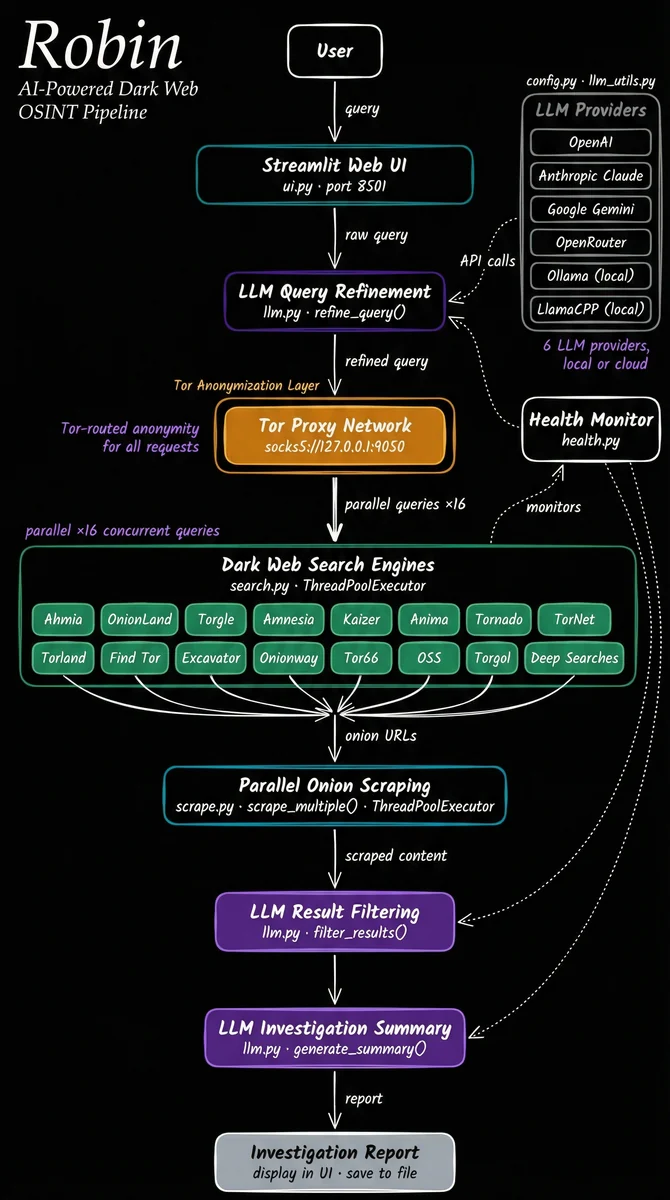
Robin 是一款 AI 驱动的暗网 OSINT 调查工具。它利用 LLM 来优化查询、过滤暗网搜索引擎的搜索结果,并提供调查摘要。
安装 • Robin 作为 MCP • 故障排除 • 贡献 • 致谢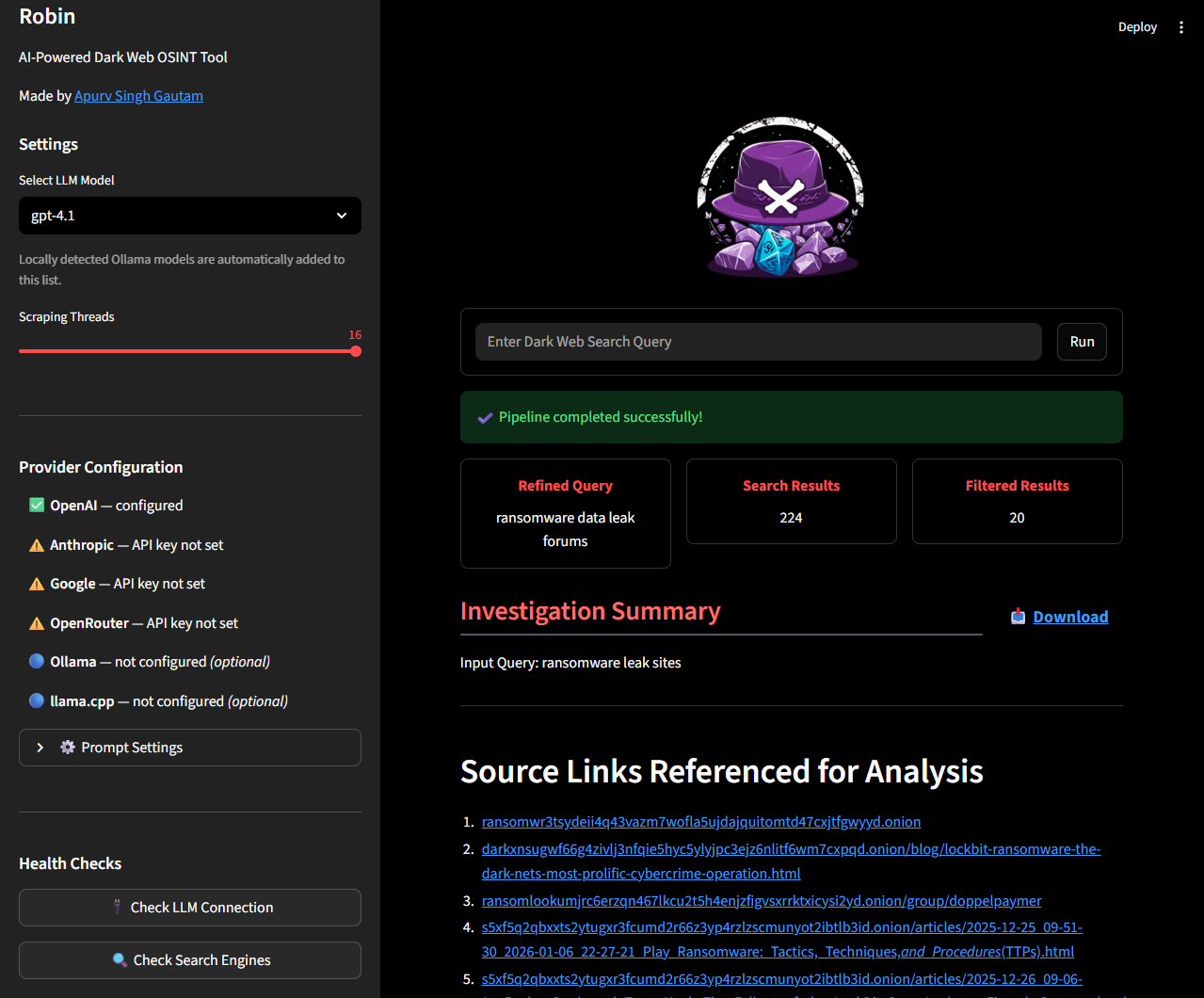
本工具仅供教育和合法调查用途。访问或与某些暗网内容交互在您的司法管辖区内可能是非法的。作者不对本工具的任何滥用或使用本工具收集的数据负责。
请负责任地使用,风险自负。在开展 OSINT 调查之前,请确保遵守所有相关法律和机构政策。
此外,Robin 利用第三方 API(包括 LLM)。发送可能敏感的查询时请谨慎,并查看您使用的任何 API 或模型提供商的服务条款。
[!NOTE] 该工具需要 Tor 来执行搜索。您可以在 Linux/Windows(WSL) 上使用
apt install tor安装 Tor,或在 Mac 上使用brew install tor。安装后,确认 Tor 是否在后台运行。
[!TIP] 在
.env文件(复制.env.example)中或作为环境变量提供您的 API 密钥。一个密钥就足够了:Robin 会为其找到的提供商列出模型。支持的密钥有OPENAI_API_KEY、ANTHROPIC_API_KEY、GOOGLE_API_KEY、MISTRAL_API_KEY和OPENROUTER_API_KEY。对于 Ollama,
.env中无需填写任何内容。Robin 默认使用http://host.docker.internal:11434,这正是推荐的 Docker 安装所需的。但仍有两件事需要您自己处理:
- 使用
--add-host=host.docker.internal:host-gateway运行容器(README 中的命令已经包含此项)。- 让 Ollama 监听所有接口,因为它默认绑定到
127.0.0.1,而容器无法访问该地址。如果您自行启动它,请使用OLLAMA_HOST=0.0.0.0 ollama serve &。如果它由 systemd 运行,请执行sudo systemctl edit ollama.service,添加[Service]和Environment="OLLAMA_HOST=0.0.0.0",然后执行sudo systemctl daemon-reload && sudo systemctl restart ollama。如果它仍未出现,请参见 TROUBLESHOOTING.md。
对于任何其他兼容 OpenAI 的提供商(LM Studio、llama.cpp、Groq 等),请使用侧边栏中的 🔌 Custom API Provider 展开项——无需更改
.env。输入基础 URL、可选的 API 密钥,以及可选的模型名称(如果该提供商不公开/v1/models以供自动发现)。
docker pull apurvsg/robin:latest
.env 文件(参见 .env.example)。请在首次运行前创建它:如果它不存在,Docker 会在其位置挂载一个空文件夹,Robin 将在没有密钥的情况下启动。touch .env # then add your API key to it
docker run --rm \
   -v "$(pwd)/.env:/app/.env" \
   --add-host=host.docker.internal:host-gateway \
   -p 8501:8501 \
   apurvsg/robin:latest
[!TIP] 要在 Docker 重启之间保留已保存的调查,请在
/app/investigations挂载一个命名卷或本地目录。命名卷在每个操作系统上的工作方式相同,且无需主机路径。它也是 Robin 作为 MCP 中 agent 命令所挂载的卷,因此 UI 会显示您的 agent 保存的相同报告:
docker run --rm \
   -v "$(pwd)/.env:/app/.env" \
   -v robin-investigations:/app/investigations \
   --add-host=host.docker.internal:host-gateway \
   -p 8501:8501 \
   apurvsg/robin:latest
或者挂载一个本地目录,如果您希望 JSON 文件保存在自己的磁盘上:
docker run --rm \
   -v "$(pwd)/.env:/app/.env" \
   -v "$(pwd)/investigations:/app/investigations" \
   --add-host=host.docker.internal:host-gateway \
   -p 8501:8501 \
   apurvsg/robin:latest
调查会保存到您工作目录中的
investigations/文件夹,并可从侧边栏的 Past Investigations 面板加载。请先自行创建该文件夹(
mkdir -p investigations),以免 Docker 以 root 身份创建它。容器以 UID 1000 运行,在 Linux 上,由其他用户拥有的文件夹对它来说是只读的——Robin 会打印一条警告,保存会失败,但调查仍会运行。如果您遇到这种情况,或者您自己的 UID 不是 1000,请使用上面的命名卷,或参见 Saved investigations fail with permission denied on Linux。
http://localhost:8501要运行您自己的构建而非已发布的镜像,请克隆仓库并构建它:
docker build -t robin .
然后使用相同的运行命令,将 apurvsg/robin:latest 替换为 robin:
docker run --rm \
   -v "$(pwd)/.env:/app/.env" \
   --add-host=host.docker.internal:host-gateway \
   -p 8501:8501 \
   robin
docker run --rm \
   -v "$(pwd)/.env:/app/.env" \
   -v "$(pwd)/investigations:/app/investigations" \
   --add-host=host.docker.internal:host-gateway \
   -p 8501:8501 \
   robin
http://localhost:8501任何支持 MCP 的 LLM 服务都可以运行它,使用其自身的模型。以下各节是常见宿主的工作示例;未列出的宿主以相同方式工作,只是使用其自己的“添加 MCP 服务器”措辞。
claude mcp add robin -- docker run -i --rm -v robin-investigations:/app/investigations apurvsg/robin mcp
或在 .mcp.json 中将其检入项目。Tor 调查需要数分钟,因此请提高每服务器超时时间:
{
  "mcpServers": {
    "robin": {
      "command": "docker",
      "args": ["run", "-i", "--rm", "-v", "robin-investigations:/app/investigations", "apurvsg/robin", "mcp"],
      "timeout": 600000
    }
  }
}
codex mcp add robin -- docker run -i --rm -v robin-investigations:/app/investigations apurvsg/robin mcp
ChatGPT 桌面应用共享此宿主:在其中 Settings → MCP servers 下添加 Robin 会写入相同的配置,其工具会出现在 Codex 会话中,而不是普通的 ChatGPT 聊天中。
Tor 搜索通常需要几分钟,这可能超过 Codex 默认的 MCP 工具超时时间,因此请在 ~/.codex/config.toml 中提高限制:
[mcp_servers.robin]
command = "docker"
args = ["run", "-i", "--rm", "-v", "robin-investigations:/app/investigations", "apurvsg/robin", "mcp"]
tool_timeout_sec = 600
startup_timeout_sec = 60

# Only for non-interactive runs (`codex exec`): Codex declines MCP tool calls
# that would need approval, so pre-approve Robin's read-only tools.
default_tools_approval_mode = "approve"
请先拉取镜像(docker pull apurvsg/robin:latest),以免首次启动同时还要下载。
将以下内容添加到 claude_desktop_config.json 并重启应用:
{
  "mcpServers": {
    "robin": {
      "command": "docker",
      "args": ["run", "-i", "--rm", "-v", "robin-investigations:/app/investigations", "apurvsg/robin", "mcp"]
    }
  }
}
在 ~/.hermes/config.yaml 中:
mcp_servers:
  robin:
    command: docker
    args: [run, -i, --rm, -v, "robin-investigations:/app/investigations", apurvsg/robin, mcp]
    timeout: 600
openclaw mcp add robin --command docker --arg run --arg -i --arg --rm --arg -v --arg robin-investigations:/app/investigations --arg apurvsg/robin --arg mcp
或在配置中的 mcp.servers 下: