
Laboratório de detecção do Blue Team criado com Terraform e Ansible no Azure.
Este projeto contém um conjunto de scripts Terraform e Ansible para criar um BlueTeam Lab orquestrado. O objetivo deste projeto é fornecer às equipes vermelha e azul a capacidade de implantar um laboratório de detecção ad-hoc para testar vários ataques e artefatos forenses no ambiente Windows mais recente e, em seguida, obter uma visão 'do tipo SOC' dos dados gerados.
NOTA: Este laboratório foi deliberadamente projetado para ser inseguro. Por favor, não conecte este sistema a nenhuma rede que você considere importante.
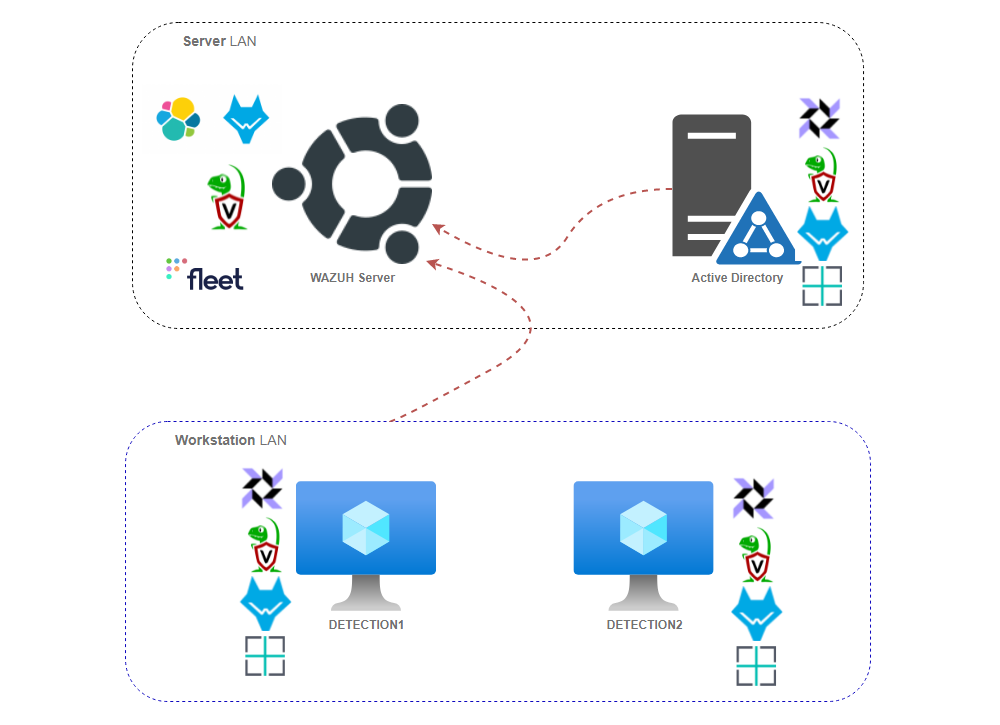
Uma série de funcionalidades precisam ser instaladas no seu sistema para usar esta configuração.
# Step 1 - Install Azure CLI. More details on https://docs.microsoft.com/en-us/cli/azure/install-azure-cli-linux?pivots=apt
curl -sL https://aka.ms/InstallAzureCLIDeb | sudo bash

# Step 2 - Install Terraform. More details on https://learn.hashicorp.com/tutorials/terraform/install-cli
sudo apt-get update && sudo apt-get install -y gnupg software-properties-common curl
curl -fsSL https://apt.releases.hashicorp.com/gpg | sudo apt-key add -
sudo apt-add-repository "deb [arch=amd64] https://apt.releases.hashicorp.com $(lsb_release -cs) main"
sudo apt-get update && sudo apt-get install terraform

# Step 3 - Install Ansible. More details on https://docs.ansible.com/ansible/latest/installation_guide/intro_installation.html
sudo apt update
sudo apt install software-properties-common
sudo add-apt-repository --yes --update ppa:ansible/ansible
sudo apt update
sudo apt install ansible

# Step 4 - Finally install python and various packages needed for remote connections and other activities
sudo apt install python3 python3-pip
pip3 install pywinrm requests msrest msrestazure azure-cli
pip3 install -r https://raw.githubusercontent.com/ansible-collections/azure/refs/heads/dev/requirements.txt
Depois que todos os pré-requisitos estiverem instalados, execute a seguinte série de etapas:
# Log in to Azure from command line to ensure that the access token is valid
az login

# Clone Repository and move to BlueTeam.Lab folder
git clone https://github.com/op7ic/BlueTeam.Lab.git && cd BlueTeam.Lab

# Initialize Terraform and begin planning
terraform init && terraform plan

# Create your lab using the following command.
terraform apply -auto-approve

# Verify the layout of your environment using Ansible
cd ansible && ANSIBLE_CONFIG=./ansible.cfg ansible-inventory --graph -i inventory.azure_rm.yml -vvv && cd ../

# To see IPs of individual hosts and other setup details use the following command:
cd ansible && ANSIBLE_CONFIG=./ansible.cfg ansible-inventory -i inventory.azure_rm.yml -vvv --list && cd ../

# Once done, destroy your lab using the following command:
terraform destroy -auto-approve

# If you would like to time the execution us following command:
start_time=`date +%s` && terraform apply -auto-approve && end_time=`date +%s` && echo execution time was `expr $end_time - $start_time` s

#NOTE: It will take about two hours to configure it all, depending on your selected hardware.
As variáveis do Terraform definem o tipo de sistemas operacionais usados nesta implantação. Uma simples modificação nas variáveis de tempo de execução permite especificar diferentes sistemas operacionais para executar todo o Active Directory (AD). A opção padrão é usar Windows 10 Enterprise para as Workstations e Windows Server 2019 Datacenter para o Controlador de Domínio. Aqui estão exemplos de algumas opções de configuração comuns que podem ser usadas para modificar todo o ambiente para usar diferentes versões de SO:
# Use Windows 10 Enterprise for Workstations and Server 2019 Datacenter for DC (default option)
terraform apply -auto-approve

# Use Windows 11 Enterprise for Workstations and Server 2019 Datacenter for DC
terraform apply -auto-approve  -var="workstation_os=Windows-11" -var="workstation_SKU=win11-21h2-ent" -var="workstations_vm_size=Standard_DC2s_v2"

# Use Windows 11 Enterprise for Workstations and Server 2012 Datacenter for DC
terraform apply -auto-approve -var="workstation_os=Windows-11" -var="workstation_SKU=win11-21h2-ent" -var="workstations_vm_size=Standard_DC2s_v2" -var="dc_os=WindowsServer" -var="dc_SKU=2012-Datacenter"

# Use Windows 11 Enterprise for Workstations and Server 2016 Datacenter for DC
terraform apply -auto-approve -var="workstation_os=Windows-11" -var="workstation_SKU=win11-21h2-ent" -var="workstations_vm_size=Standard_DC2s_v2" -var="dc_os=WindowsServer" -var="dc_SKU=2016-Datacenter"

# Use Windows 10 Pro N for Workstations and Server 2012 Datacenter for DC
terraform apply -auto-approve -var="workstation_os=Windows-10" -var="workstation_SKU=21h1-pron" -var="dc_os=WindowsServer" -var="dc_SKU=2012-Datacenter"
O comando az vm image list pode ser usado para identificar várias versões de SO para a implantação.
A seção a seguir descreve vários componentes que compõem este laboratório, juntamente com detalhes sobre como alterar os arquivos de configuração para modificar a configuração:
Uma vez que o laboratório é construído, o Terraform imprimirá a localização real dos sistemas e as credenciais associadas. Um exemplo de saída pode ser encontrado abaixo.
Network Setup:

Domain Controller = xx.xx.xx.xx
Workstation DETECTION1: xx.xx.xx.xx
Workstation DETECTION2: xx.xx.xx.xx
Wazuh Server IP = xx.xx.xx.xx
Wazuh Web Interface = https://xx.xx.xx.xx:443/
Velociraptor Web Inteface: = https://xx.xx.xx.xx:10000/
FleetDM Web Interface: = https://xx.xx.xx.xx:9999/

Credentials:

Domain Admin:
    blueteam.lab\blueteam BlueTeamDetection0%%%
Local Admin on Workstations:
    blueteam BlueTeamDetection0%%%
Wazuh Server SSH Login:
    blueteam BlueTeamDetection0%%%
Wazuh Logins:
    wazuh  BlueTeamDetection0%%%
    admin  BlueTeamDetection0%%%
    kibanaserver  BlueTeamDetection0%%%
    kibanaro  BlueTeamDetection0%%%
    logstash  BlueTeamDetection0%%%
    readall  BlueTeamDetection0%%%
    snapshotrestore  BlueTeamDetection0%%%
    wazuh_admin  BlueTeamDetection0%%%
    wazuh_user  BlueTeamDetection0%%%
Velociraptor Web Inteface Login:
    blueteam BlueTeamDetection0%%%
FleetDM Web Inteface Login:
    [email protected] BlueTeamDetection0%%%

RDP to Domain Controller:
xfreerdp /v:xx.xx.xx.xx /u:blueteam.lab\\blueteam '/p:BlueTeamDetection0%%%' +clipboard /cert-ignore

RDP to Workstation DETECTION1: xx.xx.xx.xx
xfreerdp /v:xx.xx.xx.xx /u:blueteam '/p:BlueTeamDetection0%%%' +clipboard /cert-ignore

RDP to Workstation DETECTION2: xx.xx.xx.xx
xfreerdp /v:xx.xx.xx.xx /u:blueteam '/p:BlueTeamDetection0%%%' +clipboard /cert-ignore
A tabela a seguir resume um conjunto de regras de firewall aplicadas em todo o ambiente BlueTeamLab na configuração padrão. Por favor, modifique o arquivo main.tf para adicionar novas regras de firewall conforme necessário na seção Firewall Rule Setup.
Internamente, os seguintes IPs estáticos e nomes de host são usados na faixa 10.0.0.0/16 para este ambiente na configuração padrão:
As seguintes credenciais padrão são criadas durante a instalação. A impressão das credenciais reais configuradas será exibida após a conclusão do processo completo de implantação.
Para modificar as credenciais padrão, altere os nomes de usuário e senhas no arquivo domain_setup.yml.
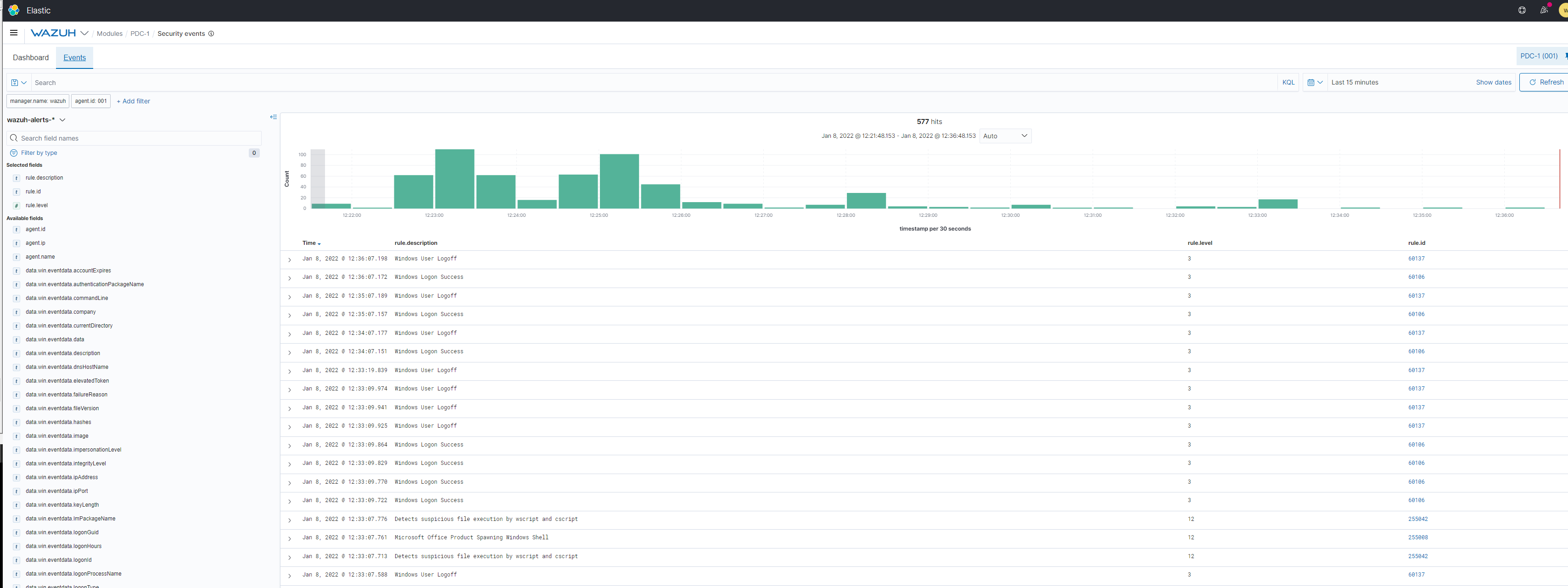
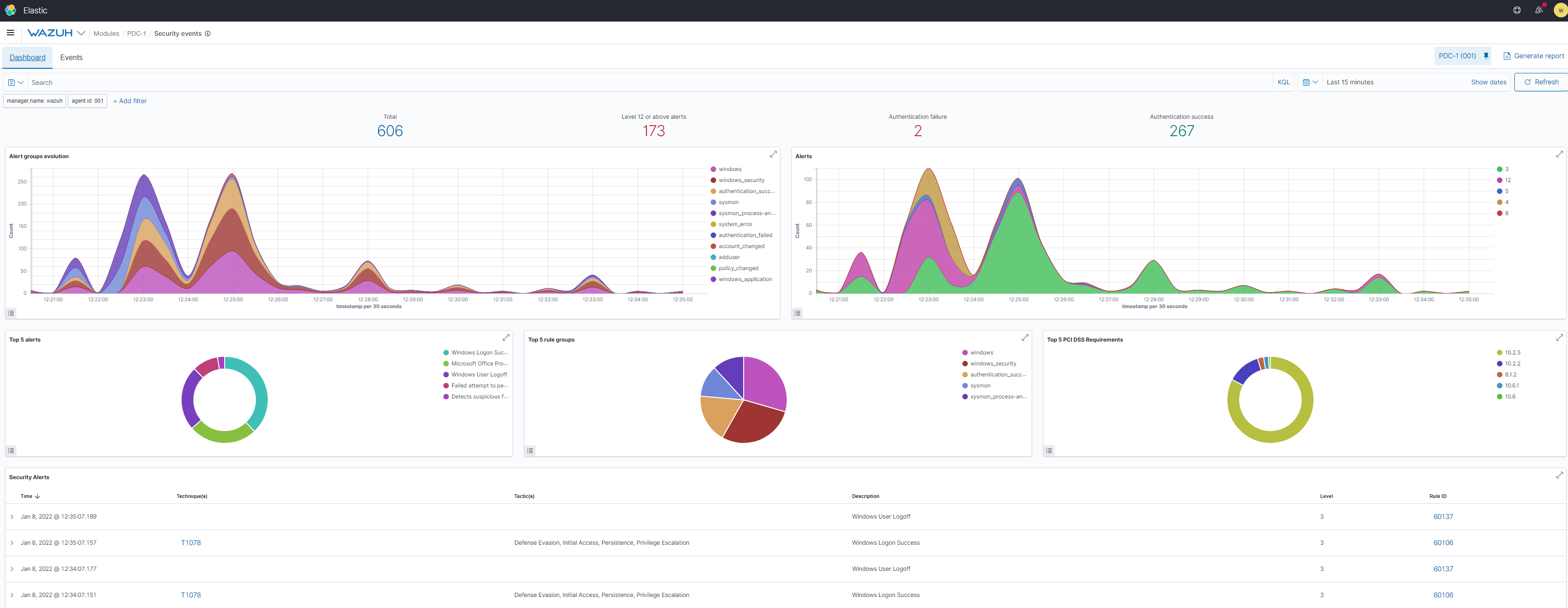
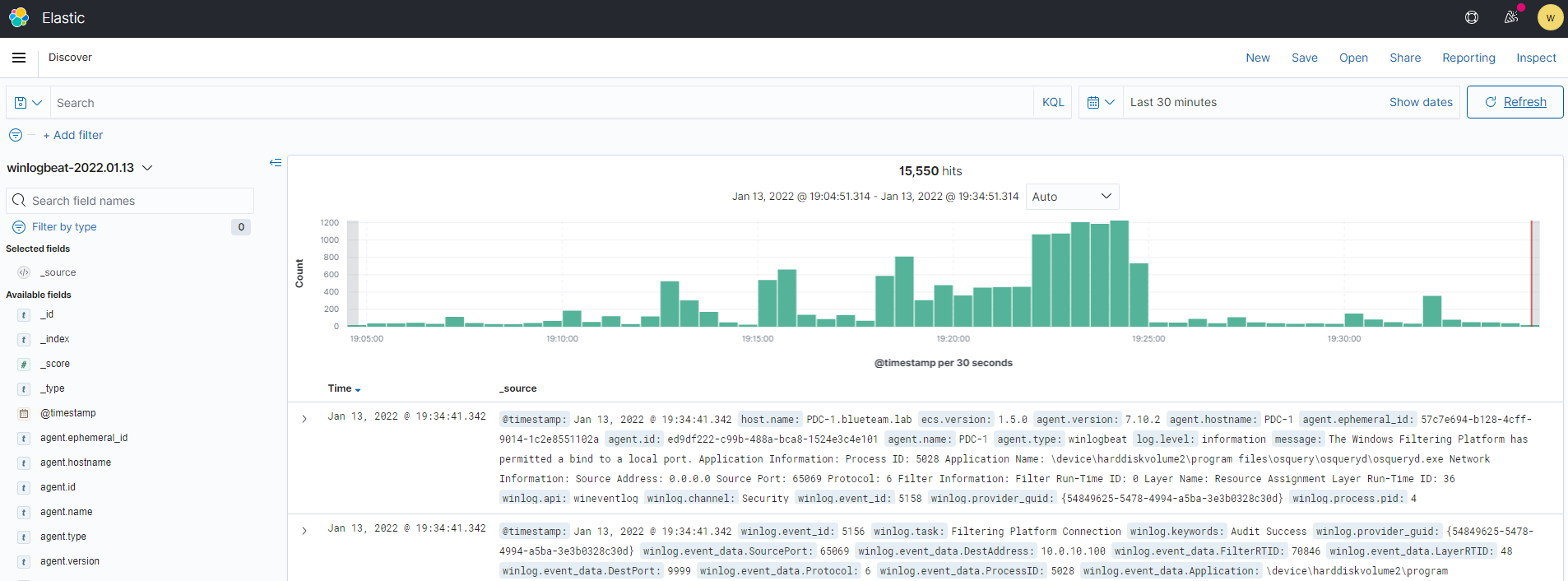
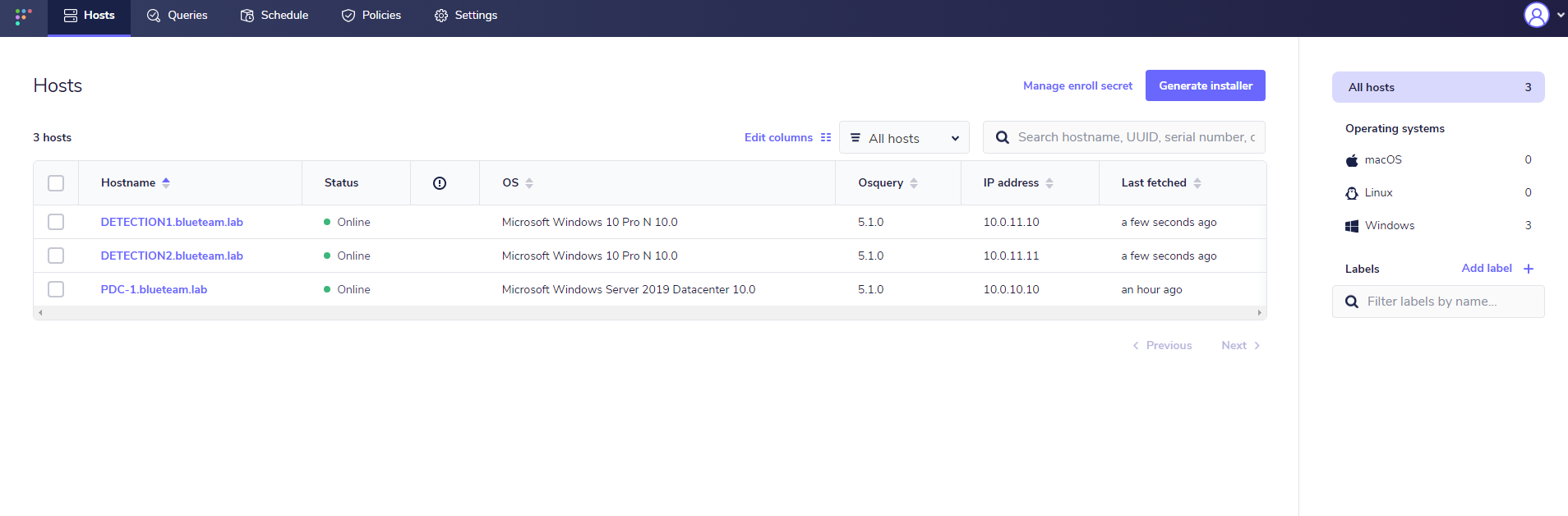
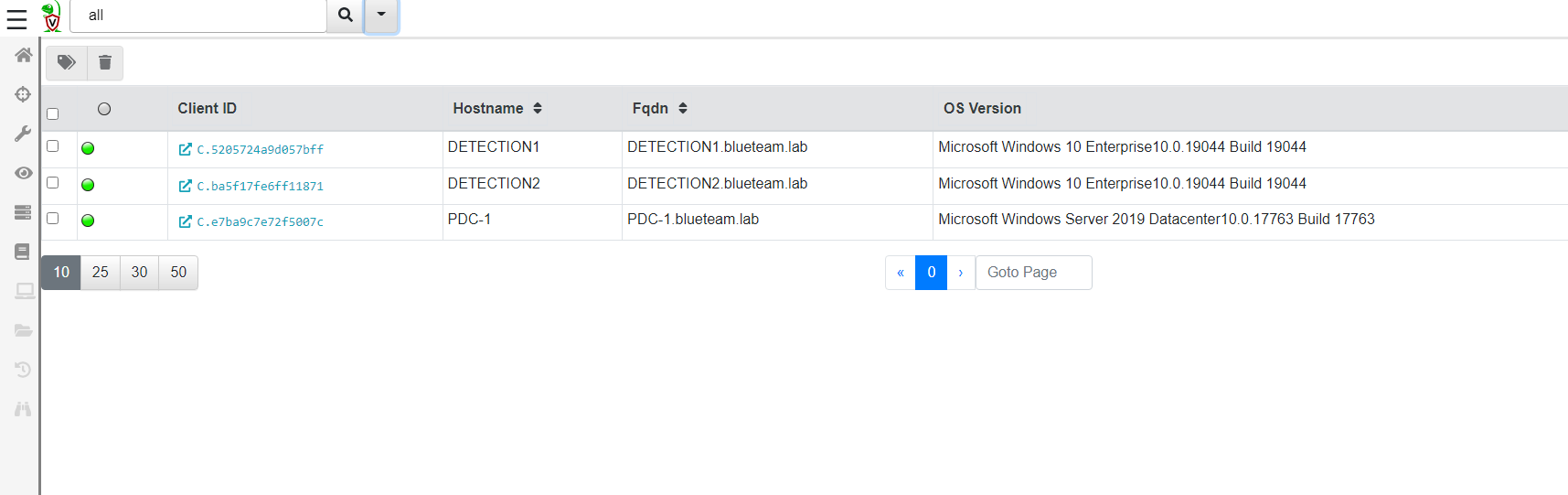
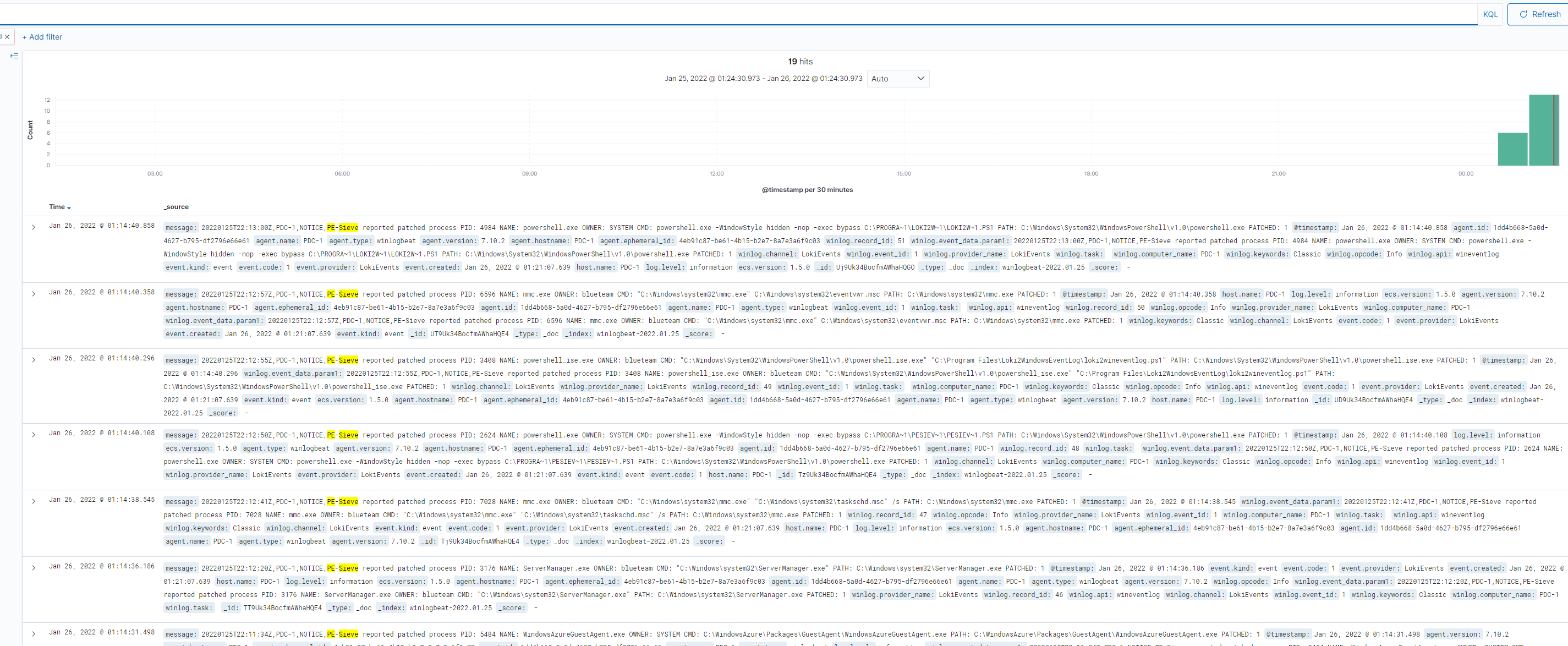
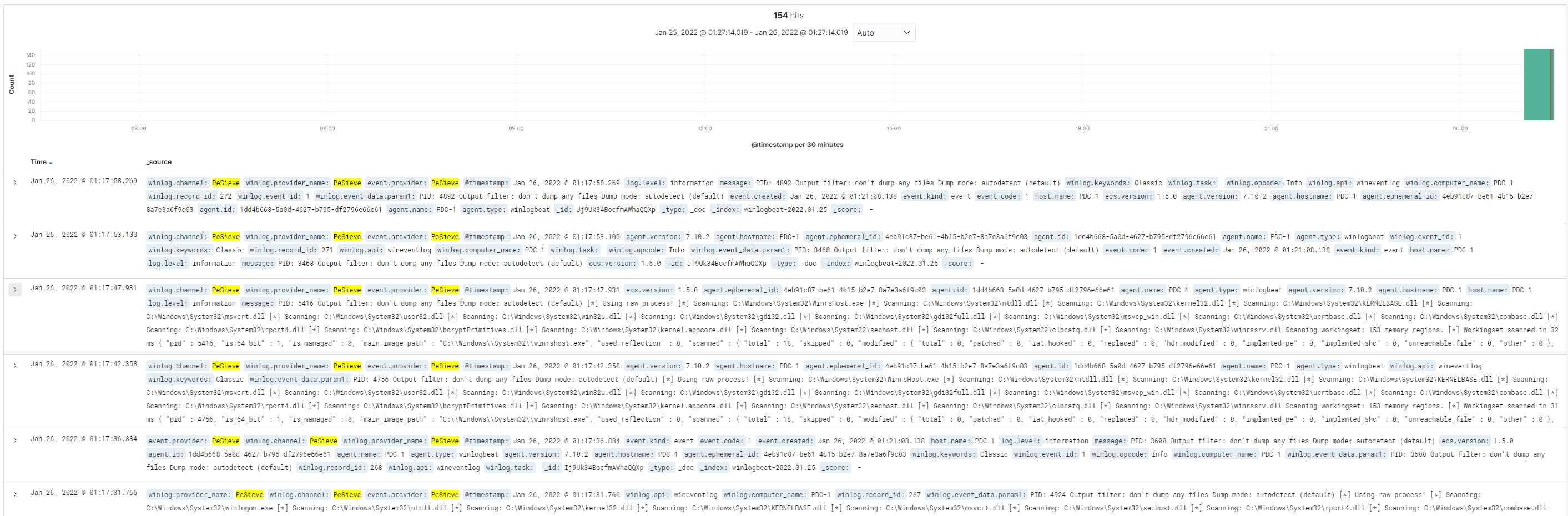
Contribuições, correções e melhorias podem ser submetidas diretamente para este projeto como uma issue do GitHub ou um pull request.
| - ansible
|  | - ansible.cfg
|  | - domain-controller.yml
|  | - domain-member.yml
|  | - domain_setup.yml
|  | - group_vars
|  |  | - all
|  |  | - wazuh
|  | - inventory.azure_rm.yml
|  | - roles
|  |  | - domain-controller
|  |  |  | - tasks
|  |  |  |  | - main.yml
|  |  | - domain-member
|  |  |  | - tasks
|  |  |  |  | - main.yml
|  |  | - fleetserver
|  |  |  | - tasks
|  |  |  |  | - main.yml
|  |  |  | - templates
|  |  |  |  | - config.yml.j2
|  |  |  |  | - ssl.crt
|  |  |  |  | - ssl.key
|  |  |  |  | - systemd-fleetm.service.j2
|  |  | - monitor
|  |  |  | - tasks
|  |  |  |  | - main.yml
|  |  | - osqueryagent
|  |  |  | - tasks
|  |  |  |  | - main.yml
|  |  |  | - templates
|  |  |  |  | - osquery.conf
|  |  |  |  | - osquery.flags.j2
|  |  |  |  | - osquery.key.j2
|  |  |  |  | - ssl.crt
|  |  |  |  | - ssl.key
|  |  |  | - vars
|  |  |  |  | - main.yml
|  |  | - sysmon
|  |  |  | - handlers
|  |  |  |  | - main.yml
|  |  |  | - tasks
|  |  |  |  | - main.yml
|  |  |  | - vars
|  |  |  |  | - main.yml
|  |  | - velociraptorclient
|  |  |  | - tasks
|  |  |  |  | - main.yaml
|  |  |  | - templates
|  |  |  |  | - clientconfig.yml.j2
|  |  |  | - vars
|  |  |  |  | - main.yml
|  |  | - velociraptorserver
|  |  |  | - tasks
|  |  |  |  | - main.yaml
|  |  |  | - templates
|  |  |  |  | - serverconfig.yml.j2
|  |  |  |  | - systemd-velociraptor.service.j2
|  |  |  | - vars
|  |  |  |  | - main.yml
|  |  | - wazuhagent
|  |  |  | - tasks
|  |  |  |  | - main.yml
|  |  |  | - templates
|  |  |  |  | - ossec.conf.j2
|  |  |  | - vars
|  |  |  |  | - main.yml
|  |  | - wazuhserver
|  |  |  | - tasks
|  |  |  |  | - main.yaml
|  |  |  | - templates
|  |  |  |  | - sysmon_rules.xml
|  |  |  |  | - unattended-installation.sh
|  |  |  |  | - wazuh-passwords-tool.sh.j2
|  |  | - winlogbeat
|  |  |  | - tasks
|  |  |  |  | - main.yml
|  |  |  | - templates
|  |  |  |  | - config.yml.j2
|  |  |  | - vars
|  |  |  |  | - main.yml
|  | - wazuh-server.yml
| - documentation
|  | - osquery.md
|  | - pic
|  |  | - map.png
|  |  | - wazuh-logs.PNG
|  |  | - wazuh-pdc.PNG
|  |  | - winlogbeat.PNG
|  | - sysmon.md
|  | - velociraptor.md
|  | - wazuh.md
|  | - winlogbeat.md
|  | - winmember.md
| - main.tf
| - README.md
| - terraform.tfstate
| - terraform.tfstate.backup
| - variables.tf
Eu recebo Disk wks-1-os-disk already exists in resource group BLUETEAM-LAB. Only CreateOption.Attach is supported. ou algo semelhante a este erro.
terraform destroy -auto-approve && terraform apply -auto-approve para destruir e recriar o laboratório. Este erro parece aparecer quando o Azure não limpa todos os discos corretamente, deixando recursos residuais com o mesmo nome.Eu recebo Operation 'startTenantUpdate' is not allowed on VM 'domain-controller' since the VM is marked for deletion. You can only retry the Delete operation (or wait for an ongoing one to complete). ou algo semelhante a este erro.
terraform destroy -auto-approve && terraform apply -auto-approve para destruir e recriar o laboratório. Este erro parece aparecer quando o Azure não limpa todos os recursos corretamente, deixando resíduos que precisam ser destruídos antes da criação do laboratório devido a conflitos de nomes e/ou localizações.Eu recebo Network security group windows-nsg cannot be deleted because old references for the following Nics ou algo semelhante a este erro.
terraform destroy -auto-approve && terraform apply -auto-approve para destruir e recriar o laboratório. Este erro parece aparecer quando o Azure não limpa todos os recursos corretamente, deixando resíduos que precisam ser destruídos antes da criação do laboratório devido a conflitos de nomes e/ou localizações.Uma boa parte deste código foi emprestada e adaptada do Adaz de Christophe Tafani-Dereeper. Um enorme agradecimento por construir a base que me permitiu projetar este ambiente de laboratório.
| Nome da Regra | Grupo de Segurança de Rede | Host de Origem | Porta de Origem | Host de Destino | Porta de Destino |
|---|
| Allow-RDP | windows-nsg | Seu IP Público | * | PDC-1, DETECTION1, DETECTION2 | 3389 |
| Allow-WinRM | windows-nsg | Seu IP Público | * | PDC-1, DETECTION1, DETECTION2 | 5985 |
| Allow-WinRM-secure | windows-nsg | Seu IP Público | * | PDC-1, DETECTION1, DETECTION2 | 5986 |
| Allow-SMB | windows-nsg | Seu IP Público | * | PDC-1, DETECTION1, DETECTION2 | 445 |
| Allow-SSH | wazuh-nsg | Seu IP Público | * | Wazuh | 22 |
| Allow-Wazuh-Manager | wazuh-nsg | Seu IP Público | * | Wazuh | 1514-1516 |
| Allow-Wazuh-Elasticsearch | wazuh-nsg | Seu IP Público | * | Wazuh | 9200 |
| Allow-Wazuh-API | wazuh-nsg | Seu IP Público | * | Wazuh | 55000 |
| Allow-Elasticsearch-Cluster | wazuh-nsg | Seu IP Público | * | Wazuh | 9300-9400 |
| Allow-Wazuh-GUI | wazuh-nsg | Seu IP Público | * | Wazuh | 443 |
| Allow-Velociraptor-Client-Connections | wazuh-nsg | Seu IP Público | * | Wazuh | 8000 |
| Allow-Velociraptor-GUI | wazuh-nsg | Seu IP Público | * | Wazuh | 10000 |
| Allow-Fleet-GUI | wazuh-nsg | Seu IP Público | * | Wazuh | 9999 |
| Host | Função | IP Interno |
|---|
| PDC-1 | Controlador de Domínio Primário | 10.0.10.10 |
| Wazuh | Servidor Wazuh, também hospedando Velocidex Velociraptor e FleetDM | 10.0.10.100 |
| DETECTION1 | Estação de Trabalho Windows 10 1 | 10.0.11.11 |
| DETECTION2 | Estação de Trabalho Windows 10 2 | 10.0.11.12 |
| Host | Login | Senha | Função |
|---|
| PDC-1 | blueteam.lab\blueteam | BlueTeamDetection0%%% | Administrador de Domínio para o domínio blueteam.lab |
| DETECTION1 | localadministrator | BlueTeamDetection0%%% | Administrador Local da estação de trabalho DETECTION1 |
| DETECTION2 | localadministrator | BlueTeamDetection0%%% | Administrador Local da estação de trabalho DETECTION2 |
| Wazuh | blueteam | BlueTeamDetection0%%% | Credenciais SSH para o servidor Wazuh |
| Wazuh | wazuh | BlueTeamDetection0%%% | Administrador Wazuh |
| Wazuh | admin | BlueTeamDetection0%%% | Administrador Wazuh |
| Wazuh | kibanaserver | BlueTeamDetection0%%% | Conta de serviço Wazuh |
| Wazuh | kibanaro | BlueTeamDetection0%%% | Conta de serviço Wazuh |
| Wazuh | logstash | BlueTeamDetection0%%% | Conta de serviço Wazuh |
| Wazuh | readall | BlueTeamDetection0%%% | Conta de serviço Wazuh |
| Wazuh | snapshotrestore | BlueTeamDetection0%%% | Conta de serviço Wazuh |
| Wazuh | wazuh_admin | BlueTeamDetection0%%% | Conta de serviço Wazuh |
| Wazuh | wazuh_user | BlueTeamDetection0%%% | Conta de serviço Wazuh |
| Wazuh | blueteam | BlueTeamDetection0%%% | Login do Portal Web Velociraptor |
| Wazuh | [email protected] | BlueTeamDetection0%%% | Login do Portal Web FleetDM |
Por que Azure?
Como modificar segmentos de rede, tamanho da implantação ou outras variáveis?
-var ao terraform apply. Por exemplo, terraform apply --auto-approve -var="region=East US 2" modificaria a região para uma diferente do padrão definido no arquivo variables. Toda a configuração, incluindo faixas de rede, sistemas operacionais e o tamanho da VM, pode ser alterada usando uma cadeia de parâmetros -var.Como encontrar SKUs para uma implantação específica?
az vm list-skus --location westeurope --all --output table para encontrar SKUs disponíveis para sua implantação.Eu recebo Max retries exceeded with url: /wsman e a conexão é recusada ao construir um sistema.
terraform apply -auto-approve para reparar o host danificado.
