 ramonvermeulen/whosthere
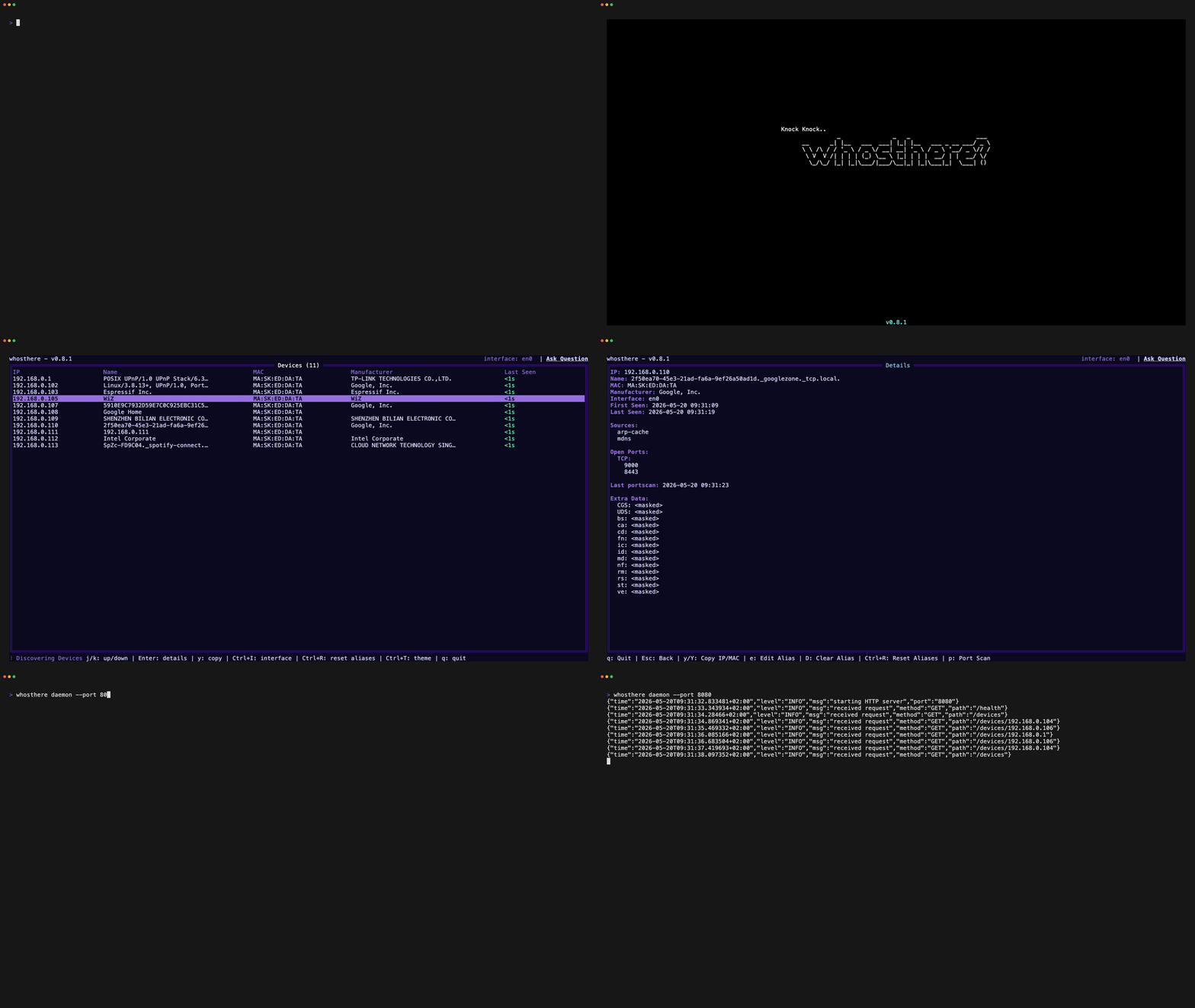
Go로 작성된 대화형 터미널 사용자 인터페이스(TUI)를 갖춘 근거리 통신망(LAN) 탐색 도구입니다. 직관적인 방식으로 LAN을 발견하고 탐색하며 이해하세요. 똑똑.. 누구세요? 🚪

# Whosthere
[](https://go.dev/doc/devel/release)
[](LICENSE)
[](https://github.com/ramonvermeulen/whosthere/releases)
[](https://github.com/ramonvermeulen/whosthere/releases)
[](https://github.com/ramonvermeulen/whosthere)
Go로 작성된 대화형 터미널 사용자 인터페이스(TUI)를 갖춘 근거리 통신망(LAN) 검색 도구입니다.
직관적인 방식으로 LAN을 검색하고, 탐색하고, 이해할 수 있습니다.
Whosthere는 [**mDNS**](https://en.wikipedia.org/wiki/Multicast_DNS) 및 [**SSDP**](https://en.wikipedia.org/wiki/Simple_Service_Discovery_Protocol) 스캐너를 사용하여 **권한 없이 동시 스캔**을 수행합니다. 또한 TCP/UDP 연결을 시도하여 ARP 확인을 트리거한 다음 [**ARP 캐시**](https://en.wikipedia.org/wiki/Address_Resolution_Protocol)를 읽어 로컬 서브넷을 스윕하여 근거리 통신망의 장치를 식별합니다.
이 기법은 상승된 권한 없이 ARP 캐시를 채웁니다. 검색된 모든 장치는 가능한 경우 제조업체를 표시하기 위해 [**OUI**](https://standards-oui.ieee.org/) 조회로 보강됩니다.
Whosthere는 모든 네트워크 관리자가 묻는 질문인 "내 네트워크에 누가 있나?"에 답할 수 있는 친절하고 직관적인 방법을 제공합니다.
## 기능
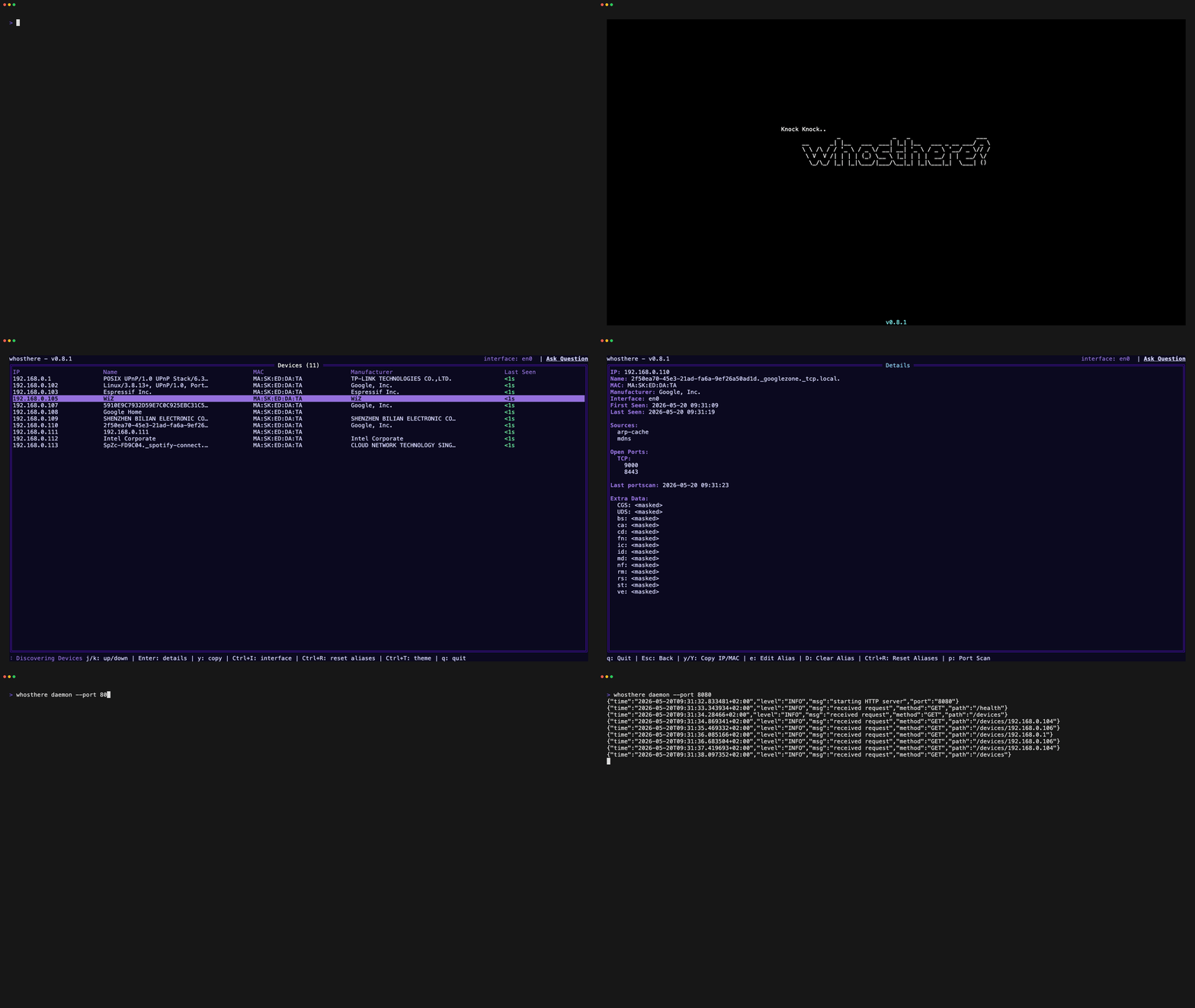
- **대화형 TUI:** 검색된 장치를 직관적으로 탐색하고 살펴볼 수 있습니다.
- **빠르고 동시적:** 여러 검색 방법을 동시에 활용합니다.
- **상승된 권한 불필요:** 전적으로 사용자 공간에서 실행됩니다.
- **장치 보강:** [**OUI**](https://standards-oui.ieee.org/) 조회를 사용하여 장치 제조업체를 표시합니다.
- **통합 포트 스캐너:** 발견된 호스트에 대한 선택적 서비스 검색(권한이 있는 장치만 스캔하세요!).
- **HTTP API를 갖춘 데몬 모드:** 백그라운드에서 실행하고 다른 도구와 통합할 수 있습니다.
- **테마 및 구성:** YAML 구성을 통해 모양과 동작을 개인화할 수 있습니다.
## 설치
[**Homebrew**](https://brew.sh/)를 통해 `brew`로 설치:
```bash
brew install whosthere
```
[**NixOS**](https://nixos.org/)에서 `nix`로 설치:
```bash
nix profile install nixpkgs#whosthere
```
[**Arch Linux**](https://archlinux.org/)에서 `yay`로 설치:
```bash
yay -S whosthere-bin
```
사용 중인 패키지 관리자가 목록에 없다면 언제든지 [**Go**](https://go.dev/)로 설치할 수 있습니다:
```bash
go install github.com/ramonvermeulen/whosthere@latest
```
또는 **소스에서 빌드**:
```bash
git clone https://github.com/ramonvermeulen/whosthere.git
cd whosthere
make build
```
또한 [**릴리스 페이지**](https://github.com/ramonvermeulen/whosthere/releases)에서 미리 빌드된 바이너리를 다운로드할 수 있습니다.
## 사용법
대화형 검색을 위해 TUI를 실행:
```bash
whosthere
```
단일 스캔을 수행하고 결과를 출력하려면 CLI로 실행:
```bash
whosthere scan -t 5
```
결과를 JSON 파일로 출력:
```bash
whosthere scan -t 5 --json --pretty > devices.json
```
HTTP API를 갖춘 데몬으로 실행:
```bash
whosthere daemon --port=8080
```
파일에서 별칭을 대량으로 가져오거나 현재 별칭을 내보내기:
```text
whosthere aliases import ./aliases.yaml
whosthere aliases export --stdout
```
추가 명령줄 옵션은 다음을 실행하여 확인할 수 있습니다:
```bash
whosthere --help
```
## 키 바인딩 (TUI)
| 키 | 동작 |
| ------------------ | --------------------------- |
| `/` | 정규식 검색 시작 |
| `k` | 위로 |
| `j` | 아래로 |
| `g` | 맨 위로 이동 |
| `G` | 맨 아래로 이동 |
| `y` | 선택한 장치의 IP 복사 |
| `Y` | 선택한 장치의 MAC 복사 |
| `enter` | 장치 세부 정보 표시 |
| `CTRL+t` | 테마 선택기 전환 |
| `CTRL+i` | 인터페이스 선택기 전환 |
| `CTRL+c`/`q` | 애플리케이션 중지 |
| `ESC` | 검색 지우기 / 뒤로 가기 |
| `p` (세부 정보 보기) | 장치에서 포트 스캔 시작 |
| `tab` (모달 보기) | 버튼 선택 전환 |
## 구성
Whosthere는 다음 우선순위(높은 순에서 낮은 순)로 여러 구성 방법을 지원합니다:
1. **명령줄 플래그** - 가장 높은 우선순위. 사용 가능한 플래그는 `whosthere --help`를 참조하세요.
1. **환경 변수** - `WHOSTHERE__` 접두사를 사용합니다. [**환경 변수를 통한 구성**](#configuration-via-environment-variables)을 참조하세요.
1. **구성 파일** - YAML 구성 파일. [**구성 파일**](#configuration-file)을 참조하세요.
1. **기본값** - 대체 기본값. [**config.go**](https://github.com/ramonvermeulen/whosthere/blob/main/internal/core/config/config.go)의 `DefaultConfig()`를 참조하세요.
### 구성 파일
Whosthere는 다음 순서로 구성 파일을 찾으며, 처음 발견된 것을 사용합니다:
1. `--config` 플래그 또는 `WHOSTHERE_CONFIG` 환경 변수로 지정된 경로
1. `$XDG_CONFIG_HOME/whosthere/config.yaml` (`XDG_CONFIG_HOME`이 설정된 경우)
1. `~/.config/whosthere/config.yaml` (기본 위치)
**구성 예시:**
```yaml
# Uncomment the next line to configure a specific network interface - uses OS default if not set
# network_interface: eth0
# When enabled, devices from all network interfaces are shown and persist when switching interfaces
# Note: if two interfaces share the same subnet (e.g. both use 192.168.1.x), devices may get merged
# since they are identified by IP address. Use with caution on overlapping subnets.
all_interfaces: false
# Optional IPv4 CIDR subnets to sweep. When set, the sweeper skips the auto-detected interface subnet unless it is listed here.
# target_subnets: ["10.0.0.0/24", "10.0.1.0/24"]
# WARNING: scanning subnets larger than /16 sends packets to 65535+ IPs per subnet. Enable only if you understand the traffic implications. Consider using smaller /24 subnets for targeted scanning.
# scan_large_subnets: false
# How often to run discovery scans
scan_interval: 20s
# Maximum timeout for each scan, recommended to be less than the scan interval
scan_timeout: 10s
scanners:
mdns:
enabled: true
ssdp:
enabled: true
arp:
enabled: true
sweeper:
enabled: true
interval: 5m
timeout: 20s
port_scanner:
timeout: 5s
# List of TCP ports to scan on discovered devices
tcp: [21, 22, 23, 25, 80, 110, 135, 139, 143, 389, 443, 445, 993, 995, 1433, 1521, 3306, 3389, 5432, 5900, 8080, 8443, 9000, 9090, 9200, 9300, 10000, 27017]
splash:
enabled: true
delay: 1s
theme:
# When disabled, the TUI will use the terminal it's default ANSI colors
# Also see the NO_COLOR environment variable to completely disable ANSI colors
enabled: true
# See the complete list of available themes at https://github.com/ramonvermeulen/whosthere/tree/main/internal/ui/theme/theme.go
# Set name to "custom" to use the custom colors below
# For any color that is not configured it will take the default theme value as fallback
name: default
# Disable ANSI colors completely, overrides theme.enabled
# Can also be set via NO_COLOR or WHOSTHERE__THEME__NO_COLOR environment variables
# no_color: false
# Custom theme colors (uncomment and set name: custom to use)
# primitive_background_color: "#000a1a"
# contrast_background_color: "#001a33"
# more_contrast_background_color: "#003366"
# border_color: "#0088ff"
# title_color: "#00ffff"
# graphics_color: "#00ffaa"
# primary_text_color: "#cceeff"
# secondary_text_color: "#6699ff"
# tertiary_text_color: "#ffaa00"
# inverse_text_color: "#000a1a"
# contrast_secondary_text_color: "#88ddff"
aliases:
# Uncomment to import aliases.yaml into the local database on startup (only when it changed)
# auto_import: false
# Override the aliases file path - defaults to the app config directory
# file: "/path/to/aliases.yaml"
```
## 환경 변수
### 일반 환경 변수
| 변수 | 설명 |
| ------------------ | ------------------------------------------------------------------------------- |
| `WHOSTHERE_CONFIG` | 기본 위치를 덮어쓸 수 있도록 하는 구성 파일 경로입니다. |
| `WHOSTHERE_LOG` | 로그 수준을 설정합니다(예: `debug`, `info`, `warn`, `error`). 기본값은 `info`입니다. |
| `NO_COLOR` | TUI에서 ANSI 색상을 비활성화합니다. |
### 환경 변수를 통한 구성
YAML 구성에서 사용할 수 있는 모든 구성 옵션은 `WHOSTHERE__` 접두사(이중 밑줄에 주의)를 사용하여 환경 변수로 설정할 수 있습니다. 중첩된 구성 키는 이중 밑줄로 구분되며, 키는 대소문자를 구분하지 않습니다.
예시:
- `WHOSTHERE__SPLASH__ENABLED=false` - 스플래시 화면 비활성화, YAML 구성의 `splash.enabled: false`와 동일
- `WHOSTHERE__SPLASH__DELAY=2s` - 스플래시 화면 지연을 2초로 설정, YAML 구성의 `splash.delay: 2s`와 동일
- `WHOSTHERE__SCAN_INTERVAL=30s` - 스캔 간격을 30초로 설정, YAML 구성의 `scan_interval: 30s`와 동일
- `WHOSTHERE__TARGET_SUBNETS=10.0.0.0/24,10.0.1.0/24` - 대상 서브넷 설정, YAML 구성의 `target_subnets: ["10.0.0.0/24", "10.0.1.0/24"]`와 동일
- `WHOSTHERE__SCANNERS__MDNS__ENABLED=false` - mDNS 스캐너 비활성화, YAML 구성의 `scanners.mdns.enabled: false`와 동일
- `WHOSTHERE__PORT_SCANNER__TCP=80,443,8080` - 스캔할 사용자 지정 TCP 포트 설정, YAML 구성의 `port_scanner.tcp: [80, 443, 8080]`와 동일
- `WHOSTHERE__THEME__NAME=cyberpunk` - 테마를 cyberpunk로 설정, YAML 구성의 `theme.name: cyberpunk`와 동일
## 장치 별칭
별칭은 상태 디렉터리의 로컬 [bbolt](https://github.com/etcd-io/bbolt) 데이터베이스에 저장됩니다. 한 번에 여러 개를 설정하려면 YAML 파일(구성 디렉터리의 `aliases.yaml`; `aliases.file` 구성 키 또는 경로 인수로 재정의)에서 가져오세요.
이 파일은 **미러가 아닌 패치**이며, 항상 읽기 전용입니다: 가져오기는 파일에 포함된 MAC을 upsert하고 다른 항목은 그대로 둡니다. TUI 편집 내용은 **파일에 다시 기록되지 않습니다**. `export`를 사용하여 파일을 다시 생성하세요.
```yaml
version: 1
aliases:
aa:bb:cc:dd:ee:ff: "Living Room TV"
de:ad:be:ef:00:01: "Office Printer"
```
- `version`은 파일 형식 버전입니다. `1`을 사용하세요(이 항목이 없는 파일은 기본적으로 1로 간주됩니다).
- MAC은 일반적인 형식으로 허용되며 정규화되므로 `AA:BB:CC:DD:EE:FF`, `aa-bb-cc-dd-ee-ff` 및 `aabbccddeeff`는 동일합니다. 빈 별칭(`""`)은 별칭을 지웁니다.
- 유효하지 않은 MAC은 건너뛰고 보고되며, 나머지 가져오기는 계속 진행됩니다.
```bash
whosthere aliases import # from the default location
whosthere aliases import ./aliases.yaml
whosthere aliases export # to the default location
whosthere aliases export --stdout # to stdout
```
`aliases.auto_import: true`로 시작 시 가져오기를 선택할 수 있습니다. 파일은 해시 검사가 이루어지며 변경된 경우에만 다시 가져오므로, 변경되지 않은 파일은 TUI 편집 내용을 절대 덮어쓰지 않습니다. 하지만 **변경된 파일은 포함된 모든 MAC의 별칭을 덮어씁니다**. TUI 전용 별칭은 파일에 넣지 말고, 편집 후 `export`하여 동기화 상태를 유지하세요.
## 데몬 모드 HTTP API
Whosthere를 데몬 모드로 실행하면 다음과 같은 엔드포인트를 가진 매우 단순한 HTTP API를 노출합니다:
| 메서드 | 엔드포인트 | 설명 |
| ------ | -------------- | ---------------------------------- |
| GET | `/devices` | 검색된 모든 장치 목록 가져오기 |
| GET | `/device/{ip}` | 특정 장치의 세부 정보 가져오기 |
| GET | `/health` | 상태 확인 |
## 테마
테마는 구성 파일을 통해 또는 런타임에 `CTRL+t` 키 바인딩을 통해 구성할 수 있습니다.
사용 가능한 테마의 전체 목록은 [**여기**](https://github.com/ramonvermeulen/whosthere/blob/main/internal/ui/theme/theme.go)에서 확인할 수 있으며, 자신만의 테마를 추가하려면 언제든지 PR을 열어주세요!
테마 구성 예시:
```yaml
theme:
enabled: true
name: cyberpunk
```
`name`이 `custom`으로 설정되면 다른 색상 옵션을 사용하여 자신만의 사용자 지정 테마를 만들 수 있습니다.
`enabled` 옵션이 `false`로 설정되면 TUI는 터미널의 기본 ANSI 색상을 사용합니다.
`NO_COLOR` 환경 변수가 설정되면 모든 ANSI 색상이 비활성화됩니다.
## 로깅
로그는 애플리케이션의 상태 디렉터리에 기록됩니다:
- `$XDG_STATE_HOME/whosthere/app.log` (`XDG_STATE_HOME`이 설정된 경우)
- `~/.local/state/whosthere/app.log` (Linux/MacOS 대체)
- `%LOCALAPPDATA%/whosthere/app.log` (Windows 대체)
TUI 모드가 아닐 때는 로그가 콘솔에도 기록됩니다.
## 플랫폼
Whosthere는 다음 플랫폼에서 지원됩니다:
- [x] Linux
- [x] macOS
- [x] Windows
## 알려진 문제
클립보드 기능이 작동하려면 [**go-clipboard의 포크**](https://github.com/dece2183/go-clipboard)가 사용됩니다.
OS에 적합한 복사 도구가 설치되어 있는지 확인하세요:
| OS | 지원되는 복사 도구 |
| -------------------------------------- | -------------------------------------------- |
| Darwin | `pbcopy` |
| Windows | `clip.exe` |
| Linux/FreeBSD/NetBSD/OpenBSD/Dragonfly | X11: `xsel`, `xclip` <br> Wayland: `wl-copy` |
## 면책 조항
Whosthere는 자신의 홈 네트워크처럼 네트워크 검색 및 스캔을 수행할 권한이 있는 네트워크에서 사용하도록 의도되었습니다. 권한 없는 네트워크 스캔은 불법이고 비윤리적일 수 있습니다.
어떤 네트워크에서든 이 도구를 사용하기 전에 항상 적절한 권한을 획득하세요.
이 도구는 주로 교육 목적과 홈 네트워크 탐색을 위해 만들어졌습니다. 기능적이고 유용하지만, 전문가 수준의 네트워크 모니터링 솔루션으로 간주되어서는 안 됩니다. 결과는 권한 없는 스캔 기법을 기반으로 하며 포괄적이지 않을 수 있습니다. 중요한 네트워크 분석이나 보안 평가에는 공식 지원이 제공되는 검증된 전문 도구를 사용하는 것을 고려하세요.
## 기여
기능 요청, 버그 보고 또는 개선 사항과 같은 기여와 제안을 환영합니다!
GitHub 저장소에서 언제든지 이슈를 열거나 풀 리퀘스트를 제출해 주세요.
주요 변경 사항을 구현하기 전에 GitHub 이슈에서 논의해 주세요.