 mgeeky/msidump
MSI Dump - 악성 MSI 설치 패키지를 분석하고, 파일, 스트림, 바이너리 데이터를 추출하며 YARA 스캐너를 통합하는 도구입니다.

msidumpMSI Dump - 악성 MSI 설치 패키지를 분석하고, 파일, 스트림, 바이너리 데이터를 추출하며 YARA 스캐너를 통합하는 도구입니다.
매크로가 활성화된 Office 문서의 경우 oletools mraptor를 빠르게 사용하여 문서의 악성 여부를 판단할 수 있습니다. 더 자세히 분석하려면 oletools olevba나 oledump를 사용할 수 있습니다.
악성 MSI 파일을 분석하기 위해 지금까지는 신뢰할 수 있는 유일한 도구인 lessmsi가 있었습니다.
하지만 lessmsi는 제가 찾던 기능을 구현하지 않았습니다:
그래서 msidump가 등장했습니다.
이 도구는 빠른 분류와 악성 MSI 모음에 대한 상세 분석을 돕습니다. 다음을 수행할 수 있습니다:
file/MIME 유형 추론을 사용하여 내부 데이터 유형 결정이 도구는 제가 게시한 블로그 포스트의 동반 도구로 만들어졌습니다:
WindowsInstaller.Installer 인터페이스에 크게 의존하기 때문에 현재 기본 Linux 플랫폼을 지원할 수 없습니다. wine python msidump.py가 도움이 될 수도 있지만, 아직 시도해보지 않았습니다.cmd> python msidump.py evil.msi -y rules.yara
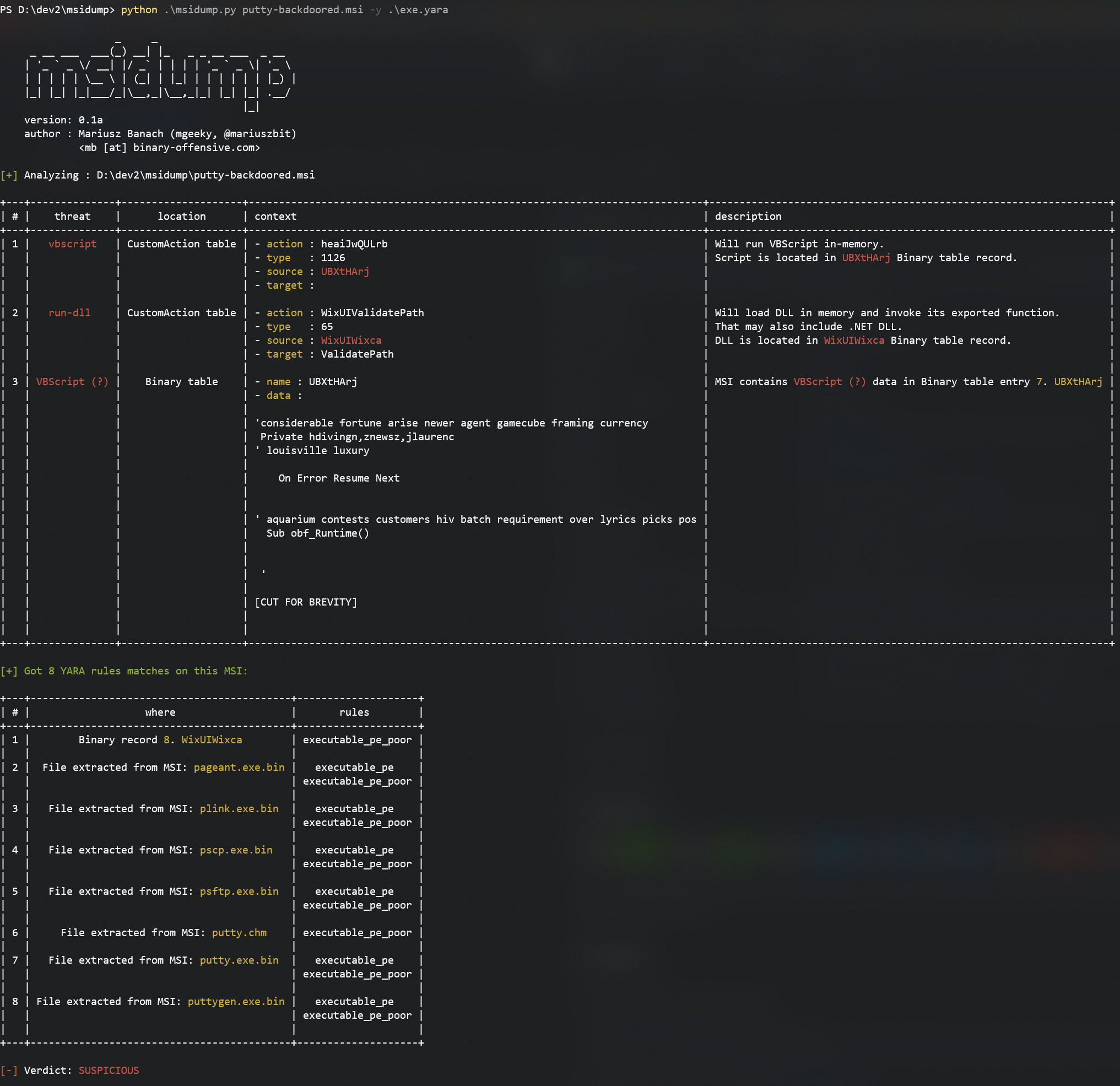
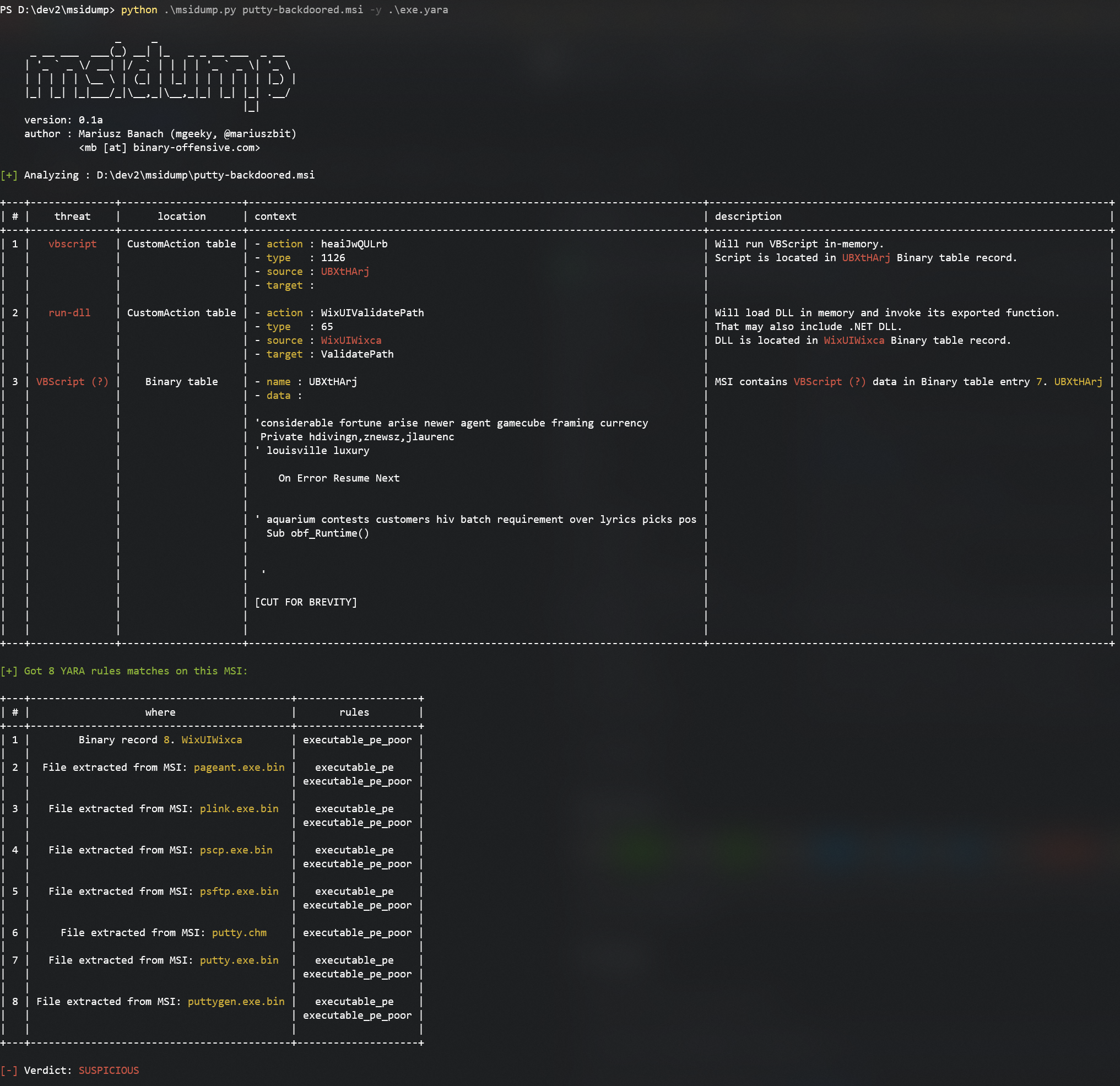
여기서 입력 MSI에 의심스러운 VBScript가 삽입되어 있고 여러 실행 파일이 포함되어 있음을 확인할 수 있습니다.
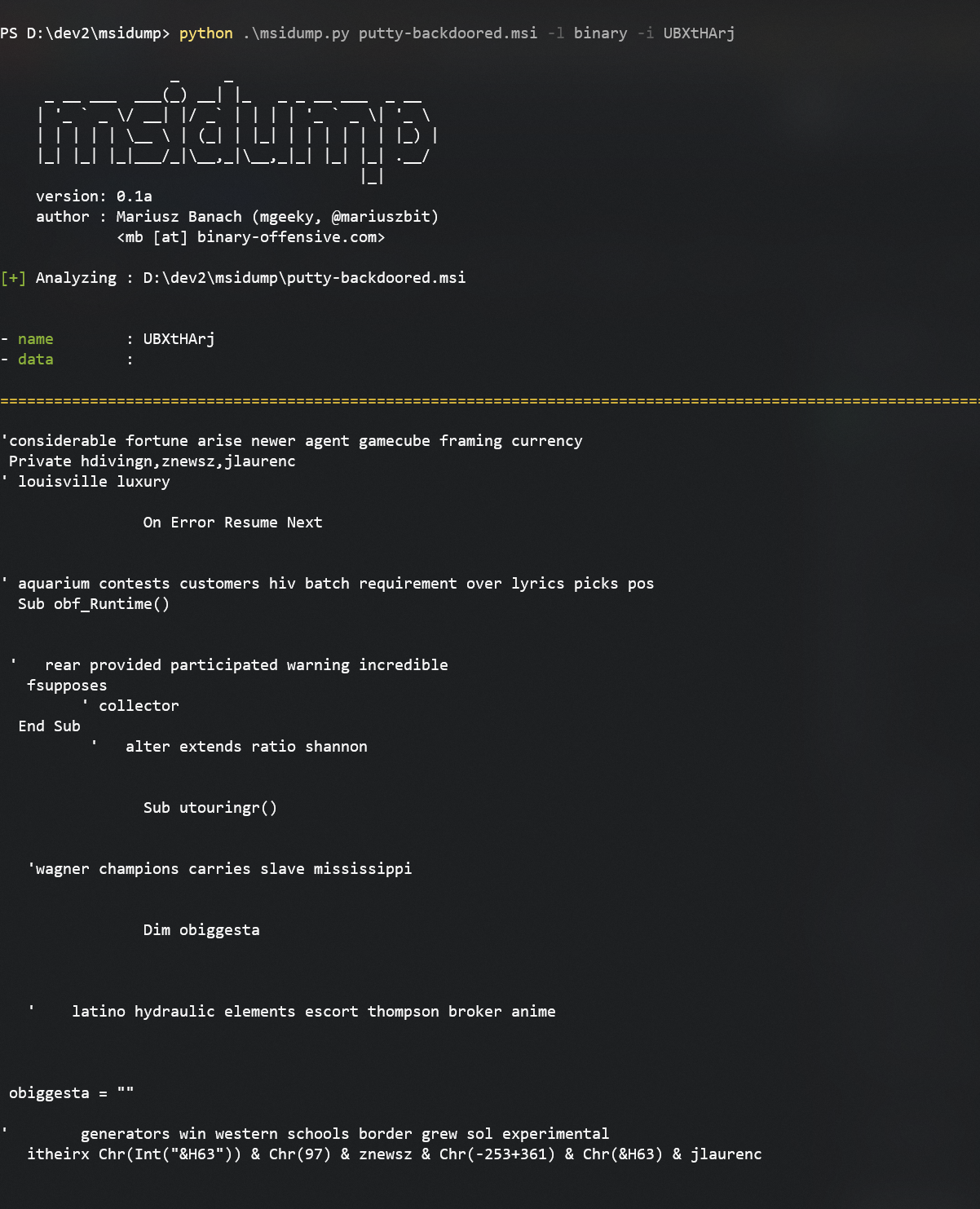
분류 표에서 이 VBScript가 Binary 테이블에 있음을 확인했습니다. 다음 명령으로 추출합니다:
python msidump.py putty-backdoored.msi -l binary -i UBXtHArj
레코드 덤프는 이름/ID 또는 인덱스 번호(여기서는 7)로 지정할 수 있습니다.
다른 예시를 살펴보겠습니다. 이번에는 설치 중에 실행될 실행 파일이 Binary 테이블에 저장되어 있습니다:
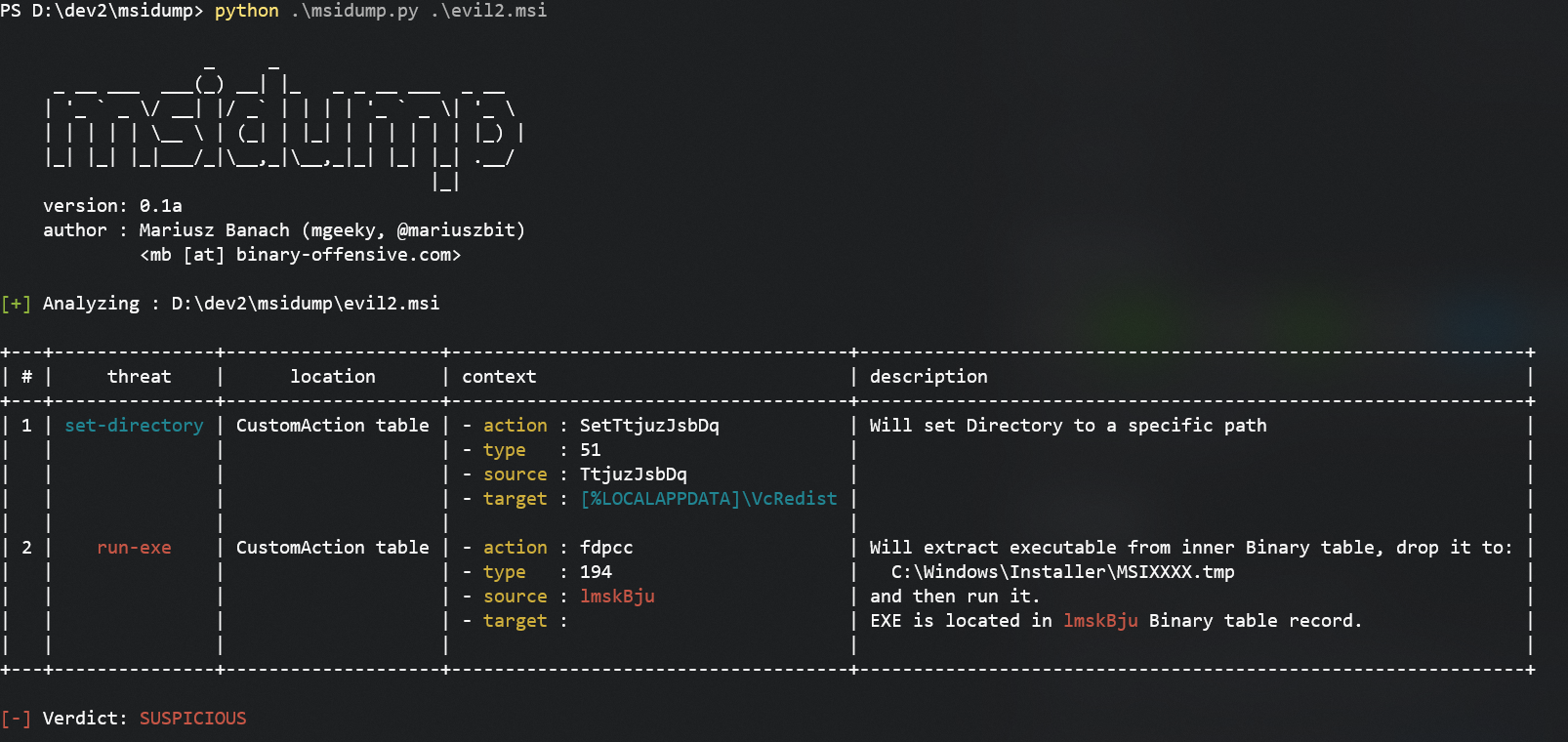
해당 파일을 추출하려면 다음을 사용합니다:
python msidump.py evil2.msi -x binary -i lmskBju -O extracted
여기서:
-x binary는 Binary 테이블의 내용을 추출하도록 지시합니다.-i lmskBju는 추출할 정확한 레코드를 지정합니다.-O extracted는 출력 디렉터리를 설정합니다.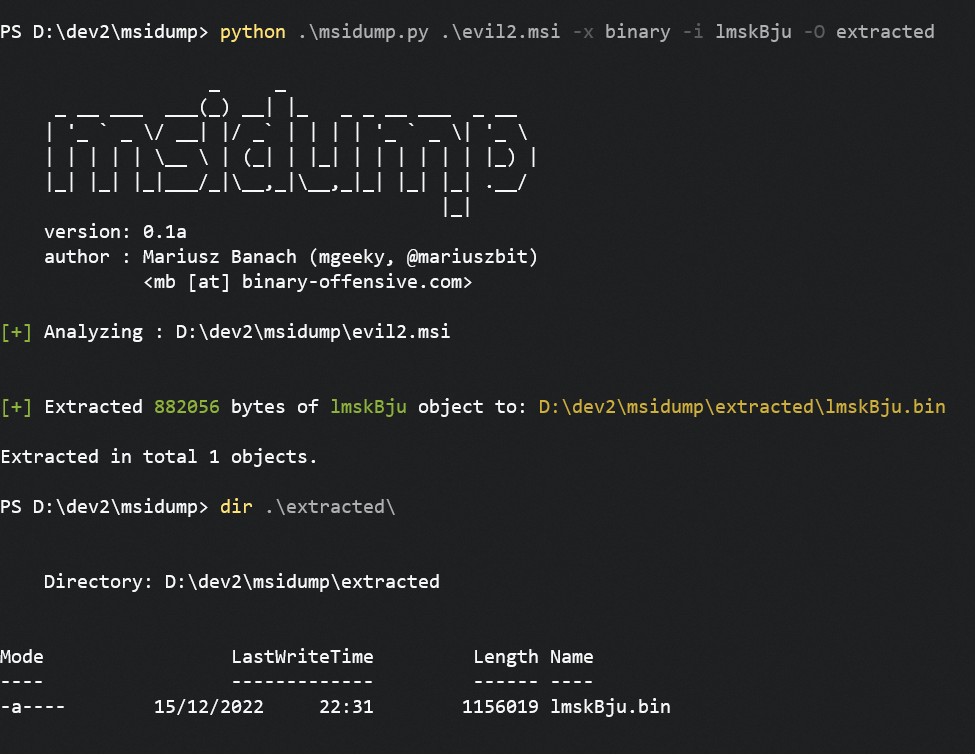
최상의 출력 경험을 위해 최대화된 콘솔 창에서 도구를 실행하거나 출력을 파일로 리다이렉션하세요:
python msidump.py [...] -o analysis.log
PS D:\> python .\msidump.py --help
options:
  -h, --help            show this help message and exit

Required arguments:
  infile                Input MSI file (or directory) for analysis.

Options:
  -q, --quiet           Suppress banner and unnecessary information. In triage mode, will display only verdict.
  -v, --verbose         Verbose mode.
  -d, --debug           Debug mode.
  -N, --nocolor         Dont use colors in text output.
  -n PRINT_LEN, --print-len PRINT_LEN
                        When previewing data - how many bytes to include in preview/hexdump. Default: 128
  -f {text,json,csv}, --format {text,json,csv}
                        Output format: text, json, csv. Default: text
  -o path, --outfile path
                        Redirect program output to this file.
  -m, --mime            When sniffing inner data type, report MIME types

Analysis Modes:
  -l what, --list what  List specific table contents. See help message to learn what can be listed.
  -x what, --extract what
                        Extract data from MSI. For what can be extracted, refer to help message.

Analysis Specific options:
  -i number|name, --record number|name
                        Can be a number or name. In --list mode, specifies which record to dump/display entirely. In --extract mode dumps only this particular record to --outdir
  -O path, --outdir path
                        When --extract mode is used, specifies output location where to extract data.
  -y path, --yara path  Path to YARA rule/directory with rules. YARA will be matched against Binary data, streams and inner files

------------------------------------------------------

- What can be listed:
    --list CustomAction     - Specific table
    --list Registry,File    - List multiple tables
    --list stats            - Print MSI database statistics
    --list all              - All tables and their contents
    --list olestream        - Prints all OLE streams & storages.
                              To display CABs embedded in MSI try: --list _Streams
    --list cabs             - Lists embedded CAB files
    --list binary           - Lists binary data embedded in MSI for its own purposes.
                              That typically includes EXEs, DLLs, VBS/JS scripts, etc

- What can be extracted:
    --extract all           - Extracts Binary data, all files from CABs, scripts from CustomActions
    --extract binary        - Extracts Binary data
    --extract files         - Extracts files
    --extract cabs          - Extracts cabinets
    --extract scripts       - Extracts scripts

------------------------------------------------------
CustomAction Type의 숫자를 평가하여 악성 여부를 판단하는데, 이는 우회 가능성이 있습니다.
도구 이름을 지을 때 이미 사용 중인 이름인지 확인하는 것을 잊었습니다.
msitools GNU 패키지의 일부인 msidump라는 다른 도구가 있습니다:
이 프로젝트와 다른 프로젝트들은 잠 못 이루는 밤과 많은 노력의 결과물입니다. 제가 하는 일을 좋아하시고 항상 커뮤니티에 환원하는 점을 감사히 여기신다면, 커피 한 잔 사주기 (또는 맥주라면 더 좋습니다) 감사의 표시로 부탁드립니다! 💪
Mariusz Banach / mgeeky, (@mariuszbit)
<mb [at] binary-offensive.com>
