 henrypp/simplewall
Windows Filtering Platform(WFP)을 구성하여 컴퓨터의 네트워크 활동을 설정할 수 있는 간단한 도구입니다.

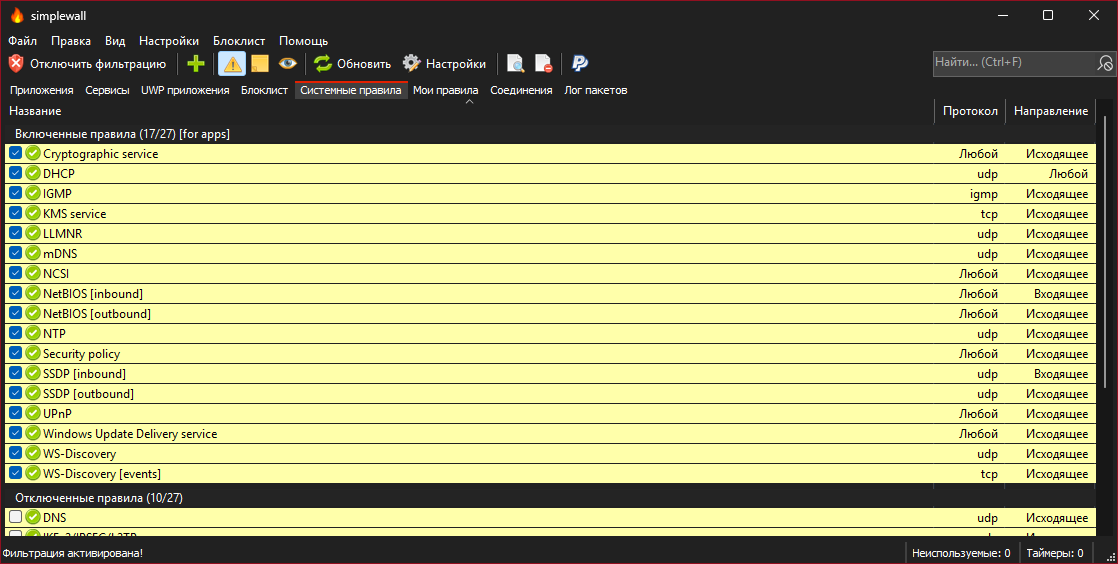
<h1 align="center">simplewall</h1> <p align="center"> <a href="https://github.com/henrypp/simplewall/releases"><img src="https://img.shields.io/github/v/release/henrypp/simplewall?style=flat-square&include_prereleases&label=version" /></a> <a href="https://github.com/henrypp/simplewall/releases"><img src="https://img.shields.io/github/downloads/henrypp/simplewall/total.svg?style=flat-square" /></a> <a href="https://github.com/henrypp/simplewall/issues"><img src="https://img.shields.io/github/issues-raw/henrypp/simplewall.svg?style=flat-square&label=issues" /></a> <a href="https://github.com/henrypp/simplewall/graphs/contributors"><img src="https://img.shields.io/github/contributors/henrypp/simplewall?style=flat-square" /></a> <a href="https://github.com/henrypp/simplewall/blob/master/LICENSE"><img src="https://img.shields.io/github/license/henrypp/simplewall?style=flat-square" /></a> </p> <p align="center"> <i>확실히 고급 사용자용입니다.</i> </p> ------- <p align="center"> <img src="https://assets.kitploit.com/production/public/readmes/1534/2f4341076ad8084f826a83d6237d6df3d5c91d94bf00f2aa26ea9334c6c16892.png" /> </p> ### 설명: 컴퓨터의 네트워크 활동을 구성할 수 있는 [Windows Filtering Platform (WFP)](https://docs.microsoft.com/en-us/windows/win32/fwp/windows-filtering-platform-start-page)을 설정하는 간단한 도구입니다. 이 가벼운 응용 프로그램은 1MB 미만이며 Windows 7 SP1 이상 운영 체제와 호환됩니다. 설치 프로그램 또는 휴대용 버전을 다운로드할 수 있습니다. 올바른 작동을 위해 관리자 권한이 필요합니다. ### 참고: 기억하세요, simplewall은 Windows 방화벽의 제어 UI가 아니며 어떤 수준에서도 Windows 방화벽과 상호 작용하지 않습니다. 이 도구는 네트워크 필터링 응용 프로그램을 만들기 위한 플랫폼을 제공하는 내부 API 및 시스템 서비스 집합인 Windows Filtering Platform (WFP)을 통해 작동합니다. Windows Filtering Platform은 개발 기술이며 그 자체로 방화벽이 아니지만, simplewall은 이 기술을 사용하는 도구입니다. ### 기능: - 성가신 팝업이 없는 간단한 인터페이스 - [규칙 편집기](https://github.com/henrypp/simplewall#rules-editor) (자체 규칙 생성) - [내부 차단 목록](https://crazymax.dev/WindowsSpyBlocker/blocking-rules/simplewall/) (Windows 스파이웨어/원격 측정 차단) - 차단된 패킷 정보 (알림 및 파일 로깅 기능 포함) (win7+) - 허용된 패킷 정보 (파일 로깅 기능 포함) (win8+) - Windows Subsystem for Linux (WSL) 지원 - Windows 스토어 지원 (win8+) - Windows 서비스 지원 - 무료 및 오픈 소스 - 지역화 지원 - IPv6 지원 ``` To activate portable mode, create "simplewall.ini" in application folder, or move it from "%APPDATA%\Henry++\simplewall". ``` ### 시스템 요구 사항: - Windows 7, 8, 8.1, 10, 11 64-bit/ARM64 - SSE2 지원 CPU - <s>KB2533623</s> [KB3063858](https://www.microsoft.com/en-us/download/details.aspx?id=47442) Windows 7용 업데이트 필요 ### 후원: - [Bitcoin](https://www.blockchain.com/btc/address/1LrRTXPsvHcQWCNZotA9RcwjsGcRghG96c) (BTC) - [Ethereum](https://www.blockchain.com/explorer/addresses/eth/0xe2C84A62eb2a4EF154b19bec0c1c106734B95960) (ETH) - [Yandex Money](https://yoomoney.ru/to/4100115776040583) (RUB) - [Paypal](https://paypal.me/henrypp) (USD) ### GPG 서명: 바이너리는 응용 프로그램 폴더에 GPG 서명 `simplewall.exe.sig`이 있습니다. - 공개 키: [pubkey.asc](https://raw.githubusercontent.com/henrypp/builder/master/pubkey.asc) ([pgpkeys.eu](https://pgpkeys.eu/pks/lookup?op=index&fingerprint=on&search=0x5635B5FD)) - Key ID: 0x5635B5FD - Fingerprint: D985 2361 1524 AB29 BE73 30AC 2881 20A7 5635 B5FD ### 바보들의 리뷰: [<img src="https://assets.kitploit.com/production/public/readmes/1534/13d308a2e930f71ee6dd9c8424c9af55e141b7c85a23b4f9955c4271c547554d.png" />](https://alternativeto.net/software/simplewall-firewall/about/) 저들을 봐, 그들은 [.gitmodules](https://github.com/henrypp/simplewall/blob/master/.gitmodules)와 사용 방법을 모르는군요, ㅋㅋ. PS: 바보들이 없으면 재미없죠, 그렇죠! ### 설치: 규칙을 설치할 때 두 가지 모드를 선택할 수 있습니다: - 영구 규칙 - <a href="#uninstall">수동으로 비활성화</a>할 때까지 규칙이 작동합니다. - 임시 규칙 - 다음 재부팅 후 규칙이 초기화됩니다. ### 제거: simplewall을 제거하면 이전에 구성된 모든 필터가 시스템에 남아 있습니다. simplewall이 만든 모든 필터를 제거하려면 simplewall을 시작하고 "필터 비활성화" 버튼을 누르세요. ### 명령줄: ~~~ -install - enable filtering. -install -temp - enable filtering until next reboot. -install -silent - enable filtering without prompt. -uninstall - remove all installed filters. ~~~ ### 규칙 편집기: simplewall에는 두 가지 유형의 사용자 정의 규칙이 있습니다: - **전역 규칙:** 모든 응용 프로그램에 적용되는 규칙. - **특수 규칙:** 지정된 응용 프로그램에만 적용되는 규칙. <img src="https://assets.kitploit.com/production/public/readmes/1534/64f8e5c2a0c2fa204efd03b60e0436ec939e712c9a314dd710b70ada19fff512.png" /> ### 규칙 구문 형식: 규칙 응용 프로그램을 설정하려면 규칙을 열고 "앱" 탭으로 이동하세요. <details> <summary>규칙 구문 형식:</summary> --- - IP 주소 `192.168.0.1; 192.168.0.1; [fc00::]` - 포트가 있는 IP 주소 `192.168.0.1:80; 192.168.0.1:443; [fc00::]:443;` - IP 범위 `192.168.0.1-192.168.0.255; 192.168.0.1-192.168.0.255;` - (포트가 있는) IP 범위 `192.168.0.1-192.168.0.255:80; 192.168.0.1-192.168.0.255:443;` (v2.0.20+) - 접두사 길이가 있는 IP (CIDR) `192.168.0.0/16; 192.168.0.0/24; fe80::/10` - 포트 `21; 80; 443;` - 포트 범위 `20-21; 49152-65534;` _여러 IP, 포트 및/또는 호스트를 지정하려면 세미콜론을 사용하세요._ --- </details> <details> <summary>IPv4 CIDR 블록:</summary> --- | Address format | Mask | | -------- | ------- | | a.b.c.d/32 | 255.255.255.255 | | a.b.c.d/31 | 255.255.255.254 | | a.b.c.d/30 | 255.255.255.252 | | a.b.c.d/29 | 255.255.255.248 | | a.b.c.d/28 | 255.255.255.240 | | a.b.c.d/27 | 255.255.255.224 | | a.b.c.d/26 | 255.255.255.192 | | a.b.c.d/25 | 255.255.255.128 | | a.b.c.0/24 | 255.255.255.0| | a.b.c.0/23 | 255.255.254.0| | a.b.c.0/22 | 255.255.252.0| | a.b.c.0/21 | 255.255.248.0| | a.b.c.0/20 | 255.255.240.0| | a.b.c.0/19 | 255.255.224.0| | a.b.c.0/18 | 255.255.192.0| | a.b.c.0/17 | 255.255.128.0| | a.b.0.0/16 | 255.255.0.0| | a.b.0.0/15 | 255.254.0.0| | a.b.0.0/14 | 255.252.0.0| | a.b.0.0/13 | 255.248.0.0| | a.b.0.0/12 | 255.240.0.0| | a.b.0.0/11 | 255.224.0.0| | a.b.0.0/10 | 255.192.0.0| | a.b.0.0/9 | 255.128.0.0| | a.0.0.0/8 | 255.0.0.0| | a.0.0.0/7 | 254.0.0.0| | a.0.0.0/6 | 252.0.0.0| | a.0.0.0/5 | 248.0.0.0| | a.0.0.0/4 | 240.0.0.0| | a.0.0.0/3 | 224.0.0.0| | a.0.0.0/2 | 192.0.0.0| | a.0.0.0/1 | 128.0.0.0| | 0.0.0.0/0 | 0.0.0.0| --- </details> <details> <summary>IPv6 CIDR blocks:</summary> --- [IPv6 CIDR blocks](https://www.mediawiki.org/wiki/Help:Range_blocks/IPv6) --- </details> ### FAQ: #### Q: simplewall이 실행 중이 아닐 때 인터넷 연결이 차단됩니까? A: 예. 설치된 필터는 simplewall이 종료되어도 계속 작동합니다. #### Q: 기본 구성에서 차단되는 앱은 무엇입니까? A: 기본적으로 simplewall은 **모든** 응용 프로그램을 차단합니다. 특정 응용 프로그램을 차단하기 위해 사용자 정의 규칙을 만들 필요가 없습니다. #### Q: Windows 방화벽과 함께 simplewall을 사용해도 안전합니까? A: 예. Windows 방화벽을 비활성화할 필요가 없습니다. 이 두 방화벽은 독립적으로 작동합니다. #### Q: 차단 목록을 완전히 비활성화하려면 어떻게 합니까? A: `설정` -> `차단 목록`을 열고 `비활성화`라고 표시된 라디오 버튼을 클릭하세요. #### Q: 블랙리스트 모드는 어디에 있습니까? A: 블랙리스트는 유용성이 없어 오래전에 제거되었습니다. 하지만 필요하다면 여전히 구성할 수 있습니다. <details> <summary>해결 방법: simplewall에서 블랙리스트 모드 구성:</summary> --- 1) `설정` -> `규칙` 열기 2) `모든 아웃바운드 차단` 및 `모든 인바운드 차단` 옵션을 선택 해제합니다. 3) 차단 동작, 모든 방향, `연결 차단` 이름 및 빈 원격 및 로컬 규칙으로 사용자 규칙(도구 모음의 녹색 십자)을 만듭니다. 4) 네트워크 액세스를 차단하려는 모든 앱에 이 규칙을 할당할 수 있습니다. --- </details> #### Q: 네트워크 아이콘에 느낌표가 표시되는 이유는 무엇입니까? A: 네트워크에 연결되면 Windows는 Active Probing을 사용하여 인터넷 연결을 확인합니다. 이 기능을 NCSI(네트워크 연결 상태 표시기)라고 합니다. 다음 방법 중 하나로 이 문제를 해결할 수 있습니다: <details> <summary>해결 방법 1: 내부 시스템 규칙을 통해 NCSI 활성화:</summary> --- 1) `시스템 규칙` 탭을 엽니다. 2) `NCSI` 규칙을 허용합니다(기본적으로 활성화됨). --- </details> <details> <summary>해결 방법 2: 시스템 레지스트리를 통해 NCSI 비활성화:</summary> --- `Disable NCSI.reg`를 생성하고 레지스트리로 가져옵니다. ```reg Windows Registry Editor Version 5.00 [HKEY_LOCAL_MACHINE\SOFTWARE\Policies\Microsoft\Windows\NetworkConnectivityStatusIndicator] "NoActiveProbe"=dword:00000001 "DisablePassivePolling"=dword:00000001 ``` --- </details> <details> <summary>해결 방법 3: 그룹 정책을 통해 NCSI 비활성화:</summary> --- 1) 그룹 정책 편집기(`gpedit.msc`)를 실행합니다. 2) `Computer Configuration -> Administrative Templates -> System -> Internet Communication Management -> Internet Communication Settings`로 이동합니다. 3) `Turn off Windows Network Connectivity Status Indicator active tests`를 더블 클릭한 다음 사용을 선택합니다. 확인을 클릭합니다. 4) 명령 프롬프트(관리자)를 열고 `gpupdate /force`를 입력하여 그룹 정책에 적용된 변경 사항을 적용합니다. --- </details> #### Q: Windows 방화벽을 비활성화하려면 어떻게 합니까? 명령줄을 _관리자 권한으로_ 시작하고 아래 명령을 입력하세요. <details> <summary>Windows 방화벽 프로필 비활성화:</summary> --- ~~~bat netsh advfirewall set allprofiles state off ~~~ --- </details> <details> <summary>Windows 방화벽 프로필 활성화:</summary> --- ~~~bat netsh advfirewall set allprofiles state on ~~~ --- </details> #### Q: 모든 필터 정보를 보려면 어떻게 합니까? 명령줄을 _관리자 권한으로_ 시작하고 아래 명령을 입력하세요. <details> <summary>필터 정보를 `filters.xml` 파일로 덤프:</summary> --- ~~~bat cd /d %USERPROFILE%\Desktop netsh wfp show filters ~~~ --- </details> <details> <summary>공급자, 호출 및 계층 정보를 `wfpstate.xml` 파일로 덤프:</summary> --- ~~~bat cd /d %USERPROFILE%\Desktop netsh wfp show state ~~~ --- </details> 아무 텍스트 편집기에서 열고 연구하세요. #### Q: Windows 업데이트 인터넷 액세스를 수정하려면 어떻게 합니까? <details> <summary>Windows 10 이상:</summary> --- 기본 창 메뉴 `설정` -> `규칙` -> `Windows 업데이트 허용`을 엽니다. <br /> 이 방법은 [여기](https://github.com/henrypp/simplewall/issues/677)에 설명된 방식으로 작동합니다. --- </details> <details> <summary>Windows 8.1:</summary> --- 기본 창에서 `시스템 규칙` 탭으로 이동한 다음 `Windows 업데이트 서비스` 규칙을 활성화합니다. --- </details> #### Q: 기타 질문: - [Windows 보안 센터 통합 (불가능)](https://stackoverflow.com/questions/3698285/how-can-i-tell-the-windows-security-center-that-im-an-antivirus/3698375#3698375) <details> <summary>문서화되지 않은 옵션:</summary> --- ~~~ini IsSaveAppsWithEnvironment=TRUE # 4.0+ IsNetworkMonitorEnabled=TRUE IsInternalRulesDisabled=FALSE IsBackupProfile=TRUE BackupPeriod=BACKUP_HOURS_PERIOD BackupTimestamp=0 IsOCSPEnabled=FALSE UseStealthMode=TRUE ~~~ </details> --- - 웹사이트: [github.com/henrypp](https://github.com/henrypp) - 지원: [email protected] --- (c) 2016-2026 Henry++
