 andalik/log4j-filescan
Python 3으로 개발된 재귀적 파일 스캐너로, Log4j2의 취약한 버전을 찾고 스캔하며, JAR 파일 내부 분석을 포함합니다 (CVE-2021-44228, CVE-2021-45046, CVE-2021-45105 및 CVE-2021-44832).

████████████████▀███████████████████████████████████████████████████████████████████
█▄─▄███─▄▄─█─▄▄▄▄█░█░████▄─▄█▀▀▀▀▀██▄─▄▄─█▄─▄█▄─▄███▄─▄▄─█─▄▄▄▄█─▄▄▄─██▀▄─██▄─▀█▄─▄█
██─██▀█─██─█─██▄─█▄▄░██─▄█─██████████─▄████─███─██▀██─▄█▀█▄▄▄▄─█─███▀██─▀─███─█▄▀─██
▀▄▄▄▄▄▀▄▄▄▄▀▄▄▄▄▄▀▀▄▄▄▀▄▄▄▀▀▀▀▀▀▀▀▀▀▄▄▄▀▀▀▄▄▄▀▄▄▄▄▄▀▄▄▄▄▄▀▄▄▄▄▄▀▄▄▄▄▄▀▄▄▀▄▄▀▄▄▄▀▀▄▄▀
Renato Andalik (@andalik) 제작
간단하고 직관적입니다... 연습도, 기술도 전혀 필요하지 않습니다!
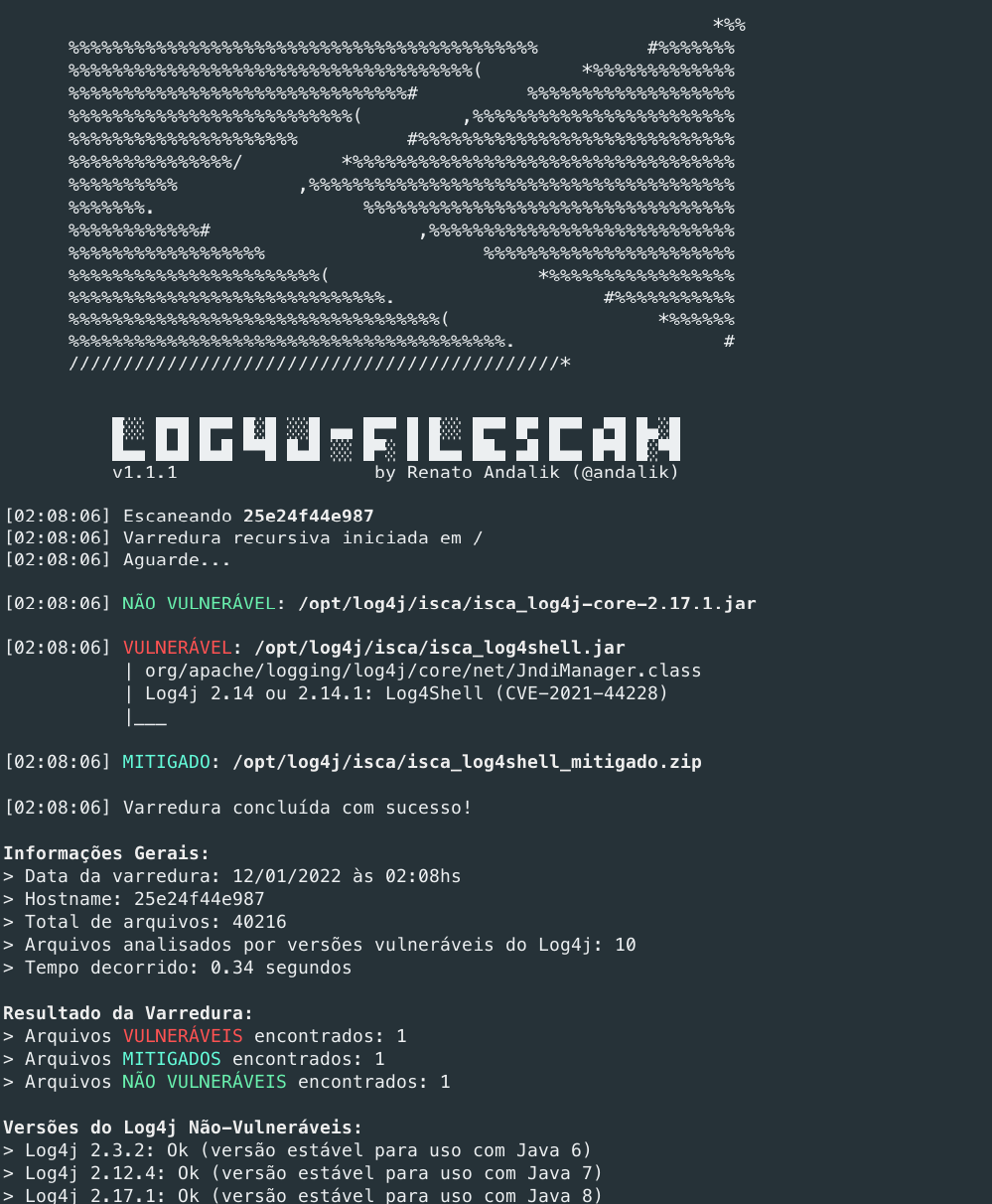
Log4j-FileScan은 Python 3으로 개발된 스크립트로, CVE-2021-44228, CVE-2021-45046, CVE-2021-45105 및 CVE-2021-44832에 설명된 Log4j2 프레임워크의 취약한 버전을 찾기 위해 파일 시스템 전체를 스캔합니다.
스캔은 디스크와 Java Archive(JAR) 파일 내부에서 재귀적으로 수행됩니다.
## 작동 방식
스캔 속도를 최적화하기 위해 검색은 문제와 관련된 파일에서만 수행됩니다:
* `Java ARchive` 확장자를 가진 모든 파일 (zip으로 압축된 파일 포함):
* `*.jar`, `*.war`, `*.ear` 및 `*.zip`
위에 언급된 확장자 중 하나의 파일이 발견되면 내부 파일(모두 메모리 내에서) 스캔이 수행됩니다.
## 다운로드 및 실행
스크립트는 두 가지 방법으로 다운로드하여 사용할 수 있습니다:
### 1. 바이너리 사용 (Piece of Cake 모드)
더욱 편리하게 사용할 수 있도록 모든 것을 컴파일하여 실행 가능한 바이너리를 제공합니다.
운영 체제에 맞는 버전을 다운로드하고 명령 프롬프트를 열어 실행하기만 하면 됩니다:
* Windows: [log4j-filescan.exe](https://github.com/andalik/log4j-filescan/releases/download/v1.1.1/log4j-filescan.exe)
중요: PyInstaller가 제공하는 패키징 방식(하나의 실행 파일에 모든 것을 포함)으로 인해 일부 바이러스 백신이 오탐 경고를 생성할 수 있습니다. 따라서 실행 파일을 바이러스 백신의 예외 목록에 추가하기만 하면 됩니다.
* Linux: [log4j-filescan](https://github.com/andalik/log4j-filescan/releases/download/v1.1.1/log4j-filescan)
Linux에서는 콘솔을 통해 wget을 사용하여 바이너리를 다운로드할 수도 있습니다:
```bash
wget https://github.com/andalik/log4j-filescan/releases/download/v1.1.1/log4j-filescan -O log4j-filescan
chmod +x log4j-filescan
sudo ./log4j-filescan
```
### 2. Python 3 사용
Python 3.6+가 설치된 Linux 배포판에서는 아래 방법 중 하나를 사용하세요:
```bash
wget https://github.com/andalik/log4j-filescan/raw/main/log4j-filescan.py
export LC_ALL=$(locale -a | grep UTF-8)
sudo python3 log4j-filescan.py
```
## 실행 파일 만들기
### Windows 실행 파일 만들기
1. https://www.python.org/downloads/ 에서 Python 3.6 이상을 다운로드합니다.
* 설치 중에 `Add Python 3.x to PATH` 옵션을 선택했는지 확인하세요.
2. 명령 프롬프트를 열고 `pip`를 실행하여 `pyinstaller`를 설치합니다:
```bash
pip install pyinstaller
pip install colorama
```
3. 최신 버전의 `log4j-filescan.py` 스크립트를 다운로드하고 PyInstaller를 실행합니다:
```bash
pyinstaller --onefile --hidden-import colorama log4j-filescan.py
```
Windows 실행 파일은 `dist` 디렉토리에 생성됩니다: `dist\log4j-filescan.exe`
### Linux 실행 파일 만들기
Debian 11 예시:
```bash
sudo apt update
sudo apt install python3-pip git
pip3 install --user pyinstaller
git clone https://github.com/andalik/log4j-filescan
cd log4j-filescan
~/.local/bin/pyinstaller --onefile log4j-filescan.spec
./dist/log4j-finder --help
```
## 사용 예
1. 특정 디렉토리 스캔 (기본값은 /):
```bash
$ python3 log4j-filescan.py
ou
$ python3 log4j-filescan.py /caminho/desejado (no Linux)
$ python3 log4j-filescan.py d:\ (no Windows)
```
2. JAR 파일 스캔:
```bash
$ python3 log4j-filescan.py /caminho/arquivo.jar
```
3. 여러 디렉토리 및/또는 파일 스캔:
```bash
$ python3 log4j-filescan.py /caminho/dir1 /caminho/dir2 /caminho/arquivo.jar
```
4. 일부 파일 및/또는 디렉토리를 제외한 스캔
```bash
$ python3 log4j-filescan.py / --exclude "/caminho/*.war"
```
4. 상세 또는 디버그 모드:
```bash
$ python3 log4j-filescan.py -v /caminho/desejado
$ python3 log4j-filescan.py -vv /caminho/desejado
```
## 중요 참고 사항
* Windows에서 드라이브를 지정하지 않으면 `c:\`에서만 스캔이 수행됩니다.
그러나 한 번에 모든 물리적 드라이브를 지정하여 스캔할 수도 있습니다.
Powershell을 열고(가급적 '관리자 권한으로 실행') 다음을 입력하세요:
```bash
python3 log4j-filescan.py c:\ d:\ e:\
```
도구는 C:\, 그 다음 D:\ , 마지막으로 E:\ 에서 스캔을 수행합니다. 드라이브가 존재하지 않으면 오류 없이 무시됩니다. 모든 내용이 화면에 기록됩니다(어떤 드라이브에서 취약한 파일이 발견되었는지).
* 액세스할 수 없는 파일 및/또는 디렉토리(액세스 권한 거부)는 나열되지 않습니다.
