 tomchop/malcom
Malcom - Malware Communications Analyzer

Malcom is a tool designed to analyze a system's network communication using graphical representations of network traffic, and cross-reference them with known malware sources. This comes handy when analyzing how certain malware species try to communicate with the outside world.
Malcom can help you:
The aim of Malcom is to make malware analysis and intel gathering faster by providing a human-readable version of network traffic originating from a given host or network. Convert network traffic information to actionable intelligence faster.
Check the wiki for a Quickstart with some nice screenshots and a tutorial on how to add your own feeds.
If you need some help, or want to contribute, feel free to join the mailing list or try to grab someone on IRC (#malcom on freenode.net, it's pretty quiet but there's always someone around). You can also hit me up on twitter @tomchop_
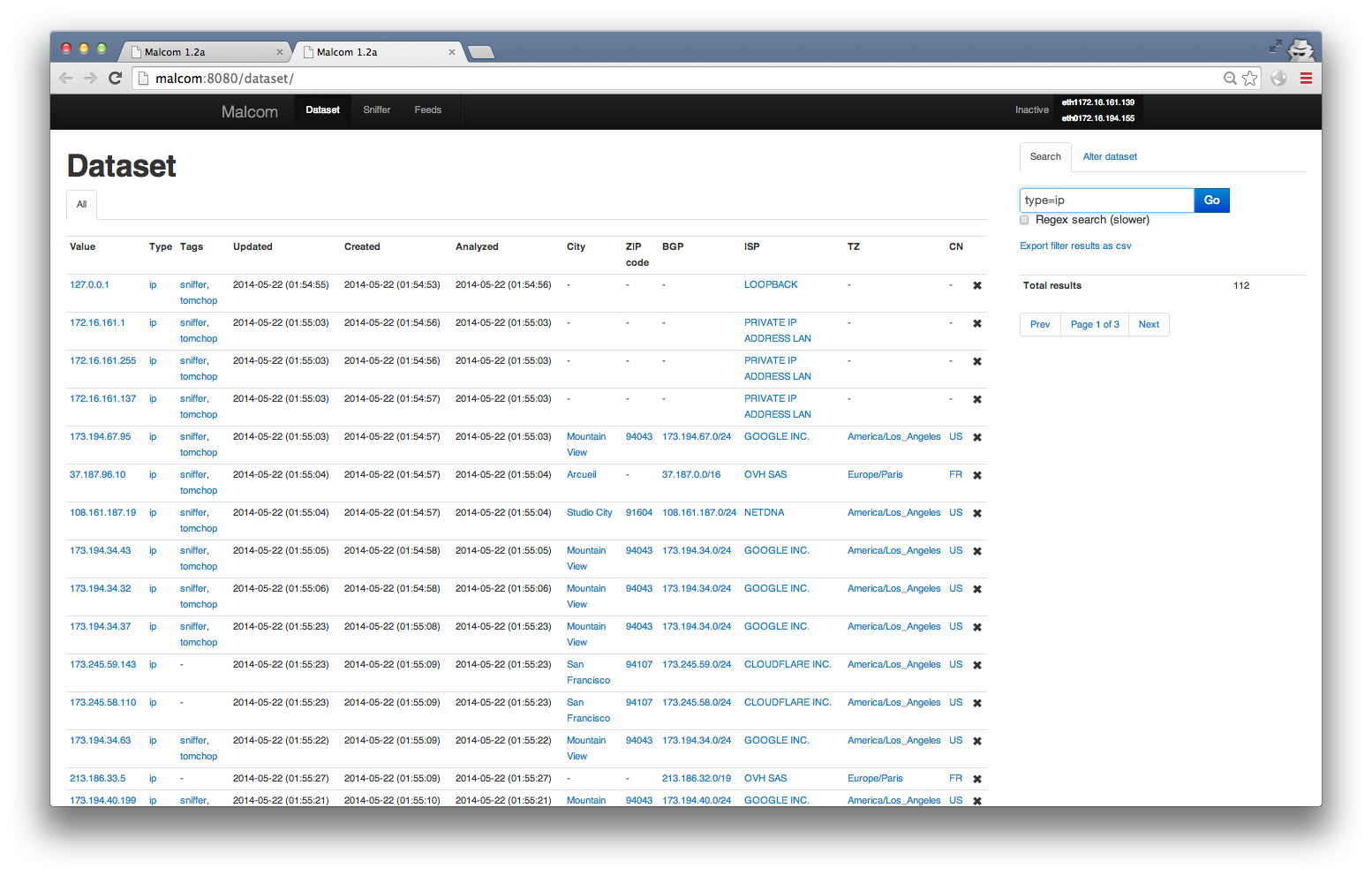
Here's an example graph for host tomchop.me
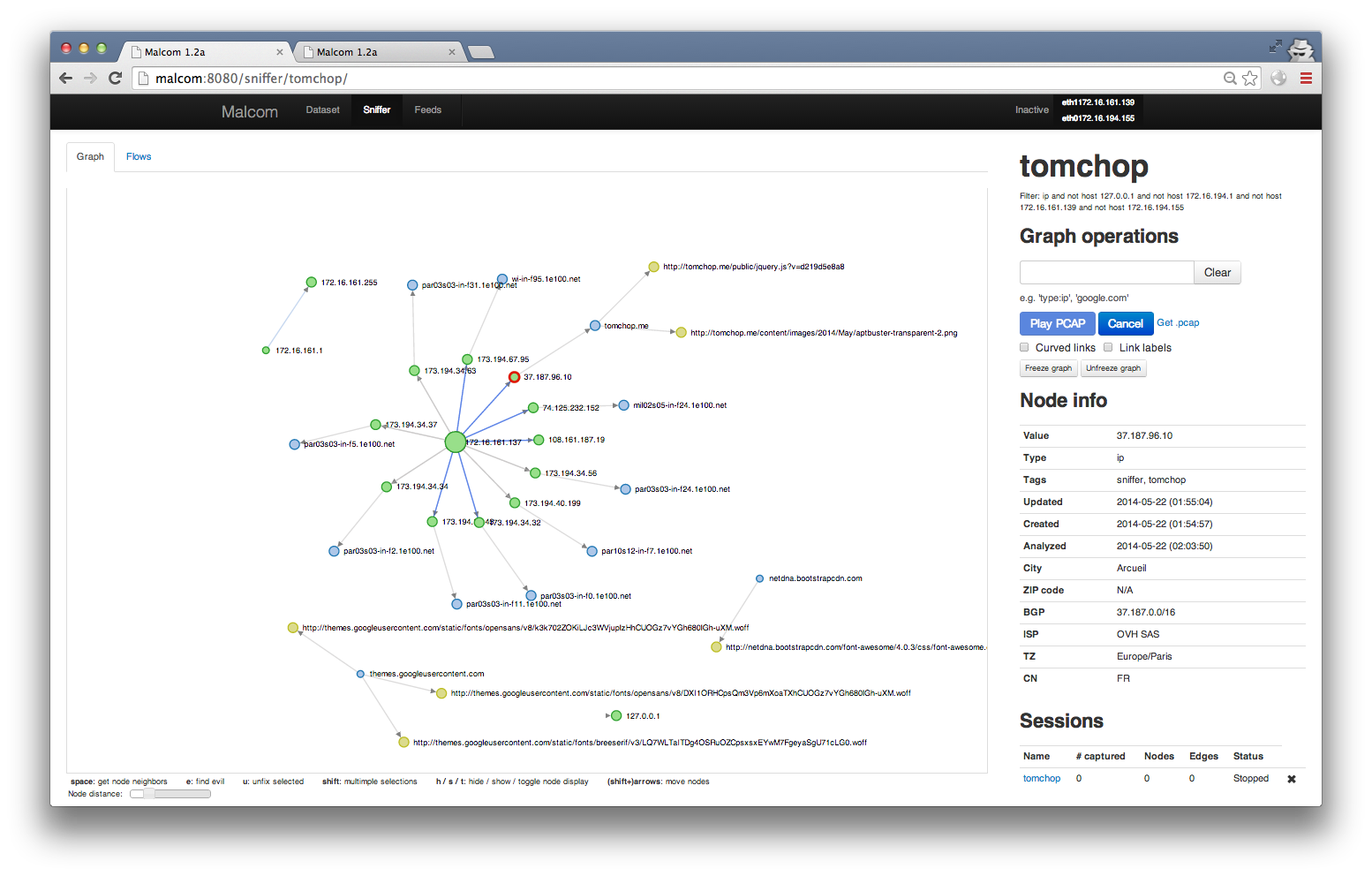
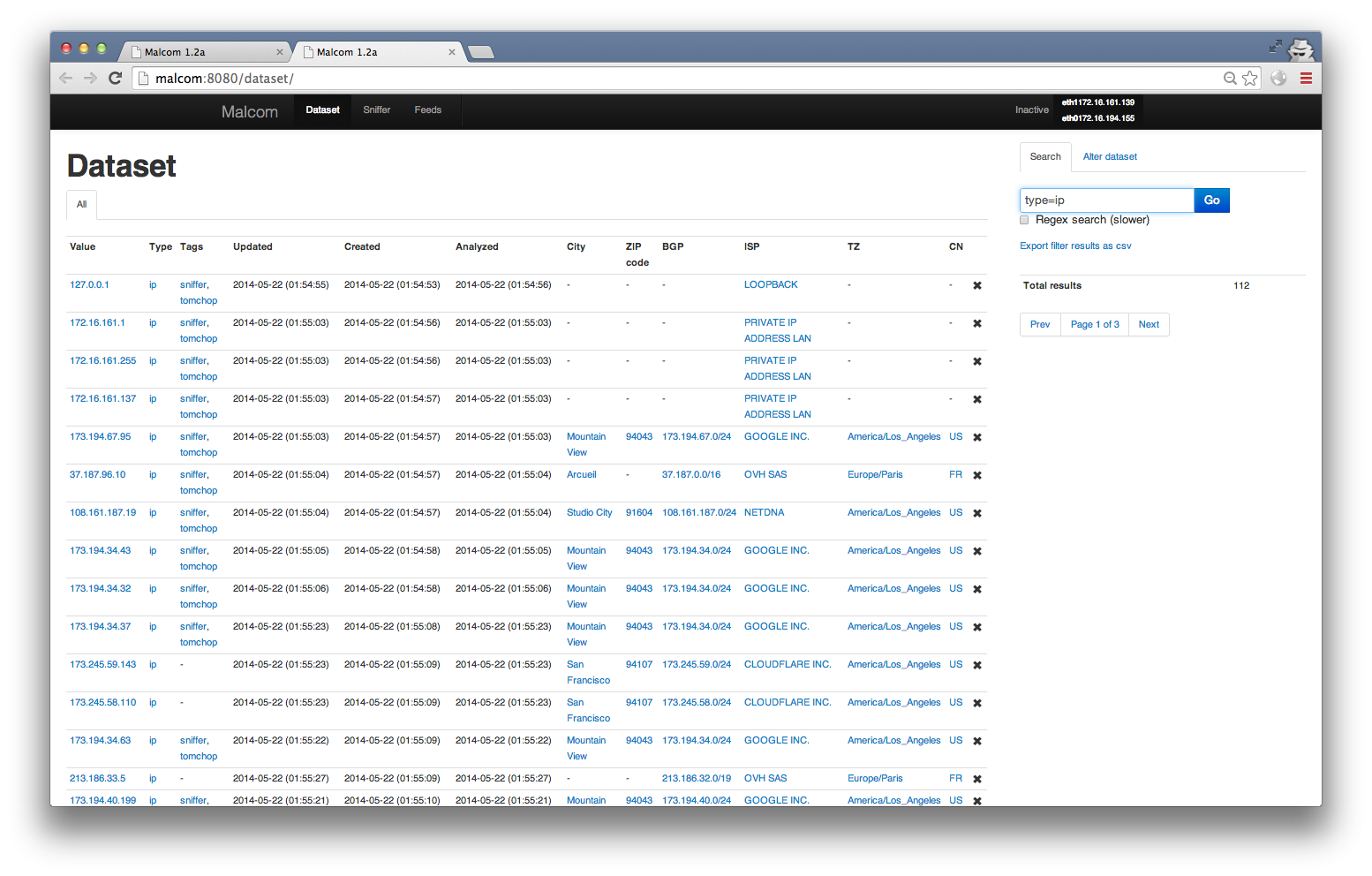
Dataset view (filtered to only show IPs)
mongodb and redis-server are running./malcom.py -c malcom.conf (or see options with ./malcom.py --help)
** For an example configuration file, you can copy malcom.conf.example to malcom.conf
** Default port is 8080
** Alternatively, run the feeds from celery. See the feeds section for details on how to to this.Malcom is written in python. Provided you have the necessary libraries, you should be able to run it on any platform. I highly recommend the use of python virtual environments (virtualenv) so as not to mess up your system libraries.
The following was tested on Ubuntu server 14.04 LTS:
Install git, python and libevent libs, mongodb, redis, and other dependencies
$ sudo apt-get install build-essential git python-dev libevent-dev mongodb libxml2-dev libxslt-dev zlib1g-dev redis-server libffi-dev libssl-dev python-virtualenv
Clone the Git repo:
$ git clone https://github.com/tomchop/malcom.git malcom
Create your virtualenv and activate it:
  $ cd malcom
  $ virtualenv env-malcom
  $ source env-malcom/bin/activate
Get and install scapy:
  $ cd ..
  $ wget http://www.secdev.org/projects/scapy/files/scapy-latest.tar.gz
  $ tar xvzf scapy-latest.tar.gz
  $ cd scapy-2.1.0
  $ python setup.py install
Still from your virtualenv, install necessary python packages from the requirements.txt file:
  $ cd ../malcom
  $ pip install -r requirements.txt
For IP geolocation to work, you need to download the Maxmind database and extract the file to the malcom/Malcom/auxiliary/geoIP directory. You can get Maxmind's free (and thus more or less accurate) database from the following link: http://dev.maxmind.com/geoip/geoip2/geolite2/:
  $ cd Malcom/auxiliary/geoIP
  $ wget http://geolite.maxmind.com/download/geoip/database/GeoLite2-City.mmdb.gz
  $ gunzip -d GeoLite2-City.mmdb.gz
  $ mv GeoLite2-City.mmdb GeoIP2-City.mmdb
Launch the webserver from the malcom directory using ./malcom.py. Check ./malcom.py --help for listen interface and ports.
malcom.conf.example file to malcom.conf and run ./malcom.py -c malcom.confBy default, Malcom will try to connect to a local mongodb instance and create its own database, named malcom. If this is OK for you, you may skip the following steps. Otherwise, you need to edit the database section of your malcom.conf file.
By default, Malcom will use a database named malcom. You can change this behavior by editing the malcom.conf file and setting the name directive from the database section to your liking.
    [database]
    ...
    name = my_malcom_database
    ...
By default, Malcom will try to connect to localhost, but your database may be on another server. To change this, just set the hosts directive. You may use hostnames or IPv4/v6 addresses (just keep in mind to enclose your IPv6 addresses between [ and ], e.g. [::1]).
If you'd like to use a standalone database on host my.mongo.server, just set:
    [database]
    ...
    hosts = my.mongo.server
    ...
You can also specify the port mongod is listening on by specifying it after the name/address of your server, separated with a :
    [database]
    ...
    hosts = localhost:27008
    ...
And if you're using a ReplicaSet regrouping my.mongo1.server and my.mongo2.server, just set:
    [database]
    ...
    hosts = my.mongo1.server,my.mongo2.server
    ...
You may have configured your mongod instances to enforce authenticated connections. In that case, you have to set the username the driver will have to use to connect to your mongod instance. To do this, just add a username directive to the database section in the malcom.conf file. You may also have to set the password with the password directive. If the user does not have a password, just ignore (i.e. comment out) the password directive.
    [database]
    ...
    username = my_user
    password = change_me
    ...
If the user is not linked to the malcom database but to another one (for example the admin database for a admin user), you will have to set the authentication_database directive with the name of that database.
    [database]
    ...
    authentication_database = some_other_database
    ...
When using a replica set, you may need to ensure you are connected to the right one. For that, just add the replset directive to force the mongo driver to check the name of the replicaset
    [database]
    ...
    replset = my_mongo_replica
    ...
By default, Malcom will try to connect to the primary node of th replica set. You may need/want to change that. In order to change that behaviour, just set the read_preference directive. See the mongo documentation for more information.
    [database]
    ...
    read_preference = NEAREST
    ...
Supported read preferences are:
