
Hacking, PenTest, and Cybersecurity Tools for Your Security Arsenal!
BTPS-SecPack — PowerShell-based security toolkit for small-to-medium enterprises, providing automated alerts, Active Directory hardening, Windows Event Forwarding, Sysmon integration, and incident response scripts to enhance visibility and defense. | Kitploit
PowerShell-based security toolkit for small-to-medium enterprises, providing automated alerts, Active Directory hardening, Windows Event Forwarding, Sysmon integration, and incident response scripts to enhance visibility and defense.
If you wish to use Microsoft Teams for sending alerts instead of using email you will want to load the microsoft-teams branch for this repository which has the Teams alert modifications. It will take me a little while to implement this as a configuration option in the install script. Using Microsoft Teams for alert posts does not remove the need for certain email notifications in this repository. Email will still be used for some of the actions. These Teams Posts are able to be completed after you first create a webhook. So-called webhooks offer the possibility to send alerts or other notifications to a Microsoft Teams channel. I personally still prefer emails after using this message because they are easier to sort through, in my opinion.
You can create a webhook using the following steps (if you are an admin)
Open the Microsoft Teams application
In the left hand pane click ""
Teams
Click the more options icon represented by 3 dots "..." next to one of the desired Teams Channels. Example Channel Name: General
Clicking those 3 dots will display a dropdown menu. Click "Connectors"
Click the "Add" button next to "Incoming Webhook"
Click "Add" on the Incoming Webhook pop up screen
On the Incoming Webhook screen perform the following actions
a. Define a name for your webhook. In the below image this value is "PowerShell-TeamsMessagePost"
b. Click "Create"
c. Optionally you can also use "Upload Image" to select an image for the Incoming Webhook. In the below image I left the default icon which is the light blue triangle on white background.
d. Click "Create"
The Incoming Webhook URL is created. Copy the URL and click "Done"
You can now use the above URL in the B.T.P.S Security Package scripts I provide. You can quickly update the value in the scripts by executing the below commands
root@kitploit:~
$WebHook = Read-Host -Prompt "Paster your Webhook URL here: "
$SIEM = Read-Host -Prompt "If you have a SIEM in your environment enter the link here: "
$BTPSHome = Read-Host -Prompt "Where did you save the BTPS Security Pacakge git repo? EXAMPLE: C:\Users\Administrator\Downloads\BTPS-SecPack-microsoft-teams"
$Files = (Get-ChildItem -Path $BTPSHome -Include "AttemptedPasswordChange.ps1","AttemptedPasswordReset.ps1","Failed.Username.and.Password.ps1","User.Account.Created.ps1 ","User.Account.Locked.ps1","User.Account.Unlocked.ps1","DNSZoneTransferAlert.ps1","NewComputerAlert.ps1","Query-InsecureLDAPBinds.ps1","UnusualUserSignInAlert.ps1","Watch-PortScan.ps1 " -Recurse -ErrorAction SilentlyContinue -Force).FullName
ForEach ($File in $Files) {
((Get-Content -Path $File -Raw) -Replace "WEBHOOK_URL_REPLACE","$WebHook") | Set-Content -Path $File -Force
((Get-Content -Path $File -Raw) -Replace "SIEM TOOL LINK","$SIEM") | Set-Content -Path $File -Force
} # End ForEach
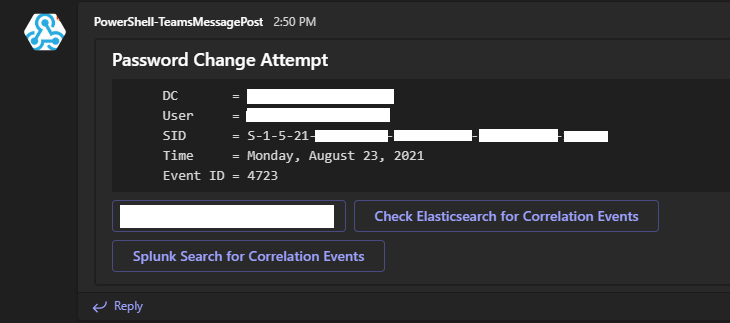
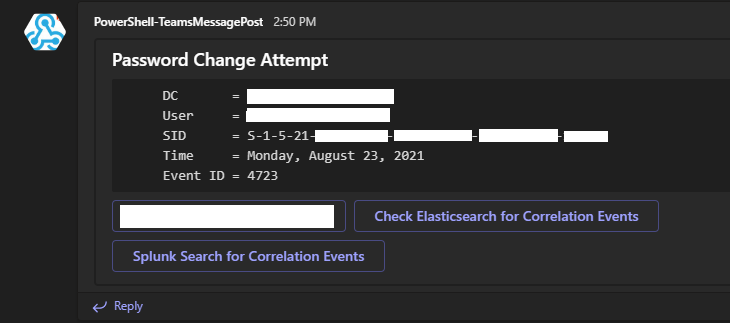
You alert in Microsoft Teams will something look like this
CONTRIBUTE TO THE PROJECT
If you wish to help contribute to the contents of this project feel free to reach out to me at [email protected] with your thoughts and ideas. For more general information on this feel free to refer to the CONTRIBUTING documentation.
DONATIONS
If you wish to donate to this project to help me keep a nice looking site for the documentation your donations will be graciously accepted.

SEND ETHERUM TO : 0xBeDbCfA5366fF1187957BB3ed8811c51B4dBe4D4
The B.T.P.S. Sec Pack
This repo contains a collection of PowerShell tools that can be utilized to protect defend an environment based Microsoft's recommendations.
This repo also assumes that you have referenced the Windows Event Logging Cheat Sheet for logging in your environment. Use LOG-MD or CIS-CAT to ensure the recommended logging is configured.
Installer.ps1
I wrote an initial install script to automatically set up as much of these protections automatically as possible. Most of these scripts are email alerts. When running Installer.ps1 you will be questioned on how you want to authenticate to your SMTP server. This can be done through the use of a credential file or using IP address authentication. This script should be run on a domain controller as this is where many of the alerts are located. I would suggest using WinRM over HTTPS in your environment. I have a video and setup instructions for WinRM over HTTPS on this projects site HERE. This script will let you know if LDAP over SSL is being utilized in your environment. If you wish to configure LDAP over SSL in your environment, which I highly recommend, I did a video on how to do this safely and securely HERE. The Installer.ps1 scritp will help you set up each section of this package with pauses in the script that wait on you to complete a task if one is needed. One such wait for example is for you to set up a group policy to be pushed out. After being run the majority of the below protections will be applied to your environment. The "Unusual Sign In Alert" will require you to modify the UserComputerList.csv file so it contains contents on what users are expected to be signing into what devices in your environment.
What Protections Are Included After Running Installer.ps1?
Canary Executable Decoys I have included a few executable files that an attacker may not be able to resist executing. These executable files are fake binaries that print the help message of the original executable file to make it seem like the file is legitimate upon execution. These executable files are meant to be uploaded to Canary Tokens which will send you an email alert whenever the file is executed. Instructions on this can be viewed HERE
RemediateCompromisedOfficeAccount.ps1VIEW is used to respond to a user whose Office365 password has been comrpomised. This will Reset password (which kills the session). Remove mailbox delegates. Remove mailforwarding rules to external domains. Remove global mailforwarding property on mailbox. Set password complexity on the account to be high. Enable mailbox auditing. Produce Audit Log for the admin to review.
Receive alerts when an account is expiring in 2 weeks or less
Receive alert containing a table of all users whose passwords are expiring in two weeks or less
Receive an alert when a user attempts to change their password
Receive an alert when one account attempts to change the password of another account
Receive an alert when an account fails to logon to a server
Receive an alert when a new user account is created
Receive an alert when a user account is locked out
Receive an alert when a user account has been unlocked
Receive an alert when administrator credentials are used to execute a process with elevated privileges. This is really only meant to monitor users who may have been given administrator credentials against IT's recommendations. It can be used to monitor an administrator for malicious activity as well if desired. Chances are you will not need to implement MonitorAdminEscalation.ps1
This basically takes creates an event log entry in event viewer containig AutoRuns hashes. I am not the author of this. I am only including this in the package as it is an important thing to keep track of
Receive daily information on Azure sign ins for your users
Disable weak TLS and SSL protocols on a Client or IIS Server
Enable DNS over HTTPS when available
Enable HSTS on a local IIS Server
Fix any service paths that contain spaces in the directory names but no quotations used to prevent the execution of injected payloads
Uninstall PowerShell version 2 from a remote or local machine(s)
Remove an email reported as spam from all inboxes that receive the email
Rotate the Kerberos keys used in an online exchange environment
Enable or Disable SMB signing on a device as well as disable or enable SMBv1 or SMBv2 and SMBv3
Enable RDP Network Level Authentication to prevent not domain computers from RDPing into a client
Update any available driver updates on a local or remote machine
Add a notification banner to emails that users receive in Outlook when the sender name matches a name in the company and the email address is not from the internal domain
Create Transport Rule that enables Microsoft Exchange servers to reject failed DMARC email messages
Cmdlets that can be used to install all available windows updates
Cmdlet that can remove a single KB update that is not updating for whatever reason. Once removed you can use Update-Windows to reinstall the issued update.
This is a cmdlet I am going to be using when I complete the Install.ps1 file that can be used to configure all of the above. For now use the READMEs I have provided to install the desired functionalitys.