
Awesome list of keywords and artifacts for Threat Hunting sessions
🎯 List of keywords for ThreatHunting sessions

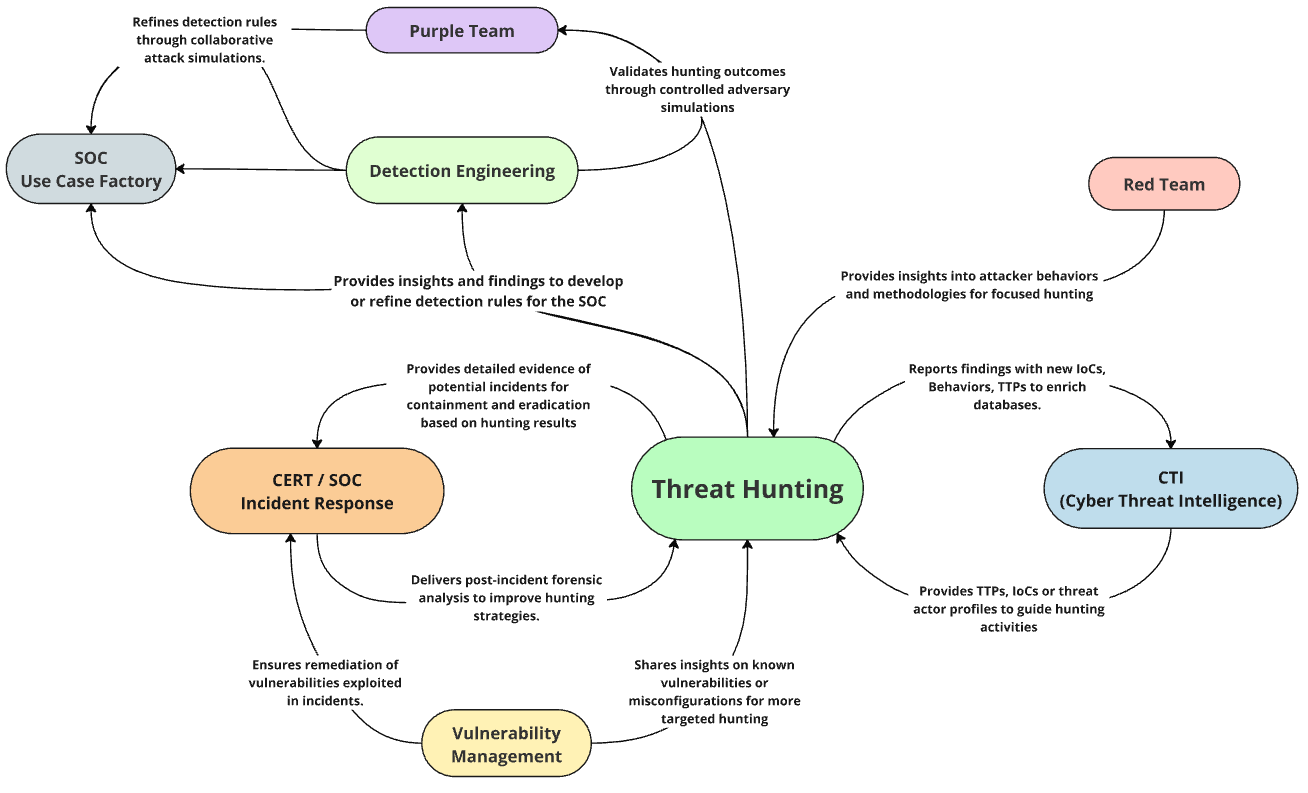
Threat hunting is a proactive and iterative approach to detecting malicious activities within an organization's network or systems that may have bypassed automated security measures. Unlike reactive investigations triggered by security alerts, threat hunting is driven by threat intelligence (TI)-driven checks and hypotheses derived from systematic and opportunistic analysis. These hypotheses 💡 help hunters uncover unknown threats, potential threats, or known threats that may have evaded security detections, as well as vulnerabilities or indicators of compromise (IoCs) that automated systems might miss or exclude. The process also focuses on identifying precursors to alerts/dashboards and improving SOC/triage workflows while also contributing to shadow asset inventory management and escalates low/mid-fidelity events that require further investigation. The primary goal is to identify the tactics, techniques, and procedures (TTPs) used by threat actors, enhancing the organization’s ability to preemptively detect and mitigate potential attacks.

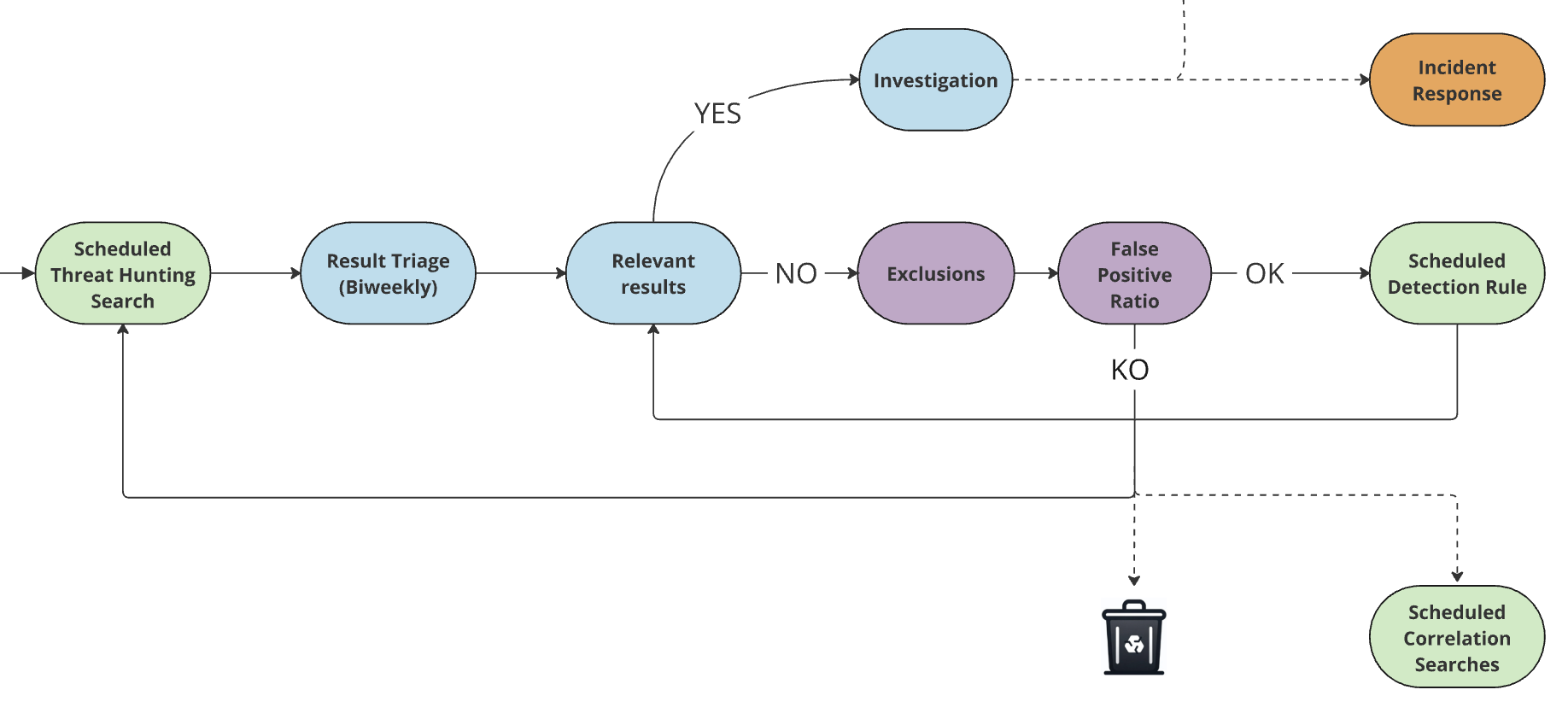
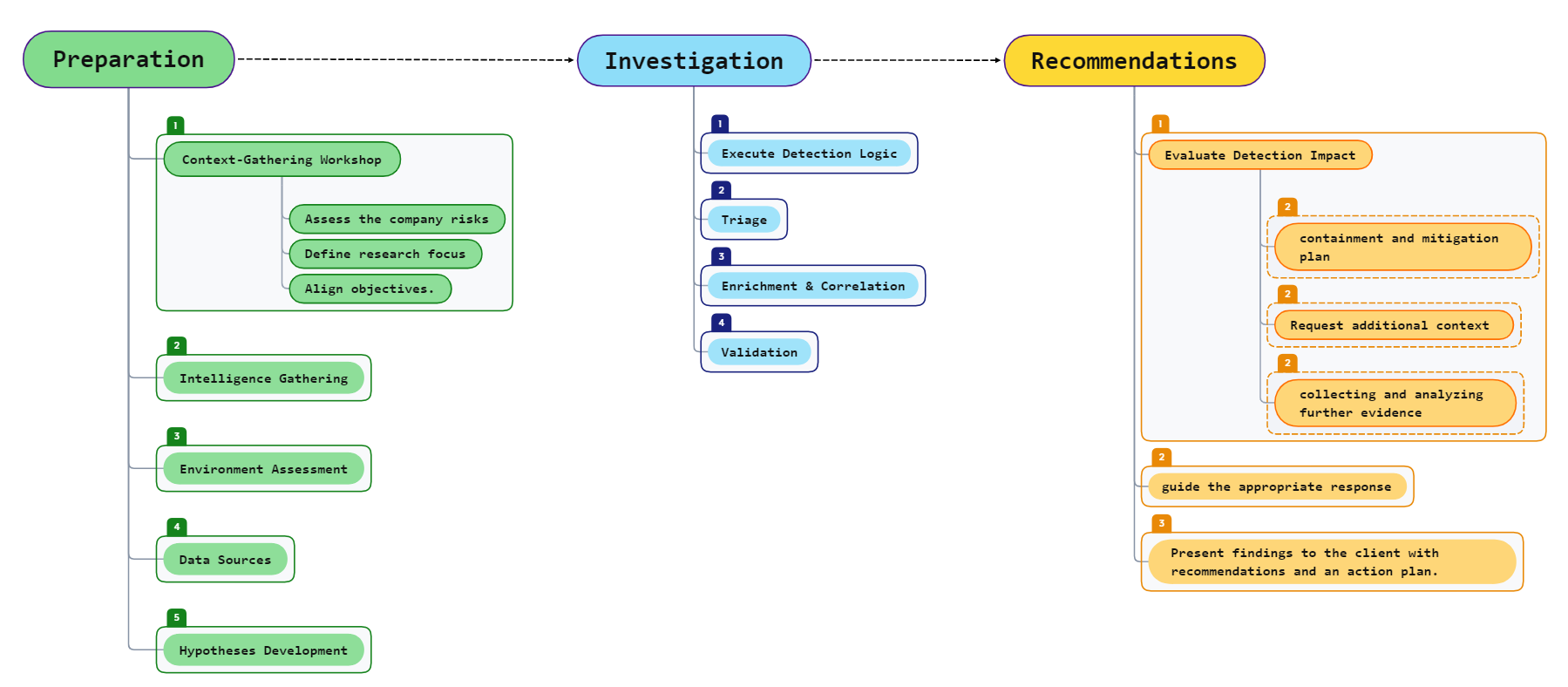
My process suggestion to organizing partially automated threat hunting sessions to maintain high-quality detection rules within a SOC

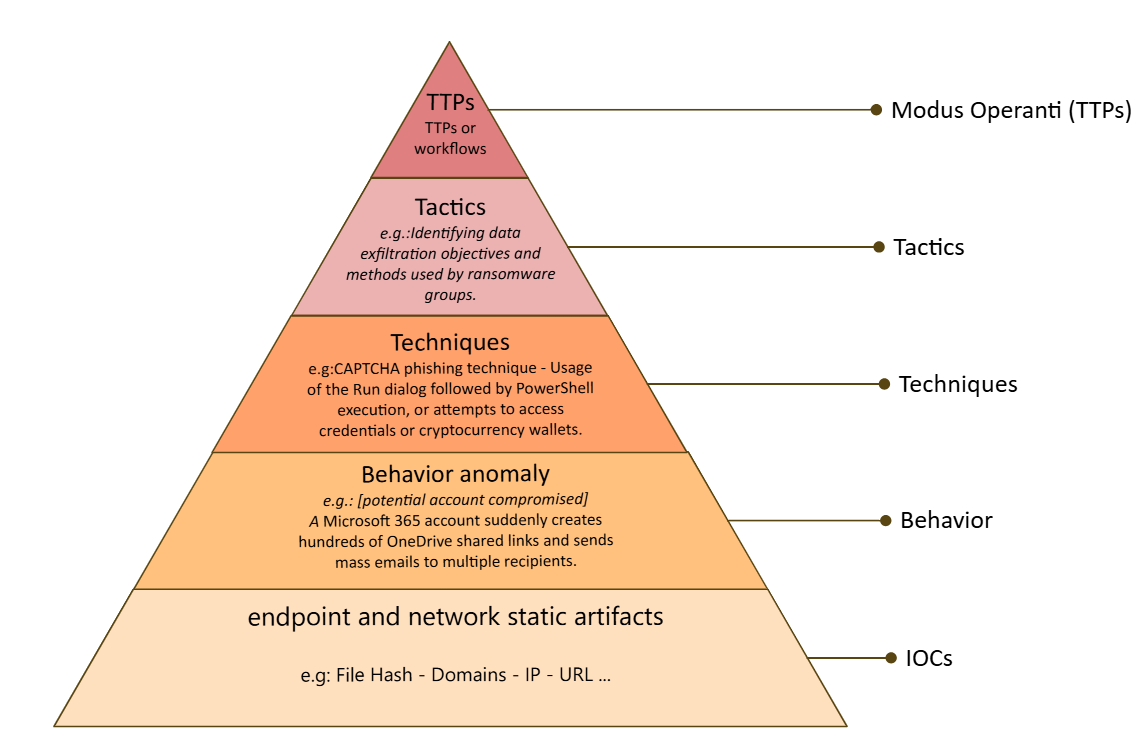
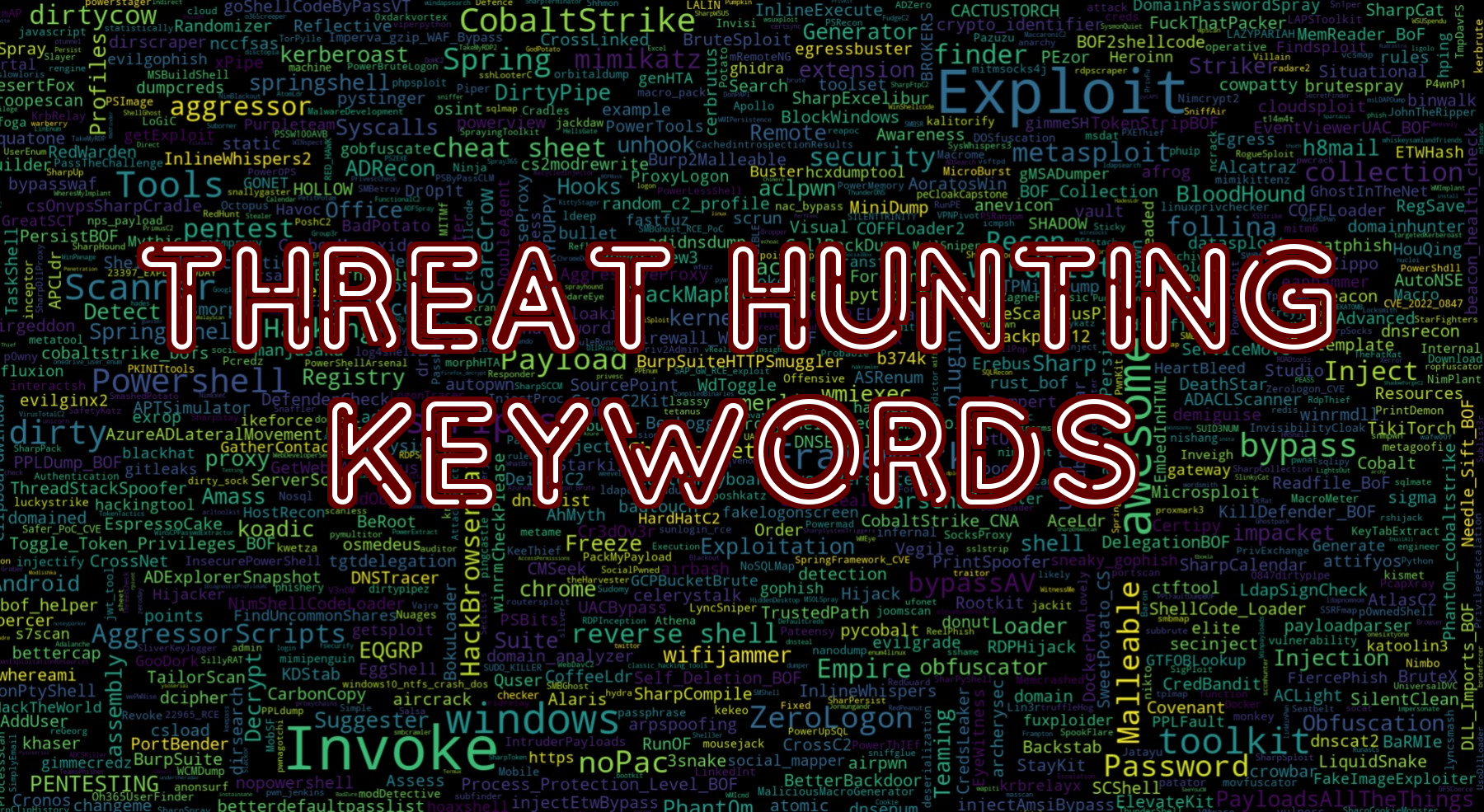
SOC teams focus on deploying high-fidelity detections across all levels of the Detection Maturity Pyramid, targeting known threats with minimal false positives. Threat hunting complements this by addressing unknown threats, advanced TTPs, and anomalies prone to high false-positive rates, bridging gaps and enhancing detection coverage beyond standard SOC capabilities.


Ideally, each threat hunting session should have clear objectives. This flowchart provides a structured approach to guide your process, from preparation and investigation to actionable recommendations.
🎯 List of keywords for ThreatHunting sessions
The ThreatHunting-Keywords Lists can be valuable for Threat Hunters, SOC and CERT teams for static analysis on SIEM as it assists in identifying threat actors (or redteamers 😆) using default configurations from renowned exploitation tools in logs. It differs from IOC feeds in its enduring relevance: the keywords here have no 'expiration dates' and can detect threats years after their inclusion, they are flexible accepting wildcard and non sensitive case matches and only focused on default keywords.
Primarily designed for Threat Hunting, this list can be useful in complex scenarios. Whether you have access to a SIEM you don't manage, with unparsed data, or if you're part of a SOC team with a well-managed SIEM, the examples provided here can expedite the process of detecting malicious activity without the necessity to parse anything. If your logs are already parsed, this list can be used to match fields within your data, potentially transforming into a detection rule based on the keyword type category you select, provided the false positive rate is sufficiently low.
⚠️ Not everything can be added in this list, we do not make complex behavior detections here, only simple keywords detections in fields or raw logs, aimed to detect default configurations
⚠️ A lot of tools in the list have dedicated detection rules, correlating events with thresholds and unique process relations... we will not cover all the possible detections for a tool here, only keywords detections
If you're part of a Security Operations Center (SOC) and are managing hundreds of detection rules that rely solely on simple keyword detections without any field or event correlation, consider rethinking your approach. In my opinion, these should not constitute individual detection rules. Instead, they might be better suited to a consolidated list like this one, although implementation might be more challenging if you're not using a platform like Splunk.
This approach encourages the creation of high-quality, purposeful rules while keeping your simple field keyword detections organized and manageable in one place. The end result? One comprehensive detection rule that covers all of them. This streamlines your process and optimizes your detection capabilities.
For Incident Responders, you can use this list during your investigation on raw logs or files to quickly identify known exploitation tools with the yara rules Yara Rules, a powershell script or by quickly ingesting your logs in splunk with Splunk4DFIR
To evade detection by simple keyword detection, it is critical to recompile and rename all custom strings, class or function names, variable names, argument names, executable names, default user-agents, certificates, or any other strings that could potentially be associated with the tools you are using during your operation. Employ the most common names for everything to blend in with normal traffic. Scripts located here can assist you in identifying some of these.
However, if you're developing public "red team tools", consider aiding the blue team by using distinct names. Employ a default configuration with an exotic port, custom certificates, unique user-agents, specific function names and arguments that aren't common. This assists in creating a clear signature that can be used for simple keyword detections, so the blueteam can at least easily detect the script kiddies.
Header: keyword,metadata_keyword_type,metadata_tool,metadata_description,metadata_tool_techniques,metadata_tool_tactics,metadata_malwares_name,metadata_groups_name,metadata_category,metadata_link,metadata_enable_endpoint_detection,metadata_enable_proxy_detection,metadata_tags,metadata_comment,metadata_severity_score,metadata_popularity_score,metadata_github_stars,metadata_github_forks,metadata_github_created_at,metadata_github_updated_at
keyword: The entries in this column represent non-case-sensitive keywords used for Threat Hunting. These keywords are flexible, allowing the use of wildcards to broaden or narrow your search parameters as needed.
metadata_keyword_regex: The entries in this column represent the regex pattern detection for the keyword, these patterns are refined to offer precise detection capabilities, suitable for use with YARA, ripgrep or similar detection tools.
metadata_keyword_type: Type of the keywords, Currently, there are three types:
offensive tool keyword: These keywords relate to offensive tools or exhibit high confidence of malicious intent. It's crucial that these terms hold relevance and reliability in detecting potential threats (low false positive rate)upload the list threathunting-keywords.csv on Splunk
create a lookup definition named threathunting-keywords for the lookup threathunting-keywords.csv
WILDCARD(keyword) and make sure Case sensitive match is not checked
transforms.conf
[threathunting-keywords]
batch_index_query = 0
case_sensitive_match = 0
filename = threathunting-keywords.csv
match_type = WILDCARD(keyword)
[lookup] stanza max_memtable_bytes value.threathunting-keywords:
`myendpointslogs`
| lookup threathunting-keywords keyword as _raw OUTPUT keyword as keyword_detection metadata_keyword_type metadata_tool metadata_description metadata_tool_techniques metadata_tool_tactics metadata_malwares_name metadata_groups_name metadata_category metadata_link metadata_enable_endpoint_detection metadata_enable_proxy_detection metadata_comment
| search metadata_description!="" AND metadata_enable_endpoint_detection=1
| stats count earliest(_time) as firsttime latest(_time) as lasttime values(_raw) as raw by metadata_keyword_type keyword_detection index sourcetype
| convert ctime(*time)
Send the job to background and keep the job ID.

myendpointslogs is a macro that will search for all your endpoints logs, could be windows logs, EDR telemetry, sysmon, auditd, bastion sessions, powershell execution logs or any other logs that will monitor for process activity or file activity. (if you don't use macro, you can replace the macro with your index, tag or datamodel)
TERM() for specific searches before the |lookup if needed| lookup this is very important, for big lookups like this one, always use |lookup instead of |inputlookup, |lookup will use the lookup pushed on the indexers when the bundle is replicated but |inputlookup will send to the indexers the search with all the lookup content each time, using |lookup we gain massive performances here (this search will execute for hours on big environments so better optimize our search.... keyword as _raw OUTPUT keyword as keyword_detection this is the part where we will match the field named with the field in our lookup , in splunk is the raw log without any parsing (our use case). When a keyword match, the field will show the keyword in the lookup that matched on the field () here.Filter the result
| loadjob 1684146257.1495958
| search
NOT (keyword_detection IN ("fixme","fixme","fixme"))
NOT (metadata_keyword_type IN ("fixme","fixme"))
NOT (raw IN ("fixme","fixme","fixme"))
Exclude the required keywords, raw text or keyword types.
if if decide to exclude greyware tool keyword type (legitimate tools keywords that are abused by attackers) because this environment has too many results for this kind of tools, we have two options:
`myendpointslogs`
| lookup threathunting-keywords keyword as _raw OUTPUT keyword as keyword_detection metadata_keyword_type metadata_tool metadata_description metadata_tool_techniques metadata_tool_tactics metadata_malwares_name metadata_groups_name metadata_category metadata_link metadata_enable_endpoint_detection metadata_enable_proxy_detection metadata_comment
| search metadata_description!="" metadata_keyword_type="offensive tool keyword" metadata_enable_endpoint_detection=1
| stats count earliest(_time) as firsttime latest(_time) as lasttime values(_raw) as raw by metadata_keyword_type keyword_detection index sourcetype
| convert ctime(*time)
I added a metadata_keyword_type="offensive tool keyword" to only focus on offensive tools that i am sure are used by malicious actors
| loadjob 1684146257.1495958
| search metadata_keyword_type="offensive tool keyword"
So that was our Use case to search on raw logs in endpoint logs, if we want to search the keywords for network logs (anything that can log a query or an url), we simply change it to:
`mynetworklogs`
| lookup threathunting-keywords keyword as _raw OUTPUT keyword as keyword_detection metadata_keyword_type metadata_tool metadata_description metadata_tool_techniques metadata_tool_tactics metadata_malwares_name metadata_groups_name metadata_category metadata_link metadata_enable_endpoint_detection metadata_enable_proxy_detection metadata_comment
| search metadata_description!="" AND metadata_enable_proxy_detection=1
| stats count earliest(_time) as firsttime latest(_time) as lasttime values(_raw) as raw by metadata_keyword_type keyword_detection index sourcetype
| convert ctime(*time)
Now it is the same as the first search but i changed the datasource for mynetworklogs and added metadata_enable_proxy_detection=1 to match the relevant keywords for networklogs (better have proxy and DNS logs for this)
`mynetworklogs` url=*
| lookup threathunting-keywords keyword as url OUTPUT keyword as keyword_detection metadata_keyword_type metadata_tool metadata_description metadata_tool_techniques metadata_tool_tactics metadata_malwares_name metadata_groups_name metadata_category metadata_link metadata_enable_endpoint_detection metadata_enable_proxy_detection metadata_comment
| search metadata_description!="" AND metadata_enable_proxy_detection=1
| stats count earliest(_time) as firsttime latest(_time) as lasttime values(url) as url by src_ip metadata_keyword_type keyword_detection index sourcetype
| convert ctime(*time)
`mynetworklogs` query=*
| lookup threathunting-keywords keyword as query OUTPUT keyword as keyword_detection metadata_keyword_type metadata_tool metadata_description metadata_tool_techniques metadata_tool_tactics metadata_malwares_name metadata_groups_name metadata_category metadata_link metadata_enable_endpoint_detection metadata_enable_proxy_detection metadata_comment
| search metadata_description!="" AND metadata_enable_proxy_detection=1
| stats count earliest(_time) as firsttime latest(_time) as lasttime values(query) as query by src_ip metadata_keyword_type keyword_detection index sourcetype
| convert ctime(*time)
`myendpointslogs`
| eval myfields=mvappend(service, process, process_command, parent_process, parent_process_command, grand_parent_process, grand_parent_process_command, file_path, file_name)
| lookup threathunting-keywords keyword as myfields OUTPUT keyword as keyword_detection metadata_keyword_type metadata_tool metadata_description metadata_tool_techniques metadata_tool_tactics metadata_malwares_name metadata_groups_name metadata_category metadata_link metadata_enable_endpoint_detection metadata_enable_proxy_detection metadata_comment
| search metadata_description!="" AND metadata_enable_endpoint_detection=1
| stats count earliest(_time) as firsttime latest(_time) as lasttime values(process) values(service) values(process_command) values(file_name) values(file_path) values(parent_process) values(parent_process_command) values(grand_parent_process) values(grand_parent_process_command) by metadata_keyword_type keyword_detection index sourcetype
| convert ctime(*time)
If the speed is a concern or you're planning to implement this as a scheduled detection rule, you might want to consider splitting the lookup into diffent lookups by choosing the metadata_keyword_type or metadata_tool column you want to use.
Note that filtering using the search command after the |lookup doesn't expedite the search process. If you want to concentrate on a specific portion of the lookup without dividing it, you should use the |inputlookup command along with the where clause. While this method may consume more CPU resources, it generally results in faster execution. For more details, check out the Splunk documentation on inputlookup: https://docs.splunk.com/Documentation/Splunk/latest/SearchReference/Inputlookup
If you are working with the Elastic Stack, there is a lot of restrictions for lists (you cannot use special caracters, spaces ...), you have 3 options:

Another example of using the project csv files with splunk to hunt in DFIR artifacts and logs: https://github.com/mf1d3l/Splunk4DFIR

I keep some relevant artefacts in separated lists, these lists are more precise and can be used in detection rules, they are available in this github repo you will find:
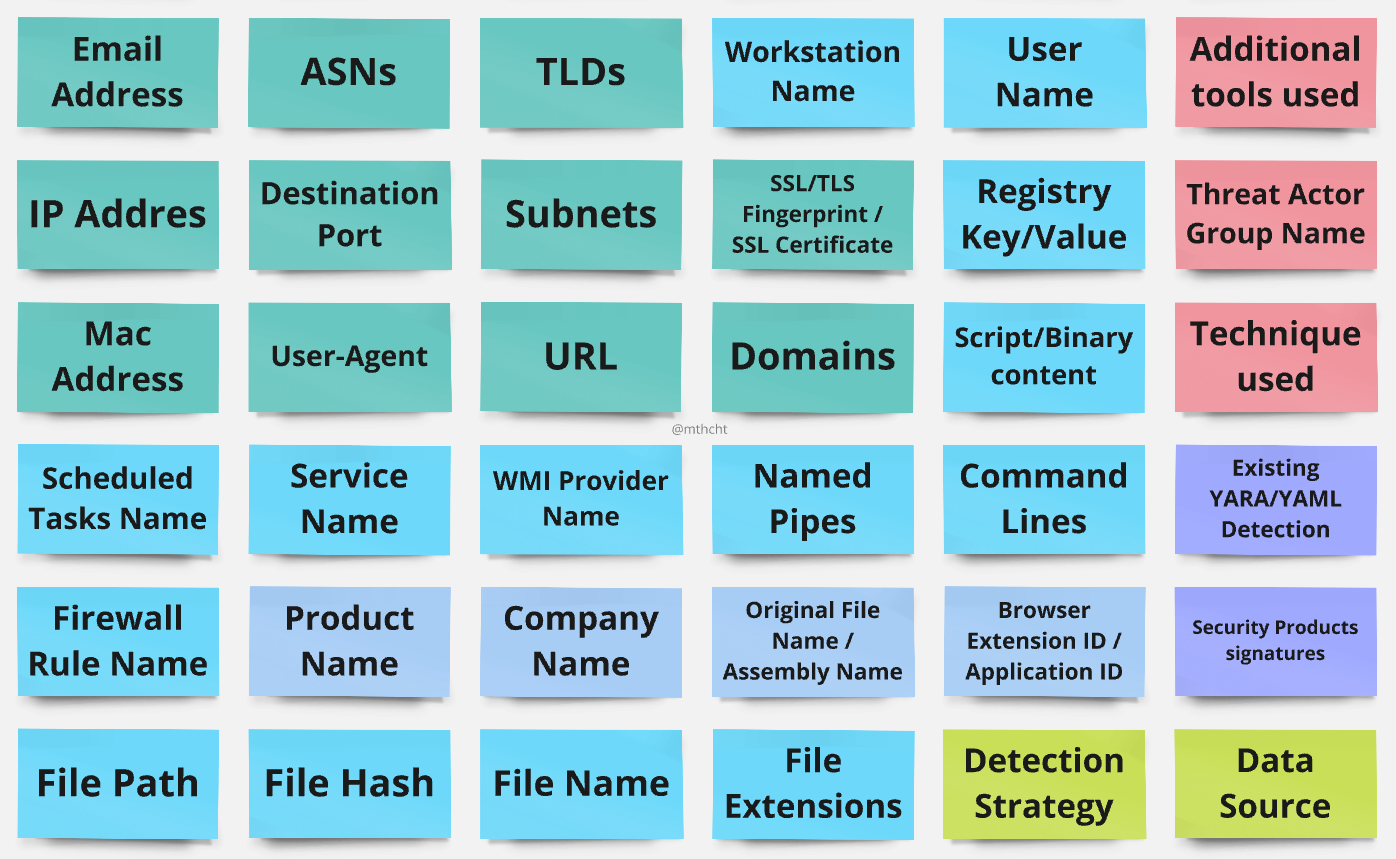
My intelligence-gathering sheet for planning Threat Hunting sessions

Check out these Guides to use some of the lists:
... more here
After conducting a thorough review of various tools, I discovered that ripgrep significantly outperforms its competitors when it comes to rapidly matching an extensive list of regex patterns against each line of a large log file or even multiple files simultaneously. It proved to be the most efficient solution for handling massive amounts of data, providing unparalleled speed and flexibility.
rg.exe -f .\only_keywords_regex.txt .\EvtxECmd_Output.csv --multiline --ignore-case

powershell -ep Bypass -File .\DFIR_hunt_in_file.ps1 -patternFile "only_keywords_regex.txt" -targetFile "C:\Users\mthcht\collection\20230406154410_EvtxECmd_Output.csv" -rgPath "C:\Users\mthcht\Downloads\ripgrep-13.0.0-x86_64-pc-windows-msvc\ripgrep-13.0.0-x86_64-pc-windows-msvc\rg.exe"
-targetFile: specify the file to search in (in the example, a DFIR-ORC extract logs)-patternFile: the file containing the regex patterns only_keywords_regex.txt-rgPath: the path of the ripgrep executablecontent of the powershell script (included in the repo):
param (
[Parameter(Mandatory=$true)]
[string]$patternFile,
[Parameter(Mandatory=$true)]
[string]$targetFile,
[Parameter(Mandatory=$true)]
[string]$rgPath
)
Start-Transcript -Path "$PSScriptRoot\result_search.log" -Append -Force -Verbose
$totalLines = (Get-Content $patternFile | Measure-Object -Line).Lines
$currentLine = 0
Get-Content $patternFile | ForEach-Object {
$currentLine++
Write-Host "Searching for pattern $currentLine of $totalLines : $_"
& $rgPath --multiline --ignore-case $_ $targetFile | Write-Output
}
Stop-Transcript -Verbose
The result of the search will be in result_search.log in the same directory as the script.

todo
In powershell it's much slower but if you still want to do it this way, you can use the script below, it will tell you the line number matched and the corresponding keyword:
powershell.exe -ep Bypass -File .\hunt_keywords_windows.ps1 -k .\only_keywords.txt -f .\EvtxECmd_Output.csv
param(
[Parameter(Mandatory=$true)]
[string]$file,
[Parameter(Mandatory=$true)]
[string]$kw
)
$Keywords = Get-Content $kw
$result = @()
foreach ($Keyword in $Keywords) {
$SearchTerm = $Keyword.Replace("*", ".*")
$SearchTerm = [Regex]::Escape($SearchTerm).Replace("\.\*", ".*")
$reader = New-Object System.IO.StreamReader($file)
$lineNumber = 0
while (($line = $reader.ReadLine()) -ne $null) {
$lineNumber++
if ($line -match $SearchTerm) {
$result += New-Object PSObject -Property @{
'Keyword' = $Keyword
'LineNumber' = $lineNumber
'Line' = $line
}
}
}
$reader.Close()
}
$result | Out-GridView
Read-Host -Prompt "Press Enter to exit"

All the detection patterns of this project are automatically exported to yara rules in ThreatHunting-Keywords-yara-rules
Some hunting example with the yara rules:


https://mthcht.github.io/ThreatHunting-Keywords/

Contribute and add your false positives to the expected false positives list
Check out the lookup translated in SIGMA rules i usually update it at the same time :)

with splunk addon https://splunkbase.splunk.com/app/5742

Coverage for 2242 tools (updated the 2024/08/30):

splunk search:
| inputlookup threathunting-keywords.csv
| stats count by metadata_tool metadata_tool_techniques
| makemv delim=" - " metadata_tool_techniques
| mvexpand metadata_tool_techniques
| stats count by metadata_tool_techniques
and use this splunk visualization: https://splunkbase.splunk.com/app/5742

Splunk dashboards (this is just one example; a wide variety of filters can be applied using the available fields in the file):
splunk xml dashboard example:
<form version="1.1">
<label>tools matrix</label>
<description>tools_matrix</description>
<fieldset submitButton="false" autoRun="true">
<input type="multiselect" token="category" searchWhenChanged="true">
<label>tool categories</label>
<fieldForLabel>metadata_category</fieldForLabel>
<fieldForValue>metadata_category</fieldForValue>
<search>
<query>| inputlookup threathunting-keywords.csv
| stats count by metadata_category
| fields - count</query>
<earliest>-24h@h</earliest>
<latest>now</latest>
</search>
<choice value="*">all</choice>
<prefix>metadata_category IN (</prefix>
<suffix>)</suffix>
<initialValue>*</initialValue>
<valuePrefix>"</valuePrefix>
<valueSuffix>"</valueSuffix>
<delimiter> ,</delimiter>
</input>
<input type="multiselect" token="groups" searchWhenChanged="true">
<label>groups name</label>
<choice value="*">ALL</choice>
<prefix>metadata_groups_name IN (</prefix>
<suffix>)</suffix>
<initialValue>*</initialValue>
<valuePrefix>"</valuePrefix>
<valueSuffix>"</valueSuffix>
<delimiter>,</delimiter>
<fieldForLabel>metadata_groups_name</fieldForLabel>
<fieldForValue>metadata_groups_name</fieldForValue>
<search>
<query>| inputlookup threathunting-keywords.csv
| stats count by metadata_groups_name
| fields - count
| eval metadata_groups_name = split(metadata_groups_name, " - ")
| mvexpand metadata_groups_name
| dedup metadata_groups_name</query>
<earliest>-24h@h</earliest>
<latest>now</latest>
</search>
</input>
</fieldset>
<row>
<panel>
<viz type="sankey_diagram_app.sankey_diagram">
<search>
<query>| inputlookup threathunting-keywords.csv
| search metadata_groups_name!=N/A $category$
| stats count as detection_patterns by metadata_groups_name metadata_tool
| eval metadata_groups_name = split(metadata_groups_name, " - ")
| mvexpand metadata_groups_name
| search $groups$</query>
<earliest>-24h@h</earliest>
<latest>now</latest>
</search>
<option name="drilldown">none</option>
<option name="height">728</option>
<option name="refresh.display">progressbar</option>
<option name="sankey_diagram_app.sankey_diagram.colorMode">categorical</option>
<option name="sankey_diagram_app.sankey_diagram.maxColor">#3fc77a</option>
<option name="sankey_diagram_app.sankey_diagram.minColor">#d93f3c</option>
<option name="sankey_diagram_app.sankey_diagram.numOfBins">6</option>
<option name="sankey_diagram_app.sankey_diagram.showBackwards">false</option>
<option name="sankey_diagram_app.sankey_diagram.showLabels">true</option>
<option name="sankey_diagram_app.sankey_diagram.showLegend">true</option>
<option name="sankey_diagram_app.sankey_diagram.showSelf">false</option>
<option name="sankey_diagram_app.sankey_diagram.showTooltip">true</option>
<option name="sankey_diagram_app.sankey_diagram.styleBackwards">false</option>
<option name="sankey_diagram_app.sankey_diagram.useColors">true</option>
</viz>
</panel>
</row>
</form>


Contributions, issues and feature requests are welcome!
``
Please provide the name of the tool.
``
Provide a link to the tool's official website or source code repository (GitHub, GitLab, etc.). If documentation is available, please include it.
``
Describe the tool's purpose, functionality, and notable features. If you're unsure, leave this blank, and I'll review the tool in more detail.
``
If you have information on known or potential misuse of this tool by malicious actors, please share it here.
Please choose the most appropriate category for the tool:
I will decide whether a tool is worth adding to the list. Tools that are widely used and recognized in the community are more likely to be included than obscure or new ones
greyware tool keyword: Keywords in this category correspond to 'legitimate' tools that are abused by malicious actors. As these tools also have legitimate uses, the potential for false positives is inherently higher. It's important to interpret these results with the understanding that not all detections may signify malicious activitysignature keyword: These keywords may not directly associate with tools but may include security product signature names, specific strings, or words significant in threat detection.metadata_tool: Name of the tool we want to detect
metadata_description: description of the tool we want to detect
metadata_tool_techniques: MITRE techniques related to the tool we want to detect
metadata_tool_tactics: MITRE tactics related to the tool we want to detect
metadata_malwares_name: Names of malware variants that utilize the tool in question
metadata_groups_name: Names of Threat actors groups associated with the tool
metadata_category: Global category name of the tool. This may change later and suggestions are welcome.
metadata_link: link to the tool (source code, articles, samples, blog ...)
metadata_enable_endpoint_detection: Field indicating whether the keyword can be effectively employed in searches across endpoint logs. This includes but is not limited to Windows event logs, EDR, PowerShell logs, auditd, bastion sessions, Sysmon or any data source containing process and file activity fields.
metadata_enable_proxy_detection: Field indicating the applicability of the keyword for searches within network logs (Proxy, DNS logs or any data with queries and URLs originating from the internal network)
metadata_popularity_score: score from 1 to 10 (low to high popularity)
metadata_severity_score: score from 1 to 10 (low to high severity)
metadata_tags: tags to identify specific artifacts, multiple tags can be associated with a keyword, when some of the specific artifacts can't be added in the lists without more detection context, they are added in my other awesome lists for_detection
metadata_comment: This field may contain a useful comment added for the keyword.
metadata_github_stars: Number of stars on the github project (if the tool is on github, if elsewhere the value is N/A) this is used to calculate the popularity score
metadata_github_forks: Number of forks on the github project (if the tool is on github, if elsewhere the value is N/A) can be used for dashboard stats of the most used tools
metadata_github_created_at: Creation date of the github project (if the tool is on github, if elsewhere the value is N/A) can be used for dashboard stats
metadata_github_updated_at: Last updated date of the github project (if the tool is on github, if elsewhere the value is N/A) can be used to track important offensive tools updates and adjust keywords detections
_rawkeyword_rawkeyword_detection_raw| search metadata_description!="" AND metadata_enable_endpoint_detection=1 we only focus on endpoints logs here so we add metadata_enable_endpoint_detection=1 to only match on the relevant keywords for endpoint logs and metadata_description!="" to only have the matched keywords| stats count earliest(_time) as firsttime latest(_time) as lasttime values(_raw) as raw by metadata_keyword_type keyword_detection index sourcetype here i made a quick filter without all the fields of the lookup for the example (but you can also add them if you want to have more exclusions possibilities), this allows us to easily have an idea of which keyword is matching a lot so we can easily exclude the category or the tool if we have too many false positives for it !|loadjob myjobid we can now manipulate the output with the relevant logs without searching again on all the logs.