
Skip to content
KitploitKITPLOIT
ToolsExploitsBlog
Log in
Submit
ToolsExploitsBlog
Submit

Hacking, PenTest, and Cybersecurity Tools for Your Security Arsenal!

Kitploit is a directory of hacking, cybersecurity, and pentesting tools. Discover the latest project updates to find vulnerabilities, analyze systems, automate testing, and strengthen your security.

FeedsContactPrivacy© 2026 Kitploit

Tool Directory

Categories

View all categories
Loading categories
BinAIVulHunter — Use IDA PRO HexRays decompiler with OpenAI(ChatGPT) to find possible vulnerabilities in binaries | Kitploit
Tools/GitHubGitHub/ke0z/binaivulhunter
Static AnalysisVulnerability AnalysisCode AnalysisExploitationReverse EngineeringBinary AnalysisAI-Assisted Reversing
GitHubke0z/binaivulhunter

BinAIVulHunter

Use IDA PRO HexRays decompiler with OpenAI(ChatGPT) to find possible vulnerabilities in binaries

View Repository
372284611 months agoReviewed by Kitploit

Most Popular

View all →

Discover the most used tools by our community.

Explore all tools

Browse our collection of tools

View all tools →
Share

BinAIVulHunter

An IDA PRO plugin to help in finding vulnerabilites in binaries.

Use IDA PRO HexRays decompiler with OpenAI(ChatGPT) to find possible vulnerabilities in binaries

Disclaimer, possible replies while trying to find binary vulnerabilites using an AI may lead to false positives, however it has worked in many CTFs I have worked on (simple/medium ... some hard)

Inspired by Gepetto : https://github.com/JusticeRage/Gepetto

Install:

Drop python script on IDA Pro Plugin location.

To Use:

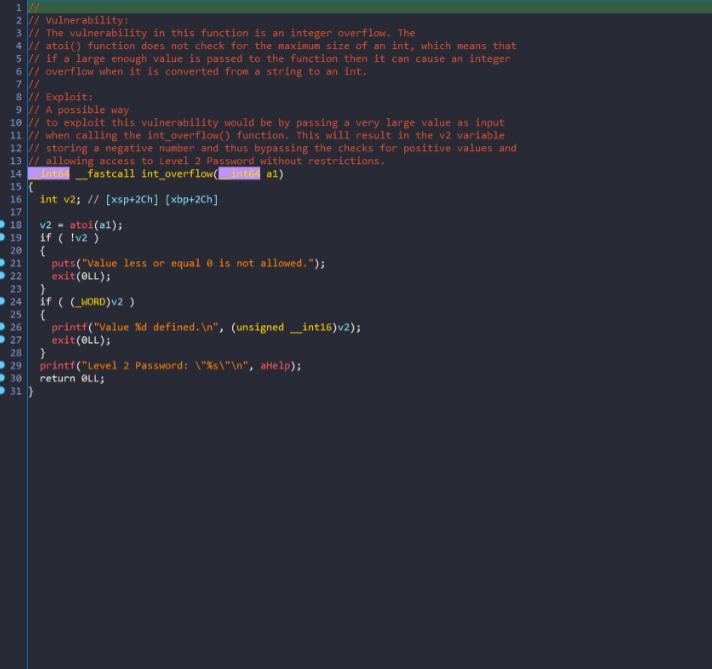
Right click on decompiled code , select "Find possible vulnerability in function"
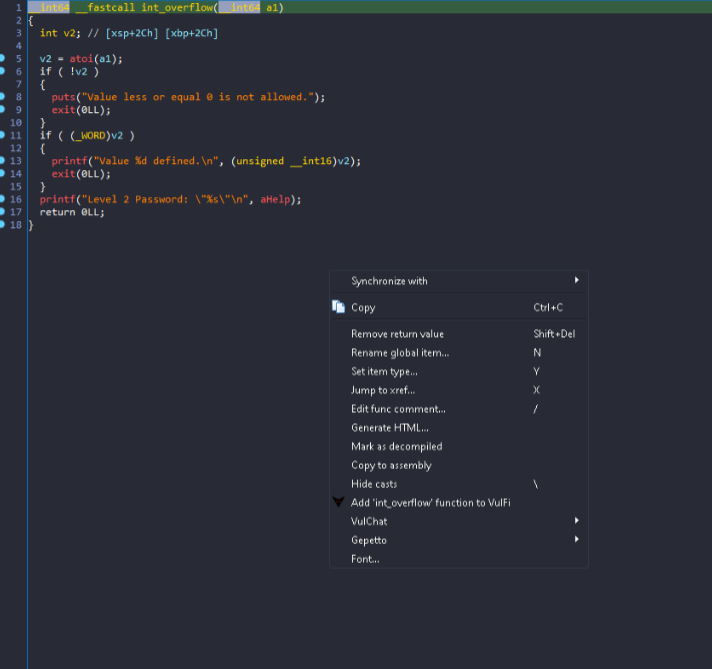
image

image

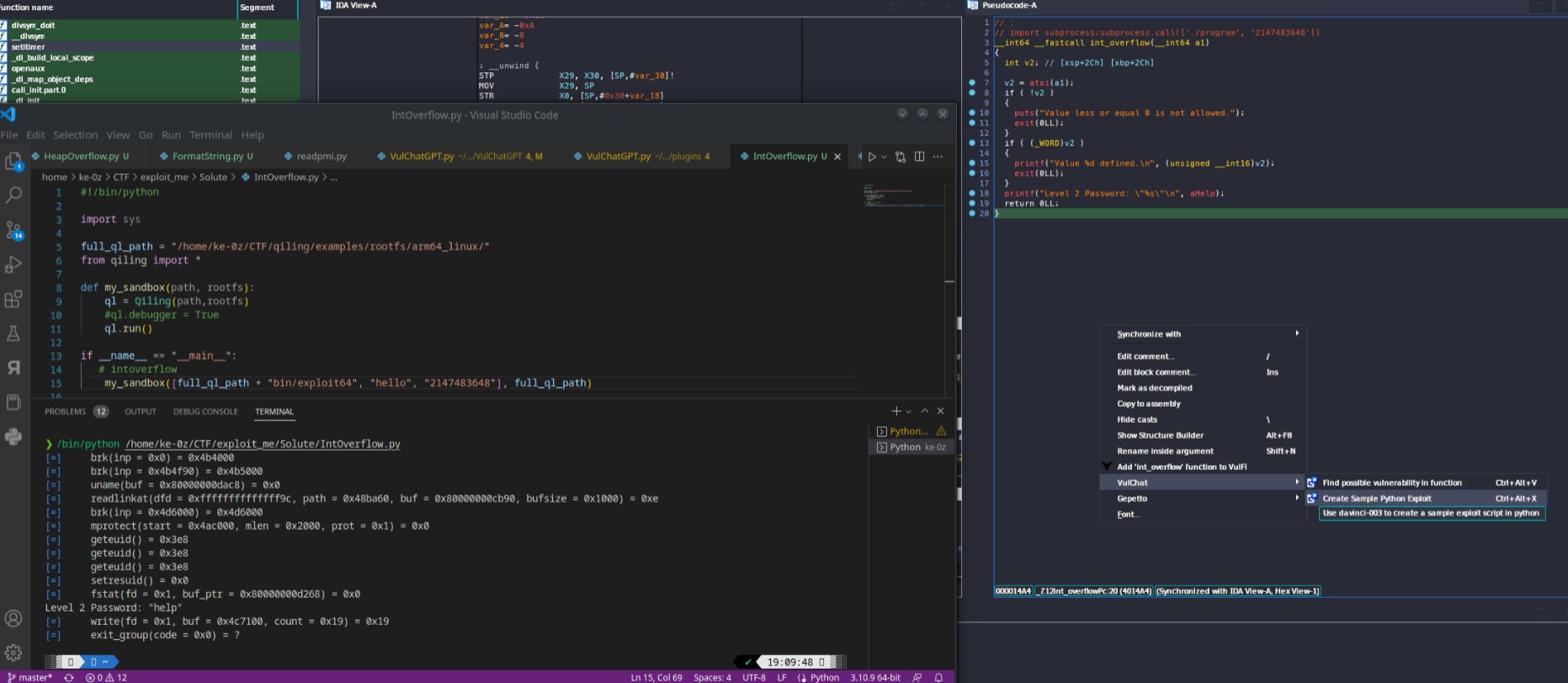
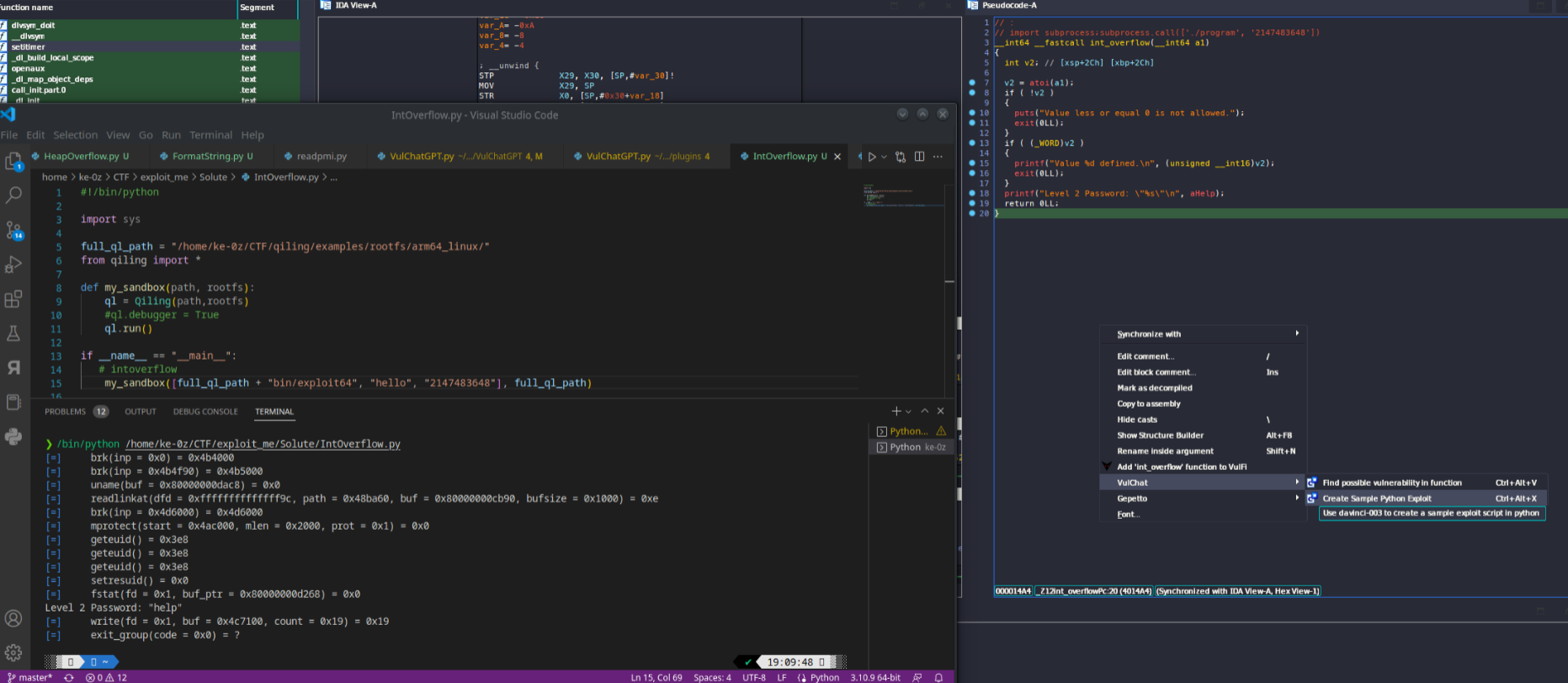
Updated with create sample python exploit (Sometime Good, Sometime Sh!t)

image

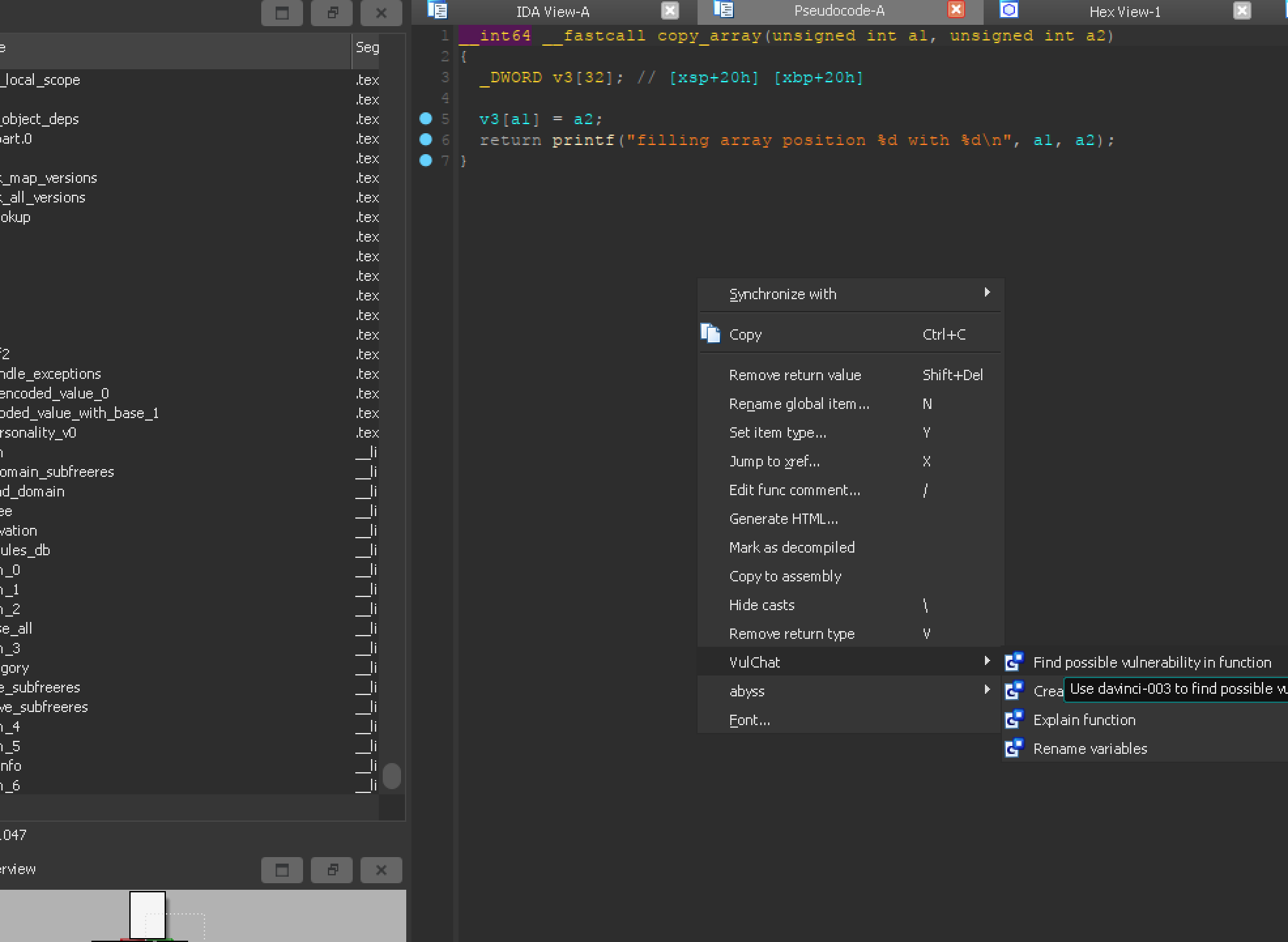
Updated with Gepetto's rename and explain functions

image

BinAIVulHunter - AI-Powered Vulnerability Analysis Plugin for IDA Pro

Python IDA Pro License

BinAIVulHunter is an advanced IDA Pro plugin that leverages multiple AI providers (OpenAI GPT, Google Gemini, and Ollama) to perform intelligent vulnerability analysis, code explanation, and security assessment of decompiled functions.

🚀 Features

  • Multi-AI Provider Support: Choose between OpenAI GPT, Google Gemini, or Ollama
  • Vulnerability Detection: Automated scanning based on CWE (Common Weakness Enumeration) taxonomy
  • Code Explanation: AI-powered analysis and explanation of decompiled functions
  • Variable Renaming: Intelligent suggestions for better variable and function names
  • Batch Processing: Scan all functions in a binary with memory management
  • CWE Reference Integration: Built-in CWE lookup and detailed vulnerability categorization
  • Headless Mode: Command-line support for automated analysis
  • Local AI Support: Privacy-focused analysis with Ollama (no cloud dependencies)

📋 Table of Contents

  • Installation
  • AI Provider Setup
    • OpenAI
    • Google Gemini
    • Ollama (Local AI)
  • Configuration
  • Usage
    • Interactive Mode
    • Context Menu
    • Control Panel
    • Headless Mode
  • Vulnerability Categories
  • Examples
  • Troubleshooting
  • Contributing
  • License

🛠 Installation

  1. Download the plugin:

    # Save BinAIVulHunter.py to your IDA Pro plugins directory
    # Typically: C:\Program Files\IDA Pro X.X\plugins\
    
  2. Install base dependencies:

    pip install psutil
    
  3. Install AI provider libraries (choose one or more):

    # For OpenAI
    pip install openai
    
    # For Google Gemini
    pip install google-generativeai
    
    # For Ollama (local AI)
    pip install requests
    
  4. Restart IDA Pro to load the plugin

🤖 AI Provider Setup

OpenAI

  1. Get API Key:

    • Visit OpenAI API Keys
    • Create a new API key
  2. Set Environment Variable:

    # Windows Command Prompt
    set OPENAI_API_KEY=sk-your-openai-key-here
    
    # PowerShell
    $env:OPENAI_API_KEY="sk-your-openai-key-here"
    
    # Linux/Mac
    export OPENAI_API_KEY="sk-your-openai-key-here"
    
  3. Restart IDA Pro

Google Gemini

  1. Get API Key:

    • Visit Google AI Studio
    • Create a new API key
  2. Set Environment Variable:

    # Windows Command Prompt
    set GEMINI_API_KEY=your-gemini-key-here
    
    # PowerShell
    $env:GEMINI_API_KEY="your-gemini-key-here"
    
    # Linux/Mac
    export GEMINI_API_KEY="your-gemini-key-here"
    
  3. Restart IDA Pro

Ollama (Local AI)

  1. Install Ollama:

    • Visit Ollama.ai and download the installer
    • Or use package managers:
      # Linux
      curl -fsSL https://ollama.ai/install.sh | sh
      
      # macOS
      brew install ollama
      
  2. Start Ollama Service:

    ollama serve
    
  3. Pull AI Models:

    # For general code analysis
    ollama pull llama2
    
    # For coding tasks (recommended)
    ollama pull codellama
    
    # Other specialized models
    ollama pull mistral
    ollama pull deepseek-coder
    
  4. Optional Environment Variables:

    # Custom Ollama server (if not localhost:11434)
    set OLLAMA_BASE_URL=http://your-server:11434
    
    # Set default model
    set OLLAMA_MODEL=codellama
    

⚙️ Configuration

Environment Variables

VariableDescriptionDefaultRequired
OPENAI_API_KEYOpenAI API keyNoneFor OpenAI
GEMINI_API_KEYGoogle Gemini API keyNoneFor Gemini
OLLAMA_BASE_URLOllama server URLhttp://localhost:11434No
OLLAMA_MODELDefault Ollama modelllama2No
VULCHAT_PROVIDERAI provider to useopenaiNo
VULCHAT_MODELSpecific model nameProvider defaultNo
OPENAI_BASE_URLCustom OpenAI endpointOfficial APINo

Provider Selection

Set your preferred AI provider:

# Use OpenAI (default)
set VULCHAT_PROVIDER=openai

# Use Google Gemini
set VULCHAT_PROVIDER=gemini

# Use Ollama (local)
set VULCHAT_PROVIDER=ollama

🎯 Usage

Interactive Mode

  1. Open IDA Pro with your binary file
  2. Navigate to the decompiler view (F5)
  3. Access VulChat via:
    • Menu: Edit → VulChat
    • Context menu: Right-click in decompiler view
    • Hotkeys (see below)

Context Menu

Right-click in the decompiler view to access:

  • Find Possible Vulnerability - Analyze current function for security issues
  • Explain - Get AI explanation of function behavior
  • Rename Variables - Get intelligent variable naming suggestions
  • Generate Safe Test Inputs - Create test cases for the function
  • Scan All - Batch vulnerability scan of entire binary
  • CWE Info - Look up CWE vulnerability details
  • Control Panel - Switch AI providers and configure settings

Control Panel

Access via Edit → VulChat → Control Panel or Ctrl+Alt+P:

  • Switch AI Providers: Change between OpenAI, Gemini, and Ollama
  • Model Selection: Choose specific models for each provider
  • Status Information: View current configuration and provider availability
  • Setup Guide: Get detailed setup instructions

Hotkeys

HotkeyAction
Ctrl+Alt+VFind Vulnerabilities
Ctrl+Alt+GExplain Function
Ctrl+Alt+RRename Variables
Ctrl+Alt+XGenerate Test Inputs
Ctrl+Alt+SScan All Functions
Ctrl+Alt+WCWE Reference Lookup
Ctrl+Alt+PControl Panel
Ctrl+F5Decompile All Functions

Headless Mode

For automated analysis and CI/CD integration:

# Scan all functions for vulnerabilities
ida64.exe -A -S"BinAIVulHunter.py --scan-all --output results.json" binary.exe

# Decompile all functions with caching
ida64.exe -A -S"BinAIVulHunter.py --decompile-all --cache-dir ./cache" binary.exe
Download Tool