
Skip to content
KitploitKITPLOIT
ToolsBlog
Submit
ToolsBlog
Submit

Hacking, PenTest, and Cybersecurity Tools for Your Security Arsenal!

Kitploit is a directory of hacking, cybersecurity, and pentesting tools. Discover the latest project updates to find vulnerabilities, analyze systems, automate testing, and strengthen your security.

··Feeds·Contact·Privacy·© 2026 Kitploit

Tool Directory

Categories

View all categories
Loading categories
Microsoft-Defender-for-Endpoint-Deployment-on-Windows-10-11-device — This repository documents how deployment of Microsoft Defender for Endpoint on a Windows 11 device, including onboarding via local script, enabling device discovery, configuring Log4j2 detection (CVE-2021-44228), and validating incident response workflows. | Kitploit
Tools/GitHubGitHub/kamalideenak/microsoft-defender-for-endpoint-deployment-on-windows-10-11-device
Defensive ToolsVulnerability ScannersConfiguration AuditingThreat IntelligenceLearning & EducationIncident ResponseLabs & Practice
GitHubkamalideenak/microsoft-defender-for-endpoint-deployment-on-windows-10-11-device

Most Popular

View all →

Discover the most used tools by our community.

Explore all tools

Browse our collection of tools

View all tools →
Share

Microsoft-Defender-for-Endpoint-Deployment-on-Windows-10-11-device

This repository documents how deployment of Microsoft Defender for Endpoint on a Windows 11 device, including onboarding via local script, enabling device discovery, configuring Log4j2 detection (CVE-2021-44228), and validating incident response workflows.

View Repository
10 months agoNot yet reviewed

This repository documents how deployment of Microsoft Defender for Endpoint on a Windows 11 device, including onboarding via local script, enabling device discovery, configuring Log4j2 detection (CVE-2021-44228), and validating incident response workflows.


Key Features

✅ Local script onboarding for Windows 10/11

🔍 Standard device discovery setup

🧨 Log4j2 vulnerability detection

📈 Alert validation and incident response

📋 Remediation workflow using Defender tools


Project Objectives

✔️ Deploy Microsoft Defender for Endpoint across Windows 10/11 environment.

✔️ Configure device discovery and threat detection capabilities.

✔️ Enable Log4j2 vulnerability detection (CVE-2021-44228).

✔️ Validate deployment through test detection scenarios.

✔️ Establish incident response workflows


System Requirements

✔️ Windows 11 Pro/Enterprise (latest updates applied)

✔️ Microsoft 365 E3/E5 or Microsoft Defender for Endpoint Plan 1/2 license

✔️ Administrative privileges on target devices

✔️ Network connectivity to Microsoft cloud services


Required Permissions

✔️ Global Administrator or Security Administrator in Microsoft 365

✔️ Local Administrator rights on Windows 11 devices

✔️ Access to Microsoft 365 Defender portal


*Phase 1: Initial Setup and Configuration

1.1 Access Microsoft 365 Defender Portal

✅ Navigate to https://security.microsoft.com

✅ Sign in with administrative credentials

✅ Verify licensing and service availability


1.2 Configure Device Discovery Settings

Navigate to Device Discovery:

✅ Settings → Endpoints → Device discovery

Configure Standard Discovery:

✅ Select "Standard discovery" option

✅ Enable network device discovery

✅ Set discovery frequency to recommended settings

✅ Configure network credentials if required

✅Save Configuration:

✅Apply settings and wait for confirmation

✅Verify discovery scope covers target network segments


1.3 Enable Log4j2 Detection

Access Advanced Features:

✅ Settings → Endpoints → Advanced features

Enable CVE-2021-44228 Detection:

❌ Toggle "Custom network indicators" to ON

❌ Enable "Live response" for advanced investigation

❌ Activate "Automated investigation and remediation"

Configure Detection Rules:

✅ Navigate to Hunting → Advanced hunting

✅ Verify Log4j2 detection queries are active

✅ Customize detection sensitivity if needed


Phase 2: Device Onboarding Process

2.1 Generate Onboarding Script

Navigate to Onboarding Section:

✅ Settings → Endpoints → Device management → Onboarding

Select Deployment Method:

✅ Choose "Local Script" as deployment method

✅ Select Windows 10/11 as operating system

✅ Click "Download onboarding package"

Script Details:

✔️ File name: GatewayWindowsDefenderATPOnboardingScript.cmd

✔️ Contains unique organization-specific configuration

✔️Valid for 30 days from generation


2.2 Deploy Script to Windows 11 Device

Prepare Target Device:

powershell # Open elevated Command Prompt as Administrator

Navigate to script location

cd C:\Path\To\Script

Execute Onboarding Script:

cmd # Run the onboarding script GatewayWindowsDefenderATPOnboardingScript.cmd

Expected output:

"Onboarding completed successfully"

"Press any key to continue..."

Verify Service Status:

powershell # Check Windows Defender ATP service Get-Service -Name "Sense"

Verify registry entries

Get-ItemProperty -Path "HKLM:\SOFTWARE\Microsoft\Windows Advanced Threat Protection"

2.3 Validate Device Onboarding

Check Device Status in Portal:

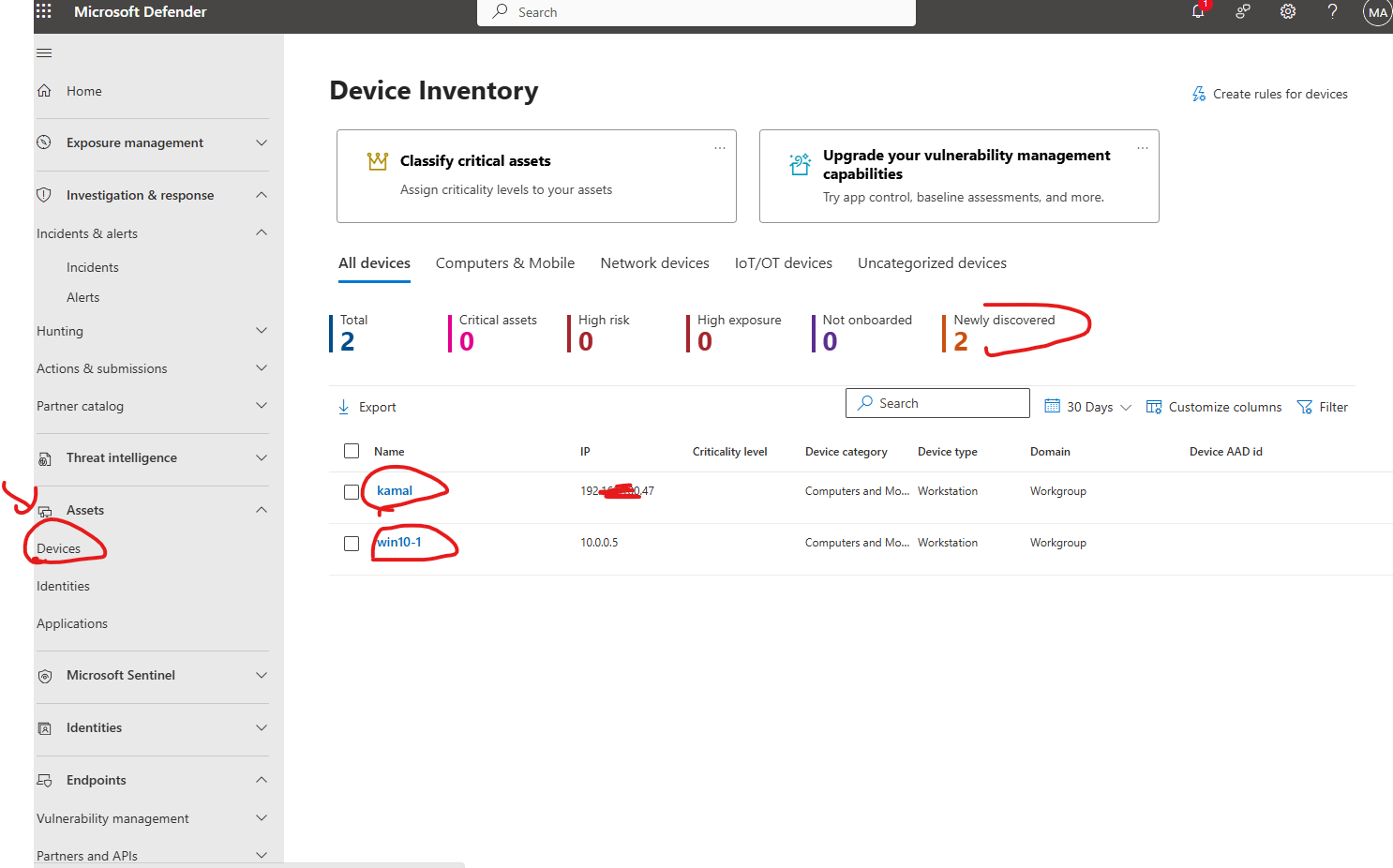
✔️ Navigate to Assets → Devices

✔️ Locate newly onboarded Windows 10/11 device

✔️ Verify status shows as "Active" as shown below
image

✔️ Confirm last seen timestamp is recent

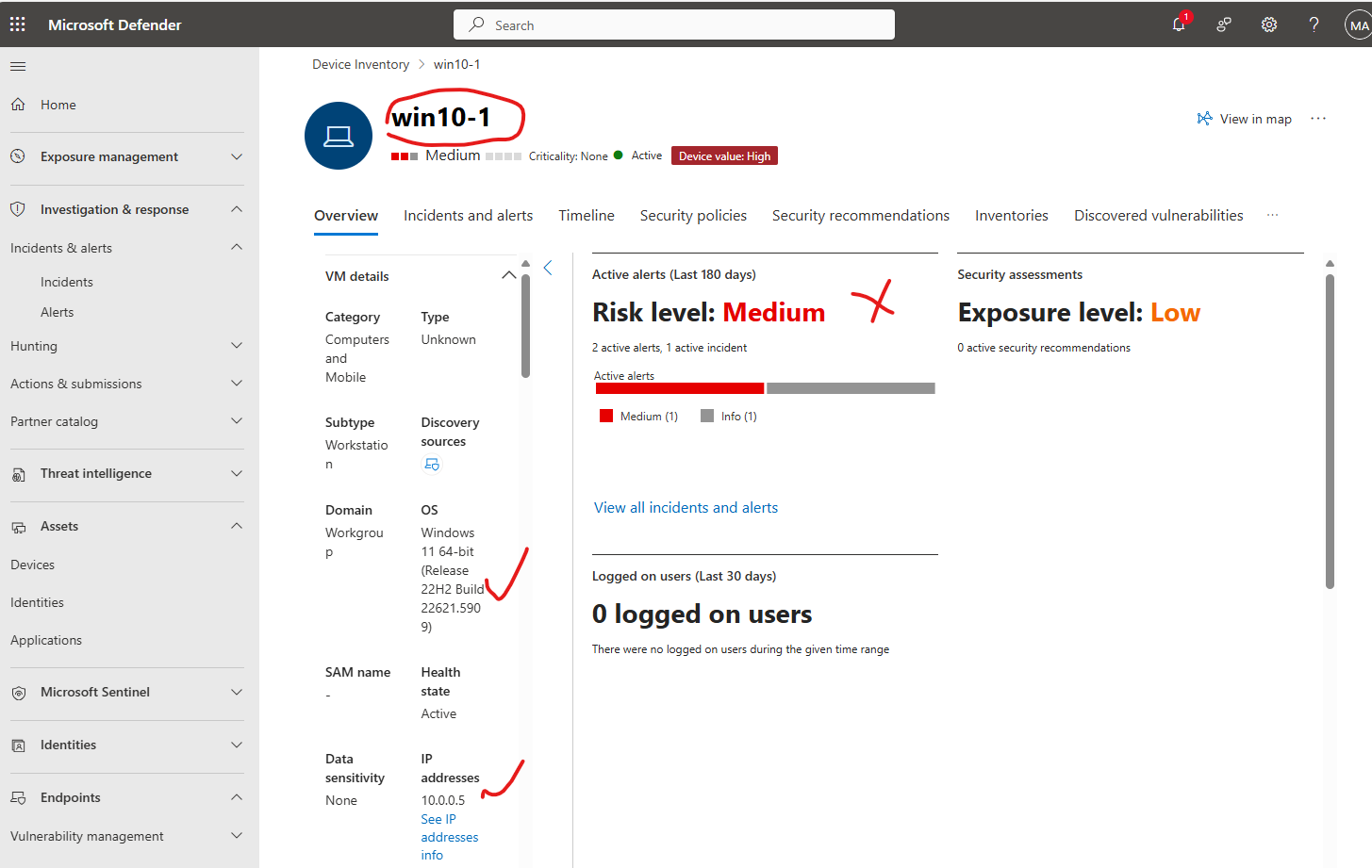
Device Information Validation:

✔️ Computer name matches target device

✔️ Operating system shows Windows 11

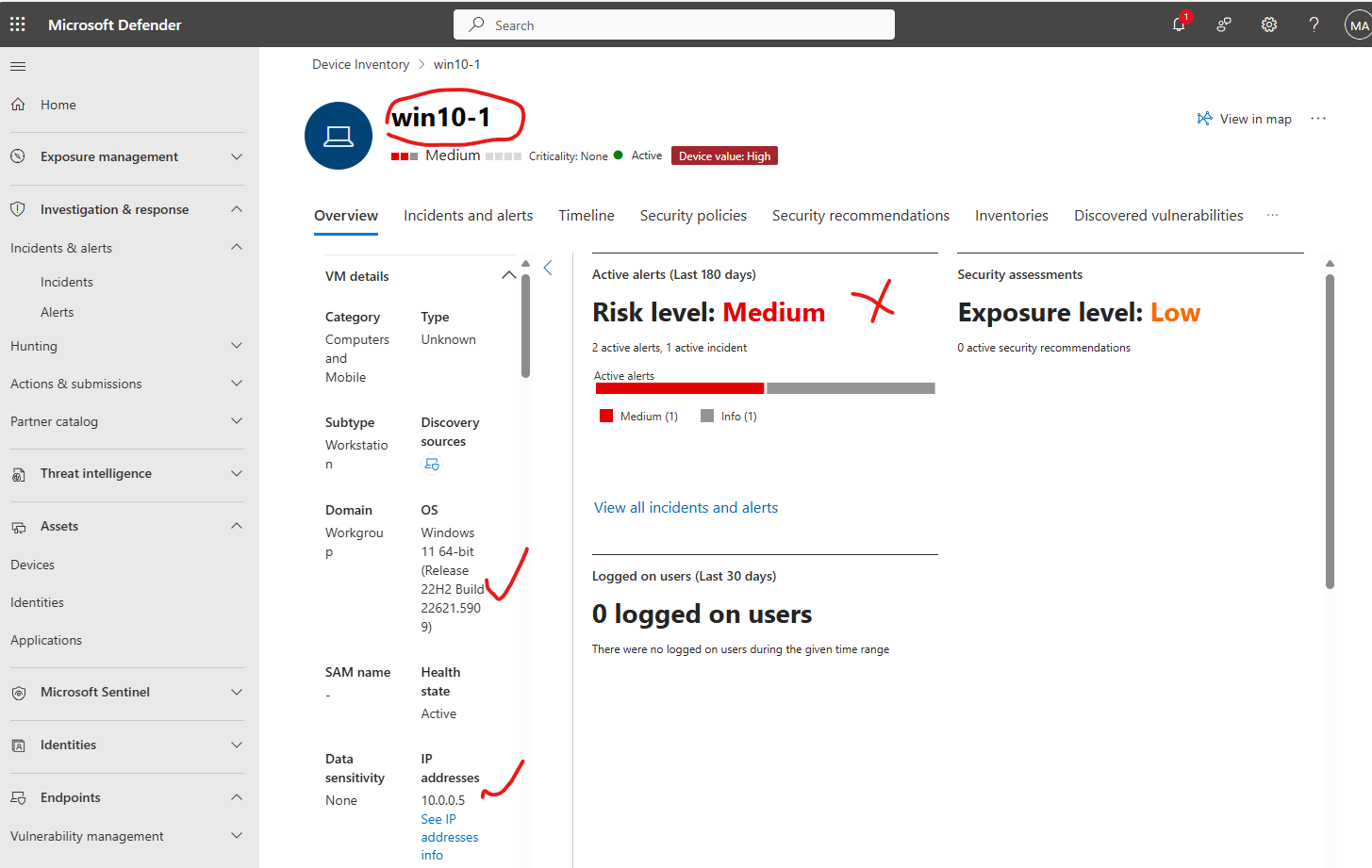
✔️ Risk level initially shows as "medium" (due to the tested script executed)
image

✔️ Onboarding status: "Successfully onboarded"


Phase 3: Test Detection and Validation

3.1 Generate Test Detection Script

Create a PowerShell script to simulate suspicious activity:

"powershell# Save as TestDetection.ps1

WARNING: below script is for testing purposes only

Write-Host "Starting MDE Test Detection..." -ForegroundColor Yellow

Test 1: Suspicious PowerShell execution

$testCommand = "powershell.exe -ExecutionPolicy Bypass -WindowStyle Hidden -Command "Get-Process"" Write-Host "Executing test command: $testCommand" -ForegroundColor Green Invoke-Expression $testCommand

Test 2: Simulate file download behavior

$testUrl = "https://www.microsoft.com" $testPath = "$env:TEMP\test_download.txt" try { Invoke-WebRequest -Uri $testUrl -OutFile $testPath -UseBasicParsing Write-Host "Test file downloaded to: $testPath" -ForegroundColor Green Remove-Item $testPath -Force -ErrorAction SilentlyContinue } catch { Write-Host "Download test completed with expected behavior" -ForegroundColor Yellow }

Test 3: Registry access simulation

try { Get-ItemProperty -Path "HKLM:\SOFTWARE\Microsoft\Windows\CurrentVersion\Run" | Out-Null Write-Host "Registry access test completed" -ForegroundColor Green } catch { Write-Host "Registry test encountered expected restrictions" -ForegroundColor Yellow }

Write-Host "MDE Test Detection completed. Check Microsoft 365 Defender portal for alerts." -ForegroundColor Cyan "


*3.2 Execute Test Detection

Run Test Script:

powershell # Open PowerShell as Administrator

Navigate to script location

Set-ExecutionPolicy -ExecutionPolicy Bypass -Scope Process .\TestDetection.ps1

Alternative Command Line Test:

cmd # Simple command line test for detection echo "Test detection for MDE" > %TEMP%\mde_test.txt powershell.exe -Command "Get-Content $env:TEMP\mde_test.txt" del %TEMP%\mde_test.txt

3.3 Monitor for Alert Generation Expected Timeline: Alerts typically appear within 5-15 minutes Monitoring Steps:

✔️ Keep the Microsoft 365 Defender portal open

✔️ Refresh the incidents page periodically

✔️ Look for new alerts related to the test device


4.1 Navigate to Incidents and Alerts

Access Investigation Interface:

❌ Investigation & response → Incidents & alerts → Incidents

Locate Test Alert:

❌ Filter by affected device name

❌ Sort by "Last update time" (newest first)

❌ Look for incidents with "Low" or "Medium" severity


4.2 Expand and Review Alert Details

Alert Information Review:

❌ Alert Title: Note the detection name

❌ Severity Level: Typically Low/Medium for test

❌ Category: Suspicious activity or behavior

❌ Source: Microsoft Defender for Endpoint

❌ Affected Assets: Target Windows 10/11 device


Detailed Analysis:

❌ Click on incident → Expand alert details

✔️ Review timeline of events

✔️ Examine process tree

✔️ Check file and network indicators

✔️ Analyze behavioral patterns

Incident alert dashboard

4.3 Investigation Steps

Device Investigation:

✔️ Click on affected device name

✔️ Review device timeline

✔️ Check running processes

✔️ Examine recent network connections

Process Analysis:

✔️ Identify parent and child processes

✔️ Review command line arguments

✔️ Check process reputation and prevalence

File Analysis (if applicable):

✔️ Examine file properties

✔️ Check file hash reputation

✔️ Review file behavior analysis


*Phase 5: Remediation and Response Actions

5.1 Available Response Actions

Device-Level Actions:

✔️ Isolate device from network

✔️ Run antivirus scan (shown below here)

image

✔️ Collect investigation package

✔️ Initiate live response session

File-Level Actions:

✔️ Quarantine suspicious files

✔️ Block file execution

✔️ Add to indicators list

✔️ Submit for deep analysis

*5.2 Test Remediation Process

Acknowledge the Alert:

✔️ Change status from "New" to "In progress" as shown below

Incident alert dashboard

✔️ Assign to security analyst

✔️ Add investigation notes

***Simulate Response Action:

Actions → Run antivirus scan → Confirm

image

Document Findings:

✔️ Classification: Test/False positive

✔️ Root cause: Authorized security testing

✔️ Resolution: No action required

✔️Status: Resolved


5.3 Close Incident

Final Steps:

✔️ Update incident classification

✔️ Set determination to "Security testing"

✔️ Add closure notes

✔️ Change status to "Resolved"


Phase 6: Validation and Documentation

6.1 Deployment Validation Checklist

✔️ Windows 11 device successfully onboarded

✔️ Device appears in MDE portal with "Active" status

✔️ Standard discovery configured and operational

✔️ Log4j2 detection capabilities enabled

✔️ Test detection script executed successfully

✔️ Alert generated and visible in incidents queue

✔️ Alert investigation completed

✔️ Response actions tested and documented


6.2 Post-Deployment Configuration

Fine-tune Detection Rules:

✔️ Adjust sensitivity based on environment

✔️ Configure custom indicators if needed

✔️ Set up automated response actions

Establish Monitoring Procedures:

✔️ Configure alert notification rules

✔️ Set up regular device health checks

✔️ Implement incident response workflows


*Troubleshooting Guide

Common Onboarding Issues Issue: Onboarding script fails

Solution:

  1. Verify internet connectivity
  2. Check Windows Defender is enabled
  3. Ensure no conflicting security software
  4. Run script as Administrator
  5. Check Windows updates are current

Issue: Device not appearing in portal

Solution:

  1. Wait 15-30 minutes for synchronization
  2. Restart Windows Defender Advanced Threat Protection service
  3. Check proxy/firewall configurations
  4. Verify script execution completed successfully

Issue: No test alerts generated Solution:

  1. Increase detection script activity
  2. Check device connectivity to cloud
  3. Verify alert notification settings
  4. Review detection rule configurations

Security Considerations Best Practices

Network Security: ❌ Ensure encrypted communication to Microsoft cloud

❌ Configure firewall rules for required endpoints

❌ Monitor for certificate validation errors

Access Control:

❌ Implement least-privilege access

❌ Use role-based permissions

❌ Enable multi-factor authentication

Data Protection:

❌ Review data collection policies

❌ Configure data retention settings

❌ Ensure compliance with regulations

Conclusion This deployment successfully demonstrates:

❌ Complete MDE onboarding process for Windows 10/11

❌ Proper configuration of detection capabilities

❌ Functional alert generation and investigation workflow

❌ Effective incident response procedures

The environment is now ready for production security monitoring and threat detection operations.

Next Steps

Scale Deployment:

❌ Plan rollout to additional devices

❌ Implement Group Policy or Intune deployment

❌ Configure automated onboarding processes

Enhance Monitoring:

❌ Set up custom hunting queries

❌ Configure automated investigation rules

❌ Implement threat intelligence feeds

Team Training:

❌ Conduct incident response training

❌ Establish escalation procedures

❌ Create playbooks for common scenarios

https://learn.microsoft.com/en-us/defender-endpoint/onboard-client https://learn.microsoft.com/en-us/defender-xdr/investigate-incidents https://learn.microsoft.com/en-us/defender-vulnerability-management/tvm-manage-log4shell-guidance

Download Tool