 jpcertcc/logontracer
Investigate malicious Windows logon by visualizing and analyzing Windows event log





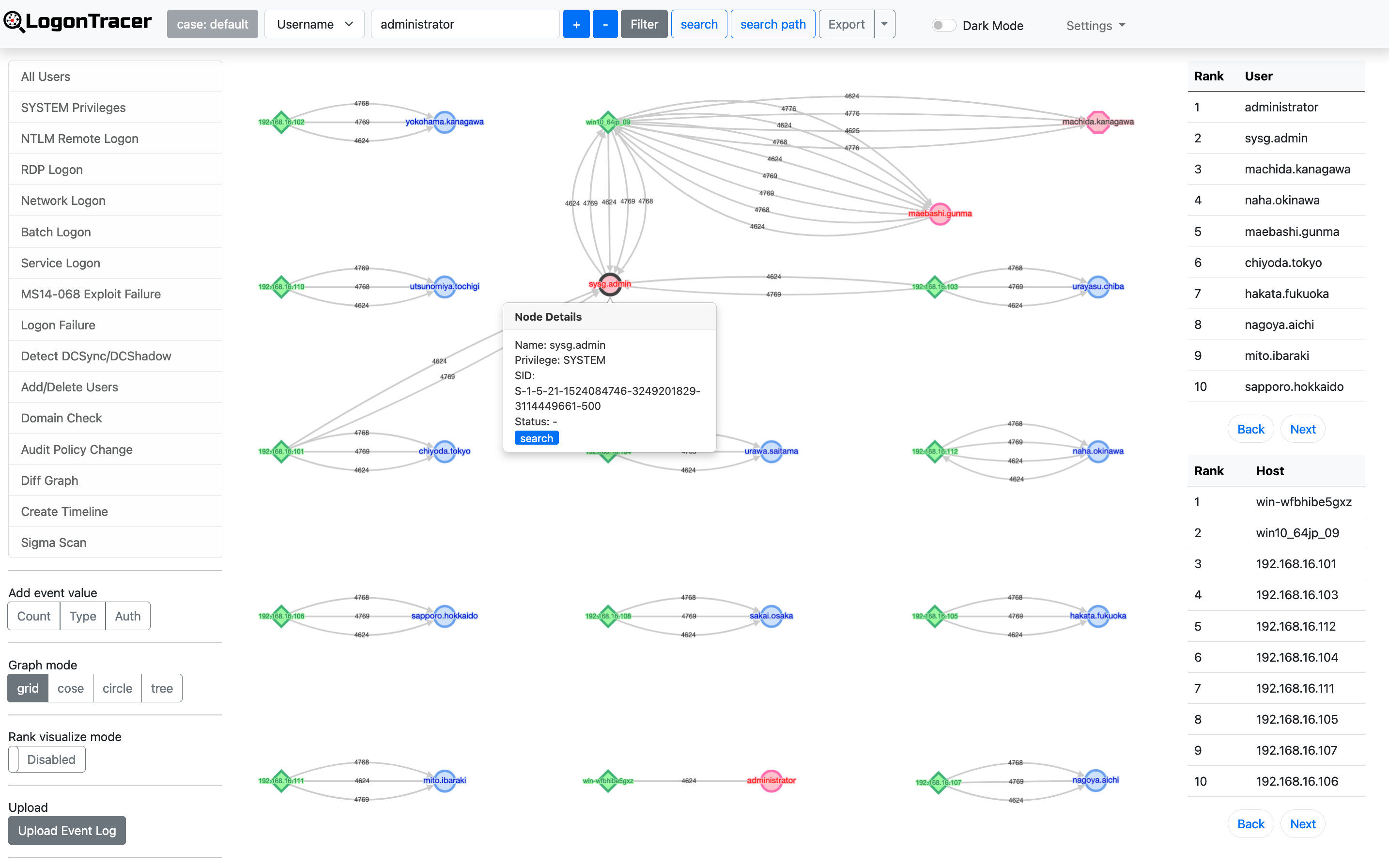
LogonTracer v2 is a tool to investigate malicious logon by visualizing and analyzing Windows Active Directory event logs. This tool associates a host name (or an IP address) and account name found in logon-related events and displays it as a graph. This way, it is possible to see in which account login attempt occurs and which host is used.
This tool can visualize the following event IDs related to Windows logon.
| Event ID | Description |
|---|---|
| 4624 | Successful logon |
| 4625 | Logon failure |
| 4662 | An operation was performed on an object |
| 4672 | Assign special privileges |
| 4719 | System audit policy was changed |
| 4720 | A user account was created |
| 4726 | A user account was deleted |
| 4728 / 4732 / 4756 | A member was added to a security-enabled group |
| 4729 / 4733 / 4757 | A member was removed from a security-enabled group |
| 4768 | Kerberos Authentication (TGT Request) |
| 4769 | Kerberos Service Ticket (ST Request) |
| 4776 | NTLM Authentication |
| 5137 | A directory service object was created |
| 5141 | A directory service object was deleted |
More details are described in the following documents:
LogonTracer v2.0 integrates an AI analysis engine using OpenAI GPT models to provide intelligent threat detection beyond traditional rule-based approaches.
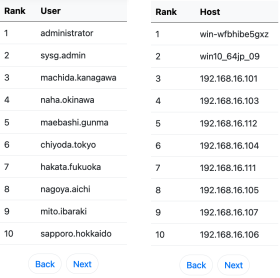
LogonTracer uses PageRank, Hidden Markov Model, and ChangeFinder to detect malicious hosts and accounts from event logs.
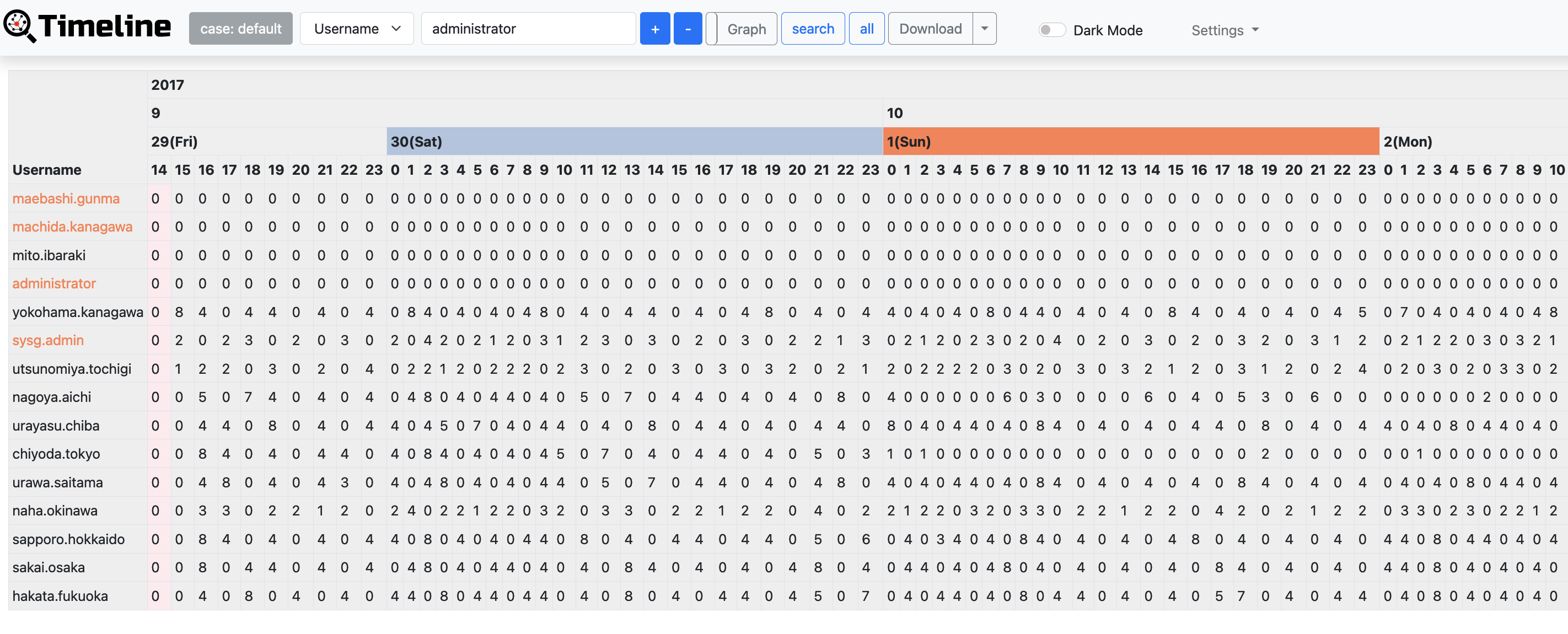
With LogonTracer, it is also possible to display event logs in chronological order.
Python 3.9 or later (3.12 recommended)
Neo4j 5.x (Community or Enterprise)
OpenAI API key (optional — required only for AI analysis features)
Python modules
numpy
evtx
lxml
scipy
changefinder
flask
hmmlearn>=0.2.8
scikit-learn
elasticsearch-dsl>=7.0.0,<8.0.0
pyyaml
flask-sqlalchemy
flask-login
flask_wtf
flask-limiter
wtforms
GitPython
pysigma>=0.11.0
pysigma-backend-sqlite
openai>=1.0.0
aiohttp
neo4j
git clone https://github.com/JPCERTCC/LogonTracer.git
cd LogonTracer
pip3 install -r requirements.txt
Download and start Neo4j. Set the initial password and note the Bolt port (default: 7687).
vi config/config.yml
Key settings:
settings:
  logontracer:
    WEB_PORT: "8080"
    default_user: "neo4j"       # Neo4j username for the default LogonTracer account
    default_password: "password" # Change this before first run

  neo4j:
    NEO4J_USER: "neo4j"
    NEO4J_PASSWORD: "password"   # Your Neo4j password
    NEO4J_SERVER: "localhost"
    WS_PORT: "7687"
python3 logontracer.py --run
Open your browser at http://localhost:8080.
python3 logontracer.py -e <path/to/Security.evtx> -z <UTC offset> -s <Neo4j server> -u <user> -p <password>
python3 logontracer.py -x <path/to/event.xml> -z <UTC offset> -s <Neo4j server> -u <user> -p <password>
python3 logontracer.py --es -s <Neo4j server> -u <user> -p <password> --es-server <ES host:port>
Add the --sigma flag to run Sigma rule detection during import:
python3 logontracer.py -e <path/to/Security.evtx> -z 9 -s localhost -u neo4j -p password --sigma
python3 logontracer.py -e <path/to/Security.evtx> -z 9 -s localhost -u neo4j -p password --add
After starting the web application, click Upload Event Log in the left sidebar. You can:
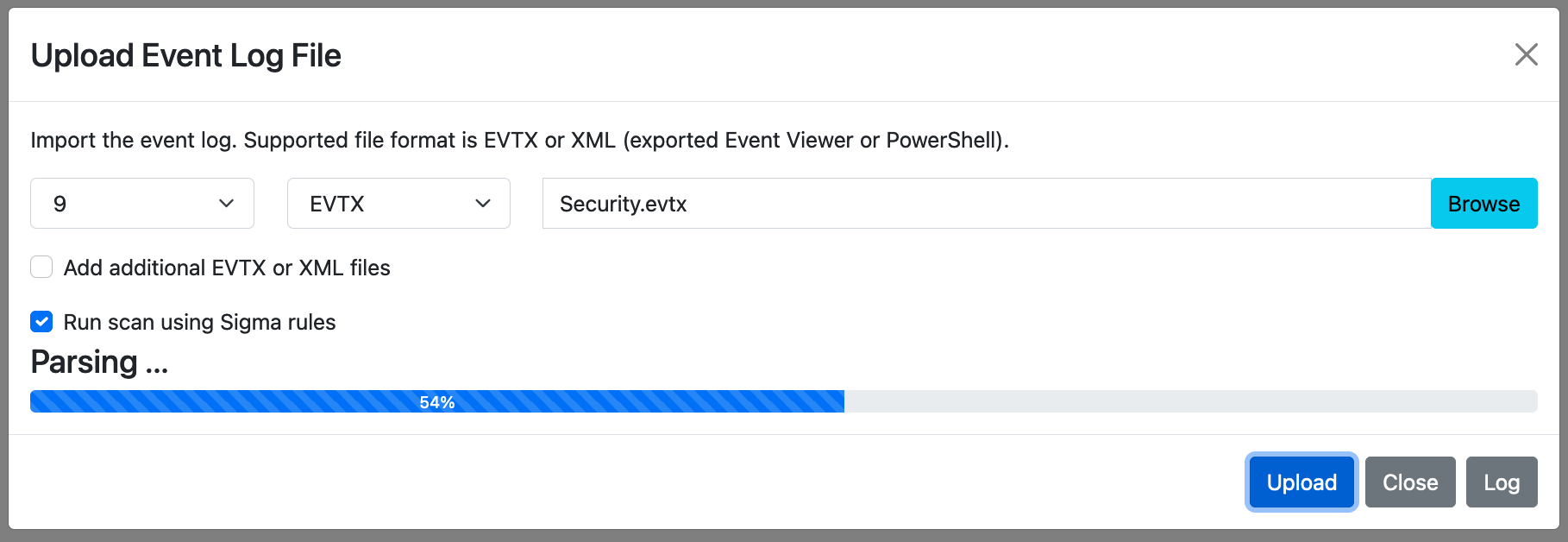
After uploading with Sigma scanning enabled, or after triggering a rescan via the API, click Sigma Scan Results in the sidebar to view findings.