 joeavanzato/trawler
PowerShell script helping Incident Responders discover potential adversary persistence mechanisms.

Trawler is a PowerShell script designed to help Incident Responders discover potential indicators of compromise on Windows hosts, primarily focused on persistence mechanisms including Scheduled Tasks, Services, Registry Modifications, Startup Items, Binary Modifications and more.
Currently, trawler can detect most of the persistence techniques specifically called out by MITRE and Atomic Red Team with more detections being added on a regular basis.
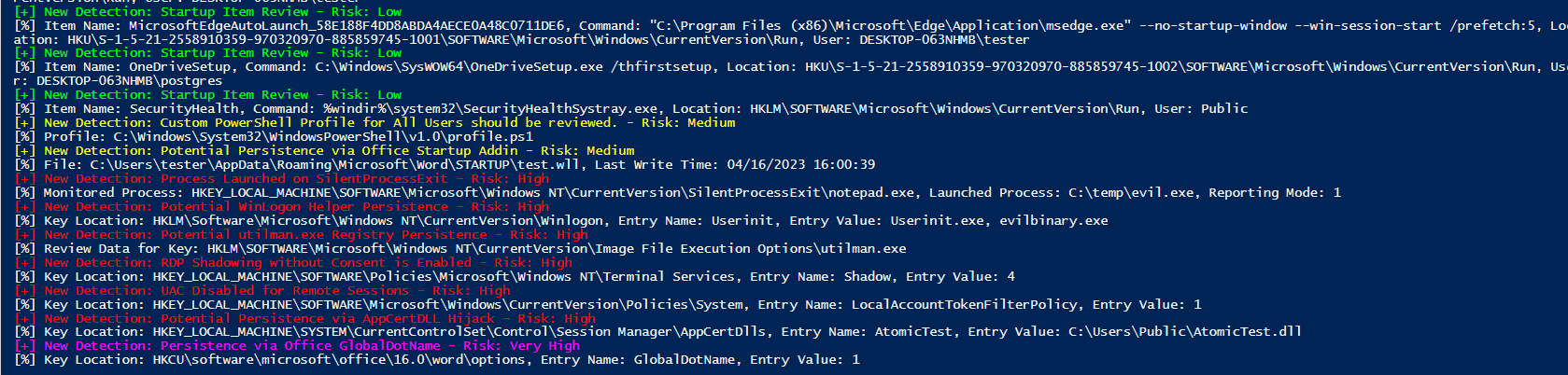
Just download and run trawler.ps1 from an Administrative PowerShell/cmd prompt - any detections will be displayed in the console as well as written to a CSV ('detections.csv') in the current working directory. The generated CSV will contain Detection Name, Source, Risk, Metadata and the relevant MITRE Technique.
Or use this one-liner from an Administrative PowerShell terminal:
iex ((New-Object System.Net.WebClient).DownloadString('https://raw.githubusercontent.com/joeavanzato/Trawler/main/trawler.ps1'))
Certain detections have allow-lists built-in to help remove noise from default Windows configurations (10/2016/2019/2022) - expected Scheduled Tasks, Services, etc. Of course, it is always possible for attackers to hijack these directly and masquerade with great detail as a default OS process - take care to use multiple forms of analysis and detection when dealing with skillful adversaries.
If you have examples or ideas for additional detections, please feel free to submit an Issue or PR with relevant technical details/references - the code-base is a little messy right now and will be cleaned up over time.
Additionally, if you identify obvious false positives, please let me know by opening an issue or PR on GitHub! The obvious culprits for this will be non-standard COMs, Services or Tasks.
-scanoptions : Tab-through for possible detections and select a sub-set using comma-delimited terms (eg. .\trawler.ps1 -scanoptions Services,Processes) or skip to do all detections
-quiet : Suppress Detection output to console
-snapshot : Path to a previous trawler JSON output to use as an allow-list.
-outpath : Define a custom file-path for saving detection output to (defaults to "$PSScriptRoot\detections.csv")
-drivetarget : Define the variable for a mounted target drive (eg. .\trawler.ps1 -targetdrive "D:") - (defaults to local system)
-daysago : Define how many 'days back' we want to take into consideration for time-based detections (defaults to 45)
-hashmode : Define which hashing algorithm we want to use for supported detections - supports sha1, md5 or sha256 (defaults to sha1)
-evtx : Enable creation of Event Log Source and Writing of Detections to Application event log under Source=trawler with EID=9001 (default is disabled)
PersistenceSniper is an awesome tool - I've used it heavily in the past - but there are a few key points that differentiate these utilities
Overall, these tools are extremely similar but approach the problem from slightly different angles - PersistenceSniper provides all information back to the analyst for review while Trawler tries to limit what is returned to only results that are likely to be potential adversary persistence mechanisms. As such, there is a possibility for false-negatives with trawler if an adversary completely mimics an allow-listed item.
As an example - PersistenceSniper will return all 'non-safe' Windows Services while trawler will only return those that match a specific detection rule, etc.
Trawler supports loading an allow-list from a 'snapshot' - to do this requires two steps.
That's it - all relevant detections will then draw from the snapshot file as an allow-list to reduce noise and identify any potential changes to the base image that may have occurred.
(Allow-listing is implemented for most of the checks but not all - still being actively implemented)
Often during an investigation, analysts may end up mounting a new drive that represents an imaged Windows device - Trawler now partially supports scanning these mounted drives through the use of the '-drivetarget' parameter.
At runtime, Trawler will re-target temporary script-level variables for use in checking file-based artifacts and also will attempt to load relevant Registry Hives (HKLM\SOFTWARE, HKLM\SYSTEM, NTUSER.DATs, USRCLASS.DATs) underneath HKLM/HKU and prefixed by 'ANALYSIS_'. Trawler will also attempt to unload these temporarily loaded hives upon script completion.
As an example, if you have an image mounted at a location such as 'F:\Test' which contains the NTFS file system ('F:\Test\Windows', 'F:\Test\User', etc) then you can invoke trawler like below;
.\trawler.ps1 -drivetarget "F:\Test"
Please note that since trawler attempts to load the registry hive files from the drive in question, mapping a UNC path to a live remote device will NOT work as those files will not be accessible due to system locks. I am working on an approach which will handle live remote devices, stay tuned.
