
EntraFalcon V20260824
A lightweight PowerShell tool for assessing the security posture of Microsoft Entra ID environments. It helps identify privileged objects, risky assignments, and potential misconfigurations.
EntraFalcon

EntraFalcon is a PowerShell-based assessment tool for pentesters, security analysts, and system administrators to evaluate the security posture of a Microsoft Entra ID environment.
Designed for ease of use, EntraFalcon runs on PowerShell 5.1 and 7, supports both Windows and Linux, and requires no additional PowerShell modules, extra installations, or Microsoft Graph API consent.
The tool helps uncover privileged objects, potentially risky assignments and Conditional Access misconfigurations that are often overlooked, such as:
- Users with control over high-privilege groups or applications
- External or internal enterprise applications with excessive permissions (e.g., Microsoft Graph API, Azure roles)
- Users with Azure IAM role assignments directly on resources
- Privileged accounts synced from on-premises
- Inactive users or users without MFA capability
- Unprotected groups used in sensitive assignments (e.g., Conditional Access exclusions, Subscription Owner, or eligible member of a privileged group)
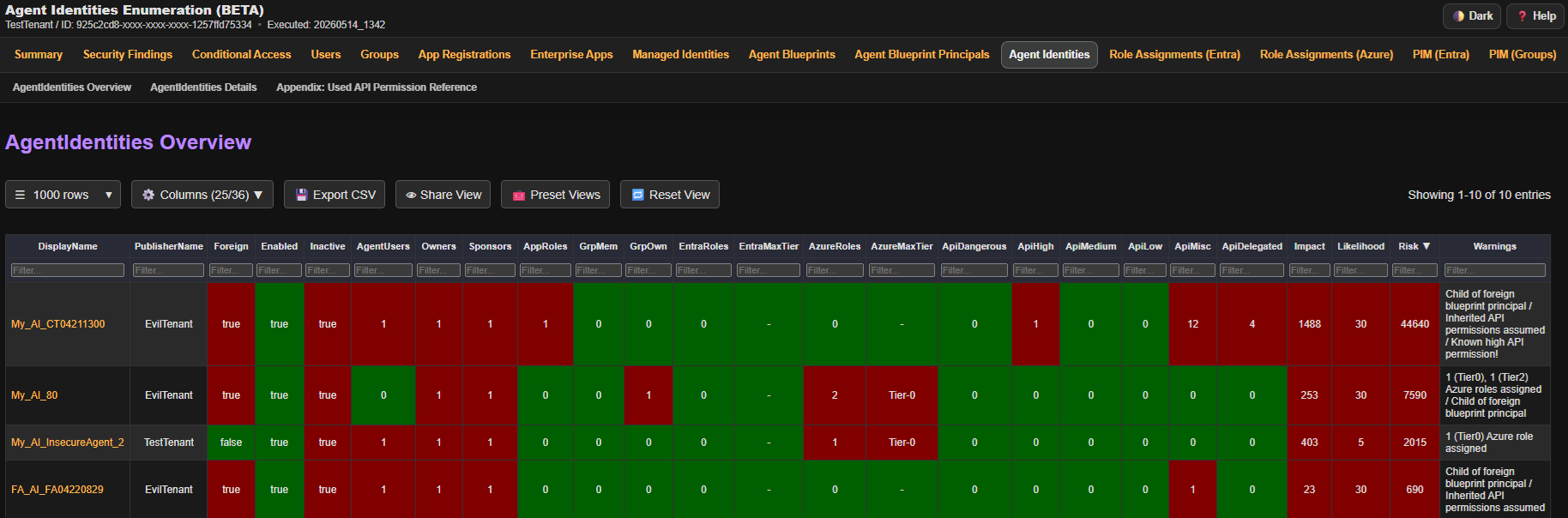
Findings are presented in interactive HTML reports to support efficient exploration and analysis.
🚀 Features
- Simple PowerShell script compatible with PowerShell 5.1 and 7. Works on Windows and Linux
- Built-in authentication supporting multiple methods
- Uses first-party Microsoft applications with pre-consented scopes to bypass Graph API consent prompts
- Generates navigable HTML reports that support filtering, sorting, data export, etc.
- Performs >90 automated checks and summarizes the results in a Security Findings Report
- Includes checks for weak tenant configurations and risky object properties or permissions
- Provides severity ratings as well as descriptions of the issue, potential threats, and remediation guidance
- Lists affected objects and links directly to their detailed reports for further investigation
- Performs basic impact, likelihood, and risk scoring to highlight weakly protected high-privilege objects and sort the data.
- Displays warnings for risky configurations and elevated privileges
- Enumerates Entra ID objects, including:
- Users (including Agent Users)
- Groups
- Enterprise Applications
- App Registrations
- Managed Identities
- Agent identities
- Agent identity blueprint principals
- Agent identity blueprints
- PIM assignments:
- PIM for Entra Roles
- PIM for Groups
- PIM for Azure Roles
- Entra Role Assignments
- Azure Role Assignments
- Intune RBAC Assignments
- Access Packages
- Entitlement Management Catalogs
- Catalog RBAC
- Conditional Access Policies
- Administrative Units
- PIM settings:
- PIM for Entra Roles
- PIM for Groups (BroCi auth only)
✅ Requirements
| Type | Permission | Mandatory | Impact if missing |
|---|---|---|---|
| Entra ID Role | Global Reader | Yes | Not possible to run the scripts |
| Azure Role | Reader: On every Management Group or Subscription | No | Can't assess Azure IAM assignments |
Furthermore, you must be able to authenticate to the Microsoft Graph API and optionally the Azure ARM API from the device where you run the tool. Ensure that Conditional Access Policies do not block your authentication.
▶️ Usage
Download EntraFalcon
To get started, clone the repository and navigate into the project directory:
git clone https://github.com/CompassSecurity/EntraFalcon
cd EntraFalcon
Note: You may need to temporarily change the PowerShell execution policy to run the script. Only do this for trusted scripts!
Set-ExecutionPolicy -ExecutionPolicy Unrestricted -Scope Process
Run EntraFalcon
EntraFalcon includes built-in support for Entra ID authentication. Use -AuthFlow to select the authentication flow.
For normal assessments, use one of the full-coverage flows:
| Recommended Flow | Best For | Platform | Coverage |
|---|---|---|---|
BroCi (default) | Interactive Windows runs | Windows | Full |
BroCiManualCode | Authentication in another browser | Windows, Linux, macOS | Full |
BroCiToken | Existing Azure Portal refresh token | Windows, Linux, macOS | Full |
ServicePrincipal | Automation / CI | Windows, Linux, macOS | Full |
BroCi uses one interactive login. BroCiToken and ServicePrincipal use none. Fallback user flows may require multiple interactive logins because separate resource tokens are requested.
Fallback Authentication Flows
Due to the lack of pre-consented first-party applications, the fallback flows cannot perform the full enumeration (PIM for Groups, Access Packages, Catalogs). Therefore, they currently remain fallback options only.
| Flow | Use Only When | Platform | Limitations |
|---|---|---|---|
AuthCode | Legacy compatibility is required | Windows | Partial coverage. No standalone PIM for Groups, Access Packages, or Catalogs report. |
DeviceCode | Browser-based authentication is not possible | Windows, Linux, macOS | Partial coverage. No standalone PIM for Groups, Access Packages, or Catalogs report. Some Security Findings checks run with reduced depth. |
ManualCode | Authentication must be completed through a separate browser session | Windows, Linux, macOS | Partial coverage. No standalone PIM for Groups, Access Packages, or Catalogs report. |
Recommended: BroCi Flow (default / Windows only)
BroCi uses alternate first-party applications and requires only one interactive sign-in.
It is useful when the Azure Active Directory PowerShell client requires assignment and must be avoided.
.\run_EntraFalcon.ps1
Explicit BroCi selection:
.\run_EntraFalcon.ps1 -AuthFlow BroCi
Recommended: BroCi + Manual Code Flow
.\run_EntraFalcon.ps1 -AuthFlow BroCiManualCode
- The script copies the authentication URL to the clipboard.
- Paste the URL into a browser (optionally on another device for SSO support).
- Open the browser developer tools and, in the Network tab, enable
Preserve log. - Complete authentication.
- Search the network log for
code=1.and copy the request URL containing the code to the clipboard. - Press Enter to continue; the script reads the code from the clipboard and completes token acquisition.
Recommended: BroCi with Token
If a valid Azure Portal refresh token is already available (client c44b4083-3bb0-49c1-b47d-974e53cbdf3c), it can be used directly. Example: Obtaining the refresh token from the browser
- Open the browser developer tools and, in the Network tab, enable Preserve log.
- Authenticate at https://entra.microsoft.com.
- Search the network log for
brk_client_id=c44b4083-3bb0-49c1-b47d-974e53cbdf3cand extract the refresh token from the response.
.\run_EntraFalcon.ps1 -AuthFlow BroCiToken -BroCiToken "1.XXXXXXXXXXX"
Recommended: Service Principal
Authenticates as a registered application using the OAuth2 client credentials grant — no user interaction required.
Useful for repeated automated executions.
Requires a custom Entra app registration with Application-type Graph API permissions (see below).
With client secret:
.\run_EntraFalcon.ps1 -AuthFlow ServicePrincipal -Tenant "mysecuretenant.ch" -SPClientId "<AppId>" -SPClientSecret "<Secret>"
With PFX certificate:
.\run_EntraFalcon.ps1 -AuthFlow ServicePrincipal -Tenant "mysecuretenant.ch" -SPClientId "<AppId>" -SPCertificatePath "C:\certs\app.pfx"
For a password-protected PFX, add -SPCertificatePassword (Read-Host -Prompt "Certificate password" -AsSecureString).