 purp1ew0lf/blue-team-notes
You didn't think I'd go and leave the blue team out, right?


A collection of one-liners, small scripts, and some useful tips for blue team work.
I've included screenshots where possible so you know what you're getting.
If you see a mistake, or have an easier way to run a command then you're welcome to hit me up on Twitter or commit an issue here.
If you want to contribute I'd be grateful for the command and a screenshot. I'll of course add you as a contributor
If you want to find me elsehwere, for reasons(?), searching 'Dray Agha' on the internets should find whatever it is you're looking for.
I hope the Blue Team Notes help you catch an adversary, thwart an attack, or even just helps you learn. If you've benefited from the Blue Team Notes, would you kindly consider making a donation to one or two charities.
Donate as much or little money as you like, of course. I have some UK charities you could donate to: Great Ormond Street - Children's hospital, Cancer Research, and Feeding Britain - food charity
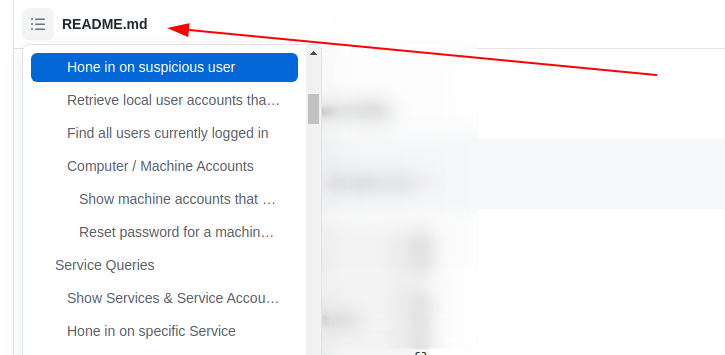
As you scroll along, it's easy to lose orientation. Wherever you are in the Blue Team Notes, if you look to the top-left of the readme you'll see a little icon. This is a small table of contents, and it will help you figure out where you are, where you've been, and where you're going
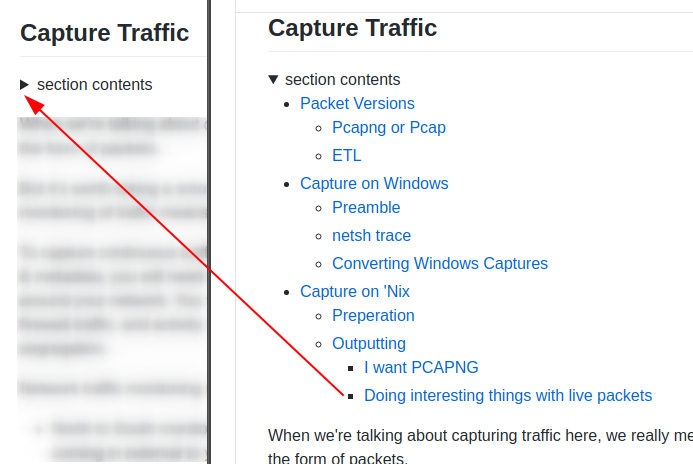
As you go through sections, you may notice the arrowhead that says 'section contents'. I have nestled the sub-headings in these, to make life a bit easier.
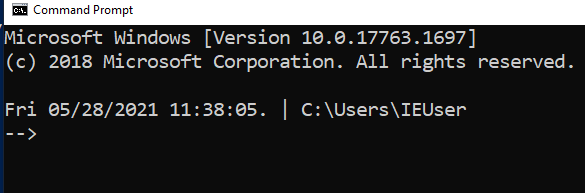
For screenshots during IR, I like to have the date, time, and sometimes the timezone in my shell
setx prompt $D$S$T$H$H$H$S$B$S$P$_--$g
:: all the H's are to backspace the stupid microsecond timestamp
:: $_ and --$g seperate the date/time and path from the actual shell
:: We make the use of the prompt command: https://docs.microsoft.com/en-us/windows-server/administration/windows-commands/prompt
:: setx is in fact the command line command to write variables to the registery
:: We are writing the prompt's new timestamp value in the cmd line into the reg so it stays, otherwise it would not stay in the cmdline when we closed it.
###create a powershell profile, if it doesnt exist already
New-Item $Profile -ItemType file –Force
##open it in notepad to edit
function prompt{ "[$(Get-Date)]" +" | PS "+ "$(Get-Location) > "}
##risky move, need to tighten this up. Change your execution policy or it won't
#run the profile ps1
#run as powershell admin
Set-ExecutionPolicy RemoteSigned

##open .bashrc
sudo nano .bashrc
#https://www.howtogeek.com/307701/how-to-customize-and-colorize-your-bash-prompt/
##date, time, colour, and parent+child directory only, and -> promptt
PS1='\[\033[00;35m\][`date  +"%d-%b-%y %T %Z"]` ${PWD#"${PWD%/*/*}/"}\n\[\033[01;36m\]-> \[\033[00;37m\]'
      ##begin purple  #year,month,day,time,timezone #show last 2 dir #next line, cyan,->prompt #back to normal white text
#restart the bash source
source ~/.bashrc

I've generally used these Powershell queries with Velociraptor, which can query thousands of endpoints at once.
