 jitpass/jit
Find the plaintext secrets on your Mac and move them behind Touch ID, injected just in time without breaking the tools that read them. Free and local-first.


You have API keys and tokens in plaintext on your Mac.
Use JitPass to protect them.




Download for Mac ·
brew install jitpass/tap/jitpass ·
Docs ·
jitpass.com
Free for personal and internal company use · Source-available · No account · No telemetry · Nothing leaves your Mac · Secure Enclave ready · Every change can be undone

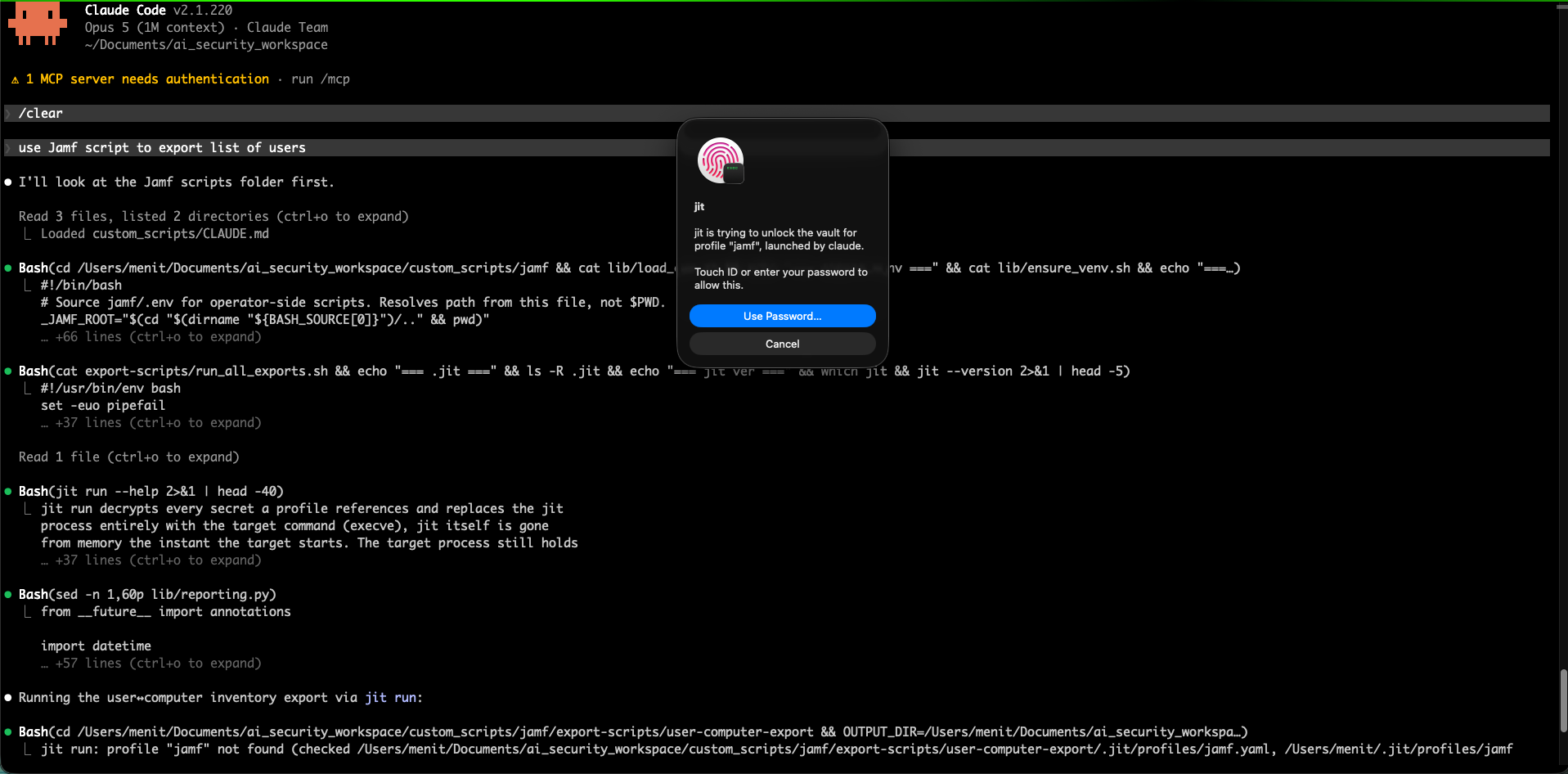
What's the number on your Mac? The scan only reads, and changes nothing until you say so.
Get started
The problem ·
Three steps ·
Install ·
The menu bar
Protect
Findings and decoys ·
Your tools keep working ·
Undo anything
Approve
Two Touch ID moments ·
Grants ·
The audit
AI agents
Built for AI agents ·
AI jobs ·
A grant or an AI job?
More
How it compares ·
How it works ·
What it does not do ·
Docs
API keys in .env, cloud credentials in ~/.aws/credentials, tokens in
.npmrc, exports in ~/.zshrc, your shell history, the MCP configs your
agents read. Nothing has to be hacked for them to leak. A compromised npm
package, a trojanized IDE extension or a prompt-injected agent runs as you, so
it can simply open the file.
JitPass moves each secret into a local vault that opens with Touch ID, and leaves a decoy where the plaintext was.

No terminal needed: open JitPass and setup walks you through steps 1 and 2.
jit scan                 # read-only: every exposed secret, file and line
jit migrate --dry-run    # preview the whole fix plan
jit migrate              # apply it: shows the plan, asks [y/N], one Touch ID
jit audit                # afterwards: every request, and what you answered
jit scan with no path sweeps your home folder; point it somewhere to go
faster (jit scan ~/.aws). Everything the app does is one of these commands.
Download for Mac ·
brew install jitpass/tap/jitpass
Free · No account · Every change can be undone
Your coding agent runs as you, with your shell and your files. One poisoned
README, issue or web page can tell it to cat .env and paste the result
somewhere. With JitPass, there is nothing real in that file to paste.

aws or an MCP server, you
see which program and which agent, then decide.The AI Agents window shows each agent on your Mac: keys in its files, what it can reach, and what it did this week.
jit migrate ~/.claude.json            # MCP server keys move to the vault
jit wrap claude                       # the agent's own API key too
jit migrate caches                    # clear copies of vaulted keys from agent transcripts
jit migrate redact                    # and tokens in them that were never vaulted
jit audit --parent claude             # what the agent touched
More in MCP and AI tools and per-process consent.
Some work needs a key and a script, and you want an agent to do it: export a report, sync a list, call an internal API. Handing the agent the key means it is in the agent's context, its transcript and its sandbox. An AI Job hands it the result instead.
A job is a command you approved, with the secrets it gets. When an AI tool asks for one, the jit service runs it: it decrypts, starts the command in its folder, hides every secret value in the output, and hands back the text.
Open AI Jobs from the menu bar and press New AI Job…. Pick the profile whose secrets the script needs, then the script, and approve. Connect adds jit to Claude Desktop or Cursor; terminal agents like Claude Code and Codex need nothing.
$ jit job allow notion-export -- .venv/bin/python export_pages.py
  Touch ID  ->  let AI run notion/export_pages.py with 3 notion secrets
✓ Approved notion-export · 41 files fingerprinted
jit job run notion-export          # what Claude Code, Codex or Gemini CLI types
jit mcp install                    # Claude Desktop, whose Cowork shell can't run jit itself
jit mcp install --client cursor    # Cursor
What the tool gets back is the script's own output, then what jit adds:
Exported 42 pages to out/notion_20260925.csv
[jit] new file: out/notion_20260925.csv
[jit] hidden values: none
If the script had printed its key, the line would read
[hidden: NOTION_API_KEY] in its place, and the count would say so.
Three rules make it safe to leave running:
python -c, sh -c,
env, cat: anything that would just print the secrets it is given.A job asks for Touch ID on every run by default. --ask never lets it run
while you are away, until you remove it; removing a job never asks. Add
--dry-run to see the whole job without approving anything. Details:
AI jobs. Wondering whether you need a grant
instead? See A grant or an AI job?
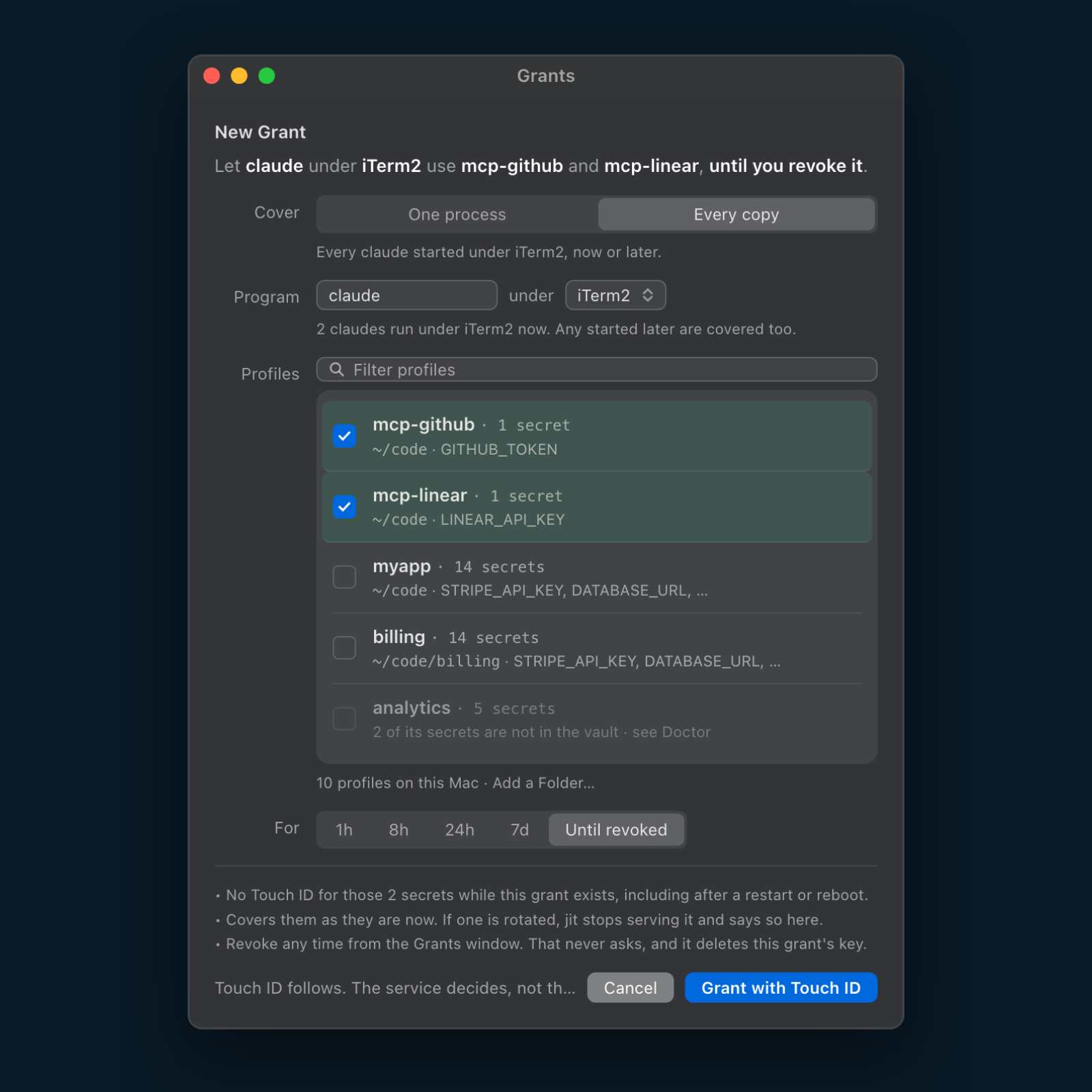
An agent working overnight or a 3 a.m. job stalls on a question nobody is there to answer. A grant moves your decision earlier instead of removing it: one Touch ID while you are still there, naming exactly which program may use which secrets, and for how long.
Open New Grant… from the menu bar. Pick the program (every copy started under a terminal or editor, or one running process), tick the profiles it may use, and choose how long: 1 hour to 7 days, or until you revoke it. A grant ends at its deadline, when that one process exits, or when you press Revoke, which never asks: taking access away is always free.
$ jit grant --process claude --profile myapp --for 8h
  Touch ID  ->  let claude under iTerm2 use 2 secrets (myapp) unattended for 8h
✓ granted g-7f3a2c81   claude -> myapp   until 17:42
It covers claude under the terminal you typed that in, through screen lock,
and nothing called claude anywhere else. Swap --for 8h for
--until-revoked and it has no deadline: it holds a key of its own, survives
a restart and a reboot, and ends only on jit grant revoke. Details:
process grants.
Both let an agent work without asking you each time. The difference is whether the agent ever holds the key.
No new commands to learn. Protect a credential once, then keep typing what you always typed.

The Tools window shows every CLI jit protects, and the proof that it is working: when its key was last read, by what, and whether any other program touched it.
aws s3 ls                     # AWS and Terraform: from the vault, no prefix, no flag
gh pr list                    # CLIs with their own token (gh, stripe, glab): wrapped once
docker login ghcr.io          # registry logins are stored through a credential helper
jit run -- docker compose up  # tools that only read a file get it for one run
./deploy.sh                   # exports that lived in ~/.zshrc: new shells just have them
jit wrap list                 # every wrapped tool, and whether its shim works
jit wrap add gh --env GH_TOKEN=wrap-gh/GH_TOKEN   # wrap a tool jit doesn't know yet
jit audit --kind use --since 7d   # which program read which key this week
jit guard history             # keep typed tokens out of your zsh history file
Your shell history stays clean too. Turn on Keep typed secrets out of
zsh history in Settings › Protection, or run jit guard history. A
command you type with a token in it still works, and up-arrow still finds it,
but it is never written to your history file, so it can't end up in a backup
or a dotfiles repo. The hook fails open: if anything goes wrong, the
line is saved as normal and your shell never waits on it.
Supported: .env files, shell exports, AWS and Terraform, kubeconfig,
Docker registries, GCP ADC, .npmrc and .netrc, MCP configs, bare token
files, tokens in your shell history, wrappable CLIs (gh, stripe, vercel
and more) and SSO CLIs that mint credentials at login. The full list, with
exactly what to type for each, is Supported tools;
anything else can be wrapped with jit wrap add.
Other tools keep secrets out of your repo. JitPass is the only one that decides which program on your Mac gets each secret, and it is built for the AI agents that run on it.
✅ yes · 🟡 partly, see below · ❌ no. From each tool's own documentation, September 2026.
.env is readable by
"every process" while it is unlocked. Varlock, Doppler and dotenvx give the
values to whatever you start through their command..env files.
varlock scan searches your codebase. dotenvx blocks committing a plaintext
.env, which stops a leak but does not find one.Teams that share secrets across machines need one of the others; JitPass protects the Mac you work on, and works with them.
Already use 1Password? Keep it as your source of truth.
jit migrate links instead of copying: a value
that lives in 1Password is vaulted as its op:// reference, and JitPass
decides which program gets it.
JitPass never destroys a credential. It moves the value into the vault, leaves a working hook where it was, and backs the file up, encrypted, before it touches it.
Changed your mind about all of it? Settings › Reset › Remove JitPass… shows you the plan before anything changes, then runs it with one Touch ID:

Tokens it cleaned out of your shell history and AI caches stay cleaned. If a file cannot be put back, it stops and asks before deleting anything. Moving the app to the Trash is your last click.
jit migrate undo ~/code/myapp      # one project back, every file byte for byte
jit uninstall --restore --dry-run  # the whole removal plan, changing nothing
jit uninstall --restore            # run it
brew install jitpass/tap/jitpass
That installs JitPass into /Applications with the jit command line inside
it, linked onto PATH with shell completions. Without Homebrew,
download the app,
drag it into Applications and open it: it offers to link jit onto your PATH
and checks for a newer release once a day.
Either way you get the same build, signed with a Developer ID and notarized by
Apple, and Gatekeeper checks it before it first runs. Check it yourself:
jit doctor reports signed CZC6BH93GJ. To update, brew upgrade jitpass,
or the app tells you when a release is out. Installs and updates never touch
your vault.
JitPass needs macOS 14 or later on Apple Silicon. On an Intel Mac, build the
CLI from source: go install github.com/jitpass/jit/cmd/jit@latest.
curl -sL https://dl.jitpass.com/jitpass/jit/releases/latest/download/jitpass_darwin_arm64.tar.gz | tar -xz jit
shasum -a 256 jit   # compare against checksums.txt on the release page
codesign -dv --verify --verbose=2 ./jit   # expect: Developer ID, TeamIdentifier=CZC6BH93GJ
sudo mv jit /usr/local/bin/
echo 'source <(jit completion zsh)' >> ~/.zshrc && exec zsh
curl sets no quarantine bit, so Gatekeeper never consults the notarization
ticket; the same is true of go install. The binary is still signed and
notarized, so the lines above let you check both, but you have to run them.
Update it with jit upgrade, a verified self-update. Pick one route: if you
switch to Homebrew later, remove this copy (sudo rm /usr/local/bin/jit),
and jit doctor flags two jits on PATH if you forget.

After setup, JitPass is a ring in your menu bar: green unlocked, red locked, amber a program is asking.
Click it to see your vault, your agents and tools, active grants, AI jobs,
today's decoy reads, and what is left to do. Lock Now, New Grant…,
New Scan… and Open Audit are one click away, and every window runs
the same commands as the jit CLI.
Scans run on a schedule too. A scheduled scan that finds something new tells you once, and the result waits in Findings.
jit status                    # the vault, the service, grants and what is protected
jit lock                      # Lock Now
jit doctor                    # the Doctor row: what is broken, and the fix
jit scan                      # New Scan
jit audit                     # Open Audit
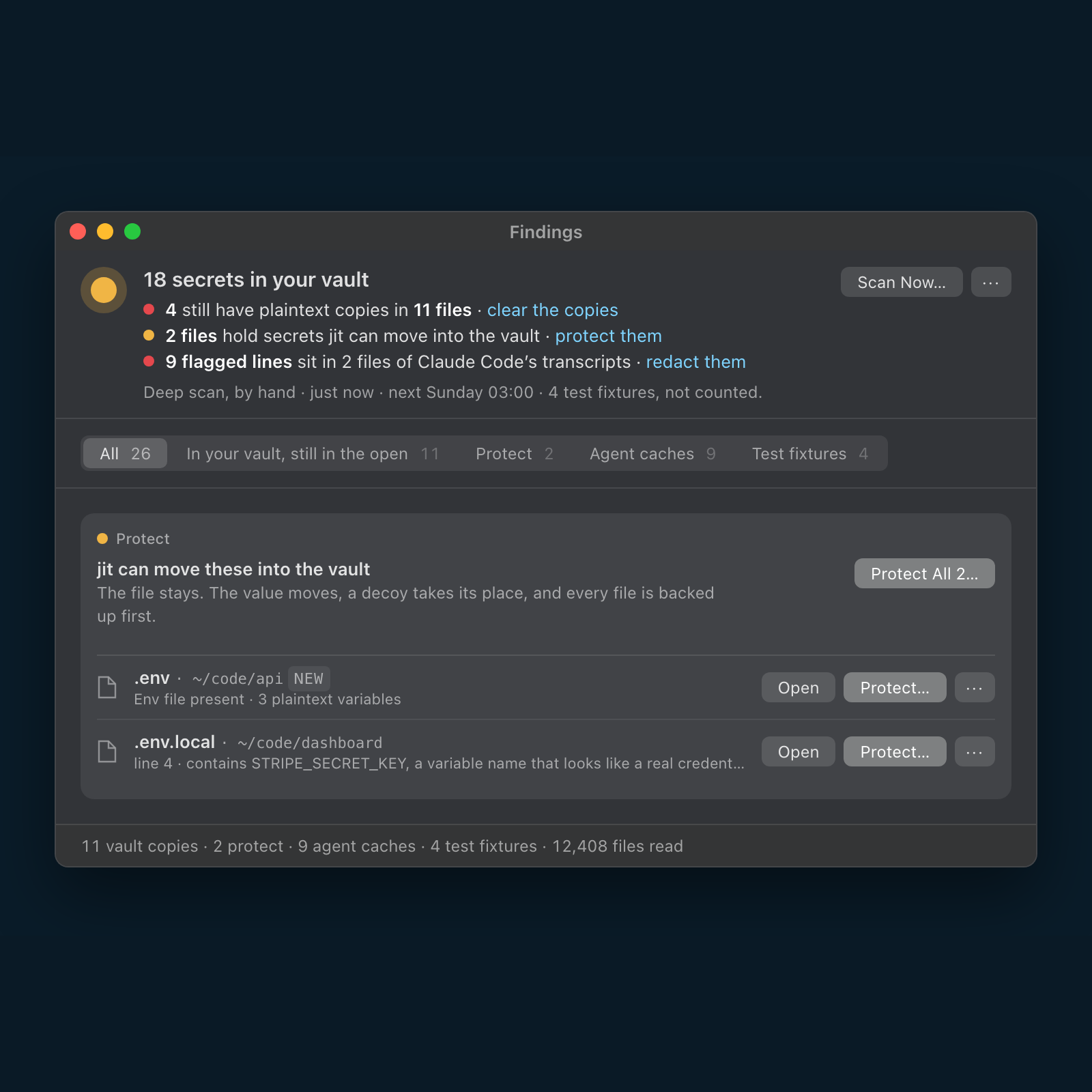
Most security tools hand you a number. JitPass hands you what to do, and every number opens the thing it counts.
jit scan --deep               # Findings: what is in the open, including copies of vaulted keys
jit migrate                   # protect them
jit migrate caches            # clear the copies agents kept
jit migrate redact            # redact other tokens in agent transcripts
jit audit --status decoy      # Decoys: every read that got a decoy
Unlocking the vault once opens it for your session. Handing a secret to
a program asks again, by name, the first time each program reaches for one.
The second question is what keeps an unlocked vault from being a free-for-all:
you used aws a minute ago, and a sketchy npm install reaching for the same
keys still has to ask.
A session ends after 5 minutes without use, and never lasts longer than 8 hours. When the app is not running, the second question is a Touch ID prompt that names the program.
Only want the vault lock? Turn off Ask before a tool's first use in
Settings › Protection, or run jit service consent off. Starting something that needs several secrets at
once? jit run --trust -- terraform apply approves that whole run in one
gesture. Details: per-process consent.
Every use, unlock and refusal lands in a durable log, and so does every time a program read a decoy. Arguments are masked, so the log proves a command ran without storing the secret it carried.

Read it from the bottom up. At 07:41 you said no to terraform apply. At
07:59 an npm install script opened ~/myapp/.env and got the decoy. At
08:00 you asked Claude to upload the build, and aws used your key, with
claude named as the program that launched it. Open Audit in the menu
bar shows it; filter by kind, time, or what launched it.
$ jit audit --since 1h --format logfmt
time=2026-07-24 10:16:22 level=info kind=use op="read a secret" cmd="aws s3 ls" parent=claude secrets=aws/default
time=2026-07-24 10:31:09 level=warn kind=unlock status=denied method=touchid-or-passcode cmd="node postinstall.js" parent=npm secrets=aws/default
Plain jit audit shows the same events as a grouped timeline. Filter with
--parent claude, --secret aws, --status denied or --since 3d, and
stream with --follow.
Where secrets live. Each secret is sealed with its own AES-256-GCM key, and those keys are wrapped by a master key kept in your login keychain, on this Mac only. Nothing is stored in plaintext, and nothing syncs anywhere.
Or in the Secure Enclave. Move the master key into your Mac's Secure Enclave, the chip that holds keys and never lets them out. Then the key cannot be copied off this Mac, and no other program running as you can read it. Opening it takes Touch ID or your password, enforced by the Secure Enclave. It is opt-in and off by default: in JitPass, open Settings › Protection and choose Move to Secure Enclave… on the Vault key row. It saves a recovery file first, and Move Back to Keychain… is in the same row's ··· menu. Your secrets, grants and AI jobs stay as they are, and nothing is re-encrypted.
jit vault export <file>                     # a current recovery file is required first
jit vault rekey --wrapper secure-enclave    # move the vault key into the Secure Enclave
jit vault rekey --wrapper keychain          # move it back, any time
It needs an Apple Silicon Mac and the jit inside JitPass.app; a jit
installed on its own cannot reach the Secure Enclave, and says so. The key
cannot follow you to a new Mac, so jit refuses the move until you have a
current recovery file. The Secure Enclave page
covers moving back, a new or erased Mac, and what jit doctor may report.
How a program gets one. No kernel extension, no filesystem driver, no FUSE. Three mechanisms, picked by what the tool can do:
execve. jit's own image
is replaced by your command, so the value lives in that one process and jit
is gone from memory.credential_process, docker and git credential helpers, kubectl exec
plugins, Terraform's credentials helper. The tool asks, jit answers, no
file involved.The mount is a POSIX FIFO, created with mkfifo(2) at mode 0600. A program
calling open(".env") blocks in the kernel until a writer connects. The
background service is that writer: it opens the path O_WRONLY, which
releases the reader, writes the decrypted bytes from memory into the kernel
pipe buffer, closes, and loops back to open(2) for the next reader. Nothing
touches the disk. What gets written is decided per read: decoys for an ambient
reader, real values only inside a run you authorized.
Caller identity explains and audits, it never decides. Process names are
forgeable, and a fast-closing FIFO reader can evade identification entirely.
The human answering the prompt is the gate; the process name only tells you
what to answer. The app is a thin client of the same service: every action is
a request the jit CLI can also send, and the app never sees a secret value or
a key.
Full detail in how it works and live mounts.
Every boundary is stated on one page: the deliberate limits.
git commit -s), which also accepts the CLAPolyForm Perimeter License 1.0.0: source-available, and free for personal and internal company use.

1. FindSetup scans your Mac and changes nothing. It recognises 100+ token formats (OpenAI, Anthropic, AWS, GitHub, Stripe and more), plus private keys and database URLs. |

2. ProtectOne click moves each secret into the vault and leaves a decoy in its place. Every file is backed up first, and your tools keep working. |

3. ApproveWhen a program reaches for a real key, JitPass names it and what launched it. Allow with Touch ID, or deny. |
| Protect | Approve | AI agents |
|---|---|---|
| Decoys on disk A program that reads .env or ~/.aws/credentials without asking gets placeholder values, and the read is logged. | Every request named The first time a program reaches for a real secret, you see which one and what launched it, then decide. | AI Jobs Approve a script once. Your AI tool runs it and sees what it prints, never the key. |
| Findings What is still in the open, from 100+ token formats, each with the one thing to do about it. | Grants for when you are away Let one agent work overnight without prompts, for an hour, a week, or until you revoke it. | Claude Desktop and Cursor Connect them in one click. They run your AI jobs through a local MCP server, even from a sandbox. |
Your tools keep workingaws, gh, docker, terraform, kubectl and your shell get their secrets the way they always did. | A full audit trail Every use, unlock, refusal and decoy read, with the program that asked and the one that launched it. | Keys out of AI transcripts Searches the transcripts and edit history agents keep for copies of your keys and 100+ vendor token formats, and redacts them. |
| A clean shell history A zsh hook keeps any command you type with a token in it out of your history file. | Undo anything Every file is backed up before it changes. Put one project back, or remove JitPass and get every file back. | MCP keys out of configs MCP configs hold vault paths instead of keys, and agents' own API keys move to the vault too. |
| A key that never leaves your Mac Keep the vault key in the Secure Enclave, the chip that holds keys and never lets them out. | Locks when you walk away The vault locks after 5 minutes idle, when your screen locks, and when your Mac sleeps. | Every agent you use Claude Code, Codex, Gemini, Cursor, Copilot, Cline, OpenCode and Kiro, each named when it asks. |
 |  |
| 1. Pick a profile, pick a script, approve with Touch ID | 2. Every job, who ran it, and which AI apps can ask |
 |
| 1. Say who, which secrets and how long, then Touch ID | 2. Every grant, how often it was used, and Revoke |
| Grant | AI job |
|---|
| The agent gets | The real secret values | Only the script's output, with every value hidden |
| It can run | Anything it likes, with those secrets | One command you approved, in one folder |
| Who it covers | One program: every copy under a terminal, or one process | Any AI tool you connected: terminal agents, Claude Desktop, Cursor |
| If a file changes | Keeps working | Stops until you look and approve again |
| Touch ID | None while it lasts | Every run, or never until you remove it |
| Ends | At its deadline, when its process exits, or on Revoke | When you remove it |
| Use it when | The agent needs the key itself: aws, terraform, an MCP server | The agent needs a result, not the key, or runs in a sandbox like Claude Desktop |
| JitPass | 1Password | Varlock | Doppler | dotenvx |
|---|
| Asks per program, even while unlocked | ✅ | ❌ | ❌ | ❌ | ❌ |
| Finds plaintext keys already on your Mac | ✅ | 🟡 | 🟡 | ❌ | ❌ |
| Finds your keys in AI agent transcripts, and redacts them | ✅ | ❌ | ❌ | ❌ | ❌ |
A cold read of .env gets a decoy, and is logged | ✅ | ❌ | 🟡 | 🟡 | 🟡 |
| AI can use a secret without ever seeing it | ✅ | 🟡 | ✅ | ❌ | ❌ |
| Local only, no account, no cloud | ✅ | ❌ | ✅ | ❌ | ✅ |
 |
| Findings: what is still in the open, and the one fix for each | Decoys: who opened a protected file, and what they got |
