




Dockerイメージ、レイヤーコンテンツを探索し、Docker/OCIイメージのサイズを縮小する方法を見つけるためのツール。
Dockerイメージを分析するには、イメージタグ/ID/ダイジェストを指定してdiveを実行するだけです:
dive <your-image-tag>
または、Dockerで直接ダイブすることもできます:
alias dive="docker run -ti --rm  -v /var/run/docker.sock:/var/run/docker.sock docker.io/wagoodman/dive"
dive <your-image-tag>

# for example
dive nginx:latest
または、イメージをビルドしてからすぐに分析に飛び込みたい場合:
dive build -t <some-tag> .
macOSでのビルド(Dockerコンテナエンジンのみサポート):
docker run --rm -it \
      -v /var/run/docker.sock:/var/run/docker.sock \
      -v  "$(pwd)":"$(pwd)" \
      -w "$(pwd)" \
      -v "$HOME/.dive.yaml":"$HOME/.dive.yaml" \
      docker.io/wagoodman/dive:latest build -t <some-tag> .
さらに、CIパイプラインでこれを実行して、無駄なスペースを最小限に抑えていることを確認できます(UIはスキップされます):
CI=true dive <your-image>
これはベータ品質です! 新しい機能が必要な場合やバグを見つけた場合は、遠慮なく問題を送信してください :)
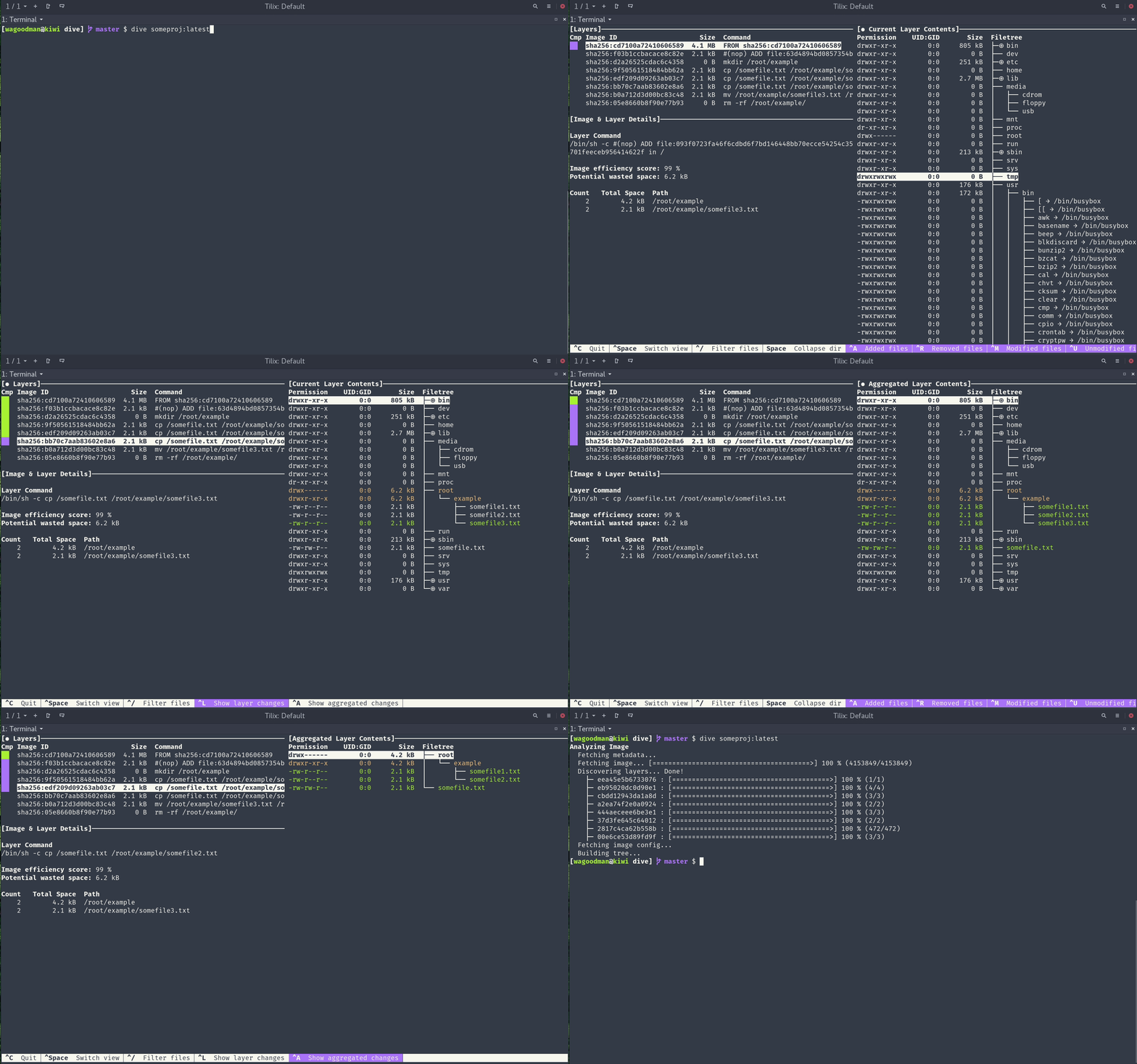
レイヤーごとに分割されたDockerイメージの内容を表示
左側でレイヤーを選択すると、右側にそのレイヤーとそれ以前のすべてのレイヤーの内容が結合されて表示されます。また、矢印キーでファイルツリーを完全に探索できます。
各レイヤーで変更された内容を示す
変更、修正、追加、または削除されたファイルがファイルツリーに表示されます。これは特定のレイヤーの変更、またはこのレイヤーまでの集約された変更を表示するように調整できます。
「イメージ効率」の推定
左下のペインには、基本的なレイヤー情報と、イメージにどれだけの無駄なスペースが含まれているかを推測する実験的なメトリックが表示されます。これは、レイヤー間でのファイルの重複、レイヤー間でのファイルの移動、またはファイルの完全な削除が行われていないことによる可能性があります。パーセンテージの「スコア」と無駄なファイルスペースの合計の両方が提供されます。
迅速なビルド/分析サイクル
1つのコマンドでDockerイメージをビルドし、即座に分析できます: dive build -t some-tag .
docker build コマンドを同じ dive build コマンドに置き換えるだけです。
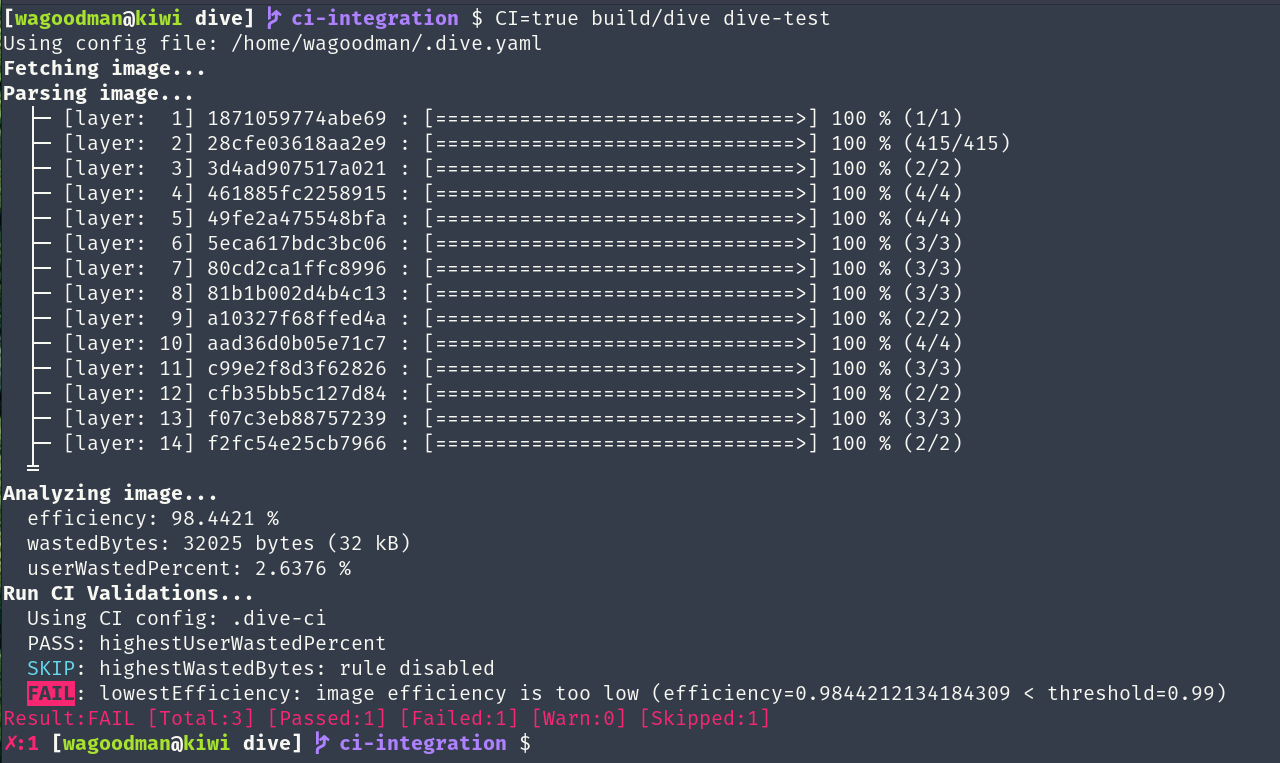
CI統合
イメージを分析し、イメージ効率と無駄なスペースに基づいて合格/不合格の結果を取得します。有効なdiveコマンドを呼び出すときに環境で CI=true を設定するだけです。
複数のイメージソースとコンテナエンジンをサポート
--source オプションを使用すると、コンテナイメージの取得元を選択できます:
dive <your-image> --source <source>
または
dive <source>://<your-image>
有効な source オプションは次のとおりです:
docker: Dockerエンジン(デフォルトオプション)docker-archive: ディスク上のDocker Tarアーカイブpodman: Podmanエンジン(Linuxのみ)Ubuntu/Debian
debの使用:
DIVE_VERSION=$(curl -sL "https://api.github.com/repos/wagoodman/dive/releases/latest" | grep '"tag_name":' | sed -E 's/.*"v([^"]+)".*/\1/')
curl -fOL "https://github.com/wagoodman/dive/releases/download/v${DIVE_VERSION}/dive_${DIVE_VERSION}_linux_amd64.deb"
sudo apt install ./dive_${DIVE_VERSION}_linux_amd64.deb
Snapの使用:
sudo snap install docker
sudo snap install dive
sudo snap connect dive:docker-executables docker:docker-executables
sudo snap connect dive:docker-daemon docker:docker-daemon
[!CAUTION] Snap方式は、
apt-getでDockerをインストールした場合、既存のDockerデーモンが壊れる可能性があるため推奨されません。
RHEL/Centos
DIVE_VERSION=$(curl -sL "https://api.github.com/repos/wagoodman/dive/releases/latest" | grep '"tag_name":' | sed -E 's/.*"v([^"]+)".*/\1/')
curl -fOL "https://github.com/wagoodman/dive/releases/download/v${DIVE_VERSION}/dive_${DIVE_VERSION}_linux_amd64.rpm"
rpm -i dive_${DIVE_VERSION}_linux_amd64.rpm
Arch Linux
extraリポジトリで利用可能で、pacmanでインストールできます:
pacman -S dive
Mac
Homebrewを使用する場合:
brew install dive
MacPortsを使用する場合:
sudo port install dive
または、リリースページから最新のDarwinビルドをダウンロードしてください。
Windows
Chocolateyを使用する場合
choco install dive
scoopを使用する場合
scoop install main/dive
wingetを使用する場合:
winget install --id wagoodman.dive
または、リリースページから最新のWindowsビルドをダウンロードしてください。
Go tools Goバージョン1.10以上が必要です。
go install github.com/wagoodman/dive@latest
注意: この方法でインストールすると、dive -v を実行した際に適切なバージョンが表示されません。
Nix/NixOS
NixOSの場合:
nix-env -iA nixos.dive
非NixOS(Linux、Mac)の場合
nix-env -iA nixpkgs.dive
X-CMD
x-cmdは、shellとawkで構築された軽量パッケージマネージャーを提供するPosix Shell向けツールボックスです。
x env use dive
Docker
docker pull docker.io/wagoodman/dive
# or alternatively
docker pull ghcr.io/wagoodman/dive
実行時にはDockerソケットファイルを含める必要があります:
docker run --rm -it \
    -v /var/run/docker.sock:/var/run/docker.sock \
    docker.io/wagoodman/dive:latest <dive arguments...>
Windows向けDocker(PowerShell互換の改行を示しています;コマンドプロンプト互換のためには1行に折りたたんでください)
docker run --rm -it `
    -v /var/run/docker.sock:/var/run/docker.sock `
    docker.io/wagoodman/dive:latest <dive arguments...>
注意: ローカルで実行しているDockerのバージョンによっては、Docker APIバージョンを環境変数として指定する必要がある場合があります:
DOCKER_API_VERSION=1.37 dive ...
またはDockerイメージで実行する場合:
docker run --rm -it \
    -v /var/run/docker.sock:/var/run/docker.sock \
    -e DOCKER_API_VERSION=1.37 \
    docker.io/wagoodman/dive:latest <dive arguments...>
代替ランタイム(Colimaなど)を使用している場合は、ローカルイメージをプルするためにDockerホストを環境変数として指定する必要がある場合があります:
export DOCKER_HOST=$(docker context inspect -f '{{ .Endpoints.docker.Host }}')
環境変数 CI=true を設定してdiveを実行すると、diveのUIがバイパスされ、代わりにDockerイメージを分析し、リターンコードを介して合格/不合格の表示を行います。現在、リポジトリのルートに配置できる .dive-ci ファイルを介して3つのメトリックがサポートされています:
rules:
  # If the efficiency is measured below X%, mark as failed.
  # Expressed as a ratio between 0-1.
  lowestEfficiency: 0.95

  # If the amount of wasted space is at least X or larger than X, mark as failed.
  # Expressed in B, KB, MB, and GB.
  highestWastedBytes: 20MB

  # If the amount of wasted space makes up for X% or more of the image, mark as failed.
  # Note: the base image layer is NOT included in the total image size.
  # Expressed as a ratio between 0-1; fails if the threshold is met or crossed.
  highestUserWastedPercent: 0.20
--ci-config オプションでCI設定パスを上書きできます。

