 joshuakasa/van-gonography
ステガノグラフィを使用して、🕵️♂️ あらゆる種類のファイルを好きな画像の中に隠します

お好みの画像の中に、あらゆる種類のファイルを隠す





| 隠すファイル | カバー画像 | ファイルを隠したカバー画像 |
|---|---|---|
 |  | 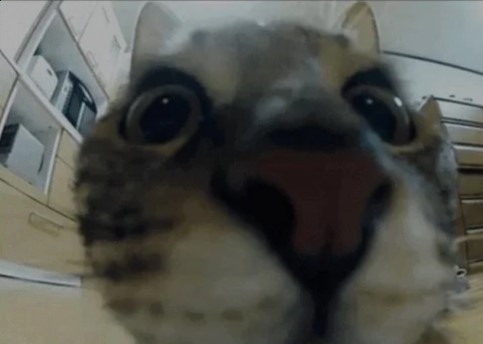 |
| 画像の中に隠したいファイルです | ファイルを隠したい画像です | ファイルが中に隠されたカバー画像です |



デジタルストレージの基本
コンピュータ上のすべてのものは、.exe ファイルから .jpg 画像まで、ビットとして保存されています。ビットとは、1 と 0 の並びにすぎません。例えば:
A = 01000001B = 01000010つまり、1 ギガバイトのファイルは、実際には 85 億個の 1 と 0 が一列に並んだものです。これは バイナリ と呼ばれ、あらゆるデジタルストレージの基礎となっています。
ピクセルと色
画像はピクセルで構成されています。各ピクセルの色は RGB(赤、緑、青)形式に基づいています。各 RGB チャンネルは 0〜255 の範囲を持ち、256 個の値をとれます。この範囲は 8 ビット(2^8 = 256)に相当するため、各チャンネルは 1 バイトで表せます。
例: 赤いピクセルは (0xFF, 0x00, 0x00)、ビット表記では 11111111 00000000 00000000 です。
画像にファイルを隠す
画像の中にファイルを隠すのは、実は思ったより簡単です。必要な手順は次のとおりです:
例えば、ファイルから最初の 2 ビットを取り出し、ピクセルのチャンネル内で置き換えると、赤いピクセル (11111111 00000000 00000000) は、目に見える違いもなく (11111111 00000000 00000011) に変わります。
この処理を各ピクセルとファイル内のすべてのビットに対して繰り返せば、ほら、ファイルが画像の中に隠れました!
自分で試してみる
このプロセスのわかりやすい実装については、提供されている Python リポジトリを確認してください。
# Clone the repository
git clone https://github.com/JoshuaKasa/van-gonography.git

# Change the working directory to van-gonography
cd van-gonography

# Install the required dependencies
pip install -r requirements.txt
UI モード(よりシンプルで使いやすい反面、開発者にとってはあまり有用ではありません)でプログラムを実行するには、次のコマンドを実行するだけです:
python vangonography.py
CLI モード(より複雑ですが、機能が少し増えます)でプログラムを実行するには、次のコマンドを実行するだけです:
python vangonography.py -cli
次の引数を併用できます:
usage: vangonography.py [-h] [-ood] [-l] [-cli] [-o OUTPUT_DIR] [-v] [--encrypt] [--decrypt] [--key KEY] [--json JSON_FILE] [--stealth] [-s] [-e] [-d] [-c COVER_IMAGE]
                        [-f HIDDEN_FILE]

Van Gonography is a steganography tool that hides files in images.

options:
  -h, --help            show this help message and exit

Optional arguments:
  -ood                  Open file after decoding from image (default: False)
  -l, --log             Log file for the program (default: False)
  -cli                  Run the program in CLI mode, this means there's not gonna be any menu (default: False)
  -o OUTPUT_DIR, --output OUTPUT_DIR
                        Output directory for the modified image or revealed file
  -v, --version         Show the version number and exit
  --encrypt             Encrypt the data before hiding it (default: False)
  --decrypt             Decrypt the data after revealing it (default: False)
  --key KEY             Key to decrypt the data (default: None)
  --json JSON_FILE      JSON file containing the arguments (default: None)
  --stealth             Hides the file in stealth mode (default: False)

Positional arguments (only used in CLI mode):
  -s, --show            Show the difference between two images (default: False)
  -e, --encode          Encode the file in the image (default: False)
  -d, --decode          Decode the file hidden in the image (default: False)
  -c COVER_IMAGE, --cover COVER_IMAGE
                        Image to be used for hiding or revealing, positional only when using decoding, encoding or differentiate
  -f HIDDEN_FILE, --file HIDDEN_FILE
                        File to be hidden
例えば、secret.txt というファイルを image.png という画像の中に隠し、変更後の画像を output というフォルダに保存したい場合は、次のコマンドを実行します:
python vangonography.py -cli -e -c [Absolute path to your `image.png` cover image] -f [Absolute path to your `secret.txt` file] -o Output
これにより、プログラムと同じディレクトリに Output というディレクトリが作成され、その中に、隠しファイルが埋め込まれた変更後の画像である Cover_txt.png というファイルが生成されます。画像からファイルをデコードしたい場合は、次のコマンドを実行します:
python vangonography.py -cli -d -c [Absolute path (or not) to your `Cover_txt.png` cover image] -o Output
さらに、プログラムに関するすべての情報を含む log.log ファイルを作成したい場合は、次のコマンドを実行できます:
python vangonography.py -cli -d -c [Absolute path (or not) to your `Cover_txt.png` cover image] -o Output -l
MIT © Van Gonography MIT
プルリクエストは大歓迎です。私のプロジェクトに貢献してくれる人を見るのが大好きで、すべてのプルリクエストに必ず目を通します。翻訳、機能、バグ修正、その他必要だと思うもの(ドキュメントや README ファイルも!)は何でも自由に貢献してください。エラーが発生した場合は、issue を開いてください。できるだけ早く修正します :)
コミュニティからの貢献を歓迎します!開発者、デザイナー、あるいは熱心なユーザーであれば、参加方法はたくさんあります。
貢献する準備はできましたか? まずはリポジトリをフォークして、今日最初の貢献を始めましょう。どんなに小さな貢献でも、違いを生み出します!
