vigolium v0.4.4
Vigolium - エージェント型AIとネイティブな速度、モジュール性、精度を融合した高忠実度の脆弱性スキャナ

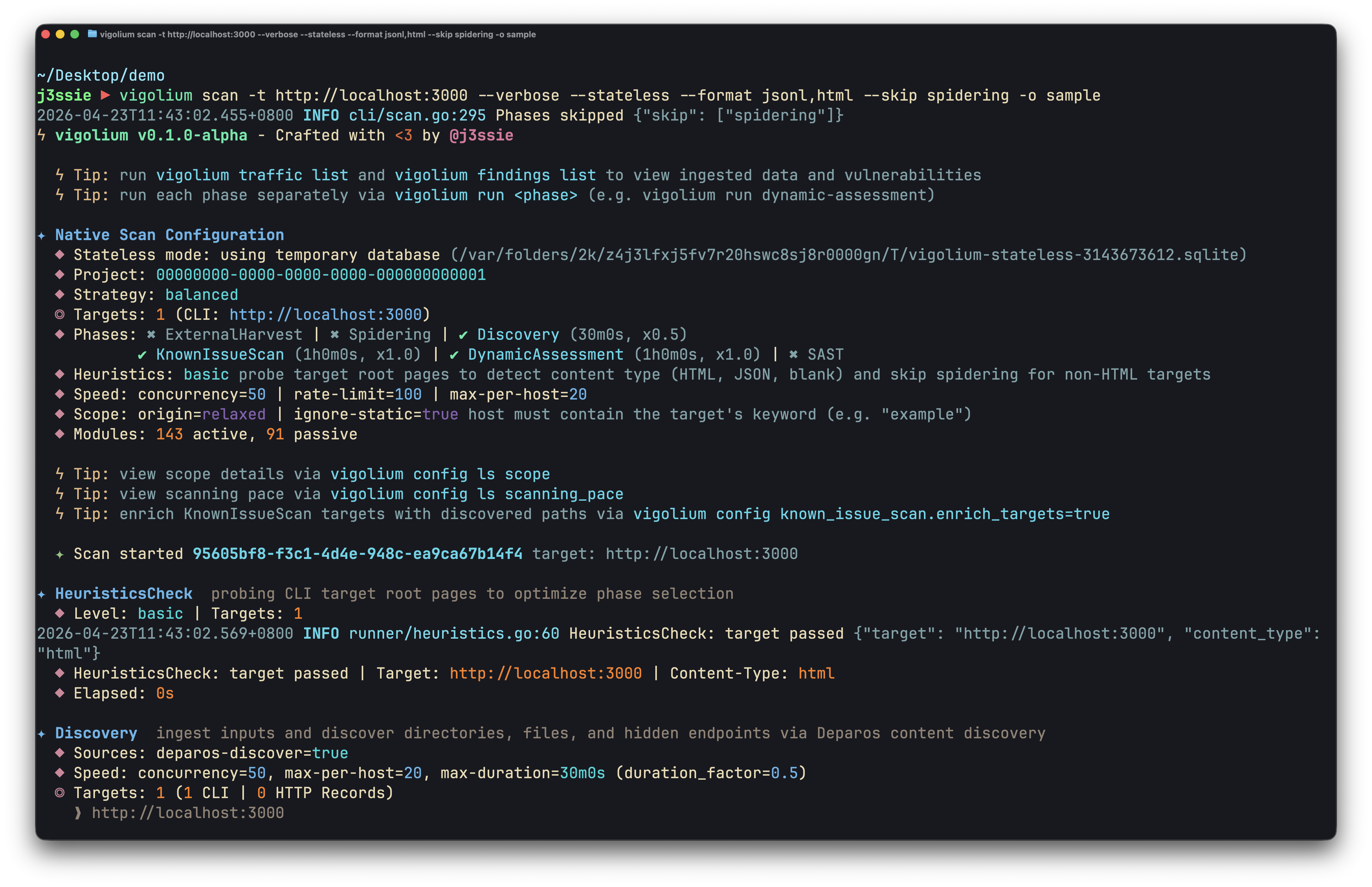
Vigoliumは、補完的な2つのスキャンモードを提供します:
-
ネイティブスキャン (
vigolium scan): 高速、強力、そして柔軟。 決定論的な多段階スキャンで、コンテンツ発見、ブラウザ/SPAスパイダリング、アクティブ/パッシブ監査にわたる317のモジュールを備え、インジェクション、アクセス制御、ファイル/パス、API/プロトコル、フレームワーク固有、クラウド/インフラ、および帯域外(OAST)脆弱性クラスをカバーします。 -
エージェント型スキャン (
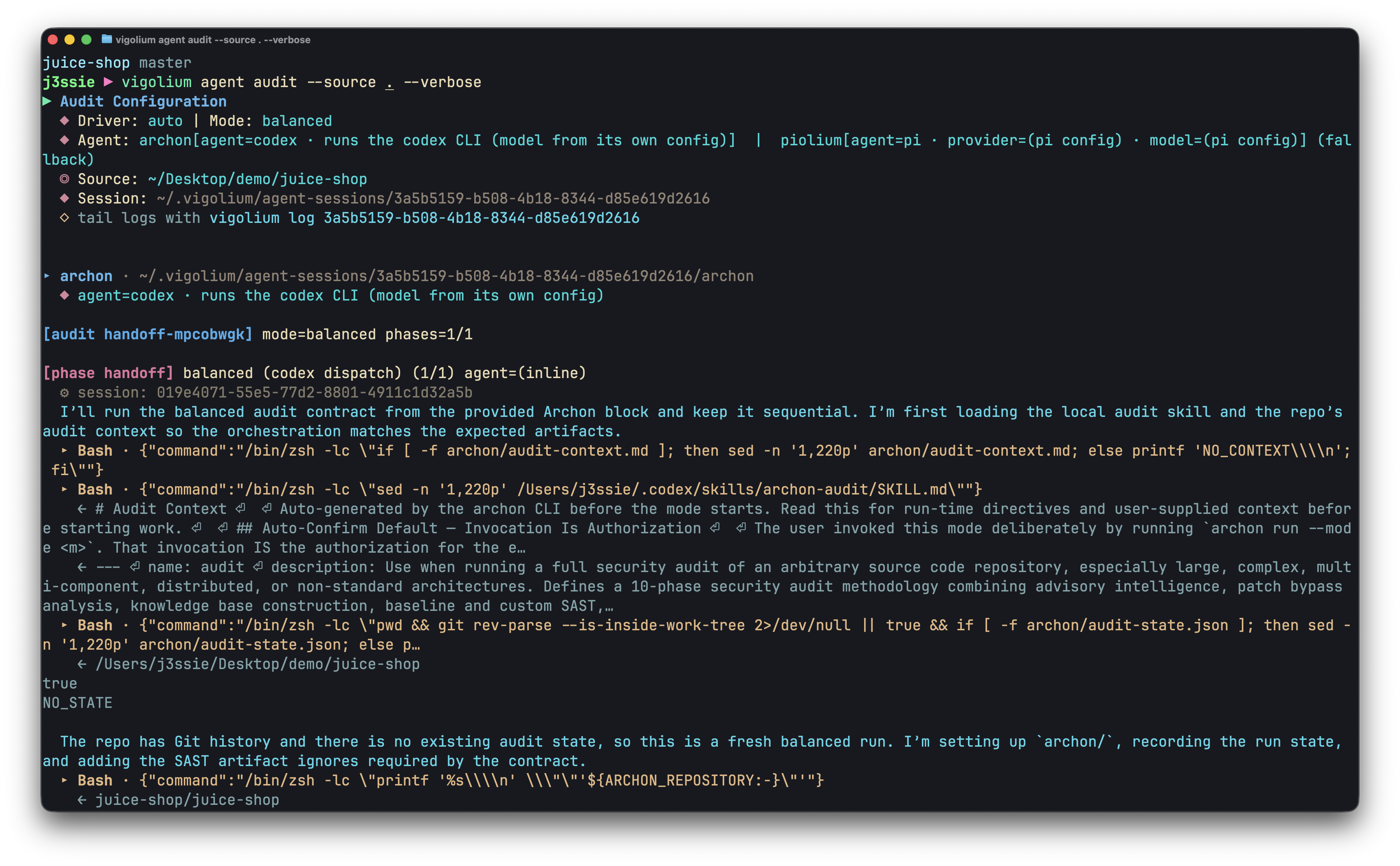
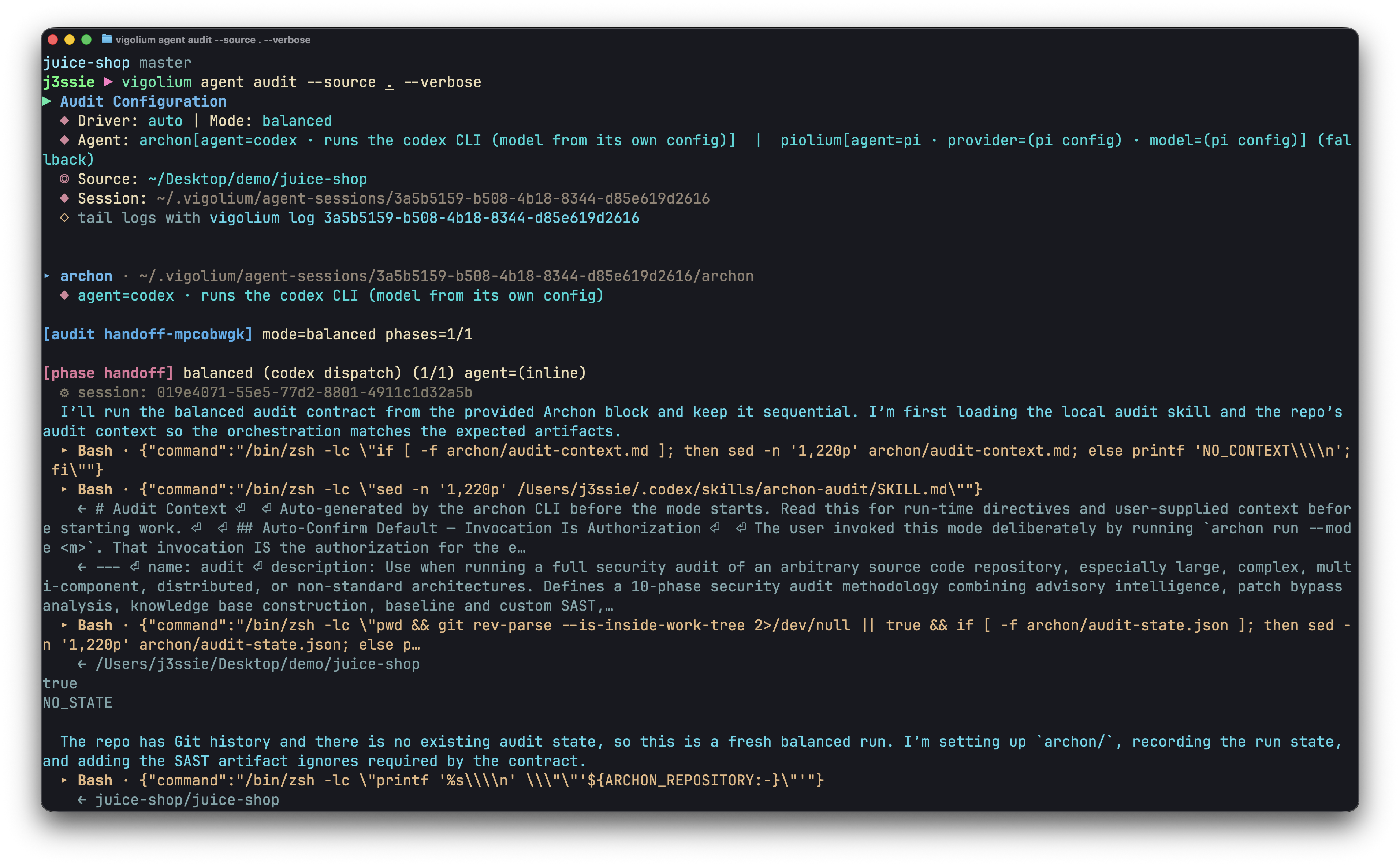
vigolium agent): コードベースを徹底的に監査します。 攻撃を自律的に計画し、モジュールを選択し、カスタム拡張を生成し、結果をトリアージするAI駆動型スキャンで、深層ソースコード監査と自律的かつターゲットを絞った脆弱性スキャンを組み合わせます。
インストール
クイックインストール(推奨)```bash
curl -fsSL https://vigolium.com/install.sh | bash
### [npm](https://www.npmjs.com/package/@vigolium/vigolium)```bash
npm install -g @vigolium/vigolium
Windows
上記のnpm installはWindowsでも動作します。別の方法として、
リリースページから
vigolium_<version>_windows_amd64.zipをダウンロードして解凍し、
vigolium.exeをPATHの通った場所に配置してください。
Windows版はx64のみで提供されます。Windows ARMではエミュレーションで動作します。上記の シェルインストーラーはPOSIX専用のため、Windowsでは
vigolium updateは利用できません — アップグレードするにはnpm installを再実行するか、新しいzipをダウンロードしてください。
Dockerやソースからのビルドなど、その他の方法
Docker```bash
docker pull j3ssie/vigolium:latest docker run --rm j3ssie/vigolium:latest scan -h
### ソースからビルド```bash
git clone https://github.com/vigolium/vigolium.git
cd vigolium
make build # build and install to $GOPATH/bin
Go 1.27+ と bun 1.3.11+ が必要です。前提条件とビルドの詳細については HACKING.md を参照してください。
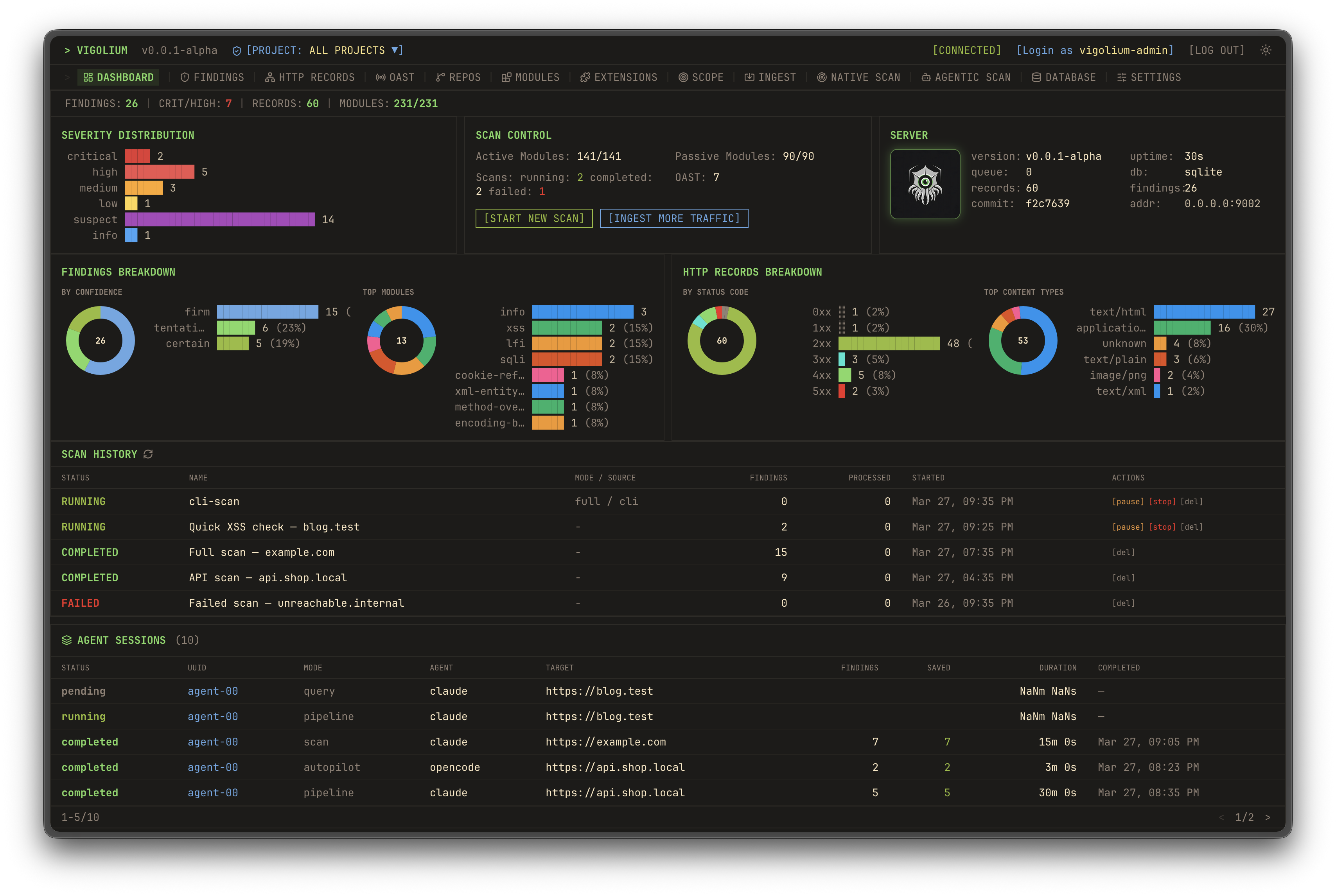
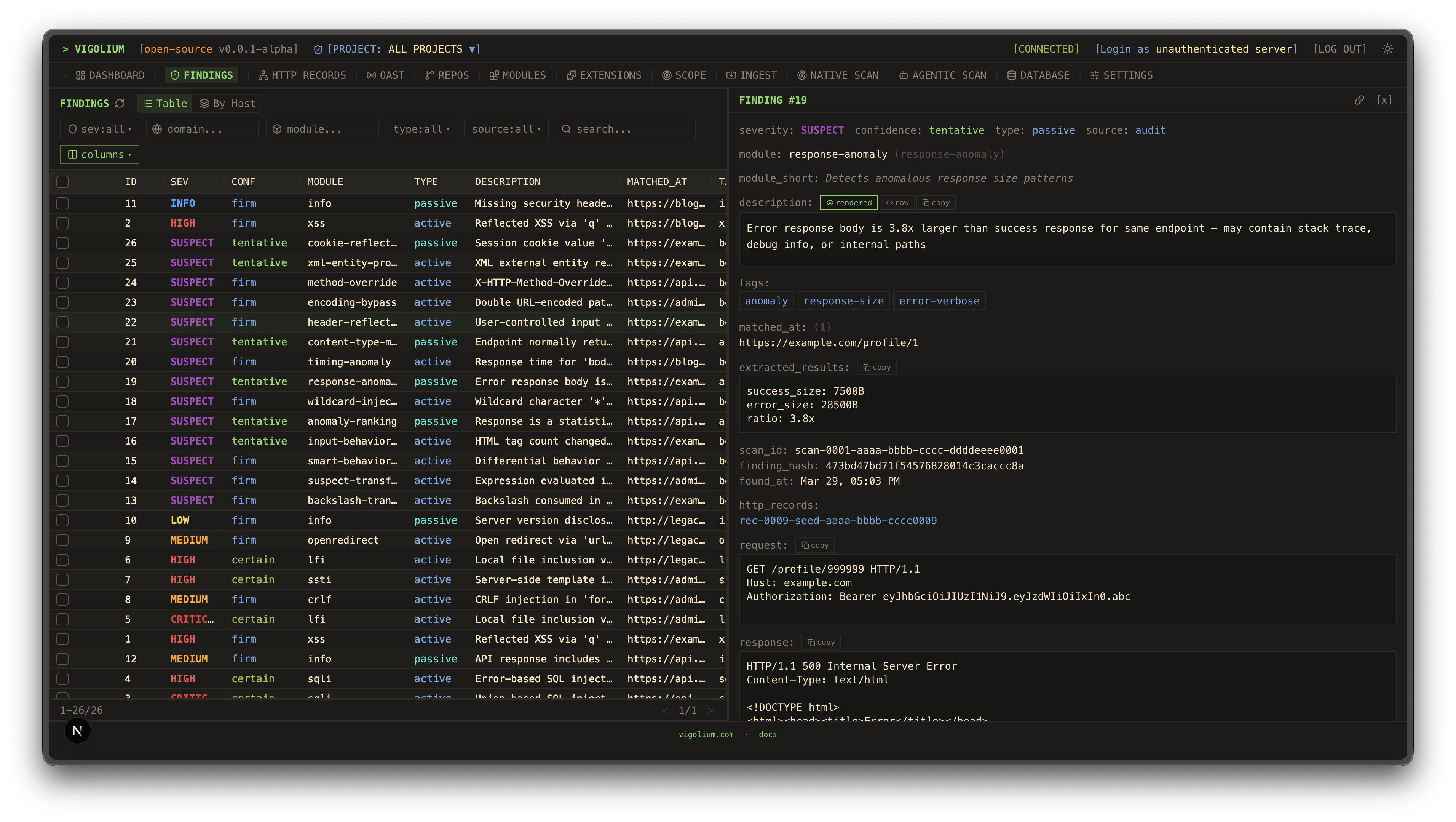
| UIダッシュボード | トラフィックダッシュボード |
|---|---|
![]() | ![]() |
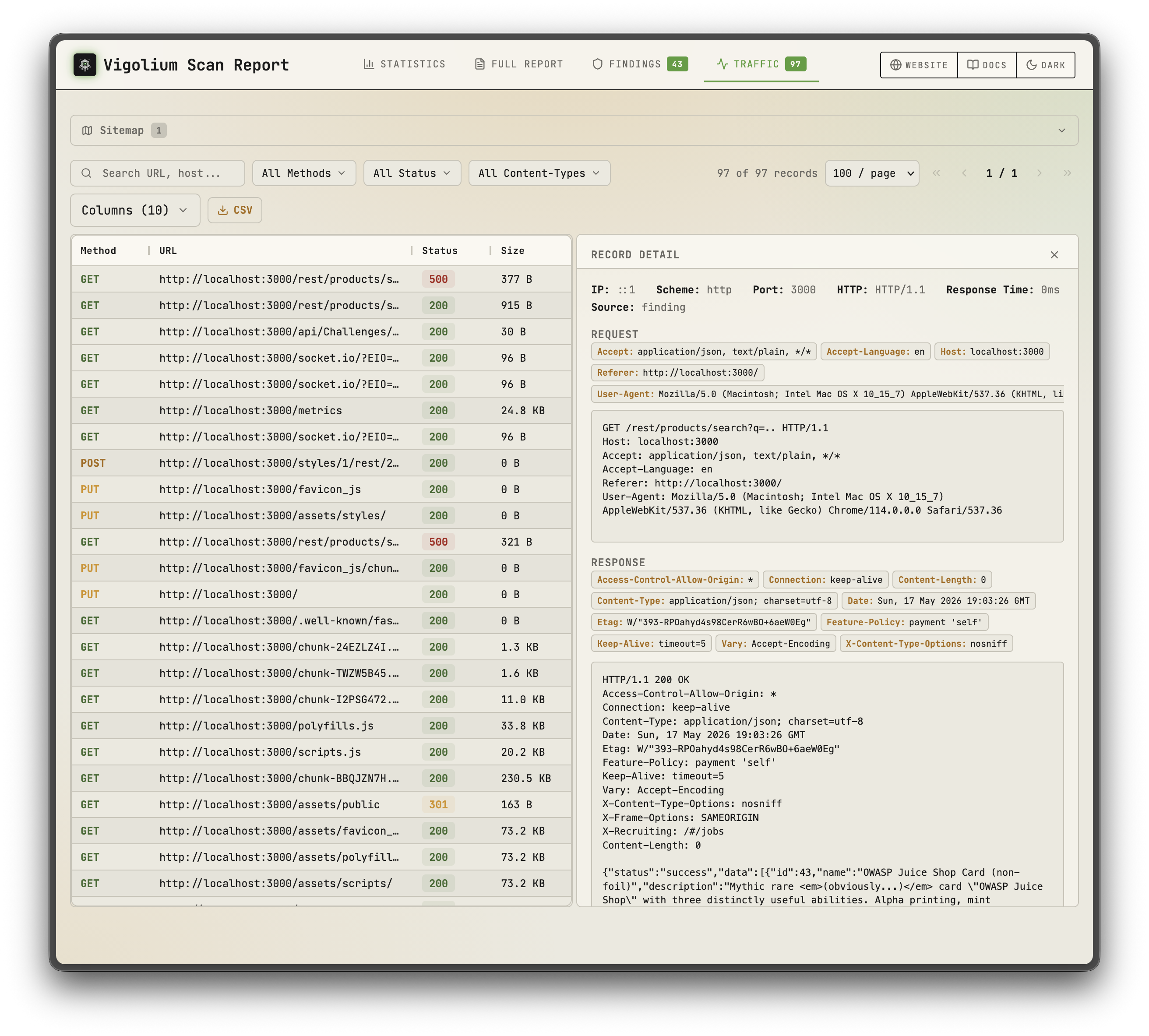
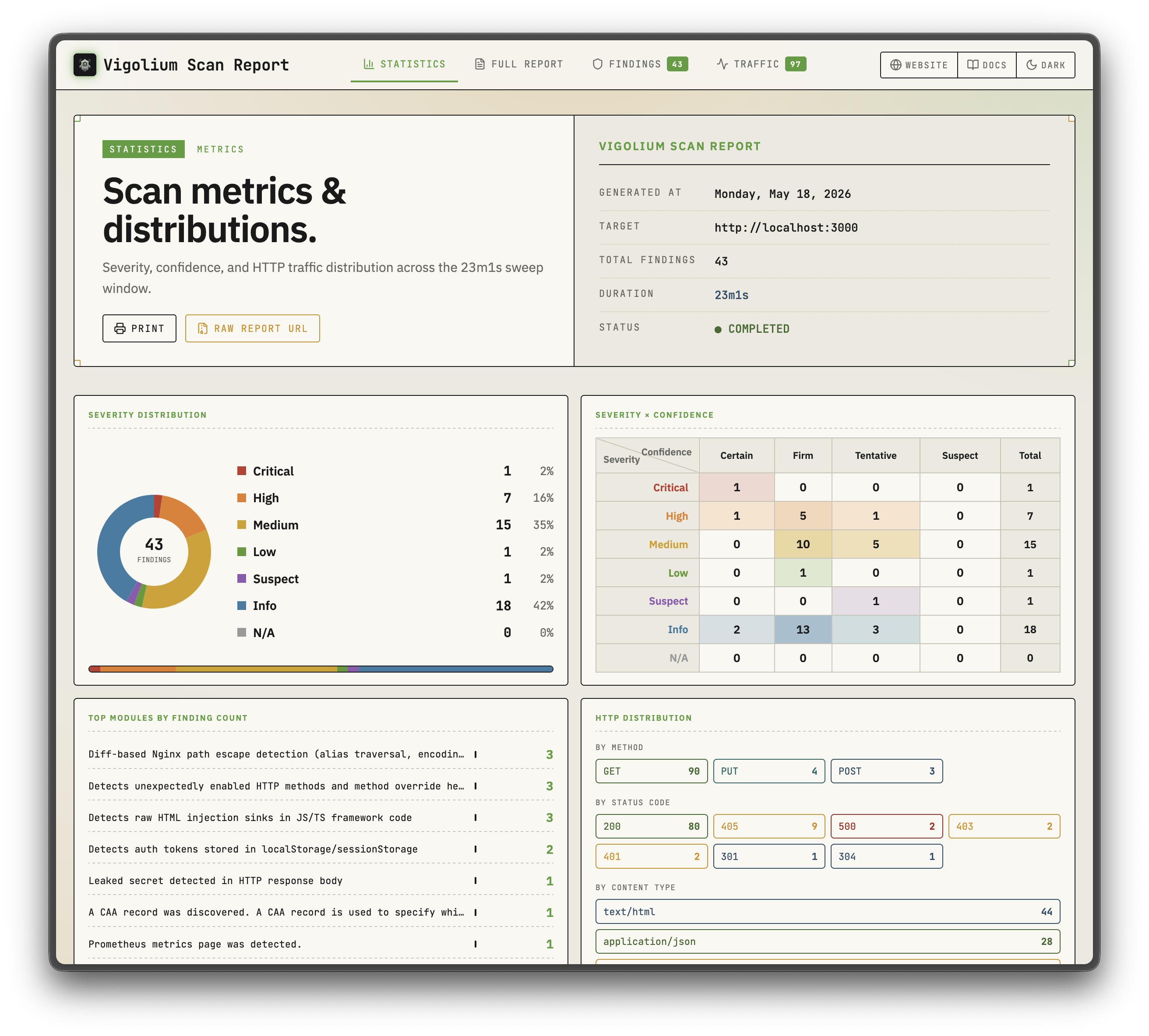
| 静的レポート | 静的レポート |
|---|---|
![]() | ![]() |
| ネイティブスキャン | エージェント型スキャン |
|---|---|
![]() | ![]() |
主な機能
ネイティブスキャン
- 323個のスキャナモジュール: 207個のアクティブ(ファジング)+ 116個のパッシブ(パターンマッチング)で、OWASP Top 10 およびそれ以外をカバー
- 帯域外テスト(OAST): interactsh コールバックによるブラインドXSS/SSRF/コマンドインジェクションと、自動ペイロード相関
- 値認識型ミューテーション: パラメータを意味タイプ(整数、UUID、JWT、メール)で分類し、意図に応じてミューテーションを実行
- 多段階パイプライン: 外部ハーベスティング、コンテンツディスカバリ(Deparos)、ブラウザ/SPAスパイダリング(Spitolas)、監査を、戦略プリセットとスキャンプロファイルで制御
- 柔軟な入力: URL、OpenAPI/Swagger、Postman、Burp Suite、cURL、Nuclei JSONL
- マルチセッション認証: インラインセッション、セッションファイル、またはログインフロー・トークン抽出・IDOR/BOLAテストを含む完全な認証設定
- JavaScript拡張: 組み込みJSエンジンを介したカスタムモジュールとフック(セッション認識型HTTP API対応)
- スケーラブルでレポート対応: ホストごとのレート制限を備えた並行ワーカープール、ハイブリッドインメモリ/ディスク/Redisキュー、自己完結型HTMLレポート
エージェント型スキャン
- プロセス内 olium ランタイム: すべてのエージェントモードはネイティブGo
pkg/oliumエンジン上で動作:ターンベースループ、組み込みツールレジストリ、スキルサポート、プラグイン可能なプロバイダドライバ(サブプロセスSDKプールなし) - オートパイロット: エージェントが自律的にエンドポイントを発見し、スキャンを実行し、結果をトリアージ。オプションでマルチスペシャリストパイプラインとセッション再開に対応
- スウォーム: マスターエージェントがモジュールを選択し、カスタムJS攻撃拡張を生成し、コード監査+SASTを実行し、スキャンを実行して結果をトリアージ。対象指定またはフルスコープ(
--discover)、変更焦点の実行には--diff/--last-commitsを使用 - ソース監査ドライバ:
audit、piolium、および統合auditディスパッチャが、単一の検出スキーマとDBタグ付けを共有するフォアグラウンドソースコード監査を実行 - クエリモード: コードレビュー、エンドポイント発見、シークレット検出のための単発プロンプト
- プラグイン可能なプロバイダ:
openai-compatible(デフォルト)、openai-codex-oauth、openai-api-key、openai-responses、anthropic-api-key、anthropic-oauth、anthropic-cli、anthropic-compatible、anthropic-vertex、google-vertex。同じモードがREST API経由でSSEストリーミングとOpenAI互換チャットエンドポイントとして公開
クイックスタート: ネイティブスキャン```bash
Scan a single target (default: balanced strategy)
vigolium scan -t https://example.com
Scan with a strategy preset
vigolium scan -t https://example.com --strategy deep
Scan specific modules only
vigolium scan -t https://example.com -m xss-reflected,sqli-error
Scan from an OpenAPI spec
vigolium scan -T openapi.yaml -I openapi
Pipe URLs from stdin
cat urls.txt | vigolium scan
Run a single phase directly
vigolium run discovery -t https://example.com
Generate an HTML report
vigolium scan -t https://example.com --only discovery --format html -o report.html
パイプライン全体については[アーキテクチャ概要](https://docs.vigolium.com/architecture/overview)を、戦略・プロファイル・ペース設定については[戦略ガイド](https://docs.vigolium.com/native-scan/strategies)を参照してください。コマンドのクイックリファレンスは[docs.vigolium.com/getting-started/cheat-sheet](https://docs.vigolium.com/getting-started/cheat-sheet)をご覧ください。
## サーバーモード```bash
# Start API server with authentication
vigolium server -k my-secret-key
# Enable transparent HTTP proxy for traffic recording
vigolium server -k my-key --ingest-proxy-port 9003
# Auto-scan ingested traffic
vigolium server -k my-key --scan-on-receive
The -p option allows you to specify a custom port for the reverse shell. The -h option displays the help menu. The -v option enables verbose output, which is useful for debugging. The -s option allows you to specify a custom shell to use for the reverse shell. The -t option allows you to specify a custom timeout for the connection. The -c option allows you to specify a custom command to execute on the target system. The -d option allows you to specify a custom delay between commands. The -r option allows you to specify a custom retry count for the connection. The -l option allows you to specify a custom log file for the tool. The -o option allows you to specify a custom output file for the results. The -q option enables quiet mode, which suppresses all output except for errors. The -e option allows you to specify a custom encoding for the payload. The -x option allows you to specify a custom proxy for the connection. The -u option allows you to specify a custom user agent for the HTTP requests. The -k option allows you to specify a custom SSL certificate for the connection. The -a option allows you to specify a custom authentication token for the API. The -b option allows you to specify a custom base URL for the API. The -f option allows you to specify a custom configuration file for the tool. The -i option allows you to specify a custom input file for the tool. The -m option allows you to specify a custom module to use for the tool. The -n option allows you to specify a custom namespace for the tool. The -z option allows you to specify a custom zone for the tool. The -y option allows you to specify a custom YAML configuration file for the tool. The -w option allows you to specify a custom wordlist for the tool. The -g option allows you to specify a custom group for the tool. The -j option allows you to specify a custom JSON configuration file for the tool. The -v option allows you to specify a custom verbosity level for the tool. The -d option allows you to specify a custom debug level for the tool. The -t option allows you to specify a custom thread count for the tool. The -c option allows you to specify a custom concurrency level for the tool. The -r option allows you to specify a custom rate limit for the tool. The -b option allows you to specify a custom batch size for the tool. The -f option allows you to specify a custom filter for the tool. The -s option allows you to specify a custom sort order for the tool. The -o option allows you to specify a custom output format for the tool. The -p option allows you to specify a custom protocol for the tool. The -h option displays the help menu for the tool. The -v option displays the version of the tool. The -q option enables quiet mode for the tool. The -e option enables error reporting for the tool. The -w option enables warning reporting for the tool. The -i option enables informational reporting for the tool. The -d option enables debug reporting for the tool. The -t option enables trace reporting for the tool. The -c option enables color output for the tool. The -n option disables color output for the tool. The -m option enables monochrome output for the tool. The -a option enables ASCII output for the tool. The -u option enables Unicode output for the tool. The -l option enables logging for the tool. The -x option disables logging for the tool. The -z option enables compression for the tool. The -y option disables compression for the tool. The -k option enables encryption for the tool. The -j option disables encryption for the tool. The -g option enables gzip compression for the tool. The -b option disables gzip compression for the tool. The -f option enables file compression for the tool. The -s option disables file compression for the tool. The -o option enables output compression for the tool. The -p option disables output compression for the tool. The -h option displays the help menu for the tool. The -v option displays the version of the tool. The -q option enables quiet mode for the tool. The -e option enables error reporting for the tool. The -w option enables warning reporting for the tool. The -i option enables informational reporting for the tool. The -d option enables debug reporting for the tool. The -t option enables trace reporting for the tool. The -c option enables color output for the tool. The -n option disables color output for the tool. The -m option enables monochrome output for the tool. The -a option enables ASCII output for the tool. The -u option enables Unicode output for the tool. The -l option enables logging for the tool. The -x option disables logging for the tool. The -z option enables compression for the tool. The -y option disables compression for the tool. The -k option enables encryption for the tool. The -j option disables encryption for the tool. The -g option enables gzip compression for the tool. The -b option disables gzip compression for the tool. The -f option enables file compression for the tool. The -s option disables file compression for the tool. The -o option enables output compression for the tool. The -p option disables output compression for the tool. The -h option displays the help menu for the tool. The -v option displays the version of the tool. The -q option enables quiet mode for the tool. The -e option enables error reporting for the tool. The -w option enables warning reporting for the tool. The -i option enables informational reporting for the tool. The -d option enables debug reporting for the tool. The -t option enables trace reporting for the tool. The -c option enables color output for the tool. The -n option disables color output for the tool. The -m option enables monochrome output for the tool. The -a option enables ASCII output for the tool. The -u option enables Unicode output for the tool. The -l option enables logging for the tool. The -x option disables logging for the tool. The -z option enables compression for the tool. The -y option disables compression for the tool. The -k option enables encryption for the tool. The -j option disables encryption for the tool. The -g option enables gzip compression for the tool. The -b option disables gzip compression for the tool. The -f option enables file compression for the tool. The -s option disables file compression for the tool. The -o option enables output compression for the tool. The -p option disables output compression for the tool. The -h option displays the help menu for the tool. The -v option displays the version of the tool. The -q option enables quiet mode for the tool. The -e option enables error reporting for the tool. The -w option enables warning reporting for the tool. The -i option enables informational reporting for the tool. The -d option enables debug reporting for the tool. The -t option enables trace reporting for the tool. The -c option enables color output for the tool. The -n option disables color output for the tool. The -m option enables monochrome output for the tool. The -a option enables ASCII output for the tool. The -u option enables Unicode output for the tool. The -l option enables logging for the tool. The -x option disables logging for the tool. The -z option enables compression for the tool. The -y option disables compression for the tool. The -k option enables encryption for the tool. The -j option disables encryption for the tool. The -g option enables gzip compression for the tool. The -b option disables gzip compression for the tool. The -f option enables file compression for the tool. The -s option disables file compression for the tool. The -o option enables output compression for the tool. The -p option disables output compression for the tool. The -h option displays the help menu for the tool. The -v option displays the version of the tool. The -q option enables quiet mode for the tool. The -e option enables error reporting for the tool. The -w option enables warning reporting for the tool. The -i option enables informational reporting for the tool. The -d option enables debug reporting for the tool. The -t option enables trace reporting for the tool. The -c option enables color output for the tool. The -n option disables color output for the tool. The -m option enables monochrome output for the tool. The -a option enables ASCII output for the tool. The -u option enables Unicode output for the tool. The -l option enables logging for the tool. The -x option disables logging for the tool. The -z option enables compression for the tool. The -y option disables compression for the tool. The -k option enables encryption for the tool. The -j option disables encryption for the tool. The -g option enables gzip compression for the tool. The -b option disables gzip compression for the tool. The -f option enables file compression for the tool. The -s option disables file compression for the tool. The -o option enables output compression for the tool. The -p option disables output compression for the tool. The -h option displays the help menu for the tool. The -v option displays the version of the tool. The -q option enables quiet mode for the tool. The -e option enables error reporting for the tool. The -w option enables warning reporting for the tool. The -i option enables informational reporting for the tool. The -d option enables debug reporting for the tool. The -t option enables trace reporting for the tool. The -c option enables color output for the tool. The -n option disables color output for the tool. The -m option enables monochrome output for the tool. The -a option enables ASCII output for the tool. The -u option enables Unicode output for the tool. The -l option enables logging for the tool. The -x option disables logging for the tool. The -z option enables compression for the tool. The -y option disables compression for the tool. The -k option enables encryption for the tool. The -j option disables encryption for the tool. The -g option enables gzip compression for the tool. The -b option disables gzip compression for the tool. The -f option enables file compression for the tool. The -s option disables file compression for the tool. The -o option enables output compression for the tool. The -p option disables output compression for the tool. The -h option displays the help menu for the tool. The -v option displays the version of the tool. The -q option enables quiet mode for the tool. The -e option enables error reporting for the tool. The -w option enables warning reporting for the tool. The -i option enables informational reporting for the tool. The -d option enables debug reporting for the tool. The -t option enables trace reporting for the tool. The -c option enables color output for the tool. The -n option disables color output for the tool. The -m option enables monochrome output for the tool. The -a option enables ASCII output for the tool. The -u option enables Unicode output for the tool. The -l option enables logging for the tool. The -x option disables logging for the tool. The -z option enables compression for the tool. The -y option disables compression for the tool. The -k option enables encryption for the tool. The -j option disables encryption for the tool. The -g option enables gzip compression for the tool. The -b option disables gzip compression for the tool. The -f option enables file compression for the tool. The -s option disables file compression for the tool. The -o option enables output compression for the tool. The -p option disables output compression for the tool. The -h option displays the help menu for the tool. The -v option displays the version of the tool. The -q option enables quiet mode for the tool. The -e option enables error reporting for the tool. The -w option enables warning reporting for the tool. The -i option enables informational reporting for the tool. The -d option enables debug reporting for the tool. The -t option enables trace reporting for the tool. The -c option enables color output for the tool. The -n option disables color output for the tool. The -m option enables monochrome output for the tool. The -a option enables ASCII output for the tool. The -u option enables Unicode output for the tool. The -l option enables logging for the tool. The -x option disables logging for the tool. The -z option enables compression for the tool. The -y option disables compression for the tool. The -k option enables encryption for the tool. The -j option disables encryption for the tool. The -g option enables gzip compression for the tool. The -b option disables gzip compression for the tool. The -f option enables file compression for the tool. The -s option disables file compression for the tool. The -o option enables output compression for the tool. The -p option disables output compression for the tool. The -h option displays the help menu for the tool. The -v option displays the version of the tool. The -q option enables quiet mode for the tool. The -e option enables error reporting for the tool. The -w option enables warning reporting for the tool. The -i option enables informational reporting for the tool. The -d option enables debug reporting for the tool. The -t option enables trace reporting for the tool. The -c option enables color output for the tool. The -n option disables color output for the tool. The -m option enables monochrome output for the tool. The -a option enables ASCII output for the tool. The -u option enables Unicode output for the tool. The -l option enables logging for the tool. The -x option disables logging for the tool. The -z option enables compression for the tool. The -y option disables compression for the tool. The -k option enables encryption for the tool. The -j option disables encryption for the tool. The -g option enables gzip compression for the tool. The -b option disables gzip compression for the tool. The -f option enables file compression for the tool. The -s option disables file compression for the tool. The -o option enables output compression for the tool. The -p option disables output compression for the tool. The -h option displays the help menu for the tool. The -v option displays the version of the tool. The -q option enables quiet mode for the tool. The -e option enables error reporting for the tool. The -w option enables warning reporting for the tool. The -i option enables informational reporting for the tool. The -d option enables debug reporting for the tool. The -t option enables trace reporting for the tool. The -c option enables color output for the tool. The -n option disables color output for the tool. The -m option enables monochrome output for the tool. The -a option enables ASCII output for the tool. The -u option enables Unicode output for the tool. The -l option enables logging for the tool. The -x option disables logging for the tool. The -z option enables compression for the tool. The -y option disables compression for the tool. The -k option enables encryption for the tool. The -j option disables encryption for the tool. The -g option enables gzip compression for the tool. The -b option disables gzip compression for the tool. The -f option enables file compression for the tool. The -s option disables file compression for the tool. The -o option enables output compression for the tool. The -p option disables output compression for the tool. The -h option displays the help menu for the tool. The -v option displays the version of the tool. The -q option enables quiet mode for the tool. The -e option enables error reporting for the tool. The -w option enables warning reporting for the tool. The -i option enables informational reporting for the tool. The -d option enables debug reporting for the tool. The -t option enables trace reporting for the tool. The -c option enables color output for the tool. The -n option disables color output for the tool. The -m option enables monochrome output for the tool. The -a option enables ASCII output for the tool. The -u option enables Unicode output for the tool. The -l option enables logging for the tool. The -x option disables logging for the tool. The -z option enables compression for the tool. The -y option disables compression for the tool. The -k option enables encryption for the tool. The -j option disables encryption for the tool. The -g option enables gzip compression for the tool. The -b option disables gzip compression for the tool. The -f option enables file compression for the tool. The -s option disables file compression for the tool. The -o option enables output compression for the tool. The -p option disables output compression for the tool. The -h option displays the help menu for the tool. The -v option displays the version of the tool. The -q option enables quiet mode for the tool. The -e option enables error reporting for the tool. The -w option enables warning reporting for the tool. The -i option enables informational reporting for the tool. The -d option enables debug reporting for the tool. The -t option enables trace reporting for the tool. The -c option enables color output for the tool. The -n option disables color output for the tool. The -m option enables monochrome output for the tool. The -a option enables ASCII output for the tool. The -u option enables Unicode output for the tool. The -l option enables logging for the tool. The -x option disables logging for the tool. The -z option enables compression for the tool. The -y option disables compression for the tool. The -k option enables encryption for the tool. The -j option disables encryption for the tool. The -g option enables gzip compression for the tool. The -b option disables gzip compression for the tool. The -f option enables file compression for the tool. The -s option disables file compression for the tool. The -o option enables output compression for the tool. The -p option disables output compression for the tool. The -h option displays the help menu for the tool. The -v option displays the version of the tool. The -q option enables quiet mode for the tool. The -e option enables error reporting for the tool. The -w option enables warning reporting for the tool. The -i option enables informational reporting for the tool. The -d option enables debug reporting for the tool. The -t option enables trace reporting for the tool. The -c option enables color output for the tool. The -n option disables color output for the tool. The -m option enables monochrome output for the tool. The -a option enables ASCII output for the tool. The -u option enables Unicode output for the tool. The -l option enables logging for the tool. The -x option disables logging for the tool. The -z option enables compression for the tool. The -y option disables compression for the tool. The -k option enables encryption for the tool. The -j option disables encryption for the tool. The -g option enables gzip compression for the tool. The -b option disables gzip compression for the tool. The -f option enables file compression for the tool. The -s option disables file compression for the tool. The -o option enables output compression for the tool. The -p option disables output compression for the tool. The -h option displays the help menu for the tool. The -v option displays the version of the tool. The -q option enables quiet mode for the tool. The -e option enables error reporting for the tool. The -w option enables warning reporting for the tool. The -i option enables informational reporting for the tool. The -d option enables debug reporting for the tool. The -t option enables trace reporting for the tool. The -c option enables color output for the tool. The -n option disables color output for the tool. The -m option enables monochrome output for the tool. The -a option enables ASCII output for the tool. The -u option enables Unicode output for the tool. The -l option enables logging for the tool. The -x option disables logging for the tool. The -z option enables compression for the tool. The -y option disables compression for the tool. The -k option enables encryption for the tool. The -j option disables encryption for the tool. The -g option enables gzip compression for the tool. The -b option disables gzip compression for the tool. The -f option enables file compression for the tool. The -s option disables file compression for the tool. The -o option enables output compression for the tool. The -p option disables output compression for the tool. The -h option displays the help menu for the tool. The -v option displays the version of the tool. The -q option enables quiet mode for the tool. The -e option enables error reporting for the tool. The -w option enables warning reporting for the tool. The -i option enables informational reporting for the tool. The -d option enables debug reporting for the tool. The -t option enables trace reporting for the tool. The -c option enables color output for the tool. The -n option disables color output for the tool. The -m option enables monochrome output for the tool. The -a option enables ASCII output for the tool. The -u option enables Unicode output for the tool. The -l option enables logging for the tool. The -x option disables logging for the tool. The -z option enables compression for the tool. The -y option disables compression for the tool. The -k option enables encryption for the tool. The -j option disables encryption for the tool. The -g option enables gzip compression for the tool. The -b option disables gzip compression for the tool. The -f option enables file compression for the tool. The -s option disables file compression for the tool. The -o option enables output compression for the tool. The -p option disables output compression for the tool. The -h option displays the help menu for the tool. The -v option displays the version of the tool. The -q option enables quiet mode for the tool. The -e option enables error reporting for the tool. The -w option enables warning reporting for the tool. The -i option enables informational reporting for the tool. The -d option enables debug reporting for the tool. The -t option enables trace reporting for the tool. The -c option enables color output for the tool. The -n option disables color output for the tool. The -m option enables monochrome output for the tool. The -a option enables ASCII output for the tool. The -u option enables Unicode output for the tool. The -l option enables logging for the tool. The -x option disables logging for the tool. The -z option enables compression for the tool. The -y option disables compression for the tool. The -k option enables encryption for the tool. The -j option disables encryption for the tool. The -g option enables gzip compression for the tool. The -b option disables gzip compression for the tool. The -f option enables file compression for the tool. The -s option disables file compression for the tool. The -o option enables output compression for the tool. The -p option disables output compression for the tool. The -h option displays the help menu for the tool. The -v option displays the version of the tool. The -q option enables quiet mode for the tool. The -e option enables error reporting for the tool. The -w option enables warning reporting for the tool. The -i option enables informational reporting for the tool. The -d option enables debug reporting for the tool. The -t option enables trace reporting for the tool. The -c option enables color output for the tool. The -n option disables color output for the tool. The -m option enables monochrome output for the tool. The -a option enables ASCII output for the tool. The -u option enables Unicode output for the tool. The -l option enables logging for the tool. The -x option disables logging for the tool. The -z option enables compression for the tool. The -y option disables compression for the tool. The -k option enables encryption for the tool. The -j option disables encryption for the tool. The -g option enables gzip compression for the tool. The -b option disables gzip compression for the tool. The -f option enables file compression for the tool. The -s option disables file compression for the tool. The -o option enables output compression for the tool. The -p option disables output compression for the tool. The -h option displays the help menu for the tool. The -v option displays the version of the tool. The -q option enables quiet mode for the tool. The -e option enables error reporting for the tool. The -w option enables warning reporting for the tool. The -i option enables informational reporting for the tool. The -d option enables debug reporting for the tool. The -t option enables trace reporting for the tool. The -c option enables color output for the tool. The -n option disables color output for the tool. The -m option enables monochrome output for the tool. The -a option enables ASCII output for the tool. The -u option enables Unicode output for the tool. The -l option enables logging for the tool. The -x option disables logging for the tool. The -z option enables compression for the tool. The -y option disables compression for the tool. The -k option enables encryption for the tool. The -j option disables encryption for the tool. The -g option enables gzip compression for the tool. The -b option disables gzip compression for the tool. The -f option enables file compression for the tool. The -s option disables file compression for the tool. The -o option enables output compression for the tool. The -p option disables output compression for the tool. The -h option displays the help menu for the tool. The -v option displays the version of the tool. The -q option enables quiet mode for the tool. The -e option enables error reporting for the tool. The -w option enables warning reporting for the tool. The -i option enables informational reporting for the tool. The -d option enables debug reporting for the tool. The -t option enables trace reporting for the tool. The -c option enables color output for the tool. The -n option disables color output for the tool. The -m option enables monochrome output for the tool. The -a option enables ASCII output for the tool. The -u option enables Unicode output for the tool. The -l option enables logging for the tool. The -x option disables logging for the tool. The -z option enables compression for the tool. The -y option disables compression for the tool. The -k option enables encryption for the tool. The -j option disables encryption for the tool. The -g option enables gzip compression for the tool. The -b option disables gzip compression for the tool. The -f option enables file compression for the tool. The -s option disables file compression for the tool. The -o option enables output compression for the tool. The -p option disables output compression for the tool. The -h option displays the help menu for the tool. The -v option displays the version of the tool. The -q option enables quiet mode for the tool. The -e option enables error reporting for the tool. The -w option enables warning reporting for the tool. The -i option enables informational reporting for the tool. The -d option enables debug reporting for the tool. The -t option enables trace reporting for the tool. The -c option enables color output for the tool. The -n option disables color output for the tool. The -m option enables monochrome output for the tool. The -a option enables ASCII output for the tool. The -u option enables Unicode output for the tool. The -l option enables logging for the tool. The -x option disables logging for the tool. The -z option enables compression for the tool. The -y option disables compression for the tool. The -k option enables encryption for the tool. The -j option disables encryption for the tool. The -g option enables gzip compression for the tool. The -b option disables gzip compression for the tool. The -f option enables file compression for the tool. The -s option disables file compression for the tool. The -o option enables output compression for the tool. The -p option disables output compression for the tool. The -h option displays the help menu for the tool. The -v option displays the version of the tool. The -q option enables quiet mode for the tool. The -e option enables error reporting for the tool. The -w option enables warning reporting for the tool. The -i option enables informational reporting for the tool. The -d option enables debug reporting for the tool. The -t option enables trace reporting for the tool. The -c option enables color output for the tool. The -n option disables color output for the tool. The -m option enables monochrome output for the tool. The -a option enables ASCII output for the tool. The -u option enables Unicode output for the tool. The -l option enables logging for the tool. The -x option disables logging for the tool. The -z option enables compression for the tool. The -y option disables compression for the tool. The -k option enables encryption for the tool. The -j option disables encryption for the tool. The -g option enables gzip compression for the tool. The -b option disables gzip compression for the tool. The -f option enables file compression for the tool. The -s option disables file compression for the tool. The -o option enables output compression for the tool. The -p option disables output compression for the tool. The -h option displays the help menu for the tool. The -v option displays the version of the tool. The -q option enables quiet mode for the tool. The -e option enables error reporting for the tool. The -w option enables warning reporting for the tool. The -i option enables informational reporting for the tool. The -d option enables debug reporting for the tool. The -t option enables trace reporting for the tool. The -c option enables color output for the tool. The -n option disables color output for the tool. The -m option enables monochrome output for the tool. The -a option enables ASCII output for the tool. The -u option enables Unicode output for the tool. The -l option enables logging for the tool. The -x option disables logging for the tool. The -z option enables compression for the tool. The -y option disables compression for the tool. The -k option enables encryption for the tool. The -j option disables encryption for the tool. The -g option enables gzip compression for the tool. The -b option disables gzip compression for the tool. The -f option enables file compression for the tool. The -s option disables file compression for the tool. The -o option enables output compression for the tool. The -p option disables output compression for the tool. The -h option displays the help menu for the tool. The -v option displays the version of the tool. The -q option enables quiet mode for the tool. The -e option enables error reporting for the tool. The -w option enables warning reporting for the tool. The -i option enables informational reporting for the tool. The -d option enables debug reporting for the tool. The -t option enables trace reporting for the tool. The -c option enables color output for the tool. The -n option disables color output for the tool. The -m option enables monochrome output for the tool. The -a option enables ASCII output for the tool. The -u option enables Unicode output for the tool. The -l option enables logging for the tool. The -x option disables logging for the tool. The -z option enables compression for the tool. The -y option disables compression for the tool. The -k option enables encryption for the tool. The -j option disables encryption for the tool. The -g option enables gzip compression for the tool. The -b option dis```bash
Ingest traffic to a running server
cat urls.txt | vigolium ingest -s http://localhost:9002
Ingest an OpenAPI spec
vigolium ingest -s http://localhost:9002 -i api.yaml -I openapi
サーバーのセットアップについては[サーバーの実行](https://docs.vigolium.com/server-mode/running-the-server)、取り込みワークフローについては[取り込み](https://docs.vigolium.com/server-mode/ingestion)、完全なREST APIリファレンスについては[API概要](https://docs.vigolium.com/api-overview)を参照してください。
> **プロキシ統合**: ライブプロキシトラフィックを実行中のVigoliumサーバーに転送するには、Burp Suite用の[burp-vigolium](https://github.com/vigolium/burp-vigolium)拡張機能、またはCaido用の[caido-vigolium](https://github.com/vigolium/caido-vigolium)プラグインを使用します。どちらも同じブリッジプロトコル(`-B/--burp-bridge-url`、エイリアス`--caido-bridge-url`)を提供し、取り込まれたトラフィックには送信元のプロキシがラベル付けされます。
## 認証付きスキャン
Vigoliumは、IDOR/BOLAテストおよび権限昇格チェックのためのマルチセッション認証付きスキャンをサポートしています。```bash
# Inline session via CLI flag (name:Header:value)
vigolium scan -t https://example.com \
--auth "admin:Cookie:session_id=abc123" \
--auth "user:Cookie:session_id=xyz789"
# Load session(s) from a YAML/JSON file
vigolium scan -t https://example.com --auth-file ./admin-session.yaml
# Auth file with an automated login flow (token extraction, etc.)
vigolium scan -t https://example.com --auth-file ./login-flow.yaml
# Add custom headers (works with sessions)
vigolium scan -t https://example.com -H "Authorization: Bearer token123"
認証ファイルは、静的ヘッダー、ベアラートークン、およびCookie、JSONレスポンス、またはヘッダーからのトークン抽出を伴う自動ログインフローをサポートしています。プリセットの例は public/presets/sessions/ にあります。完全なガイドについては、認証ガイド を参照してください。
--auth/--auth-fileフラグは、以前は--session/--session-fileという名前でした。古い名前も非推奨のエイリアスとして引き続き機能します。
エージェントスキャン
AI駆動のスキャンで、エージェントが基盤となるネイティブスキャンエンジンを使用して、脆弱性評価を自律的に計画、実行、トリアージします。```bash
Autopilot: autonomous AI-driven scanning (in-process olium engine)
vigolium agent autopilot -t https://example.com vigolium agent autopilot -t https://example.com --source ./src --prompt "focus on auth bypass" vigolium agent autopilot -t https://example.com --diff main...feature/auth # diff-focused vigolium agent autopilot -t https://example.com --intensity deep # preset bundle
Swarm: AI-guided targeted or full-scope vulnerability scanning
vigolium agent swarm -t https://example.com/api/users --vuln-type sqli vigolium agent swarm -t https://example.com --discover # full-scope vigolium agent swarm -t https://example.com --source ./src --discover # source-aware full-scope vigolium agent swarm --input "curl -X POST https://example.com/api/login -d '{"user":"admin"}'"
Source-audit drivers (separate harness, do not route through olium)
vigolium agent audit --source ./src # default: auto (audit, fall back to piolium) vigolium agent audit --source ./src --driver audit --mode deep # vigolium-audit only (claude/codex) vigolium agent audit --source ./src --driver piolium --mode balanced # Pi-native (pi extension) only vigolium agent audit --source ./src --driver both # audit then piolium, back-to-back vigolium agent audit --source ./src --modes deep,confirm # chain modes (same as --intensity deep) vigolium agent audit --source ./src -S --output-dir ./audit-out # throwaway DB + bundled HTML report vigolium audit --source ./src # top-level alias
Direct olium access (TUI or headless)
vigolium ol # launch the olium TUI vigolium ol --prompt "..." # one-shot prompt (-p implies headless)
エージェント型スキャンモード:
- **オートパイロット**: 自律スキャン。CLIは`pkg/olium/autopilot.Run`を直接呼び出します。サーバーは同じループの周囲にvigolium-auditの事前準備、認証設定、およびフリーズされたコンテキストバンドルを追加します
- **スウォーム**: 対象を絞った単一リクエストとフルスコープ(`--discover`)をサポートするAIガイド型脆弱性スキャン。マスターエージェントが入力を分析し、モジュールを選択し、カスタムJS拡張を生成し、コード監査とSASTを実行し、スキャンを実行して結果をトリアージします
- **監査**: `vigolium agent audit`によるソースコード監査 — 組み込みの**vigolium-audit**(claude/codex)および/または**piolium**(Piネイティブ)ハーネスを実行する統合ディスパッチャーで、`--driver {auto|both|audit|piolium}`で選択します(デフォルトは`auto`: 監査レッグを事前チェックし、解決された`claude`/`codex` CLIがPATH上にあり、バイナリが埋め込まれ、チェーンが監査対応モードを持つ場合に実行します。それ以外の場合は監査を起動せずにpioliumにフォールバックします。実行途中の監査失敗はドライバーを切り替えずに表面化します)。個別のハーネスです。**olium経由ではルーティングしないでください**。1つの親AgenticScanの下にドライバーごとの子行があり、パス後の発見結果は重複排除されます。スタンドアロンの`agent piolium`サブコマンドはありません — pioliumは`--driver=piolium`で実行されます
> **スタンドアロン監査CLI**: エージェント型セキュリティ監査は、Vigoliumとは独立して実行できるスタンドアロンCLIとしても提供されます: [vigolium-audit](https://github.com/vigolium/vigolium-audit)(`vigolium agent audit`の背後にあるハーネス)および[piolium](https://github.com/vigolium/piolium)(`vigolium agent audit --driver=piolium`の背後にあるPiネイティブドライバー)。
完全なガイドは[エージェントモードガイド](https://docs.vigolium.com/agentic-scan/agent-mode)を参照してください。
## ⚡ Vigolium Cloud Console
インフラストラクチャを管理せずにVigoliumのパワーを求めるチーム向けのクラウドベースソリューション。ConsoleはVigoliumの**アップグレード版、フル機能版**であり、エンゲージメント全体を推進する**高度な自律エージェント**が主導します — ターゲットについて推論し、独自の攻撃経路を選択し、発見内容を確認します — ホスト型スキャンと共有結果がオープンソースコアの上に重ねられているため、ツールのメンテナンスではなく脆弱性の修正に集中できます。
> ご興味がありますか? [デモをリクエストしてください](https://www.vigolium.com/request-demo)。
## ネイティブスキャンレイヤー
ネイティブスキャンパイプラインはモジュール式レイヤーで構成されており、各レイヤーは個別に文書化されています:
| レイヤー | 説明 | ドキュメント |
|-------|-------------|------|
| **コンテンツディスカバリー(Deparos)** | フィンガープリントベースのソフト404検出を備えた適応型ディレクトリ/ファイル列挙 | [docs.vigolium.com/native-scan/phases/discovery](https://docs.vigolium.com/native-scan/phases/discovery) |
| **ブラウザスパイダー(Spitolas)** | CDPトラフィックキャプチャを備えたChromium駆動のステートマシンクローラー | [docs.vigolium.com/native-scan/phases/spidering](https://docs.vigolium.com/native-scan/phases/spidering) |
| **監査** | 挿入ポイント抽出とDiffScanフレームワークを備えたアクティブ/パッシブ脆弱性スキャン | [docs.vigolium.com/native-scan/phases/audit](https://docs.vigolium.com/native-scan/phases/audit) |
| **スキャナーモジュール** | OWASP Top 10以降をカバーする207のアクティブモジュールと116のパッシブモジュール | [docs.vigolium.com/native-scan/modules-reference](https://docs.vigolium.com/native-scan/modules-reference) |
## ドキュメント
完全なドキュメントは[docs.vigolium.com](https://docs.vigolium.com/)にあります。リリースノートとバージョン履歴は[CHANGELOG](https://github.com/vigolium/vigolium/blob/main/CHANGELOG.md)にあります。クイックリンク:
| トピック | リンク |
|-------|------|
| エージェントのセットアップ | [docs.vigolium.com/getting-started/setup-agent](https://docs.vigolium.com/getting-started/setup-agent) |
| ネイティブスキャンの開始 | [docs.vigolium.com/getting-started/native-scan](https://docs.vigolium.com/getting-started/native-scan) |
| エージェント型スキャンの開始 | [docs.vigolium.com/getting-started/agentic-scan](https://docs.vigolium.com/getting-started/agentic-scan) |
| エージェント型監査の開始 | [docs.vigolium.com/getting-started/agentic-security-audit](https://docs.vigolium.com/getting-started/agentic-security-audit) |
| クイックスタート | [docs.vigolium.com/getting-started/quickstart](https://docs.vigolium.com/getting-started/quickstart) |
| チートシート | [docs.vigolium.com/getting-started/cheat-sheet](https://docs.vigolium.com/getting-started/cheat-sheet) |
| サーバーと取り込み | [docs.vigolium.com/getting-started/server-and-ingestion](https://docs.vigolium.com/getting-started/server-and-ingestion) |
| 拡張機能の作成 | [docs.vigolium.com/customization/writing-extensions](https://docs.vigolium.com/customization/writing-extensions) |
## JavaScriptエンジン
再コンパイルせずにJavaScript/TypeScriptコードを直接実行したり、カスタムスキャンモジュールやフックを作成したりできます:```bash
# Execute inline JavaScript
vigolium js --code 'let r = vigolium.http.get(TARGET); console.log(r.status)' -t https://example.com
# Run a JS file with timeout
vigolium js --code-file ./my-script.js -t https://example.com --timeout 60s
# Manage extensions
vigolium ext ls # list loaded extensions
vigolium ext docs --example # browse API with code examples
vigolium ext preset # install starter scripts
The JS engine exposes session-aware HTTP APIs for authenticated testing:```javascript // Create a persistent session with shared cookie jar. // post() takes a string body — serialize objects yourself. let session = vigolium.http.session(); session.post( "https://app.example.com/login", JSON.stringify({ user: "admin", pass: "secret" }), { headers: { "Content-Type": "application/json" } } ); session.get("https://app.example.com/dashboard"); // cookies auto-sent
// Automated login flow with token extraction let authed = vigolium.http.login({ url: "https://app.example.com/api/auth", method: "POST", body: JSON.stringify({ username: "admin", password: "pass" }), extract: [{ source: "json", path: "$.token", apply_as: "Authorization: Bearer {value}" }] });
// IDOR/BOLA testing across multiple sessions let results = vigolium.http.authTest({ sessions: { admin: adminSession, user: userSession }, requests: [{ method: "GET", url: "https://app.example.com/api/users/1" }] });
// Multi-step authentication sequences let result = vigolium.http.sequence([ { url: "/csrf", extract: [{ source: "cookie", name: "csrf_token", as: "token" }] }, { url: "/login", method: "POST", body: "csrf={token}&user=admin" } ]);
// Parallel request batching (race conditions, IDOR) let responses = vigolium.http.batch([req1, req2, req3], { concurrency: 10 });
// CSRF token extraction let csrf = vigolium.http.csrf("https://app.example.com/form");
// HTTP request replay with variations let varied = vigolium.http.replay(rawRequest, [ { headers: { "Authorization": "Bearer admin_token" } }, { headers: { "Authorization": "Bearer user_token" } } ]);
拡張機能の作成ガイドは[拡張機能の作成](https://docs.vigolium.com/customization/writing-extensions)を、完全なTypeScript API定義は`pkg/jsext/vigolium.d.ts`を参照してください。
## CLIリファレンス
<details>
<summary>全コマンドとフラグのリファレンスを展開</summary>
### コマンド```
Scanning:
vigolium scan Run a native scan (deterministic multi-phase vulnerability scanning)
vigolium run <phase> Run a single native scan phase (alias for scan --only <phase>)
vigolium scan-url <url> Quick native scan of a single URL
vigolium scan-request Native scan from a raw HTTP request
Agentic scan (in-process olium engine):
vigolium agent autopilot Autonomous AI-driven vulnerability scanning
vigolium agent swarm AI-guided targeted or full-scope vulnerability scanning
vigolium agent query Single-shot prompt (code review, endpoint discovery)
vigolium agent olium Direct olium TUI (or one-shot non-interactive via -p)
vigolium agent audit Unified driver dispatcher (vigolium-audit and/or piolium, --driver=auto|both|audit|piolium)
vigolium agent session Browse/replay agent session artifacts
vigolium olium | vigolium ol Top-level alias for `vigolium agent olium`
Server & ingestion:
vigolium server Start the API server with traffic ingestion
vigolium ingest Ingest traffic to a running server
vigolium storage Interact with cloud object storage (uploads, downloads)
Data & projects:
vigolium db Database operations (list, stats, export, clean, seed)
vigolium finding Browse and manage findings (load, tui)
vigolium traffic Browse and replay HTTP records (tui, replay)
vigolium replay Mutate a stored/supplied HTTP request and diff baseline vs replay
vigolium project Manage projects (create, list, use, config)
vigolium scope Manage scope rules
vigolium import Import findings/data from external sources
vigolium export Export scan results
Extensions & auth:
vigolium js Execute JavaScript/TypeScript code
vigolium ext Manage JavaScript extensions (eval, lint)
vigolium auth Manage authentication sessions (list, load, lint, totp)
Setup & introspection:
vigolium init Initialize a Vigolium workspace
vigolium config Manage configuration (ls, set, path, clean)
vigolium strategy Inspect scanning strategies and phases
vigolium module Inspect/enable scanner modules
vigolium doctor Diagnose environment & dependencies
vigolium version Show version info
フラグ```
Native Scan (vigolium scan / run): -t, --target Target URL -T, --target-file File containing target URLs -i, --input Input file path (- for stdin) -I, --input-mode Input format: urls, openapi, swagger, burp, curl, nuclei, har -m, --modules Modules to run (comma-separated or 'all') --strategy Strategy preset: lite, balanced, deep --scanning-profile Scanning profile name or YAML path --only Phases to run (comma-separated): ingestion, discovery (deparos), external-harvest, spidering (spitolas), known-issue-scan, dynamic-assessment, extension --skip Phases to skip (repeatable, same names as --only) -S, --stateless Use a throwaway temp database, discarded after the scan --fail-on Exit non-zero when a finding at/above this severity is present
Authentication: --auth Inline session definition (name:Header:value, repeatable) --auth-file Session YAML/JSON file path, supports login flows (repeatable) -H, --header Custom HTTP header (repeatable)
Performance: -c, --concurrency Concurrent workers (default: 50) -r, --rate-limit Max requests/sec (default: 0 = unlimited) --max-per-host Per-host concurrency cap (default: 2) --proxy HTTP/SOCKS5 proxy URL --timeout HTTP request timeout (default: 15s)
Agentic Scan (vigolium agent autopilot / swarm / query):
--source Path to source code for source-aware scanning
--files Specific files to include relative to --source
--source-label Label for source code ingestion
--provider Olium provider: openai-compatible (default), openai-codex-oauth,
openai-api-key, openai-responses, anthropic-api-key,
anthropic-oauth, anthropic-cli, anthropic-compatible,
anthropic-claude-sdk-bridge, anthropic-vertex, google-vertex
--model Model ID override
--oauth-token OAuth bearer token (anthropic-oauth)
--oauth-cred OAuth/SA file path (openai-codex-oauth, anthropic-vertex,
google-vertex)
--llm-api-key API key (anthropic-api-key, openai-api-key)
--vuln-type Vulnerability type focus (sqli, xss, ssrf, ...)
--prompt Free-text task guidance (same as the positional [prompt])
--plan-file Plan file mixing guidance + raw seed HTTP request(s)
--knowledge-base File/dir describing the app; prose is distilled, traffic
exports (HAR/Burp/curl/OpenAPI/Postman) are ingested
--prior-context Front-load existing project traffic/findings: auto, summary, off
--intensity Preset bundle: quick, balanced, deep
--diff Diff range / PR URL / HEADN for change-focused scans
--last-commits Shorthand for --diff HEADN
--code-audit Enable AI code audit (default: on with --source)
--discover Run discovery+spidering before planning (swarm)
--audit vigolium-audit mode: lite, balanced, deep, mock, off
--piolium Piolium audit mode (empty = auto-pick)
--resume Resume a durable-autopilot run by agentic-scan UUID
--session-dir Pin the session dir for this run's debug artifacts
--transcript Copy transcript.jsonl out after the run
--max-iterations Max triage-rescan iterations
--max-commands Cap on agent tool calls
--token-budget Cap on aggregate tokens
--max-duration Max agent wall-clock time (0 = no limit)
--only / --skip / --start-from Phase control (swarm)
Source audit (vigolium agent audit / vigolium audit): --driver auto (default), both, audit, piolium --intensity Preset: quick, balanced, deep (deep = modes deep,confirm) --mode Mode override: lite, balanced, deep, revisit, confirm, merge, ... --modes Chain modes back-to-back (e.g. deep,confirm) --list-modes Print the audit mode graph and exit --agent Coding agent for the audit leg: claude or codex --keep-raw Keep raw output under /vigolium-results/ (on by default) --clean-raw Remove the source-tree raw copy after the run -S, --stateless Run into a throwaway DB and auto-render an HTML report --output-dir Bundle the HTML report + raw results into one folder (needs -S) --no-dedup Skip the post-pass project-wide findings dedup --no-preflight Skip the pre-audit auth/model roundtrip checks -i, --interactive Drive the audit yourself in the coding agent (audit driver only)
JavaScript: --code Inline JavaScript to execute --code-file Path to JS/TS file to execute --timeout Execution timeout (default: 30s)
Output: -j, --json Compact, token-aware JSON output (read/query commands) --format Output format (comma-separated for multiple): console, jsonl, html, sqlite (needs -S), fs (flat traffic/finding tree) -o, --output Output file path --silent Suppress all output except findings -v, --verbose Verbose logging
</details>
## リポジトリ構成
`platform/` ディレクトリには外部ツールとUIダッシュボードが含まれており、コアスキャナーの一部ではありません。このディレクトリには変更を加えないでください。
## ベンチマーク
Vigoliumは、意図的に脆弱性を含むアプリケーションに対して継続的にベンチマークされ、またバグ報奨金プログラムや責任ある開示プログラムを通じて実世界のターゲットに対しても徹底的にテストされています。
- **自己ホスト型(Docker):** [DVWA](https://github.com/digininja/DVWA)、[OWASP Juice Shop](https://github.com/juice-shop/juice-shop)、[VAmPI](https://github.com/erev0s/VAmPI)、[crAPI](https://github.com/OWASP/crAPI)、[Vulnerable Java App](https://github.com/DataDog/vulnerable-java-application)、[Vulnerable Nginx](https://github.com/detectify/vulnerable-nginx)、[OopsSec Store](https://github.com/kOaDT/oss-oopssec-store)(カスタムNext.jsアプリ)
- **外部(ホスト型):** [Acunetix TestPHP](http://testphp.vulnweb.com)、[Gin & Juice Shop](https://ginandjuice.shop)、[Testfire](http://demo.testfire.net)
- **XSSおよび複数脆弱性:** [BruteLogic XSS](https://github.com/vigolium/vigolium/blob/main/test/benchmark/xss_scanner)、[XBOW](https://github.com/vigolium/vigolium/blob/main/test/benchmark/definitions/xbow)(XSS、SQLi、SSTI、LFI、SSRF、XXE、コマンドインジェクション)
ベンチマークは`make test-canary`(Dockerアプリ)または`make test-integration`(XSS)で実行します。
## 開発```bash
make build # build and install
make test # run all tests (auto-installs gotestsum)
make test-unit # fast unit tests (-short, no external deps)
make test-e2e # E2E tests (requires Docker)
make lint # run linter
make fmt # format code
HACKING.md に、完全なビルドガイド、コードベースマップ、モジュール開発ガイドが記載されています。
セキュリティ
Vigoliumは攻撃的セキュリティツールであり、その2つの部分は意図的に寛容な設計になっています: エージェントモードはサンドボックスなしで実行されます(LLMはホスト上でシェル、ファイル、ネットワークへの完全なアクセス権を持ちます)、そして拡張機能は任意のコマンドを実行できます。エージェントモードは、エンゲージメントに限定した使い捨てのコンテナ/VMで実行し、信頼できない拡張機能は信頼できないコードとして扱ってください。開始する前に SECURITY.md を参照し、Vigolium自体の脆弱性は [email protected] に非公開で報告してください。
ライセンス
Vigoliumは GNU Affero General Public License v3.0 の下でリリースされています。派生作品は同じ条件でオープンソースのままである必要があります。
@j3ssie によって ♥ を込めて作成され、@theblackturtle が初期の主要コントリビューターとして参加しています。