 praetorian-inc/trident
स्वचालित पासवर्ड स्प्रेइंग टूल




Trident परियोजना एक स्वचालित पासवर्ड स्प्रेइंग उपकरण है जिसे निम्नलिखित आवश्यकताओं को पूरा करने के लिए विकसित किया गया है:
कई क्लाउड प्लेटफॉर्म्स/निष्पादन प्रदाताओं पर तैनात किए जाने की क्षमता
किसी लक्ष्य की खाता लॉकआउट नीति के अनुसार स्प्रेइंग अभियानों को शेड्यूल करने की क्षमता
परिचालन सुरक्षा उद्देश्यों के लिए प्रमाणीकरण प्रयासों के मूल स्रोत के आईपी पूल को बढ़ाने की क्षमता
नए सामने आने वाले प्रमाणीकरण प्लेटफॉर्म्स को शामिल करने के लिए कार्यक्षमता को तुरंत विस्तारित करने की क्षमता
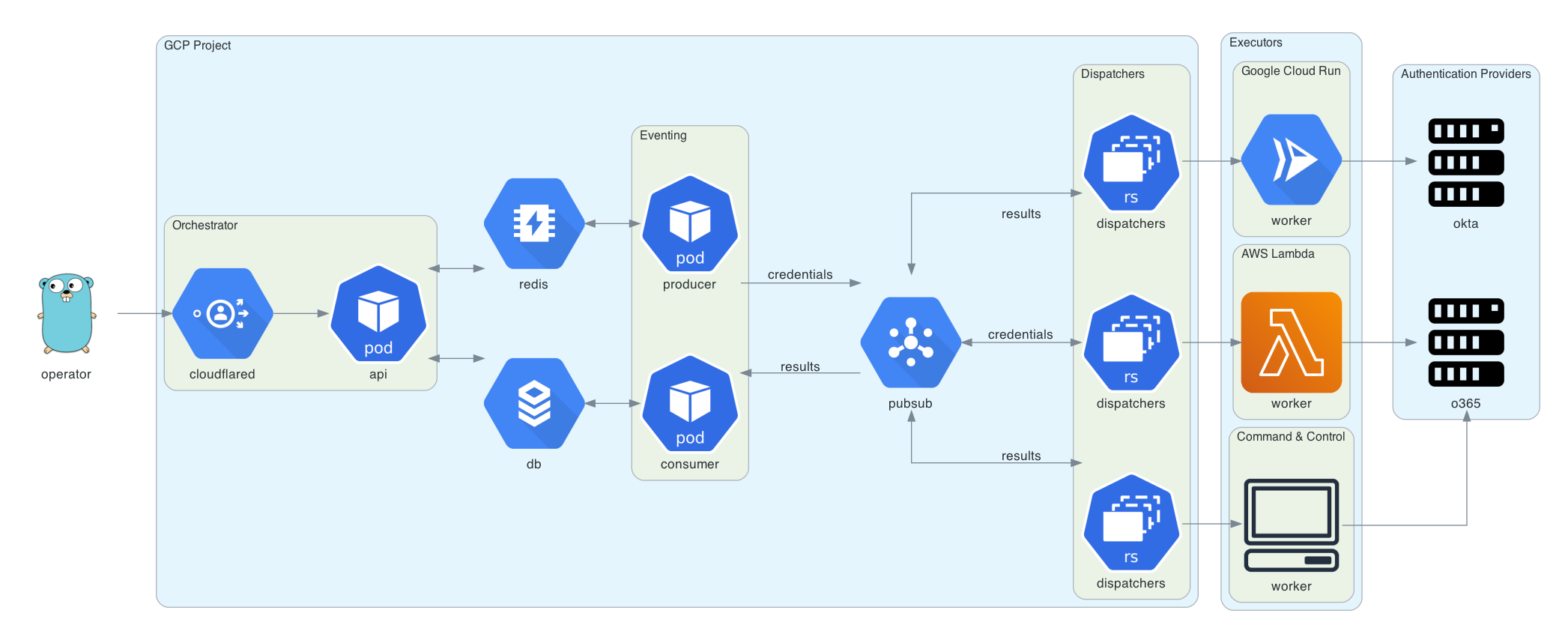
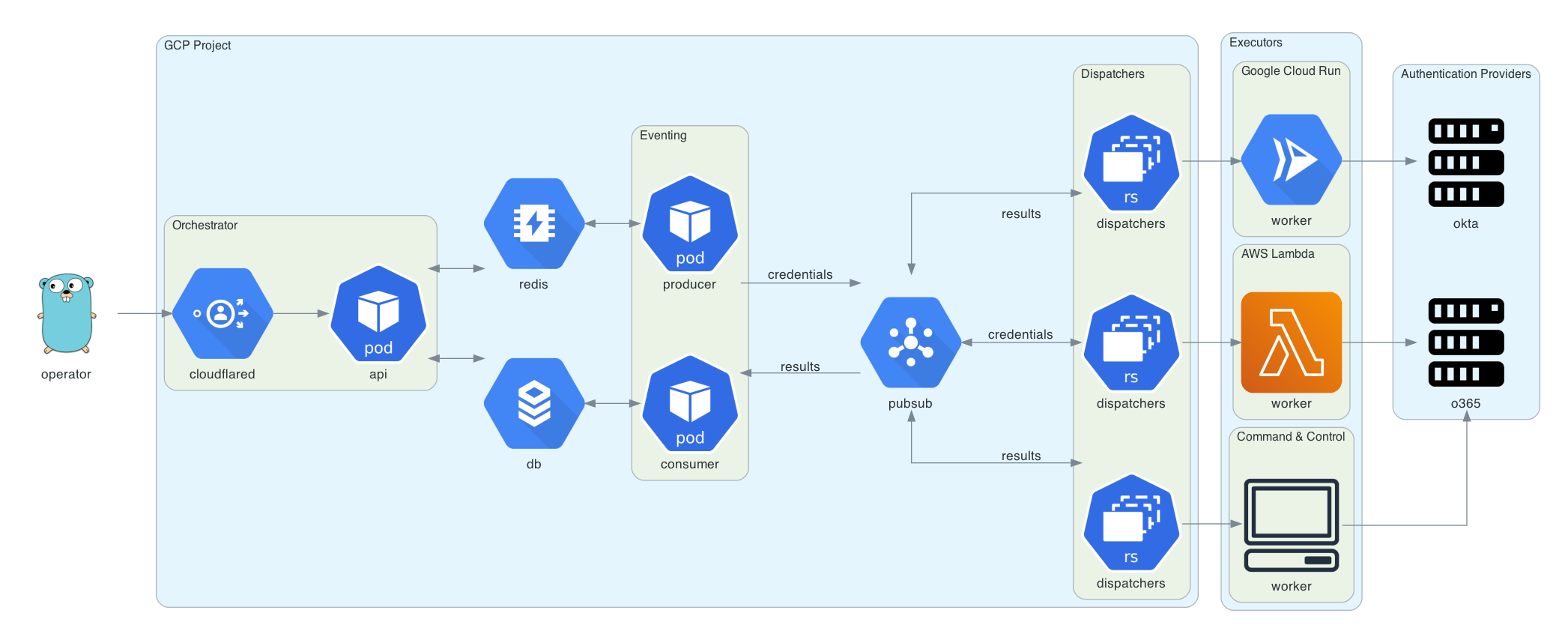
यह आरेख Diagrams का उपयोग करके उत्पन्न किया गया था। Go गोफर Renee French द्वारा डिज़ाइन किया गया था और CC BY 3.0 के तहत लाइसेंस प्राप्त है।
trident को तैनात करने के लिए एक Google Cloud प्रोजेक्ट, एक डोमेन नाम (ऑर्केस्ट्रेटर API के लिए), और इस डोमेन के लिए एक Cloudflare Access कॉन्फ़िगरेशन की आवश्यकता होती है। Cloudflare Access का उपयोग ऑर्केस्ट्रेटर API को प्रमाणित अनुरोध करने के लिए किया जाता है।
brew install cloudflare/cloudflare/cloudflared
brew install terraform
cd terraform
cloudflared login
terraform init
terraform plan
terraform apply
Trident का एक कमांड लाइन इंटरफ़ेस releases पृष्ठ पर उपलब्ध है।
वैकल्पिक रूप से, आप trident-client को go get के माध्यम से डाउनलोड और इंस्टॉल कर सकते हैं:
GO111MODULE=on go get github.com/praetorian-inc/trident/cmd/trident-client
trident-client बाइनरी ऑर्केस्ट्रेटर को API अनुरोध भेजता है। यह ~/.trident/config.yaml से पढ़ता है, जिसका निम्नलिखित प्रारूप है:
orchestrator-url: https://trident.example.org
providers:
  okta:
    subdomain: example
  adfs:
    domain: adfs.example.org
  o365:
    domain: login.microsoft.com
एक मान्य config.yaml के साथ, trident-client का उपयोग पासवर्ड स्प्रेइंग अभियान बनाने के लिए किया जा सकता है, जैसा कि नीचे दिखाया गया है:
trident-client campaign -u usernames.txt -p passwords.txt --interval 5s --window 120s
--interval विकल्प ऑपरेटर को क्रेडेंशियल प्रयासों के बीच देरी डालने की अनुमति देता है। --window विकल्प ऑपरेटर को अभियान के लिए एक निश्चित समाप्ति समय निर्धारित करने की अनुमति देता है। अतिरिक्त तर्क नीचे दस्तावेज़ित हैं:
Usage:
  trident-cli campaign [flags]

Flags:
  -a, --auth-provider string   this is the authentication platform you are attacking (default "okta")
  -h, --help                   help for campaign
  -i, --interval duration      requests will happen with this interval between them (default 1s)
  -b, --notbefore string       requests will not start before this time (default "2020-09-09T22:31:38.643959-05:00")
  -p, --passfile string        file of passwords (newline separated)
  -u, --userfile string        file of usernames (newline separated)
  -w, --window duration        a duration that this campaign will be active (ex: 4w) (default 672h0m0s)
results उपकमांड का उपयोग परिणाम तालिका को क्वेरी करने के लिए किया जा सकता है। इस उपकमांड के कई विकल्प हैं, लेकिन डिफ़ॉल्ट रूप से यह सभी अभियानों में सभी मान्य क्रेडेंशियल दिखाता है।
$ trident-client results
+----+-------------------+------------+-------+
| ID | USERNAME          | PASSWORD   | VALID |
+----+-------------------+------------+-------+
|  1 | [email protected] | Password1! | true  |
|  2 | [email protected]   | Password2! | true  |
|  3 | [email protected]   | Password3! | true  |
+----+-------------------+------------+-------+
अतिरिक्त तर्क नीचे दस्तावेज़ित हैं:
Usage:
  trident-cli results [flags]

Flags:
  -f, --filter string          filter on db results (specified in JSON) (default '{"valid":true}')
  -h, --help                   help for results
  -o, --output-format string   output format (table, csv, json) (default "table")
  -r, --return string          the list of fields you would like to see from the results (comma-separated string) (default "*")
