 y0oshi/project-deep-focus
Asynchronous network reconnaissance engine for large-scale service discovery and fingerprinting. Identifies unsecured services (RTSP cameras, VNC, FTP) and provides real-time terminal dashboard with authentication status detection.

A high-performance network reconnaissance tool for discovering and fingerprinting services across IP ranges. Built for security researchers and network administrators.
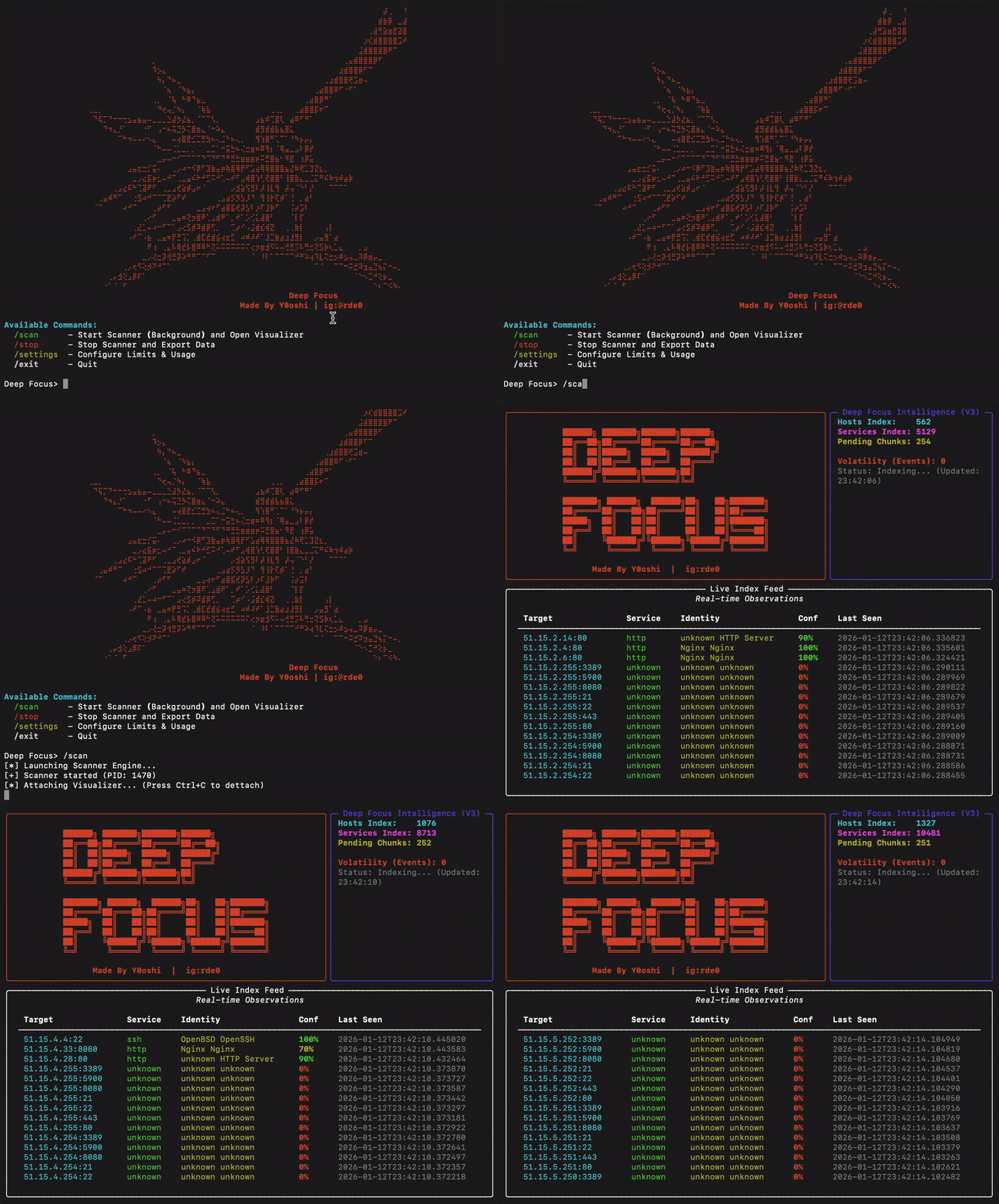
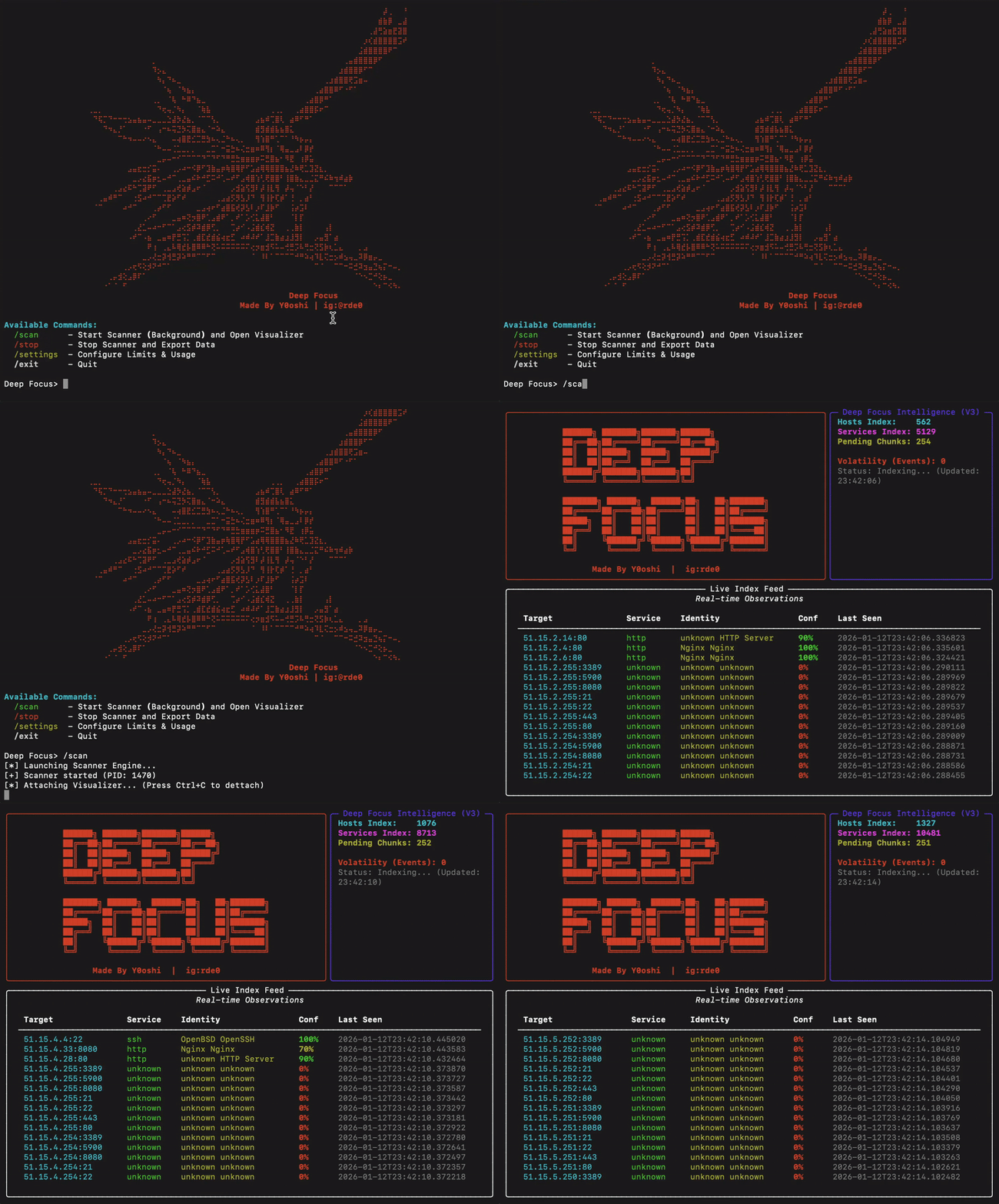
Deep Focus is an asynchronous network scanner designed for large-scale service discovery. It performs intelligent probing of common network services and provides detailed authentication status information for each discovered service. You can consider it your personal mini Shodan.
The tool is optimized for passive cooling systems (such as Apple M-series laptops) with built-in thermal management that automatically throttles scanning when system load is high.
| Service | Port | Detection Capabilities |
|---|---|---|
| HTTP/HTTPS | 80, 443, 8080, 8443 | Server type, TLS cipher, cert issuer, self-signed detection |
| FTP | 21 | Anonymous access detection |
| SSH | 22 | Version, key exchange, ciphers, MACs, host keys |
| Telnet | 23 | Banner grabbing for routers/IoT |
| SMTP | 25, 587 | STARTTLS detection, TLS cipher suite |
| VNC | 5900 | Authentication type (None, Password, TLS) |
| RTSP | 554 | Camera brand, authentication status |
| LDAPS | 636 | TLS cipher, cert info, self-signed detection |
| MQTT | 1883 | Broker access (No-Auth detection) |
| RDP | 3389 | Security mode detection (NLA, TLS, Legacy) |
The tool specifically identifies services that may be accessible without credentials:
Built-in governor monitors system load and automatically pauses scanning when thresholds are exceeded, preventing thermal throttling on passively-cooled systems.
Deep Focus comes with automated installers for all major platforms.
Download and Enter Directory:
git clone https://github.com/Y0oshi/Project-Deep-Focus.git
cd Project-Deep-Focus
Run Installer:
./install.sh.\install.batLaunch: Restart your terminal, then type:
deepfocus
That's it! You can now run the tool from anywhere.
If you prefer to configure everything yourself:
python3 -m venv venvsource venv/bin/activatepip install rich aiosqlitepython3 deep_focus.pydeepfocus
| Command | Description |
|---|---|
/scan | Start scanning and open the live dashboard |
/stop | Stop scanning and export results |
/settings | Configure scan parameters |
/exit | Exit the application |
python deep_focus.py/settings (Option 1)/settings (Option 3)/scan/stop to halt scanning and export resultsAccess configuration menu with /settings:
Specify the IP range to scan in CIDR notation.
Example: 192.168.1.0/24 (256 IPs)
Example: 10.0.0.0/16 (65,536 IPs)
Controls thermal limits. Higher values allow more aggressive scanning but increase heat generation.
| Power Level | Max System Load | Recommended For |
|---|---|---|
| 10-30% | Low | Laptops on battery |
| 40-60% | Medium | Normal operation |
| 70-100% | High | Desktop systems with active cooling |
Controls concurrent connection attempts.
| Speed | Threads | Notes |
|---|---|---|
| 100-300 | Conservative | Recommended for home routers |
| 300-600 | Optimal | Best balance of speed and stability |
| 600-1000 | Aggressive | May cause router overload or heat issues |
Warning: Speeds above 600 threads may cause router instability or system overheating.
Directory where scan results will be saved.
Export files are saved as text files with the naming convention:
deep_focus_export_[timestamp].txt
Each discovered service is recorded with the following structure:
IP: 192.168.1.100
Port: 21
Service: ftp
banner: 220 FTP Server Ready | Auth: [Anonymous Access ALLOWED]
--------------------
| Field | Description |
|---|---|
| IP | Target IP address |
| Port | Service port number |
| Service | Identified service type |
| banner | Service response and authentication status |
| Status | Meaning |
|---|---|
Anonymous Access ALLOWED | Server accepts anonymous login |
Anonymous User Rejected | Anonymous login disabled |
Encryption Required (AUTH TLS) | TLS required before authentication |
| Status | Meaning |
|---|---|
None (OPEN) | No password required |
VNC Auth | Password authentication required |
VeNCrypt (TLS) | TLS encryption required |
| Status | Meaning |
|---|---|
No Auth Required (OPEN) | Stream accessible without credentials |
Auth Required | Credentials needed |
Forbidden | Access denied |
Camera brands are identified when possible: Hikvision, Dahua, Axis, Foscam, Amcrest, Reolink, Ubiquiti.
| Type | Meaning |
|---|---|
OpenSSH X.X | Standard OpenSSH server |
Dropbear (Embedded/IoT) | Lightweight SSH, often on IoT devices |
MikroTik Router | MikroTik network equipment |
Cisco IOS | Cisco network device |
| Status | Meaning |
|---|---|
RDP (CredSSP/NLA Required) | Network Level Auth - most secure |
RDP (TLS Security) | TLS encryption enabled |
RDP (Standard RDP Security) | Legacy encryption only |
RDP (Legacy/No NLA) | Old server, no modern auth |
The included targets.json file contains a curated list of high-value IP ranges organized by provider and region. You can open this file to find tested IP ranges for various discovery goals.
Each entry in targets.json includes:
