
Skip to content
KitploitKITPLOIT
ToolsBlog
Submit
ToolsBlog
Submit

Hacking, PenTest, and Cybersecurity Tools for Your Security Arsenal!

Kitploit is a directory of hacking, cybersecurity, and pentesting tools. Discover the latest project updates to find vulnerabilities, analyze systems, automate testing, and strengthen your security.

··Feeds·Contact·Privacy·© 2026 Kitploit

Tool Directory

Categories

View all categories
Loading categories
kernel-debug-lab-for-virtual-box — How to set up 2 VirtualBox VM to debug kernel driver using windbg | Kitploit
Tools/GitHubGitHub/xalicex/kernel-debug-lab-for-virtual-box
DebuggersLearning & EducationLabs & Practice
GitHubxalicex/kernel-debug-lab-for-virtual-box

kernel-debug-lab-for-virtual-box

How to set up 2 VirtualBox VM to debug kernel driver using windbg

View Repository

Most Popular

View all →

Discover the most used tools by our community.

Explore all tools

Browse our collection of tools

View all tools →
Share
55484 years agoReviewed by Kitploit

How to set up a VirtualBox lab to debug Kernel Driver with Windbg

We consider here that on Computer A windbg is already installed and on Computer B Visual Studio, the SDK and WDK are installed.
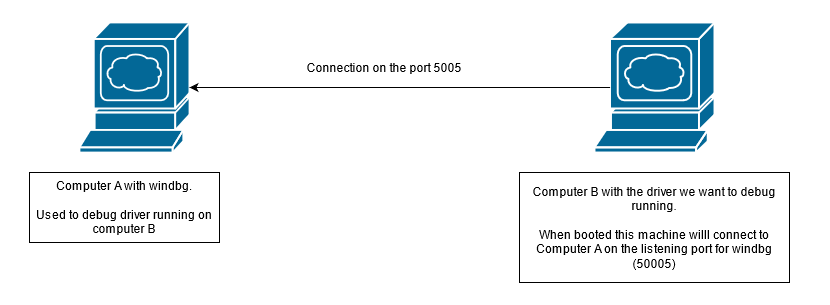
lab

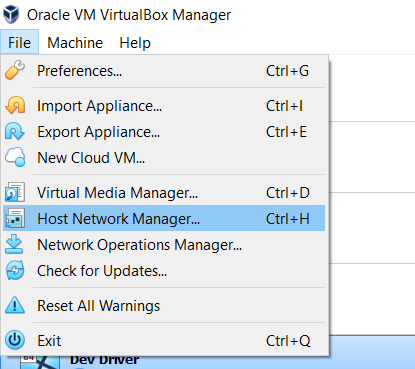
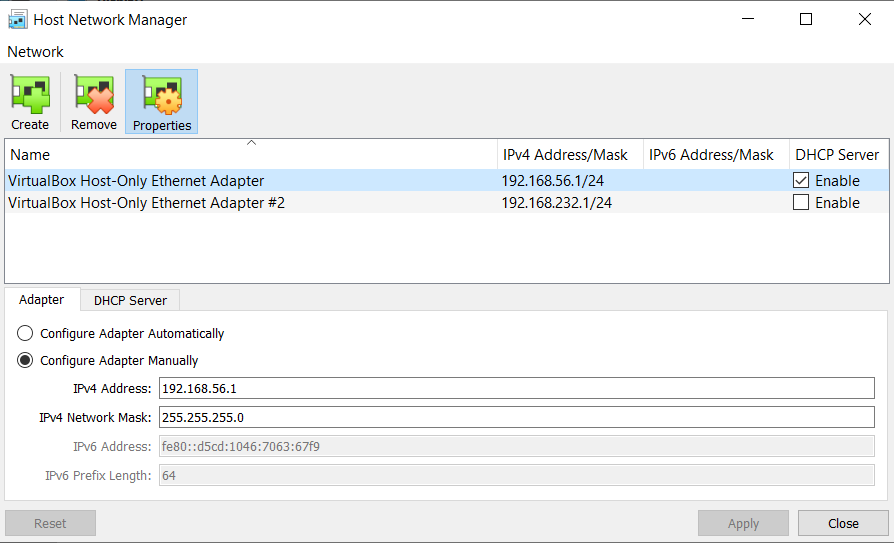
  1. Open the Host network Manager to create or set up a new Virtual Box Host-Only Ethernet adapter
  1. Create or choose a Virtual Box Host-Only Ethernet adapter and tick the Enable box for DHCP Server
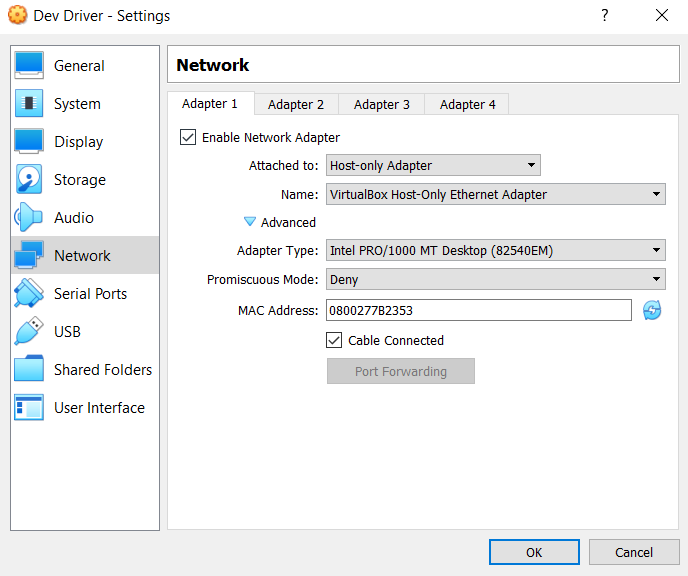
  1. For Computer A and Computer B go to Settings -> Network and in Attached to select Host-Only Adapter and then select the adapter previously set up or created. For us it's VirtualBox Host-Only Ethernet Adapter. Don't forget to tick the boxes Enable Network Adapter and Cable Connected
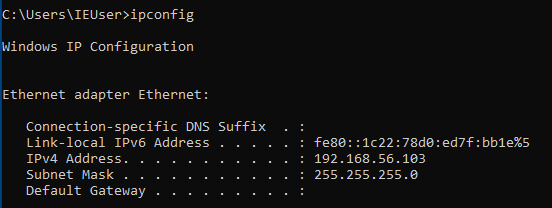
  1. Retrieve on Computer A the IP with the ipconfig command

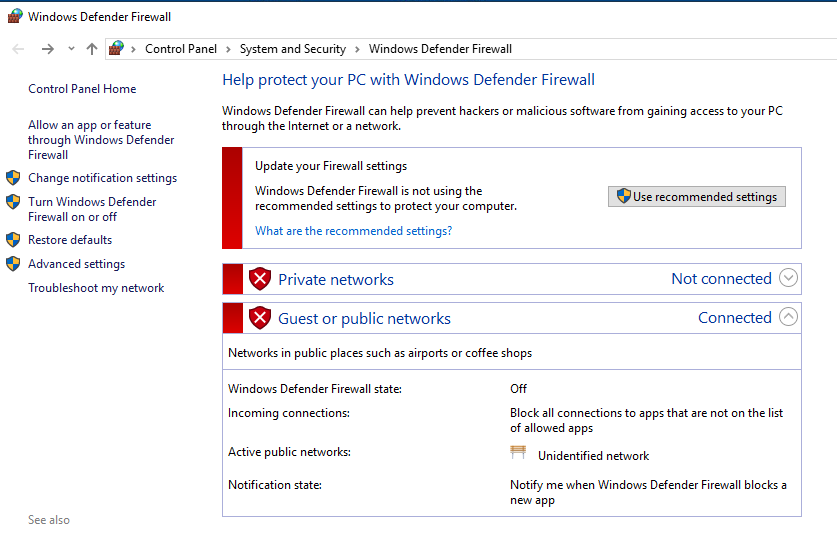
  1. Disable the firewall on both VMs

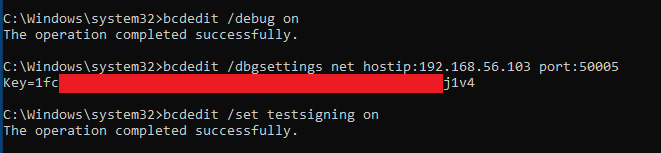
  1. On computer B from an administrator terminal:
  • Enable kernel debugging bcdedit /debug on
  • Setup the connection to Computer A for debug bcdedit /dbgsettings hostip:1.2.3.4 port:50005
  • Enable test signing bcdedit /set testsigning on

For the command bcdedit /dbgsettings, for hostip set the IP of your Computer A, for port choose the one you want between 50000 and 50039.

The bcdedit /dbgsettings will output a Key, KEEP IT it will be used on the windbg configuration on Computer A to establish the connection !
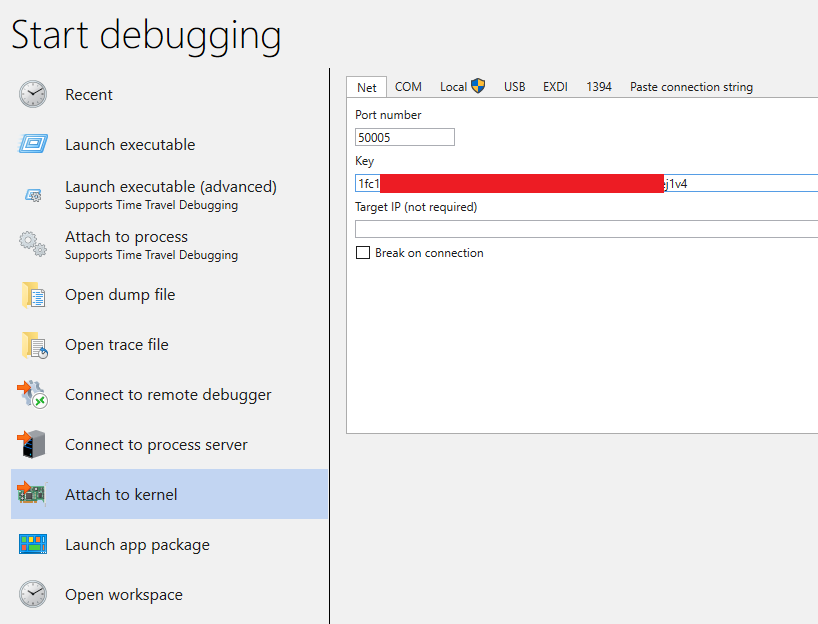
  1. On computer A, open Windbg, select Attach to Kernel and set the port you choose on Computer B and the key provided by the command bcdedit /dbgsettings.
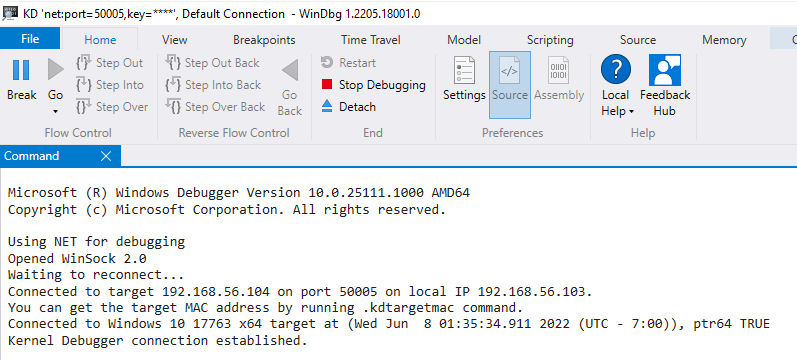
  1. Now reboot Computer B. On Computer A you will see in the command prompt of windbg some data meaning that the connection is up.

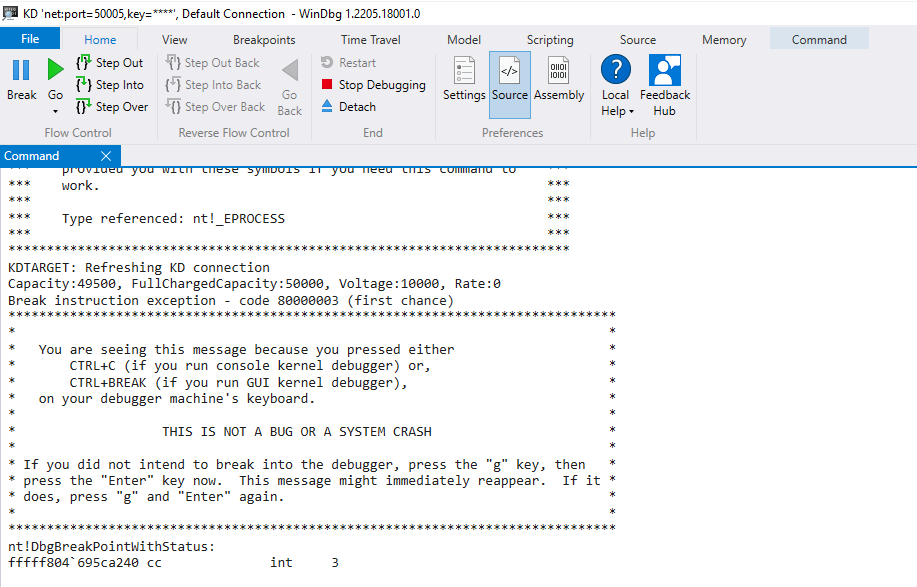
  1. You can check by clicking on the button Break. If it works, Computer B should be freezed and you should see a nt!DbgBreakPointWithStatus message in the command windows of windbg
Have fun !

If you want good ressources to practice go check :

  • Windows Kernel Programming by Pavel Yosifovich
  • Offensive Driver Development by @_rastamouse
Download Tool