
Skip to content
KitploitKITPLOIT
ToolsBlog
Submit
ToolsBlog
Submit

Hacking, PenTest, and Cybersecurity Tools for Your Security Arsenal!

Kitploit is a directory of hacking, cybersecurity, and pentesting tools. Discover the latest project updates to find vulnerabilities, analyze systems, automate testing, and strengthen your security.

··Feeds·Contact·Privacy·© 2026 Kitploit

Tool Directory

Categories

View all categories
Loading categories
xlsx — SheetJS xlsx 0.18.5 fork with CVE-2023-30533 and CVE-2024-22363 fixes | Kitploit
Tools/GitHubGitHub/weareu/xlsx
General Purpose UtilitiesEncryption/Decryption ToolsData RecoveryUtilities & Frameworks
GitHubweareu/xlsx

xlsx

SheetJS xlsx 0.18.5 fork with CVE-2023-30533 and CVE-2024-22363 fixes

View Repository
6 months agoNot yet reviewed

Most Popular

View all →

Discover the most used tools by our community.

Explore all tools

Browse our collection of tools

View all tools →
Share

SheetJS

The SheetJS Community Edition offers battle-tested open-source solutions for extracting useful data from almost any complex spreadsheet and generating new spreadsheets that will work with legacy and modern software alike.

SheetJS Pro offers solutions beyond data processing: Edit complex templates with ease; let out your inner Picasso with styling; make custom sheets with images/graphs/PivotTables; evaluate formula expressions and port calculations to web apps; automate common spreadsheet tasks, and much more!


License Build Status Snyk Vulnerabilities npm Downloads Analytics

Browser Test and Support Matrix

Build Status

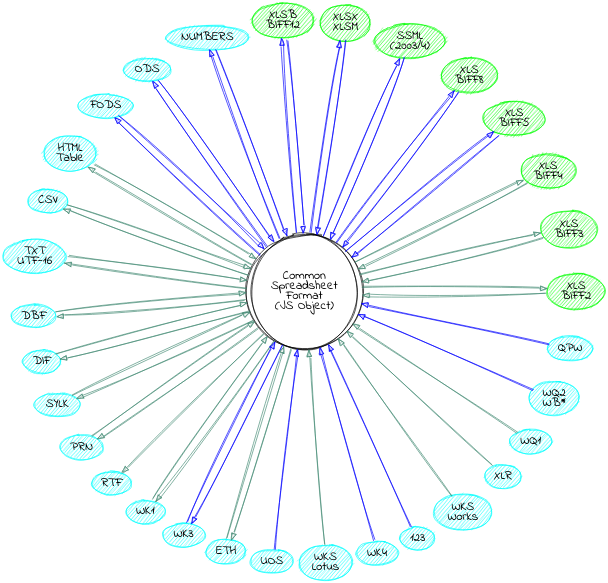
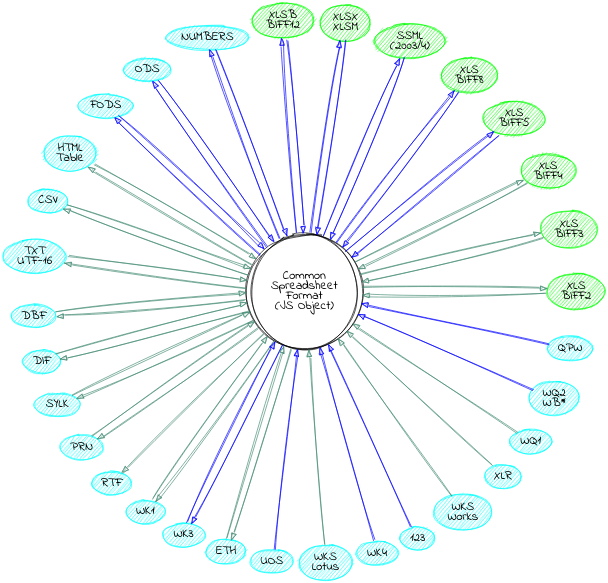
Supported File Formats

circo graph of format support

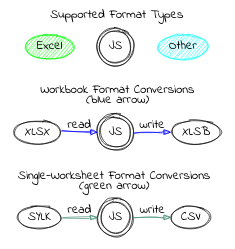
graph legend

Table of Contents

Expand to show Table of Contents
  • Getting Started
    • Installation
    • Usage
    • The Zen of SheetJS
    • JS Ecosystem Demos
  • Acquiring and Extracting Data
    • Parsing Workbooks
    • Processing JSON and JS Data
    • Processing HTML Tables
  • Processing Data
    • Modifying Workbook Structure
    • Modifying Cell Values
    • Modifying Other Worksheet / Workbook / Cell Properties
  • Packaging and Releasing Data
    • Writing Workbooks
    • Writing Examples
    • Streaming Write
    • Generating JSON and JS Data
    • Generating HTML Tables
    • Generating Single-Worksheet Snapshots
  • Interface
    • Parsing functions
    • Writing functions
    • Utilities
  • Common Spreadsheet Format
    • General Structures
    • Cell Object
      • Data Types
      • Dates
    • Sheet Objects
      • Worksheet Object
      • Chartsheet Object
      • Macrosheet Object
      • Dialogsheet Object
    • Workbook Object
      • Workbook File Properties

Getting Started

Installation

Standalone Browser Scripts

The complete browser standalone build is saved to dist/xlsx.full.min.js and can be directly added to a page with a script tag:

root@kitploit:~
<script lang="javascript" src="dist/xlsx.full.min.js"></script>
CDN Availability (click to show)
CDNURL
unpkg
Browser builds (click to show)

The complete single-file version is generated at dist/xlsx.full.min.js

dist/xlsx.core.min.js omits codepage library (no support for XLS encodings)

A slimmer build is generated at dist/xlsx.mini.min.js. Compared to full build:

  • codepage library skipped (no support for XLS encodings)
  • no support for XLSB / XLS / Lotus 1-2-3 / SpreadsheetML 2003 / Numbers
  • node stream utils removed

With bower:

root@kitploit:~
$ bower install js-xlsx

ECMAScript Modules

The ECMAScript Module build is saved to xlsx.mjs and can be directly added to a page with a script tag using type=module:

root@kitploit:~
<script type="module">
import { read, writeFileXLSX } from "./xlsx.mjs";

/* load the codepage support library for extended support with older formats  */
import { set_cptable } from "./xlsx.mjs";
import * as cptable from './dist/cpexcel.full.mjs';
set_cptable(cptable);
</script>

The npm package also exposes the module with the module parameter, supported in Angular and other projects:

root@kitploit:~
import { read, writeFileXLSX } from "xlsx";

/* load the codepage support library for extended support with older formats  */
import { set_cptable } from "xlsx";
import * as cptable from 'xlsx/dist/cpexcel.full.mjs';
set_cptable(cptable);

Deno

xlsx.mjs can be imported in Deno. It is available from unpkg:

root@kitploit:~
// @deno-types="https://unpkg.com/xlsx/types/index.d.ts"
import * as XLSX from 'https://unpkg.com/xlsx/xlsx.mjs';

/* load the codepage support library for extended support with older formats  */
import * as cptable from 'https://unpkg.com/xlsx/dist/cpexcel.full.mjs';
XLSX.set_cptable(cptable);

NodeJS

With npm:

root@kitploit:~
$ npm install xlsx

By default, the module supports require:

root@kitploit:~
var XLSX = require("xlsx");

The module also ships with xlsx.mjs for use with import:

root@kitploit:~
import * as XLSX from 'xlsx/xlsx.mjs';

/* load 'fs' for readFile and writeFile support */
import * as fs from 'fs';
XLSX.set_fs(fs);

/* load 'stream' for stream support */
import { Readable } from 'stream';
XLSX.stream.set_readable(Readable);

/* load the codepage support library for extended support with older formats  */
import * as cpexcel from 'xlsx/dist/cpexcel.full.mjs';
XLSX.set_cptable(cpexcel);

Photoshop and InDesign

dist/xlsx.extendscript.js is an ExtendScript build for Photoshop and InDesign that is included in the npm package. It can be directly referenced with a #include directive:

root@kitploit:~
#include "xlsx.extendscript.js"
Internet Explorer and ECMAScript 3 Compatibility (click to show)

For broad compatibility with JavaScript engines, the library is written using ECMAScript 3 language dialect as well as some ES5 features like Array#forEach. Older browsers require shims to provide missing functions.

To use the shim, add the shim before the script tag that loads xlsx.js:

root@kitploit:~
<!-- add the shim first -->
<script type="text/javascript" src="shim.min.js"></script>
<!-- after the shim is referenced, add the library -->
<script type="text/javascript" src="xlsx.full.min.js"></script>

The script also includes IE_LoadFile and IE_SaveFile for loading and saving files in Internet Explorer versions 6-9. The xlsx.extendscript.js script bundles the shim in a format suitable for Photoshop and other Adobe products.

Usage

Most scenarios involving spreadsheets and data can be broken into 5 parts:

  1. Acquire Data: Data may be stored anywhere: local or remote files, databases, HTML TABLE, or even generated programmatically in the web browser.

  2. Extract Data: For spreadsheet files, this involves parsing raw bytes to read the cell data. For general JS data, this involves reshaping the data.

  3. Process Data: From generating summary statistics to cleaning data records, this step is the heart of the problem.

  4. Package Data: This can involve making a new spreadsheet or serializing with JSON.stringify or writing XML or simply flattening data for UI tools.

  5. Release Data: Spreadsheet files can be uploaded to a server or written locally. Data can be presented to users in an HTML TABLE or data grid.

A common problem involves generating a valid spreadsheet export from data stored in an HTML table. In this example, an HTML TABLE on the page will be scraped, a row will be added to the bottom with the date of the report, and a new file will be generated and downloaded locally. XLSX.writeFile takes care of packaging the data and attempting a local download:

root@kitploit:~
// Acquire Data (reference to the HTML table)
var table_elt = document.getElementById("my-table-id");

// Extract Data (create a workbook object from the table)
var workbook = XLSX.utils.table_to_book(table_elt);

// Process Data (add a new row)
var ws = workbook.Sheets["Sheet1"];
XLSX.utils.sheet_add_aoa(ws, [["Created "+new Date().toISOString()]], {origin:-1});

// Package and Release Data (`writeFile` tries to write and save an XLSB file)
XLSX.writeFile(workbook, "Report.xlsb");

This library tries to simplify steps 2 and 4 with functions to extract useful data from spreadsheet files (read / readFile) and generate new spreadsheet files from data (write / writeFile). Additional utility functions like table_to_book work with other common data sources like HTML tables.

This documentation and various demo projects cover a number of common scenarios and approaches for steps 1 and 5.

Utility functions help with step 3.

"Acquiring and Extracting Data" describes solutions for common data import scenarios.

"Packaging and Releasing Data" describes solutions for common data export scenarios.

"Processing Data" describes solutions for common workbook processing and manipulation scenarios.

"Utility Functions" details utility functions for translating JSON Arrays and other common JS structures into worksheet objects.

The Zen of SheetJS

Data processing should fit in any workflow

The library does not impose a separate lifecycle. It fits nicely in websites and apps built using any framework. The plain JS data objects play nice with Web Workers and future APIs.

JavaScript is a powerful language for data processing

The "Common Spreadsheet Format" is a simple object representation of the core concepts of a workbook. The various functions in the library provide low-level tools for working with the object.

For friendly JS processing, there are utility functions for converting parts of a worksheet to/from an Array of Arrays. The following example combines powerful JS Array methods with a network request library to download data, select the information we want and create a workbook file:

Get Data from a JSON Endpoint and Generate a Workbook (click to show)

The goal is to generate a XLSB workbook of US President names and birthdays.

Acquire Data

Raw Data

https://theunitedstates.io/congress-legislators/executive.json has the desired data. For example, John Adams:

root@kitploit:~
{
  "id": { /* (data omitted) */ },
  "name": {
    "first": "John",          // <-- first name
    "last": "Adams"           // <-- last name
  },
  "bio": {
    "birthday": "1735-10-19", // <-- birthday
    "gender": "M"
  },
  "terms": [
    { "type": "viceprez", /* (other fields omitted) */ },
    { "type": "viceprez", /* (other fields omitted) */ },
    { "type": "prez", /* (other fields omitted) */ } // <-- look for "prez"
  ]
}

Filtering for Presidents

The dataset includes Aaron Burr, a Vice President who was never President!

Array#filter creates a new array with the desired rows. A President served at least one term with type set to "prez". To test if a particular row has at least one "prez" term, Array#some is another native JS function. The complete filter would be:

root@kitploit:~
const prez = raw_data.filter(row => row.terms.some(term => term.type === "prez"));

File formats are implementation details

The parser covers a wide gamut of common spreadsheet file formats to ensure that "HTML-saved-as-XLS" files work as well as actual XLS or XLSX files.

The writer supports a number of common output formats for broad compatibility with the data ecosystem.

To the greatest extent possible, data processing code should not have to worry about the specific file formats involved.

JS Ecosystem Demos

The demos directory includes sample projects for:

Frameworks and APIs

  • angularjs
  • angular and ionic
  • knockout
  • meteor
  • react and react-native
  • vue 2.x and weex
  • XMLHttpRequest and fetch
  • nodejs server
  • databases and key/value stores

Bundlers and Tooling

  • browserify
  • fusebox
  • parcel
  • requirejs
  • rollup
  • systemjs
  • typescript
  • webpack 2.x

Platforms and Integrations

  • deno
  • electron application
  • nw.js application
  • Chrome / Chromium extensions
  • Download a Google Sheet locally
  • Adobe ExtendScript
  • Headless Browsers
  • canvas-datagrid
  • x-spreadsheet

Other examples are included in the showcase.

https://sheetjs.com/demos/modify.html shows a complete example of reading, modifying, and writing files.

https://github.com/SheetJS/sheetjs/blob/HEAD/bin/xlsx.njs is the command-line tool included with node installations, reading spreadsheet files and exporting the contents in various formats.

Acquiring and Extracting Data

Parsing Workbooks

API

Extract data from spreadsheet bytes

root@kitploit:~
var workbook = XLSX.read(data, opts);

The read method can extract data from spreadsheet bytes stored in a JS string, "binary string", NodeJS buffer or typed array (Uint8Array or ArrayBuffer).

Read spreadsheet bytes from a local file and extract data

root@kitploit:~
var workbook = XLSX.readFile(filename, opts);

The readFile method attempts to read a spreadsheet file at the supplied path. Browsers generally do not allow reading files in this way (it is deemed a security risk), and attempts to read files in this way will throw an error.

The second opts argument is optional. "Parsing Options" covers the supported properties and behaviors.

Examples

Here are a few common scenarios (click on each subtitle to see the code):

Local file in a NodeJS server (click to show)

readFile uses fs.readFileSync under the hood:

root@kitploit:~
var XLSX = require("xlsx");

var workbook = XLSX.readFile("test.xlsx");

For Node ESM, the readFile helper is not enabled. Instead, fs.readFileSync should be used to read the file data as a Buffer for use with XLSX.read:

root@kitploit:~
import { readFileSync } from "fs";
import { read } from "xlsx/xlsx.mjs";

const buf = readFileSync("test.xlsx");
/* buf is a Buffer */
const workbook = read(buf);
Local file in a Deno application (click to show)

readFile uses Deno.readFileSync under the hood:

root@kitploit:~
// @deno-types="https://deno.land/x/sheetjs/types/index.d.ts"
import * as XLSX from 'https://deno.land/x/sheetjs/xlsx.mjs'

const workbook = XLSX.readFile("test.xlsx");

Applications reading files must be invoked with the --allow-read flag. The deno demo has more examples

User-submitted file in a web page ("Drag-and-Drop") (click to show)

For modern websites targeting Chrome 76+, File#arrayBuffer is recommended:

root@kitploit:~
// XLSX is a global from the standalone script

async function handleDropAsync(e) {
  e.stopPropagation(); e.preventDefault();
  const f = e.dataTransfer.files[0];
  /* f is a File */
  const data = await f.arrayBuffer();
  /* data is an ArrayBuffer */
  const workbook = XLSX.read(data);

  /* DO SOMETHING WITH workbook HERE */
}
drop_dom_element.addEventListener("drop", handleDropAsync, false);

For maximal compatibility, the FileReader API should be used:

root@kitploit:~
function handleDrop(e) {
  e.stopPropagation(); e.preventDefault();
  var f = e.dataTransfer.files[0];
  /* f is a File */
  var reader = new FileReader();
  reader.onload = function(e) {
    var data = e.target.result;
    /* reader.readAsArrayBuffer(file) -> data will be an ArrayBuffer */
    var workbook = XLSX.read(data);

    /* DO SOMETHING WITH workbook HERE */
  };
  reader.readAsArrayBuffer(f);
}
drop_dom_element.addEventListener("drop", handleDrop, false);

https://oss.sheetjs.com/sheetjs/ demonstrates the FileReader technique.

User-submitted file with an HTML INPUT element (click to show)

Starting with an HTML INPUT element with type="file":

root@kitploit:~
<input type="file" id="input_dom_element">

For modern websites targeting Chrome 76+, Blob#arrayBuffer is recommended:

root@kitploit:~
// XLSX is a global from the standalone script

async function handleFileAsync(e) {
  const file = e.target.files[0];
  const data = await file.arrayBuffer();
  /* data is an ArrayBuffer */
  const workbook = XLSX.read(data);

  /* DO SOMETHING WITH workbook HERE */
}
input_dom_element.addEventListener("change", handleFileAsync, false);

For broader support (including IE10+), the FileReader approach is recommended:

root@kitploit:~
function handleFile(e) {
  var file = e.target.files[0];
  var reader = new FileReader();
  reader.onload = function(e) {
    var data = e.target.result;
    /* reader.readAsArrayBuffer(file) -> data will be an ArrayBuffer */
    var workbook = XLSX.read(e.target.result);

    /* DO SOMETHING WITH workbook HERE */
  };
  reader.readAsArrayBuffer(file);
}
input_dom_element.addEventListener("change", handleFile, false);
Fetching a file in the web browser ("Ajax") (click to show)

For modern websites targeting Chrome 42+, fetch is recommended:

root@kitploit:~
// XLSX is a global from the standalone script

(async() => {
  const url = "http://oss.sheetjs.com/test_files/formula_stress_test.xlsx";
  const data = await (await fetch(url)).arrayBuffer();
  /* data is an ArrayBuffer */
  const workbook = XLSX.read(data);

  /* DO SOMETHING WITH workbook HERE */
})();

For broader support, the XMLHttpRequest approach is recommended:

root@kitploit:~
var url = "http://oss.sheetjs.com/test_files/formula_stress_test.xlsx";

/* set up async GET request */
var req = new XMLHttpRequest();
req.open("GET", url, true);
req.responseType = "arraybuffer";

req.onload = function(e) {
  var workbook = XLSX.read(req.response);

  /* DO SOMETHING WITH workbook HERE */
};

req.send();

The xhr demo includes a longer discussion and more examples.

http://oss.sheetjs.com/sheetjs/ajax.html shows fallback approaches for IE6+.

Local file in a PhotoShop or InDesign plugin (click to show)

readFile wraps the File logic in Photoshop and other ExtendScript targets. The specified path should be an absolute path:

root@kitploit:~
#include "xlsx.extendscript.js"

/* Read test.xlsx from the Documents folder */
var workbook = XLSX.readFile(Folder.myDocuments + "/test.xlsx");

The extendscript demo includes a more complex example.

Local file in an Electron app (click to show)

readFile can be used in the renderer process:

root@kitploit:~
/* From the renderer process */
var XLSX = require("xlsx");

var workbook = XLSX.readFile(path);

Electron APIs have changed over time. The electron demo shows a complete example and details the required version-specific settings.

Local file in a mobile app with React Native (click to show)

The react demo includes a sample React Native app.

Since React Native does not provide a way to read files from the filesystem, a third-party library must be used. The following libraries have been tested:

  • react-native-file-access

The base64 encoding returns strings compatible with the base64 type:

root@kitploit:~
import XLSX from "xlsx";
import { FileSystem } from "react-native-file-access";

const b64 = await FileSystem.readFile(path, "base64");
/* b64 is a base64 string */
const workbook = XLSX.read(b64, {type: "base64"});
  • react-native-fs

The ascii encoding returns binary strings compatible with the binary type:

root@kitploit:~
import XLSX from "xlsx";
import { readFile } from "react-native-fs";

const bstr = await readFile(path, "ascii");
/* bstr is a binary string */
const workbook = XLSX.read(bstr, {type: "binary"});
NodeJS Server File Uploads (click to show)

read can accept a NodeJS buffer. readFile can read files generated by a HTTP POST request body parser like formidable:

root@kitploit:~
const XLSX = require("xlsx");
const http = require("http");
const formidable = require("formidable");

const server = http.createServer((req, res) => {
  const form = new formidable.IncomingForm();
  form.parse(req, (err, fields, files) => {
    /* grab the first file */
    const f = Object.entries(files)[0][1];
    const path = f.filepath;
    const workbook = XLSX.readFile(path);

    /* DO SOMETHING WITH workbook HERE */
  });
}).listen(process.env.PORT || 7262);

The server demo has more advanced examples.

Download files in a NodeJS process (click to show)

Node 17.5 and 18.0 have native support for fetch:

root@kitploit:~
const XLSX = require("xlsx");

const data = await (await fetch(url)).arrayBuffer();
/* data is an ArrayBuffer */
const workbook = XLSX.read(data);

For broader compatibility, third-party modules are recommended.

request requires a null encoding to yield Buffers:

root@kitploit:~
var XLSX = require("xlsx");
var request = require("request");

request({url: url, encoding: null}, function(err, resp, body) {
  var workbook = XLSX.read(body);

  /* DO SOMETHING WITH workbook HERE */
});

axios works the same way in browser and in NodeJS:

root@kitploit:~
const XLSX = require("xlsx");
const axios = require("axios");

(async() => {
  const res = await axios.get(url, {responseType: "arraybuffer"});
  /* res.data is a Buffer */
  const workbook = XLSX.read(res.data);

  /* DO SOMETHING WITH workbook HERE */
})();
Download files in an Electron app (click to show)

The net module in the main process can make HTTP/HTTPS requests to external resources. Responses should be manually concatenated using Buffer.concat:

root@kitploit:~
const XLSX = require("xlsx");
const { net } = require("electron");

const req = net.request(url);
req.on("response", (res) => {
  const bufs = []; // this array will collect all of the buffers
  res.on("data", (chunk) => { bufs.push(chunk); });
  res.on("end", () => {
    const workbook = XLSX.read(Buffer.concat(bufs));

    /* DO SOMETHING WITH workbook HERE */
  });
});
req.end();
Readable Streams in NodeJS (click to show)

When dealing with Readable Streams, the easiest approach is to buffer the stream and process the whole thing at the end:

root@kitploit:~
var fs = require("fs");
var XLSX = require("xlsx");

function process_RS(stream, cb) {
  var buffers = [];
  stream.on("data", function(data) { buffers.push(data); });
  stream.on("end", function() {
    var buffer = Buffer.concat(buffers);
    var workbook = XLSX.read(buffer, {type:"buffer"});

    /* DO SOMETHING WITH workbook IN THE CALLBACK */
    cb(workbook);
  });
}
ReadableStream in the browser (click to show)

When dealing with ReadableStream, the easiest approach is to buffer the stream and process the whole thing at the end:

root@kitploit:~
// XLSX is a global from the standalone script

async function process_RS(stream) {
  /* collect data */
  const buffers = [];
  const reader = stream.getReader();
  for(;;) {
    const res = await reader.read();
    if(res.value) buffers.push(res.value);
    if(res.done) break;
  }

  /* concat */
  const out = new Uint8Array(buffers.reduce((acc, v) => acc + v.length, 0));

  let off = 0;
  for(const u8 of arr) {
    out.set(u8, off);
    off += u8.length;
  }

  return out;
}

const data = await process_RS(stream);
/* data is Uint8Array */
const workbook = XLSX.read(data);

More detailed examples are covered in the included demos

Processing JSON and JS Data

JSON and JS data tend to represent single worksheets. This section will use a few utility functions to generate workbooks.

Create a new Workbook

root@kitploit:~
var workbook = XLSX.utils.book_new();

The book_new utility function creates an empty workbook with no worksheets.

Spreadsheet software generally require at least one worksheet and enforce the requirement in the user interface. This library enforces the requirement at write time, throwing errors if an empty workbook is passed to write functions.

API

Create a worksheet from an array of arrays of JS values

root@kitploit:~
var worksheet = XLSX.utils.aoa_to_sheet(aoa, opts);

The aoa_to_sheet utility function walks an "array of arrays" in row-major order, generating a worksheet object. The following snippet generates a sheet with cell A1 set to the string A1, cell B1 set to B1, etc:

root@kitploit:~
var worksheet = XLSX.utils.aoa_to_sheet([
  ["A1", "B1", "C1"],
  ["A2", "B2", "C2"],
  ["A3", "B3", "C3"]
]);

"Array of Arrays Input" describes the function and the optional opts argument in more detail.

Create a worksheet from an array of JS objects

root@kitploit:~
var worksheet = XLSX.utils.json_to_sheet(jsa, opts);

The json_to_sheet utility function walks an array of JS objects in order, generating a worksheet object. By default, it will generate a header row and one row per object in the array. The optional opts argument has settings to control the column order and header output.

"Array of Objects Input" describes the function and the optional opts argument in more detail.

Examples

"Zen of SheetJS" contains a detailed example "Get Data from a JSON Endpoint and Generate a Workbook"

x-spreadsheet is an interactive data grid for previewing and modifying structured data in the web browser. The xspreadsheet demo includes a sample script with the xtos function for converting from x-spreadsheet data object to a workbook. https://oss.sheetjs.com/sheetjs/x-spreadsheet is a live demo.

Records from a database query (SQL or no-SQL) (click to show)

The database demo includes examples of working with databases and query results.

Numerical Computations with TensorFlow.js (click to show)

@tensorflow/tfjs and other libraries expect data in simple arrays, well-suited for worksheets where each column is a data vector. That is the transpose of how most people use spreadsheets, where each row is a vector.

When recovering data from tfjs, the returned data points are stored in a typed array. An array of arrays can be constructed with loops. Array#unshift can prepend a title row before the conversion:

root@kitploit:~
const XLSX = require("xlsx");
const tf = require('@tensorflow/tfjs');

/* suppose xs and ys are vectors (1D tensors) -> tfarr will be a typed array */
const tfdata = tf.stack([xs, ys]).transpose();
const shape = tfdata.shape;
const tfarr = tfdata.dataSync();

/* construct the array of arrays */
const aoa = [];
for(let j = 0; j < shape[0]; ++j) {
  aoa[j] = [];
  for(let i = 0; i < shape[1]; ++i) aoa[j][i] = tfarr[j * shape[1] + i];
}
/* add headers to the top */
aoa.unshift(["x", "y"]);

/* generate worksheet */
const worksheet = XLSX.utils.aoa_to_sheet(aoa);

The array demo shows a complete example.

Processing HTML Tables

API

Create a worksheet by scraping an HTML TABLE in the page

root@kitploit:~
var worksheet = XLSX.utils.table_to_sheet(dom_element, opts);

The table_to_sheet utility function takes a DOM TABLE element and iterates through the rows to generate a worksheet. The opts argument is optional. "HTML Table Input" describes the function in more detail.

Create a workbook by scraping an HTML TABLE in the page

root@kitploit:~
var workbook = XLSX.utils.table_to_book(dom_element, opts);

The table_to_book utility function follows the same logic as table_to_sheet. After generating a worksheet, it creates a blank workbook and appends the spreadsheet.

The options argument supports the same options as table_to_sheet, with the addition of a sheet property to control the worksheet name. If the property is missing or no options are specified, the default name Sheet1 is used.

Examples

Here are a few common scenarios (click on each subtitle to see the code):

HTML TABLE element in a webpage (click to show)
root@kitploit:~
<!-- include the standalone script and shim.  this uses the UNPKG CDN -->
<script src="https://unpkg.com/xlsx/dist/shim.min.js"></script>
<script src="https://unpkg.com/xlsx/dist/xlsx.full.min.js"></script>

<!-- example table with id attribute -->
<table id="tableau">
  <tr><td>Sheet</td><td>JS</td></tr>
  <tr><td>12345</td><td>67</td></tr>
</table>

<!-- this block should appear after the table HTML and the standalone script -->
<script type="text/javascript">
  var workbook = XLSX.utils.table_to_book(document.getElementById("tableau"));

  /* DO SOMETHING WITH workbook HERE */
</script>

Multiple tables on a web page can be converted to individual worksheets:

root@kitploit:~
/* create new workbook */
var workbook = XLSX.utils.book_new();

/* convert table "table1" to worksheet named "Sheet1" */
var sheet1 = XLSX.utils.table_to_sheet(document.getElementById("table1"));
XLSX.utils.book_append_sheet(workbook, sheet1, "Sheet1");

/* convert table "table2" to worksheet named "Sheet2" */
var sheet2 = XLSX.utils.table_to_sheet(document.getElementById("table2"));
XLSX.utils.book_append_sheet(workbook, sheet2, "Sheet2");

/* workbook now has 2 worksheets */

Alternatively, the HTML code can be extracted and parsed:

root@kitploit:~
var htmlstr = document.getElementById("tableau").outerHTML;
var workbook = XLSX.read(htmlstr, {type:"string"});
Chrome/Chromium Extension (click to show)

The chrome demo shows a complete example and details the required permissions and other settings.

In an extension, it is recommended to generate the workbook in a content script and pass the object back to the extension:

root@kitploit:~
/* in the worker script */
chrome.runtime.onMessage.addListener(function(msg, sender, cb) {
  /* pass a message like { sheetjs: true } from the extension to scrape */
  if(!msg || !msg.sheetjs) return;
  /* create a new workbook */
  var workbook = XLSX.utils.book_new();
  /* loop through each table element */
  var tables = document.getElementsByTagName("table")
  for(var i = 0; i < tables.length; ++i) {
    var worksheet = XLSX.utils.table_to_sheet(tables[i]);
    XLSX.utils.book_append_sheet(workbook, worksheet, "Table" + i);
  }
  /* pass back to the extension */
  return cb(workbook);
});
Server-Side HTML Tables with Headless Chrome (click to show)

The headless demo includes a complete demo to convert HTML files to XLSB workbooks. The core idea is to add the script to the page, parse the table in the page context, generate a base64 workbook and send it back for further processing:

root@kitploit:~
const XLSX = require("xlsx");
const { readFileSync } = require("fs"), puppeteer = require("puppeteer");

const url = `https://sheetjs.com/demos/table`;

/* get the standalone build source (node_modules/xlsx/dist/xlsx.full.min.js) */
const lib = readFileSync(require.resolve("xlsx/dist/xlsx.full.min.js"), "utf8");

(async() => {
  /* start browser and go to web page */
  const browser = await puppeteer.launch();
  const page = await browser.newPage();
  await page.goto(url, {waitUntil: "networkidle2"});

  /* inject library */
  await page.addScriptTag({content: lib});

  /* this function `s5s` will be called by the script below, receiving the Base64-encoded file */
  await page.exposeFunction("s5s", async(b64) => {
    const workbook = XLSX.read(b64, {type: "base64" });

    /* DO SOMETHING WITH workbook HERE */
  });

  /* generate XLSB file in webpage context and send back result */
  await page.addScriptTag({content: `
    /* call table_to_book on first table */
    var workbook = XLSX.utils.table_to_book(document.querySelector("TABLE"));

    /* generate XLSX file */
    var b64 = XLSX.write(workbook, {type: "base64", bookType: "xlsb"});

    /* call "s5s" hook exposed from the node process */
    window.s5s(b64);
  `});

  /* cleanup */
  await browser.close();
})();
Server-Side HTML Tables with Headless WebKit (click to show)

The headless demo includes a complete demo to convert HTML files to XLSB workbooks using PhantomJS. The core idea is to add the script to the page, parse the table in the page context, generate a binary workbook and send it back for further processing:

root@kitploit:~
var XLSX = require('xlsx');
var page = require('webpage').create();

/* this code will be run in the page */
var code = [ "function(){",
  /* call table_to_book on first table */
  "var wb = XLSX.utils.table_to_book(document.body.getElementsByTagName('table')[0]);",

  /* generate XLSB file and return binary string */
  "return XLSX.write(wb, {type: 'binary', bookType: 'xlsb'});",
"}" ].join("");

page.open('https://sheetjs.com/demos/table', function() {
  /* Load the browser script from the UNPKG CDN */
  page.includeJs("https://unpkg.com/xlsx/dist/xlsx.full.min.js", function() {
    /* The code will return an XLSB file encoded as binary string */
    var bin = page.evaluateJavaScript(code);

    var workbook = XLSX.read(bin, {type: "binary"});
    /* DO SOMETHING WITH workbook HERE */

    phantom.exit();
  });
});
NodeJS HTML Tables without a browser (click to show)

NodeJS does not include a DOM implementation and Puppeteer requires a hefty Chromium build. jsdom is a lightweight alternative:

root@kitploit:~
const XLSX = require("xlsx");
const { readFileSync } = require("fs");
const { JSDOM } = require("jsdom");

/* obtain HTML string.  This example reads from test.html */
const html_str = fs.readFileSync("test.html", "utf8");
/* get first TABLE element */
const doc = new JSDOM(html_str).window.document.querySelector("table");
/* generate workbook */
const workbook = XLSX.utils.table_to_book(doc);

Processing Data

The "Common Spreadsheet Format" is a simple object representation of the core concepts of a workbook. The utility functions work with the object representation and are intended to handle common use cases.

Modifying Workbook Structure

API

Append a Worksheet to a Workbook

root@kitploit:~
XLSX.utils.book_append_sheet(workbook, worksheet, sheet_name);

The book_append_sheet utility function appends a worksheet to the workbook. The third argument specifies the desired worksheet name. Multiple worksheets can be added to a workbook by calling the function multiple times. If the worksheet name is already used in the workbook, it will throw an error.

Append a Worksheet to a Workbook and find a unique name

root@kitploit:~
var new_name = XLSX.utils.book_append_sheet(workbook, worksheet, name, true);

If the fourth argument is true, the function will start with the specified worksheet name. If the sheet name exists in the workbook, a new worksheet name will be chosen by finding the name stem and incrementing the counter:

root@kitploit:~
XLSX.utils.book_append_sheet(workbook, sheetA, "Sheet2", true); // Sheet2
XLSX.utils.book_append_sheet(workbook, sheetB, "Sheet2", true); // Sheet3
XLSX.utils.book_append_sheet(workbook, sheetC, "Sheet2", true); // Sheet4
XLSX.utils.book_append_sheet(workbook, sheetD, "Sheet2", true); // Sheet5

List the Worksheet names in tab order

root@kitploit:~
var wsnames = workbook.SheetNames;

The SheetNames property of the workbook object is a list of the worksheet names in "tab order". API functions will look at this array.

Replace a Worksheet in place

root@kitploit:~
workbook.Sheets[sheet_name] = new_worksheet;

The Sheets property of the workbook object is an object whose keys are names and whose values are worksheet objects. By reassigning to a property of the Sheets object, the worksheet object can be changed without disrupting the rest of the worksheet structure.

Examples

Add a new worksheet to a workbook (click to show)

This example uses XLSX.utils.aoa_to_sheet.

root@kitploit:~
var ws_name = "SheetJS";

/* Create worksheet */
var ws_data = [
  [ "S", "h", "e", "e", "t", "J", "S" ],
  [  1 ,  2 ,  3 ,  4 ,  5 ]
];
var ws = XLSX.utils.aoa_to_sheet(ws_data);

/* Add the worksheet to the workbook */
XLSX.utils.book_append_sheet(wb, ws, ws_name);

Modifying Cell Values

API

Modify a single cell value in a worksheet

root@kitploit:~
XLSX.utils.sheet_add_aoa(worksheet, [[new_value]], { origin: address });

Modify multiple cell values in a worksheet

root@kitploit:~
XLSX.utils.sheet_add_aoa(worksheet, aoa, opts);

The sheet_add_aoa utility function modifies cell values in a worksheet. The first argument is the worksheet object. The second argument is an array of arrays of values. The origin key of the third argument controls where cells will be written. The following snippet sets B3=1 and E5="abc":

root@kitploit:~
XLSX.utils.sheet_add_aoa(worksheet, [
  [1],                             // <-- Write 1 to cell B3
  ,                                // <-- Do nothing in row 4
  [/*B5*/, /*C5*/, /*D5*/, "abc"]  // <-- Write "abc" to cell E5
], { origin: "B3" });

"Array of Arrays Input" describes the function and the optional opts argument in more detail.

Examples

Appending rows to a worksheet (click to show)

The special origin value -1 instructs sheet_add_aoa to start in column A of the row after the last row in the range, appending the data:

root@kitploit:~
XLSX.utils.sheet_add_aoa(worksheet, [
  ["first row after data", 1],
  ["second row after data", 2]
], { origin: -1 });

Modifying Other Worksheet / Workbook / Cell Properties

The "Common Spreadsheet Format" section describes the object structures in greater detail.

Packaging and Releasing Data

Writing Workbooks

API

Generate spreadsheet bytes (file) from data

root@kitploit:~
var data = XLSX.write(workbook, opts);

The write method attempts to package data from the workbook into a file in memory. By default, XLSX files are generated, but that can be controlled with the bookType property of the opts argument. Based on the type option, the data can be stored as a "binary string", JS string, Uint8Array or Buffer.

The second opts argument is required. "Writing Options" covers the supported properties and behaviors.

Generate and attempt to save file

root@kitploit:~
XLSX.writeFile(workbook, filename, opts);

The writeFile method packages the data and attempts to save the new file. The export file format is determined by the extension of filename (SheetJS.xlsx signals XLSX export, SheetJS.xlsb signals XLSB export, etc).

The writeFile method uses platform-specific APIs to initiate the file save. In NodeJS, fs.readFileSync can create a file. In the web browser, a download is attempted using the HTML5 download attribute, with fallbacks for IE.

Generate and attempt to save an XLSX file

root@kitploit:~
XLSX.writeFileXLSX(workbook, filename, opts);

The writeFile method embeds a number of different export functions. This is great for developer experience but not amenable to tree shaking using the current developer tools. When only XLSX exports are needed, this method avoids referencing the other export functions.

The second opts argument is optional. "Writing Options" covers the supported properties and behaviors.

Examples

Local file in a NodeJS server (click to show)

writeFile uses fs.writeFileSync in server environments:

root@kitploit:~
var XLSX = require("xlsx");

/* output format determined by filename */
XLSX.writeFile(workbook, "out.xlsb");

For Node ESM, the writeFile helper is not enabled. Instead, fs.writeFileSync should be used to write the file data to a Buffer for use with XLSX.write:

root@kitploit:~
import { writeFileSync } from "fs";
import { write } from "xlsx/xlsx.mjs";

const buf = write(workbook, {type: "buffer", bookType: "xlsb"});
/* buf is a Buffer */
const workbook = writeFileSync("out.xlsb", buf);
Local file in a Deno application (click to show)

writeFile uses Deno.writeFileSync under the hood:

root@kitploit:~
// @deno-types="https://deno.land/x/sheetjs/types/index.d.ts"
import * as XLSX from 'https://deno.land/x/sheetjs/xlsx.mjs'

XLSX.writeFile(workbook, "test.xlsx");

Applications writing files must be invoked with the --allow-write flag. The deno demo has more examples

Local file in a PhotoShop or InDesign plugin (click to show)

writeFile wraps the File logic in Photoshop and other ExtendScript targets. The specified path should be an absolute path:

root@kitploit:~
#include "xlsx.extendscript.js"

/* output format determined by filename */
XLSX.writeFile(workbook, "out.xlsx");
/* at this point, out.xlsx is a file that you can distribute */

The extendscript demo includes a more complex example.

Download a file in the browser to the user machine (click to show)

XLSX.writeFile wraps a few techniques for triggering a file save:

  • URL browser API creates an object URL for the file, which the library uses by creating a link and forcing a click. It is supported in modern browsers.
  • msSaveBlob is an IE10+ API for triggering a file save.
  • IE_FileSave uses VBScript and ActiveX to write a file in IE6+ for Windows XP and Windows 7. The shim must be included in the containing HTML page.

There is no standard way to determine if the actual file has been downloaded.

root@kitploit:~
/* output format determined by filename */
XLSX.writeFile(workbook, "out.xlsb");
/* at this point, out.xlsb will have been downloaded */
Download a file in legacy browsers (click to show)

XLSX.writeFile techniques work for most modern browsers as well as older IE. For much older browsers, there are workarounds implemented by wrapper libraries.

FileSaver.js implements saveAs. Note: XLSX.writeFile will automatically call saveAs if available.

root@kitploit:~
/* bookType can be any supported output type */
var wopts = { bookType:"xlsx", bookSST:false, type:"array" };

var wbout = XLSX.write(workbook,wopts);

/* the saveAs call downloads a file on the local machine */
saveAs(new Blob([wbout],{type:"application/octet-stream"}), "test.xlsx");

Downloadify uses a Flash SWF button to generate local files, suitable for environments where ActiveX is unavailable:

root@kitploit:~
Downloadify.create(id,{
  /* other options are required! read the downloadify docs for more info */
  filename: "test.xlsx",
  data: function() { return XLSX.write(wb, {bookType:"xlsx", type:"base64"}); },
  append: false,
  dataType: "base64"
});
Browser upload file (ajax) (click to show)

A complete example using XHR is included in the XHR demo, along with examples for fetch and wrapper libraries. This example assumes the server can handle Base64-encoded files (see the demo for a basic nodejs server):

root@kitploit:~
/* in this example, send a base64 string to the server */
var wopts = { bookType:"xlsx", bookSST:false, type:"base64" };

var wbout = XLSX.write(workbook,wopts);

var req = new XMLHttpRequest();
req.open("POST", "/upload", true);
var formdata = new FormData();
formdata.append("file", "test.xlsx"); // <-- server expects `file` to hold name
formdata.append("data", wbout); // <-- `data` holds the base64-encoded data
req.send(formdata);
PhantomJS (Headless Webkit) File Generation (click to show)

The headless demo includes a complete demo to convert HTML files to XLSB workbooks using PhantomJS. PhantomJS fs.write supports writing files from the main process but has a different interface from the NodeJS fs module:

root@kitploit:~
var XLSX = require('xlsx');
var fs = require('fs');

/* generate a binary string */
var bin = XLSX.write(workbook, { type:"binary", bookType: "xlsx" });
/* write to file */
fs.write("test.xlsx", bin, "wb");

Note: The section "Processing HTML Tables" shows how to generate a workbook from HTML tables in a page in "Headless WebKit".

The included demos cover mobile apps and other special deployments.

Writing Examples

  • http://sheetjs.com/demos/table.html exporting an HTML table
  • http://sheetjs.com/demos/writexlsx.html generates a simple file

Streaming Write

The streaming write functions are available in the XLSX.stream object. They take the same arguments as the normal write functions but return a NodeJS Readable Stream.

  • XLSX.stream.to_csv is the streaming version of XLSX.utils.sheet_to_csv.
  • XLSX.stream.to_html is the streaming version of XLSX.utils.sheet_to_html.
  • XLSX.stream.to_json is the streaming version of XLSX.utils.sheet_to_json.
nodejs convert to CSV and write file (click to show)
root@kitploit:~
var output_file_name = "out.csv";
var stream = XLSX.stream.to_csv(worksheet);
stream.pipe(fs.createWriteStream(output_file_name));
nodejs write JSON stream to screen (click to show)
root@kitploit:~
/* to_json returns an object-mode stream */
var stream = XLSX.stream.to_json(worksheet, {raw:true});

/* the following stream converts JS objects to text via JSON.stringify */
var conv = new Transform({writableObjectMode:true});
conv._transform = function(obj, e, cb){ cb(null, JSON.stringify(obj) + "\n"); };

stream.pipe(conv); conv.pipe(process.stdout);
Exporting NUMBERS files (click to show)

The NUMBERS writer requires a fairly large base. The supplementary xlsx.zahl scripts provide support. xlsx.zahl.js is designed for standalone and NodeJS use, while xlsx.zahl.mjs is suitable for ESM.

Browser

root@kitploit:~
<meta charset="utf8">
<script src="xlsx.full.min.js"></script>
<script src="xlsx.zahl.js"></script>
<script>
var wb = XLSX.utils.book_new(); var ws = XLSX.utils.aoa_to_sheet([
  ["SheetJS", "<3","விரிதாள்"],
  [72,,"Arbeitsblätter"],
  [,62,"数据"],
  [true,false,],
]); XLSX.utils.book_append_sheet(wb, ws, "Sheet1");
XLSX.writeFile(wb, "textport.numbers", {numbers: XLSX_ZAHL, compression: true});
</script>

Node

root@kitploit:~
var XLSX = require("./xlsx.flow");
var XLSX_ZAHL = require("./dist/xlsx.zahl");
var wb = XLSX.utils.book_new(); var ws = XLSX.utils.aoa_to_sheet([
  ["SheetJS", "<3","விரிதாள்"],
  [72,,"Arbeitsblätter"],
  [,62,"数据"],
  [true,false,],
]); XLSX.utils.book_append_sheet(wb, ws, "Sheet1");
XLSX.writeFile(wb, "textport.numbers", {numbers: XLSX_ZAHL, compression: true});

Deno

root@kitploit:~
import * as XLSX from './xlsx.mjs';
import XLSX_ZAHL from './dist/xlsx.zahl.mjs';

var wb = XLSX.utils.book_new(); var ws = XLSX.utils.aoa_to_sheet([
  ["SheetJS", "<3","விரிதாள்"],
  [72,,"Arbeitsblätter"],
  [,62,"数据"],
  [true,false,],
]); XLSX.utils.book_append_sheet(wb, ws, "Sheet1");
XLSX.writeFile(wb, "textports.numbers", {numbers: XLSX_ZAHL, compression: true});

https://github.com/sheetjs/sheetaki pipes write streams to nodejs response.

Generating JSON and JS Data

JSON and JS data tend to represent single worksheets. The utility functions in this section work with single worksheets.

The "Common Spreadsheet Format" section describes the object structure in more detail. workbook.SheetNames is an ordered list of the worksheet names. workbook.Sheets is an object whose keys are sheet names and whose values are worksheet objects.

The "first worksheet" is stored at workbook.Sheets[workbook.SheetNames[0]].

API

Create an array of JS objects from a worksheet

root@kitploit:~
var jsa = XLSX.utils.sheet_to_json(worksheet, opts);

Create an array of arrays of JS values from a worksheet

root@kitploit:~
var aoa = XLSX.utils.sheet_to_json(worksheet, {...opts, header: 1});

The sheet_to_json utility function walks a workbook in row-major order, generating an array of objects. The second opts argument controls a number of export decisions including the type of values (JS values or formatted text). The "JSON" section describes the argument in more detail.

By default, sheet_to_json scans the first row and uses the values as headers. With the header: 1 option, the function exports an array of arrays of values.

Examples

x-spreadsheet is an interactive data grid for previewing and modifying structured data in the web browser. The xspreadsheet demo includes a sample script with the stox function for converting from a workbook to x-spreadsheet data object. https://oss.sheetjs.com/sheetjs/x-spreadsheet is a live demo.

Previewing data in a React data grid (click to show)

react-data-grid is a data grid tailored for react. It expects two properties: rows of data objects and columns which describe the columns. For the purposes of massaging the data to fit the react data grid API it is easiest to start from an array of arrays.

This demo starts by fetching a remote file and using XLSX.read to extract:

root@kitploit:~
import { useEffect, useState } from "react";
import DataGrid from "react-data-grid";
import { read, utils } from "xlsx";

const url = "https://oss.sheetjs.com/test_files/RkNumber.xls";

export default function App() {
  const [columns, setColumns] = useState([]);
  const [rows, setRows] = useState([]);
  useEffect(() => {(async () => {
    const wb = read(await (await fetch(url)).arrayBuffer(), { WTF: 1 });

    /* use sheet_to_json with header: 1 to generate an array of arrays */
    const data = utils.sheet_to_json(wb.Sheets[wb.SheetNames[0]], { header: 1 });

    /* see react-data-grid docs to understand the shape of the expected data */
    setColumns(data[0].map((r) => ({ key: r, name: r })));
    setRows(data.slice(1).map((r) => r.reduce((acc, x, i) => {
      acc[data[0][i]] = x;
      return acc;
    }, {})));
  })(); });

  return <DataGrid columns={columns} rows={rows} />;
}
Previewing data in a VueJS data grid (click to show)

vue3-table-lite is a simple VueJS 3 data table. It is featured in the VueJS demo.

Populating a database (SQL or no-SQL) (click to show)

The database demo includes examples of working with databases and query results.

Numerical Computations with TensorFlow.js (click to show)

@tensorflow/tfjs and other libraries expect data in simple arrays, well-suited for worksheets where each column is a data vector. That is the transpose of how most people use spreadsheets, where each row is a vector.

A single Array#map can pull individual named rows from sheet_to_json export:

root@kitploit:~
const XLSX = require("xlsx");
const tf = require('@tensorflow/tfjs');

const key = "age"; // this is the field we want to pull
const ages = XLSX.utils.sheet_to_json(worksheet).map(r => r[key]);
const tf_data = tf.tensor1d(ages);

All fields can be processed at once using a transpose of the 2D tensor generated with the sheet_to_json export with header: 1. The first row, if it contains header labels, should be removed with a slice:

root@kitploit:~
const XLSX = require("xlsx");
const tf = require('@tensorflow/tfjs');

/* array of arrays of the data starting on the second row */
const aoa = XLSX.utils.sheet_to_json(worksheet, {header: 1}).slice(1);
/* dataset in the "correct orientation" */
const tf_dataset = tf.tensor2d(aoa).transpose();
/* pull out each dataset with a slice */
const tf_field0 = tf_dataset.slice([0,0], [1,tensor.shape[1]]).flatten();
const tf_field1 = tf_dataset.slice([1,0], [1,tensor.shape[1]]).flatten();

Generating HTML Tables

API

Generate HTML Table from Worksheet

root@kitploit:~
var html = XLSX.utils.sheet_to_html(worksheet);

The sheet_to_html utility function generates HTML code based on the worksheet data. Each cell in the worksheet is mapped to a <TD> element. Merged cells in the worksheet are serialized by setting colspan and rowspan attributes.

Examples

The sheet_to_html utility function generates HTML code that can be added to any DOM element by setting the innerHTML:

root@kitploit:~
var container = document.getElementById("tavolo");
container.innerHTML = XLSX.utils.sheet_to_html(worksheet);

Combining with fetch, constructing a site from a workbook is straightforward:

Vanilla JS + HTML fetch workbook and generate table previews (click to show)
root@kitploit:~
<body>
  <style>TABLE { border-collapse: collapse; } TD { border: 1px solid; }</style>
  <div id="tavolo"></div>
  <script src="https://unpkg.com/xlsx/dist/xlsx.full.min.js"></script>
  <script type="text/javascript">
(async() => {
  /* fetch and parse workbook -- see the fetch example for details */
  const workbook = XLSX.read(await (await fetch("sheetjs.xlsx")).arrayBuffer());

  let output = [];
  /* loop through the worksheet names in order */
  workbook.SheetNames.forEach(name => {

    /* generate HTML from the corresponding worksheets */
    const worksheet = workbook.Sheets[name];
    const html = XLSX.utils.sheet_to_html(worksheet);

    /* add a header with the title name followed by the table */
    output.push(`<H3>${name}</H3>${html}`);
  });
  /* write to the DOM at the end */
  tavolo.innerHTML = output.join("\n");
})();
  </script>
</body>
React fetch workbook and generate HTML table previews (click to show)

It is generally recommended to use a React-friendly workflow, but it is possible to generate HTML and use it in React with dangerouslySetInnerHTML:

root@kitploit:~
function Tabeller(props) {
  /* the workbook object is the state */
  const [workbook, setWorkbook] = React.useState(XLSX.utils.book_new());

  /* fetch and update the workbook with an effect */
  React.useEffect(() => { (async() => {
    /* fetch and parse workbook -- see the fetch example for details */
    const wb = XLSX.read(await (await fetch("sheetjs.xlsx")).arrayBuffer());
    setWorkbook(wb);
  })(); });

  return workbook.SheetNames.map(name => (<>
    <h3>name</h3>
    <div dangerouslySetInnerHTML={{
      /* this __html mantra is needed to set the inner HTML */
      __html: XLSX.utils.sheet_to_html(workbook.Sheets[name])
    }} />
  </>));
}

The react demo includes more React examples.

VueJS fetch workbook and generate HTML table previews (click to show)

It is generally recommended to use a VueJS-friendly workflow, but it is possible to generate HTML and use it in VueJS with the v-html directive:

root@kitploit:~
import { read, utils } from 'xlsx';
import { reactive } from 'vue';

const S5SComponent = {
  mounted() { (async() => {
    /* fetch and parse workbook -- see the fetch example for details */
    const workbook = read(await (await fetch("sheetjs.xlsx")).arrayBuffer());
    /* loop through the worksheet names in order */
    workbook.SheetNames.forEach(name => {
      /* generate HTML from the corresponding worksheets */
      const html = utils.sheet_to_html(workbook.Sheets[name]);
      /* add to state */
      this.wb.wb.push({ name, html });
    });
  })(); },
  /* this state mantra is required for array updates to work */
  setup() { return { wb: reactive({ wb: [] }) }; },
  template: `
  <div v-for="ws in wb.wb" :key="ws.name">
    <h3>{{ ws.name }}</h3>
    <div v-html="ws.html"></div>
  </div>`
};

The vuejs demo includes more React examples.

Generating Single-Worksheet Snapshots

The sheet_to_* functions accept a worksheet object.

API

Generate a CSV from a single worksheet

root@kitploit:~
var csv = XLSX.utils.sheet_to_csv(worksheet, opts);

This snapshot is designed to replicate the "CSV UTF8 (.csv)" output type. "Delimiter-Separated Output" describes the function and the optional opts argument in more detail.

Generate "Text" from a single worksheet

root@kitploit:~
var txt = XLSX.utils.sheet_to_txt(worksheet, opts);

This snapshot is designed to replicate the "UTF16 Text (.txt)" output type. "Delimiter-Separated Output" describes the function and the optional opts argument in more detail.

Generate a list of formulae from a single worksheet

root@kitploit:~
var fmla = XLSX.utils.sheet_to_formulae(worksheet);

This snapshot generates an array of entries representing the embedded formulae. Array formulae are rendered in the form range=formula while plain cells are rendered in the form cell=formula or value. String literals are prefixed with an apostrophe ', consistent with Excel's formula bar display.

"Formulae Output" describes the function in more detail.

Interface

XLSX is the exposed variable in the browser and the exported node variable

XLSX.version is the version of the library (added by the build script).

XLSX.SSF is an embedded version of the format library.

Parsing functions

XLSX.read(data, read_opts) attempts to parse data.

XLSX.readFile(filename, read_opts) attempts to read filename and parse.

Parse options are described in the Parsing Options section.

Writing functions

XLSX.write(wb, write_opts) attempts to write the workbook wb

XLSX.writeFile(wb, filename, write_opts) attempts to write wb to filename. In browser-based environments, it will attempt to force a client-side download.

XLSX.writeFileAsync(wb, filename, o, cb) attempts to write wb to filename. If o is omitted, the writer will use the third argument as the callback.

XLSX.stream contains a set of streaming write functions.

Write options are described in the Writing Options section.

Utilities

Utilities are available in the XLSX.utils object and are described in the Utility Functions section:

Constructing:

  • book_new creates an empty workbook
  • book_append_sheet adds a worksheet to a workbook

Importing:

  • aoa_to_sheet converts an array of arrays of JS data to a worksheet.
  • json_to_sheet converts an array of JS objects to a worksheet.
  • table_to_sheet converts a DOM TABLE element to a worksheet.
  • sheet_add_aoa adds an array of arrays of JS data to an existing worksheet.
  • sheet_add_json adds an array of JS objects to an existing worksheet.

Exporting:

  • sheet_to_json converts a worksheet object to an array of JSON objects.
  • sheet_to_csv generates delimiter-separated-values output.
  • sheet_to_txt generates UTF16 formatted text.
  • sheet_to_html generates HTML output.
  • sheet_to_formulae generates a list of the formulae (with value fallbacks).

Cell and cell address manipulation:

  • format_cell generates the text value for a cell (using number formats).
  • encode_row / decode_row converts between 0-indexed rows and 1-indexed rows.
  • encode_col / decode_col converts between 0-indexed columns and column names.
  • encode_cell / decode_cell converts cell addresses.
  • encode_range / decode_range converts cell ranges.

Common Spreadsheet Format

SheetJS conforms to the Common Spreadsheet Format (CSF):

General Structures

Cell address objects are stored as {c:C, r:R} where C and R are 0-indexed column and row numbers, respectively. For example, the cell address B5 is represented by the object {c:1, r:4}.

Cell range objects are stored as {s:S, e:E} where S is the first cell and E is the last cell in the range. The ranges are inclusive. For example, the range A3:B7 is represented by the object {s:{c:0, r:2}, e:{c:1, r:6}}. Utility functions perform a row-major order walk traversal of a sheet range:

root@kitploit:~
for(var R = range.s.r; R <= range.e.r; ++R) {
  for(var C = range.s.c; C <= range.e.c; ++C) {
    var cell_address = {c:C, r:R};
    /* if an A1-style address is needed, encode the address */
    var cell_ref = XLSX.utils.encode_cell(cell_address);
  }
}

Cell Object

Cell objects are plain JS objects with keys and values following the convention:

Built-in export utilities (such as the CSV exporter) will use the w text if it is available. To change a value, be sure to delete cell.w (or set it to undefined) before attempting to export. The utilities will regenerate the w text from the number format (cell.z) and the raw value if possible.

The actual array formula is stored in the f field of the first cell in the array range. Other cells in the range will omit the f field.

Data Types

The raw value is stored in the v value property, interpreted based on the t type property. This separation allows for representation of numbers as well as numeric text. There are 6 valid cell types:

Error values and interpretation (click to show)

Type n is the Number type. This includes all forms of data that Excel stores as numbers, such as dates/times and Boolean fields. Excel exclusively uses data that can be fit in an IEEE754 floating point number, just like JS Number, so the v field holds the raw number. The w field holds formatted text. Dates are stored as numbers by default and converted with XLSX.SSF.parse_date_code.

Type d is the Date type, generated only when the option cellDates is passed. Since JSON does not have a natural Date type, parsers are generally expected to store ISO 8601 Date strings like you would get from date.toISOString(). On the other hand, writers and exporters should be able to handle date strings and JS Date objects. Note that Excel disregards timezone modifiers and treats all dates in the local timezone. The library does not correct for this error.

Type s is the String type. Values are explicitly stored as text. Excel will interpret these cells as "number stored as text". Generated Excel files automatically suppress that class of error, but other formats may elicit errors.

Type z represents blank stub cells. They are generated in cases where cells have no assigned value but hold comments or other metadata. They are ignored by the core library data processing utility functions. By default these cells are not generated; the parser sheetStubs option must be set to true.

Dates

Excel Date Code details (click to show)

By default, Excel stores dates as numbers with a format code that specifies date processing. For example, the date 19-Feb-17 is stored as the number 42785 with a number format of d-mmm-yy. The SSF module understands number formats and performs the appropriate conversion.

XLSX also supports a special date type d where the data is an ISO 8601 date string. The formatter converts the date back to a number.

The default behavior for all parsers is to generate number cells. Setting cellDates to true will force the generators to store dates.

Time Zones and Dates (click to show)

Excel has no native concept of universal time. All times are specified in the local time zone. Excel limitations prevent specifying true absolute dates.

Following Excel, this library treats all dates as relative to local time zone.

Epochs: 1900 and 1904 (click to show)

Excel supports two epochs (January 1 1900 and January 1 1904). The workbook's epoch can be determined by examining the workbook's wb.Workbook.WBProps.date1904 property:

root@kitploit:~
!!(((wb.Workbook||{}).WBProps||{}).date1904)

Sheet Objects

Each key that does not start with ! maps to a cell (using A-1 notation)

sheet[address] returns the cell object for the specified address.

Special sheet keys (accessible as sheet[key], each starting with !):

  • sheet['!ref']: A-1 based range representing the sheet range. Functions that work with sheets should use this parameter to determine the range. Cells that are assigned outside of the range are not processed. In particular, when writing a sheet by hand, cells outside of the range are not included

    Functions that handle sheets should test for the presence of !ref field. If the !ref is omitted or is not a valid range, functions are free to treat the sheet as empty or attempt to guess the range. The standard utilities that ship with this library treat sheets as empty (for example, the CSV output is empty string).

    When reading a worksheet with the sheetRows property set, the ref parameter will use the restricted range. The original range is set at ws['!fullref']

  • sheet['!margins']: Object representing the page margins. The default values follow Excel's "normal" preset. Excel also has a "wide" and a "narrow" preset but they are stored as raw measurements. The main properties are listed below:

Page margin details (click to show)

Worksheet Object

In addition to the base sheet keys, worksheets also add:

  • ws['!cols']: array of column properties objects. Column widths are actually stored in files in a normalized manner, measured in terms of the "Maximum Digit Width" (the largest width of the rendered digits 0-9, in pixels). When parsed, the column objects store the pixel width in the wpx field, character width in the wch field, and the maximum digit width in the MDW field.

  • ws['!rows']: array of row properties objects as explained later in the docs. Each row object encodes properties including row height and visibility.

  • ws['!merges']: array of range objects corresponding to the merged cells in the worksheet. Plain text formats do not support merge cells. CSV export will write all cells in the merge range if they exist, so be sure that only the first cell (upper-left) in the range is set.

  • ws['!outline']: configure how outlines should behave. Options default to the default settings in Excel 2019:

keyExcel featuredefault
aboveUncheck "Summary rows below detail"false
leftUncheck "Summary rows to the right of detail"false
  • ws['!protect']: object of write sheet protection properties. The password key specifies the password for formats that support password-protected sheets (XLSX/XLSB/XLS). The writer uses the XOR obfuscation method. The following keys control the sheet protection -- set to false to enable a feature when sheet is locked or set to true to disable a feature:
Worksheet Protection Details (click to show)
  • ws['!autofilter']: AutoFilter object following the schema:
root@kitploit:~
type AutoFilter = {
  ref:string; // A-1 based range representing the AutoFilter table range
}

Chartsheet Object

Chartsheets are represented as standard sheets. They are distinguished with the !type property set to "chart".

The underlying data and !ref refer to the cached data in the chartsheet. The first row of the chartsheet is the underlying header.

Macrosheet Object

Macrosheets are represented as standard sheets. They are distinguished with the !type property set to "macro".

Dialogsheet Object

Dialogsheets are represented as standard sheets. They are distinguished with the !type property set to "dialog".

Workbook Object

workbook.SheetNames is an ordered list of the sheets in the workbook

wb.Sheets[sheetname] returns an object representing the worksheet.

wb.Props is an object storing the standard properties. wb.Custprops stores custom properties. Since the XLS standard properties deviate from the XLSX standard, XLS parsing stores core properties in both places.

wb.Workbook stores workbook-level attributes.

Workbook File Properties

The various file formats use different internal names for file properties. The workbook Props object normalizes the names:

File Properties (click to show)

For example, to set the workbook title property:

root@kitploit:~
if(!wb.Props) wb.Props = {};
wb.Props.Title = "Insert Title Here";

Custom properties are added in the workbook Custprops object:

root@kitploit:~
if(!wb.Custprops) wb.Custprops = {};
wb.Custprops["Custom Property"] = "Custom Value";

Writers will process the Props key of the options object:

root@kitploit:~
/* force the Author to be "SheetJS" */
XLSX.write(wb, {Props:{Author:"SheetJS"}});

Workbook-Level Attributes

wb.Workbook stores workbook-level attributes.

Defined Names

wb.Workbook.Names is an array of defined name objects which have the keys:

Defined Name Properties (click to show)

Excel allows two sheet-scoped defined names to share the same name. However, a sheet-scoped name cannot collide with a workbook-scope name. Workbook writers may not enforce this constraint.

Workbook Views

wb.Workbook.Views is an array of workbook view objects which have the keys:

KeyDescription
RTLIf true, display right-to-left

Miscellaneous Workbook Properties

wb.Workbook.WBProps holds other workbook properties:

KeyDescription
CodeNameVBA Project Workbook Code Name
date1904epoch: 0/false for 1900 system, 1/true for 1904
filterPrivacyWarn or strip personally identifying info on save

Document Features

Even for basic features like date storage, the official Excel formats store the same content in different ways. The parsers are expected to convert from the underlying file format representation to the Common Spreadsheet Format. Writers are expected to convert from CSF back to the underlying file format.

Formulae

The A1-style formula string is stored in the f field. Even though different file formats store the formulae in different ways, the formats are translated. Even though some formats store formulae with a leading equal sign, CSF formulae do not start with =.

Formulae File Format Support (click to show)

Single-Cell Formulae

For simple formulae, the f key of the desired cell can be set to the actual formula text. This worksheet represents A1=1, A2=2, and A3=A1+A2:

root@kitploit:~
var worksheet = {
  "!ref": "A1:A3",
  A1: { t:'n', v:1 },
  A2: { t:'n', v:2 },
  A3: { t:'n', v:3, f:'A1+A2' }
};

Utilities like aoa_to_sheet will accept cell objects in lieu of values:

root@kitploit:~
var worksheet = XLSX.utils.aoa_to_sheet([
  [ 1 ], // A1
  [ 2 ], // A2
  [ {t: "n", v: 3, f: "A1+A2"} ] // A3
]);

Cells with formula entries but no value will be serialized in a way that Excel and other spreadsheet tools will recognize. This library will not automatically compute formula results! For example, the following worksheet will include the BESSELJ function but the result will not be available in JavaScript:

root@kitploit:~
var worksheet = XLSX.utils.aoa_to_sheet([
  [ 3.14159, 2 ], // Row "1"
  [ { t:'n', f:'BESSELJ(A1,B1)' } ] // Row "2" will be calculated on file open
}

If the actual results are needed in JS, SheetJS Pro offers a formula calculator component for evaluating expressions, updating values and dependent cells, and refreshing entire workbooks.

Array Formulae

Assign an array formula

root@kitploit:~
XLSX.utils.sheet_set_array_formula(worksheet, range, formula);

Array formulae are stored in the top-left cell of the array block. All cells of an array formula have a F field corresponding to the range. A single-cell formula can be distinguished from a plain formula by the presence of F field.

For example, setting the cell C1 to the array formula {=SUM(A1:A3*B1:B3)}:

root@kitploit:~
// API function
XLSX.utils.sheet_set_array_formula(worksheet, "C1", "SUM(A1:A3*B1:B3)");

// ... OR raw operations
worksheet['C1'] = { t:'n', f: "SUM(A1:A3*B1:B3)", F:"C1:C1" };

For a multi-cell array formula, every cell has the same array range but only the first cell specifies the formula. Consider D1:D3=A1:A3*B1:B3:

root@kitploit:~
// API function
XLSX.utils.sheet_set_array_formula(worksheet, "D1:D3", "A1:A3*B1:B3");

// ... OR raw operations
worksheet['D1'] = { t:'n', F:"D1:D3", f:"A1:A3*B1:B3" };
worksheet['D2'] = { t:'n', F:"D1:D3" };
worksheet['D3'] = { t:'n', F:"D1:D3" };

Utilities and writers are expected to check for the presence of a F field and ignore any possible formula element f in cells other than the starting cell. They are not expected to perform validation of the formulae!

Dynamic Array Formulae

Assign a dynamic array formula

root@kitploit:~
XLSX.utils.sheet_set_array_formula(worksheet, range, formula, true);

Released in 2020, Dynamic Array Formulae are supported in the XLSX/XLSM and XLSB file formats. They are represented like normal array formulae but have special cell metadata indicating that the formula should be allowed to adjust the range.

An array formula can be marked as dynamic by setting the cell's D property to true. The F range is expected but can be the set to the current cell:

root@kitploit:~
// API function
XLSX.utils.sheet_set_array_formula(worksheet, "C1", "_xlfn.UNIQUE(A1:A3)", 1);

// ... OR raw operations
worksheet['C1'] = { t: "s", f: "_xlfn.UNIQUE(A1:A3)", F:"C1", D: 1 }; // dynamic

Localization with Function Names

SheetJS operates at the file level. Excel stores formula expressions using the English (United States) function names. For non-English users, Excel uses a localized set of function names.

For example, when the computer language and region is set to French (France), Excel interprets =SOMME(A1:C3) as if SOMME is the SUM function. However, in the actual file, Excel stores SUM(A1:C3).

Prefixed "Future Functions"

Functions introduced in newer versions of Excel are prefixed with _xlfn. when stored in files. When writing formula expressions using these functions, the prefix is required for maximal compatibility:

root@kitploit:~
// Broadest compatibility
XLSX.utils.sheet_set_array_formula(worksheet, "C1", "_xlfn.UNIQUE(A1:A3)", 1);

// Can cause errors in spreadsheet software
XLSX.utils.sheet_set_array_formula(worksheet, "C1", "UNIQUE(A1:A3)", 1);

When reading a file, the xlfn option preserves the prefixes.

Functions requiring `_xlfn.` prefix (click to show)

This list is growing with each Excel release.

root@kitploit:~
ACOT
ACOTH
AGGREGATE
ARABIC
BASE
BETA.DIST
BETA.INV
BINOM.DIST
BINOM.DIST.RANGE
BINOM.INV
BITAND
BITLSHIFT
BITOR
BITRSHIFT
BITXOR
BYCOL
BYROW
CEILING.MATH
CEILING.PRECISE
CHISQ.DIST
CHISQ.DIST.RT
CHISQ.INV
CHISQ.INV.RT
CHISQ.TEST
COMBINA
CONFIDENCE.NORM
CONFIDENCE.T
COT
COTH
COVARIANCE.P
COVARIANCE.S
CSC
CSCH
DAYS
DECIMAL
ERF.PRECISE
ERFC.PRECISE
EXPON.DIST
F.DIST
F.DIST.RT
F.INV
F.INV.RT
F.TEST
FIELDVALUE
FILTERXML
FLOOR.MATH
FLOOR.PRECISE
FORMULATEXT
GAMMA
GAMMA.DIST
GAMMA.INV
GAMMALN.PRECISE
GAUSS
HYPGEOM.DIST
IFNA
IMCOSH
IMCOT
IMCSC
IMCSCH
IMSEC
IMSECH
IMSINH
IMTAN
ISFORMULA
ISOMITTED
ISOWEEKNUM
LAMBDA
LET
LOGNORM.DIST
LOGNORM.INV
MAKEARRAY
MAP
MODE.MULT
MODE.SNGL
MUNIT
NEGBINOM.DIST
NORM.DIST
NORM.INV
NORM.S.DIST
NORM.S.INV
NUMBERVALUE
PDURATION
PERCENTILE.EXC
PERCENTILE.INC
PERCENTRANK.EXC
PERCENTRANK.INC
PERMUTATIONA
PHI
POISSON.DIST
QUARTILE.EXC
QUARTILE.INC
QUERYSTRING
RANDARRAY
RANK.AVG
RANK.EQ
REDUCE
RRI
SCAN
SEC
SECH
SEQUENCE
SHEET
SHEETS
SKEW.P
SORTBY
STDEV.P
STDEV.S
T.DIST
T.DIST.2T
T.DIST.RT
T.INV
T.INV.2T
T.TEST
UNICHAR
UNICODE
UNIQUE
VAR.P
VAR.S
WEBSERVICE
WEIBULL.DIST
XLOOKUP
XOR
Z.TEST

Row and Column Properties

Format Support (click to show)

Row Properties: XLSX/M, XLSB, BIFF8 XLS, XLML, SYLK, DOM, ODS

Column Properties: XLSX/M, XLSB, BIFF8 XLS, XLML, SYLK, DOM

Row and Column properties are not extracted by default when reading from a file and are not persisted by default when writing to a file. The option cellStyles: true must be passed to the relevant read or write function.

Column Properties

The !cols array in each worksheet, if present, is a collection of ColInfo objects which have the following properties:

root@kitploit:~
type ColInfo = {
  /* visibility */
  hidden?: boolean; // if true, the column is hidden

  /* column width is specified in one of the following ways: */
  wpx?:    number;  // width in screen pixels
  width?:  number;  // width in Excel's "Max Digit Width", width*256 is integral
  wch?:    number;  // width in characters

  /* other fields for preserving features from files */
  level?:  number;  // 0-indexed outline / group level
  MDW?:    number;  // Excel's "Max Digit Width" unit, always integral
};

Row Properties

The !rows array in each worksheet, if present, is a collection of RowInfo objects which have the following properties:

root@kitploit:~
type RowInfo = {
  /* visibility */
  hidden?: boolean; // if true, the row is hidden

  /* row height is specified in one of the following ways: */
  hpx?:    number;  // height in screen pixels
  hpt?:    number;  // height in points

  level?:  number;  // 0-indexed outline / group level
};

Outline / Group Levels Convention

The Excel UI displays the base outline level as 1 and the max level as 8. Following JS conventions, SheetJS uses 0-indexed outline levels wherein the base outline level is 0 and the max level is 7.

Why are there three width types? (click to show)

There are three different width types corresponding to the three different ways spreadsheets store column widths:

SYLK and other plain text formats use raw character count. Contemporaneous tools like Visicalc and Multiplan were character based. Since the characters had the same width, it sufficed to store a count. This tradition was continued into the BIFF formats.

SpreadsheetML (2003) tried to align with HTML by standardizing on screen pixel count throughout the file. Column widths, row heights, and other measures use pixels. When the pixel and character counts do not align, Excel rounds values.

XLSX internally stores column widths in a nebulous "Max Digit Width" form. The Max Digit Width is the width of the largest digit when rendered (generally the "0" character is the widest). The internal width must be an integer multiple of the the width divided by 256. ECMA-376 describes a formula for converting between pixels and the internal width. This represents a hybrid approach.

Read functions attempt to populate all three properties. Write functions will try to cycle specified values to the desired type. In order to avoid potential conflicts, manipulation should delete the other properties first. For example, when changing the pixel width, delete the wch and width properties.

Implementation details (click to show)

Row Heights

Excel internally stores row heights in points. The default resolution is 72 DPI or 96 PPI, so the pixel and point size should agree. For different resolutions they may not agree, so the library separates the concepts.

Even though all of the information is made available, writers are expected to follow the priority order:

  1. use hpx pixel height if available
  2. use hpt point height if available

Column Widths

Given the constraints, it is possible to determine the MDW without actually inspecting the font! The parsers guess the pixel width by converting from width to pixels and back, repeating for all possible MDW and selecting the MDW that minimizes the error. XLML actually stores the pixel width, so the guess works in the opposite direction.

Even though all of the information is made available, writers are expected to follow the priority order:

  1. use width field if available
  2. use wpx pixel width if available
  3. use wch character count if available

Number Formats

The cell.w formatted text for each cell is produced from cell.v and cell.z format. If the format is not specified, the Excel General format is used. The format can either be specified as a string or as an index into the format table. Parsers are expected to populate workbook.SSF with the number format table. Writers are expected to serialize the table.

Custom tools should ensure that the local table has each used format string somewhere in the table. Excel convention mandates that the custom formats start at index 164. The following example creates a custom format from scratch:

New worksheet with custom format (click to show)
root@kitploit:~
var wb = {
  SheetNames: ["Sheet1"],
  Sheets: {
    Sheet1: {
      "!ref":"A1:C1",
      A1: { t:"n", v:10000 },                    // <-- General format
      B1: { t:"n", v:10000, z: "0%" },           // <-- Builtin format
      C1: { t:"n", v:10000, z: "\"T\"\ #0.00" }  // <-- Custom format
    }
  }
}

The rules are slightly different from how Excel displays custom number formats. In particular, literal characters must be wrapped in double quotes or preceded by a backslash. For more info, see the Excel documentation article Create or delete a custom number format or ECMA-376 18.8.31 (Number Formats)

Default Number Formats (click to show)

The default formats are listed in ECMA-376 18.8.30:

Format 14 (m/d/yy) is localized by Excel: even though the file specifies that number format, it will be drawn differently based on system settings. It makes sense when the producer and consumer of files are in the same locale, but that is not always the case over the Internet. To get around this ambiguity, parse functions accept the dateNF option to override the interpretation of that specific format string.

Hyperlinks

Format Support (click to show)

Cell Hyperlinks: XLSX/M, XLSB, BIFF8 XLS, XLML, ODS

Tooltips: XLSX/M, XLSB, BIFF8 XLS, XLML

Hyperlinks are stored in the l key of cell objects. The Target field of the hyperlink object is the target of the link, including the URI fragment. Tooltips are stored in the Tooltip field and are displayed when you move your mouse over the text.

For example, the following snippet creates a link from cell A3 to https://sheetjs.com with the tip "Find us @ SheetJS.com!":

root@kitploit:~
ws['A1'].l = { Target:"https://sheetjs.com", Tooltip:"Find us @ SheetJS.com!" };

Note that Excel does not automatically style hyperlinks -- they will generally be displayed as normal text.

Remote Links

HTTP / HTTPS links can be used directly:

root@kitploit:~
ws['A2'].l = { Target:"https://docs.sheetjs.com/#hyperlinks" };
ws['A3'].l = { Target:"http://localhost:7262/yes_localhost_works" };

Excel also supports mailto email links with subject line:

root@kitploit:~
ws['A4'].l = { Target:"mailto:[email protected]" };
ws['A5'].l = { Target:"mailto:[email protected]?subject=Test Subject" };

Local Links

Links to absolute paths should use the file:// URI scheme:

root@kitploit:~
ws['B1'].l = { Target:"file:///SheetJS/t.xlsx" }; /* Link to /SheetJS/t.xlsx */
ws['B2'].l = { Target:"file:///c:/SheetJS.xlsx" }; /* Link to c:\SheetJS.xlsx */

Links to relative paths can be specified without a scheme:

root@kitploit:~
ws['B3'].l = { Target:"SheetJS.xlsb" }; /* Link to SheetJS.xlsb */
ws['B4'].l = { Target:"../SheetJS.xlsm" }; /* Link to ../SheetJS.xlsm */

Relative Paths have undefined behavior in the SpreadsheetML 2003 format. Excel 2019 will treat a ..\ parent mark as two levels up.

Internal Links

Links where the target is a cell or range or defined name in the same workbook ("Internal Links") are marked with a leading hash character:

root@kitploit:~
ws['C1'].l = { Target:"#E2" }; /* Link to cell E2 */
ws['C2'].l = { Target:"#Sheet2!E2" }; /* Link to cell E2 in sheet Sheet2 */
ws['C3'].l = { Target:"#SomeDefinedName" }; /* Link to Defined Name */

Cell Comments

Cell comments are objects stored in the c array of cell objects. The actual contents of the comment are split into blocks based on the comment author. The a field of each comment object is the author of the comment and the t field is the plain text representation.

For example, the following snippet appends a cell comment into cell A1:

root@kitploit:~
if(!ws.A1.c) ws.A1.c = [];
ws.A1.c.push({a:"SheetJS", t:"I'm a little comment, short and stout!"});

Note: XLSB enforces a 54 character limit on the Author name. Names longer than 54 characters may cause issues with other formats.

To mark a comment as normally hidden, set the hidden property:

root@kitploit:~
if(!ws.A1.c) ws.A1.c = [];
ws.A1.c.push({a:"SheetJS", t:"This comment is visible"});

if(!ws.A2.c) ws.A2.c = [];
ws.A2.c.hidden = true;
ws.A2.c.push({a:"SheetJS", t:"This comment will be hidden"});

Threaded Comments

Introduced in Excel 365, threaded comments are plain text comment snippets with author metadata and parent references. They are supported in XLSX and XLSB.

To mark a comment as threaded, each comment part must have a true T property:

root@kitploit:~
if(!ws.A1.c) ws.A1.c = [];
ws.A1.c.push({a:"SheetJS", t:"This is not threaded"});

if(!ws.A2.c) ws.A2.c = [];
ws.A2.c.hidden = true;
ws.A2.c.push({a:"SheetJS", t:"This is threaded", T: true});
ws.A2.c.push({a:"JSSheet", t:"This is also threaded", T: true});

There is no Active Directory or Office 365 metadata associated with authors in a thread.

Sheet Visibility

Excel enables hiding sheets in the lower tab bar. The sheet data is stored in the file but the UI does not readily make it available. Standard hidden sheets are revealed in the "Unhide" menu. Excel also has "very hidden" sheets which cannot be revealed in the menu. It is only accessible in the VB Editor!

The visibility setting is stored in the Hidden property of sheet props array.

More details (click to show)
ValueDefinition
0Visible
1Hidden
2Very Hidden

With https://rawgit.com/SheetJS/test_files/HEAD/sheet_visibility.xlsx:

root@kitploit:~
> wb.Workbook.Sheets.map(function(x) { return [x.name, x.Hidden] })
[ [ 'Visible', 0 ], [ 'Hidden', 1 ], [ 'VeryHidden', 2 ] ]

VBA and Macros

VBA Macros are stored in a special data blob that is exposed in the vbaraw property of the workbook object when the bookVBA option is true. They are supported in XLSM, XLSB, and BIFF8 XLS formats. The supported format writers automatically insert the data blobs if it is present in the workbook and associate with the worksheet names.

Custom Code Names (click to show)

The workbook code name is stored in wb.Workbook.WBProps.CodeName. By default, Excel will write ThisWorkbook or a translated phrase like DieseArbeitsmappe. Worksheet and Chartsheet code names are in the worksheet properties object at wb.Workbook.Sheets[i].CodeName. Macrosheets and Dialogsheets are ignored.

The readers and writers preserve the code names, but they have to be manually set when adding a VBA blob to a different workbook.

Macrosheets (click to show)

Older versions of Excel also supported a non-VBA "macrosheet" sheet type that stored automation commands. These are exposed in objects with the !type property set to "macro".

Detecting macros in workbooks (click to show)

The vbaraw field will only be set if macros are present, so testing is simple:

root@kitploit:~
function wb_has_macro(wb/*:workbook*/)/*:boolean*/ {
	if(!!wb.vbaraw) return true;
	const sheets = wb.SheetNames.map((n) => wb.Sheets[n]);
	return sheets.some((ws) => !!ws && ws['!type']=='macro');
}

Parsing Options

The exported read and readFile functions accept an options argument:

  • Even if cellNF is false, formatted text will be generated and saved to .w
  • In some cases, sheets may be parsed even if bookSheets is false.
  • Excel aggressively tries to interpret values from CSV and other plain text. This leads to surprising behavior! The raw option suppresses value parsing.
  • bookSheets and bookProps combine to give both sets of information
  • Deps will be an empty object if bookDeps is false
  • bookFiles behavior depends on file type:
    • keys array (paths in the ZIP) for ZIP-based formats
    • files hash (mapping paths to objects representing the files) for ZIP
    • cfb object for formats using CFB containers
  • sheetRows-1 rows will be generated when looking at the JSON object output (since the header row is counted as a row when parsing the data)

Input Type

Strings can be interpreted in multiple ways. The type parameter for read tells the library how to parse the data argument:

Guessing File Type

Implementation Details (click to show)

Excel and other spreadsheet tools read the first few bytes and apply other heuristics to determine a file type. This enables file type punning: renaming files with the .xls extension will tell your computer to use Excel to open the file but Excel will know how to handle it. This library applies similar logic:

Why are random text files valid? (click to show)

Excel is extremely aggressive in reading files. Adding an XLS extension to any display text file (where the only characters are ANSI display chars) tricks Excel into thinking that the file is potentially a CSV or TSV file, even if it is only one column! This library attempts to replicate that behavior.

The best approach is to validate the desired worksheet and ensure it has the expected number of rows or columns. Extracting the range is extremely simple:

root@kitploit:~
var range = XLSX.utils.decode_range(worksheet['!ref']);
var ncols = range.e.c - range.s.c + 1, nrows = range.e.r - range.s.r + 1;

Writing Options

The exported write and writeFile functions accept an options argument:

  • bookSST is slower and more memory intensive, but has better compatibility with older versions of iOS Numbers
  • The raw data is the only thing guaranteed to be saved. Features not described in this README may not be serialized.
  • cellDates only applies to XLSX output and is not guaranteed to work with third-party readers. Excel itself does not usually write cells with type d so non-Excel tools may ignore the data or error in the presence of dates.
  • Props is an object mirroring the workbook Props field. See the table from the Workbook File Properties section.
  • if specified, the string from themeXLSX will be saved as the primary theme for XLSX/XLSB/XLSM files (to xl/theme/theme1.xml in the ZIP)
  • Due to a bug in the program, some features like "Text to Columns" will crash Excel on worksheets where error conditions are ignored. The writer will mark files to ignore the error by default. Set ignoreEC to false to suppress.
  • Due to the size of the data, the NUMBERS data is not included by default. The included xlsx.zahl.js and xlsx.zahl.mjs scripts include the data.

Supported Output Formats

For broad compatibility with third-party tools, this library supports many output formats. The specific file type is controlled with bookType option:

  • compression only applies to formats with ZIP containers.
  • Formats that only support a single sheet require a sheet option specifying the worksheet. If the string is empty, the first worksheet is used.
  • writeFile will automatically guess the output file format based on the file extension if bookType is not specified. It will choose the first format in the aforementioned table that matches the extension.

Output Type

The type argument for write mirrors the type argument for read:

  • For compatibility with Excel, csv output will always include the UTF-8 byte order mark.

Utility Functions

The sheet_to_* functions accept a worksheet and an optional options object.

The *_to_sheet functions accept a data object and an optional options object.

The examples are based on the following worksheet:

root@kitploit:~
XXX| A | B | C | D | E | F | G |
---+---+---+---+---+---+---+---+
 1 | S | h | e | e | t | J | S |
 2 | 1 | 2 | 3 | 4 | 5 | 6 | 7 |
 3 | 2 | 3 | 4 | 5 | 6 | 7 | 8 |

Array of Arrays Input

XLSX.utils.aoa_to_sheet takes an array of arrays of JS values and returns a worksheet resembling the input data. Numbers, Booleans and Strings are stored as the corresponding styles. Dates are stored as date or numbers. Array holes and explicit undefined values are skipped. null values may be stubbed. All other values are stored as strings. The function takes an options argument:

Examples (click to show)

To generate the example sheet:

root@kitploit:~
var ws = XLSX.utils.aoa_to_sheet([
  "SheetJS".split(""),
  [1,2,3,4,5,6,7],
  [2,3,4,5,6,7,8]
]);

XLSX.utils.sheet_add_aoa takes an array of arrays of JS values and updates an existing worksheet object. It follows the same process as aoa_to_sheet and accepts an options argument:

origin is expected to be one of:

Examples (click to show)

Consider the worksheet:

root@kitploit:~
XXX| A | B | C | D | E | F | G |
---+---+---+---+---+---+---+---+
 1 | S | h | e | e | t | J | S |
 2 | 1 | 2 |   |   | 5 | 6 | 7 |
 3 | 2 | 3 |   |   | 6 | 7 | 8 |
 4 | 3 | 4 |   |   | 7 | 8 | 9 |
 5 | 4 | 5 | 6 | 7 | 8 | 9 | 0 |

This worksheet can be built up in the order A1:G1, A2:B4, E2:G4, A5:G5:

root@kitploit:~
/* Initial row */
var ws = XLSX.utils.aoa_to_sheet([ "SheetJS".split("") ]);

/* Write data starting at A2 */
XLSX.utils.sheet_add_aoa(ws, [[1,2], [2,3], [3,4]], {origin: "A2"});

/* Write data starting at E2 */
XLSX.utils.sheet_add_aoa(ws, [[5,6,7], [6,7,8], [7,8,9]], {origin:{r:1, c:4}});

/* Append row */
XLSX.utils.sheet_add_aoa(ws, [[4,5,6,7,8,9,0]], {origin: -1});

Array of Objects Input

XLSX.utils.json_to_sheet takes an array of objects and returns a worksheet with automatically-generated "headers" based on the keys of the objects. The default column order is determined by the first appearance of the field using Object.keys. The function accepts an options argument:

  • All fields from each row will be written. If header is an array and it does not contain a particular field, the key will be appended to the array.
  • Cell types are deduced from the type of each value. For example, a Date object will generate a Date cell, while a string will generate a Text cell.
  • Null values will be skipped by default. If nullError is true, an error cell corresponding to #NULL! will be written to the worksheet.
Examples (click to show)

The original sheet cannot be reproduced using plain objects since JS object keys must be unique. After replacing the second e and S with e_1 and S_1:

root@kitploit:~
var ws = XLSX.utils.json_to_sheet([
  { S:1, h:2, e:3, e_1:4, t:5, J:6, S_1:7 },
  { S:2, h:3, e:4, e_1:5, t:6, J:7, S_1:8 }
], {header:["S","h","e","e_1","t","J","S_1"]});

Alternatively, the header row can be skipped:

root@kitploit:~
var ws = XLSX.utils.json_to_sheet([
  { A:"S", B:"h", C:"e", D:"e", E:"t", F:"J", G:"S" },
  { A: 1,  B: 2,  C: 3,  D: 4,  E: 5,  F: 6,  G: 7  },
  { A: 2,  B: 3,  C: 4,  D: 5,  E: 6,  F: 7,  G: 8  }
], {header:["A","B","C","D","E","F","G"], skipHeader:true});

XLSX.utils.sheet_add_json takes an array of objects and updates an existing worksheet object. It follows the same process as json_to_sheet and accepts an options argument:

origin is expected to be one of:

Examples (click to show)

Consider the worksheet:

root@kitploit:~
XXX| A | B | C | D | E | F | G |
---+---+---+---+---+---+---+---+
 1 | S | h | e | e | t | J | S |
 2 | 1 | 2 |   |   | 5 | 6 | 7 |
 3 | 2 | 3 |   |   | 6 | 7 | 8 |
 4 | 3 | 4 |   |   | 7 | 8 | 9 |
 5 | 4 | 5 | 6 | 7 | 8 | 9 | 0 |

This worksheet can be built up in the order A1:G1, A2:B4, E2:G4, A5:G5:

root@kitploit:~
/* Initial row */
var ws = XLSX.utils.json_to_sheet([
  { A: "S", B: "h", C: "e", D: "e", E: "t", F: "J", G: "S" }
], {header: ["A", "B", "C", "D", "E", "F", "G"], skipHeader: true});

/* Write data starting at A2 */
XLSX.utils.sheet_add_json(ws, [
  { A: 1, B: 2 }, { A: 2, B: 3 }, { A: 3, B: 4 }
], {skipHeader: true, origin: "A2"});

/* Write data starting at E2 */
XLSX.utils.sheet_add_json(ws, [
  { A: 5, B: 6, C: 7 }, { A: 6, B: 7, C: 8 }, { A: 7, B: 8, C: 9 }
], {skipHeader: true, origin: { r: 1, c: 4 }, header: [ "A", "B", "C" ]});

/* Append row */
XLSX.utils.sheet_add_json(ws, [
  { A: 4, B: 5, C: 6, D: 7, E: 8, F: 9, G: 0 }
], {header: ["A", "B", "C", "D", "E", "F", "G"], skipHeader: true, origin: -1});

HTML Table Input

XLSX.utils.table_to_sheet takes a table DOM element and returns a worksheet resembling the input table. Numbers are parsed. All other data will be stored as strings.

XLSX.utils.table_to_book produces a minimal workbook based on the worksheet.

Both functions accept options arguments:

Examples (click to show)

To generate the example sheet, start with the HTML table:

root@kitploit:~
<table id="sheetjs">
<tr><td>S</td><td>h</td><td>e</td><td>e</td><td>t</td><td>J</td><td>S</td></tr>
<tr><td>1</td><td>2</td><td>3</td><td>4</td><td>5</td><td>6</td><td>7</td></tr>
<tr><td>2</td><td>3</td><td>4</td><td>5</td><td>6</td><td>7</td><td>8</td></tr>
</table>

To process the table:

root@kitploit:~
var tbl = document.getElementById('sheetjs');
var wb = XLSX.utils.table_to_book(tbl);

Note: XLSX.read can handle HTML represented as strings.

XLSX.utils.sheet_add_dom takes a table DOM element and updates an existing worksheet object. It follows the same process as table_to_sheet and accepts an options argument:

origin is expected to be one of:

originDescription
(cell object)Use specified cell (cell object)
(string)Use specified cell (A1-style cell)
(number >= 0)

Read more

Download Tool
  • Workbook-Level Attributes
    • Defined Names
    • Workbook Views
    • Miscellaneous Workbook Properties
  • Document Features
    • Formulae
    • Row and Column Properties
    • Number Formats
    • Hyperlinks
    • Cell Comments
    • Sheet Visibility
    • VBA and Macros
  • Parsing Options
    • Input Type
    • Guessing File Type
  • Writing Options
    • Supported Output Formats
    • Output Type
  • Utility Functions
    • Array of Arrays Input
    • Array of Objects Input
    • HTML Table Input
    • Formulae Output
    • Delimiter-Separated Output
      • UTF-16 Unicode Text
    • HTML Output
    • JSON
  • File Formats
  • Testing
    • Node
    • Browser
    • Tested Environments
    • Test Files
  • Contributing
    • OSX/Linux
    • Windows
    • Tests
  • License
  • References
  • https://unpkg.com/xlsx/
    jsDelivrhttps://jsdelivr.com/package/npm/xlsx
    CDNjshttps://cdnjs.com/libraries/xlsx

    For example, unpkg makes the latest version available at:

    root@kitploit:~
    <script src="https://unpkg.com/xlsx/dist/xlsx.full.min.js"></script>
    

    Lining up the data

    For this example, the name will be the first name combined with the last name (row.name.first + " " + row.name.last) and the birthday will be the subfield row.bio.birthday. Using Array#map, the dataset can be massaged in one call:

    root@kitploit:~
    const rows = prez.map(row => ({
      name: row.name.first + " " + row.name.last,
      birthday: row.bio.birthday
    }));
    

    The result is an array of "simple" objects with no nesting:

    root@kitploit:~
    [
      { name: "George Washington", birthday: "1732-02-22" },
      { name: "John Adams", birthday: "1735-10-19" },
      // ... one row per President
    ]
    

    Extract Data

    With the cleaned dataset, XLSX.utils.json_to_sheet generates a worksheet:

    root@kitploit:~
    const worksheet = XLSX.utils.json_to_sheet(rows);
    

    XLSX.utils.book_new creates a new workbook and XLSX.utils.book_append_sheet appends a worksheet to the workbook. The new worksheet will be called "Dates":

    root@kitploit:~
    const workbook = XLSX.utils.book_new();
    XLSX.utils.book_append_sheet(workbook, worksheet, "Dates");
    

    Process Data

    Fixing headers

    By default, json_to_sheet creates a worksheet with a header row. In this case, the headers come from the JS object keys: "name" and "birthday".

    The headers are in cells A1 and B1. XLSX.utils.sheet_add_aoa can write text values to the existing worksheet starting at cell A1:

    root@kitploit:~
    XLSX.utils.sheet_add_aoa(worksheet, [["Name", "Birthday"]], { origin: "A1" });
    

    Fixing Column Widths

    Some of the names are longer than the default column width. Column widths are set by setting the "!cols" worksheet property.

    The following line sets the width of column A to approximately 10 characters:

    root@kitploit:~
    worksheet["!cols"] = [ { wch: 10 } ]; // set column A width to 10 characters
    

    One Array#reduce call over rows can calculate the maximum width:

    root@kitploit:~
    const max_width = rows.reduce((w, r) => Math.max(w, r.name.length), 10);
    worksheet["!cols"] = [ { wch: max_width } ];
    

    Note: If the starting point was a file or HTML table, XLSX.utils.sheet_to_json will generate an array of JS objects.

    Package and Release Data

    XLSX.writeFile creates a spreadsheet file and tries to write it to the system. In the browser, it will try to prompt the user to download the file. In NodeJS, it will write to the local directory.

    root@kitploit:~
    XLSX.writeFile(workbook, "Presidents.xlsx");
    

    Complete Example

    root@kitploit:~
    // Uncomment the next line for use in NodeJS:
    // const XLSX = require("xlsx"), axios = require("axios");
    
    (async() => {
      /* fetch JSON data and parse */
      const url = "https://theunitedstates.io/congress-legislators/executive.json";
      const raw_data = (await axios(url, {responseType: "json"})).data;
    
      /* filter for the Presidents */
      const prez = raw_data.filter(row => row.terms.some(term => term.type === "prez"));
    
      /* flatten objects */
      const rows = prez.map(row => ({
        name: row.name.first + " " + row.name.last,
        birthday: row.bio.birthday
      }));
    
      /* generate worksheet and workbook */
      const worksheet = XLSX.utils.json_to_sheet(rows);
      const workbook = XLSX.utils.book_new();
      XLSX.utils.book_append_sheet(workbook, worksheet, "Dates");
    
      /* fix headers */
      XLSX.utils.sheet_add_aoa(worksheet, [["Name", "Birthday"]], { origin: "A1" });
    
      /* calculate column width */
      const max_width = rows.reduce((w, r) => Math.max(w, r.name.length), 10);
      worksheet["!cols"] = [ { wch: max_width } ];
    
      /* create an XLSX file and try to save to Presidents.xlsx */
      XLSX.writeFile(workbook, "Presidents.xlsx");
    })();
    

    For use in the web browser, assuming the snippet is saved to snippet.js, script tags should be used to include the axios and xlsx standalone builds:

    root@kitploit:~
    <script src="https://unpkg.com/xlsx/dist/xlsx.full.min.js"></script>
    <script src="https://unpkg.com/axios/dist/axios.min.js"></script>
    <script src="snippet.js"></script>
    
    typed arrays and math
  • react-data-grid
  • vue3-table-light
  • Swift JSC and other engines
  • "serverless" functions
  • internet explorer
  • The oldie demo shows an IE-compatible fallback scenario.

    The oldie demo shows an IE-compatible fallback scenario.

    The array demo shows a complete example.

    KeyDescription
    vraw value (see Data Types section for more info)
    wformatted text (if applicable)
    ttype: b Boolean, e Error, n Number, d Date, s Text, z Stub
    fcell formula encoded as an A1-style string (if applicable)
    Frange of enclosing array if formula is array formula (if applicable)
    Dif true, array formula is dynamic (if applicable)
    rrich text encoding (if applicable)
    hHTML rendering of the rich text (if applicable)
    ccomments associated with the cell
    znumber format string associated with the cell (if requested)
    lcell hyperlink object (.Target holds link, .Tooltip is tooltip)
    sthe style/theme of the cell (if applicable)
    TypeDescription
    bBoolean: value interpreted as JS boolean
    eError: value is a numeric code and w property stores common name **
    nNumber: value is a JS number **
    dDate: value is a JS Date object or string to be parsed as Date **
    sText: value interpreted as JS string and written as text **
    zStub: blank stub cell that is ignored by data processing utilities **
    ValueError Meaning
    0x00#NULL!
    0x07#DIV/0!
    0x0F#VALUE!
    0x17#REF!
    0x1D#NAME?
    0x24#NUM!
    0x2A#N/A
    0x2B#GETTING_DATA
    keydescription"normal""wide""narrow"
    leftleft margin (inches)0.71.00.25
    rightright margin (inches)0.71.00.25
    toptop margin (inches)0.751.00.75
    bottombottom margin (inches)0.751.00.75
    headerheader margin (inches)0.30.50.3
    footerfooter margin (inches)0.30.50.3
    root@kitploit:~
    /* Set worksheet sheet to "normal" */
    ws["!margins"]={left:0.7, right:0.7, top:0.75,bottom:0.75,header:0.3,footer:0.3}
    /* Set worksheet sheet to "wide" */
    ws["!margins"]={left:1.0, right:1.0, top:1.0, bottom:1.0, header:0.5,footer:0.5}
    /* Set worksheet sheet to "narrow" */
    ws["!margins"]={left:0.25,right:0.25,top:0.75,bottom:0.75,header:0.3,footer:0.3}
    
    keyfeature (true=disabled / false=enabled)default
    selectLockedCellsSelect locked cellsenabled
    selectUnlockedCellsSelect unlocked cellsenabled
    formatCellsFormat cellsdisabled
    formatColumnsFormat columnsdisabled
    formatRowsFormat rowsdisabled
    insertColumnsInsert columnsdisabled
    insertRowsInsert rowsdisabled
    insertHyperlinksInsert hyperlinksdisabled
    deleteColumnsDelete columnsdisabled
    deleteRowsDelete rowsdisabled
    sortSortdisabled
    autoFilterFilterdisabled
    pivotTablesUse PivotTable reportsdisabled
    objectsEdit objectsenabled
    scenariosEdit scenariosenabled
    JS NameExcel Description
    TitleSummary tab "Title"
    SubjectSummary tab "Subject"
    AuthorSummary tab "Author"
    ManagerSummary tab "Manager"
    CompanySummary tab "Company"
    CategorySummary tab "Category"
    KeywordsSummary tab "Keywords"
    CommentsSummary tab "Comments"
    LastAuthorStatistics tab "Last saved by"
    CreatedDateStatistics tab "Created"
    KeyDescription
    SheetName scope. Sheet Index (0 = first sheet) or null (Workbook)
    NameCase-sensitive name. Standard rules apply **
    RefA1-style Reference ("Sheet1!$A$1:$D$20")
    CommentComment (only applicable for XLS/XLSX/XLSB)
    Storage RepresentationFormatsReadWrite
    A1-style stringsXLSX✔✔
    RC-style stringsXLML and plain text✔✔
    BIFF Parsed formulaeXLSB and all XLS formats✔
    OpenFormula formulaeODS/FODS/UOS✔✔
    Lotus Parsed formulaeAll Lotus WK_ formats✔

    Since Excel prohibits named cells from colliding with names of A1 or RC style cell references, a (not-so-simple) regex conversion is possible. BIFF Parsed formulae and Lotus Parsed formulae have to be explicitly unwound. OpenFormula formulae can be converted with regular expressions.

    Shared formulae are decompressed and each cell has the formula corresponding to its cell. Writers generally do not attempt to generate shared formulae.

    IDFormat
    0General
    10
    20.00
    3#,##0
    4#,##0.00
    90%
    100.00%
    110.00E+00
    12# ?/?
    13# ??/??
    14m/d/yy (see below)
    15d-mmm-yy
    16d-mmm
    17mmm-yy
    18h:mm AM/PM
    19h:mm:ss AM/PM
    20h:mm
    21h:mm:ss
    22m/d/yy h:mm
    37#,##0 ;(#,##0)
    38#,##0 ;[Red](#,##0)
    39#,##0.00;(#,##0.00)
    40#,##0.00;[Red](#,##0.00)
    45mm:ss
    46[h]:mm:ss
    47mmss.0
    48##0.0E+0
    49@

    Non-Excel formats do not support the Very Hidden state. The best way to test if a sheet is visible is to check if the Hidden property is logical truth:

    root@kitploit:~
    > wb.Workbook.Sheets.map(function(x) { return [x.name, !x.Hidden] })
    [ [ 'Visible', true ], [ 'Hidden', false ], [ 'VeryHidden', false ] ]
    
    Option NameDefaultDescription
    typeInput data encoding (see Input Type below)
    rawfalseIf true, plain text parsing will not parse values **
    codepageIf specified, use code page when appropriate **
    cellFormulatrueSave formulae to the .f field
    cellHTMLtrueParse rich text and save HTML to the .h field
    cellNFfalseSave number format string to the .z field
    cellStylesfalseSave style/theme info to the .s field
    cellTexttrueGenerated formatted text to the .w field
    cellDatesfalseStore dates as type d (default is n)
    dateNFIf specified, use the string for date code 14 **
    sheetStubsfalseCreate cell objects of type z for stub cells
    sheetRows0If >0, read the first sheetRows rows **
    bookDepsfalseIf true, parse calculation chains
    bookFilesfalseIf true, add raw files to book object **
    bookPropsfalseIf true, only parse enough to get book metadata **
    bookSheetsfalseIf true, only parse enough to get the sheet names
    bookVBAfalseIf true, copy VBA blob to vbaraw field **
    password""If defined and file is encrypted, use password **
    WTFfalseIf true, throw errors on unexpected file features **
    sheetsIf specified, only parse specified sheets **
    PRNfalseIf true, allow parsing of PRN files **
    xlfnfalseIf true, preserve _xlfn. prefixes in formulae **
    FSDSV Field Separator override
  • By default all worksheets are parsed. sheets restricts based on input type:
    • number: zero-based index of worksheet to parse (0 is first worksheet)
    • string: name of worksheet to parse (case insensitive)
    • array of numbers and strings to select multiple worksheets.
  • bookVBA merely exposes the raw VBA CFB object. It does not parse the data. XLSM and XLSB store the VBA CFB object in xl/vbaProject.bin. BIFF8 XLS mixes the VBA entries alongside the core Workbook entry, so the library generates a new XLSB-compatible blob from the XLS CFB container.
  • codepage is applied to BIFF2 - BIFF5 files without CodePage records and to CSV files without BOM in type:"binary". BIFF8 XLS always defaults to 1200.
  • PRN affects parsing of text files without a common delimiter character.
  • Currently only XOR encryption is supported. Unsupported error will be thrown for files employing other encryption methods.
  • Newer Excel functions are serialized with the _xlfn. prefix, hidden from the user. SheetJS will strip _xlfn. normally. The xlfn option preserves them.
  • WTF is mainly for development. By default, the parser will suppress read errors on single worksheets, allowing you to read from the worksheets that do parse properly. Setting WTF:true forces those errors to be thrown.
  • typeexpected input
    "base64"string: Base64 encoding of the file
    "binary"string: binary string (byte n is data.charCodeAt(n))
    "string"string: JS string (characters interpreted as UTF8)
    "buffer"nodejs Buffer
    "array"array: array of 8-bit unsigned int (byte n is data[n])
    "file"string: path of file that will be read (nodejs only)
    Byte 0Raw File TypeSpreadsheet Types
    0xD0CFB ContainerBIFF 5/8 or protected XLSX/XLSB or WQ3/QPW or XLR
    0x09BIFF StreamBIFF 2/3/4/5
    0x3CXML/HTMLSpreadsheetML / Flat ODS / UOS1 / HTML / plain text
    0x50ZIP ArchiveXLSB or XLSX/M or ODS or UOS2 or NUMBERS or text
    0x49Plain TextSYLK or plain text
    0x54Plain TextDIF or plain text
    0xEFUTF8 EncodedSpreadsheetML / Flat ODS / UOS1 / HTML / plain text
    0xFFUTF16 EncodedSpreadsheetML / Flat ODS / UOS1 / HTML / plain text
    0x00Record StreamLotus WK* or Quattro Pro or plain text
    0x7BPlain textRTF or plain text
    0x0APlain textSpreadsheetML / Flat ODS / UOS1 / HTML / plain text
    0x0DPlain textSpreadsheetML / Flat ODS / UOS1 / HTML / plain text
    0x20Plain textSpreadsheetML / Flat ODS / UOS1 / HTML / plain text

    DBF files are detected based on the first byte as well as the third and fourth bytes (corresponding to month and day of the file date)

    Works for Windows files are detected based on the BOF record with type 0xFF

    Plain text format guessing follows the priority order:

    FormatTest
    XML<?xml appears in the first 1024 characters
    HTMLstarts with < and HTML tags appear in the first 1024 characters *
    XMLstarts with < and the first tag is valid
    RTFstarts with {\rt
    DSVstarts with /sep=.$/, separator is the specified character
    DSVmore unquoted `
    DSVmore unquoted ; chars than \t or , in the first 1024
    TSVmore unquoted \t chars than , chars in the first 1024
    CSVone of the first 1024 characters is a comma ","
    ETHstarts with socialcalc:version:
    PRNPRN option is set to true
    CSV(fallback)
    • HTML tags include: html, table, head, meta, script, style, div
    Option NameDefaultDescription
    typeOutput data encoding (see Output Type below)
    cellDatesfalseStore dates as type d (default is n)
    bookSSTfalseGenerate Shared String Table **
    bookType"xlsx"Type of Workbook (see below for supported formats)
    sheet""Name of Worksheet for single-sheet formats **
    compressionfalseUse ZIP compression for ZIP-based formats **
    PropsOverride workbook properties when writing **
    themeXLSXOverride theme XML when writing XLSX/XLSB/XLSM **
    ignoreECtrueSuppress "number as text" errors **
    numbersPayload for NUMBERS export **
    bookTypefile extcontainersheetsDescription
    xlsx.xlsxZIPmultiExcel 2007+ XML Format
    xlsm.xlsmZIPmultiExcel 2007+ Macro XML Format
    xlsb.xlsbZIPmultiExcel 2007+ Binary Format
    biff8.xlsCFBmultiExcel 97-2004 Workbook Format
    biff5.xlsCFBmultiExcel 5.0/95 Workbook Format
    biff4.xlsnonesingleExcel 4.0 Worksheet Format
    biff3.xlsnonesingleExcel 3.0 Worksheet Format
    biff2.xlsnonesingleExcel 2.0 Worksheet Format
    xlml.xlsnonemultiExcel 2003-2004 (SpreadsheetML)
    numbers.numbersZIPsingleNumbers 3.0+ Spreadsheet
    ods.odsZIPmultiOpenDocument Spreadsheet
    fods.fodsnonemultiFlat OpenDocument Spreadsheet
    wk3.wk3nonemultiLotus Workbook (WK3)
    csv.csvnonesingleComma Separated Values
    txt.txtnonesingleUTF-16 Unicode Text (TXT)
    sylk.sylknonesingleSymbolic Link (SYLK)
    html.htmlnonesingleHTML Document
    dif.difnonesingleData Interchange Format (DIF)
    dbf.dbfnonesingledBASE II + VFP Extensions (DBF)
    wk1.wk1nonesingleLotus Worksheet (WK1)
    rtf.rtfnonesingleRich Text Format (RTF)
    prn.prnnonesingleLotus Formatted Text
    eth.ethnonesingleEthercalc Record Format (ETH)
    typeoutput
    "base64"string: Base64 encoding of the file
    "binary"string: binary string (byte n is data.charCodeAt(n))
    "string"string: JS string (characters interpreted as UTF8)
    "buffer"nodejs Buffer
    "array"ArrayBuffer, fallback array of 8-bit unsigned int
    "file"string: path of file that will be created (nodejs only)
    Option NameDefaultDescription
    dateNFFMT 14Use specified date format in string output
    cellDatesfalseStore dates as type d (default is n)
    sheetStubsfalseCreate cell objects of type z for null values
    nullErrorfalseIf true, emit #NULL! error cells for null values
    Option NameDefaultDescription
    dateNFFMT 14Use specified date format in string output
    cellDatesfalseStore dates as type d (default is n)
    sheetStubsfalseCreate cell objects of type z for null values
    nullErrorfalseIf true, emit #NULL! error cells for null values
    originUse specified cell as starting point (see below)
    origin
    Description
    (cell object)Use specified cell (cell object)
    (string)Use specified cell (A1-style cell)
    (number >= 0)Start from the first column at specified row (0-indexed)
    -1Append to bottom of worksheet starting on first column
    (default)Start from cell A1
    Option NameDefaultDescription
    headerUse specified field order (default Object.keys) **
    dateNFFMT 14Use specified date format in string output
    cellDatesfalseStore dates as type d (default is n)
    skipHeaderfalseIf true, do not include header row in output
    nullErrorfalseIf true, emit #NULL! error cells for null values
    Option NameDefaultDescription
    headerUse specified column order (default Object.keys)
    dateNFFMT 14Use specified date format in string output
    cellDatesfalseStore dates as type d (default is n)
    skipHeaderfalseIf true, do not include header row in output
    nullErrorfalseIf true, emit #NULL! error cells for null values
    originUse specified cell as starting point (see below)
    origin
    Description
    (cell object)Use specified cell (cell object)
    (string)Use specified cell (A1-style cell)
    (number >= 0)Start from the first column at specified row (0-indexed)
    -1Append to bottom of worksheet starting on first column
    (default)Start from cell A1
    Option NameDefaultDescription
    rawIf true, every cell will hold raw strings
    dateNFFMT 14Use specified date format in string output
    cellDatesfalseStore dates as type d (default is n)
    sheetRows0If >0, read the first sheetRows rows of the table
    displayfalseIf true, hidden rows and cells will not be parsed
    Option NameDefaultDescription
    rawIf true, every cell will hold raw strings
    dateNFFMT 14Use specified date format in string output
    cellDatesfalseStore dates as type d (default is n)
    sheetRows0If >0, read the first sheetRows rows of the table
    displayfalseIf true, hidden rows and cells will not be parsed
    Start from the first column at specified row (0-indexed)
    -1Append to bottom of worksheet starting on first column