 waelmas/frameless-bitb
A new approach to Browser In The Browser (BITB) without the use of iframes, allowing the bypass of traditional framebusters implemented by login pages like Microsoft and the use with Evilginx.

A new approach to Browser In The Browser (BITB) without the use of iframes, allowing the bypass of traditional framebusters implemented by login pages like Microsoft.
This POC code is built for using this new BITB with Evilginx, and a Microsoft Enterprise phishlet.
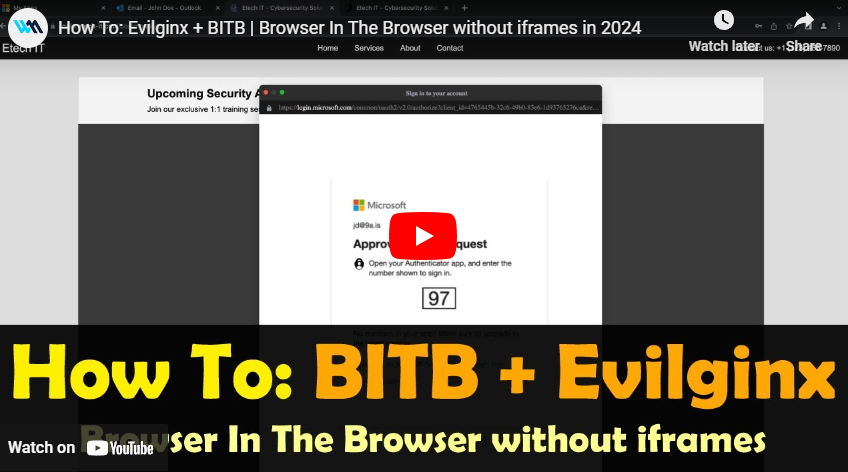
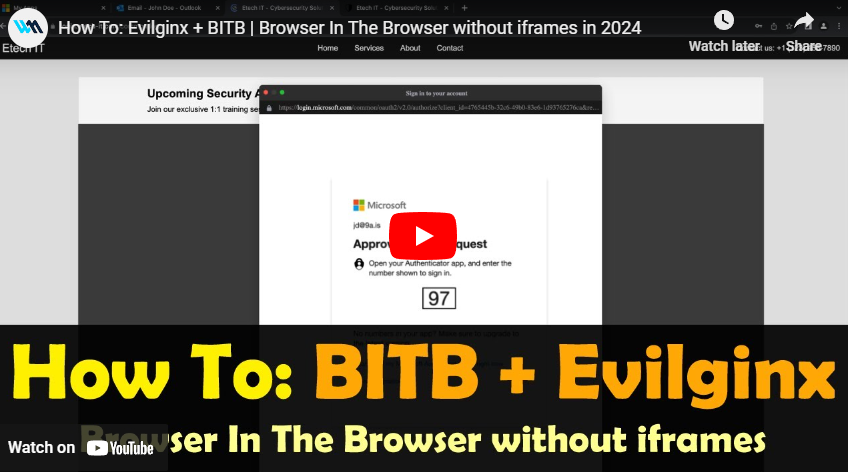
Before diving deep into this, I recommend that you first check my talk at BSides 2023, where I first introduced this concept along with important details on how to craft the "perfect" phishing attack. ▶ Watch Video
This tool is for educational and research purposes only. It demonstrates a non-iframe based Browser In The Browser (BITB) method. The author is not responsible for any misuse. Use this tool only legally and ethically, in controlled environments for cybersecurity defense testing. By using this tool, you agree to do so responsibly and at your own risk.
Over the past year, I've been experimenting with different tricks to craft the "perfect" phishing attack. The typical "red flags" people are trained to look for are things like urgency, threats, authority, poor grammar, etc. The next best thing people nowadays check is the link/URL of the website they are interacting with, and they tend to get very conscious the moment they are asked to enter sensitive credentials like emails and passwords.
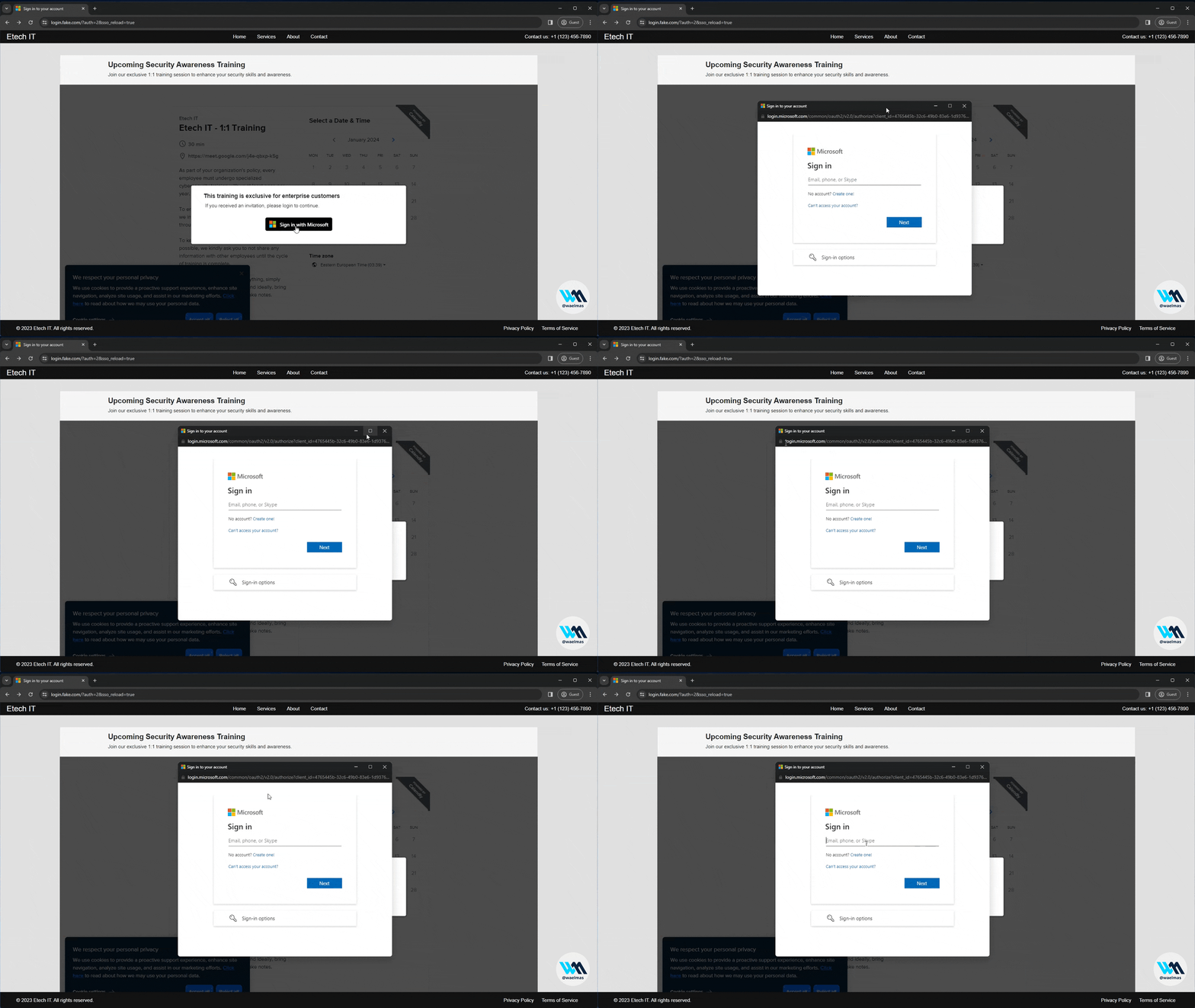
That's where Browser In The Browser (BITB) came into play. Originally introduced by @mrd0x, BITB is a concept of creating the appearance of a believable browser window inside of which the attacker controls the content (by serving the malicious website inside an iframe). However, the fake URL bar of the fake browser window is set to the legitimate site the user would expect. This combined with a tool like Evilginx becomes the perfect recipe for a believable phishing attack.
The problem is that over the past months/years, major websites like Microsoft implemented various little tricks called "framebusters/framekillers" which mainly attempt to break iframes that might be used to serve the proxied website like in the case of Evilginx.
In short, Evilginx + BITB for websites like Microsoft no longer works. At least not with a BITB that relies on iframes.
A Browser In The Browser (BITB) without any iframes! As simple as that.
Meaning that we can now use BITB with Evilginx on websites like Microsoft.
Evilginx here is just a strong example, but the same concept can be used for other use-cases as well.
Framebusters target iframes specifically, so the idea is to create the BITB effect without the use of iframes, and without disrupting the original structure/content of the proxied page. This can be achieved by injecting scripts and HTML besides the original content using search and replace (aka substitutions), then relying completely on HTML/CSS/JS tricks to make the visual effect. We also use an additional trick called "Shadow DOM" in HTML to place the content of the landing page (background) in such a way that it does not interfere with the proxied content, allowing us to flexibly use any landing page with minor additional JS scripts.
Create a local Linux VM. (I personally use Ubuntu 22 on VMWare Player or Parallels Desktop)
Update and Upgrade system packages:
sudo apt update && sudo apt upgrade -y
Create a new evilginx user, and add user to sudo group:
sudo su
adduser evilginx
usermod -aG sudo evilginx
Test that evilginx user is in sudo group:
su - evilginx
sudo ls -la /root
Navigate to users home dir:
cd /home/evilginx
(You can do everything as sudo user as well since we're running everything locally)
Download and build Evilginx: Official Docs
Copy Evilginx files to /home/evilginx
Install Go: Official Docs
wget https://go.dev/dl/go1.21.4.linux-amd64.tar.gz
sudo tar -C /usr/local -xzf go1.21.4.linux-amd64.tar.gz
nano ~/.profile
ADD: export PATH=$PATH:/usr/local/go/bin
source ~/.profile
Check:
go version
Install make:
sudo apt install make
Build Evilginx:
cd /home/evilginx/evilginx2
make
Create a new directory for our evilginx build along with phishlets and redirectors:
mkdir /home/evilginx/evilginx
Copy build, phishlets, and redirectors:
cp /home/evilginx/evilginx2/build/evilginx /home/evilginx/evilginx/evilginx

cp -r /home/evilginx/evilginx2/redirectors /home/evilginx/evilginx/redirectors

cp -r /home/evilginx/evilginx2/phishlets /home/evilginx/evilginx/phishlets
Ubuntu firewall quick fix (thanks to @kgretzky)
sudo setcap CAP_NET_BIND_SERVICE=+eip /home/evilginx/evilginx/evilginx
On Ubuntu, if you get Failed to start nameserver on: :53 error, try modifying this file
sudo nano /etc/systemd/resolved.conf
edit/add the DNSStubListener to no > DNSStubListener=no
then
sudo systemctl restart systemd-resolved
Since we will be using Apache2 in front of Evilginx, we need to make Evilginx listen to a different port than 443.
nano ~/.evilginx/config.json
CHANGE https_port from 443 to 8443
Install Apache2:
sudo apt install apache2 -y
Enable Apache2 mods that will be used: (We are also disabling access_compat module as it sometimes causes issues)
sudo a2enmod proxy
sudo a2enmod proxy_http
sudo a2enmod proxy_balancer
sudo a2enmod lbmethod_byrequests
sudo a2enmod env
sudo a2enmod include
sudo a2enmod setenvif
sudo a2enmod ssl
sudo a2ensite default-ssl
sudo a2enmod cache
sudo a2enmod substitute
sudo a2enmod headers
sudo a2enmod rewrite
sudo a2dismod access_compat
Start and enable Apache:
sudo systemctl start apache2
sudo systemctl enable apache2
Try if Apache and VM networking works by visiting the VM's IP from a browser on the host machine.
Install git if not already available:
sudo apt -y install git
Clone this repo:
git clone https://github.com/waelmas/frameless-bitb
cd frameless-bitb
Make directories for the pages we will be serving:
sudo mkdir /var/www/home
sudo mkdir /var/www/primary
sudo mkdir /var/www/secondary
Copy the directories for each page:
sudo cp -r ./pages/home/ /var/www/

sudo cp -r ./pages/primary/ /var/www/

sudo cp -r ./pages/secondary/ /var/www/
Optional: Remove the default Apache page (not used):
sudo rm -r /var/www/html/
Copy the O365 phishlet to phishlets directory:
sudo cp ./O365.yaml /home/evilginx/evilginx/phishlets/O365.yaml
Optional: To set the Calendly widget to use your account instead of the default I have inside, go to pages/primary/script.js and change the CALENDLY_PAGE_NAME and CALENDLY_EVENT_TYPE.
