 vitoplantamura/bugchecker
SoftICE-like kernel debugger for Windows 11

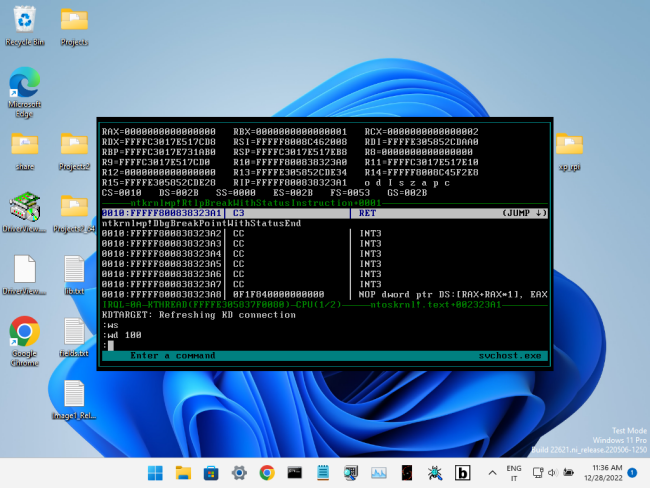
BugChecker is a SoftICE-like kernel and user debugger for Windows 11 (and Windows XP as well: it supports Windows versions from XP to 11, both x86 and x64). BugChecker doesn't require a second machine to be connected to the system being debugged, like in the case of WinDbg and KD. This version of BugChecker (unlike the original version developed 20 years ago) leverages the internal and undocumented KD API in NTOSKRNL. KD API allows WinDbg/KD to do calls like read/write virtual memory, read/write registers, place a breakpoint at an address etc.
By contrast, the original BugChecker, like SoftICE as well, used to "take over" the system, by hooking several kernel APIs (both exported and private), taking control of the APIC, sending IPIs etc. This approach increases complexity exponentially (and lowers system stability), since the implementation must be compatible with all the supported versions and sub-version of Windows (at the function signature level) as well as all the possible supported hardware configurations. Moreover, 20 years later, PatchGuard makes this solution impossible.
By contrast, this version of BugChecker, by intercepting calls to KdSendPacket and KdReceivePacket in the kernel, presents itself to the machine being debugged as a second system running an external kernel debugger, but, in reality, everything happens on the same machine. Typically this is achieved by replacing KDCOM.DLL (which is the module that implements serial cable communication for the KD API in Windows) and by starting the system in kernel debugging mode. This approach (inspired by VirtualKD) lowers complexity and increases stability and compatibility (and portability, for example, to ARM - and modularity, since the lower level debugger capabilities are implemented behind KdXxxPacket and could be replaced with a custom implementation). Moreover, the presence of a kernel debugger at boot time (although "fake") makes Windows disable PatchGuard.
At the moment, BugChecker requires a PS/2 keyboard for input and a linear framebuffer to write its output. Please note that the built-in keyboard of many modern laptops is still PS/2.
Demonstration of BugChecker on Windows 11 22H2, inside VirtualBox 7.0.4. A JavaScript breakpoint condition is written that changes the flow of execution in an user mode thread.
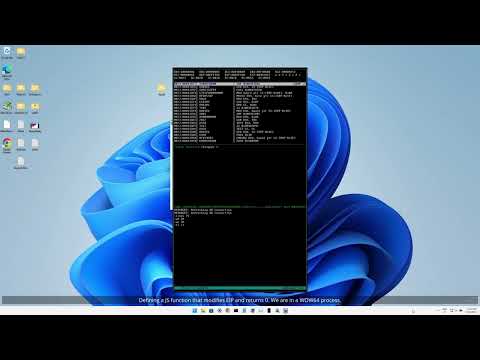
BugChecker running in a very constrained environment: a Raspberry Pi 4 (4GB RAM), via QEMU on Windows XP (512MB RAM). A breakpoint is used to log all the SYSENTER calls from user mode to the kernel. The service index is stored in a JavaScript array.
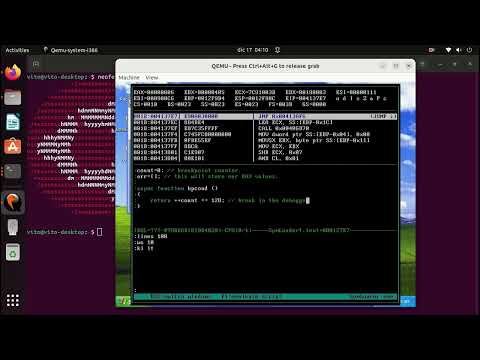
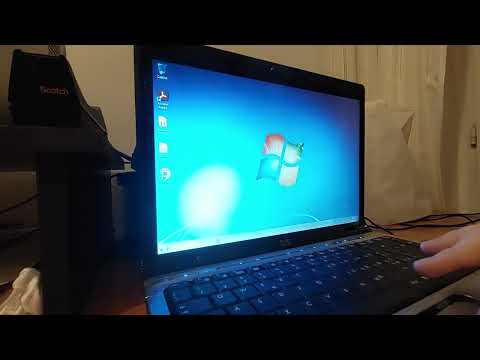
Running BugChecker directly on bare metal, on an HP Pavilion Dv2000, which is an old PC with a PS/2 keyboard. The OS is Windows 7 Home 32bit.
Make sure that Secure Boot is disabled when installing and using BugChecker. Typically you can re-enable it later. If you are using VMware or VirtualBox, Secure Boot can be disabled in the virtual machine settings.
Consider also enabling legacy boot menu, if using Windows 8, 10 or 11, by using the command: bcdedit /set "{current}" bootmenupolicy legacy. It allows a smoother experience during boot, by allowing to select the BugChecker boot option and then to disable Driver Signature Enforcement at the same time.
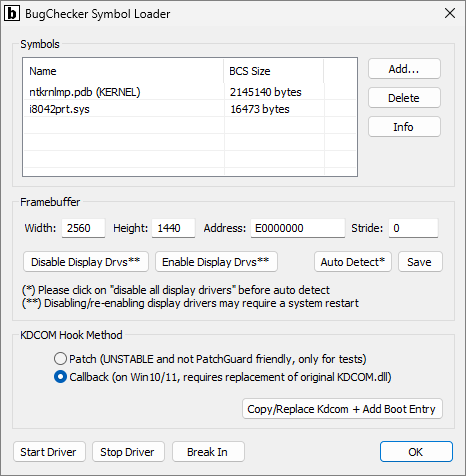
The first step is to start Symbol Loader:
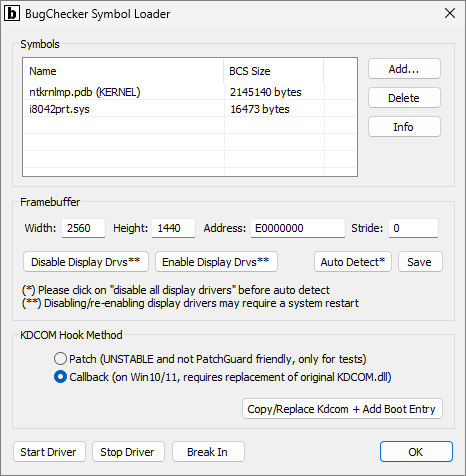
If necessary, disable the display drivers, by clicking on the "Disable Display Drvs" button. The same thing can be accomplished in Windows Device Manager. After the display drivers have been disabled, they remain disabled even after a system reboot. They can be re-enabled at any time later when not using BugChecker.
The point here is that BugChecker needs a linear framebuffer with a format of 32 bits-per-pixel, to draw its interface. When disabling the display drivers, Windows dismisses hardware acceleration for drawing its UI and falls back to VGA compatibility mode. If running on bare metal or VMware, you should disable display drivers. If running on VirtualBox, you should disable display drivers or set the vm_screen setting in BugChecker.dat, as described below. If running on QEMU, you don't need to disable display drivers but make sure to specify the "-vga std" display device.
Note that VGA compatibility mode could limit the maximum screen resolution. VMware is limited to a maximum resolution of 1152x864. QEMU with the "-vga std" display device doesn't suffer from this limitation.
Interestingly if BugChecker is installed on a system with more than one graphics card, it is possible to disable the display drivers of only one graphics card, which will be the card connected to the screen that will show the BugChecker UI. The second card (set as the main display) will retain all its 2D and 3D acceleration features, including OpenGL and DirectX support (NOTE: tested on VMware, with Windows 11 and a DisplayLink display).
