 tomer8007/mtproto-dissector
Wireshark plugin for dissecting the Telegram protocol

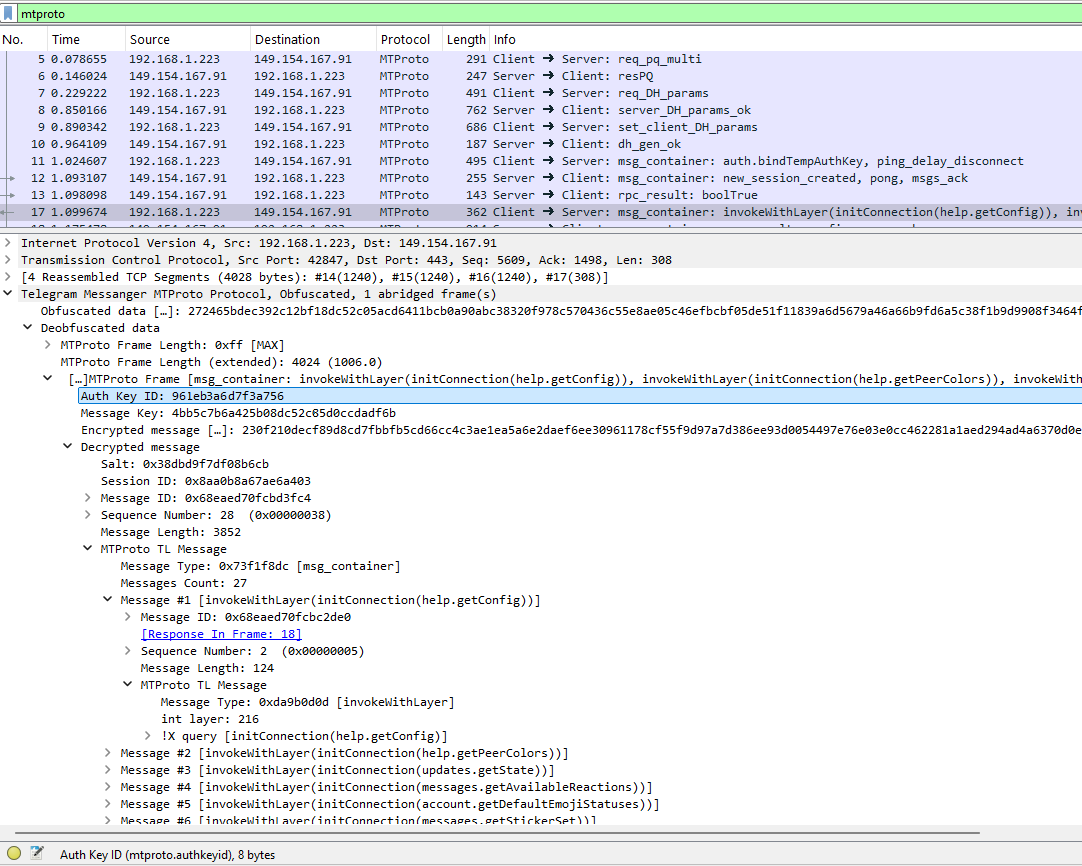
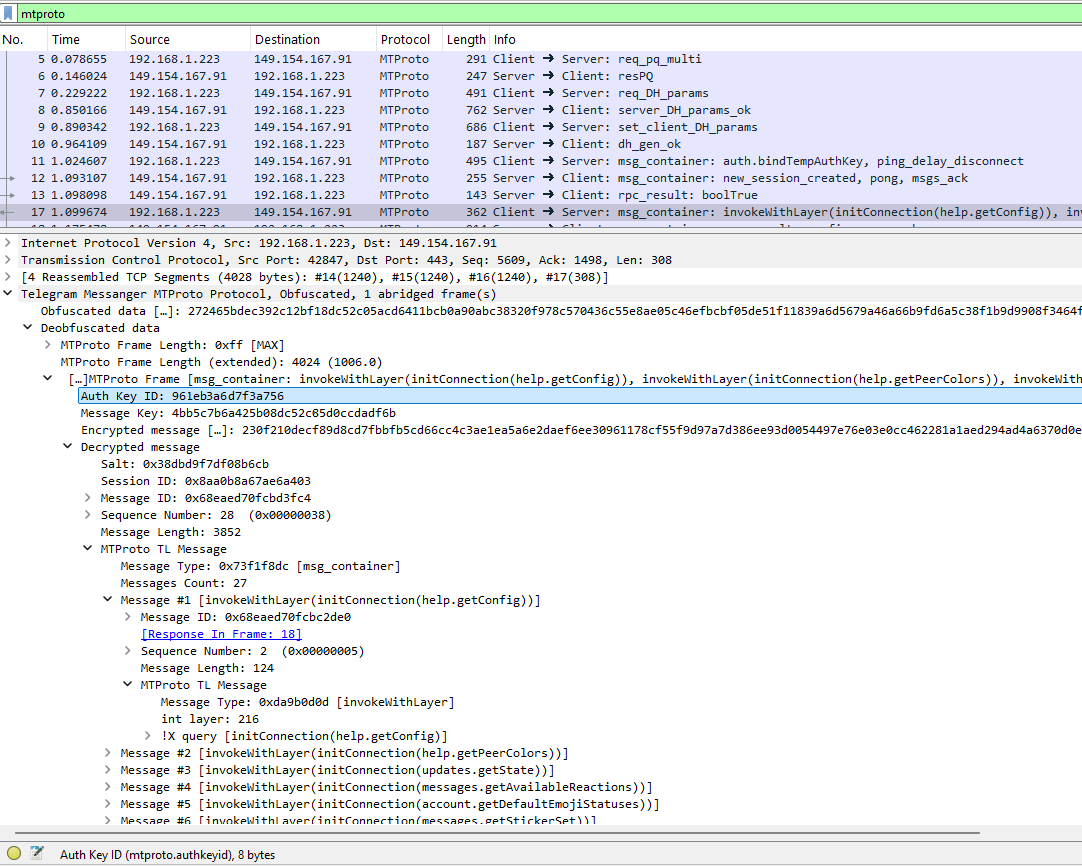
This is a Wireshark dissector that helps you understand the Telegram traffic around you.
It dissects the Telegram packets it sees according to the MTProto 2.0 Protocol.
To install this dissector:
luarocks (for your Wireshark's Lua version)luagcrypt.dllluagcrypt.dll/luagcrypt.so to the Wireshark install directory, for example C:\Program Files\Wiresharkmtproto directory to the Wireshark plugins directory, for example C:\Users\<username>\AppData\Roaming\Wireshark\pluginsAfter installation, you can just open Wireshark with some Telegram traffic.
IMPORTANT: For the de-obfuscation to work, the entire TCP conversation must be known from the beginning (per the MTProto specs), so it's recommended to open the Telegram app after the recording of packets starts.
To decrypt the traffic, you'll need to have the matching Authorization Key (auth_key).
Recent versions of official Telegram clients use Perfect Forward Secrecy for cloud chats, by calling auth.bindTempAuthKey on startup and\or on a regular basis. This means that main sessions will use temporary auth keys (established using DH) rather than permanent ones.
To extract the used auth keys on the fly, two frida scripts are provided that hook the Telegram processes. To use them, make sure you have Frida installed, and run:
hook_windows_auth_key.py for the official Windows app (with some changes could probably work on Linux\Mac too)hook_android_auth_key.py for the official Android appAuth keys and auth key IDs should be printed as soon as some network communication is done.
Once you have your auth keys, to feed the dissector with them go to Edit --> Prefrences --> Protocols --> MTProto and fill the auth keys.
You can also extract the permanent auth key from the tgnet.dat file (Android - see for example here, here, here) or from the key_datas file (Desktop - look here, here). Other clients probably store the auth_key in a different way.
Sometimes, Telegram updates the API schema version in its clients (or perhaps you are looking at traffic from older clients). When this happens, it's possible that this tool's TL schema will be out of sync with some of the RPC calls you see in your packets, raising Incomplete parsing messages in Wireshark. You can see which API level your app is using in its invokeWithLayer request.
To sync the dissector with the correct API schema, you'll need to download the layer's TL file from Telegram, convert it to JSON (see below) and save it under mtproto/schema/api_tl_schema_layer_X.json where X is your layer number.
You can get the updated API TL schema from the desktop app's api.tl, or look in the Telegram website for more versions.
To convert the tl file to JSON, run, e.g (make sure you have npm installed)
C:\path\to\MTproto Dissector>
npx @psqq/tl-to-json api_layer_218.tl mtproto/schema/api_tl_schema_layer_218.json default --indent 4
Then make sure you copy the new json file to mtproto/schema/ in Wireshark's plugins directory.
Finally, in Wireshark go to Edit --> Prefrences --> Protocols --> MTPROTO, and change "API level" to the level that matches your traffic.
