 spookey007/ssh-hardening
SSH HARDENING

Lock down SSH on Debian/Ubuntu in one run: new port, no root login, key-based auth, optional UFW and Fail2Ban.
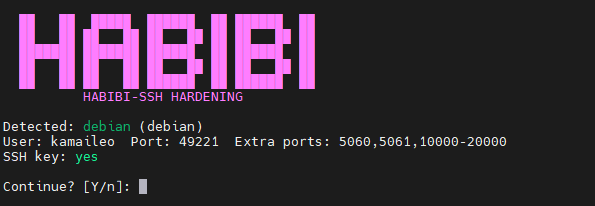
When you run the script, it detects your OS and shows the settings before asking to continue:
On Debian/Ubuntu:
sudo apt-get install -y git
rm -rf ssh-hardening
git clone https://github.com/spookey007/ssh-hardening.git
cd ssh-hardening
Run this anytime you want the latest script.
chmod +x ssh_harden.sh script.sh
If you skip this, you may get "command not found" when running ./ssh_harden.sh. If that happens, use step 5 with sudo bash ssh_harden.sh instead.
SSH_PUB_KEY)Linux / macOS
ssh-keygen -t ed25519 -C "[email protected]"
Press Enter for default path (~/.ssh/id_ed25519). Optional: set a passphrase.
Show your public key (copy this into SSH_PUB_KEY):
cat ~/.ssh/id_ed25519.pub
Windows (PowerShell or Git Bash)
ssh-keygen -t ed25519 -C "[email protected]"
Press Enter for default path. Optional: set a passphrase.
Show your public key:
Get-Content $env:USERPROFILE\.ssh\id_ed25519.pubtype %USERPROFILE%\.ssh\id_ed25519.pubCopy the whole line (starts with ssh-ed25519 ...). That is your SSH_PUB_KEY.
Replace the values with yours, then run:
sudo SSH_USER=kamaileo \
     SSH_PASS='YourStrongPassword123!' \
     SSH_PORT=49221 \
     PORTS="5060,5061,10000-20000" \
     SSH_PUB_KEY="ssh-ed25519 AAAA... you@yourmachine" \
     ./ssh_harden.sh
If you get "command not found", use:
sudo bash ssh_harden.sh
(with the same SSH_USER=... SSH_PASS=... etc. in front).
In a new terminal, connect using the new port (not 22):
ssh -p 49221 kamaileo@YOUR_SERVER_IP
Use the port and user you set. Only close the original session after you confirm login and sudo work.
Use the new port every time. After hardening, SSH is no longer on port 22. Always connect with:
ssh -p <YOUR_PORT> <USER>@<SERVER_IP>
Example: ssh -p 49221 [email protected]
Save the script output when it finishes. At the end the script prints a summary with your user, port, connect command, and whether a password was set. Copy or screenshot that block and keep it somewhere safe. If you lose your SSH key, forget the port, or forget the password, that record will help you recover or reconnect (e.g. via console/VNC using the same user and password).
The script outputs everything you need: user, port, UFW/Fail2Ban status, and the exact ssh -p ... command. No guesswork.
If SSH_USER is already on the server, the script does not create a new user and does not change the password. It only:
sudo group~/.ssh/authorized_keys if you pass SSH_PUB_KEYSo you can run it again to “harden only” without touching the existing password.
| Variable | Example | What it does |
|---|---|---|
SSH_USER | kamaileo | Username (created if missing; if it exists, password is left unchanged). |
SSH_PASS | 'YourPass123!' | Password for new users only. Use a strong one. |
SSH_PORT | 49221 | SSH port. You’ll use: ssh -p 49221 user@server. |
PORTS | "5060,5061,10000-20000" | Extra ports for UFW (optional). |
SSH_PUB_KEY | "ssh-ed25519 AAAA..." | Your public key. Strongly recommended so you don’t get locked out. |
| OS | Supported | Tested | Git install |
|---|---|---|---|
| Debian 12 x64 | ✅ | ✅ | sudo apt-get install -y git |
| Debian 11/10, Ubuntu 24/22/20 | ✅ | ❌ | sudo apt-get install -y git |
| RHEL / Rocky / Alma / CentOS | ❌ | ❌ | sudo yum install -y git |
| Fedora | ❌ | ❌ | sudo dnf install -y git |
| Arch | ❌ | ❌ | sudo pacman -Syu git |
| openSUSE | ❌ | ❌ | sudo zypper install -y git |
On unsupported OSes the script prints Coming soon 😊 and exits without changing anything.
SSH_PUB_KEY so you can still log in after password auth is disabled.ssh -p PORT user@server.If this script saved you time or a headache, you can support the project with a one-off tip.
BTC: 3L1Gc4avD4Bqoi2F9aq6z4heT13fXA8DZ9
Thanks either way.
