
 snaffcon/snaffler
a tool for pentesters to help find delicious candy, by @l0ss and @Sh3r4 ( Twitter: @/mikeloss and @/sh3r4_hax )

Snaffler is a tool for pentesters and red teamers to help find delicious candy needles (creds mostly, but it's flexible) in a bunch of horrible boring haystacks (a massive Windows/AD environment).
It might also be useful for other people doing other stuff, but it is explicitly NOT meant to be an "audit" tool.
Ugh, fine. But we aren't responsible for the results. We wrote all this other stuff for you, but that's okay. We're not mad, just disappointed.
snaffler.exe -s -o snaffler.log
Broadly speaking - it gets a list of Windows computers from Active Directory, then spreads out its snaffly appendages to them all to figure out which ones have file shares, and whether you can read them.
Then YET MORE snaffly appendages enumerate all the files in those shares and use LEARNED ARTIFACTUAL INTELLIGENCE for MACHINES to figure out which ones a grubby little hacker like you might want.
Actually it doesn't do any ML stuff, because doing that right would require training data, and that would require an enormous amount of time that we don't have. Instead, like all good "ML" projects, it just uses a shitload of if statements and regexen.
Like this!
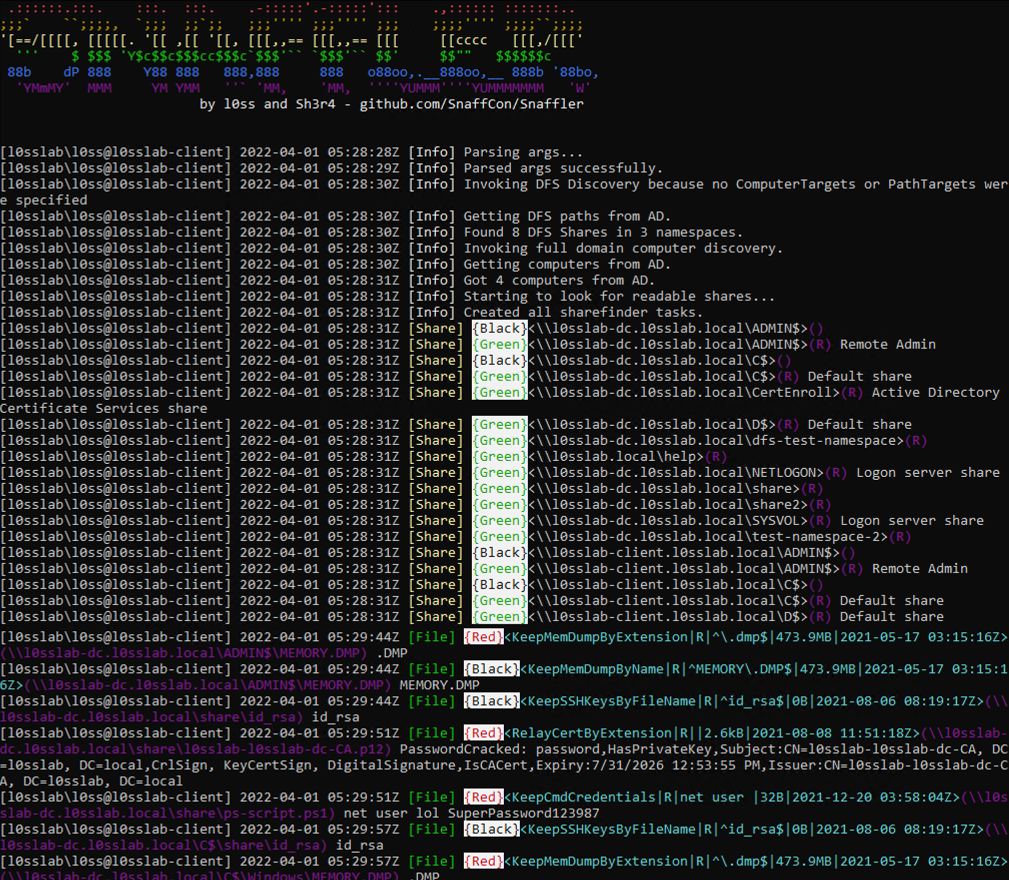
If you "literally just run the EXE on a domain joined machine in the context of a domain user" (as people were instructed to do with Grouper2, immediately before they ran it with all the verbose/debug switches on so it screamed several hundred megabytes of stack traces at them) it will basically do nothing. This is our idea of a prankTM on people who don't read README files, because we're monsters.
HOWEVER... if you add the correct incantations, it will enable the aforementioned L.A.I.M. and the file paths where candy may be found will fall out.
The key incantations are:
-o Enables outputting results to a file. You probably want this if you're not using -s. e.g. -o C:\users\thing\snaffler.log
-s Enables outputting results to stdout as soon as they're found. You probably want this if you're not using -o.
-v Controls verbosity level, options are Trace (most verbose), Degub (less verbose, less gubs), Info (less verbose still, default), and Data (results only). e.g -v debug
-m Enables and assigns an output dir for snaffler to automatically take a copy of (or Snaffle... if you will) any found files that it likes.
-l Maximum size of files (in bytes) to Snaffle. Defaults to 10000000, which is about 10MB.
-i Disables computer and share discovery, requires a path to a directory in which to perform file discovery.
-n Disables computer discovery, takes a comma-separated list of hosts or input file to do share and file discovery on. Note if supplying a file, the input needs to be a path so C:\targets.txt or .\targets.txt as an example.
-y TSV-formats the output.
-b Skips the LAIM rules that will find less-interesting stuff, tune it with a number between 0 and 3.
-f Limits Snaffler to finding file shares via DFS (Distributed File System) - this should be quite a bit sneakier than the default while still covering the biggest file shares in a lot of orgs.
-a Skips file enumeration, just gives you a list of listable shares on the target hosts.
-u Makes Snaffler pull a list of account names from AD, choose the ones that look most-interesting, and then use them in a search rule.
-d Domain to search for computers to search for shares on to search for files in. Easy.
-c Domain controller to query for the list of domain computers.
-r The maximum size file (in bytes) to search inside for interesting strings. Defaults to 500k.
-j How many bytes of context either side of found strings in files to show, e.g. -j 200
-z Path to a config file that defines all of the above, and much much more! See below for more details. Give it -z generate to generate a sample config file called .\default.toml.
-t Type of log you would like to output. Currently supported options are plain and JSON. Defaults to plain.
-x Max number of threads to use. Don't set it below 4 or shit will break.
-p Path to a directory full of .toml formatted rules. Snaffler will load all of these in place of the default ruleset.
Hopefully this annotated example will help:
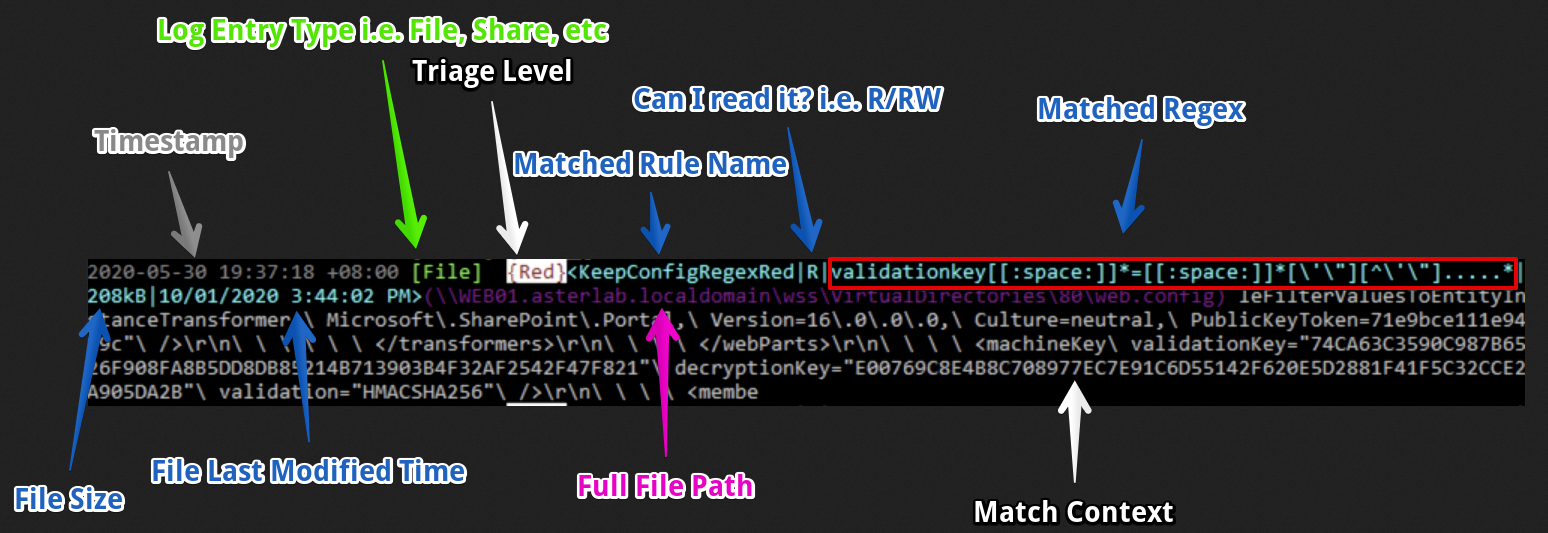
This log entry should be read roughly from left to right as:
... and the rest of the line (in grey) is a little snippet of context from the file where the match was.
In this case we've found ASP.NET validationKey and decryptionKey values, which might let us RCE the web app via some deserialisation hackery. Hooray!
Note: after this screenshot was made, Sh3r4 added a thing to prepend the current user and hostname to each line. I don't wanna redo the screenshot tho.
Each L.A.I.M. magic file finding method does stuff like:
Searching by exact file extension match, meaning that any file with an extension that matches the relevant wordlist will be returned. This is meant for file extensions that are almost always going to contain candy, e.g. .kdbx, .vmdk, .ppk, etc.
Searching by (case insensitive) exact filename match. This is meant for file names that are almost always going to contain candy, e.g. id_rsa, shadow, NTDS.DIT, etc.
Searching by exact file extension match (yet another wordlist) FOLLOWED BY 'grepping' the contents of any matching files for certain key words (yet yet another another wordlist). This is meant for file extensions that sometimes contain candy but where you know there's likely to be a bunch of chaff to sift through. For example, web.config will sometimes contain database credentials, but will also often contain boring IIS config nonsense and no passwords. This will (for example) find anything ending in .config, then will grep through it for strings including but not limited to: connectionString, password, PRIVATE KEY, etc.
Searching by partial filename match (oh god more wordlists). This is mostly meant to find Jeff's Password File 2019 (Copy).docx or Privileged Access Management System Design - As-Built.docx or whatever, by matching any file where the name contains the substrings passw, handover, secret, secure, as-built, etc.
There's also skip-lists to skip all files with certain extensions, or any file with a path containing a given string.
Snaffler uses a system of "classifiers", each of which examine shares or folders or files or file contents, passing some items downstream to the next classifier, and discarding others. Each classifier uses a set of rules to decide what to do with the items it classifies.
