 rubenbe/opensoho
Lightweight OpenWRT device management platform for small networks. Centralized configuration, monitoring, and WiFi management for 2–20 devices with simple deployment and OpenWISP compatibility.

*Warning this is an early release, please read the release notes of ALL the releases until now*

# <img src="https://raw.githubusercontent.com/rubenbe/opensoho/HEAD/logo.svg" alt="OpenSOHO logo" width="40" /> OpenSOHO

Thanks for considering to support the project!

<a href="https://www.buymeacoffee.com/rubenbe" target="_blank"><img src="https://assets.kitploit.com/production/public/readmes/9350/485b634752d0d832ed936de61544bf16e5e54dc05146ccca080333c15097d455.png" alt="Buy Me A Coffee" height="41" width="174"></a>

[Documentation](https://opensoho.github.io/docs)

OpenSOHO is built to manage a small number OpenWRT based network devices. Hence the name SOHO from Small Office Home Office (SOHO) Networks.

* From 2 to 20 devices (there is no hard limit)
* No multi-tenancy
* Compatible with openwisp-config and openwisp-monitoring.
* Simple to deploy

It is inspired by OpenWISP, but aims for networks which are too small to be maintained with OpenWISP.
As OpenWisp mentioned:
> However, OpenWISP may not be the best fit for very small networks (fewer than 20 devices), organizations lacking IT expertise, or enterprises seeking open-source alternatives solely for cost-saving purposes.

<p align="center">
  <a href="https://raw.githubusercontent.com/opensoho/assets/074a4c5c353fcbb295e2da84fb3490869c6c4de0/devices.png" target="_blank">
    <img src="https://assets.kitploit.com/production/public/readmes/9350/5d363839ee3d28ed044c4de8249f4944be3e18ef8cb2e13d7b1c1a6a487fa1ce.png" width="80%" />
  </a>
</p>

The following versions are tested
* OpenWRT 24.10.x DSA (legacy support)
* OpenWRT 25.12.x DSA

# Getting Started with OpenSOHO
## Overview
Setting up OpenSOHO requires a few simple steps, each detailed in the sections below:

* Install OpenSOHO on your server.
* Install the OpenWisp packages on your OpenWRT devices.
* Configure OpenWisp on each of your OpenWRT devices to connect to OpenSOHO.
* Start configuring in OpenSOHO!

## Install OpenSOHO

* Download the latest OpenSOHO release (or use a docker container)

  [Releases](https://github.com/rubenbe/opensoho/releases)

  [Setup with Docker, Podman or Kubernetes](https://opensoho.github.io/docs/containers/)

* Start OpenSOHO

First, choose a shared secret which allows the OpenWRT devices (using openwisp-config) to register with OpenSOHO.

Choose a long random string for optimal security.

It shall match what you configure in LuCI in the next steps.

```sh
OPENSOHO_SHARED_SECRET=randompassphrase ./opensoho serve --http 0.0.0.0:8090
```

Now, OpenSOHO outputs a URL on the command-line which allows you to create the admin account.
Simply open the URL in your browser.

Alternatively, create the admin account via the command-line:
```sh
./opensoho superuser upsert EMAIL PASS
```

## Configuring (adopting) the OpenWRT devices

### Install the OpenWISP packages

```sh
opkg install openwisp-config openwisp-monitoring luci-app-openwisp # OpenWRT 24.10
apk add openwisp-config openwisp-monitoring luci-app-openwisp # OpenWRT 25.12+
```

If you want to use 802.11v client steering, the full wpad-mbedtls is necessary.

On OpenWRT 24.10
```sh
opkg remove wpad-basic-mbedtls && \
opkg install wpad-mbedtls && \
service wpad restart
```

On OpenWRT 25.12+
```sh
apk del wpad-basic-mbedtls && \
apk add wpad-mbedtls && \
service wpad restart
```

After wpad-mbedtls is installed, try `service restart wpad` first, otherwise a reboot may be required to switch to the new wpad binary. If not you may get an error like `daemon.notice netifd: radio1 (28210): WARNING (wireless_add_process): executable path /usr/sbin/wpad does not match process 1842 path (/usr/sbin/wpad (deleted))`.
(Please note that 802.11v client steering is still a work in progress)

### Configure OpenWISP in LuCI:

* Set the `Server URL` and the `Shared secret` only.
  * Do *NOT* append a slash to the `Server URL`. An example URL: `http://192.168.1.1:8090`
  * The shared secret is the value you chose previously (`OPENSOHO_SHARED_SECRET`).
* Optionally lower the `Update Interval` to 30 seconds for faster updates. (OpenSOHO does this for you if you don't)
* OpenSOHO also enables monitoring and lowers the monitoring interval to 15 seconds for quicker updates of the network state.

It is highly recommended to enable monitoring, since OpenSOHO deduces a lot of the current OpenWRT settings and fills them in for easy configuration.

## Configure OpenSOHO

* Wait for the OpenWrt device(s) to self-register using the shared secret.
* Set the device `Enabled` flag to true.
* Set the `numradios` to the correct value. For example for a 2.4 + 5GHz device, this value would be 2.
* Set up a Wifi access point (SSID+KEY). This procedure allows OpenSOHO to detect the radio configuration correctly upon device registration.
* Attach the configured Wifi access point to a device to have it configured.
* Currently each network will be automatically configured on all radios (configured using `numradios`).
* Optionally leds can also be turned on or off (only static config for now).
* Configuring radio frequencies is supported now. OpenSOHO reads the current radio config once and makes it available under the radios config. It can take a minute or two before the radio config appears (the configuration and the monitoring steps need some time to complete).

## Dashboard

OpenSOHO comes with a basic dashboard. It is accessible via the button in the leftmost sidebar, right under the OpenSOHO logo.

<p align="center">
  <a href="https://raw.githubusercontent.com/opensoho/assets/636c6966e5bb33f6ef1fc0a7b0188307ad6865b6/dashboard.png" target="_blank">
    <img src="https://assets.kitploit.com/production/public/readmes/9350/3b8f95d6bd1a3860d0aac83aa3e54eccb115aef24273ab9ba6d5d9a7591304e1.png" width="70%" />
  </a>
</p>

Please note that this is not intended as a replacement for more advanced graphing tools, it is and will be kept basic on purpose.

## Configure

OpenSoho can now be accessed via http://ipaddress:8090/_/

There are several configuration collections:

### Clients

These are the clients connected to Wifi. This table is read-only, except for the alias.
It can be used to give devices a human-readable name. This only works properly when the client does not randomize its mac-address.

#### Connected clients
Contains the list of clients that are currently connected to your wifi. In order to show the IP address of the device, OpenSOHO needs access to your DHCP leases. To do so, you need to have the openwisp monitoring daemon running on the device that contains the DHCP server. Devices with a static IP will not get an IP. This is a known limitation as of 0.12.0.

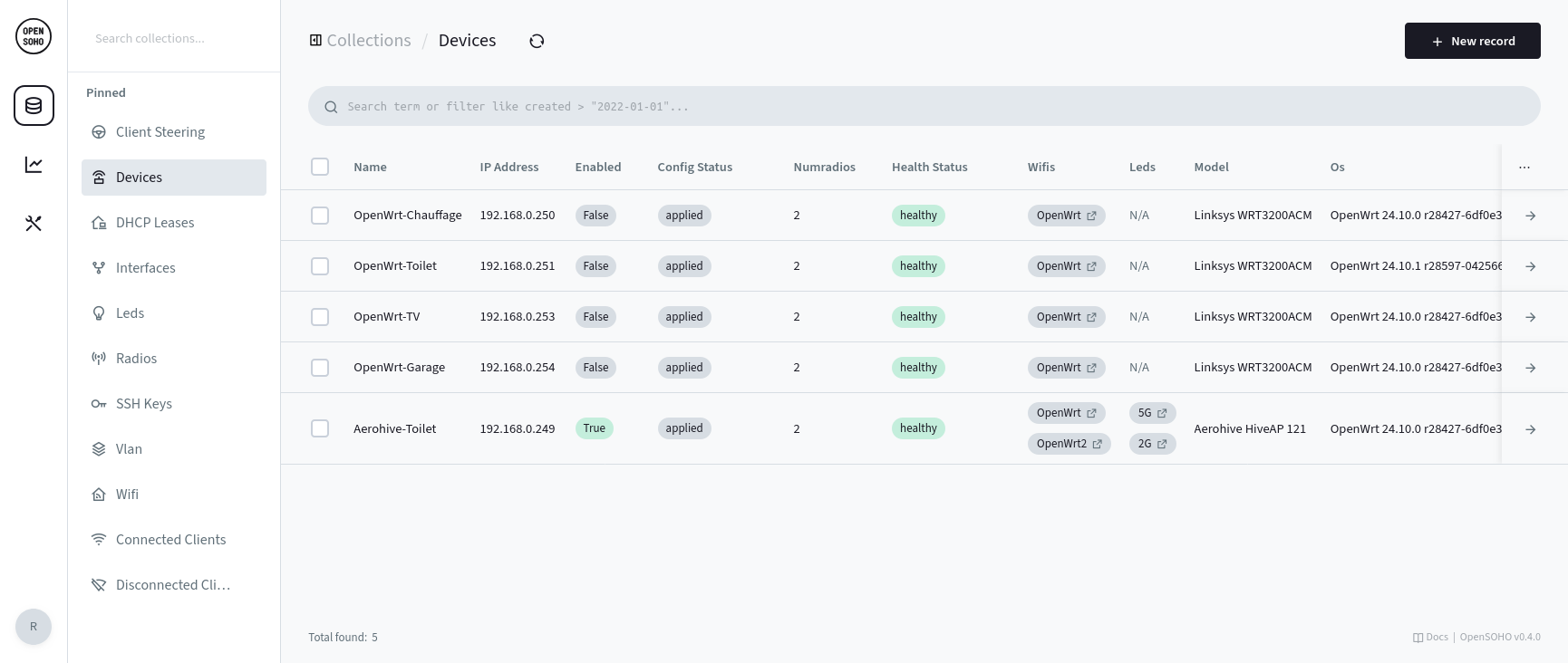
### Devices

These are the connected devices.
* Use enable/disable to disable configuration updates. This is useful to avoid updating all devices at once. Monitoring remains active.
* Health status is read-only field. `healthy` means the device has communicated within the last minute. If it hasn't, the health status becomes `unhealthy` and there might be something wrong with the device or its connection.
* Leds allows to choose led configs
* Numradios allows to set the number of radios on the device. This is not initially sent by OpenWisp, so this needs to be set by the user.
* Wifis allows to select a SSIDs to apply on this device.

### DHCP reservations

Create a reservation with a hostname, MAC address, IPv4 address, and one or
more DHCP servers. OpenSOHO adds the same named `config host` section to
`/etc/config/dhcp` on every selected server. Clear the DHCP server selection to
disable the reservation without deleting it. Names, MAC addresses, and IP
addresses are unique across the reservation list.

### Leds

* Basic LED configuration (more of a POC at this moment)

### Radios

* Allows to set the frequency each radio.
* The band should not be modified, as this allows OpenSOHO to verify the frequency config. This is needed due to limitations within PocketBase.

### Wifi

* Allows to set up various SSIDs. The selection of encryption modes is currently limited. WEP or Open is not supported by design.

## Monitoring

### Device monitoring

Verify whether the device health is `healthy`.

### Connected clients

This view shows all wifi clients that are still connected within the previous 30 seconds.

### Home Assistant integration

OpenSOHO monitoring can be integrated with Home Assistant. [(More info)](https://opensoho.github.io/docs/home-assistant/)
This REST API is designed for use with Home Assistant, but can also be integrated with other tools.

## Troubleshooting

### Reregister a device

When changing the OpenWISP `Server URL` in LuCI doesn't seem to register with the new controller properly.
To fix this:
```sh
uci delete openwisp.http.uuid
uci delete openwisp.http.key
/etc/init.d/openwisp-config restart
```

### First SSID does not get enabled

There seems to be an issue in OpenWRT where the first configured SSID on the a Wifi device is not auto-enabled.
Work-around: click on the enable button in LuCI.

# Developers

* Install the dependencies

```sh
go mod tidy
```

* Start OpenSOHO

The shared secret is used by openwisp-config to register. Choose a long random string for optimal security.

Running the unit tests:
```sh
go test -cover -v -coverprofile=coverage.out
go tool cover -html=coverage.out
```

## Scope

### Features

Some OpenWISP features are (currently) considered out of scope for OpenSOHO
* Firmware updates: OpenWRT doesn't need frequent updating; use the Attended sysupgrade feature on each device manually.
* Multi-tenancy
* Templates: OpenWISP has a powerful and versatile template mechanism, this is replaced by a more opinionated subset of features to provide an easier configuration experience.

### Development
The goal is to leverage the pocketbase to its fullest. Small modifications can be made since the pocketbase back-end currently lacks a plug-in system. But it is not the goal to create a fork of pocketbase, so merging upstream changes remain straightforward.


### Releasing
```sh
GITHUB_TOKEN=aaaaaaaaaaaaaaaaaaaaaaaaaaaaaaaaaaaaaaaa goreleaser release
```